> ## Documentation Index
> Fetch the complete documentation index at: https://documentation.2cloudnine.com/llms.txt
> Use this file to discover all available pages before exploring further.
# Reminder Notifications (Utilities) - Administrator Guide
## Purpose
The purpose of this Administrator Guide is to provide information about the Utilities package
Reminder Notifications. The content in this guide is optional, and may be utilised during
implementation, or after a Project has gone live. The intended audience for this document is
System Administrators.
## Overview
Reminder Notifications automate the sending of Reminder Approval Emails for Timesheets, Expense
Claims, and Leave Events, to both Employees and Approvers.
This feature uses flexible and customisable logic that allows System Administrators to define when and to
whom Reminders are sent. It supports Custom Email Templates, consolidated Approval Notifications (so
Approvers receive a single summary of pending items), and the ability to approve directly from the email
* streamlining the Approval process.
## Assignment Reminder Settings
To determine if Reminder Notifications should be sent, to whom, and how, there are fields on the
Assignment record to define this.
**Reminder Notification Method**
The Reminder Notification Method picklist determines the type of Approver Reminder that will be sent
for Timesheets, Expense Claims, and Leave Events related to the Assignment.
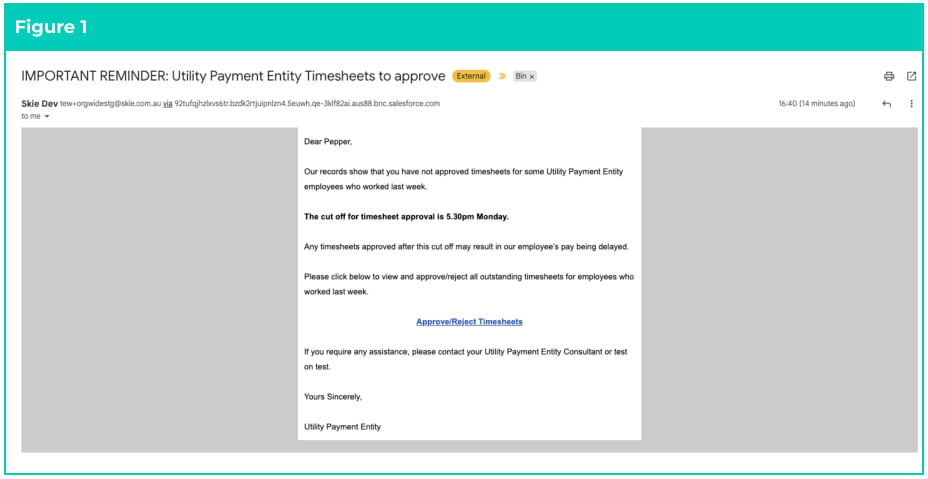
If the Single option is selected, a Reminder will be sent for each record related to that Assignment. For
Timesheets, as this is a single Timesheet, the Email Template is able to provide more granular
Timesheet-related data, such as a daily breakdown. These records will not be considered for other
Assignments that have the Consolidated sending option. Refer to Figure 1 for an example of a single
Email Template.
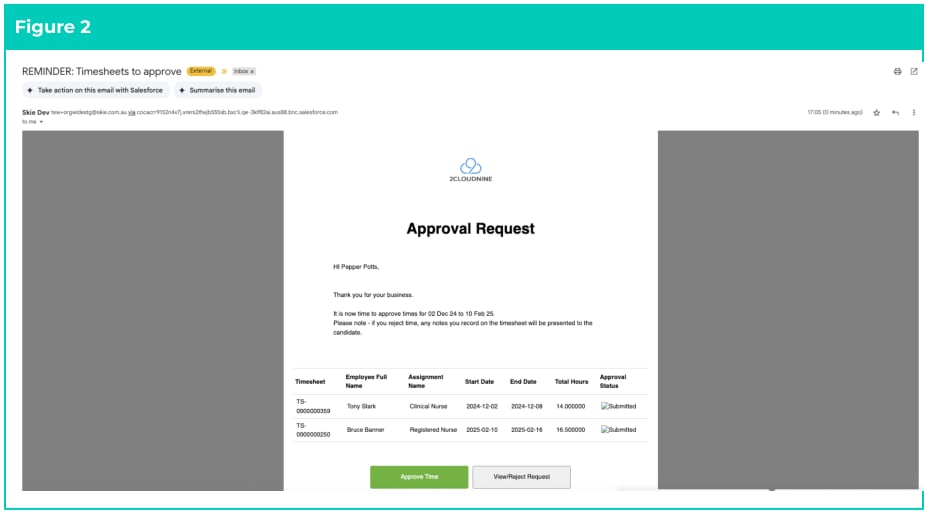
 If the Consolidated option is selected, all records that meet the criteria will be included in a single
reminder email to the Approver with a list of the related records.
As the Consolidated Reminder can contain many Timesheets, the email is a summarised table of all
submitted Timesheets.
Please refer to Figure 2 for an example of a Consolidated Email Template showing multiple Timesheets in
a single email.
If the Consolidated option is selected, all records that meet the criteria will be included in a single
reminder email to the Approver with a list of the related records.
As the Consolidated Reminder can contain many Timesheets, the email is a summarised table of all
submitted Timesheets.
Please refer to Figure 2 for an example of a Consolidated Email Template showing multiple Timesheets in
a single email.
 **Send Employee Timesheet Reminders**
This Yes/No picklist controls whether Reminder emails are sent to the Employee for Timesheets with a
Status of ‘New’ from prior weeks.
If set to Yes, the Flow automatically sends Reminders for Submitted Timesheets. If set to No or left blank,
no Reminders will be sent for this Assignment.
**Send Approver Reminders**
To determine which Approver will receive Reminder Notifications, the following fields have been included
on the Assignment:
* Send Timesheet Reminders To
* Send Expense Claim Reminders To
* Send Leave Reminders To
Each of these picklist fields contain the values and related action:
* Notify Primary Approver - Reminder will be sent to the Timesheet > Assignment > Timesheet
Approver only.
* Notify Alternative Approver - Reminder will be sent to the Timesheet > Assignment > Alternative
Timesheet Approver only.
* Notify Primary and Alternative Approver - Reminder will be sent to the Timesheet > Assignment >
Timesheet Approver and the Timesheet > Assignment > Alternative Timesheet Approver.
If these fields are left blank, no Reminder Notifications will be sent for any Timesheets, Expense Claims, or
Leave records related to the Assignment.
**Example**
A Contact is a ‘Timesheet Approver’ on 10 Assignments.
On 9 of the Assignments, the ‘Reminder Notification Method’ is set to ‘Consolidated’, whilst on one of
the Assignments, they request reminders to be sent individually to pay more attention to this specific
Employee.
On Monday, the Scheduled Job runs and sends 2 reminders to the Approver.
The first contains all Submitted Timesheets from the 9 Assignments with a summary of those
Timesheet hours, including the option to approve them in bulk.
A second email is sent containing only the Timesheet from the Assignment, with Reminder
Notification Method set to Consolidated, and provides a detailed breakdown of hours worked,
providing the approver with clear segmentation between the types.
## Flagging Records for Reminders
As outlined in the Configuration Guide to 2cloudnine Utilities, the flagging of Timesheets, Expense Claims
and Leave records utilises a custom checkbox formula field for each respective record. This provides
customers with a greater level of flexibility in determining when reminders are sent to both Employees
and Approvers.
Whilst this document provides a default baseline recommendation, this formula can be updated to meet
varying needs.
## Sending Reminders
Once the Assignment has been configured to send Reminders, and the records meet the criteria to send
Reminders (see above), the Scheduled Job will automatically send emails to Employees and Approvers on
the defined intervals of the batch job.
The Contact's email address for notifications will be determined based on the following picklist fields:
* Timesheet Notification Email
* Expense Claim Notification Email
* Leave Notification Email
If the value is set to Primary, the email will be sent to the Email field.
If set to Alternative, it will be sent to the Alternative Email field.
If the Scheduled Job is set to run hourly and the default logic has been configured, both Employees and
Approvers will receive an automated reminder at 12am local time (see above Default Time Zone section)
to submit Timesheets for last week.
Once the reminder email has been sent, the following reminder fields are updated on the respective
objects with the date and time the email reminder was sent.
| Object | Field |
| ----------------- | --------------------------------------- |
| Timesheet | Last Employee Reminder Sent |
| Timesheet | Last Primary Approver Reminder Sent |
| Timesheet | Last Alternative Approver Reminder Sent |
| Expense Claim | Last Employee Reminder Sent |
| Expense Claim | Last Primary Approver Reminder Sent |
| Expense Claim | Last Alternative Approver Reminder Sent |
| Payee Leave Event | Last Employee Reminder Sent |
| Payee Leave Event | Last Primary Approver Reminder Sent |
| Payee Leave Event | Last Alternative Approver Reminder Sent |
Once these fields are updated, the checkbox on the respective record will be unchecked, meaning
another reminder will not be sent the same day.
## Approving Records
Once reminder notifications have been sent, record approval depends on your Site configuration. For
Guest Approvers, once the email approval is configured, they can approve directly by selecting the
'Approve' button within the email, or select 'View/Reject Request' to be redirected to the Guest Approver
Site. For Authenticated Approvers, you must configure the Custom Setting as detailed in the Utilities
Configuration Guide with the Authenticated Approver Site. Enabling this will update the email buttons to
direct Approvers to the Authenticated User Site, where they can log in and approve Submitted records.
## Exclude from Reminders
Whilst reminder notifications are a great way to ensure records are submitted and approved prior to
payroll processing deadlines, there are scenarios where reminders may need to be disabled for specific
Contacts, Timesheets, Expense Claims, or Leave.
**Exclude Contacts (Employee and Approvers)**
Some Contacts may need to be removed from receiving Reminders, for example, if they are going on
leave. You will find the following fields located on the Contact record:
* Timesheet Reminder Notification Opt Out
* Exp Claim Reminder Notification Opt Out
* Leave Reminder Notification Opt Out
If checked, reminder Notifications will not be sent to the Contact for the related records.
**Exclude Records (Timesheets, Expense Claims, Leave Events)**
Like Contacts, there may be scenarios where a specific record needs to be excluded from being included
in Reminder emails. A common example of this is Timesheets, where an Employee was on leave for the
entire Timesheet Period.
To ensure Reminders are not sent, the following checkbox fields are located on the Timesheet, Expense
Claim, and Leave records:
* Exclude From Employee Reminder List
* Exclude From Primary Approver Remin List
* Exclude From Alternative Appr Remin List
If checked, Reminders will not be sent to the respective Contact for that specific record.
## Create Custom Settings
The Reminder Notification process utilises a Custom Setting for determining the configuration of
Notification Reminders. To populate the Custom Settings:
Go to **Setup** - **Custom Settings** - **2c9 - Utility Notifications** - **Manage**
1. Select the **New** button.
2. Click **Manage** in the Header and update as per the list below.
3. Click **Save** .
* **Sender from Email**
* The Org wide email address you want the emails to be sent from.
* Go to **Setup** - **Organization-Wide Addresses** and copy the ‘Email’ from the email and
paste into this field.
* **TS Employee Reminder Notification Indic.**
* Enter the API name of the Employee TS Reminder formula field.
* If using the default Employee TS reminder, enter **tc9\_util\_\_Employee\_TS\_Reminder\_\_c** . If
using custom logic, enter the field created in the previous section Create Custom Fields.
* **TS Employee Reminder Notification Body**
* Enter the API name of the Timesheet email template that will be sent to the employee.
* If using the default reminder Template enter
**Standard\_Email\_Timesheet\_Employee\_Reminder**
* **TS Approver Notification Indicator**
* Enter the API name of the Approver TS Reminder formula field.
* If using the default Approver TS reminder enter **tc9\_util\_\_Approver\_TS\_Reminder\_\_c** . If
using custom logic, enter the field created in the previous section Create Custom Fields.
* **TS Approver Notification Cons Body**
* Enter the API name of the consolidated Timesheet email template that will be sent to the
approver.
* If using the default reminder Template enter
**Consolidated\_Timesheet\_Approver\_Reminder.**
* **TS Approver Notification Sgl Body**
* Enter the API name of the single Timesheet email template that will be sent to approvers.
* If using the default reminder Template enter **Single\_Timesheet\_Approver\_Reminder** .
* **Expense Approver Notification Indicator**
* Enter the API name of the Approver Expense Claim Reminder formula field.
* If using the default Approver Expense Claim reminder enter
**tc9\_util\_\_Approver\_Expense\_Reminder\_\_c** . If using custom logic, enter the field created
in the previous section Create Custom Fields.
* **Expense Approver Notification Cons Body**
* Enter the API name of the consolidated Expense Claim email Template that will be sent
to the approver.
* If using the default reminder Template enter
**Consolidated\_Expense\_Approver\_Reminder** .
* **Expense Approver Notification Sgl Body**
* Enter the API name of the single Expense Claim email Template that will be sent to the
approvers.
* If using the default reminder Template enter **Single\_Expense\_Approver\_Reminder**
* **Leave Approver Notification Indicator**
* Enter the API name of the Approver Leave Reminder formula field.
* If using the default Approver Leave reminder enter
**tc9\_util\_\_Approver\_Leave\_Reminder\_\_c** . If using custom logic, enter the field created in
the previous section Create Custom Fields.
* **Leave Approver Notification Cons Body**
* Enter the API name of the consolidated Leave email template that will be sent to the
Approver.
* If using the default reminder template enter
Consolidated\_Leave\_Approver\_Reminder.
* **Leave Approver Notification Sgl Body**
* Enter the API name of the single Leave email Template that will be sent to the Approvers.
* If using the default reminder Template enter **Single\_Leave\_Approver\_Reminder** .
* **Authenticated Approver**
* Selecting this option will require all Approvers to log in with their credentials. Links to the
Guest Use Site will be removed from the default email templates.
* **Authenticated Approver Site URL**
* If the Authenticated **Approver** is TRUE, enter the full URL of the secure site where
Approvers log in. This link will be used in all email notifications.
**Important Notes**
*(Single Method)*
*If using the Single method, the default Reminder Email Templates are not Record-Specific by default.*
*We recommend updating these Templates to include Record-Specific details, or alternatively, create*
*your own Custom Email Templates by providing their API names.*
## Schedule Batch Job
**IMPORTANT** : Before scheduling the batch, please review all Assignments and ensure the following:
* Inactive Assignments are not configured to send Reminder Emails.
* For any active Assignments that will send Reminder Emails, make sure any older Timesheets with
a Status of ‘New’ that you do not want to include, are updated to ‘Exclude from Reminder Lists’.
For guidance on excluding records, see the section below: ‘Exclude from Reminders’.
Failure to complete these checks before scheduling may result in a large volume of Reminder Emails
being sent for outdated records.
In order to automate the sending of Email Reminder Notifications, a Scheduled Job must be configured.
It is important to note that the same Scheduled Job sends both the Employees and Approver Email
Reminders across all records. When Scheduling the Batch Job, there are two options:
**Hourly (Recommended)**
The following configuration will schedule the Notification Reminder process to automatically run every
hour. This is the recommended approach for the following key reasons:
* Only a single Batch Job is required
* Reminder Email Notifications will be sent daily.
* Timing is not specific like the fixed Day & Time method (see below). This is important for Orgs
that have different payroll departments processing Payrolls on different days.
The downside of this approach is that Reminder Email Notifications will go out at midnight each day
which may be missed by Employees and Approvers.
**Scheduled Batch Job**
To run the script **hourly** :
1. Copy the block of script to be run.
2. Select **Setup > Developer Console** .
3. **Debug > Open Execute Anonymous Window** .
4. Delete or comment out any code that is in the window.
5. Paste in the copied script from below.
6. Click the **Execute** button.
```
System.schedule('SkieNotificationReminderSchedule 00', '0 00 * * * ?', new
tc9_util.SkieNotificationReminderSchedule());
```
**Run the Batch Job Instantly**
Go to **Setup** - **Scheduled Jobs**
Alternatively, the Batch Job can also be run instantly by executing the following script in Dev Console:
```
new tc9_util.SkieNotificationReminderSchedule().execute(null);
```
**Fixed Day & Time**
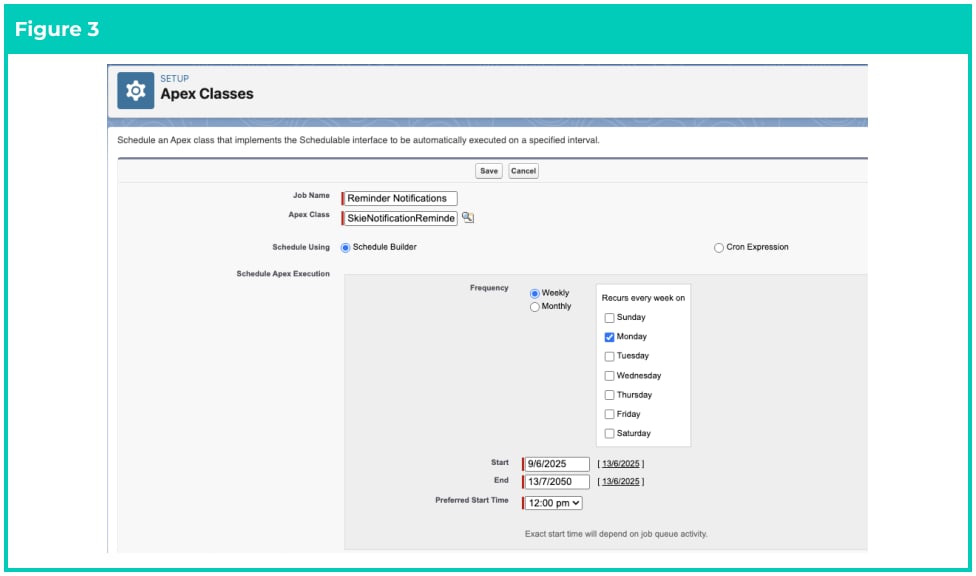
Alternatively, you can configure the batch job to run on a specific day and time using the Schedule Apex
UI. For example, you may only want to send Email Reminders on specific Payroll days at a certain time.
To manually schedule an Apex Job:
Go to **Setup** - **Scheduled Jobs** - **Schedule Apex button**
1. Enter required details and select **SkieNotificationReminderSchedule** Apex Class (see Figure 3).
2. Select **Save** .
**Send Employee Timesheet Reminders**
This Yes/No picklist controls whether Reminder emails are sent to the Employee for Timesheets with a
Status of ‘New’ from prior weeks.
If set to Yes, the Flow automatically sends Reminders for Submitted Timesheets. If set to No or left blank,
no Reminders will be sent for this Assignment.
**Send Approver Reminders**
To determine which Approver will receive Reminder Notifications, the following fields have been included
on the Assignment:
* Send Timesheet Reminders To
* Send Expense Claim Reminders To
* Send Leave Reminders To
Each of these picklist fields contain the values and related action:
* Notify Primary Approver - Reminder will be sent to the Timesheet > Assignment > Timesheet
Approver only.
* Notify Alternative Approver - Reminder will be sent to the Timesheet > Assignment > Alternative
Timesheet Approver only.
* Notify Primary and Alternative Approver - Reminder will be sent to the Timesheet > Assignment >
Timesheet Approver and the Timesheet > Assignment > Alternative Timesheet Approver.
If these fields are left blank, no Reminder Notifications will be sent for any Timesheets, Expense Claims, or
Leave records related to the Assignment.
**Example**
A Contact is a ‘Timesheet Approver’ on 10 Assignments.
On 9 of the Assignments, the ‘Reminder Notification Method’ is set to ‘Consolidated’, whilst on one of
the Assignments, they request reminders to be sent individually to pay more attention to this specific
Employee.
On Monday, the Scheduled Job runs and sends 2 reminders to the Approver.
The first contains all Submitted Timesheets from the 9 Assignments with a summary of those
Timesheet hours, including the option to approve them in bulk.
A second email is sent containing only the Timesheet from the Assignment, with Reminder
Notification Method set to Consolidated, and provides a detailed breakdown of hours worked,
providing the approver with clear segmentation between the types.
## Flagging Records for Reminders
As outlined in the Configuration Guide to 2cloudnine Utilities, the flagging of Timesheets, Expense Claims
and Leave records utilises a custom checkbox formula field for each respective record. This provides
customers with a greater level of flexibility in determining when reminders are sent to both Employees
and Approvers.
Whilst this document provides a default baseline recommendation, this formula can be updated to meet
varying needs.
## Sending Reminders
Once the Assignment has been configured to send Reminders, and the records meet the criteria to send
Reminders (see above), the Scheduled Job will automatically send emails to Employees and Approvers on
the defined intervals of the batch job.
The Contact's email address for notifications will be determined based on the following picklist fields:
* Timesheet Notification Email
* Expense Claim Notification Email
* Leave Notification Email
If the value is set to Primary, the email will be sent to the Email field.
If set to Alternative, it will be sent to the Alternative Email field.
If the Scheduled Job is set to run hourly and the default logic has been configured, both Employees and
Approvers will receive an automated reminder at 12am local time (see above Default Time Zone section)
to submit Timesheets for last week.
Once the reminder email has been sent, the following reminder fields are updated on the respective
objects with the date and time the email reminder was sent.
| Object | Field |
| ----------------- | --------------------------------------- |
| Timesheet | Last Employee Reminder Sent |
| Timesheet | Last Primary Approver Reminder Sent |
| Timesheet | Last Alternative Approver Reminder Sent |
| Expense Claim | Last Employee Reminder Sent |
| Expense Claim | Last Primary Approver Reminder Sent |
| Expense Claim | Last Alternative Approver Reminder Sent |
| Payee Leave Event | Last Employee Reminder Sent |
| Payee Leave Event | Last Primary Approver Reminder Sent |
| Payee Leave Event | Last Alternative Approver Reminder Sent |
Once these fields are updated, the checkbox on the respective record will be unchecked, meaning
another reminder will not be sent the same day.
## Approving Records
Once reminder notifications have been sent, record approval depends on your Site configuration. For
Guest Approvers, once the email approval is configured, they can approve directly by selecting the
'Approve' button within the email, or select 'View/Reject Request' to be redirected to the Guest Approver
Site. For Authenticated Approvers, you must configure the Custom Setting as detailed in the Utilities
Configuration Guide with the Authenticated Approver Site. Enabling this will update the email buttons to
direct Approvers to the Authenticated User Site, where they can log in and approve Submitted records.
## Exclude from Reminders
Whilst reminder notifications are a great way to ensure records are submitted and approved prior to
payroll processing deadlines, there are scenarios where reminders may need to be disabled for specific
Contacts, Timesheets, Expense Claims, or Leave.
**Exclude Contacts (Employee and Approvers)**
Some Contacts may need to be removed from receiving Reminders, for example, if they are going on
leave. You will find the following fields located on the Contact record:
* Timesheet Reminder Notification Opt Out
* Exp Claim Reminder Notification Opt Out
* Leave Reminder Notification Opt Out
If checked, reminder Notifications will not be sent to the Contact for the related records.
**Exclude Records (Timesheets, Expense Claims, Leave Events)**
Like Contacts, there may be scenarios where a specific record needs to be excluded from being included
in Reminder emails. A common example of this is Timesheets, where an Employee was on leave for the
entire Timesheet Period.
To ensure Reminders are not sent, the following checkbox fields are located on the Timesheet, Expense
Claim, and Leave records:
* Exclude From Employee Reminder List
* Exclude From Primary Approver Remin List
* Exclude From Alternative Appr Remin List
If checked, Reminders will not be sent to the respective Contact for that specific record.
## Create Custom Settings
The Reminder Notification process utilises a Custom Setting for determining the configuration of
Notification Reminders. To populate the Custom Settings:
Go to **Setup** - **Custom Settings** - **2c9 - Utility Notifications** - **Manage**
1. Select the **New** button.
2. Click **Manage** in the Header and update as per the list below.
3. Click **Save** .
* **Sender from Email**
* The Org wide email address you want the emails to be sent from.
* Go to **Setup** - **Organization-Wide Addresses** and copy the ‘Email’ from the email and
paste into this field.
* **TS Employee Reminder Notification Indic.**
* Enter the API name of the Employee TS Reminder formula field.
* If using the default Employee TS reminder, enter **tc9\_util\_\_Employee\_TS\_Reminder\_\_c** . If
using custom logic, enter the field created in the previous section Create Custom Fields.
* **TS Employee Reminder Notification Body**
* Enter the API name of the Timesheet email template that will be sent to the employee.
* If using the default reminder Template enter
**Standard\_Email\_Timesheet\_Employee\_Reminder**
* **TS Approver Notification Indicator**
* Enter the API name of the Approver TS Reminder formula field.
* If using the default Approver TS reminder enter **tc9\_util\_\_Approver\_TS\_Reminder\_\_c** . If
using custom logic, enter the field created in the previous section Create Custom Fields.
* **TS Approver Notification Cons Body**
* Enter the API name of the consolidated Timesheet email template that will be sent to the
approver.
* If using the default reminder Template enter
**Consolidated\_Timesheet\_Approver\_Reminder.**
* **TS Approver Notification Sgl Body**
* Enter the API name of the single Timesheet email template that will be sent to approvers.
* If using the default reminder Template enter **Single\_Timesheet\_Approver\_Reminder** .
* **Expense Approver Notification Indicator**
* Enter the API name of the Approver Expense Claim Reminder formula field.
* If using the default Approver Expense Claim reminder enter
**tc9\_util\_\_Approver\_Expense\_Reminder\_\_c** . If using custom logic, enter the field created
in the previous section Create Custom Fields.
* **Expense Approver Notification Cons Body**
* Enter the API name of the consolidated Expense Claim email Template that will be sent
to the approver.
* If using the default reminder Template enter
**Consolidated\_Expense\_Approver\_Reminder** .
* **Expense Approver Notification Sgl Body**
* Enter the API name of the single Expense Claim email Template that will be sent to the
approvers.
* If using the default reminder Template enter **Single\_Expense\_Approver\_Reminder**
* **Leave Approver Notification Indicator**
* Enter the API name of the Approver Leave Reminder formula field.
* If using the default Approver Leave reminder enter
**tc9\_util\_\_Approver\_Leave\_Reminder\_\_c** . If using custom logic, enter the field created in
the previous section Create Custom Fields.
* **Leave Approver Notification Cons Body**
* Enter the API name of the consolidated Leave email template that will be sent to the
Approver.
* If using the default reminder template enter
Consolidated\_Leave\_Approver\_Reminder.
* **Leave Approver Notification Sgl Body**
* Enter the API name of the single Leave email Template that will be sent to the Approvers.
* If using the default reminder Template enter **Single\_Leave\_Approver\_Reminder** .
* **Authenticated Approver**
* Selecting this option will require all Approvers to log in with their credentials. Links to the
Guest Use Site will be removed from the default email templates.
* **Authenticated Approver Site URL**
* If the Authenticated **Approver** is TRUE, enter the full URL of the secure site where
Approvers log in. This link will be used in all email notifications.
**Important Notes**
*(Single Method)*
*If using the Single method, the default Reminder Email Templates are not Record-Specific by default.*
*We recommend updating these Templates to include Record-Specific details, or alternatively, create*
*your own Custom Email Templates by providing their API names.*
## Schedule Batch Job
**IMPORTANT** : Before scheduling the batch, please review all Assignments and ensure the following:
* Inactive Assignments are not configured to send Reminder Emails.
* For any active Assignments that will send Reminder Emails, make sure any older Timesheets with
a Status of ‘New’ that you do not want to include, are updated to ‘Exclude from Reminder Lists’.
For guidance on excluding records, see the section below: ‘Exclude from Reminders’.
Failure to complete these checks before scheduling may result in a large volume of Reminder Emails
being sent for outdated records.
In order to automate the sending of Email Reminder Notifications, a Scheduled Job must be configured.
It is important to note that the same Scheduled Job sends both the Employees and Approver Email
Reminders across all records. When Scheduling the Batch Job, there are two options:
**Hourly (Recommended)**
The following configuration will schedule the Notification Reminder process to automatically run every
hour. This is the recommended approach for the following key reasons:
* Only a single Batch Job is required
* Reminder Email Notifications will be sent daily.
* Timing is not specific like the fixed Day & Time method (see below). This is important for Orgs
that have different payroll departments processing Payrolls on different days.
The downside of this approach is that Reminder Email Notifications will go out at midnight each day
which may be missed by Employees and Approvers.
**Scheduled Batch Job**
To run the script **hourly** :
1. Copy the block of script to be run.
2. Select **Setup > Developer Console** .
3. **Debug > Open Execute Anonymous Window** .
4. Delete or comment out any code that is in the window.
5. Paste in the copied script from below.
6. Click the **Execute** button.
```
System.schedule('SkieNotificationReminderSchedule 00', '0 00 * * * ?', new
tc9_util.SkieNotificationReminderSchedule());
```
**Run the Batch Job Instantly**
Go to **Setup** - **Scheduled Jobs**
Alternatively, the Batch Job can also be run instantly by executing the following script in Dev Console:
```
new tc9_util.SkieNotificationReminderSchedule().execute(null);
```
**Fixed Day & Time**
Alternatively, you can configure the batch job to run on a specific day and time using the Schedule Apex
UI. For example, you may only want to send Email Reminders on specific Payroll days at a certain time.
To manually schedule an Apex Job:
Go to **Setup** - **Scheduled Jobs** - **Schedule Apex button**
1. Enter required details and select **SkieNotificationReminderSchedule** Apex Class (see Figure 3).
2. Select **Save** .
 **Default Time Zone for Scheduled Jobs**
Scheduled Jobs in Salesforce run based on the **Default Time Zone** configured in Setup > Company
Information. This means reminders could be received by both Employees and Approvers at different
times based upon their time zones.
**Example**
The job is scheduled for 12:00 PM each day, and the default time zone is (GMT+10:00) Australian Eastern
Standard Time. When the batch job runs, contacts in Sydney receive the reminder at 12:00 PM local
time, while contacts in Perth (GMT+8:00) receive the same reminder at 10:00 AM local time.
## Update Email Templates (Optional)
To give Customers more control over their Reminder Emails, the Reminder Notification functionality
supports Custom Labels that allow the email body content to be customised.
The table below lists all available Email Templates along with the corresponding Custom Label names
used to modify their content.
| Email Template | Custom Label | Details |
| ----------------------------------------------- | ---------------------------------------------- | ------------------------------------------------------------------------------------------------------------------ |
| Standard\_Email\_Timesheet\_Em ployee\_Reminder | N/A | The employee reminder uses a classic email template. You can update the subject and body directly in the template. |
| Consolidated\_Timesheet\_Appro ver\_Reminder | Timesheet\_Email\_Approval \_Reminder\_Message | Consolidated Timesheet reminder email. |
| Single\_Timesheet\_Approver\_Re minder | Timesheet\_Email\_Approval \_Reminder\_Message | Single Timesheet reminder email. |
| Consolidated\_Expense\_Approve r\_Reminder | Expense\_Email\_Approval\_R eminder\_Message | Consolidated Expense Claim reminder email. |
| Single\_Expense\_Approver\_Remi nder | Expense\_Email\_Approval\_R eminder\_Message | Single Expense Claim reminder email. |
| Consolidated\_Leave\_Approver\_ Reminder | Leave\_Email\_Approval\_Re minder\_Message | Consolidated Leave reminder email. |
| Single\_Leave\_Approver\_Remind er | Leave\_Email\_Approval\_Re minder\_Message | Single Leave reminder email. |
To update the body of an email using Custom Labels:
Go to **Setup** - **Custom Labels**
1. Select the Custom Label you wish to update (see table above).
2. Select the **Edit** button
3. Update the value section with the new body.
4. Select **Save** .
5. Repeat for any email Templates you need updated.
**Important Notes**
*(Single Method)*
*There are currently no Custom Labels available to update the subject of the email. You can however*
*directly modify the subject within the Visualforce Email Template itself.*
## Create Custom Fields (Optional)
To provide flexibility in setting reminder logic for Employees and Approvers, System Admins can use
Custom Formula Fields instead of the provided default logic. These Custom Fields can define when a
Timesheet, Expense Claim, or Payee Leave Event will send a Reminder Email.
To utilise this custom logic for Reminders, you can create a Boolean Type of Custom Formula Field and
define the required logic. If TRUE and defined in the Custom Setting (see step below), this will then send
the Reminder against the Timesheet, Expense Claim, or Payee Leave Event.
The following outlines the required Custom Fields on each record, along with a recommended default
formula that can be tailored to individual needs.
By default, the 2cloudnine Utilities Package includes the following fields for triggering Reminder
Notifications:
1. Field: Employee TS Reminder
1. Object: Timesheet
2. Details: This formula field sends a Reminder if the Timesheet is still a Status of New, its
End Date is in the past, not excluded from Reminders, the Employee hasn’t opted out,
and no Reminder has been sent Today.
2. Field: Approver TS Reminder
1. Object: Timesheet
2. Details: This formula field sends a Reminder to the Primary and/or Alternative Approver if
the Timesheet is Submitted, not excluded from Reminders, and a Reminder not already
sent Today, based on the Configured Notification Preference.
3. Field: Approver Expense Reminder
1. Object: Expense Claim
2. Details: This formula field sends a Reminder to the Primary and/or Alternative Approver if
the Expense Claim is Submitted, not excluded from Reminders, and a Reminder not
already sent Today, based on the Configured Notification Preference.
4. Field: Approver Leave Reminder
1. Object: Payee Leave Event
2. Details: This formula field sends a Reminder to the Primary and/or Alternative Approver if
the Payee Leave Event is Submitted, not excluded from Reminders, and a Reminder not
already sent Today, based on the Configured Notification Preference.
## Further Information
| Document | Document Type | Description |
| ------------------------------------------------ | ------------------- | ------------------------------------------------------------------- |
| Configuration Guide to 2cloudnine Payroll Suite | Configuration Guide | Configuration Guide for the implementation of 2cloudnine Payroll. |
| Configuration Guide To 2cloudnine Utilities | Configuration Guide | Configuration Guide for the implementation of 2cloudnine Utilities. |
| QRG Create Notification Settings - Timesheet | Task Instructions | How to create a Timesheet Notification Settings Record |
| QRG Create Notification Settings - Expense Claim | Task Instructions | How to create an Expense Claim Notification Settings Record |
| QRG Create Notification Settings - Leave | Task Instructions | How to create a Leave Notification Settings Record |
**Default Time Zone for Scheduled Jobs**
Scheduled Jobs in Salesforce run based on the **Default Time Zone** configured in Setup > Company
Information. This means reminders could be received by both Employees and Approvers at different
times based upon their time zones.
**Example**
The job is scheduled for 12:00 PM each day, and the default time zone is (GMT+10:00) Australian Eastern
Standard Time. When the batch job runs, contacts in Sydney receive the reminder at 12:00 PM local
time, while contacts in Perth (GMT+8:00) receive the same reminder at 10:00 AM local time.
## Update Email Templates (Optional)
To give Customers more control over their Reminder Emails, the Reminder Notification functionality
supports Custom Labels that allow the email body content to be customised.
The table below lists all available Email Templates along with the corresponding Custom Label names
used to modify their content.
| Email Template | Custom Label | Details |
| ----------------------------------------------- | ---------------------------------------------- | ------------------------------------------------------------------------------------------------------------------ |
| Standard\_Email\_Timesheet\_Em ployee\_Reminder | N/A | The employee reminder uses a classic email template. You can update the subject and body directly in the template. |
| Consolidated\_Timesheet\_Appro ver\_Reminder | Timesheet\_Email\_Approval \_Reminder\_Message | Consolidated Timesheet reminder email. |
| Single\_Timesheet\_Approver\_Re minder | Timesheet\_Email\_Approval \_Reminder\_Message | Single Timesheet reminder email. |
| Consolidated\_Expense\_Approve r\_Reminder | Expense\_Email\_Approval\_R eminder\_Message | Consolidated Expense Claim reminder email. |
| Single\_Expense\_Approver\_Remi nder | Expense\_Email\_Approval\_R eminder\_Message | Single Expense Claim reminder email. |
| Consolidated\_Leave\_Approver\_ Reminder | Leave\_Email\_Approval\_Re minder\_Message | Consolidated Leave reminder email. |
| Single\_Leave\_Approver\_Remind er | Leave\_Email\_Approval\_Re minder\_Message | Single Leave reminder email. |
To update the body of an email using Custom Labels:
Go to **Setup** - **Custom Labels**
1. Select the Custom Label you wish to update (see table above).
2. Select the **Edit** button
3. Update the value section with the new body.
4. Select **Save** .
5. Repeat for any email Templates you need updated.
**Important Notes**
*(Single Method)*
*There are currently no Custom Labels available to update the subject of the email. You can however*
*directly modify the subject within the Visualforce Email Template itself.*
## Create Custom Fields (Optional)
To provide flexibility in setting reminder logic for Employees and Approvers, System Admins can use
Custom Formula Fields instead of the provided default logic. These Custom Fields can define when a
Timesheet, Expense Claim, or Payee Leave Event will send a Reminder Email.
To utilise this custom logic for Reminders, you can create a Boolean Type of Custom Formula Field and
define the required logic. If TRUE and defined in the Custom Setting (see step below), this will then send
the Reminder against the Timesheet, Expense Claim, or Payee Leave Event.
The following outlines the required Custom Fields on each record, along with a recommended default
formula that can be tailored to individual needs.
By default, the 2cloudnine Utilities Package includes the following fields for triggering Reminder
Notifications:
1. Field: Employee TS Reminder
1. Object: Timesheet
2. Details: This formula field sends a Reminder if the Timesheet is still a Status of New, its
End Date is in the past, not excluded from Reminders, the Employee hasn’t opted out,
and no Reminder has been sent Today.
2. Field: Approver TS Reminder
1. Object: Timesheet
2. Details: This formula field sends a Reminder to the Primary and/or Alternative Approver if
the Timesheet is Submitted, not excluded from Reminders, and a Reminder not already
sent Today, based on the Configured Notification Preference.
3. Field: Approver Expense Reminder
1. Object: Expense Claim
2. Details: This formula field sends a Reminder to the Primary and/or Alternative Approver if
the Expense Claim is Submitted, not excluded from Reminders, and a Reminder not
already sent Today, based on the Configured Notification Preference.
4. Field: Approver Leave Reminder
1. Object: Payee Leave Event
2. Details: This formula field sends a Reminder to the Primary and/or Alternative Approver if
the Payee Leave Event is Submitted, not excluded from Reminders, and a Reminder not
already sent Today, based on the Configured Notification Preference.
## Further Information
| Document | Document Type | Description |
| ------------------------------------------------ | ------------------- | ------------------------------------------------------------------- |
| Configuration Guide to 2cloudnine Payroll Suite | Configuration Guide | Configuration Guide for the implementation of 2cloudnine Payroll. |
| Configuration Guide To 2cloudnine Utilities | Configuration Guide | Configuration Guide for the implementation of 2cloudnine Utilities. |
| QRG Create Notification Settings - Timesheet | Task Instructions | How to create a Timesheet Notification Settings Record |
| QRG Create Notification Settings - Expense Claim | Task Instructions | How to create an Expense Claim Notification Settings Record |
| QRG Create Notification Settings - Leave | Task Instructions | How to create a Leave Notification Settings Record |