> ## Documentation Index
> Fetch the complete documentation index at: https://documentation.2cloudnine.com/llms.txt
> Use this file to discover all available pages before exploring further.
# QRG Clone a Public Holiday Calender
export const InlineImage = ({src, alt = "", height = "1.6em"}) => {
return  ;
};
## Purpose
The purpose of this quick reference guide is to step through the process of cloning Public Holiday
Calendars & Calendar Periods. The intended audience for this document is System Administrators.
This process makes it easier to clone existing Public Holiday Calendars as a basis for regional Public
Holidays, saving time without the need to manually create or data load them.
## Steps
### Clone an existing Public Holiday Calendar
To clone an existing Public Holiday Calendar record, follow the steps below:
;
};
## Purpose
The purpose of this quick reference guide is to step through the process of cloning Public Holiday
Calendars & Calendar Periods. The intended audience for this document is System Administrators.
This process makes it easier to clone existing Public Holiday Calendars as a basis for regional Public
Holidays, saving time without the need to manually create or data load them.
## Steps
### Clone an existing Public Holiday Calendar
To clone an existing Public Holiday Calendar record, follow the steps below:
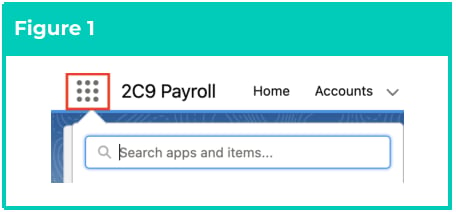
1. Click on the **App Launcher** icon (see
Figure 1).
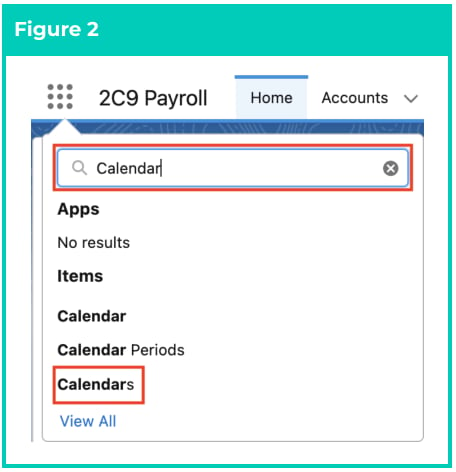
2. Go to the **Calendars** object by using the
Search function (see Figure 2).
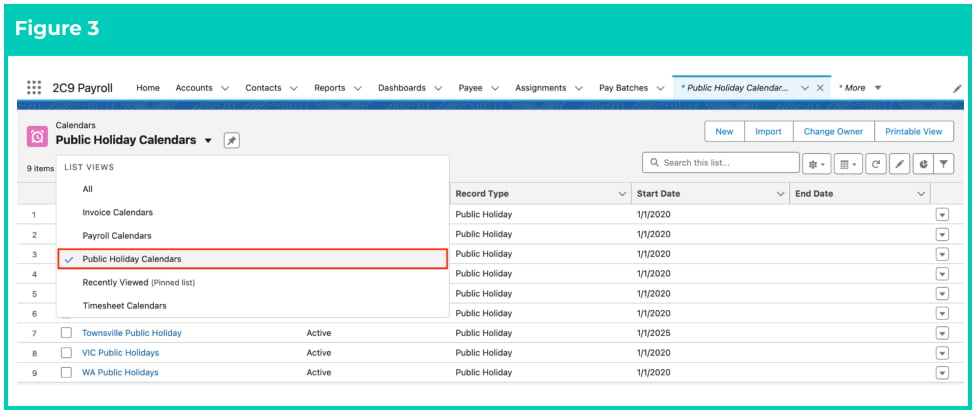
3. To view the available Public Holiday Calendars, select the **Public Holiday Calendars** List View (see
Figure 3).
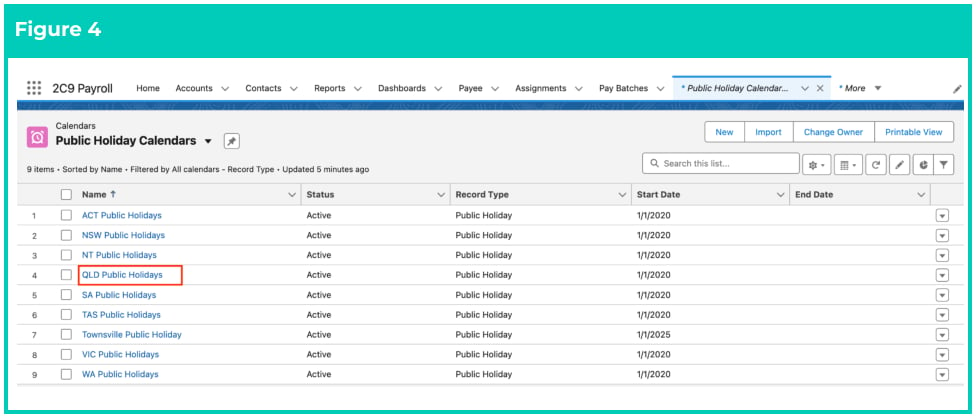
 4. Open the Public Holiday Calendar that you would like to clone (see Figure 4).
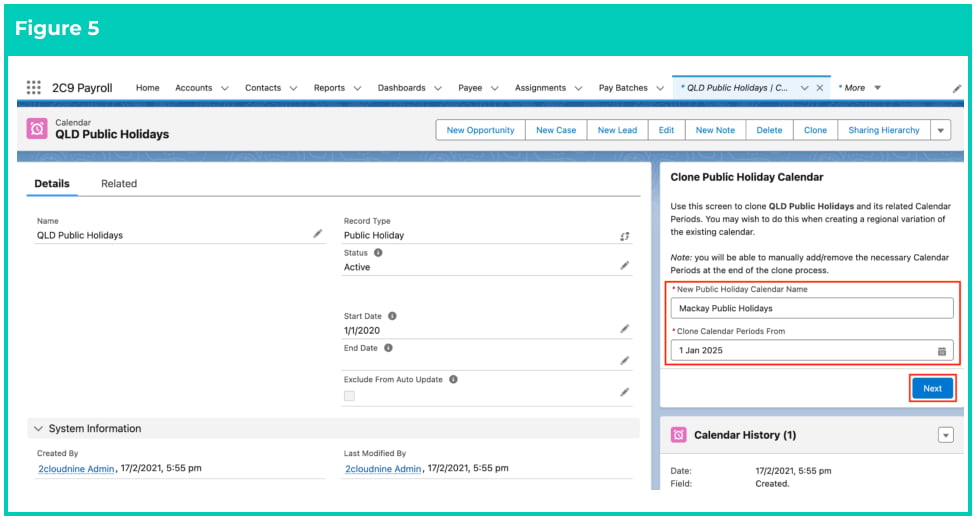
 5. Populate the following required fields to provide the base details of the Public Holiday Calendar
record (see Figure 5):
1. **New Public Holiday Calendar Name**
2. **Clone Calendar Periods From**
6. Click on the **Next** button.
5. Populate the following required fields to provide the base details of the Public Holiday Calendar
record (see Figure 5):
1. **New Public Holiday Calendar Name**
2. **Clone Calendar Periods From**
6. Click on the **Next** button.
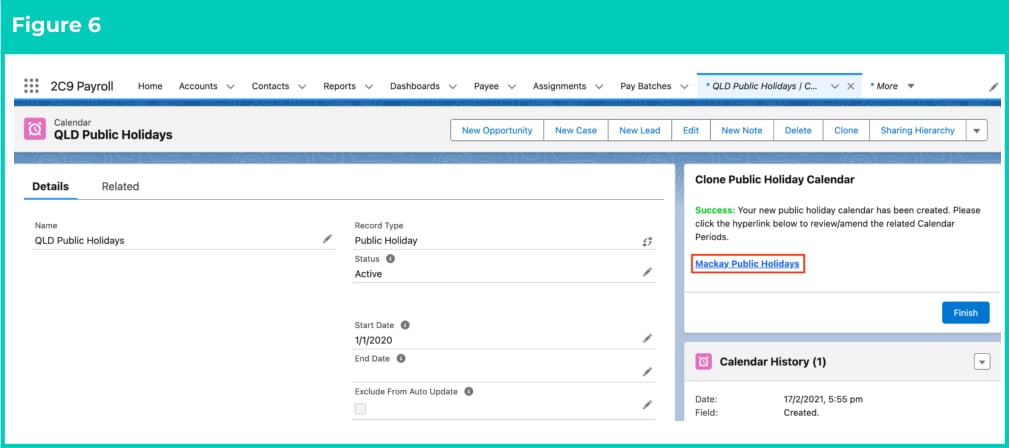
 7. A new Public Holiday Calendar record has been created. Click on the new Public Holiday
Calendar’s name as shown in the screenshot below (see Figure 6):
7. A new Public Holiday Calendar record has been created. Click on the new Public Holiday
Calendar’s name as shown in the screenshot below (see Figure 6):
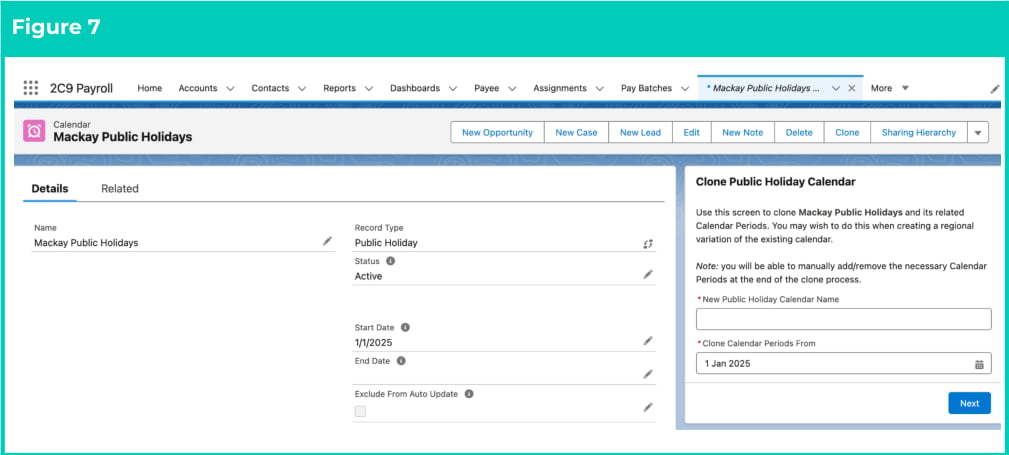
 8. The new Public Holiday Calendar will open in a new tab. Scroll down to the Periods section to
view the Calendar Periods (see Figure 7).
8. The new Public Holiday Calendar will open in a new tab. Scroll down to the Periods section to
view the Calendar Periods (see Figure 7).
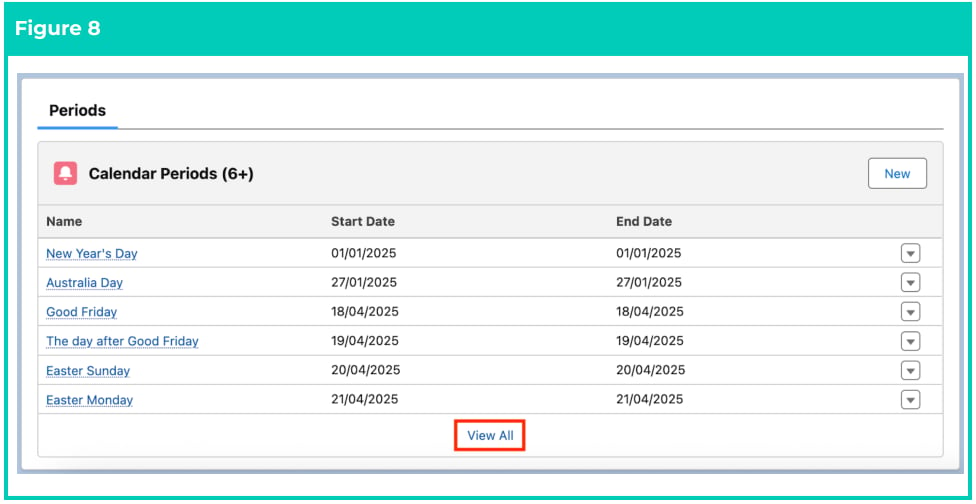
 9. Click the **View All** button at the bottom of the page (see Figure 8).
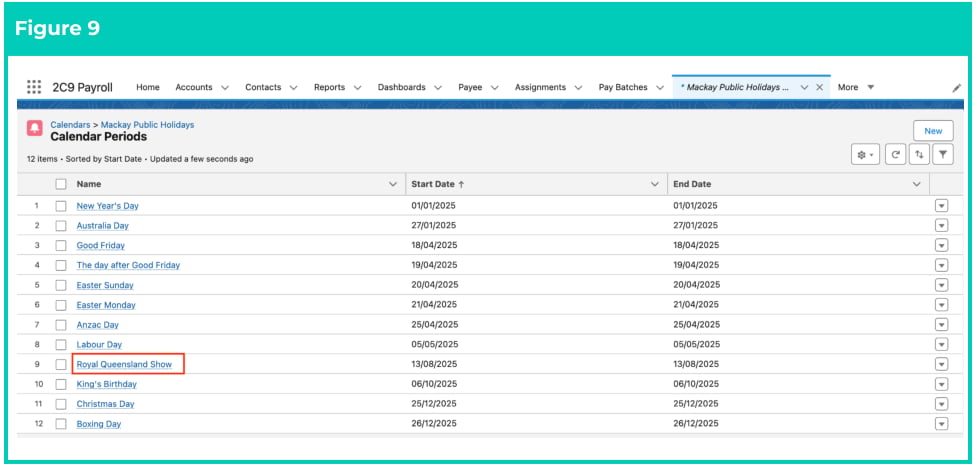
 10. Open the Calendar Period that you would like to edit (see Figure 9).
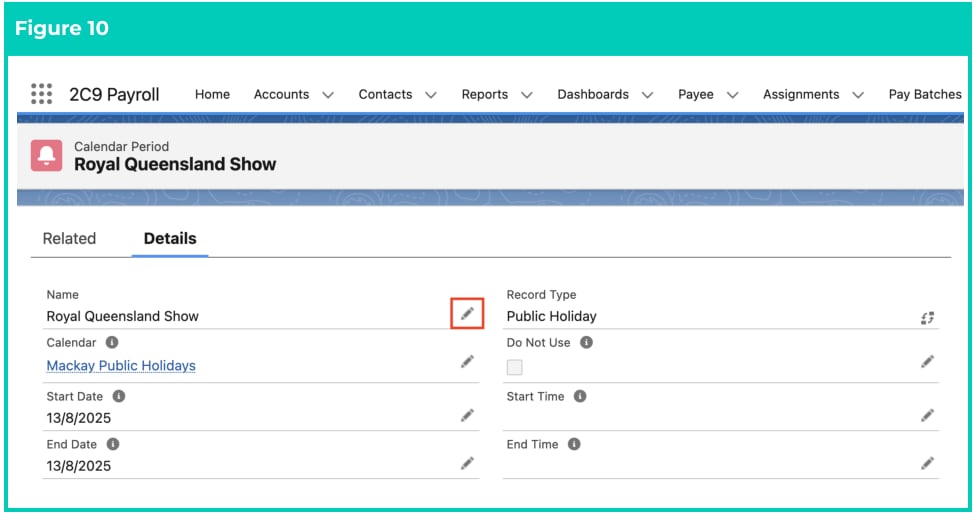
 11. Click on the edit pencil icon (see Figure 10).
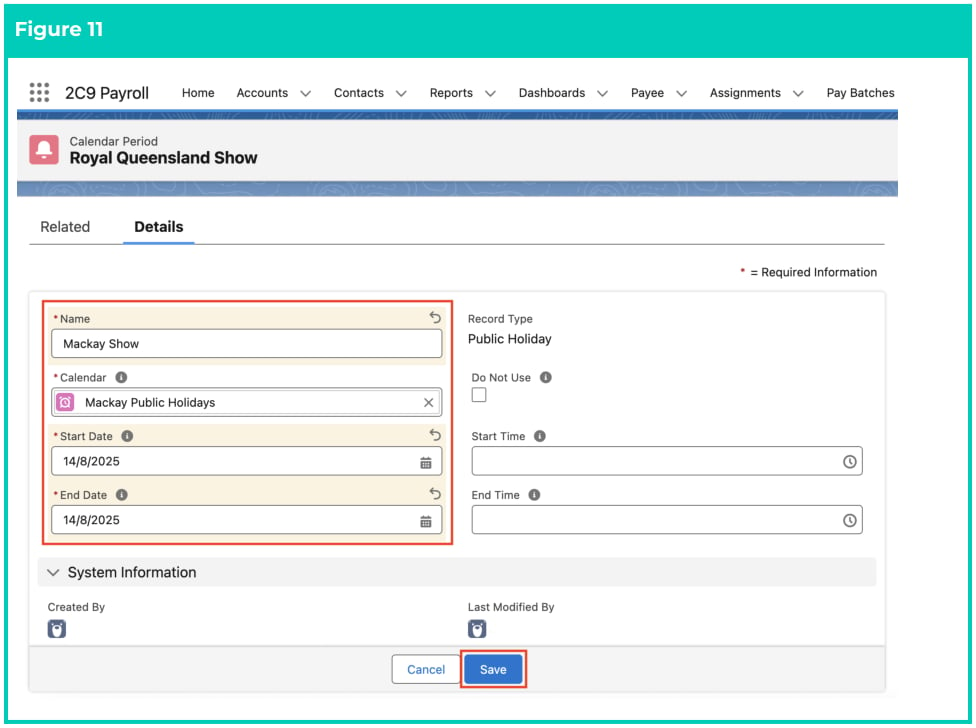
 12. On the Calendar Period page, update the field values as required (see Figure 11).
13. Click on the **Save** button.
12. On the Calendar Period page, update the field values as required (see Figure 11).
13. Click on the **Save** button.
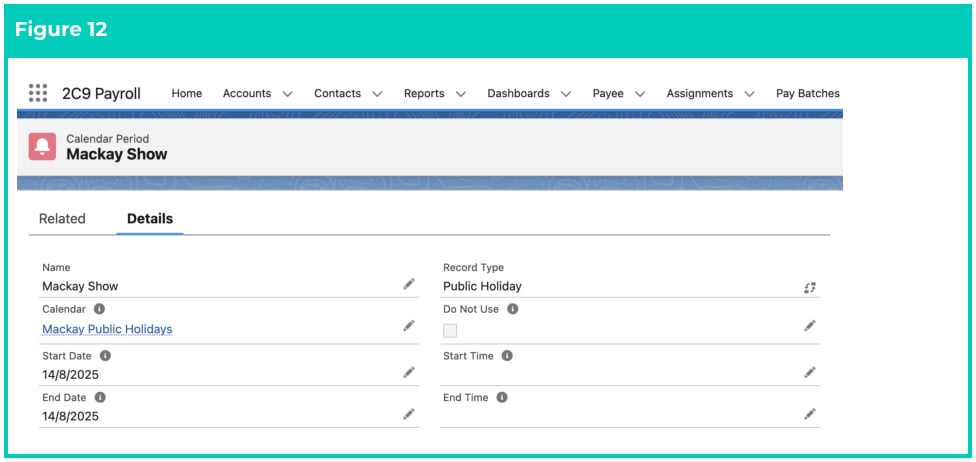
 14. The existing Public Holiday Calendar Period record has been updated (see Figure 12).
 15. To modify an existing **Public Holiday Calendar** record, open the required record and select the
**Edit** button available on the top right side of the page. You can also double click in any of the
fields that need editing, or just click on the pencil icon that appears within fields when
you move your cursor over the field.
16. When complete, click on the **Save** button.
Public Holiday Calendar records CANNOT be deleted if they have related records or are
used in other records. Deleting records is not recommended unless absolutely
essential.
The Clone Public Holiday function will not include any values populated in the Start
Time and End Time fields of the original Public Holiday Calendar Periods. Therefore, if
you have cloned a Public Holiday with Part Day Public Holidays, you will need to
manually update these fields on the newly created Public Holiday Calendar Periods as
required.
## Field Descriptions
| Field Name | Description |
| ------------------------------------------- | -------------------------------------------------------------------------------------------------------------------------------------------------------------------------------------------------------------- |
| **End Date** | is the last date in the validity range of this Calendar, but for the Calendar Period, it's the date the public holiday applies to it. |
| **End Time** | allows for a defined time to cease the application of public holiday treatment for that day, providing the ability to interpret part-day public holidays. This is applicable only for Timesheet Entries. |
| **Exclude From Auto** **Update** (checkbox) | when this box is checked, the record will be skipped by the Automatic Status Update scheduled job. |
| **Name** | is the name given to the Calendar record that is being created. |
| **Start Date** | is the first date in the validity range of this Calendar, but for the Calendar Period, it's the date the public holiday treatment applies. |
| **Start Time** | allows for a defined start time to commence the application public holiday treatment for that day, providing the ability to interpret part-day public holidays. This is applicable only for Timesheet Entries. |
| **Status** | is the current status of this record based on the Effective Date and Expiry Date. |
## Further Information
| Document | Document Type | Description |
| ---------------------------------------------- | ----------------- | ---------------------------------------------------------- |
| QRG Create an Assignment - Temp | Task Instructions | How to create an Assignment record for Timesheet Employees |
| QRG Create Timesheet Calendar | Task Instructions | How to create a Timesheet Calendar and Calendar Periods |
| QRG Create Payroll Calendar & Calendar Periods | Task Instructions | How to create a Payroll Calendar and Calendar Periods |
| QRG Create Invoice Calendar & Calendar Periods | Task Instructions | How to create an Invoice Calendar and Calendar Periods |
15. To modify an existing **Public Holiday Calendar** record, open the required record and select the
**Edit** button available on the top right side of the page. You can also double click in any of the
fields that need editing, or just click on the pencil icon that appears within fields when
you move your cursor over the field.
16. When complete, click on the **Save** button.
Public Holiday Calendar records CANNOT be deleted if they have related records or are
used in other records. Deleting records is not recommended unless absolutely
essential.
The Clone Public Holiday function will not include any values populated in the Start
Time and End Time fields of the original Public Holiday Calendar Periods. Therefore, if
you have cloned a Public Holiday with Part Day Public Holidays, you will need to
manually update these fields on the newly created Public Holiday Calendar Periods as
required.
## Field Descriptions
| Field Name | Description |
| ------------------------------------------- | -------------------------------------------------------------------------------------------------------------------------------------------------------------------------------------------------------------- |
| **End Date** | is the last date in the validity range of this Calendar, but for the Calendar Period, it's the date the public holiday applies to it. |
| **End Time** | allows for a defined time to cease the application of public holiday treatment for that day, providing the ability to interpret part-day public holidays. This is applicable only for Timesheet Entries. |
| **Exclude From Auto** **Update** (checkbox) | when this box is checked, the record will be skipped by the Automatic Status Update scheduled job. |
| **Name** | is the name given to the Calendar record that is being created. |
| **Start Date** | is the first date in the validity range of this Calendar, but for the Calendar Period, it's the date the public holiday treatment applies. |
| **Start Time** | allows for a defined start time to commence the application public holiday treatment for that day, providing the ability to interpret part-day public holidays. This is applicable only for Timesheet Entries. |
| **Status** | is the current status of this record based on the Effective Date and Expiry Date. |
## Further Information
| Document | Document Type | Description |
| ---------------------------------------------- | ----------------- | ---------------------------------------------------------- |
| QRG Create an Assignment - Temp | Task Instructions | How to create an Assignment record for Timesheet Employees |
| QRG Create Timesheet Calendar | Task Instructions | How to create a Timesheet Calendar and Calendar Periods |
| QRG Create Payroll Calendar & Calendar Periods | Task Instructions | How to create a Payroll Calendar and Calendar Periods |
| QRG Create Invoice Calendar & Calendar Periods | Task Instructions | How to create an Invoice Calendar and Calendar Periods |