> ## Documentation Index
> Fetch the complete documentation index at: https://documentation.2cloudnine.com/llms.txt
> Use this file to discover all available pages before exploring further.
# QRG Create a Contact - Client Contact
## Purpose
The purpose of this quick reference guide is to step through the process of setting up a Client Contact record. The intended audience for this document is System Administrators / Standard Users.
## Steps
### Create a new Client Contact record
The Client record holds the contact details, and optional Notification Settings, for a Client Contact. The information in these records is used to address emails to recipients for approval of various documents, and the sending of Invoices for payment.
To create a Client Contact record, follow the steps below:
1. Go to the **Contacts** object and click on the **New** button (see Figure 1).
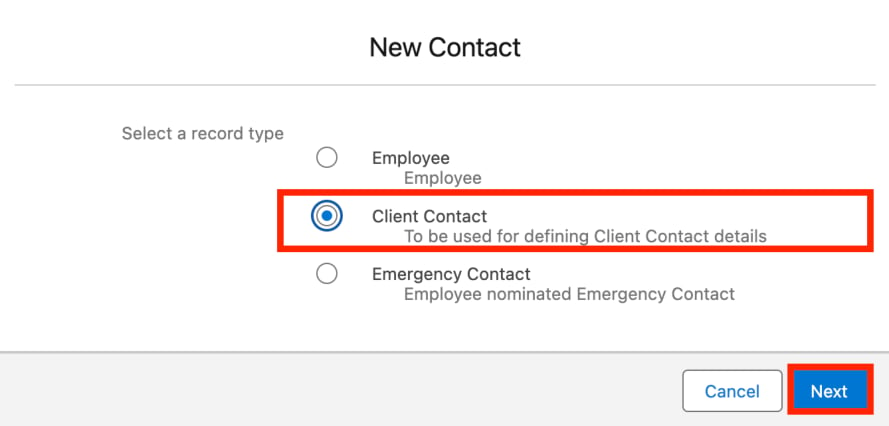
 2. Select the **Client** Contact record type from the picklist options and click the **Next** button (see Figure 2).
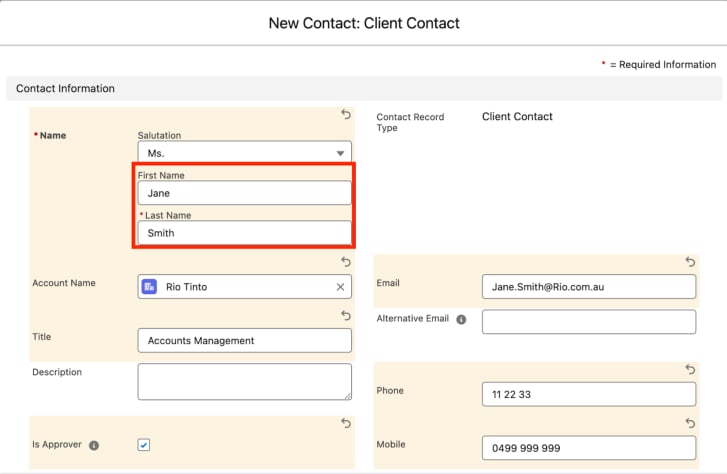
 3. Populate the following required fields to provide the base details of the Client Contact record (see Figure 3):
1. **First Name**
2. **Last Name**
3. **Account Name**
4. Populate the following optional fields to provide additional details for the Client Contact (see Figure 3):
1. To record the preferred title prefix for the Client Contact, use the available picklist options to populate the **Salutation** field.
2. To record any relevant details or information for the Client Contact, populate the **Description** field.
3. If the Client Contact has been set up with access to the Community via Authenticated Login (i.e. access has NOT been provisioned via Link Tokens), populate the checkbox for the **Is Approver** field.
4. If the Client Contact should receive Email Notifications for Invoicing or Approvals, populate the **Email** field with the primary email address for the Contact.
5. If any Email Notifications for the Client Contact should be issued to a secondary email address, populate the **Alternative Email** field with an additional email address.
6. To record the primary business contact number for the Client Contact, populate the **Phone** field.
7. To record a mobile number for the Client Contact, populate the **Mobile** field.
3. Populate the following required fields to provide the base details of the Client Contact record (see Figure 3):
1. **First Name**
2. **Last Name**
3. **Account Name**
4. Populate the following optional fields to provide additional details for the Client Contact (see Figure 3):
1. To record the preferred title prefix for the Client Contact, use the available picklist options to populate the **Salutation** field.
2. To record any relevant details or information for the Client Contact, populate the **Description** field.
3. If the Client Contact has been set up with access to the Community via Authenticated Login (i.e. access has NOT been provisioned via Link Tokens), populate the checkbox for the **Is Approver** field.
4. If the Client Contact should receive Email Notifications for Invoicing or Approvals, populate the **Email** field with the primary email address for the Contact.
5. If any Email Notifications for the Client Contact should be issued to a secondary email address, populate the **Alternative Email** field with an additional email address.
6. To record the primary business contact number for the Client Contact, populate the **Phone** field.
7. To record a mobile number for the Client Contact, populate the **Mobile** field.
 To provision Approver Community access via Link Token, rather than Authenticated Login, the **Is Approver** field MUST remain blank. If you are unsure which type of access should be provisioned, please contact your System Administrator.
Once the **Is Approver** field has been selected, a User must be manually created to enable Approver Community access for the Client Contact. If you are unsure how to create a User, please contact your System Administrator.
An Email MUST be provided for a Client Contact if they have associated Invoicing requirements, or are to receive ANY access as an Approver (i.e. Authorised Login or Approver Link Token).
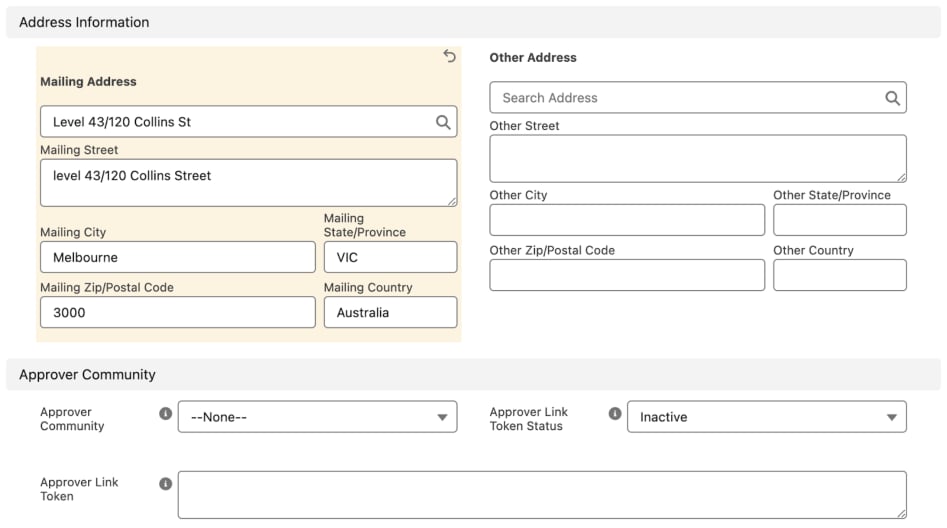
5. Populate the following fields to provide Address information for the Client Contact (see Figure 4):
1. To populate the primary mailing address for the Client Contact, populate the **Mailing Address** field using the lookup options available.
2. To populate a secondary business address for the Client Contact, populate the **Other Address** field using the lookup options available.
6. If your Org uses Link Tokens for Approver Community access, and you need to enable access for the Client Contact, follow the sub-steps below, otherwise skip to step 7:
1. To provision access to the Approver Community, select from the available picklist values in the **Approver Community** field (see Figure 4).
2. To update the status of the assigned Approver Link Token, select from the available picklist options in the **Approver Link Token Status** field (see Figure 4).
1. If access to the Approver Community should be later revoked, please ensure this field is updated to **Inactive**.
To provision Approver Community access via Link Token, rather than Authenticated Login, the **Is Approver** field MUST remain blank. If you are unsure which type of access should be provisioned, please contact your System Administrator.
Once the **Is Approver** field has been selected, a User must be manually created to enable Approver Community access for the Client Contact. If you are unsure how to create a User, please contact your System Administrator.
An Email MUST be provided for a Client Contact if they have associated Invoicing requirements, or are to receive ANY access as an Approver (i.e. Authorised Login or Approver Link Token).
5. Populate the following fields to provide Address information for the Client Contact (see Figure 4):
1. To populate the primary mailing address for the Client Contact, populate the **Mailing Address** field using the lookup options available.
2. To populate a secondary business address for the Client Contact, populate the **Other Address** field using the lookup options available.
6. If your Org uses Link Tokens for Approver Community access, and you need to enable access for the Client Contact, follow the sub-steps below, otherwise skip to step 7:
1. To provision access to the Approver Community, select from the available picklist values in the **Approver Community** field (see Figure 4).
2. To update the status of the assigned Approver Link Token, select from the available picklist options in the **Approver Link Token Status** field (see Figure 4).
1. If access to the Approver Community should be later revoked, please ensure this field is updated to **Inactive**.
 The Approver Link Token field should NOT be manually populated, as it will be automatically updated once access to the Approver Community is provisioned, and the Client Contact has been populated as an Approver for an active Temp Assignment record.
The Approver Community section of the Client Contact should only be populated when your Org has access to the Approver Community via Link Tokens. To confirm how your Org is configured, please liaise with your System Administrators.
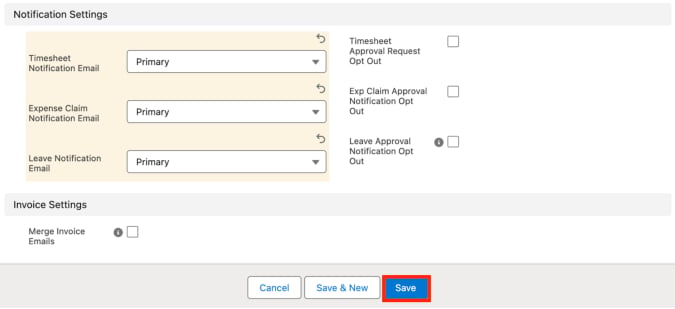
7. Populate the following optional fields to provide the Notification and Invoice Settings for the Client Contact (see Figure 5):
1. **Timesheet Notification Email**
2. **Expense Claim Notification Email**
3. **Leave Notification Email**
4. **Timesheet Approval Request Opt Out**
5. **Exp Claim Approval Request Opt Out**
6. **Leave Approval Request Opt Out**
8. To determine that multiple Invoices should be merged and issued together within the single email, rather than individually, populate the checkbox for the **Merge Invoice Emails** field (see Figure 5).
9. Click on the **Save** button.
The Approver Link Token field should NOT be manually populated, as it will be automatically updated once access to the Approver Community is provisioned, and the Client Contact has been populated as an Approver for an active Temp Assignment record.
The Approver Community section of the Client Contact should only be populated when your Org has access to the Approver Community via Link Tokens. To confirm how your Org is configured, please liaise with your System Administrators.
7. Populate the following optional fields to provide the Notification and Invoice Settings for the Client Contact (see Figure 5):
1. **Timesheet Notification Email**
2. **Expense Claim Notification Email**
3. **Leave Notification Email**
4. **Timesheet Approval Request Opt Out**
5. **Exp Claim Approval Request Opt Out**
6. **Leave Approval Request Opt Out**
8. To determine that multiple Invoices should be merged and issued together within the single email, rather than individually, populate the checkbox for the **Merge Invoice Emails** field (see Figure 5).
9. Click on the **Save** button.
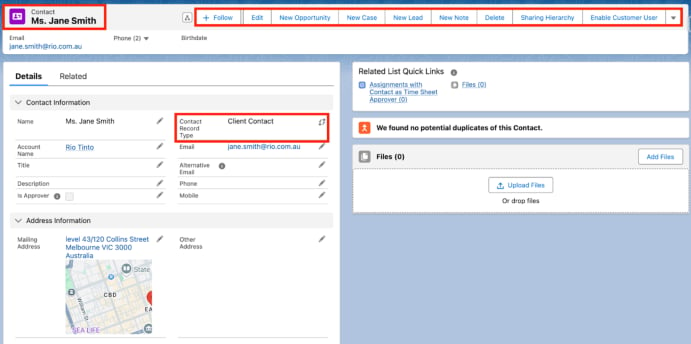
 10. A new Client Contact record has been created (see Figure 6).
 Client Contact records CANNOT be deleted if they have related records or are used in other records. Deleting records is not recommended unless absolutely essential.
11. To modify an existing **Client Contact** record, open the required record and select the **Edit** button available on the top right side of the page. You can also double click in any of the fields that need editing or just click on the pencil icon that appears within fields when you move your cursor over the field.
12. When complete, click the **Save** button.
## Field Descriptions
| Field Name | Description |
| ------------------------------------------------------------------------------------------------------------------------ | ------------------------------------------------------------------------------------------------------------------------------------------------------------------------------------------------------------------------------------------------------------------------------------------------------- |
| **Account Name** | Required to relate the associated Account record with the Client Contact. |
| **Alternative Email** | An additional secondary email address for the Client Contact. |
| **Approver Community** | Selecting an Approver Community from the picklist available in this field will, upon saving the record, provision the Client Contact with an Approver LInk Token for access to that Community. |
| **Approver Link Token** | Provides the link token allocated to this Client Contact for the Approver Community, if they have been set up with access using Link Tokens. . |
| **Approver Link Token Status** | Details whether the Community Approver Link Token assigned to the Client Contact is presently active. |
| **Description** | Provides a space to record any additional information regarding the Client Contact. |
| **Email** | The primary email address for this Client Contact. |
| **Expense Claim Approval** **Notification Opt Out** | Determines that the Client Contact will not receive Expense Claim Approval Notification emails. |
| **Expense Claim Notification** **Email** | If the Client Contact should receive Expense Claim Notification emails, determines whether the emails are issued to the Client’s Primary or Alternative email address. |
| **First Name** | The first name of the Client Contact. |
| **Is Approver** | Determines if the Client Contact has an authenticated login to the Community for approvals .To access, Users are required to login and for licences to be provisioned, instead of the alternative option via link tokens. |
| **Last Name** | The last name of the Client Contact. |
| **Leave Approval Notification** **Opt Out** | Determines that the Client Contact will not receive Leave Approval Notification emails. |
| **Leave Notification Email** | If the Client Contact should receive Leave Approval Notification emails, determine whether the emails are issued to the Primary or Alternative email address. |
| **Mailing Address** - Mailing Street - Mailing City - Mailing State/Province - Mailing Zip/Postal Code - Mailing Country | A lookup field enabling the Client Contact’s mailing address to be populated with the related Google map. If the Mailing Address cannot be identified from the lookup results, or if the address selected needs to be altered, the Mailing Address text fields may be manually populated or overridden. |
| **Merge Invoice Emails** | Indicates any invoices addressed to this Client Contact in an Invoice Batch will be sent in bulk via a single email. This alleviates the Invoice To Contact receiving multiple emails for each individual Invoice. |
| Mobile | Mobile number of the Client Contact. |
| **Other Address** - Other Street - Other City - Other State/Province - Other Zip/Postal Code - Other Country | This lookup field allows for an additional mailing address to be populated with the related Google map. If the Other Address cannot be identified from the lookup results, or if the Other Address selected needs to be altered, the address text fields may be manually populated or overridden. |
| **Phone** | The telephone number for the Client Contact. |
| **Salutation** | The recorded prefx for the Client Contact’s name. |
| **Timesheet Notification Email** | If the Client Contact should receive Timesheet Approval Notification Emails, determine whether the emails are issued to the Client’s Primary or Alternative email address. |
| **Timesheet Approval Request** **Opt Out** | Determines that the Client Contact will not receive Timesheet Approval Request Notification emails. |
| **Title** | The job title/role held by the Client Contact at their Organisation. |
## Further Information
| Document | Document Type | Description |
| ------------------------------- | --------------------------- | --------------------------------------------------------------------------------------------------------------------------------------------------------------------- |
| Data Creation - Key Information | Information Quick Reference | Outlines useful information relevant to the creation of core Payroll data. The document includes definitions, prerequisites, and other non-instructional information. |
| Create an Account - Client | Task Instructions | How to create a Client Account record. |
| Create an Employee - Contact | Task Instructions | How to create an Employee Contact record. |
Client Contact records CANNOT be deleted if they have related records or are used in other records. Deleting records is not recommended unless absolutely essential.
11. To modify an existing **Client Contact** record, open the required record and select the **Edit** button available on the top right side of the page. You can also double click in any of the fields that need editing or just click on the pencil icon that appears within fields when you move your cursor over the field.
12. When complete, click the **Save** button.
## Field Descriptions
| Field Name | Description |
| ------------------------------------------------------------------------------------------------------------------------ | ------------------------------------------------------------------------------------------------------------------------------------------------------------------------------------------------------------------------------------------------------------------------------------------------------- |
| **Account Name** | Required to relate the associated Account record with the Client Contact. |
| **Alternative Email** | An additional secondary email address for the Client Contact. |
| **Approver Community** | Selecting an Approver Community from the picklist available in this field will, upon saving the record, provision the Client Contact with an Approver LInk Token for access to that Community. |
| **Approver Link Token** | Provides the link token allocated to this Client Contact for the Approver Community, if they have been set up with access using Link Tokens. . |
| **Approver Link Token Status** | Details whether the Community Approver Link Token assigned to the Client Contact is presently active. |
| **Description** | Provides a space to record any additional information regarding the Client Contact. |
| **Email** | The primary email address for this Client Contact. |
| **Expense Claim Approval** **Notification Opt Out** | Determines that the Client Contact will not receive Expense Claim Approval Notification emails. |
| **Expense Claim Notification** **Email** | If the Client Contact should receive Expense Claim Notification emails, determines whether the emails are issued to the Client’s Primary or Alternative email address. |
| **First Name** | The first name of the Client Contact. |
| **Is Approver** | Determines if the Client Contact has an authenticated login to the Community for approvals .To access, Users are required to login and for licences to be provisioned, instead of the alternative option via link tokens. |
| **Last Name** | The last name of the Client Contact. |
| **Leave Approval Notification** **Opt Out** | Determines that the Client Contact will not receive Leave Approval Notification emails. |
| **Leave Notification Email** | If the Client Contact should receive Leave Approval Notification emails, determine whether the emails are issued to the Primary or Alternative email address. |
| **Mailing Address** - Mailing Street - Mailing City - Mailing State/Province - Mailing Zip/Postal Code - Mailing Country | A lookup field enabling the Client Contact’s mailing address to be populated with the related Google map. If the Mailing Address cannot be identified from the lookup results, or if the address selected needs to be altered, the Mailing Address text fields may be manually populated or overridden. |
| **Merge Invoice Emails** | Indicates any invoices addressed to this Client Contact in an Invoice Batch will be sent in bulk via a single email. This alleviates the Invoice To Contact receiving multiple emails for each individual Invoice. |
| Mobile | Mobile number of the Client Contact. |
| **Other Address** - Other Street - Other City - Other State/Province - Other Zip/Postal Code - Other Country | This lookup field allows for an additional mailing address to be populated with the related Google map. If the Other Address cannot be identified from the lookup results, or if the Other Address selected needs to be altered, the address text fields may be manually populated or overridden. |
| **Phone** | The telephone number for the Client Contact. |
| **Salutation** | The recorded prefx for the Client Contact’s name. |
| **Timesheet Notification Email** | If the Client Contact should receive Timesheet Approval Notification Emails, determine whether the emails are issued to the Client’s Primary or Alternative email address. |
| **Timesheet Approval Request** **Opt Out** | Determines that the Client Contact will not receive Timesheet Approval Request Notification emails. |
| **Title** | The job title/role held by the Client Contact at their Organisation. |
## Further Information
| Document | Document Type | Description |
| ------------------------------- | --------------------------- | --------------------------------------------------------------------------------------------------------------------------------------------------------------------- |
| Data Creation - Key Information | Information Quick Reference | Outlines useful information relevant to the creation of core Payroll data. The document includes definitions, prerequisites, and other non-instructional information. |
| Create an Account - Client | Task Instructions | How to create a Client Account record. |
| Create an Employee - Contact | Task Instructions | How to create an Employee Contact record. |