> ## Documentation Index
> Fetch the complete documentation index at: https://documentation.2cloudnine.com/llms.txt
> Use this file to discover all available pages before exploring further.
# QRG Create a Payee Allowance Template
## Purpose
The purpose of this quick reference guide is to step through the process of creating a Payee Allowance
Template. The intended audience for this document is system administrators / standard users.
## Steps
### Create a new Payee Allowance Template
The Payee Allowance Template is used to pre-populate some fields with default values for a Payee
Allowance record.
When a Payee Allowance Template is entered on a Payee Allowance record, the values saved on the
Payee Allowance Template will be populated on the Payee Allowance upon saving, minimising the need
for required and optional fields to be populated. These are useful for things like First Aid Allowance,
where the allowance rate is fixed as per the Award/EBA. Create a Payee Allowance Template by following
the below steps:
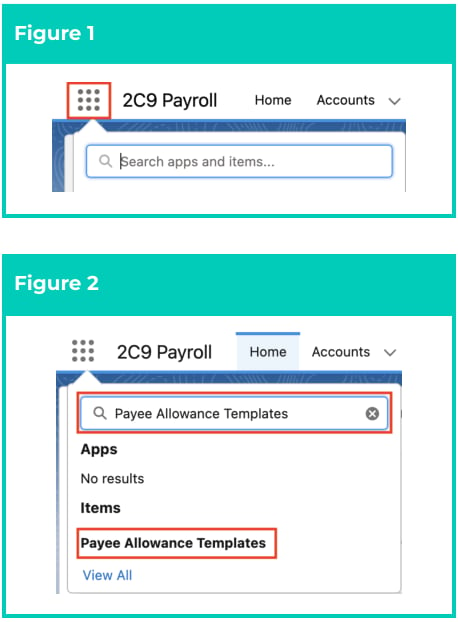
1. Click on the **App Launcher** icon (see Figure 1).
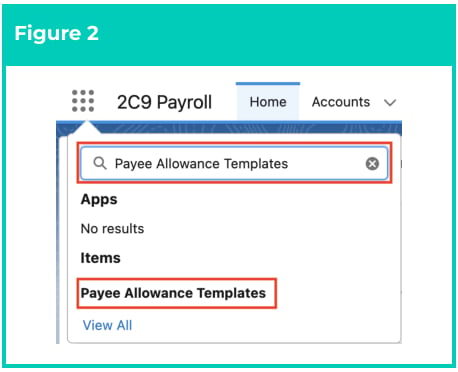
 2. Go to the **Payee Allowance Templates** object by using the Search function (see Figure 2).
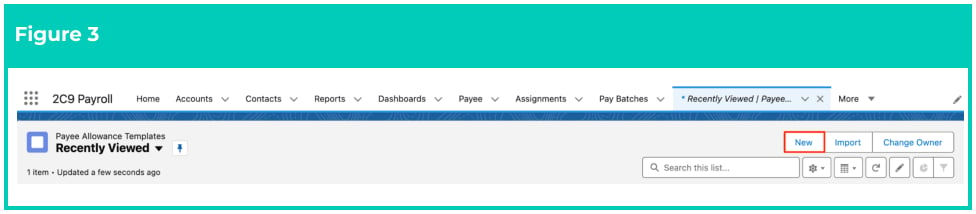
 3. Click on the **New** button (see Figure 3).
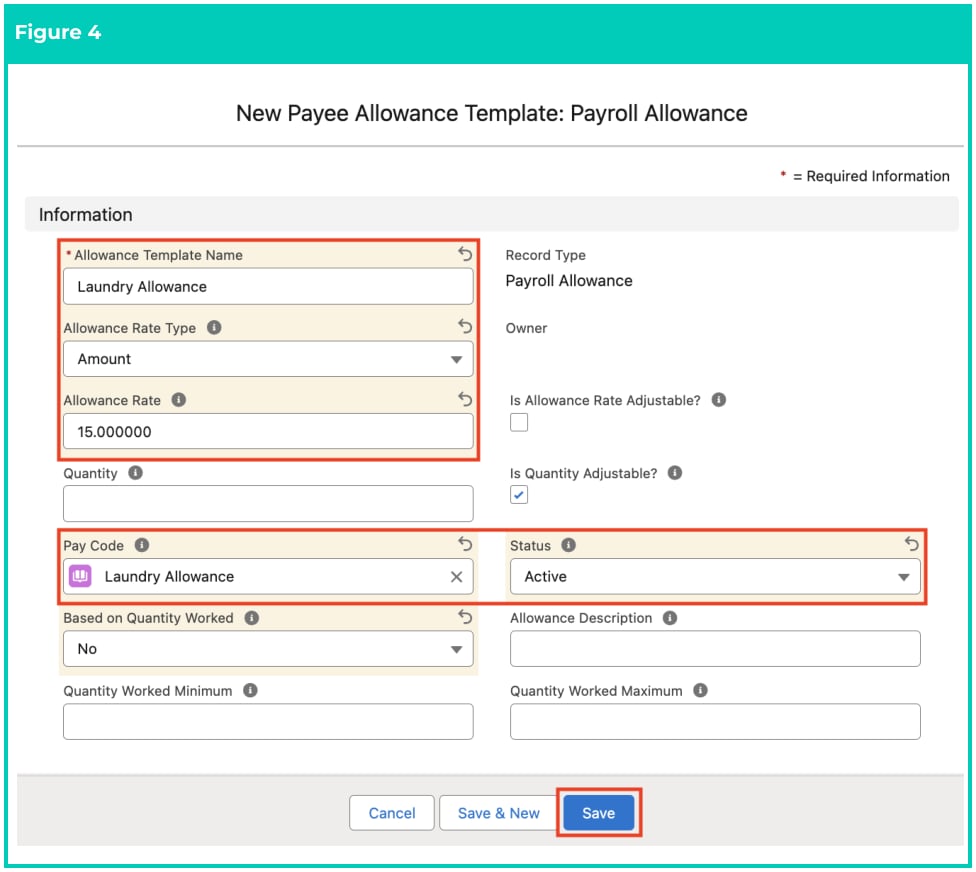
 4. Populate the following required fields to provide the base details of the Payee Allowance
Template Group (see Figure 4):
1. **Allowance Template Name**
2. **Allowance Rate**
3. **Allowance Rate Type**
4. **Pay Code**
5. **Status**
5. Populate the following optional field as required:
1. To define the number of times the Allowance will be paid, populate the value in the **Quantity** field. If blank, no limit applies.
2. To define if the Allowance Rate can be modified at a Payee Allowance Record level when related to the Allowance Template, tick the **Is Allowance Rate Adjustable?** checkbox. If True, the rate value can be changed.
3. To define if the quantity can be modified at a Payee Allowance Record level when related to the Allowance Template, tick the **Is Quantity Adjustable?** checkbox. If True, the quantity can be changed.
4. To indicate whether the Allowance considers the quantity of units worked per Payee Pay Batch, populate the **Based on Quantity Worked** field as Yes. If No is selected, Allowance is paid only once regardless of the quantity of the units worked per Payee Pay Batch.
5. To ensure Allowance calculations are considered only when the quantity of units worked is greater than or equal to a particular value, populate the value in the **Quantity Worked Minimum** field.
6. To ensure Allowance calculations are considered only when the quantity of units worked is less than or equal to a particular value, populate the value in the **Quantity Worked Maximum** field.
7. To add a description of the Allowance Template, populate the **Allowance Description** field.
6. Click on the **Save** button.
4. Populate the following required fields to provide the base details of the Payee Allowance
Template Group (see Figure 4):
1. **Allowance Template Name**
2. **Allowance Rate**
3. **Allowance Rate Type**
4. **Pay Code**
5. **Status**
5. Populate the following optional field as required:
1. To define the number of times the Allowance will be paid, populate the value in the **Quantity** field. If blank, no limit applies.
2. To define if the Allowance Rate can be modified at a Payee Allowance Record level when related to the Allowance Template, tick the **Is Allowance Rate Adjustable?** checkbox. If True, the rate value can be changed.
3. To define if the quantity can be modified at a Payee Allowance Record level when related to the Allowance Template, tick the **Is Quantity Adjustable?** checkbox. If True, the quantity can be changed.
4. To indicate whether the Allowance considers the quantity of units worked per Payee Pay Batch, populate the **Based on Quantity Worked** field as Yes. If No is selected, Allowance is paid only once regardless of the quantity of the units worked per Payee Pay Batch.
5. To ensure Allowance calculations are considered only when the quantity of units worked is greater than or equal to a particular value, populate the value in the **Quantity Worked Minimum** field.
6. To ensure Allowance calculations are considered only when the quantity of units worked is less than or equal to a particular value, populate the value in the **Quantity Worked Maximum** field.
7. To add a description of the Allowance Template, populate the **Allowance Description** field.
6. Click on the **Save** button.
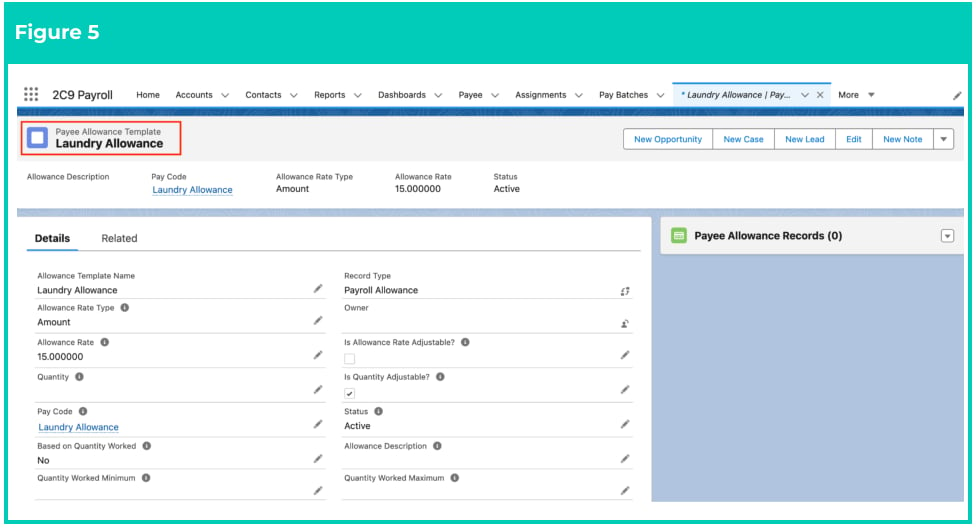
 7. A new Payee Allowance Template is now created (see Figure 5).
 Payee Allowance Template records CAN NOT be deleted if they have related records or
are used in other records. Deleting records is not recommended unless absolutely
essential.
8. To modify an existing **Payee Allowance Template** record, open the required record and select the
Edit button available on the top right side of the page. You can also double click within fields that
need editing or just click on the pencil icon that appears within fields when hovering with
your cursor.
9. When complete, click on the **Save** button.
Any changes made to the Payee Allowance Template or its related records will not
update records already referencing the Payee Allowance Template.
10. To use the Payee Allowance Template to create a new Payee Allowance record, follow the
[instructions provided in the QRG Create Payee Allowances - Payroll.](https://drive.google.com/file/d/16daVQdTfT7rCq1L3lWp9YuZaIF6PsfAh/view?usp=sharing)
## Field Descriptions
**Allowance Description** is the description given to the Payee Allowance Template record.
**Allowance Rate** defines the rate that will be used when calculating the allowance amount during the
Allowance Transaction creation.
**Allowance Rate Type** defines if the value entered in Allowance Rate is a fixed amount or a percentage of
the Payee’s earnings Per Period for this Allowance.
* **Amount** if this option is selected, the Allowance Rate is a fixed amount per pay period.
* **Percentage of Gross** if this option is selected, the Allowance Rate is a percentage of the Payee’s
Gross Earnings.
* **Percentage of Ordinary Time Earnings** if this option is selected, the Allowance Rate is a
percentage of the Payee’s OTE.
* **Rate per Quantity Worked** if this option is selected, the Allowance Rate is applied to the total
number of units worked based on the Pay Codes of related Pay Transactions where Contributes
to Allowance Qty is ticked.
**Allowance Template Name** is the name given to the Payee Allowance Template record that is being
created.
**Based on Quantity Worked** indicates that the payment of the Payee Allowance considers the quantity of
hours completed by an Employee during a Pay Calendar Period.
**Is Allowance Rate Adjustable?** defines if the Allowance Rate can be modified at a Payee Allowance
Record level when related to the Allowance Template. If True, the rate value can be changed.
**Is Quantity Adjustable?** defines if the quantity can be modified at a Payee Allowance Record level when
related to the Allowance Template. If True, the quantity can be changed.
**Quantity** defines a set number of times the allowance will be paid. If blank, no limit applies.
**Pay Code** defines the Pay Code that will be used when an allowance is paid.
**Quantity Worked Maximum** if the Allowance is Based on Quantity Worked, this is the maximum number
of hours during a Pay Calendar Period that will be considered for the application of this Allowance per
hour
**Quantity Worked Minimum** if the Allowance is Based on Quantity Worked, this is the minimum number
of hours during a Pay Calendar Period considered for the application of this Allowance per hour.
**Status** indicates whether the Payee Allowance Template Record is currently Active, Inactive or Pending.
## Further Information
| Document | Document Type | Description |
| ------------------------------------- | ----------------- | --------------------------------------------------- |
| QRG Create an Assignment - Employee | Task Instructions | How to create an Assignment for autopay Employees |
| QRG Create an Assignment (Temp) | Task Instructions | How to create an Assignment for Timesheet Employees |
| QRG Create Payee Allowances - Payroll | Task Instructions | How to create Payroll Payee Allowances |
Payee Allowance Template records CAN NOT be deleted if they have related records or
are used in other records. Deleting records is not recommended unless absolutely
essential.
8. To modify an existing **Payee Allowance Template** record, open the required record and select the
Edit button available on the top right side of the page. You can also double click within fields that
need editing or just click on the pencil icon that appears within fields when hovering with
your cursor.
9. When complete, click on the **Save** button.
Any changes made to the Payee Allowance Template or its related records will not
update records already referencing the Payee Allowance Template.
10. To use the Payee Allowance Template to create a new Payee Allowance record, follow the
[instructions provided in the QRG Create Payee Allowances - Payroll.](https://drive.google.com/file/d/16daVQdTfT7rCq1L3lWp9YuZaIF6PsfAh/view?usp=sharing)
## Field Descriptions
**Allowance Description** is the description given to the Payee Allowance Template record.
**Allowance Rate** defines the rate that will be used when calculating the allowance amount during the
Allowance Transaction creation.
**Allowance Rate Type** defines if the value entered in Allowance Rate is a fixed amount or a percentage of
the Payee’s earnings Per Period for this Allowance.
* **Amount** if this option is selected, the Allowance Rate is a fixed amount per pay period.
* **Percentage of Gross** if this option is selected, the Allowance Rate is a percentage of the Payee’s
Gross Earnings.
* **Percentage of Ordinary Time Earnings** if this option is selected, the Allowance Rate is a
percentage of the Payee’s OTE.
* **Rate per Quantity Worked** if this option is selected, the Allowance Rate is applied to the total
number of units worked based on the Pay Codes of related Pay Transactions where Contributes
to Allowance Qty is ticked.
**Allowance Template Name** is the name given to the Payee Allowance Template record that is being
created.
**Based on Quantity Worked** indicates that the payment of the Payee Allowance considers the quantity of
hours completed by an Employee during a Pay Calendar Period.
**Is Allowance Rate Adjustable?** defines if the Allowance Rate can be modified at a Payee Allowance
Record level when related to the Allowance Template. If True, the rate value can be changed.
**Is Quantity Adjustable?** defines if the quantity can be modified at a Payee Allowance Record level when
related to the Allowance Template. If True, the quantity can be changed.
**Quantity** defines a set number of times the allowance will be paid. If blank, no limit applies.
**Pay Code** defines the Pay Code that will be used when an allowance is paid.
**Quantity Worked Maximum** if the Allowance is Based on Quantity Worked, this is the maximum number
of hours during a Pay Calendar Period that will be considered for the application of this Allowance per
hour
**Quantity Worked Minimum** if the Allowance is Based on Quantity Worked, this is the minimum number
of hours during a Pay Calendar Period considered for the application of this Allowance per hour.
**Status** indicates whether the Payee Allowance Template Record is currently Active, Inactive or Pending.
## Further Information
| Document | Document Type | Description |
| ------------------------------------- | ----------------- | --------------------------------------------------- |
| QRG Create an Assignment - Employee | Task Instructions | How to create an Assignment for autopay Employees |
| QRG Create an Assignment (Temp) | Task Instructions | How to create an Assignment for Timesheet Employees |
| QRG Create Payee Allowances - Payroll | Task Instructions | How to create Payroll Payee Allowances |