> ## Documentation Index
> Fetch the complete documentation index at: https://documentation.2cloudnine.com/llms.txt
> Use this file to discover all available pages before exploring further.
# QRG Create a Payee Deduction - Purchased Leave
## Purpose
The purpose of this quick reference guide is to step through the process of creating a Purchased Leave
Payee Deduction record. The intended audience for this document are system administrators / standard
users.
## Steps
### Create a new Purchased Leave Payee Deduction record
The Purchased Leave Payee Deduction record holds general Information, Pay Code and Rates, Quantity
Worked Deductions, Deduction Limits, Recipient Details and Deduction Statistics for a Payee Deduction
Record.
Create a Purchased Leave Payee Deduction by following the below steps:
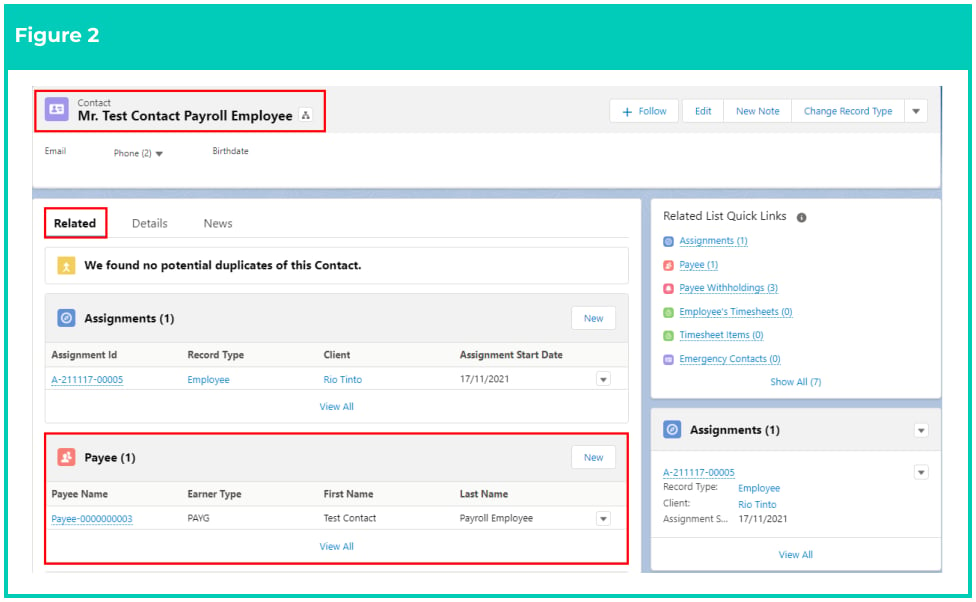
1. Navigate to the **Payee** record.
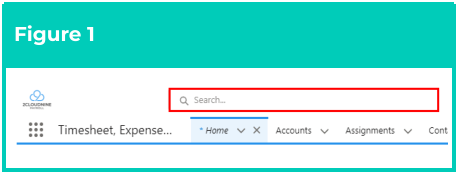
1. To identify a Payee record from an Employee record, enter the Employee name into the Global Search (see Figure 1).
2. Select the **Employee** record from the suggestions provided.
3. Open the **Related** tab (see Figure 2).
4. Identify the **Payee** related list.
5. Select the **Payee** record.
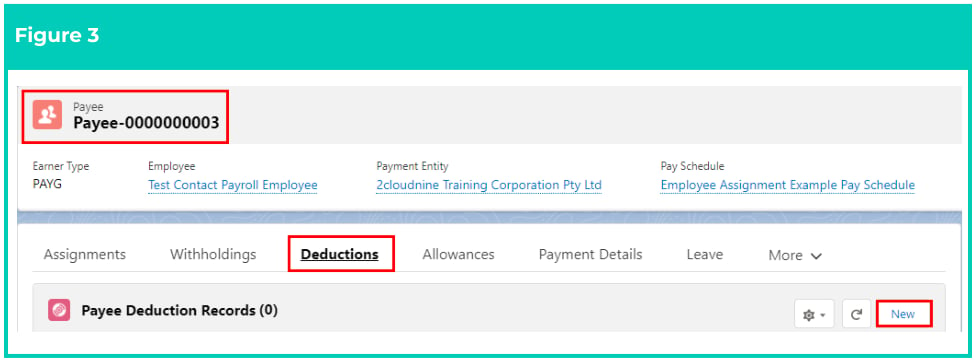
2. Click **Deductions** from the tab options, then click on the **New** button (see Figure 3).
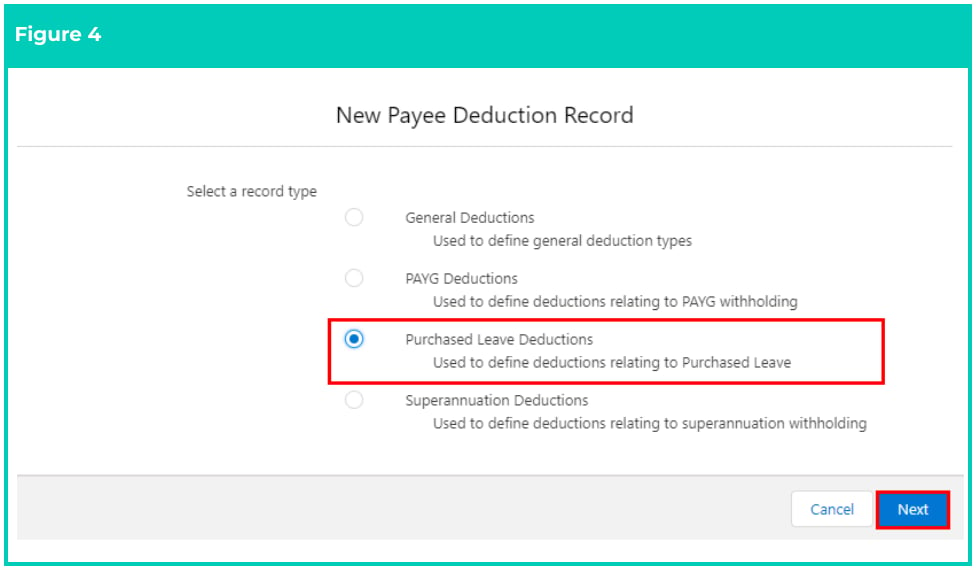
 3. Select **Purchased Leave Deductions** from the available record types, and click on the **Next** button (see Figure 4).
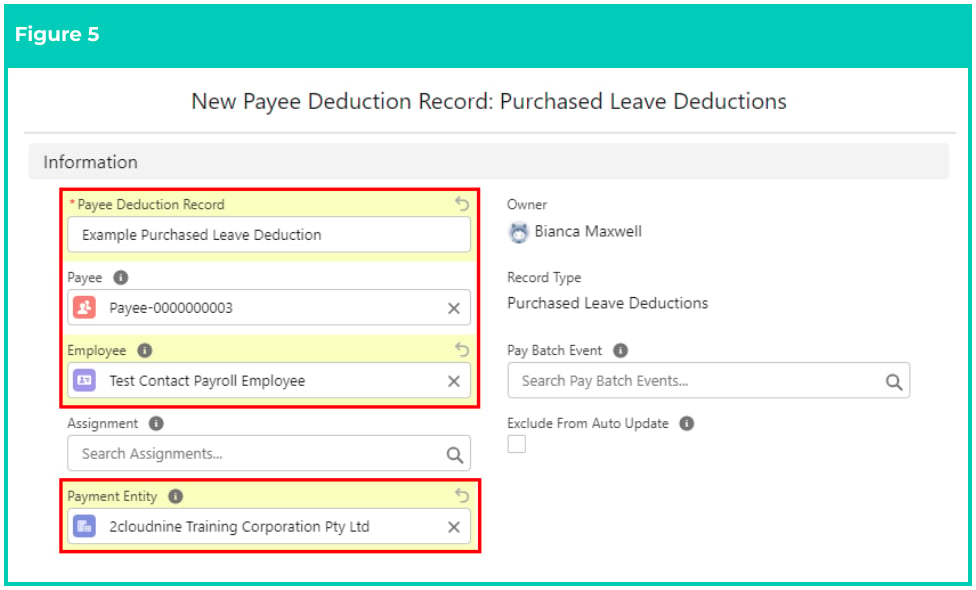
 4. Populate the following required fields to provide the base details of the record (see Figure 5):
1. **Payee Deduction Record**
2. **Payee**
3. **Employee**
4. **Payment Entity**
5. Populate the following optional fields as needed (see Figure 5):
1. If the Payee Deduction is specific only to one Assignment, populate the **Assignment** field. If blank, this Payee Deduction will apply to all Assignments for this Payee.
2. To prevent the Status of the Payee Deduction from being updated by the automatic status update scheduled job, check the **Exclude From Auto Update** checkbox.
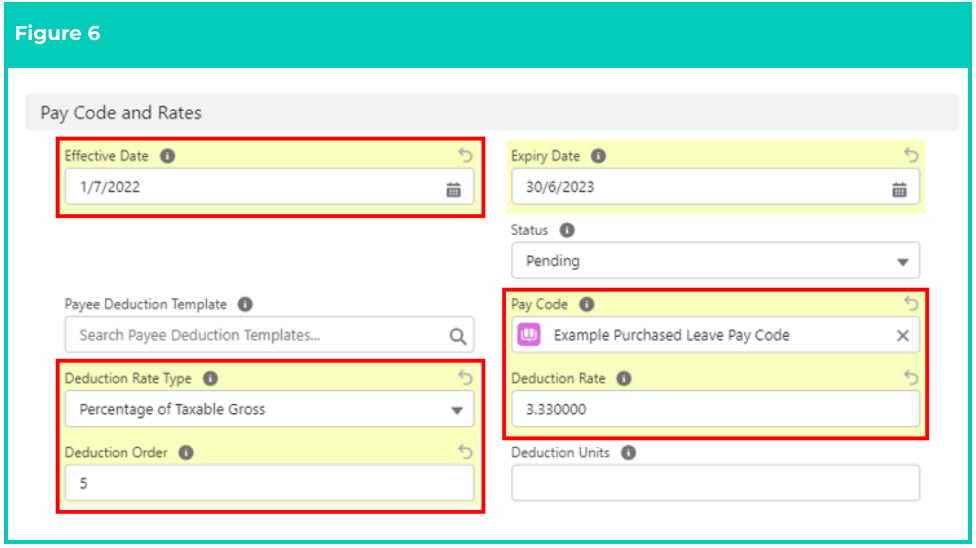
6. If Payee Deduction Templates have been created for your organisation, populate the **Deduction Template** field with the appropriate Template to pre-fill the base details for this record (see Figure 6).
4. Populate the following required fields to provide the base details of the record (see Figure 5):
1. **Payee Deduction Record**
2. **Payee**
3. **Employee**
4. **Payment Entity**
5. Populate the following optional fields as needed (see Figure 5):
1. If the Payee Deduction is specific only to one Assignment, populate the **Assignment** field. If blank, this Payee Deduction will apply to all Assignments for this Payee.
2. To prevent the Status of the Payee Deduction from being updated by the automatic status update scheduled job, check the **Exclude From Auto Update** checkbox.
6. If Payee Deduction Templates have been created for your organisation, populate the **Deduction Template** field with the appropriate Template to pre-fill the base details for this record (see Figure 6).
 An Assignment should only be entered if the Deduction is directly related to a specific role. If an Assignment is not entered, the Deduction will apply to all Pay Transactions processed to the Payee.
The Pay Batch Event field will be automatically populated upon saving the record, and should not be manually entered.
7. Populate the following required fields to provide the base details of the record (see Figure 6):
1. **Effective Date**
8. Populate the following required fields to provide the base details of the record. These fields are optional when Deduction Template field is populated (see Figure 6):
1. **Pay Code**
2. **Deduction Rate Type**
3. **Deduction Rate**
4. **Deduction Order**
9. To define any required rules and limits that will be used in assessing and determining the Payee Deduction record, populate the following optional fields as required. If left blank, the rule / limit will not apply (see Figure 6):
1. **Expiry Date**
2. **Deduction Units**
An Assignment should only be entered if the Deduction is directly related to a specific role. If an Assignment is not entered, the Deduction will apply to all Pay Transactions processed to the Payee.
The Pay Batch Event field will be automatically populated upon saving the record, and should not be manually entered.
7. Populate the following required fields to provide the base details of the record (see Figure 6):
1. **Effective Date**
8. Populate the following required fields to provide the base details of the record. These fields are optional when Deduction Template field is populated (see Figure 6):
1. **Pay Code**
2. **Deduction Rate Type**
3. **Deduction Rate**
4. **Deduction Order**
9. To define any required rules and limits that will be used in assessing and determining the Payee Deduction record, populate the following optional fields as required. If left blank, the rule / limit will not apply (see Figure 6):
1. **Expiry Date**
2. **Deduction Units**
 The Status of the record will be automatically updated upon saving the record, based on the Start Date and End Date.
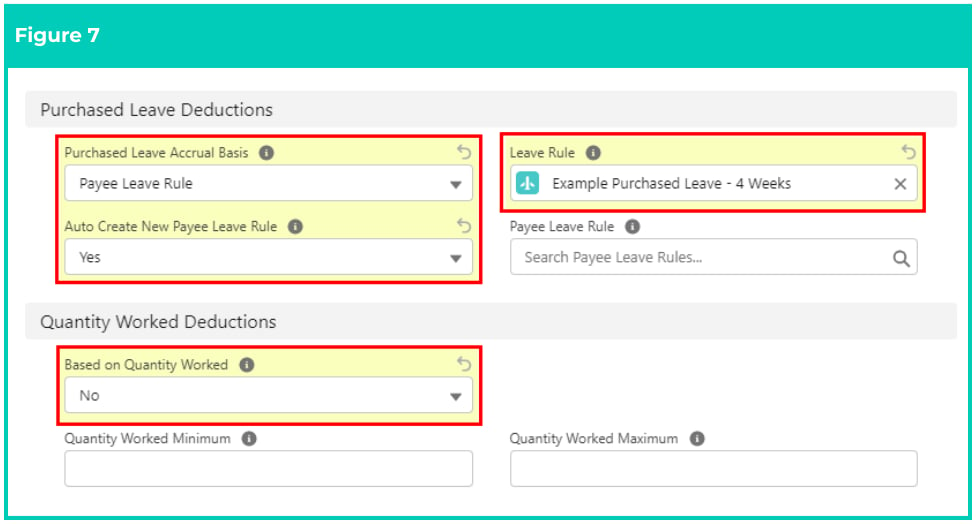
10. Populate the following required fields to provide the base details of the record (see Figure 7):
1. **Based on Quantity Worked**
11. To define the behaviour for Purchased Leave accrual, select either Deduction Units or Payee Leave Rule from the picklist options available from the **Purchased Leave Accrual Basis** field (see Figure 7).
12. To define the Payee Leave Rule that will be used for the Purchased Leave Deduction, select from one of the following options (see Figure 7):
1. If you wish to use an existing Payee Leave Rule, select No in the **Auto Create New Payee Leave Rule** field, and populate the **Payee Leave Rule** field with the Payee Leave Rule.
2. If you need a new Payee Leave Rule created, select Yes in the **Auto Create New Payee Leave Rule** field, and populate the **Leave Rule** field with the Leave Rule to be used as the basis for the new Payee Leave Rule.
13. To define any required rules and limits that will be used in assessing and determining the Payee Deduction record, populate the following optional fields as required. If left blank the rule / limit will not apply (see Figures 7):
1. **Quantity Worked Minimum**
2. **Quantity Worked Maximum**
The Status of the record will be automatically updated upon saving the record, based on the Start Date and End Date.
10. Populate the following required fields to provide the base details of the record (see Figure 7):
1. **Based on Quantity Worked**
11. To define the behaviour for Purchased Leave accrual, select either Deduction Units or Payee Leave Rule from the picklist options available from the **Purchased Leave Accrual Basis** field (see Figure 7).
12. To define the Payee Leave Rule that will be used for the Purchased Leave Deduction, select from one of the following options (see Figure 7):
1. If you wish to use an existing Payee Leave Rule, select No in the **Auto Create New Payee Leave Rule** field, and populate the **Payee Leave Rule** field with the Payee Leave Rule.
2. If you need a new Payee Leave Rule created, select Yes in the **Auto Create New Payee Leave Rule** field, and populate the **Leave Rule** field with the Leave Rule to be used as the basis for the new Payee Leave Rule.
13. To define any required rules and limits that will be used in assessing and determining the Payee Deduction record, populate the following optional fields as required. If left blank the rule / limit will not apply (see Figures 7):
1. **Quantity Worked Minimum**
2. **Quantity Worked Maximum**
 The Based on Quantity Worked field is critical for Payees with Assignments that have Deductions which are reliant on scalable rates against actual hours processed within a Pay Batch for a particular Pay Calendar Period. This is not normally applicable for Purchased Leave Payee Deductions
If you have selected Yes in the Auto Create New Payee Leave Rule field, you will also need to populate the Leave Rule field so that the system knows which Leave Rule to use as the basis. Upon saving this Deduction record, the new Payee Leave Rule will be created automatically.
14. To define any required rules and limits that will be used in assessing and determining the Payee Deduction record, populate the following optional fields as required. If left blank, the rule / limit will not apply (see Figure 8):
1. **Total Deduction Limit**
2. **Quantity**
3. **Pay Calendar Period Deduction Limit**
4. **Protected Amount Applied**
5. **Is Rollover Underpaid Deductions?**
15. The Deduction Payrun Statistics section will be updated automatically by the product in line with the relevant figures for the statistics after each time it's been processed as a Deduction Pay Transaction.
16. Click on the **Save** button.
The Based on Quantity Worked field is critical for Payees with Assignments that have Deductions which are reliant on scalable rates against actual hours processed within a Pay Batch for a particular Pay Calendar Period. This is not normally applicable for Purchased Leave Payee Deductions
If you have selected Yes in the Auto Create New Payee Leave Rule field, you will also need to populate the Leave Rule field so that the system knows which Leave Rule to use as the basis. Upon saving this Deduction record, the new Payee Leave Rule will be created automatically.
14. To define any required rules and limits that will be used in assessing and determining the Payee Deduction record, populate the following optional fields as required. If left blank, the rule / limit will not apply (see Figure 8):
1. **Total Deduction Limit**
2. **Quantity**
3. **Pay Calendar Period Deduction Limit**
4. **Protected Amount Applied**
5. **Is Rollover Underpaid Deductions?**
15. The Deduction Payrun Statistics section will be updated automatically by the product in line with the relevant figures for the statistics after each time it's been processed as a Deduction Pay Transaction.
16. Click on the **Save** button.
 The Deduction Payrun Statistics will update automatically with historical statistics of the Deduction record, and should never be manually populated.
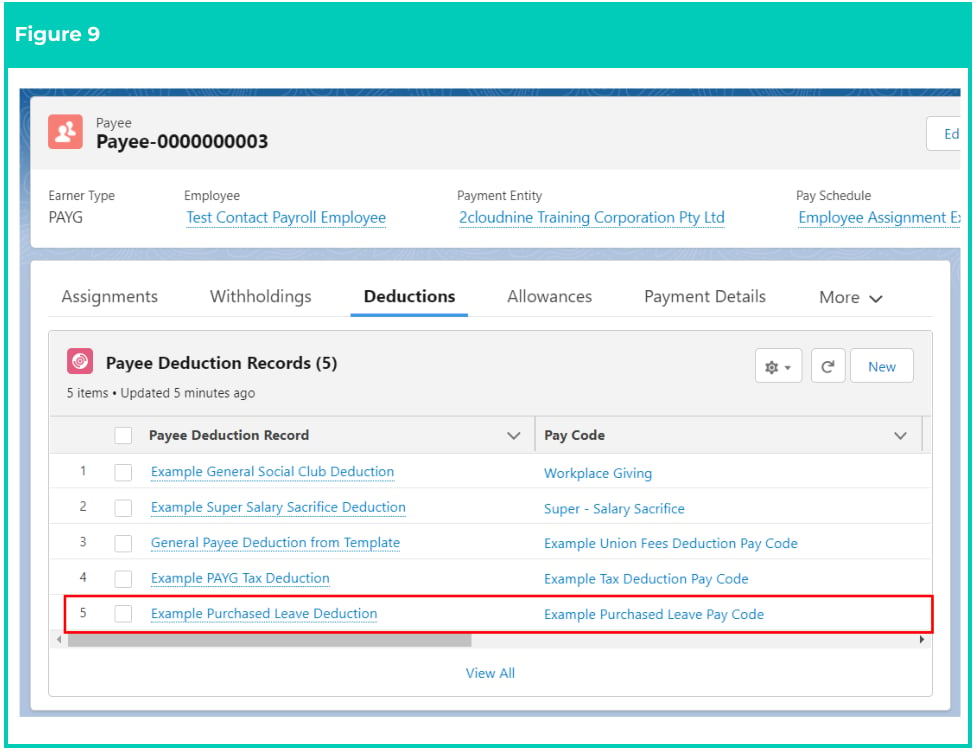
A new **Purchased Leave Deduction Record** is now created (see Figure 9).
The Deduction Payrun Statistics will update automatically with historical statistics of the Deduction record, and should never be manually populated.
A new **Purchased Leave Deduction Record** is now created (see Figure 9).
 Payee Deduction records CAN NOT be deleted if they have related records or are used in other records. Deleting records is not recommended unless absolutely essential.
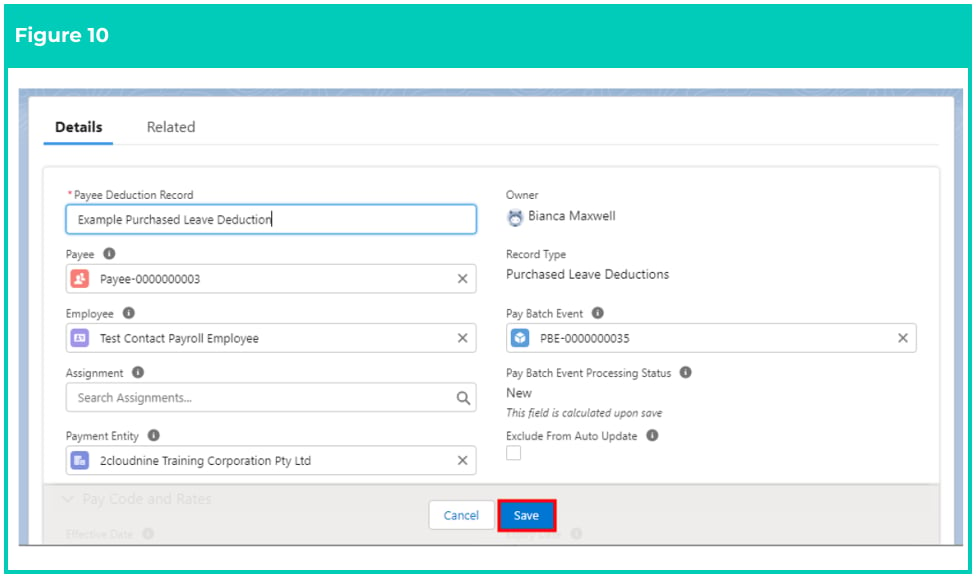
17. To modify an existing **Payee Deduction** record, open the required record and select the **Edit** button available on the top right side of the page. You can also double click within fields that need editing or just click on the pencil icon that appears within fields when hovering with your cursor.
18. When complete, click on the **Save** button (see Figure 10).
Payee Deduction records CAN NOT be deleted if they have related records or are used in other records. Deleting records is not recommended unless absolutely essential.
17. To modify an existing **Payee Deduction** record, open the required record and select the **Edit** button available on the top right side of the page. You can also double click within fields that need editing or just click on the pencil icon that appears within fields when hovering with your cursor.
18. When complete, click on the **Save** button (see Figure 10).
 ## Field Descriptions
**Auto Create New Payee Leave Rule** indicates whether the product will automatically create a new Payee
Leave Rule for a Purchased Leave Deduction. If ‘Yes’, the Leave Rule field must be populated .
**Assignment** details if this Payee Deduction Record is specific to an Assignment. If no Assignment is
entered, the Deduction will apply to Pay Transactions for all Assignments related to the Payee.
**Based on Quantity Worked** indicates whether the Deduction considers the quantity of units worked per
Payee Pay Batch in the calculation of the Deduction Pay Transaction.
**Deduction Order** determines, after the application of being a pre-tax or post-tax deduction (as per the
Associated Pay Code), the ascending order in which Payee Deduction records will be assessed during the
creation of the Deduction Pay Transaction.
**Deduction Rate** defines the rate that will be used when calculating the deduction amount during the
creation of the Deduction Pay Transaction.
**Deduction Rate Type** defines if the value outlined in the Deduction Rate field should be treated as a fixed
amount or as a percentage of the Payee's earnings.
* **Amount** is the fixed amount to be deducted from the Payees earnings for the pay period.
* **Deductions Units x Deduction Rate** is the Deduction Units multiplied by the Deduction Rate.
* **Percentage of Gross** is the amount to be deducted as a percentage of the Payees Gross earnings
for the pay period.
* **Percentage of OTE** is the amount to be deducted as a percentage of the Payees Ordinary Time
Earnings (OTE) for the pay period.
* **Rate per Quantity Worked** applies a flat rate per Quantity Worked to be deducted for the pay
period.
* **Percentage of Taxable Gross** is the amount to be deducted as a percentage of the Payees
Taxable Gross earnings for the pay period.
**Deduction Units** defines the number of units which will be deducted Per Calendar Period if the selected
Deduction Rate Type is Deduction Units x Deduction Rate.
**Effective Date** is the date the Deduction will become effective. Deductions will not be paid before this
date.
**Employee** is the Employee record this Payee Deduction Record relates to. Must match the Employee of
the Payee.
**Expiry Date** is the date the Deduction expires. Deductions will not be taken after this date. If blank, no
expiry date applies.
**Is Rollover Underpaid Deductions** defines if deduction amounts that can not be withheld should be
rolled over to be withheld in future payruns.
**Leave Rule** is the Parent Leave Rule from which a new Payee Leave Rule will be auto created if record
type Purchased Leave Deductions and Auto Create New Payee Leave Rule = Yes.
**Pay Calendar Period Deduction Limit** defines an upper limit to the Deduction amount that can be
withheld on a per Pay Calendar Period basis. When Deductions are calculated, the Deduction amount
withheld will be adjusted to ensure this amount is not exceeded. If blank, no limit applies.
**Pay Code** defines the Pay Code that will be used when a Deduction Pay Transaction is created.
**Payee Deduction Record** defines the name for the Payee Deduction.
**Payee Deduction Template** relates the Payee Deduction Record to a Deduction Template. Populating
this field enables users to complete less fields and have them default according to the values in the
Deduction Template.
**Payee** is the Payee record this Payee Deduction Record relates to.
**Payee Leave Rule** is the associated Payee Leave Rule for a purchased leave deduction.
**Payment Entity** is the Payment Entity this Payee Deduction Record relates to.
**Pay To Account Record** where the Pay To Type field is set to Account, this field defines the Account
record that payments will be made to.
**Pay To Type** defines how Deductions withheld should be paid forward.
**Pay To Withholding Record** is where the Pay To Type is Payee Withholding, defines the Payee
Withholding Record detailing where recipient payments should be made to.
**Protected Amount Applied** is the protected net earnings beyond which this Deduction will not be
calculated.
**Purchased Leave Accrual Basis** indicates how the accrual will be determined. This will be either
Deduction Units or Payee Leave Rule.
* **Deduction Units** Purchased Leave will accrue based on the number of units of the Deduction.
* **Payee Leave Rule** Purchased Leave will accrue based on the rate specified in the associated
Leave Rule.
**Quantity** defines the number of times the Deduction will be taken. If blank, no limit applies.
**Quantity Worked Maximum** is the maximum number of hours that may be applied to the Deduction, if
the actual hours worked for the period are less than or equal to this value.
**Quantity Worked Minimum** is the minimum number of hours that may be applied to the Deduction, if
the actual hours worked for the period are greater than or equal to this value.
**Total Deduction Limit** defines an upper limit to the Deduction amount that can be withheld for the
Deduction. When Deductions are calculated, the Deduction amount withheld will be adjusted to ensure
this amount is not exceeded. If blank no limit applies.
## Further Information
| Document | Document Type | Description |
| --------------------------------------------- | ----------------- | ---------------------------------------------- |
| QRG Create a Payee record | Task Instructions | How to create a Payee Record |
| QRG Create a Payee Deduction - PAYG | Task Instructions | How to create a PAYG Payee Deduction |
| QRG Create a Payee Deduction - Superannuation | Task Instructions | How to create a Superannuation Payee Deduction |
| QRG Create a Payee Deduction - General | Task Instructions | How to create a General Payee Deduction |
| QRG Create a Payee Deduction Template | Task Instructions | How to create a Payee Deduction Template |
## Field Descriptions
**Auto Create New Payee Leave Rule** indicates whether the product will automatically create a new Payee
Leave Rule for a Purchased Leave Deduction. If ‘Yes’, the Leave Rule field must be populated .
**Assignment** details if this Payee Deduction Record is specific to an Assignment. If no Assignment is
entered, the Deduction will apply to Pay Transactions for all Assignments related to the Payee.
**Based on Quantity Worked** indicates whether the Deduction considers the quantity of units worked per
Payee Pay Batch in the calculation of the Deduction Pay Transaction.
**Deduction Order** determines, after the application of being a pre-tax or post-tax deduction (as per the
Associated Pay Code), the ascending order in which Payee Deduction records will be assessed during the
creation of the Deduction Pay Transaction.
**Deduction Rate** defines the rate that will be used when calculating the deduction amount during the
creation of the Deduction Pay Transaction.
**Deduction Rate Type** defines if the value outlined in the Deduction Rate field should be treated as a fixed
amount or as a percentage of the Payee's earnings.
* **Amount** is the fixed amount to be deducted from the Payees earnings for the pay period.
* **Deductions Units x Deduction Rate** is the Deduction Units multiplied by the Deduction Rate.
* **Percentage of Gross** is the amount to be deducted as a percentage of the Payees Gross earnings
for the pay period.
* **Percentage of OTE** is the amount to be deducted as a percentage of the Payees Ordinary Time
Earnings (OTE) for the pay period.
* **Rate per Quantity Worked** applies a flat rate per Quantity Worked to be deducted for the pay
period.
* **Percentage of Taxable Gross** is the amount to be deducted as a percentage of the Payees
Taxable Gross earnings for the pay period.
**Deduction Units** defines the number of units which will be deducted Per Calendar Period if the selected
Deduction Rate Type is Deduction Units x Deduction Rate.
**Effective Date** is the date the Deduction will become effective. Deductions will not be paid before this
date.
**Employee** is the Employee record this Payee Deduction Record relates to. Must match the Employee of
the Payee.
**Expiry Date** is the date the Deduction expires. Deductions will not be taken after this date. If blank, no
expiry date applies.
**Is Rollover Underpaid Deductions** defines if deduction amounts that can not be withheld should be
rolled over to be withheld in future payruns.
**Leave Rule** is the Parent Leave Rule from which a new Payee Leave Rule will be auto created if record
type Purchased Leave Deductions and Auto Create New Payee Leave Rule = Yes.
**Pay Calendar Period Deduction Limit** defines an upper limit to the Deduction amount that can be
withheld on a per Pay Calendar Period basis. When Deductions are calculated, the Deduction amount
withheld will be adjusted to ensure this amount is not exceeded. If blank, no limit applies.
**Pay Code** defines the Pay Code that will be used when a Deduction Pay Transaction is created.
**Payee Deduction Record** defines the name for the Payee Deduction.
**Payee Deduction Template** relates the Payee Deduction Record to a Deduction Template. Populating
this field enables users to complete less fields and have them default according to the values in the
Deduction Template.
**Payee** is the Payee record this Payee Deduction Record relates to.
**Payee Leave Rule** is the associated Payee Leave Rule for a purchased leave deduction.
**Payment Entity** is the Payment Entity this Payee Deduction Record relates to.
**Pay To Account Record** where the Pay To Type field is set to Account, this field defines the Account
record that payments will be made to.
**Pay To Type** defines how Deductions withheld should be paid forward.
**Pay To Withholding Record** is where the Pay To Type is Payee Withholding, defines the Payee
Withholding Record detailing where recipient payments should be made to.
**Protected Amount Applied** is the protected net earnings beyond which this Deduction will not be
calculated.
**Purchased Leave Accrual Basis** indicates how the accrual will be determined. This will be either
Deduction Units or Payee Leave Rule.
* **Deduction Units** Purchased Leave will accrue based on the number of units of the Deduction.
* **Payee Leave Rule** Purchased Leave will accrue based on the rate specified in the associated
Leave Rule.
**Quantity** defines the number of times the Deduction will be taken. If blank, no limit applies.
**Quantity Worked Maximum** is the maximum number of hours that may be applied to the Deduction, if
the actual hours worked for the period are less than or equal to this value.
**Quantity Worked Minimum** is the minimum number of hours that may be applied to the Deduction, if
the actual hours worked for the period are greater than or equal to this value.
**Total Deduction Limit** defines an upper limit to the Deduction amount that can be withheld for the
Deduction. When Deductions are calculated, the Deduction amount withheld will be adjusted to ensure
this amount is not exceeded. If blank no limit applies.
## Further Information
| Document | Document Type | Description |
| --------------------------------------------- | ----------------- | ---------------------------------------------- |
| QRG Create a Payee record | Task Instructions | How to create a Payee Record |
| QRG Create a Payee Deduction - PAYG | Task Instructions | How to create a PAYG Payee Deduction |
| QRG Create a Payee Deduction - Superannuation | Task Instructions | How to create a Superannuation Payee Deduction |
| QRG Create a Payee Deduction - General | Task Instructions | How to create a General Payee Deduction |
| QRG Create a Payee Deduction Template | Task Instructions | How to create a Payee Deduction Template |