> ## Documentation Index
> Fetch the complete documentation index at: https://documentation.2cloudnine.com/llms.txt
> Use this file to discover all available pages before exploring further.
# QRG Create a Payee record
## Purpose
The purpose of this quick reference guide is to step through the process of setting up a Payee record. The
intended audience for this document is System Administrators / Standard Users.
## Steps
### Create a new Payee record
The Payee record holds employee information related to payments, withholdings, leave and other
calculations to be processed in a Pay Batch.
To create a Payee record, follow the steps below:
1. Go to the **Payee** tab.
2. Click on the **New** button. (See Figure 1)
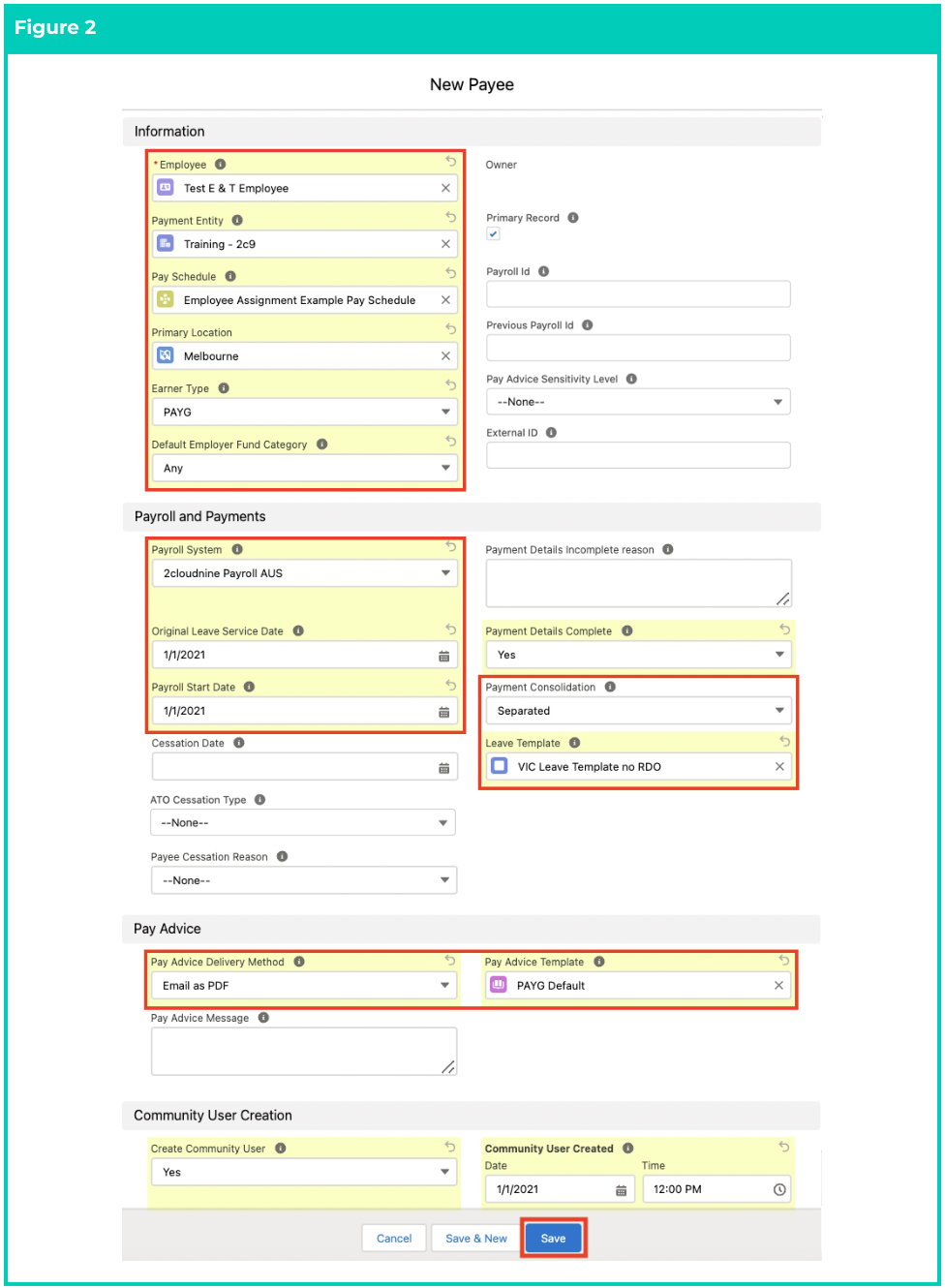
 3. Populate the following required fields to provide the base details of the Payee: (See Figure 2)
1. **Employee**
2. **Payment Entity**
3. **Pay Schedule**
4. **Primary Location**
5. **Earner Type**
6. **Payroll System**
7. **Original Leave Service Date**
8. **Payroll Start Date**
9. **Pay Advice Delivery Method**
10. **Payment Consolidation**
11. **Leave Template**
12. **Pay Advice Template**
13. **Payroll Id** (can be automated)
4. Populate the following optional fields as needed:
1. If you are changing the Payroll Id of a Payee having existing YTD values in the current
financial year, populate the **Previous Payroll Id** to avoid duplication of YTDs in myGov.
2. To define the default fund for the Employer, populate the optional field **Default**
**Employer Fund Category** .
3. To declare if the payment details are complete, populate the **Payment Details**
**Complete** field. If not, populate the **Payment Details Incomplete Reason** field.
4. To add a custom message on the Pay Advice PDF, populate the optional field **Pay**
**Advice Message** .
5. To define the sensitivity level of the Pay Advice, populate the optional field **Pay Advice**
### Sensitivity Level.
1. To create this Payee as a Community User, populate the optional field **Create**
**Community User** (this also requires configuration by your system administrator).
3. Populate the following required fields to provide the base details of the Payee: (See Figure 2)
1. **Employee**
2. **Payment Entity**
3. **Pay Schedule**
4. **Primary Location**
5. **Earner Type**
6. **Payroll System**
7. **Original Leave Service Date**
8. **Payroll Start Date**
9. **Pay Advice Delivery Method**
10. **Payment Consolidation**
11. **Leave Template**
12. **Pay Advice Template**
13. **Payroll Id** (can be automated)
4. Populate the following optional fields as needed:
1. If you are changing the Payroll Id of a Payee having existing YTD values in the current
financial year, populate the **Previous Payroll Id** to avoid duplication of YTDs in myGov.
2. To define the default fund for the Employer, populate the optional field **Default**
**Employer Fund Category** .
3. To declare if the payment details are complete, populate the **Payment Details**
**Complete** field. If not, populate the **Payment Details Incomplete Reason** field.
4. To add a custom message on the Pay Advice PDF, populate the optional field **Pay**
**Advice Message** .
5. To define the sensitivity level of the Pay Advice, populate the optional field **Pay Advice**
### Sensitivity Level.
1. To create this Payee as a Community User, populate the optional field **Create**
**Community User** (this also requires configuration by your system administrator).
 The field Primary Payee is, by default, auto-selected on every Payee record and should
be unchecked if the related Contact record already has an existing Primary Payee
record. A Contact record can have only one Primary Payee record assigned to it.
Similarly, upon successfully saving the Payee record, the field Payroll Id would
automatically be populated.
Cessation Date and Payee Cessation Reason fields are required only for the Payee Exit
process and should be left blank otherwise.
Payroll Start Date is the Payees first date of employment with this Payment Entity. This
does not change if they have transitioned to 2c9 Payroll after their commencement
date, it will always be their first date with this Payment Entity.
5. Click on the **Save** button.
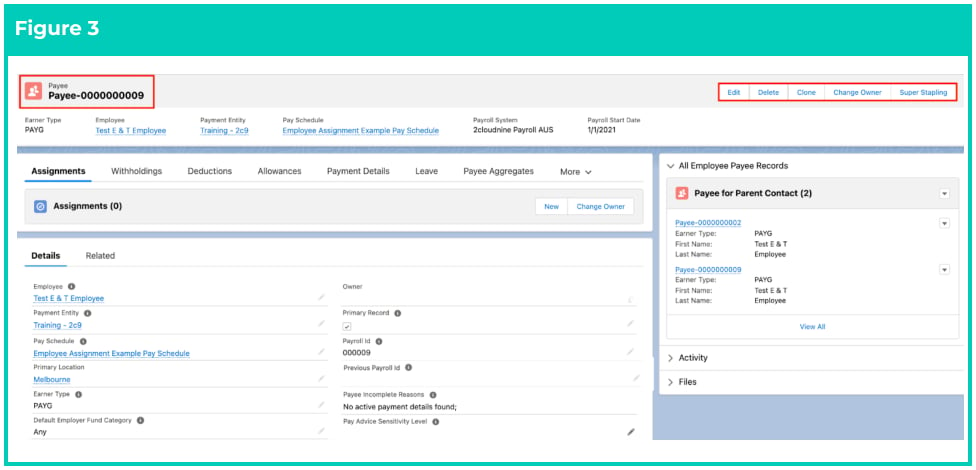
6. A new Payee record has been created and ready for related records to be created, along with its
Payroll Id populated. (See Figure 3)
The field Primary Payee is, by default, auto-selected on every Payee record and should
be unchecked if the related Contact record already has an existing Primary Payee
record. A Contact record can have only one Primary Payee record assigned to it.
Similarly, upon successfully saving the Payee record, the field Payroll Id would
automatically be populated.
Cessation Date and Payee Cessation Reason fields are required only for the Payee Exit
process and should be left blank otherwise.
Payroll Start Date is the Payees first date of employment with this Payment Entity. This
does not change if they have transitioned to 2c9 Payroll after their commencement
date, it will always be their first date with this Payment Entity.
5. Click on the **Save** button.
6. A new Payee record has been created and ready for related records to be created, along with its
Payroll Id populated. (See Figure 3)
 Alternatively, a Payee record can be created from the corresponding Contact record’s
related list.
Payee records CAN NOT be deleted if they have related records or are used in other
records. Deleting records is not recommended unless absolutely essential.
7. To modify an existing **Payee** record, open the required record and select the **Edit** button available
on the top right side of the page. You can also double click in any of the fields that need editing
or just click on the pencil icon that appears within fields when you move your cursor over
the field.
8. When complete, click on the **Save** button.
### Field Descriptions
**ATO Cessation Type** The ATO-approved list of Cessation Types for STP Reporting. Picklist values are:
* Voluntary Cessation
* Ill Health
* Deceased
* Genuine Redundancy
* Dismissal
* Contract Cessation
* Transfer
* Early Retirement
* Non-Genuine Redundancy
**Community User Created** is the date and time the Community User was created and is populated
automatically. Users should not be manually populating this field.
**Create Community User** defines if the Community User should be created upon creation of this Payee
via an automation.
**Default Employer Fund Category** is used for Payees to elect their super to be set up with the Payment
Entities Default Super Fund, instead of providing details of their own choice of Superannuation Fund.
**Earner Type** indicates how this Payee should populate their details within the Community.
**Employee** is the related Employee.
**Leave Template** is a lookup to the related Leave Template used to create default Payee Leave Rules.
**Original Leave Service Date** is the original service date from which Payee Leave Rules will use for their
eligibility for taking leave and displaying balances. This date can be overridden on individual Payee Leave
Rules during/after their creation.
**Pay Advice Delivery Method** is the distribution method for the Payee’s Pay Advices.
**Pay Advice Message** is to enter a Payee-specific message which will appear on their Pay Advices.
**Pay Advice Sensitivity Level** is the nominated sensitivity of this Pay Advice record. Customised security
can be implemented based on the value in this field.
**Pay Advice Template** indicates the default Pay Advice Template to use for all Pay Advice records created
for this Payee.
**Pay Schedule** defines the Pay Schedule that applies to the Payee.
**Payee Cessation Reason** is the reason employment ended.
**Payee Incomplete Reasons** are the issues to be resolved before the Payee can be included in a
2cloudnine Pay Batch.
**Payment Consolidation** indicates whether payments for multiple periods in the same Pay Batch should
be consolidated or treated as separate payments during Payment File creation.
**Payment Details Complete** indicates if a Payee has sufficient information in their Payment Detail to
enable creation of Net Payment within a Payment File.
**Payment Details Incomplete reason**, if Payment Details Complete = No, then the reason for the Payment
Details being incomplete is provided here.
**Payment Entity** is the legal entity making payment to this Payee.
**Payroll Id** is the external Payroll System Id.
**Payroll Start Date** is the date this Payee commenced employment with this Payment Entity, ignoring
any periods of unpaid leave. This is not the Go Live date on 2c9 Payroll, as this field is used in STP
Lodgements to the ATO.
**Payroll System** is the application used to calculate payruns for this Payee.
**Previous Payroll Id** when changing the Payroll Id of a Payee having existing YTD values within the
financial year, please enter their Previous Payroll Id in this field to avoid duplication of YTDs in myGov.
**Primary Record** indicates this Payee is the primary record for viewing this Employee in the Community.
### Further Information
| Document | Document Type | Description |
| ------------------------------------------------- | ----------------- | --------------------------------------------------------------- |
| Create Payee Withholding Records - PAYG | Task Instructions | How to create PAYG Withholding Records |
| Create Payee Withholding Records - Superannuation | Task Instructions | How to create Superannuation Withholding Records |
| Create an Employee - Contact | Task Instructions | How to create an Employee record |
| Create Payment Details | Task Instructions | How to create a Payment Details for Payees and Payment Entities |
Alternatively, a Payee record can be created from the corresponding Contact record’s
related list.
Payee records CAN NOT be deleted if they have related records or are used in other
records. Deleting records is not recommended unless absolutely essential.
7. To modify an existing **Payee** record, open the required record and select the **Edit** button available
on the top right side of the page. You can also double click in any of the fields that need editing
or just click on the pencil icon that appears within fields when you move your cursor over
the field.
8. When complete, click on the **Save** button.
### Field Descriptions
**ATO Cessation Type** The ATO-approved list of Cessation Types for STP Reporting. Picklist values are:
* Voluntary Cessation
* Ill Health
* Deceased
* Genuine Redundancy
* Dismissal
* Contract Cessation
* Transfer
* Early Retirement
* Non-Genuine Redundancy
**Community User Created** is the date and time the Community User was created and is populated
automatically. Users should not be manually populating this field.
**Create Community User** defines if the Community User should be created upon creation of this Payee
via an automation.
**Default Employer Fund Category** is used for Payees to elect their super to be set up with the Payment
Entities Default Super Fund, instead of providing details of their own choice of Superannuation Fund.
**Earner Type** indicates how this Payee should populate their details within the Community.
**Employee** is the related Employee.
**Leave Template** is a lookup to the related Leave Template used to create default Payee Leave Rules.
**Original Leave Service Date** is the original service date from which Payee Leave Rules will use for their
eligibility for taking leave and displaying balances. This date can be overridden on individual Payee Leave
Rules during/after their creation.
**Pay Advice Delivery Method** is the distribution method for the Payee’s Pay Advices.
**Pay Advice Message** is to enter a Payee-specific message which will appear on their Pay Advices.
**Pay Advice Sensitivity Level** is the nominated sensitivity of this Pay Advice record. Customised security
can be implemented based on the value in this field.
**Pay Advice Template** indicates the default Pay Advice Template to use for all Pay Advice records created
for this Payee.
**Pay Schedule** defines the Pay Schedule that applies to the Payee.
**Payee Cessation Reason** is the reason employment ended.
**Payee Incomplete Reasons** are the issues to be resolved before the Payee can be included in a
2cloudnine Pay Batch.
**Payment Consolidation** indicates whether payments for multiple periods in the same Pay Batch should
be consolidated or treated as separate payments during Payment File creation.
**Payment Details Complete** indicates if a Payee has sufficient information in their Payment Detail to
enable creation of Net Payment within a Payment File.
**Payment Details Incomplete reason**, if Payment Details Complete = No, then the reason for the Payment
Details being incomplete is provided here.
**Payment Entity** is the legal entity making payment to this Payee.
**Payroll Id** is the external Payroll System Id.
**Payroll Start Date** is the date this Payee commenced employment with this Payment Entity, ignoring
any periods of unpaid leave. This is not the Go Live date on 2c9 Payroll, as this field is used in STP
Lodgements to the ATO.
**Payroll System** is the application used to calculate payruns for this Payee.
**Previous Payroll Id** when changing the Payroll Id of a Payee having existing YTD values within the
financial year, please enter their Previous Payroll Id in this field to avoid duplication of YTDs in myGov.
**Primary Record** indicates this Payee is the primary record for viewing this Employee in the Community.
### Further Information
| Document | Document Type | Description |
| ------------------------------------------------- | ----------------- | --------------------------------------------------------------- |
| Create Payee Withholding Records - PAYG | Task Instructions | How to create PAYG Withholding Records |
| Create Payee Withholding Records - Superannuation | Task Instructions | How to create Superannuation Withholding Records |
| Create an Employee - Contact | Task Instructions | How to create an Employee record |
| Create Payment Details | Task Instructions | How to create a Payment Details for Payees and Payment Entities |