> ## Documentation Index
> Fetch the complete documentation index at: https://documentation.2cloudnine.com/llms.txt
> Use this file to discover all available pages before exploring further.
# QRG Create an Assignment - Employee
## Purpose
The purpose of this quick reference guide is to step through the process of setting up an Assignment
record. The intended audience for this document is System Administrators / Standard Users.
This record type of Assignment holds the general information, role details, Employee details, Payee
Details, and Approver details for an Employee’s placement.
## Steps
### Create a new Assignment record - Employee
Create an Assignment record by following the below steps:
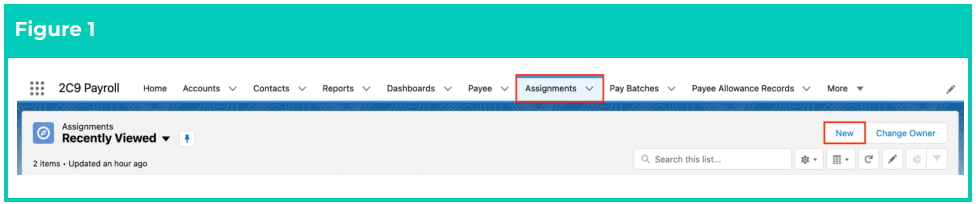
1. Go to the **Assignments** tab (see Figure 1).
2. Click the **New** button.
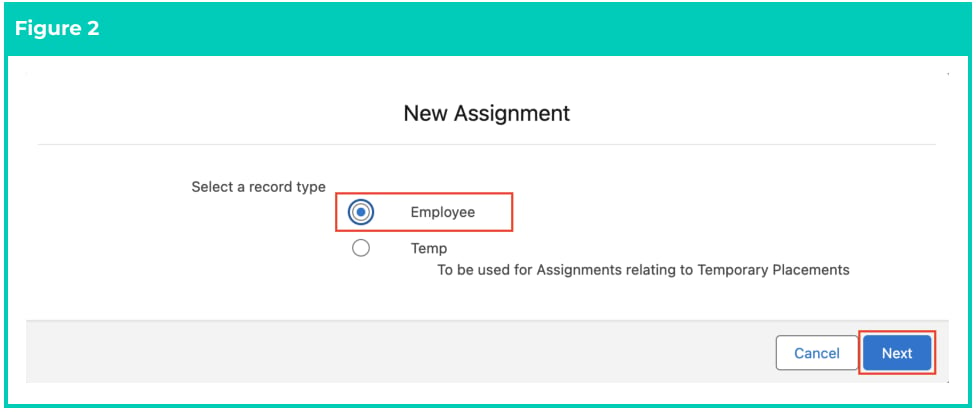
 3. Select the **Employee** record type from the picklist options (see Figure 2).
4. Click the **Next** button.
3. Select the **Employee** record type from the picklist options (see Figure 2).
4. Click the **Next** button.
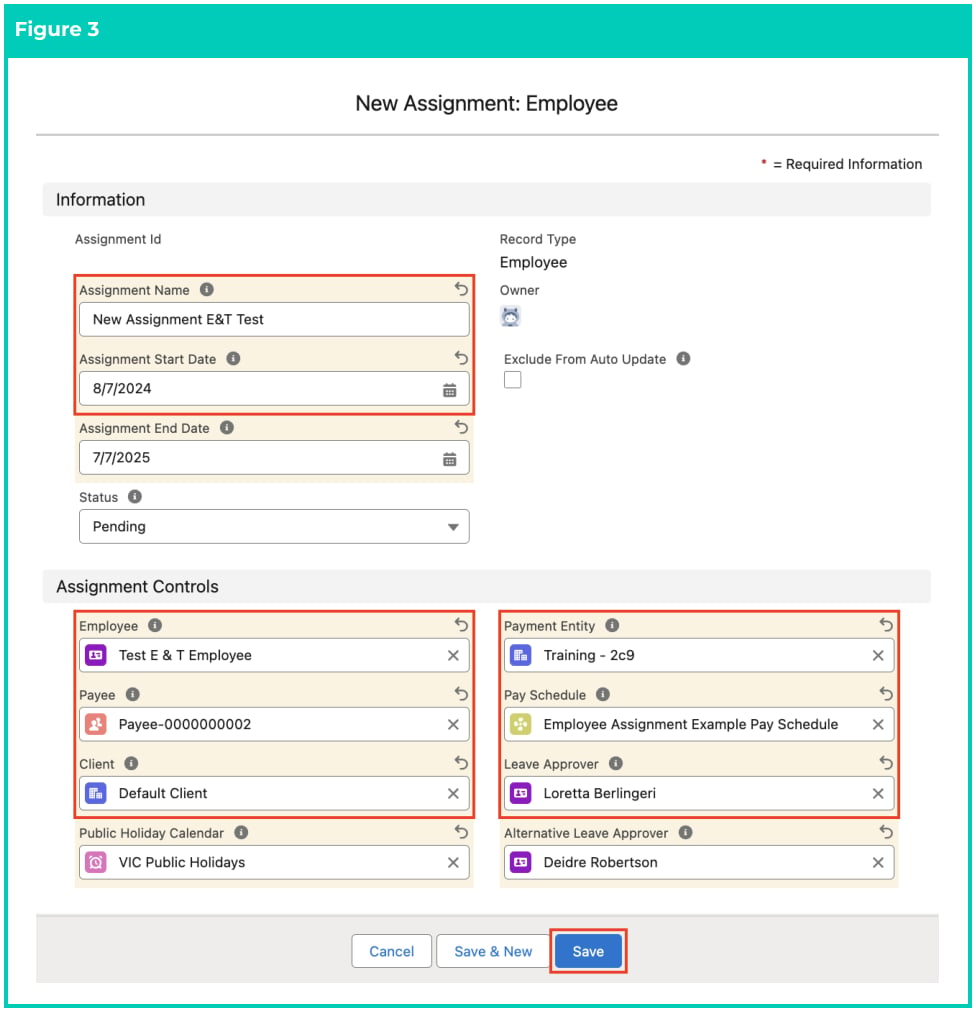
 5. Populate the following required fields to provide base details of the Assignment (see Figure 3):
1. **Assignment Name**
2. **Assignment Start Date**
3. **Employee**
4. **Payee** (must relate to the Employee record)
5. **Client**
6. **Payment Entity**
7. **Pay Schedule** (must match with Payee)
8. **Leave Approver**
6. Populate the following optional fields as needed (see Figure 3):
1. To set an end date for the Assignment record, populate the **Assignment End Date** field. If
left blank, no Assignment End Date will apply
2. To calculate Public Holidays when an Assignment has an associated Assignment
Schedule record, populate the optional field **Public Holiday Calendar** . Please note that
this field should only be added to the Page Layout if you would like the Public Holiday
Calendar to default on the related Assignment Schedules from this field.
3. To allow the Leave Approver notifications to be sent to an alternative contact, populate
the **Alternative Leave Approver** field. If left blank, no Alternative Leave Approver will be
allocated.
4. To prevent the Status of the Assignment record from being automatically updated by the
Automatic Status Update Scheduled Job, tick the **Exclude From Auto Update** checkbox.
5. Populate the following required fields to provide base details of the Assignment (see Figure 3):
1. **Assignment Name**
2. **Assignment Start Date**
3. **Employee**
4. **Payee** (must relate to the Employee record)
5. **Client**
6. **Payment Entity**
7. **Pay Schedule** (must match with Payee)
8. **Leave Approver**
6. Populate the following optional fields as needed (see Figure 3):
1. To set an end date for the Assignment record, populate the **Assignment End Date** field. If
left blank, no Assignment End Date will apply
2. To calculate Public Holidays when an Assignment has an associated Assignment
Schedule record, populate the optional field **Public Holiday Calendar** . Please note that
this field should only be added to the Page Layout if you would like the Public Holiday
Calendar to default on the related Assignment Schedules from this field.
3. To allow the Leave Approver notifications to be sent to an alternative contact, populate
the **Alternative Leave Approver** field. If left blank, no Alternative Leave Approver will be
allocated.
4. To prevent the Status of the Assignment record from being automatically updated by the
Automatic Status Update Scheduled Job, tick the **Exclude From Auto Update** checkbox.
 The Status of the Assignment record will be automatically updated upon saving the
record, based on the Start Date and End Date.
The field Assignment Incomplete Reasons automatically appears on the Page Layout
and gets populated after the record is saved.
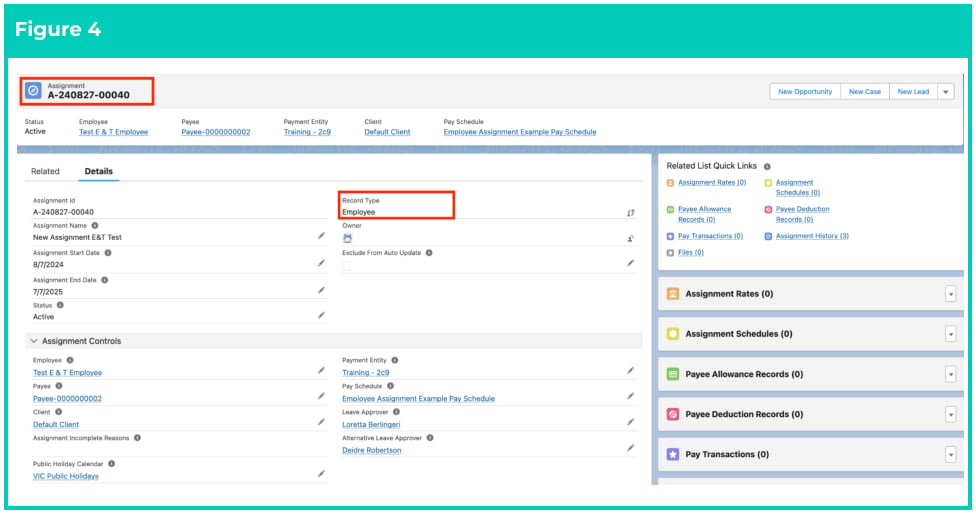
7. Click on the **Save** button.
8. A new Employee Assignment record has been created (see Figure 4).
The Status of the Assignment record will be automatically updated upon saving the
record, based on the Start Date and End Date.
The field Assignment Incomplete Reasons automatically appears on the Page Layout
and gets populated after the record is saved.
7. Click on the **Save** button.
8. A new Employee Assignment record has been created (see Figure 4).
 Assignment records CANNOT be deleted if they have related records or are used in
other records. Deleting records is not recommended unless absolutely essential.
If the Assignment has an associated Assignment Schedule record, the User can
populate the Public Holiday Calendar directly on the Assignment Schedule record, or if
they do so on the Assignment, it will default on the Assignment Schedule.
9. To modify an existing **Assignment** record, open the required record and select the **Edit** button
available on the top right side of the page. You can also double-click in any of the fields that need
editing or just click on the pencil icon that appears within fields when you move your cursor
over the field.
10. When complete, click on the **Save** button.
## Field Descriptions
**Alternative Leave Approver** is an appointed alternative contact who will receive notifications and can
approve leave applications.
**Assignment Incomplete Reasons** is an automated field that appears on the Page Layout after a record is
saved, and gets populated accordingly.
**Assignment Name** is the name of the role of this Assignment.
**Assignment Start Date** is the start date of the Assignment.
**Assignment End Date** is the end date of the Assignment.
**Client** is the Client/Account record related to the Assignment. This record cannot be a Payment Entity or
Invoice Entity.
**Employee** is the Employee for this Assignment.
**Leave Approver** is an appointed contact who will receive notifications and can approve Leave.
**Payment Entity** is the related Payment Entity record.
**Pay Schedule** defines the pay frequency for Pay Batches.
**Payee** is the related Payee for the Assignment, which must be the same as the selected Employee.
**Public Holiday Calendar** defines the Public Holiday Calendar that will be used in the processing of the
Pay Batch to define specific days for Public Holidays.
**Status** is the current status of the Assignment based on the Effective Date and Expiry Date.
## Further Information
| Document | Document Type | Description |
| ---------------------------------------- | ----------------- | --------------------------------------------------------------- |
| Create Pay Schedule record | Task Instructions | How to create a Pay Schedule record |
| Create a Payee record | Task Instructions | How to create a Payee record |
| Create an Assignment Rate - Remuneration | Task Instructions | How to create a Remuneration Assignment Rate record |
| Create Payee Allowances - Payroll | Task Instructions | How to create a Payee Allowances record for Payroll Record Type |
Assignment records CANNOT be deleted if they have related records or are used in
other records. Deleting records is not recommended unless absolutely essential.
If the Assignment has an associated Assignment Schedule record, the User can
populate the Public Holiday Calendar directly on the Assignment Schedule record, or if
they do so on the Assignment, it will default on the Assignment Schedule.
9. To modify an existing **Assignment** record, open the required record and select the **Edit** button
available on the top right side of the page. You can also double-click in any of the fields that need
editing or just click on the pencil icon that appears within fields when you move your cursor
over the field.
10. When complete, click on the **Save** button.
## Field Descriptions
**Alternative Leave Approver** is an appointed alternative contact who will receive notifications and can
approve leave applications.
**Assignment Incomplete Reasons** is an automated field that appears on the Page Layout after a record is
saved, and gets populated accordingly.
**Assignment Name** is the name of the role of this Assignment.
**Assignment Start Date** is the start date of the Assignment.
**Assignment End Date** is the end date of the Assignment.
**Client** is the Client/Account record related to the Assignment. This record cannot be a Payment Entity or
Invoice Entity.
**Employee** is the Employee for this Assignment.
**Leave Approver** is an appointed contact who will receive notifications and can approve Leave.
**Payment Entity** is the related Payment Entity record.
**Pay Schedule** defines the pay frequency for Pay Batches.
**Payee** is the related Payee for the Assignment, which must be the same as the selected Employee.
**Public Holiday Calendar** defines the Public Holiday Calendar that will be used in the processing of the
Pay Batch to define specific days for Public Holidays.
**Status** is the current status of the Assignment based on the Effective Date and Expiry Date.
## Further Information
| Document | Document Type | Description |
| ---------------------------------------- | ----------------- | --------------------------------------------------------------- |
| Create Pay Schedule record | Task Instructions | How to create a Pay Schedule record |
| Create a Payee record | Task Instructions | How to create a Payee record |
| Create an Assignment Rate - Remuneration | Task Instructions | How to create a Remuneration Assignment Rate record |
| Create Payee Allowances - Payroll | Task Instructions | How to create a Payee Allowances record for Payroll Record Type |