> ## Documentation Index
> Fetch the complete documentation index at: https://documentation.2cloudnine.com/llms.txt
> Use this file to discover all available pages before exploring further.
# QRG Create an Assignment Rate record - Remuneration
export const InlineImage = ({src, alt = "", height = "1.6em"}) => {
return  ;
};
## Purpose
The purpose of this quick reference guide is to step through the process of setting up an Assignment Rate
record and relate it to an Assignment record. The intended audience for this document is System
Administrators / Standard Users.
## Steps
### Create a new Assignment Rate record - Remuneration
Create a Remuneration Assignment Rate record by following the below steps:
1. Go to the **Assignment** record.
1. To identify an Assignment record from an Employee record, enter the Employee name into
the **Global Search** (See Figure 1).
;
};
## Purpose
The purpose of this quick reference guide is to step through the process of setting up an Assignment Rate
record and relate it to an Assignment record. The intended audience for this document is System
Administrators / Standard Users.
## Steps
### Create a new Assignment Rate record - Remuneration
Create a Remuneration Assignment Rate record by following the below steps:
1. Go to the **Assignment** record.
1. To identify an Assignment record from an Employee record, enter the Employee name into
the **Global Search** (See Figure 1).
 2. Select the **Employee** record from the suggestions provided.
3. Open the **Related** tab.
4. Identify the **Assignment** record(s).
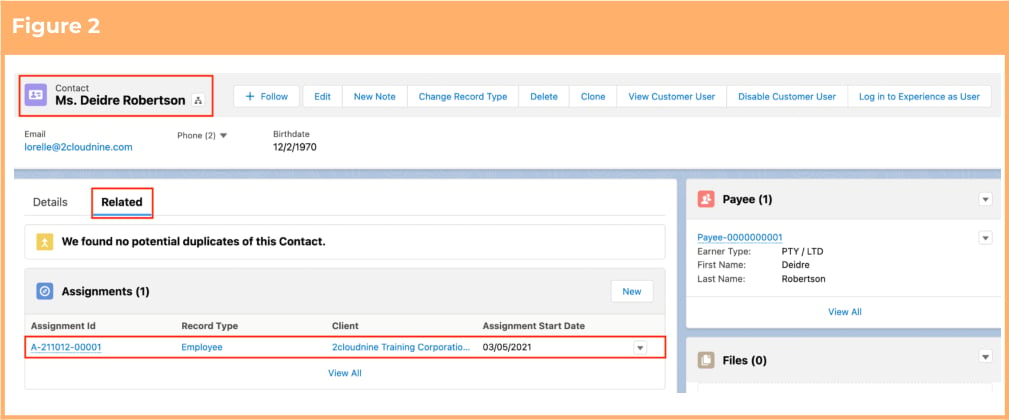
5. Select the **Assignment** record (See Figure 2).
2. Select the **Employee** record from the suggestions provided.
3. Open the **Related** tab.
4. Identify the **Assignment** record(s).
5. Select the **Assignment** record (See Figure 2).
 2. Open the **Related** tab.
3. Identify the **Assignment Rates** related list.
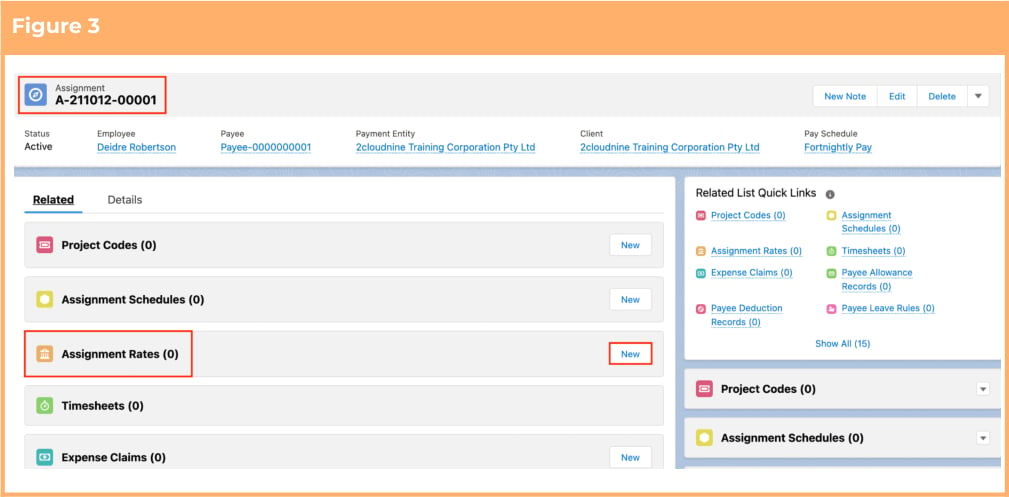
4. Click **New** (See Figure 3).
2. Open the **Related** tab.
3. Identify the **Assignment Rates** related list.
4. Click **New** (See Figure 3).
 5. Select **Remuneration** from the available Record Types (See Figure 4).
6. Click the **Next** button.
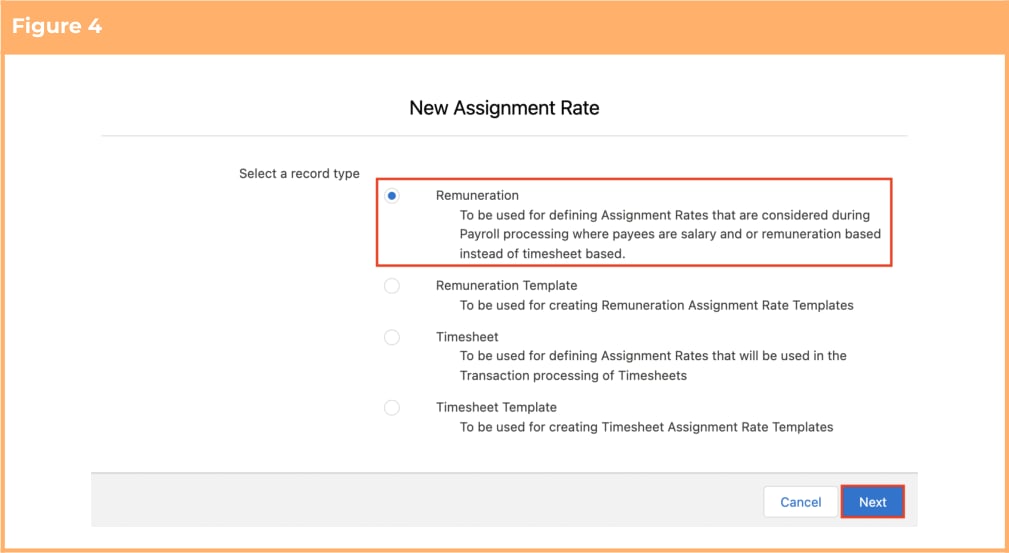
5. Select **Remuneration** from the available Record Types (See Figure 4).
6. Click the **Next** button.
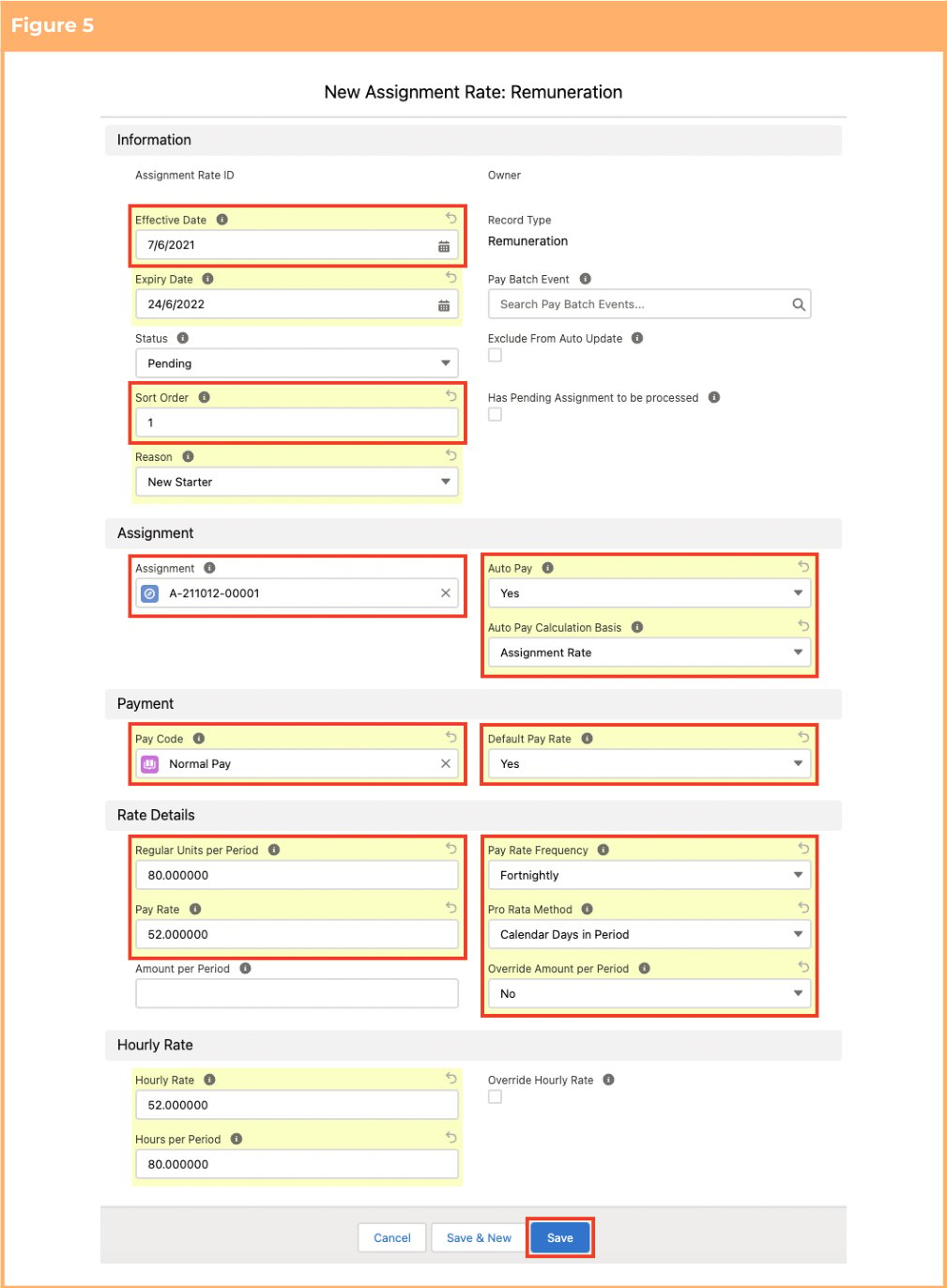
 7. Populate the following required fields to provide the base details of the Assignment Rate record:
(See Figure 5)
1. **Effective Date**
2. **Sort Order**
3. **Assignment**
4. **AutoPay (Yes or No)**
5. **AutoPay Calculation Basis**
6. **Pay Code**
7. **Default Pay Rate (Yes or No)**
8. **Regular Units Per Period**
9. **Pay Rate Frequency**
10. **Pay Rate**
11. **Pro Rata Method**
12. **Amount Per Period (automated)**
13. **Override Amount Per Period**
8. Populate the following optional fields as needed:
1. To set an expiry date for the Assignment Rate record, populate the **Expiry Date** field. If left
blank, no Expiry Date will apply. (See Figure 5)
2. To prevent the Status of the Assignment Rate record from being automatically updated by
the automatic status update scheduled job, tick the **Exclude From Auto Update** checkbox.
3. To choose the reason of creation for this Assignment Rate record, choose a valid reason in
the **Reason** picklist.
4. To define any required rules and limits that will be used in assessing and determining
Assignment Rates, populate the following optional fields as needed. If left blank the
rule/limit will not apply:
1. **Hourly Rate**
2. **Hours Per Period**
3. **Has Pending Assignment to be processed (checkbox)**
4. **Additional Loading Pay Code**
5. **Override Hourly Rate (checkbox)**
7. Populate the following required fields to provide the base details of the Assignment Rate record:
(See Figure 5)
1. **Effective Date**
2. **Sort Order**
3. **Assignment**
4. **AutoPay (Yes or No)**
5. **AutoPay Calculation Basis**
6. **Pay Code**
7. **Default Pay Rate (Yes or No)**
8. **Regular Units Per Period**
9. **Pay Rate Frequency**
10. **Pay Rate**
11. **Pro Rata Method**
12. **Amount Per Period (automated)**
13. **Override Amount Per Period**
8. Populate the following optional fields as needed:
1. To set an expiry date for the Assignment Rate record, populate the **Expiry Date** field. If left
blank, no Expiry Date will apply. (See Figure 5)
2. To prevent the Status of the Assignment Rate record from being automatically updated by
the automatic status update scheduled job, tick the **Exclude From Auto Update** checkbox.
3. To choose the reason of creation for this Assignment Rate record, choose a valid reason in
the **Reason** picklist.
4. To define any required rules and limits that will be used in assessing and determining
Assignment Rates, populate the following optional fields as needed. If left blank the
rule/limit will not apply:
1. **Hourly Rate**
2. **Hours Per Period**
3. **Has Pending Assignment to be processed (checkbox)**
4. **Additional Loading Pay Code**
5. **Override Hourly Rate (checkbox)**
 The Status of the Assignment Rate record will be automatically updated upon saving
the record, based on the Effective Date and Expiry Date (See Figure 6)
The checkbox *'Has Pending Assignment to be processed'* will be automatically
populated if there are Assignment Rates related to an Assignment that have not yet
been processed, and should not be manually checked.
9. Click on the **Save** button.
10. A new Assignment Rate record has been created. (See Figure 6)
The Status of the Assignment Rate record will be automatically updated upon saving
the record, based on the Effective Date and Expiry Date (See Figure 6)
The checkbox *'Has Pending Assignment to be processed'* will be automatically
populated if there are Assignment Rates related to an Assignment that have not yet
been processed, and should not be manually checked.
9. Click on the **Save** button.
10. A new Assignment Rate record has been created. (See Figure 6)
 Assignment Rate records CANNOT be deleted if they have related records or are used in
other records. Deleting records is not recommended unless absolutely essential.
11. To modify an existing **Assignment Rate** record, open the required record and select the **Edit**
button available on the top right side of the page. You can also double click in any of the fields that
need editing or just click on the pencil icon that appears within fields when you move your
cursor over the field.
12. When complete, click on the **Save** button.
## Field Descriptions
**Additional Loading Pay Code** is the Pay Code to be used for automatic creation of additional loading
transactions i.e. casual loading when Auto Pay is Yes.
**Amount Per Period** is the calculated amount to be paid in a full Calendar Period.
**Assignment** indicates the Assignment this record relates to.
**Auto Pay** indicates whether the Amount per Period should be generated automatically when a new
Calendar Period is opened during Pay Batch processing.
**Auto Pay Calculation Basis** indicates how the Remuneration Assignment Rate will be calculated.
‘Assignment Rate’ will be based on the fields populated in the Assignment Rate, ‘Work Schedule’ will use
the actual pattern of work detailed in the related Work Schedule .
**Default Pay Rate** indicates that the record is the primary rate of pay and will be used in the calculation of
leave payments.
**Effective Date** is the effective date of the Assignment Rate.
**Expiry Date** is the expiry date of the Assignment Rate.
**Hours per Period** indicates the regular number of hours the employee is expected to work per period and
is used for Leave Forecast when Actual hours calculation is used
**Hourly Rate** is the calculated hourly rate of the Employee used for Payee Exit and Leave payments.
**Override Amount per Period** indicates that the User has manually entered the Amount per Period value
payable per Calendar Period instead of using the system-calculated amount
**Override Hourly Rate** allows the user to override the system-calculated value in the Hourly Rate field.
**Pay Code** indicates the Pay Code to represent this Pay Rate in Pay Transactions. This will be used to pay
the Amount per Period if Auto Pay is enabled.
**Pay Rate** is the amount to be paid per period based on the Pay Rate Frequency.
**Pay Rate Frequency** is the frequency with which the Pay Rate should be applied. This can be different to
the Pay Schedule contained on the Assignment. The picklist values are Hourly, Daily, Weekly, Fortnightly,
Monthly and Annually.
**Pro Rata Method** demonstrates how to apportion part period calculations. The picklist values are No
Prorata, Calendar Days in Period and Work Schedule.
**Reason** is the reason for the creation of the Assignment Rate record. The picklist values are New Starter,
Annual Review, Promotion and Leave Without Pay.
**Regular Units Per Period** is the number of regular units that should be paid based on the Assignment Pay
Schedule
**Sort Order** is the order in which Assignment Rate records with the same effective date should be assessed
during the Pay Batch.
**Status** is the status of the Assignment Rate which is auto updated based on the effective and expiry dates.
## Further Information
| Document | Document Type | Description |
| -------------------------------------- | ----------------- | -------------------------------------------------------- |
| Create a Pay Schedule record | Task Instructions | How to create a Pay Schedule record |
| Create a Payee record | Task Instructions | How to create a Payee record |
| Create an Assignment Record - Employee | Task Instructions | How to create an Assignment record for autopay Employees |
Assignment Rate records CANNOT be deleted if they have related records or are used in
other records. Deleting records is not recommended unless absolutely essential.
11. To modify an existing **Assignment Rate** record, open the required record and select the **Edit**
button available on the top right side of the page. You can also double click in any of the fields that
need editing or just click on the pencil icon that appears within fields when you move your
cursor over the field.
12. When complete, click on the **Save** button.
## Field Descriptions
**Additional Loading Pay Code** is the Pay Code to be used for automatic creation of additional loading
transactions i.e. casual loading when Auto Pay is Yes.
**Amount Per Period** is the calculated amount to be paid in a full Calendar Period.
**Assignment** indicates the Assignment this record relates to.
**Auto Pay** indicates whether the Amount per Period should be generated automatically when a new
Calendar Period is opened during Pay Batch processing.
**Auto Pay Calculation Basis** indicates how the Remuneration Assignment Rate will be calculated.
‘Assignment Rate’ will be based on the fields populated in the Assignment Rate, ‘Work Schedule’ will use
the actual pattern of work detailed in the related Work Schedule .
**Default Pay Rate** indicates that the record is the primary rate of pay and will be used in the calculation of
leave payments.
**Effective Date** is the effective date of the Assignment Rate.
**Expiry Date** is the expiry date of the Assignment Rate.
**Hours per Period** indicates the regular number of hours the employee is expected to work per period and
is used for Leave Forecast when Actual hours calculation is used
**Hourly Rate** is the calculated hourly rate of the Employee used for Payee Exit and Leave payments.
**Override Amount per Period** indicates that the User has manually entered the Amount per Period value
payable per Calendar Period instead of using the system-calculated amount
**Override Hourly Rate** allows the user to override the system-calculated value in the Hourly Rate field.
**Pay Code** indicates the Pay Code to represent this Pay Rate in Pay Transactions. This will be used to pay
the Amount per Period if Auto Pay is enabled.
**Pay Rate** is the amount to be paid per period based on the Pay Rate Frequency.
**Pay Rate Frequency** is the frequency with which the Pay Rate should be applied. This can be different to
the Pay Schedule contained on the Assignment. The picklist values are Hourly, Daily, Weekly, Fortnightly,
Monthly and Annually.
**Pro Rata Method** demonstrates how to apportion part period calculations. The picklist values are No
Prorata, Calendar Days in Period and Work Schedule.
**Reason** is the reason for the creation of the Assignment Rate record. The picklist values are New Starter,
Annual Review, Promotion and Leave Without Pay.
**Regular Units Per Period** is the number of regular units that should be paid based on the Assignment Pay
Schedule
**Sort Order** is the order in which Assignment Rate records with the same effective date should be assessed
during the Pay Batch.
**Status** is the status of the Assignment Rate which is auto updated based on the effective and expiry dates.
## Further Information
| Document | Document Type | Description |
| -------------------------------------- | ----------------- | -------------------------------------------------------- |
| Create a Pay Schedule record | Task Instructions | How to create a Pay Schedule record |
| Create a Payee record | Task Instructions | How to create a Payee record |
| Create an Assignment Record - Employee | Task Instructions | How to create an Assignment record for autopay Employees |