> ## Documentation Index
> Fetch the complete documentation index at: https://documentation.2cloudnine.com/llms.txt
> Use this file to discover all available pages before exploring further.
# QRG Create an Assignment - Temp to Perm
export const InlineImage = ({src, alt = "", height = "1.6em"}) => {
return  ;
};
## Purpose
The purpose of this quick reference guide is to step through the process of creating a Temp to Perm
Assignment. The intended audience for this document is System Administrators / Standard Users.
This record type of Assignment holds the general information, Role details, Remuneration Information,
Invoiceable Temp to Perm Fee, and Invoice Settings for an Employee’s placement.
## Steps
### Create a new Assignment record - Temp to Perm
Create an Assignment record by following the below steps:
1. Go to the **Assignments** tab. (See Figure 1)
2. Click the **New** button.
;
};
## Purpose
The purpose of this quick reference guide is to step through the process of creating a Temp to Perm
Assignment. The intended audience for this document is System Administrators / Standard Users.
This record type of Assignment holds the general information, Role details, Remuneration Information,
Invoiceable Temp to Perm Fee, and Invoice Settings for an Employee’s placement.
## Steps
### Create a new Assignment record - Temp to Perm
Create an Assignment record by following the below steps:
1. Go to the **Assignments** tab. (See Figure 1)
2. Click the **New** button.
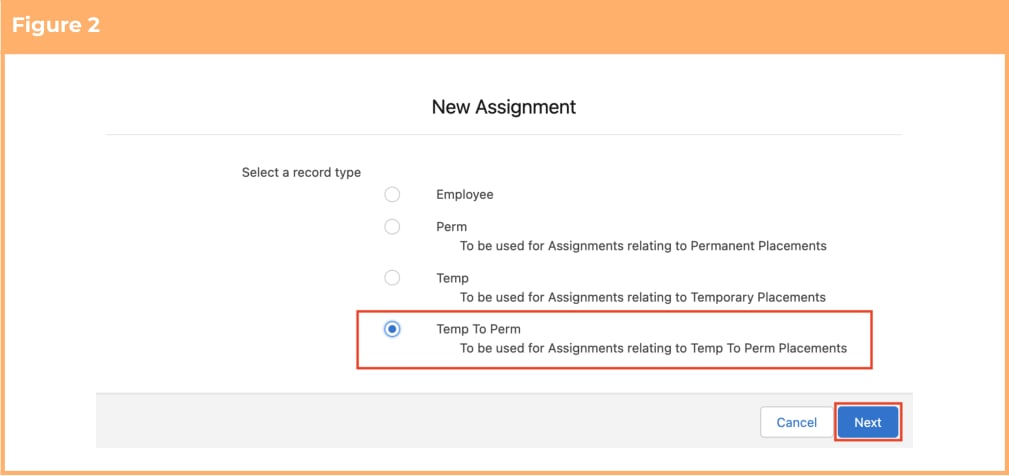
 3. Select the **Temp to Perm** Record Type from the picklist options. (See Figure 2)
4. Click the **Next** button.
3. Select the **Temp to Perm** Record Type from the picklist options. (See Figure 2)
4. Click the **Next** button.
 5. Follow this step in the sequence given below:
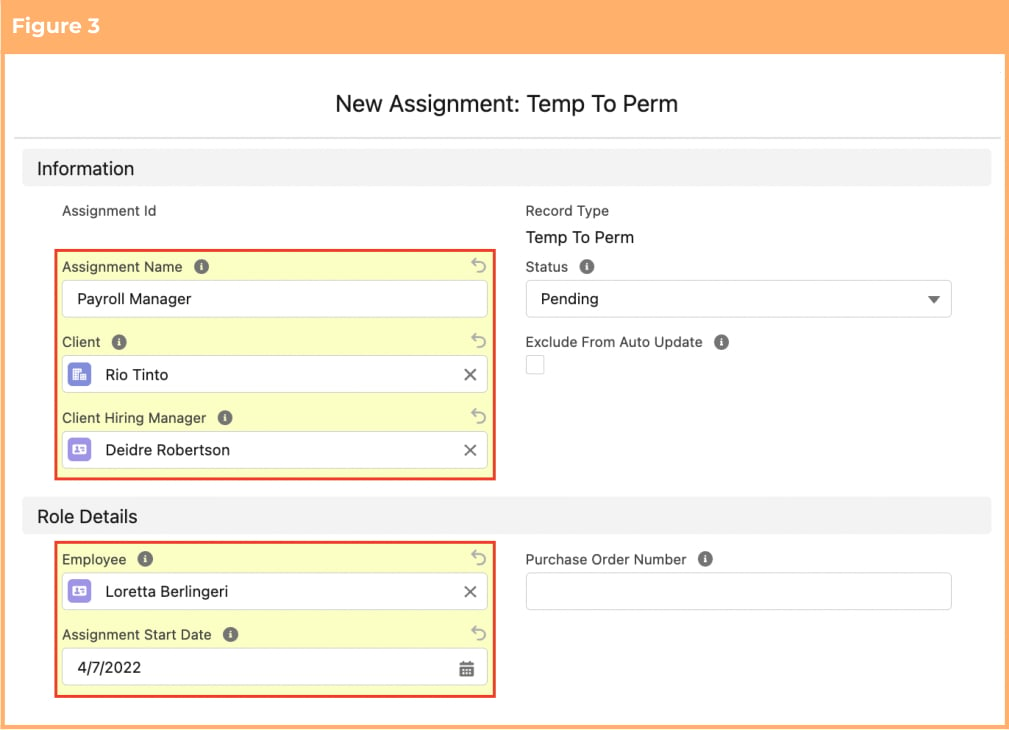
1. Populate the following required fields to provide the base details of the Assignment: (See
Figure 3)
1. **Assignment Name**
2. **Client**
3. **Client Hiring Manager**
4. **Employee**
5. **Assignment Start Date**
2. Populate the following optional fields as needed: (See Figure 3)
1. To apply a Purchase Order Number to the invoices for this Assignment, populate
the **Purchase Order Number** field.
2. To prevent the Status of the Assignment record from being automatically updated
by the Automatic Status Update scheduled job, tick the **Exclude From Auto Update** checkbox.
5. Follow this step in the sequence given below:
1. Populate the following required fields to provide the base details of the Assignment: (See
Figure 3)
1. **Assignment Name**
2. **Client**
3. **Client Hiring Manager**
4. **Employee**
5. **Assignment Start Date**
2. Populate the following optional fields as needed: (See Figure 3)
1. To apply a Purchase Order Number to the invoices for this Assignment, populate
the **Purchase Order Number** field.
2. To prevent the Status of the Assignment record from being automatically updated
by the Automatic Status Update scheduled job, tick the **Exclude From Auto Update** checkbox.
 The Status of the Assignment record will be automatically updated upon saving the
record, based on the Assignment Start Date.
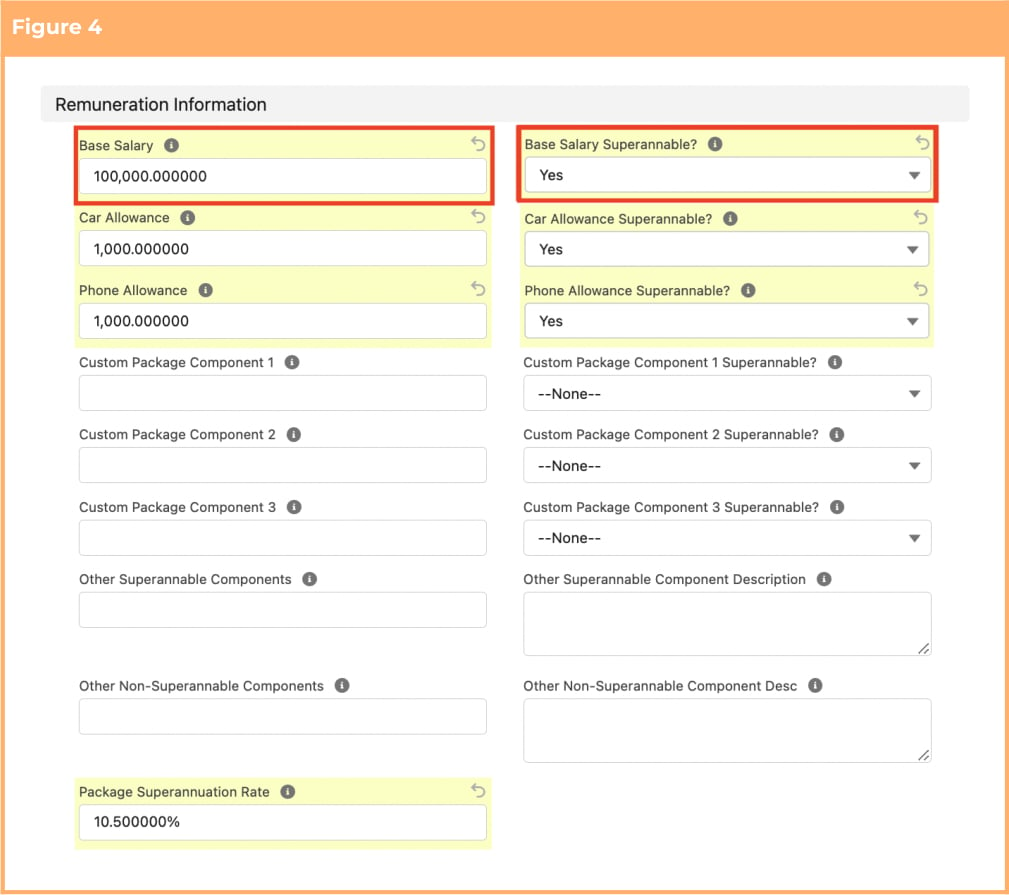
3. Populate the following required fields to provide the base details of the Assignment: (See
Figure 4)
1. **Base Salary**
2. **Base Salary Superannable?**
4. Populate the following optional fields as needed: (See Figure 4)
1. To allocate allowances for car and phone to the Employee, populate the **Car Allowance** and **Phone Allowance** fields.
2. If Car Allowance and Phone Allowance are allocated and these Allowances will
attract Superannuation, populate the **Car Allowance Superannable?** and **Phone Allowance Superannable?** fields with Yes, otherwise populate as No.
3. If the Employee will receive any custom salary components when placed in the
Assignment, populate the **Custom Package Component 1**, **Custom Package Component 2**, and **Custom Package Component 3** fields. (See Figure 4) These
fields can be relabelled and help text updated to cater for common salary
component types within the Org. If these salary components will attract
Superannuation, populate the **Custom Package Component 1 Superannable?**,
**Custom Package Component 2 Superannable?** and **Custom Package Component 3 Superannable?** fields with Yes, otherwise populate as No.
4. For any additional salary components, populate the fields **Other Superannable Components**, **Other Superannable Component Description**, **Other Non-Superannable Components**, and **Other Non-Superannable Components Desc** fields. (See Figure 4)
5. If any of the above salary components are superannable, populate the
superannuation rate in the **Package Superannuation Rate** field.
The Status of the Assignment record will be automatically updated upon saving the
record, based on the Assignment Start Date.
3. Populate the following required fields to provide the base details of the Assignment: (See
Figure 4)
1. **Base Salary**
2. **Base Salary Superannable?**
4. Populate the following optional fields as needed: (See Figure 4)
1. To allocate allowances for car and phone to the Employee, populate the **Car Allowance** and **Phone Allowance** fields.
2. If Car Allowance and Phone Allowance are allocated and these Allowances will
attract Superannuation, populate the **Car Allowance Superannable?** and **Phone Allowance Superannable?** fields with Yes, otherwise populate as No.
3. If the Employee will receive any custom salary components when placed in the
Assignment, populate the **Custom Package Component 1**, **Custom Package Component 2**, and **Custom Package Component 3** fields. (See Figure 4) These
fields can be relabelled and help text updated to cater for common salary
component types within the Org. If these salary components will attract
Superannuation, populate the **Custom Package Component 1 Superannable?**,
**Custom Package Component 2 Superannable?** and **Custom Package Component 3 Superannable?** fields with Yes, otherwise populate as No.
4. For any additional salary components, populate the fields **Other Superannable Components**, **Other Superannable Component Description**, **Other Non-Superannable Components**, and **Other Non-Superannable Components Desc** fields. (See Figure 4)
5. If any of the above salary components are superannable, populate the
superannuation rate in the **Package Superannuation Rate** field.
 5. Populate the following required fields to provide the base details of the Assignment: (See
Figure 5)
1. **Temp to Perm Fee Based On**
6. Populate the following optional fields as needed: (See Figure 5)
1. If the Perm Fee is a flat amount, populate the flat amount in the **Temp to Perm Flat Fee Amount** field.
2. If the Perm Fee is a percentage of the total salary, populate the percentage in the
**Temp to Perm Invoice Rate** field.
7. The **Total Temp to Perm Fee Schedule** should not be populated as it gets
auto-populated once the Invoiceable Fee is created.
5. Populate the following required fields to provide the base details of the Assignment: (See
Figure 5)
1. **Temp to Perm Fee Based On**
6. Populate the following optional fields as needed: (See Figure 5)
1. If the Perm Fee is a flat amount, populate the flat amount in the **Temp to Perm Flat Fee Amount** field.
2. If the Perm Fee is a percentage of the total salary, populate the percentage in the
**Temp to Perm Invoice Rate** field.
7. The **Total Temp to Perm Fee Schedule** should not be populated as it gets
auto-populated once the Invoiceable Fee is created.
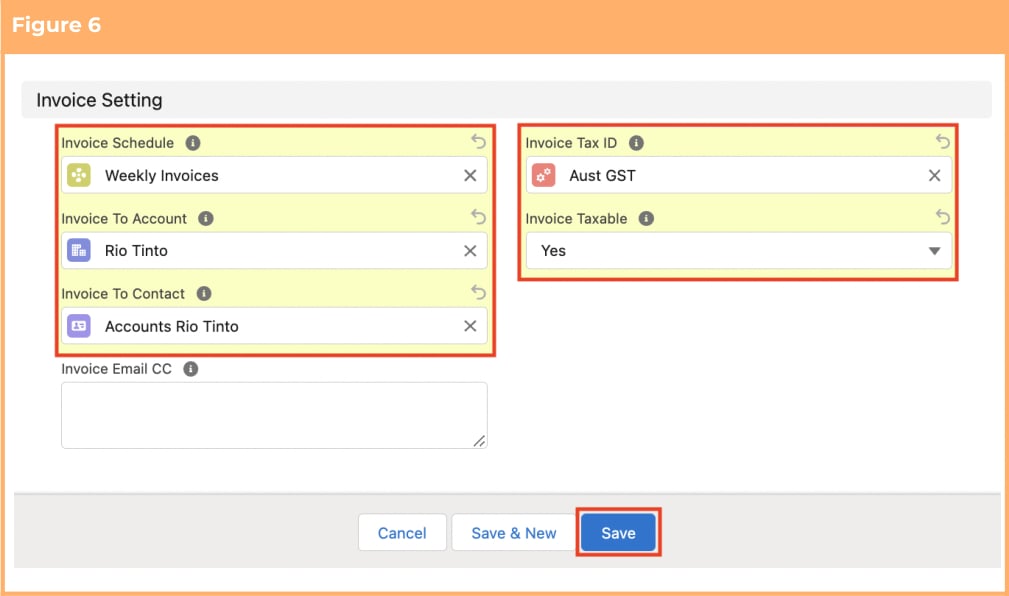
 8. Populate the following required fields to provide the base details of the Assignment: (See
Figure 6)
1. **Invoice Schedule**
2. **Invoice To Account**
3. **Invoice To Contact**
4. **Invoice Tax ID**
5. **Invoice Taxable**
9. Populate the following optional fields as needed: (See Figure 6)
1. To define additional email addresses the invoice is to be sent to, populate the
**Invoice Email CC** field.
10. Click on the **Save** button.
8. Populate the following required fields to provide the base details of the Assignment: (See
Figure 6)
1. **Invoice Schedule**
2. **Invoice To Account**
3. **Invoice To Contact**
4. **Invoice Tax ID**
5. **Invoice Taxable**
9. Populate the following optional fields as needed: (See Figure 6)
1. To define additional email addresses the invoice is to be sent to, populate the
**Invoice Email CC** field.
10. Click on the **Save** button.
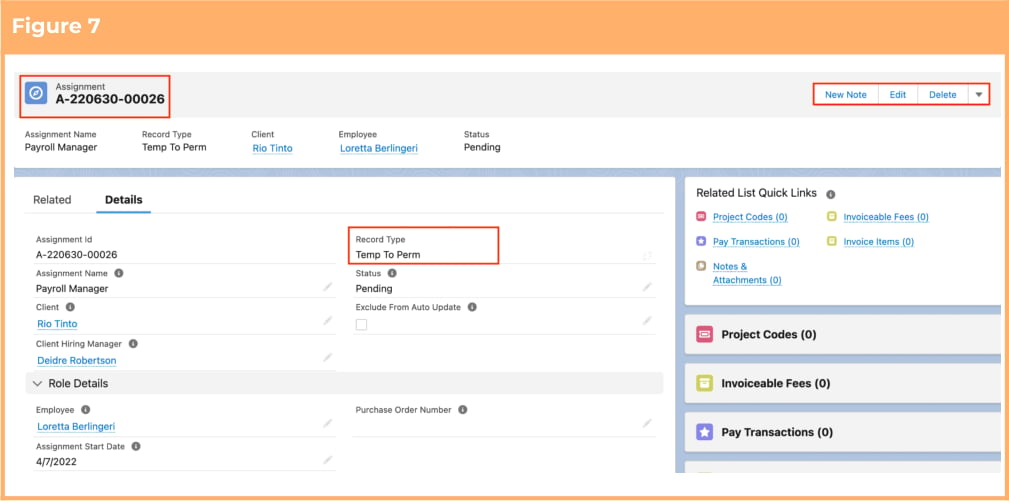
 7. A new Temp to Perm Assignment record has been created. (See Figure 7)
 Assignment records CANNOT be deleted if they have related records or are used in
other records. Deleting records is not recommended unless absolutely essential.
8. To modify an existing **Assignment** record, open the required record and select the **Edit** button
available on the top right side of the page. You can also double click in any of the fields that need
editing or just click on the pencil icon that appears within fields when you move your cursor
over the field.
9. When complete, click on the **Save** button.
## Field Descriptions
**Assignment Name** is the name of the role of this Assignment.
**Assignment Start Date** is the start date of the Assignment.
**Base Salary** Defines the Base Salary the Employee will receive when placed in the Assignment.
**Base Salary Superannable?** indicates if the Base Salary will attract Superannuation as part of the Salary
Package.
**Car Allowance** defines the rate of any Car Allowance the Employee will receive in the Assignment.
**Car Allowance Superannable?** indicates if the Car Allowance will attract Superannuation as part of the
Salary Package.
**Client** is the Client related to the Assignment. This record cannot be a Payment Entity or Invoice Entity.
**Client Hiring Manager** defines the Client contact who hired the Employee. They will be the Invoice
Contact detailed on Invoices when the Invoice Group By of ‘Hiring Manager (Invoice Hiring Manager)’ is
used.
**Custom Package Component 1** Defines the Custom Salary Component 1 the Employee will receive when
placed in the Assignment. This field can be relabelled and help text updated to cater for common salary
component types within the Org.
**Custom Package Component 1 Superannable?** indicates if the Custom Salary Component 1 will attract
Superannuation as part of the Salary Package. This field can be renamed and help text updated to cater for
common salary component types within the Org.
**Custom Package Component 2** Defines the Custom Salary Component 2 the Employee will receive when
placed in the Assignment. This field can be relabelled and help text updated to cater for common salary
component types within the Org.
**Custom Package Component 2 Superannable?** indicates if the Custom Salary Component 2 will attract
Superannuation as part of the Salary Package. This field can be renamed and help text updated to cater for
common salary component types within the Org.
**Custom Package Component 3** Defines the Custom Salary Component 3 the Employee will receive when
placed in the Assignment. This field can be relabelled and help text updated to cater for common salary
component types within the Org.
**Custom Package Component 3 Superannable?** Indicates if the Custom Salary Component 3 will attract
Superannuation as part of the Salary Package. This field can be renamed and help text updated to cater for
common salary component types within the Org.
**Employee** is the Employee for this Assignment.
**Exclude From Auto Update** When this box is checked, the record will be skipped by the Automatic Status
Update scheduled job.
**Invoice Email CC** is used to define additional email addresses the invoice will be emailed too.
**Invoice Tax ID** defines the Invoice Tax ID that applies to the Assignment.
**Invoice Taxable** is used to set a default for Assignment Rate and Invoiceable Fees created using this
Assignment to determine if the item will be Taxable.
**Invoice Schedule** defines the Invoice Schedule that applies to the Assignment.
**Invoice To Account** defines the Bill To Account that will be detailed on invoices when the Invoice Group
By of ‘Invoice To Account’, ‘Invoice To Contact’ or ‘Assignment’ are used.
**Invoice To Contact** defines the Invoice Contact that will be detailed on invoices when the Invoice Group
By of ‘Assignment’ and ‘Invoice To Contact’ are used.
**Other Non-Superannable Components** indicates the total of other Salary Components that will not
attract Superannuation that are not already included. This field can be used for ad-hoc salary components
instead of requiring an individual field.
**Other Non-Superannable Components Desc** allows for a description of the package components that
make up the amount defined in the Other Non-Superable Salary Package Components field.
**Other Superannable Components** indicates the total of other Salary Components that will incur
Superannuation that are not already included. This field can be used for ad-hoc salary components instead
of requiring an individual field.
**Other Superannable Component Description** allows for a description of the package components that
make up the amount defined in the Other Superable Package Components field.
**Package Superannuation Rate** defines the Superannuation Rate that will apply to the Salary Package.
**Payment Entity** is the related Payment Entity record.
**Perm Fee Based On** defines what the value calculated as the Total Perm Fee is based on.
**Perm Flat Fee Amount** is the amount that will be used for the Total Invoiceable Placement Fee when
the calculation is based on a flat fee.
**Perm Invoice Rate** defines the Invoice Rate that will be used in calculating Total Perm Fees that are
based on a percentage of base salary or total salary package.
**Phone Allowance** defines the rate of any Phone Allowance the Employee will receive in the
Assignment.
**Phone Allowance Superannable?** indicates if the Phone Allowance will attract Superannuation as part of
the Salary Package.
**Purchase Order Number** is the Purchase Order Number that will be applied to Invoices for the
Assignment.
**Status** is the current status of the Assignment based on the Assignment Start Date.
**Temp To Perm Fee Based On** defines what the Amount calculated as the Total Temp To Perm Fee is
based on.
**Temp To Perm Flat Fee Amount** is the amount used for the Total Invoiceable Placement Fee when the
calculation is based on a flat fee.
**Temp To Perm Invoice Rate** defines the Invoice Rate that will be used in calculating Total Temp To
Perm Fees that are based on a percentage of total perm fee.
**Total Perm Fee Scheduled** is the total sum of all related Invoiceable Fees with a record type of Perm
Fee.
**Total Temp To Perm Fee Scheduled** is the total sum of all related Invoiceable Fees with a record type of
Temp To Perm Fee.
## Further Information
| Document | Document Type | Description |
| ---------------------------------------------- | ----------------- | ------------------------------------------------------ |
| QRG Create an Account - Invoice Entity | Task Instructions | How to create an Invoice Entity |
| QRG Create Invoice Schedules | Task Instructions | How to create an Invoice Schedule |
| QRG Create Invoice Calendar & Calendar Periods | Task Instructions | How to create an Invoice Calendar and Calendar Periods |
| QRG Create Invoice Settings | Task Instructions | How to create Invoice Settings |
| QRG Creating Invoices | Task Instructions | How to create Invoices |
| QRG Create Credit Notes | Task Instructions | How to create a Credit Note from an existing Invoice |
Assignment records CANNOT be deleted if they have related records or are used in
other records. Deleting records is not recommended unless absolutely essential.
8. To modify an existing **Assignment** record, open the required record and select the **Edit** button
available on the top right side of the page. You can also double click in any of the fields that need
editing or just click on the pencil icon that appears within fields when you move your cursor
over the field.
9. When complete, click on the **Save** button.
## Field Descriptions
**Assignment Name** is the name of the role of this Assignment.
**Assignment Start Date** is the start date of the Assignment.
**Base Salary** Defines the Base Salary the Employee will receive when placed in the Assignment.
**Base Salary Superannable?** indicates if the Base Salary will attract Superannuation as part of the Salary
Package.
**Car Allowance** defines the rate of any Car Allowance the Employee will receive in the Assignment.
**Car Allowance Superannable?** indicates if the Car Allowance will attract Superannuation as part of the
Salary Package.
**Client** is the Client related to the Assignment. This record cannot be a Payment Entity or Invoice Entity.
**Client Hiring Manager** defines the Client contact who hired the Employee. They will be the Invoice
Contact detailed on Invoices when the Invoice Group By of ‘Hiring Manager (Invoice Hiring Manager)’ is
used.
**Custom Package Component 1** Defines the Custom Salary Component 1 the Employee will receive when
placed in the Assignment. This field can be relabelled and help text updated to cater for common salary
component types within the Org.
**Custom Package Component 1 Superannable?** indicates if the Custom Salary Component 1 will attract
Superannuation as part of the Salary Package. This field can be renamed and help text updated to cater for
common salary component types within the Org.
**Custom Package Component 2** Defines the Custom Salary Component 2 the Employee will receive when
placed in the Assignment. This field can be relabelled and help text updated to cater for common salary
component types within the Org.
**Custom Package Component 2 Superannable?** indicates if the Custom Salary Component 2 will attract
Superannuation as part of the Salary Package. This field can be renamed and help text updated to cater for
common salary component types within the Org.
**Custom Package Component 3** Defines the Custom Salary Component 3 the Employee will receive when
placed in the Assignment. This field can be relabelled and help text updated to cater for common salary
component types within the Org.
**Custom Package Component 3 Superannable?** Indicates if the Custom Salary Component 3 will attract
Superannuation as part of the Salary Package. This field can be renamed and help text updated to cater for
common salary component types within the Org.
**Employee** is the Employee for this Assignment.
**Exclude From Auto Update** When this box is checked, the record will be skipped by the Automatic Status
Update scheduled job.
**Invoice Email CC** is used to define additional email addresses the invoice will be emailed too.
**Invoice Tax ID** defines the Invoice Tax ID that applies to the Assignment.
**Invoice Taxable** is used to set a default for Assignment Rate and Invoiceable Fees created using this
Assignment to determine if the item will be Taxable.
**Invoice Schedule** defines the Invoice Schedule that applies to the Assignment.
**Invoice To Account** defines the Bill To Account that will be detailed on invoices when the Invoice Group
By of ‘Invoice To Account’, ‘Invoice To Contact’ or ‘Assignment’ are used.
**Invoice To Contact** defines the Invoice Contact that will be detailed on invoices when the Invoice Group
By of ‘Assignment’ and ‘Invoice To Contact’ are used.
**Other Non-Superannable Components** indicates the total of other Salary Components that will not
attract Superannuation that are not already included. This field can be used for ad-hoc salary components
instead of requiring an individual field.
**Other Non-Superannable Components Desc** allows for a description of the package components that
make up the amount defined in the Other Non-Superable Salary Package Components field.
**Other Superannable Components** indicates the total of other Salary Components that will incur
Superannuation that are not already included. This field can be used for ad-hoc salary components instead
of requiring an individual field.
**Other Superannable Component Description** allows for a description of the package components that
make up the amount defined in the Other Superable Package Components field.
**Package Superannuation Rate** defines the Superannuation Rate that will apply to the Salary Package.
**Payment Entity** is the related Payment Entity record.
**Perm Fee Based On** defines what the value calculated as the Total Perm Fee is based on.
**Perm Flat Fee Amount** is the amount that will be used for the Total Invoiceable Placement Fee when
the calculation is based on a flat fee.
**Perm Invoice Rate** defines the Invoice Rate that will be used in calculating Total Perm Fees that are
based on a percentage of base salary or total salary package.
**Phone Allowance** defines the rate of any Phone Allowance the Employee will receive in the
Assignment.
**Phone Allowance Superannable?** indicates if the Phone Allowance will attract Superannuation as part of
the Salary Package.
**Purchase Order Number** is the Purchase Order Number that will be applied to Invoices for the
Assignment.
**Status** is the current status of the Assignment based on the Assignment Start Date.
**Temp To Perm Fee Based On** defines what the Amount calculated as the Total Temp To Perm Fee is
based on.
**Temp To Perm Flat Fee Amount** is the amount used for the Total Invoiceable Placement Fee when the
calculation is based on a flat fee.
**Temp To Perm Invoice Rate** defines the Invoice Rate that will be used in calculating Total Temp To
Perm Fees that are based on a percentage of total perm fee.
**Total Perm Fee Scheduled** is the total sum of all related Invoiceable Fees with a record type of Perm
Fee.
**Total Temp To Perm Fee Scheduled** is the total sum of all related Invoiceable Fees with a record type of
Temp To Perm Fee.
## Further Information
| Document | Document Type | Description |
| ---------------------------------------------- | ----------------- | ------------------------------------------------------ |
| QRG Create an Account - Invoice Entity | Task Instructions | How to create an Invoice Entity |
| QRG Create Invoice Schedules | Task Instructions | How to create an Invoice Schedule |
| QRG Create Invoice Calendar & Calendar Periods | Task Instructions | How to create an Invoice Calendar and Calendar Periods |
| QRG Create Invoice Settings | Task Instructions | How to create Invoice Settings |
| QRG Creating Invoices | Task Instructions | How to create Invoices |
| QRG Create Credit Notes | Task Instructions | How to create a Credit Note from an existing Invoice |