> ## Documentation Index
> Fetch the complete documentation index at: https://documentation.2cloudnine.com/llms.txt
> Use this file to discover all available pages before exploring further.
# QRG Create an Assignment - Temp
export const InlineImage = ({src, alt = "", height = "1.6em"}) => {
return  ;
};
## Purpose
The purpose of this quick reference guide is to step through the process of creating a Temp Assignment
record. The intended audience for this document is System Administrators / Standard Users.
## Steps
### Create a Temp Assignment
The Assignment holds general information, role details, Approver details, Payroll Settings, Timesheet
Settings, Expense Claim Settings, and Invoice Settings for a Timesheet placement.
Create an Assignment by following the steps below:
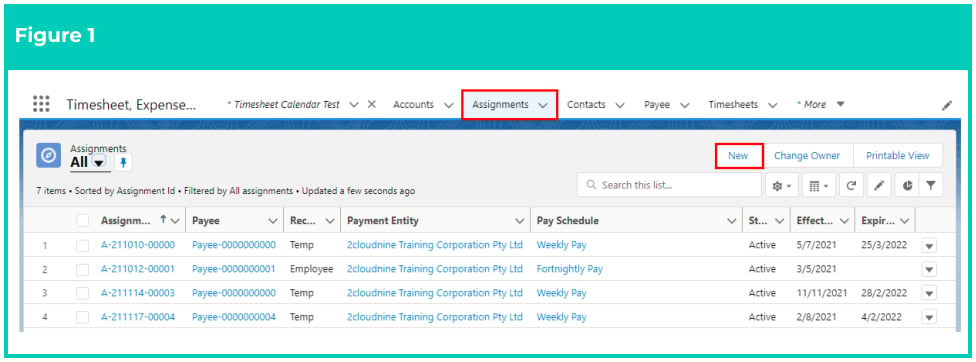
1. Go to the **Assignments** object (see Figure 1).
2. Click on the **New** button.
;
};
## Purpose
The purpose of this quick reference guide is to step through the process of creating a Temp Assignment
record. The intended audience for this document is System Administrators / Standard Users.
## Steps
### Create a Temp Assignment
The Assignment holds general information, role details, Approver details, Payroll Settings, Timesheet
Settings, Expense Claim Settings, and Invoice Settings for a Timesheet placement.
Create an Assignment by following the steps below:
1. Go to the **Assignments** object (see Figure 1).
2. Click on the **New** button.
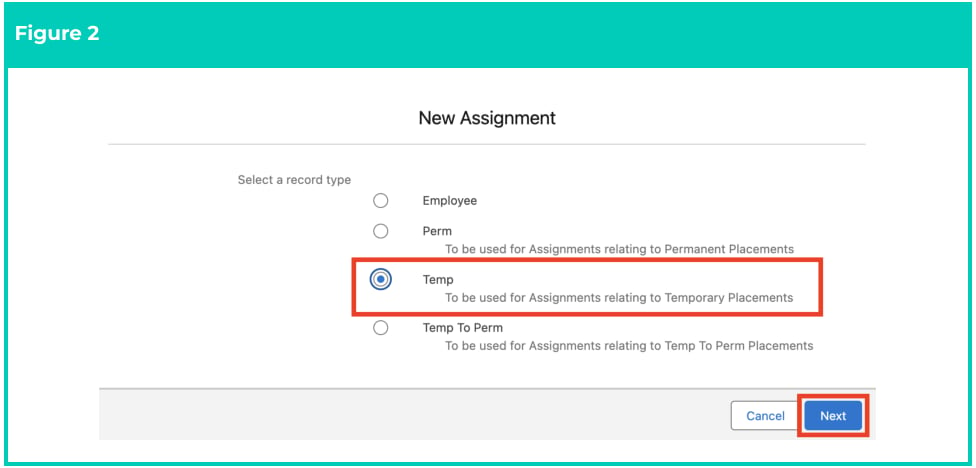
 3. Select **Temp** from the available record types, then click the **Next** button (see Figure 2).
 4. Populate the following required fields to provide the base details of the Assignment (see Figure 3):
1. **Assignment Name**
2. **Client**
3. **Client Hiring Manager**
5. Populate the following optional fields as needed (see Figure 3):
1. To indicate that an Annualised Salary Arrangement is in place, populate the **Annualised Salary Agreement** field as Yes. Pay Transactions created by Interpretation will be marked as 'Exclude from Pay Batch' and 'Invoice Not Required'.
2. To set the Status of the new Minimum Pay Rate, select from the available picklist options in the Status field. The **Status** field can be manually set, but will be automatically updated based on the Effective Date and Expiry Date fields.
3. To prevent the Status of the Timesheet Allowance Template Group from being automatically updated by the automatic status update scheduled job, check the **Exclude From Auto Update** checkbox.
4. Populate the following required fields to provide the base details of the Assignment (see Figure 3):
1. **Assignment Name**
2. **Client**
3. **Client Hiring Manager**
5. Populate the following optional fields as needed (see Figure 3):
1. To indicate that an Annualised Salary Arrangement is in place, populate the **Annualised Salary Agreement** field as Yes. Pay Transactions created by Interpretation will be marked as 'Exclude from Pay Batch' and 'Invoice Not Required'.
2. To set the Status of the new Minimum Pay Rate, select from the available picklist options in the Status field. The **Status** field can be manually set, but will be automatically updated based on the Effective Date and Expiry Date fields.
3. To prevent the Status of the Timesheet Allowance Template Group from being automatically updated by the automatic status update scheduled job, check the **Exclude From Auto Update** checkbox.
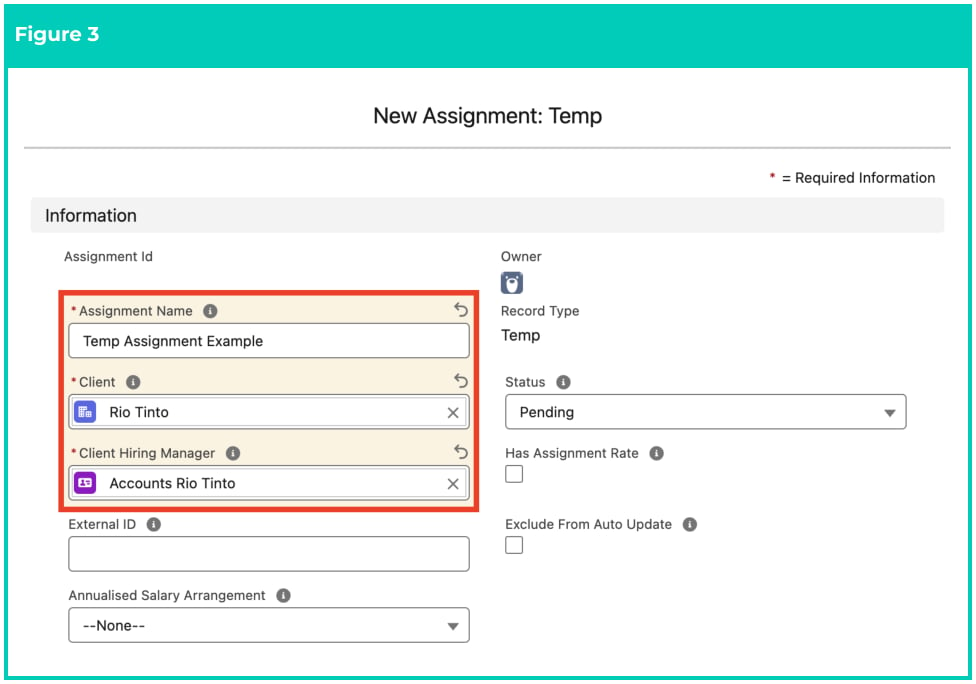 **Important Notes**
*(Figure 3)*
*The External ID is used to integrate a record with an external system. This field can be populated*
*automatically or manually if required for system integration.*
*The checkbox field ‘Has Assignment Rate’ is automatically populated when an Assignment Rate is*
*related to the Assignment, and should not be manually checked.*
6\. Populate the following required fields to provide the base details of the Assignment (see Figure 4):
1. **Employee**
2. **Payee**
3. **Assignment Start Date**
4. **Assignment End Date**
5. Populate the following optional fields as needed (see Figure 4):
1. If a Purchase Order is required, tick the **Requires Purchase Order** checkbox.
2. To apply a Purchase Order number to Invoices created for the Assignment, populate the **Purchase Order Number** field.
3. To define a Pay Rate to be used with Pay & Invoice Rate Multiplier automation, populate the **Assignment Rate Template Group Pay Rate** field.
4. To define an Invoice Rate to be used with Pay & Invoice Rate Multiplier automation, populate the **Assignment Rate Template Group Inv Rate** field.
5. To define how Assignment Rates are applied to Pay Transactions during Timesheet Interpretation by evaluating exact matches across Pay Code, Project Code, and Timesheet Activities, populate the **Assignment Rate Matching Mode** field.
**Important Notes**
*(Figure 3)*
*The External ID is used to integrate a record with an external system. This field can be populated*
*automatically or manually if required for system integration.*
*The checkbox field ‘Has Assignment Rate’ is automatically populated when an Assignment Rate is*
*related to the Assignment, and should not be manually checked.*
6\. Populate the following required fields to provide the base details of the Assignment (see Figure 4):
1. **Employee**
2. **Payee**
3. **Assignment Start Date**
4. **Assignment End Date**
5. Populate the following optional fields as needed (see Figure 4):
1. If a Purchase Order is required, tick the **Requires Purchase Order** checkbox.
2. To apply a Purchase Order number to Invoices created for the Assignment, populate the **Purchase Order Number** field.
3. To define a Pay Rate to be used with Pay & Invoice Rate Multiplier automation, populate the **Assignment Rate Template Group Pay Rate** field.
4. To define an Invoice Rate to be used with Pay & Invoice Rate Multiplier automation, populate the **Assignment Rate Template Group Inv Rate** field.
5. To define how Assignment Rates are applied to Pay Transactions during Timesheet Interpretation by evaluating exact matches across Pay Code, Project Code, and Timesheet Activities, populate the **Assignment Rate Matching Mode** field.
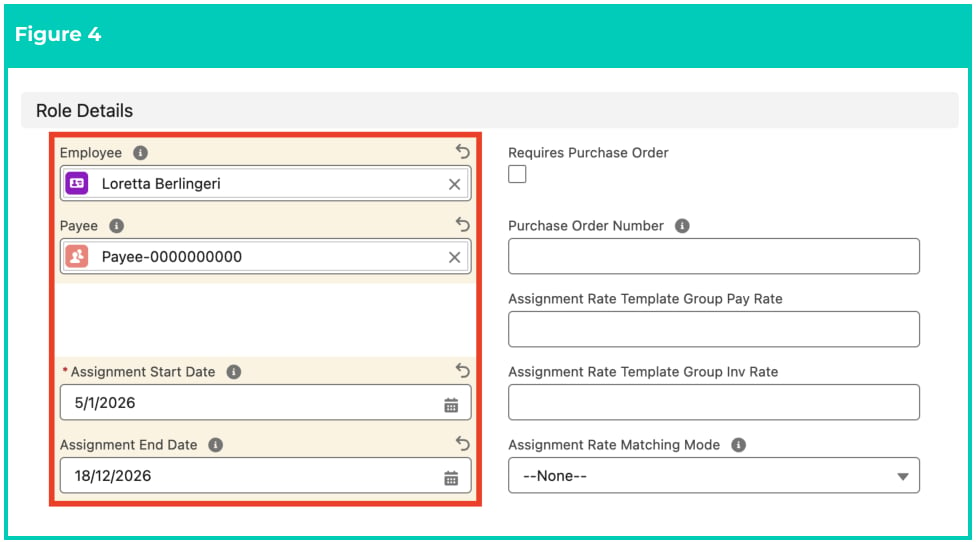 **Important Notes**
*(Figure 4)*
*The selected Payee must relate to the same Employee populated for the Assignment.*
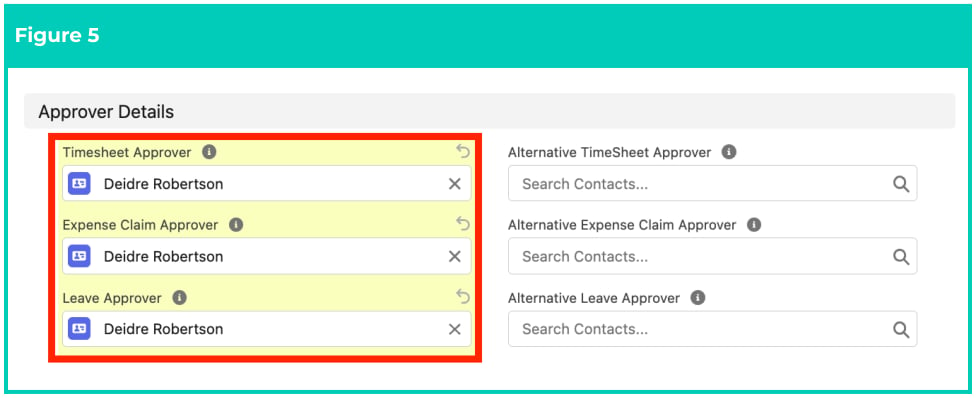
8\. Populate the following required fields to provide the base details of the Assignment (see Figure 5):
1. **Timesheet Approver**
2. **Expense Claim Approver**
3. **Leave Approver**
4. Populate the following optional fields as needed (see Figure 5):
1. To nominate the alternative Approvers for this Assignment, populate a Contact for the following fields:
1. **Alternative Timesheet Approver**
2. **Alternative Expense Claim Approver**
3. **Alternative Leave Approver**
**Important Notes**
*(Figure 4)*
*The selected Payee must relate to the same Employee populated for the Assignment.*
8\. Populate the following required fields to provide the base details of the Assignment (see Figure 5):
1. **Timesheet Approver**
2. **Expense Claim Approver**
3. **Leave Approver**
4. Populate the following optional fields as needed (see Figure 5):
1. To nominate the alternative Approvers for this Assignment, populate a Contact for the following fields:
1. **Alternative Timesheet Approver**
2. **Alternative Expense Claim Approver**
3. **Alternative Leave Approver**
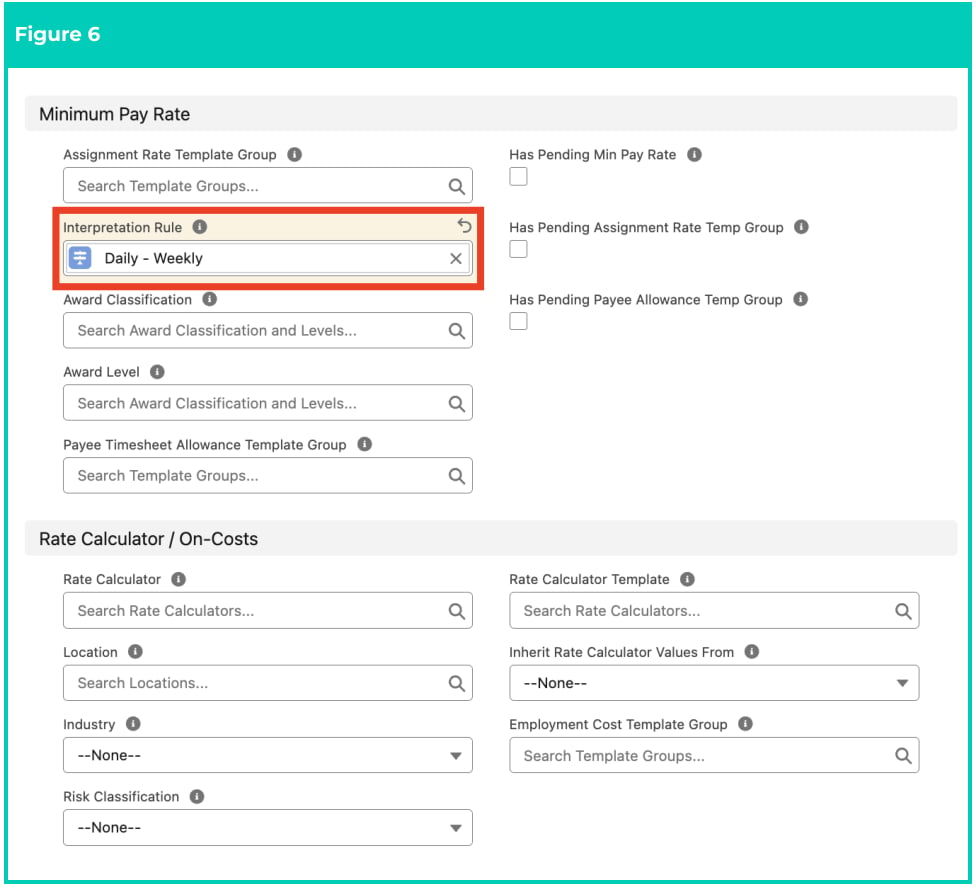
 10. Populate the following required fields to provide the base details of the Assignment (see Figure 6):
1. **Interpretation Rule**
11. Populate the following optional fields as needed (see Figure 6):
1. To use Template Groups to automatically create Assignment Rates and Payee Allowances for this Assignment, populate the following fields:
1. **Assignment Rate Template Group**
2. **Payee Timesheet Allowance Template Group**
2. To ensure Minimum Pay Rate automation is applied to the Assignment, populate the **Award Classification** field and optionally the **Award Level** field using the lookup options available.
3. To define a Location that applies to this Assignment, populate the **Location** lookup field.
4. To define an Industry that applies to this Assignment, populate the **Industry** field using the picklist options available.
5. To define a Risk Classification that applies to this Assignment, populate the **Risk Classification** field using the picklist options available.
6. To define a Rate Calculator Template that applies to this Assignment, populate the **Rate Calculator Template** field using the picklist options available.
7. To choose where to inherit Rate Calculator values from, you can populate the **Inherit Rate Calculator Values From** field with one of the following values:
1. Assignment
2. Rate Calculator Template
8. To define an Employment Cost Template Group that applies to this Assignment, populate the **Employment Cost Template Group** lookup field.
10. Populate the following required fields to provide the base details of the Assignment (see Figure 6):
1. **Interpretation Rule**
11. Populate the following optional fields as needed (see Figure 6):
1. To use Template Groups to automatically create Assignment Rates and Payee Allowances for this Assignment, populate the following fields:
1. **Assignment Rate Template Group**
2. **Payee Timesheet Allowance Template Group**
2. To ensure Minimum Pay Rate automation is applied to the Assignment, populate the **Award Classification** field and optionally the **Award Level** field using the lookup options available.
3. To define a Location that applies to this Assignment, populate the **Location** lookup field.
4. To define an Industry that applies to this Assignment, populate the **Industry** field using the picklist options available.
5. To define a Risk Classification that applies to this Assignment, populate the **Risk Classification** field using the picklist options available.
6. To define a Rate Calculator Template that applies to this Assignment, populate the **Rate Calculator Template** field using the picklist options available.
7. To choose where to inherit Rate Calculator values from, you can populate the **Inherit Rate Calculator Values From** field with one of the following values:
1. Assignment
2. Rate Calculator Template
8. To define an Employment Cost Template Group that applies to this Assignment, populate the **Employment Cost Template Group** lookup field.
 **Important Notes**
*(Figure 6)*
*An Interpretation Rule must be related to the Assignment before Employee Timesheets or Pay*
*Transactions can be generated.*
*Users must only populate the Award Classification and Award Level fields when using the Minimum*
*Pay Rates method for Rates Automation. In all other situations, you must NOT populate these fields,*
*or the Minimum Pay Rates functionality will activate and override any other options. For more*
*information, please refer to the Rates Automation Functionality Key Information document.*
*The Rate Calculator field will be automatically populated based on the values entered in the Award*
*Classification, Award Level, and Interpretation Rule fields, and should not be manually overridden.*
*The 3 checkbox fields that commence with ‘Has Pending…’ will be automatically populated when*
*there are related records awaiting creation via the scheduled job. Please refer to the Rates*
*Automation Key Information document for more information.*
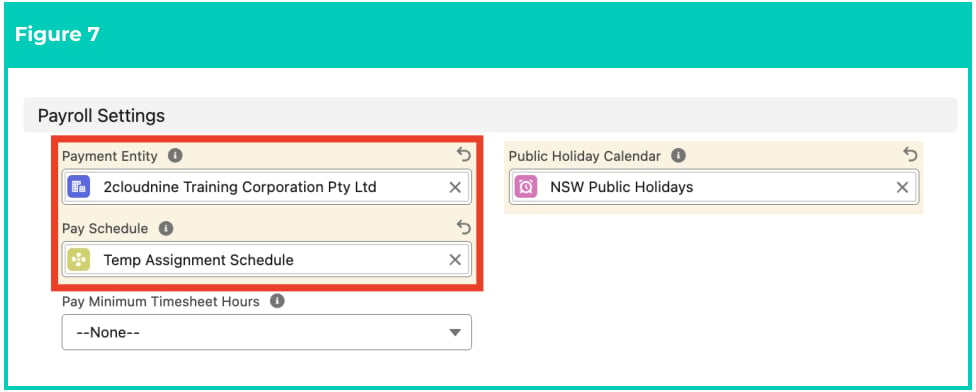
12\. Populate the following required fields to provide the base details of the Assignment (see Figure 7):
1. **Payment Entity**
2. **Pay Schedule**
3. **Public Holiday Calendar**
4. Populate the following optional fields as needed (see Figure 7):
1. To define any required rules and limits that will be used in assessing and determining the Assignment, populate the following optional fields as needed. If left blank, the rule/limit will not apply:
1. **Pay Minimum Timesheet Hours**
**Important Notes**
*(Figure 6)*
*An Interpretation Rule must be related to the Assignment before Employee Timesheets or Pay*
*Transactions can be generated.*
*Users must only populate the Award Classification and Award Level fields when using the Minimum*
*Pay Rates method for Rates Automation. In all other situations, you must NOT populate these fields,*
*or the Minimum Pay Rates functionality will activate and override any other options. For more*
*information, please refer to the Rates Automation Functionality Key Information document.*
*The Rate Calculator field will be automatically populated based on the values entered in the Award*
*Classification, Award Level, and Interpretation Rule fields, and should not be manually overridden.*
*The 3 checkbox fields that commence with ‘Has Pending…’ will be automatically populated when*
*there are related records awaiting creation via the scheduled job. Please refer to the Rates*
*Automation Key Information document for more information.*
12\. Populate the following required fields to provide the base details of the Assignment (see Figure 7):
1. **Payment Entity**
2. **Pay Schedule**
3. **Public Holiday Calendar**
4. Populate the following optional fields as needed (see Figure 7):
1. To define any required rules and limits that will be used in assessing and determining the Assignment, populate the following optional fields as needed. If left blank, the rule/limit will not apply:
1. **Pay Minimum Timesheet Hours**
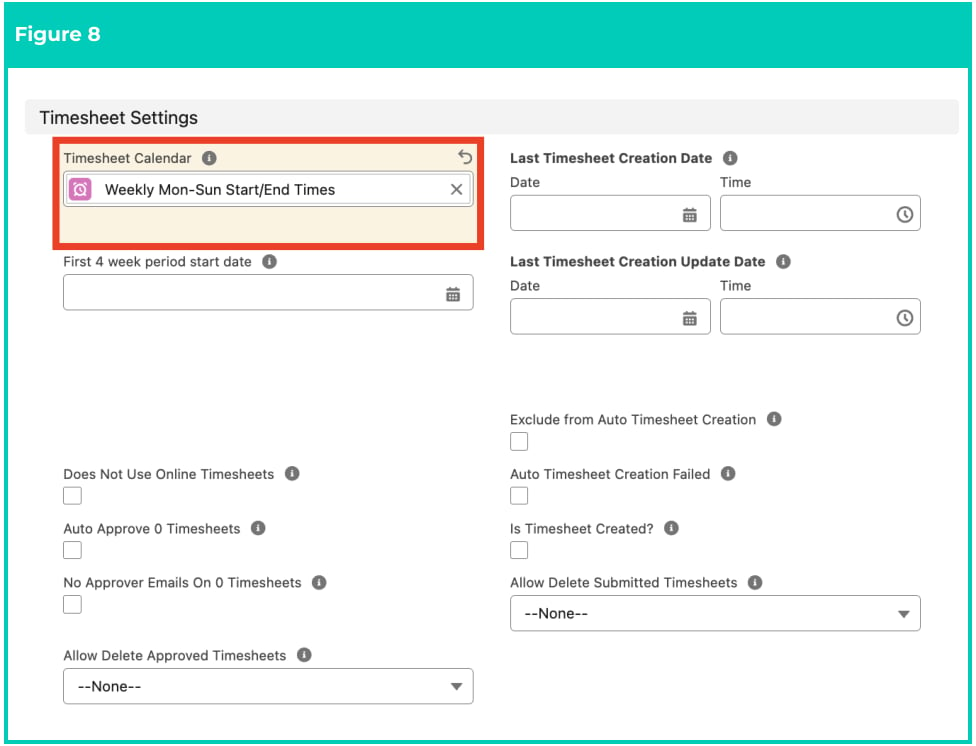
 14. Populate the following required fields to provide the base details of the Assignment (see Figure 8):
1. **Timesheet Calendar**
15. Populate the following optional fields as needed (see Figure 8):
1. To define the first start date for the 4-weeks period for the Timesheet Calendar, populate the **First 4 week period start date** field.
2. To define any required rules and limits that will be used in assessing and determining the Assignment, populate the following optional fields as needed. If left blank, the rule/limit will not apply:
1. **Does Not Use Online Timesheets**
2. **Auto Approve 0 Timesheets**
3. **No Approver Email on 0 Timesheets**
4. **Exclude from Auto Timesheet Creation**
14. Populate the following required fields to provide the base details of the Assignment (see Figure 8):
1. **Timesheet Calendar**
15. Populate the following optional fields as needed (see Figure 8):
1. To define the first start date for the 4-weeks period for the Timesheet Calendar, populate the **First 4 week period start date** field.
2. To define any required rules and limits that will be used in assessing and determining the Assignment, populate the following optional fields as needed. If left blank, the rule/limit will not apply:
1. **Does Not Use Online Timesheets**
2. **Auto Approve 0 Timesheets**
3. **No Approver Email on 0 Timesheets**
4. **Exclude from Auto Timesheet Creation**
 **Important Notes**
*(Figure 8)*
*Populating the Assignment Rate Template Group field without Award Classification being*
*populated will initiate the creation of Assignment Rates, but the method of automation will be*
*Template Group Automation. Please ensure only one method of Rates Automation has been used*
*per Assignment.*
*Populating the ‘Allow Delete Approved Timesheets’ and ‘Allow Delete Submitted Timesheets’ fields*
*can impact normal Payroll processes. These fields should only be populated by those who*
*understand the risks, like System Administrators.*
*The Date, Time, and checkbox fields for Timesheet Creation and Updates are automatically*
*populated and should not be manually overridden.*
*The frequency of the Timesheet Calendar may differ from the Pay Schedule. For instance, the Pay*
*Schedule might be Fortnightly, but Weekly Timesheets are submitted.*
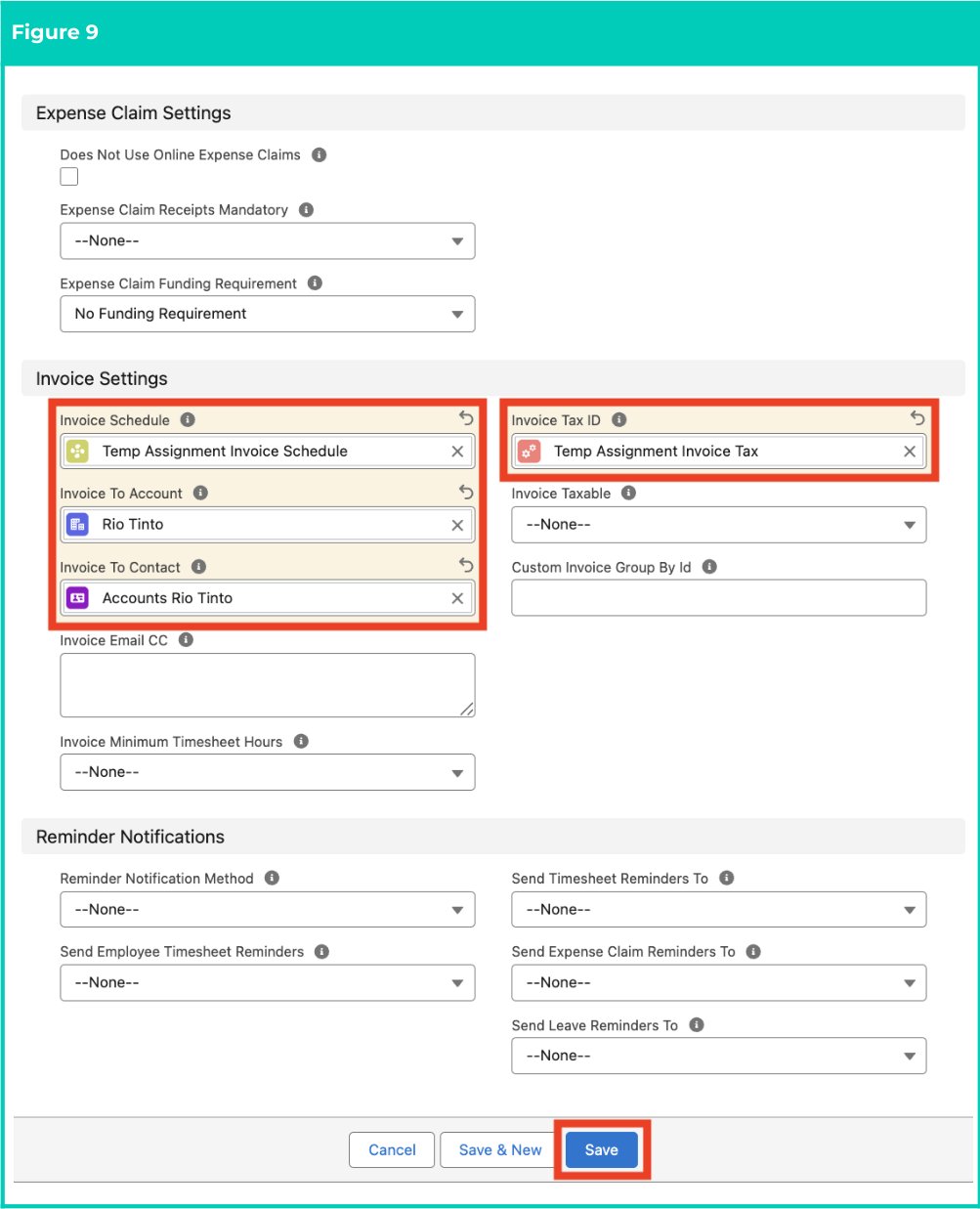
16\. Populate the following required fields to provide the base details of the Assignment (see Figure 9):
1. **Invoice Schedule**
2. **Invoice To Account**
3. **Invoice To Contact**
4. **Invoice Tax ID**
5. Populate the following optional fields as needed (see Figure 9):
1. To determine how Expense Claims should be invoiced, select from the available picklist options in the **Expense Claim Funding Requirement** field.
2. To define any required rules and limits that will be used in assessing and determining the Assignment, populate the following optional fields as needed. If left blank, the rule/limit will not apply:
1. **Does Not Use Online Expense Claims**
2. **Expense Claim Receipts Mandatory**
3. **Invoice Email CC**
4. **Invoice Minimum Timesheet Hours**
5. **Invoice Taxable**
6. **Custom Invoice Group By id**
6. Click the **Save** button (see Figure 9).
**Important Notes**
*(Figure 8)*
*Populating the Assignment Rate Template Group field without Award Classification being*
*populated will initiate the creation of Assignment Rates, but the method of automation will be*
*Template Group Automation. Please ensure only one method of Rates Automation has been used*
*per Assignment.*
*Populating the ‘Allow Delete Approved Timesheets’ and ‘Allow Delete Submitted Timesheets’ fields*
*can impact normal Payroll processes. These fields should only be populated by those who*
*understand the risks, like System Administrators.*
*The Date, Time, and checkbox fields for Timesheet Creation and Updates are automatically*
*populated and should not be manually overridden.*
*The frequency of the Timesheet Calendar may differ from the Pay Schedule. For instance, the Pay*
*Schedule might be Fortnightly, but Weekly Timesheets are submitted.*
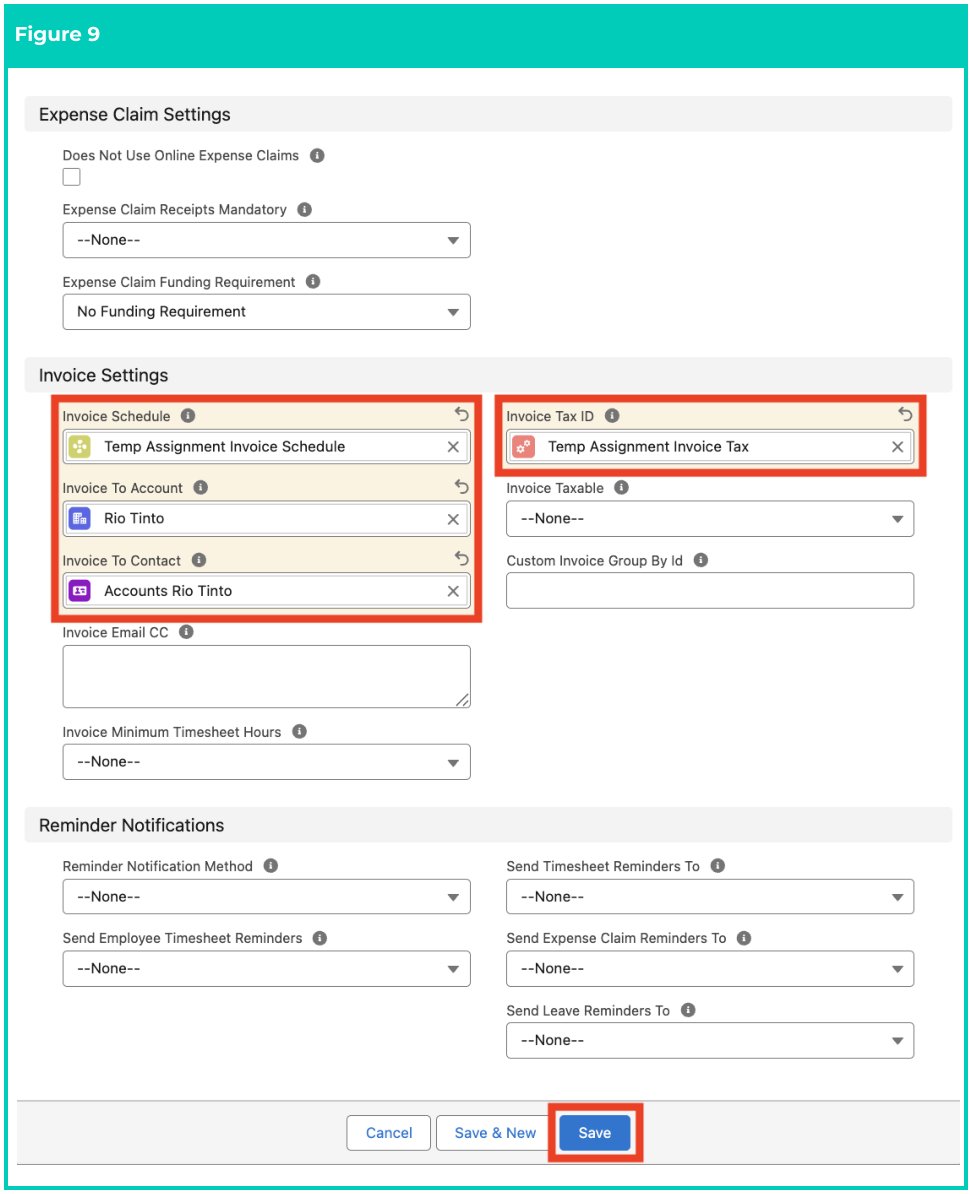
16\. Populate the following required fields to provide the base details of the Assignment (see Figure 9):
1. **Invoice Schedule**
2. **Invoice To Account**
3. **Invoice To Contact**
4. **Invoice Tax ID**
5. Populate the following optional fields as needed (see Figure 9):
1. To determine how Expense Claims should be invoiced, select from the available picklist options in the **Expense Claim Funding Requirement** field.
2. To define any required rules and limits that will be used in assessing and determining the Assignment, populate the following optional fields as needed. If left blank, the rule/limit will not apply:
1. **Does Not Use Online Expense Claims**
2. **Expense Claim Receipts Mandatory**
3. **Invoice Email CC**
4. **Invoice Minimum Timesheet Hours**
5. **Invoice Taxable**
6. **Custom Invoice Group By id**
6. Click the **Save** button (see Figure 9).
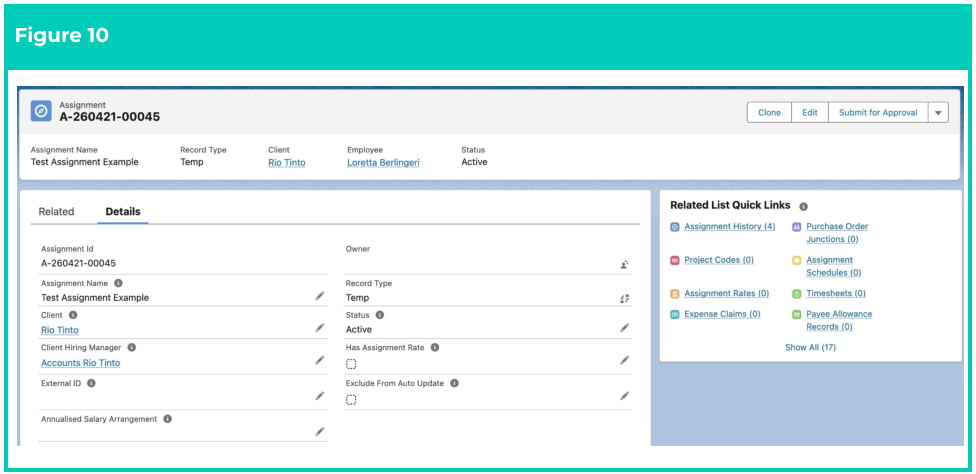
 A new Temp Assignment is now created (see Figure 10).
 **Important Notes**
*(Figure 10)*
*Once the Temp Assignment is saved and has at least one Assignment Rate related to it, Timesheets*
*are created via system automation. Assignment Rates can be created manually or by using the*
*available Rates Automation methods.*
*If the Payee is not yet a Community User, they will be created automatically upon the Timesheets*
*[being generated.](http://generating.it)*
Temp Assignments CANNOT be deleted if they have related records or are used in
other records. Deleting records is not recommended unless absolutely essential.
1. To modify an existing **Temp Assignment**, open the required record and select the **Edit** button
available on the top right side of the page. You can also double-click within fields that need
editing or just click on the pencil icon that appears within fields when hovering with your
cursor.
2. When complete, click the **Save** button.
### Picklist Buttons
Assignments have a variety of custom buttons as part of 2cloudnine Payroll. These buttons provide access
to perform additional actions related to the Assignment. Further details about each button are provided
below (see Figure 11):
**Important Notes**
*(Figure 10)*
*Once the Temp Assignment is saved and has at least one Assignment Rate related to it, Timesheets*
*are created via system automation. Assignment Rates can be created manually or by using the*
*available Rates Automation methods.*
*If the Payee is not yet a Community User, they will be created automatically upon the Timesheets*
*[being generated.](http://generating.it)*
Temp Assignments CANNOT be deleted if they have related records or are used in
other records. Deleting records is not recommended unless absolutely essential.
1. To modify an existing **Temp Assignment**, open the required record and select the **Edit** button
available on the top right side of the page. You can also double-click within fields that need
editing or just click on the pencil icon that appears within fields when hovering with your
cursor.
2. When complete, click the **Save** button.
### Picklist Buttons
Assignments have a variety of custom buttons as part of 2cloudnine Payroll. These buttons provide access
to perform additional actions related to the Assignment. Further details about each button are provided
below (see Figure 11):
 ### Add Project Codes button
Use this button to create Project Codes related directly to this Assignment. Project Codes can be used to
provide various Pay Rates (and Invoice Rates) to be applied to Pay Codes for the same Assignment, based
on the particular Project or task being performed. For more information, please refer to the Create
Project Codes QRG and the Create Project Codes - Timesheet Activity QRG.
### Create New Expense Claims button
This button is used to create a new Expense Claim related to this Assignment. When this button is
clicked, Users are taken to the Expense Claim Manager, where the Assignment field will be automatically
populated, and they can proceed with the additional data as required for an Expense Claim. For more
information, please refer to the Create an Expense Claim as a Payroll User QRG.
### Bulk Delete Timesheets and Related Records button
This function deletes Timesheets and related records in bulk, which can also include both Submitted and
Approved Timesheets, depending on the values populated in the fields Allow Delete Approved
Timesheets and Allow Delete Submitted Timesheets. Users must populate within the pop-up window the
From Date, to provide a starting point for where the bulk deletion should commence.
### Apply New Rate Calculator (LWC) button
Allows Users to apply a Rate Calculator Template directly from the Assignment using a pop-up window.
Once applied, an Employee Specific Rate Calculator gets automatically created using data from the
applied Rate Calculator Template. For more information on this, please refer to the QRG Create Rate
Calculators - Employee Specific.
### Create Invoiceable Fee button
This button is used to create an Invoiceable Fee related directly to this Assignment. The Invoiceable Fee is
created from a pop-up screen. Once created, the system displays a hyperlink to the new record, ready for
the additional information to be populated. For more information, please refer to the Create Invoiceable
Fees QRG.
### Create Assignment Rates (LWC) button
Creates Assignment Rates without waiting for the Schedule Job, using the Rates Automation method
configured in the Assignment. If the data has been correctly entered on the Assignment, the Assignment
Rates will be created after selecting the additional ‘Confirm Creation’ button, which appears from the
pop-up window.
### Create Timesheets button
Creates Timesheets directly from the Assignment, rather than waiting for the Scheduled Job. A pop-up
window is opened when this button is clicked, allowing Users to create the Timesheets upon selection of
the additional Create Timesheets button. Users are also provided with a note within the pop-up to
confirm that Timesheet creation is possible.
## Field Descriptions
| Field Name | Description |
| ---------------------------------------------------- | ----------------------------------------------------------------------------------------------------------------------------------------------------------------------------------------------------------------------------------------------------------------------------------------------------------------------------------------------------------------- |
| **Allow Delete Approved** **Timesheets** | Defines if Approved Timesheets are allowed to be deleted using the Delete Timesheet functionality before Pay Transaction processing. Only System Administrators should update this field. |
| **Allow Delete Submitted** **Timesheets** | Defines if Submitted Timesheets are allowed to be deleted using the Delete Timesheet functionality prior to being approved. Only System Administrators should update this field. |
| **Annualised Salary** **Agreement** | Indicates whether this Assignment is configured to capture hours worked for an Annualised Salary role. |
| **Assignment Rate** **Matching Mode** | Determines how Assignment Rates are matched when multiple rates exist. |
| **Assignment Rate** **Template Group** | When this field is populated, Assignment Rates will be automatically created depending on the configuration set for Assignment Rate Automation within your organisation |
| **Assignment Rate** **Template Group Pay Rate** | Defines the Pay Rate that will be used when calculating the amounts for Assignment Rates created using Pay & Invoice Rate Multiplier automation. For more information, refer to the Rates Automation Functionality Key Information document. |
| **Assignment Rate** **Template Group Inv Rate** | Defines the Invoice Rate that will be used when calculating the amounts for Assignment Rates created using Pay & Invoice Rate Multiplier automation. For more information, refer to the Rates Automation Functionality Key Information document. |
| **Alternative TimeSheet** **Approver** | This is a secondary Approver for Timesheets. This contact is not automatically sent approval notifications upon the Timesheet being submitted. Custom notifications must be configured to automate this functionality, or Payroll Users can send manual notifications from the Timesheet Manager. |
| **Alternative Expense** **Claim Approver** | This is a secondary Approver for Expense Claims. This contact is not automatically sent approval notifications upon the Expense Claim being submitted. Custom notifications must be configured to automate this functionality, or Payroll Users can send manual notifications from the Expense Claim Manager. |
| **Alternative Leave** **Approver** | This is a secondary Approver for Leave Events. This contact is not automatically sent approval notifications when Leave Events are submitted. Custom notifications must be configured to automate this functionality, or Payroll Users can send manual notifications from the Payee Leave Event. |
| **Assignment End Date** | The date the Assignment ends. This date will determine the last date of Timesheets to be created. |
| **Assignment Name** | The name of the role being performed by the Employee. |
| **Assignment Start Date** | The date the Assignment starts. This date will determine the first date of Timesheets to be created. |
| **Auto Approve 0** **Timesheets** | If checked, the status of a Timesheet will automatically be changed to 'Approved' once submitted IF there are 0 hours AND no related Expense. |
| **Auto Timesheet Creation** **Failed** | Indicates that the automatic Timesheet Creation process has failed for this Assignment. This field is populated automatically by the system. For more details, Users should refer to the Debug Headers for details of the Failure. |
| **Award Classification** | Defines the Award Classification that applies to the Assignment for Minimum Pay Rates functionality. |
| **Award Level** | Defines the Award Level that applies to the Assignment for Minimum Pay Rates functionality. |
| Client | The Client related to the Assignment. The Client cannot be a Payment Entity or Invoice Entity. |
| **Client Hiring Manager** | Defines the Client Contact who hired the Employee. They will be the Invoice Contact detailed on Invoices when the Invoice Group By of ‘Hiring Manager (Invoice Hiring Manager)’ is selected on the Invoice to Account. |
| **Custom Invoice Group by** **Id** | If the standard Invoice Group By options are not suitable, this provides the ability for a Custom Invoice Group By to be defined. |
| **Does Not Use Online** **Expense Claims** | If checked, the Employee will not have access to online Expense Claim functionality for this Assignment. |
| **Does Not Use Online** **Timesheets** | If checked, the Employee will not have access to online Timesheets for this Assignment within the Community Experience. |
| **Employee** | The related Employee Contact. |
| **Employment Cost** **Template Group** | The Template Group used to define Employment Costs related to this Assignment. |
| **Exclude from Auto** **Timesheet Creation** | If checked, identifies Assignments that should not have Timesheets generated automatically. Users will have to use the Generate Timesheet button to create Timesheets manually. |
| **Exclude From Auto** **Update** | When this box is checked, the record will be skipped by the Automatic Status Update scheduled job. |
| **Expense Claim Approver** | A Contact who can approve/reject Expense Claims on this Assignment and will automatically be sent approval notifications if configured. |
| **Expense Claim Funding** **Requirement** | Indicates the funding requirements for Expense Claims related to this Assignment. The value selected for this field will be used to populate the Funding Requirement field on related Expense Claim Pay Transactions:
### Add Project Codes button
Use this button to create Project Codes related directly to this Assignment. Project Codes can be used to
provide various Pay Rates (and Invoice Rates) to be applied to Pay Codes for the same Assignment, based
on the particular Project or task being performed. For more information, please refer to the Create
Project Codes QRG and the Create Project Codes - Timesheet Activity QRG.
### Create New Expense Claims button
This button is used to create a new Expense Claim related to this Assignment. When this button is
clicked, Users are taken to the Expense Claim Manager, where the Assignment field will be automatically
populated, and they can proceed with the additional data as required for an Expense Claim. For more
information, please refer to the Create an Expense Claim as a Payroll User QRG.
### Bulk Delete Timesheets and Related Records button
This function deletes Timesheets and related records in bulk, which can also include both Submitted and
Approved Timesheets, depending on the values populated in the fields Allow Delete Approved
Timesheets and Allow Delete Submitted Timesheets. Users must populate within the pop-up window the
From Date, to provide a starting point for where the bulk deletion should commence.
### Apply New Rate Calculator (LWC) button
Allows Users to apply a Rate Calculator Template directly from the Assignment using a pop-up window.
Once applied, an Employee Specific Rate Calculator gets automatically created using data from the
applied Rate Calculator Template. For more information on this, please refer to the QRG Create Rate
Calculators - Employee Specific.
### Create Invoiceable Fee button
This button is used to create an Invoiceable Fee related directly to this Assignment. The Invoiceable Fee is
created from a pop-up screen. Once created, the system displays a hyperlink to the new record, ready for
the additional information to be populated. For more information, please refer to the Create Invoiceable
Fees QRG.
### Create Assignment Rates (LWC) button
Creates Assignment Rates without waiting for the Schedule Job, using the Rates Automation method
configured in the Assignment. If the data has been correctly entered on the Assignment, the Assignment
Rates will be created after selecting the additional ‘Confirm Creation’ button, which appears from the
pop-up window.
### Create Timesheets button
Creates Timesheets directly from the Assignment, rather than waiting for the Scheduled Job. A pop-up
window is opened when this button is clicked, allowing Users to create the Timesheets upon selection of
the additional Create Timesheets button. Users are also provided with a note within the pop-up to
confirm that Timesheet creation is possible.
## Field Descriptions
| Field Name | Description |
| ---------------------------------------------------- | ----------------------------------------------------------------------------------------------------------------------------------------------------------------------------------------------------------------------------------------------------------------------------------------------------------------------------------------------------------------- |
| **Allow Delete Approved** **Timesheets** | Defines if Approved Timesheets are allowed to be deleted using the Delete Timesheet functionality before Pay Transaction processing. Only System Administrators should update this field. |
| **Allow Delete Submitted** **Timesheets** | Defines if Submitted Timesheets are allowed to be deleted using the Delete Timesheet functionality prior to being approved. Only System Administrators should update this field. |
| **Annualised Salary** **Agreement** | Indicates whether this Assignment is configured to capture hours worked for an Annualised Salary role. |
| **Assignment Rate** **Matching Mode** | Determines how Assignment Rates are matched when multiple rates exist. |
| **Assignment Rate** **Template Group** | When this field is populated, Assignment Rates will be automatically created depending on the configuration set for Assignment Rate Automation within your organisation |
| **Assignment Rate** **Template Group Pay Rate** | Defines the Pay Rate that will be used when calculating the amounts for Assignment Rates created using Pay & Invoice Rate Multiplier automation. For more information, refer to the Rates Automation Functionality Key Information document. |
| **Assignment Rate** **Template Group Inv Rate** | Defines the Invoice Rate that will be used when calculating the amounts for Assignment Rates created using Pay & Invoice Rate Multiplier automation. For more information, refer to the Rates Automation Functionality Key Information document. |
| **Alternative TimeSheet** **Approver** | This is a secondary Approver for Timesheets. This contact is not automatically sent approval notifications upon the Timesheet being submitted. Custom notifications must be configured to automate this functionality, or Payroll Users can send manual notifications from the Timesheet Manager. |
| **Alternative Expense** **Claim Approver** | This is a secondary Approver for Expense Claims. This contact is not automatically sent approval notifications upon the Expense Claim being submitted. Custom notifications must be configured to automate this functionality, or Payroll Users can send manual notifications from the Expense Claim Manager. |
| **Alternative Leave** **Approver** | This is a secondary Approver for Leave Events. This contact is not automatically sent approval notifications when Leave Events are submitted. Custom notifications must be configured to automate this functionality, or Payroll Users can send manual notifications from the Payee Leave Event. |
| **Assignment End Date** | The date the Assignment ends. This date will determine the last date of Timesheets to be created. |
| **Assignment Name** | The name of the role being performed by the Employee. |
| **Assignment Start Date** | The date the Assignment starts. This date will determine the first date of Timesheets to be created. |
| **Auto Approve 0** **Timesheets** | If checked, the status of a Timesheet will automatically be changed to 'Approved' once submitted IF there are 0 hours AND no related Expense. |
| **Auto Timesheet Creation** **Failed** | Indicates that the automatic Timesheet Creation process has failed for this Assignment. This field is populated automatically by the system. For more details, Users should refer to the Debug Headers for details of the Failure. |
| **Award Classification** | Defines the Award Classification that applies to the Assignment for Minimum Pay Rates functionality. |
| **Award Level** | Defines the Award Level that applies to the Assignment for Minimum Pay Rates functionality. |
| Client | The Client related to the Assignment. The Client cannot be a Payment Entity or Invoice Entity. |
| **Client Hiring Manager** | Defines the Client Contact who hired the Employee. They will be the Invoice Contact detailed on Invoices when the Invoice Group By of ‘Hiring Manager (Invoice Hiring Manager)’ is selected on the Invoice to Account. |
| **Custom Invoice Group by** **Id** | If the standard Invoice Group By options are not suitable, this provides the ability for a Custom Invoice Group By to be defined. |
| **Does Not Use Online** **Expense Claims** | If checked, the Employee will not have access to online Expense Claim functionality for this Assignment. |
| **Does Not Use Online** **Timesheets** | If checked, the Employee will not have access to online Timesheets for this Assignment within the Community Experience. |
| **Employee** | The related Employee Contact. |
| **Employment Cost** **Template Group** | The Template Group used to define Employment Costs related to this Assignment. |
| **Exclude from Auto** **Timesheet Creation** | If checked, identifies Assignments that should not have Timesheets generated automatically. Users will have to use the Generate Timesheet button to create Timesheets manually. |
| **Exclude From Auto** **Update** | When this box is checked, the record will be skipped by the Automatic Status Update scheduled job. |
| **Expense Claim Approver** | A Contact who can approve/reject Expense Claims on this Assignment and will automatically be sent approval notifications if configured. |
| **Expense Claim Funding** **Requirement** | Indicates the funding requirements for Expense Claims related to this Assignment. The value selected for this field will be used to populate the Funding Requirement field on related Expense Claim Pay Transactions: - No Funding Requirement
- Payroll before invoice
- Invoiced before payroll
- Invoice paid before payroll
|
| **Expense Claim Receipts** **Mandatory** | Defines whether receipts are required to submit Expense Claims related to this Assignment. |
| **External ID** | An identifier used to reference this Assignment in an external system. |
| **First 4 week period start** **date** | The Start Date of the first 4-week period for the Timesheet Calendar |
| **Has Assignment Rate** | Indicates whether an active Assignment Rate record exists for this Assignment. |
| **Has Pending Assignment** **Rate Temp Group** | Indicates if the Assignment has a pending Assignment Rate Template Group to be processed in a scheduled job. |
| **Has Pending Min Pay** **Rate** | Indicates if the Assignment has a pending Minimum Pay Rate to be processed in a scheduled job. |
| **Has Pending Payee** **Allowance Temp Group** | Indicates if the Assignment has a pending Payee Allowance Template Group to be processed in a scheduled job. |
| **Industry** | The industry classification associated with this Assignment. |
| **Inherit Rate Calculator** **Values From** | Specifies the source from which this Assignment inherits its Rate Calculator configuration. |
| Interpretation Rule | Defines the Interpretation Rule that will be used in the processing of Timesheets into Pay Transactions. |
| **Invoice Email CC** | Additional email addresses to receive the Invoices created and sent for this Assignment. |
| **Invoice Minimum** **Timesheet Hours** | Defines if an Employee has not worked the Minimum Hours specified on the Interpretation Rule, they should automatically be invoiced the Minimum Hours. |
| **Invoice Schedule** | Defines the Invoice Schedule that applies to the Assignment. |
| **Invoice Tax Rate** | This field appears only on the saved record. The Tax Rate to be applied to Pay Transactions that are invoiced relating to this Assignment. |
| **Invoice To Account** | Defines the Bill To Account that will be detailed on the Invoices. |
| **Invoice To Contact** | Defines the Invoice Contact that will be detailed on Invoices. |
| **Invoice Taxable** | Indicates if the Invoice should have additional tax applied. |
| **Invoice Tax ID** | This is required to calculate the Tax Rate for Invoices generated against this Assignment. |
| **Is Timesheet Created?** | Indicates there is at least 1 Timesheet created for the Assignment. |
| **Last Timesheet Creation** **Date** | The Date and Time when Timesheets were last created for this Assignment. This field is populated automatically by the system. |
| **Last Timesheet Creation** **Update Date** | The Date and Time when the last update that affects Timesheet creation was made to this Assignment. This field is populated automatically by the system. |
| **Leave Approver** | This is a Contact who can approve/reject Leave Events, and will automatically be sent approval notifications if configured. |
| **Location** | The Location associated with this Assignment as used for the Rate Calculator and Employment Costs. |
| **No Approver Emails On 0** **Timesheets** | If ticked, the Timesheet Approver will not be emailed to advise of a Timesheet submission if there are 0 hours AND no related Expenses. |
| **Pay Minimum Timesheet** **Hours** | Defines if a Timesheet Entry is for fewer hours than the Minimum Hours detailed on the Interpretation Rule, the Pay Transaction should automatically be created to reflect the Minimum Hours. |
| **Payee** | This is the related Payee for the Assignment associated with the selected Employee. |
| **Payee Timesheet** **Allowance Template** **Group** | When selected, the Payee Timesheet Allowances defined within the selected Template Group will be cloned and created relating to this Assignment. |
| **Payment Entity** | The related Payment Entity. |
| **Pay Schedule** | Defines the pay frequency that applies to the Assignment. |
| **Public Holiday Calendar** | Defines the Public Holiday Calendar that will be used in the creation of Timesheets, the processing of Timesheets into Pay Transactions, and the impacts on Leave Events. |
| **Purchase Order Number** | This is the Purchase Order Number that will be applied to Invoices for the Assignment. |
| Rate Calculator | Defines the Rate Calculator that applies to the Assignment for the creation of Assignment Rates. This field is not populated via the Assignment. |
| **Rate Calculator Template** | The Template used to create the Rate Calculator for this Assignment. |
| **Reminder Notification** **Method** | Determines how reminder emails are sent for this Assignment. - Single – Sends a separate reminder for each record (e.g. one email per Timesheet), allowing more detailed content such as daily breakdowns.
- Consolidated – Groups all eligible records into a single summary email per Approver, with a simplified table of records.
|
| **Requires Purchase Order** | When enabled, a valid Purchase Order Number must be provided before Invoices can be generated. |
| **Risk Classification** | The Risk classification assigned to this Assignment used for assigning Employment Costs and Rate Calculator creation. |
| **Send Employee** **Timesheet Reminders** | When enabled, automated Timesheet Reminder Notifications are sent to the Employee if not Submitted. |
| **Send Expense Claim** **Reminders To** | Defines who should receive automated Expense Claim Reminder Notifications. |
| **Send Leave Reminders To** | Defines who should receive automated Leave Reminder Notifications. |
| **Send Timesheet** **Reminders To** | Defines who should receive automated Timesheet Reminder Notifications. |
| **Status** | The current status of the Assignment (e.g., Active, Inactive, Completed). |
| **Timesheet Approver** | This is a Contact who can Approve/Reject Timesheets related to this Assignment, and will automatically be sent Approval Notifications if configured. |
| **Timesheet Calendar** | Defines the Timesheet Calendar that will be used to determine the format of Timesheets for the Assignment. |
## Further Information
| Document | Document Type | Description |
| ------------------------------------------------ | ----------------- | ------------------------------------------------- |
| QRG Create an Assignment - Employee | Task Instructions | How to create an Assignment for autopay Employees |
| QRG Create a Timesheet Calendar | Task Instructions | How to create a Timesheet Calendar |
| QRG Create a Minimum Pay Rate | Task Instructions | How to create Minimum Pay Rates |
| QRG Create an Assignment Rate record - Timesheet | Task Instructions | How to create Timesheet Assignment Rate |
| QRG Create an Assignment Rate Template Group | Task Instructions | How to create Assignment Rate Template Groups |
| QRG Create an Employee - Contact | Task Instructions | How to create an Employee |
| QRG Create a Payee record | Task Instructions | How to create a Payee |
| QRG Create a Payment Entity - Account | Task Instructions | How to create a Payment Entity |