> ## Documentation Index
> Fetch the complete documentation index at: https://documentation.2cloudnine.com/llms.txt
> Use this file to discover all available pages before exploring further.
# QRG Create Invoice Settings
export const InlineImage = ({src, alt = "", height = "1.6em"}) => {
return  ;
};
## Purpose
The purpose of this quick reference guide is to step through the process of creating the Invoice Settings.
The intended audience for this document is System Administrators / Standard Users.
## Steps
### Set up a new Invoice Settings record
The Invoice Setting records are related to the Client record and are used to describe various creation and
distribution settings for Invoices.
To create an Invoice Setting record, follow the steps below:
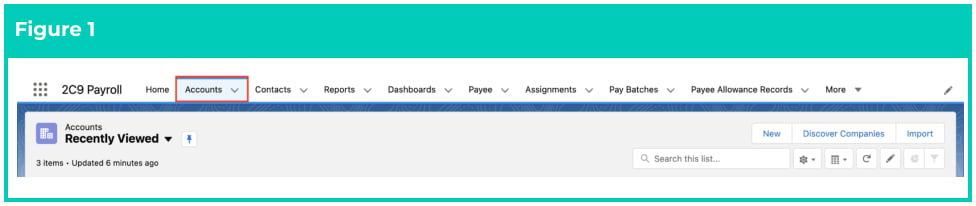
1. Go to the **Accounts** object. (See Figure 1)
;
};
## Purpose
The purpose of this quick reference guide is to step through the process of creating the Invoice Settings.
The intended audience for this document is System Administrators / Standard Users.
## Steps
### Set up a new Invoice Settings record
The Invoice Setting records are related to the Client record and are used to describe various creation and
distribution settings for Invoices.
To create an Invoice Setting record, follow the steps below:
1. Go to the **Accounts** object. (See Figure 1)
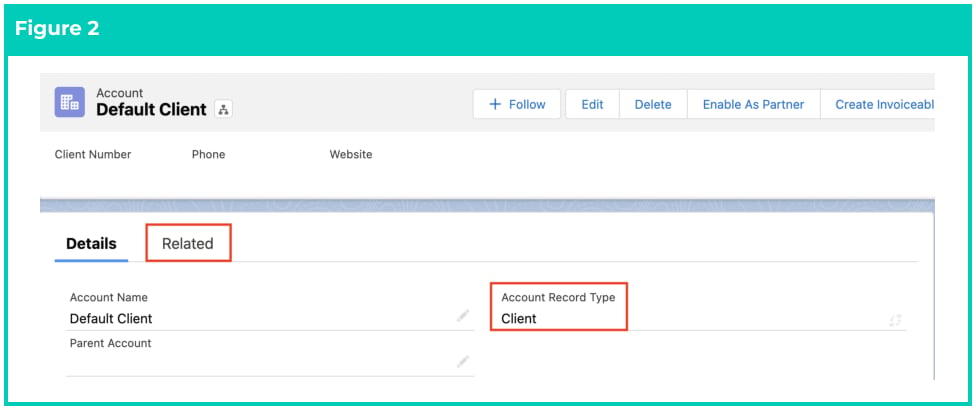
 2. Open the required Client record and click on the **Related** tab. (See Figure 2)
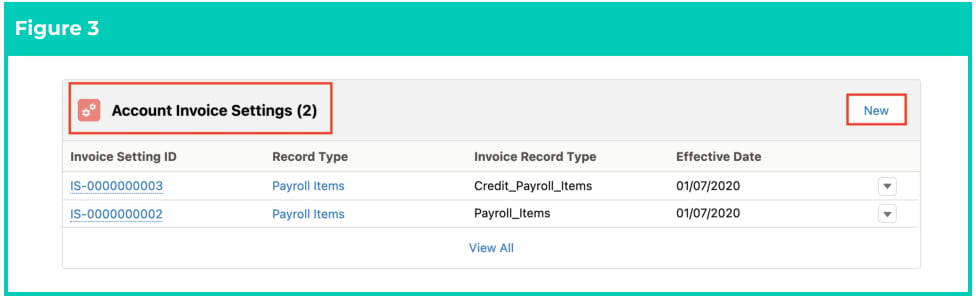
 3. Navigate to the **Account Invoice Settings** related list and click on the **New** button. (See Figure 3)
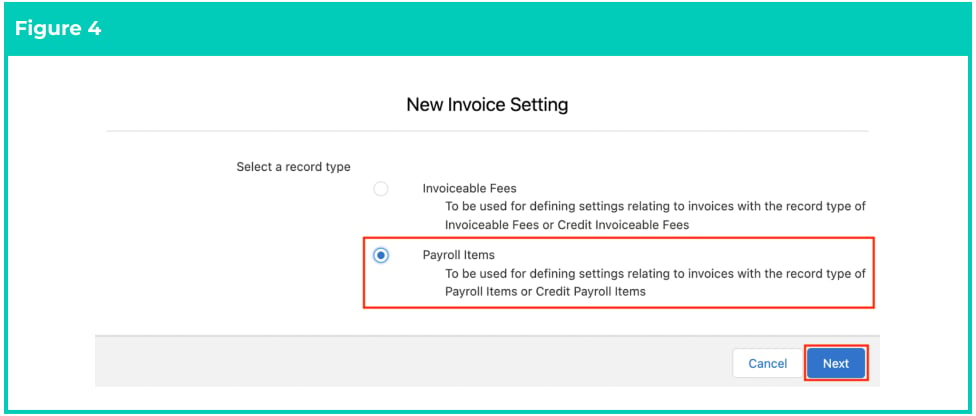
 4. Choose one of the following record types as required and click **Next**: (See Figure 4)
1. **Payroll Items**
2. **Invoiceable Fees**
4. Choose one of the following record types as required and click **Next**: (See Figure 4)
1. **Payroll Items**
2. **Invoiceable Fees**
 5. Populate the **Invoice Record Type** field as below:
1. If you selected Payroll Items in the previous step, then you need to choose from the
following options in the **Invoice Record Type** field:
1. Credit\_Payroll\_Items
2. Payroll\_Items
2. If you selected Invoiceable Fees in the previous step, then you need to choose from the
following options in the **Invoice Record Type** field:
1. Credit\_Invoiceable\_Fees
2. Invoiceable\_Fees
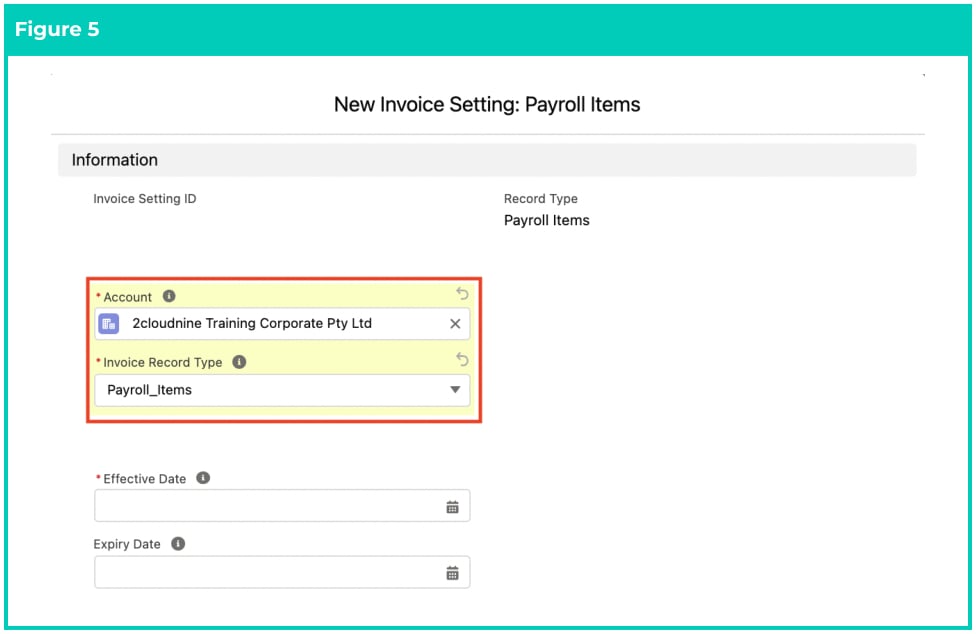
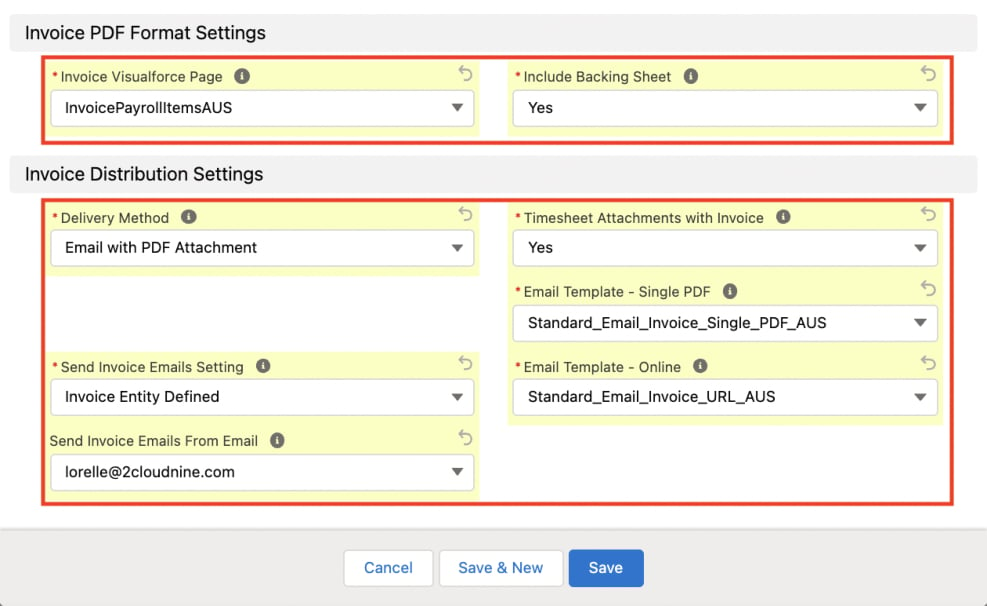
6. Populate the following required fields to provide the base details of the Invoice Settings: (See
Figure 5)
1. **Account**
2. **Invoice Record Type (step 5)**
3. **Effective Date**
4. **Invoice Entity**
5. **Payment Terms**
6. **0 & Negative Pay Transactions Invoiced**
7. **Enable Project Codes on Invoice (Yes/No)**
8. **Split Invoice by Project Code (Yes/No)**
9. **Enable Rate Ex on Invoice (Yes/No)**
10. **Enable Total Ex Tax on Invoice (Yes/No)**
11. **Enable Total Tax on Invoice (Yes/No)**
12. **Enable Total Inc Tax on Invoice (Yes/No)**
13. **Split Expenses to Own Invoice (Yes/No)**
14. **Invoice Visualforce Page**
15. **Include Backing Sheet (Yes/No)**
16. **Delivery Method**
17. **Send Invoice Emails Setting**
18. **TImesheet Attachments with Invoice (Yes/No)**
19. **Email Template - Single PDF**
20. **Email Template - Online**
7. Populate the following optional fields as needed:
1. To set an expiry date for the Invoice Settings record, populate the **Expiry Date** field. If left
blank, no Expiry Date will apply. (See Figure 5)
2. To add a custom description on the invoice or if you would like to add any details about the
Invoice, populate the **Invoice Message** field.
3. To display the full approval status history of the invoices, populate the **Enable Full Approval History** field.
4. To define if the loading pay transactions defined on the Interpretation Rule will be invoiced
separately or not, populate the **Split Loading Pay Transactions** field.
5. To enter the email address that will be used to send Invoice emails, populate the **Send Invoice Emails from Email** field.
8. Click on the **Save** button.
5. Populate the **Invoice Record Type** field as below:
1. If you selected Payroll Items in the previous step, then you need to choose from the
following options in the **Invoice Record Type** field:
1. Credit\_Payroll\_Items
2. Payroll\_Items
2. If you selected Invoiceable Fees in the previous step, then you need to choose from the
following options in the **Invoice Record Type** field:
1. Credit\_Invoiceable\_Fees
2. Invoiceable\_Fees
6. Populate the following required fields to provide the base details of the Invoice Settings: (See
Figure 5)
1. **Account**
2. **Invoice Record Type (step 5)**
3. **Effective Date**
4. **Invoice Entity**
5. **Payment Terms**
6. **0 & Negative Pay Transactions Invoiced**
7. **Enable Project Codes on Invoice (Yes/No)**
8. **Split Invoice by Project Code (Yes/No)**
9. **Enable Rate Ex on Invoice (Yes/No)**
10. **Enable Total Ex Tax on Invoice (Yes/No)**
11. **Enable Total Tax on Invoice (Yes/No)**
12. **Enable Total Inc Tax on Invoice (Yes/No)**
13. **Split Expenses to Own Invoice (Yes/No)**
14. **Invoice Visualforce Page**
15. **Include Backing Sheet (Yes/No)**
16. **Delivery Method**
17. **Send Invoice Emails Setting**
18. **TImesheet Attachments with Invoice (Yes/No)**
19. **Email Template - Single PDF**
20. **Email Template - Online**
7. Populate the following optional fields as needed:
1. To set an expiry date for the Invoice Settings record, populate the **Expiry Date** field. If left
blank, no Expiry Date will apply. (See Figure 5)
2. To add a custom description on the invoice or if you would like to add any details about the
Invoice, populate the **Invoice Message** field.
3. To display the full approval status history of the invoices, populate the **Enable Full Approval History** field.
4. To define if the loading pay transactions defined on the Interpretation Rule will be invoiced
separately or not, populate the **Split Loading Pay Transactions** field.
5. To enter the email address that will be used to send Invoice emails, populate the **Send Invoice Emails from Email** field.
8. Click on the **Save** button.
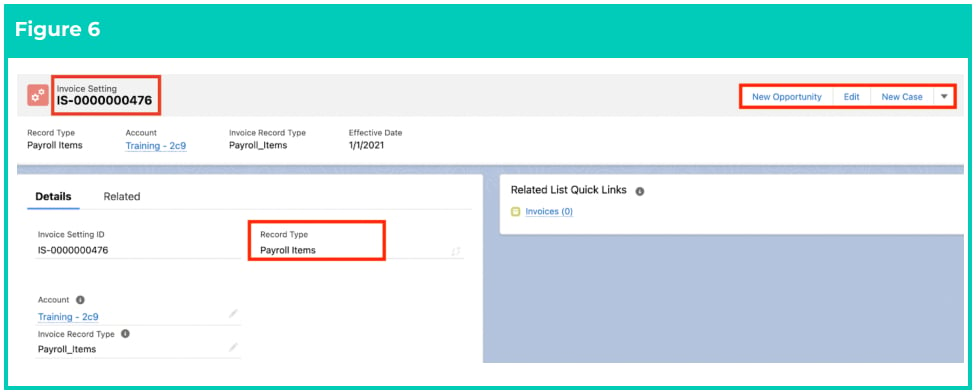
 9. A new Invoice Setting record has been created for this Client and for Payroll Items invoices. (See
Figure 6)
9. A new Invoice Setting record has been created for this Client and for Payroll Items invoices. (See
Figure 6)
 Alternatively, an Invoice Settings record can be created by opening the Invoice Settings
object and clicking on the New button.
Invoice Settings records CANNOT be deleted if they have related records or are used in
other records. Deleting records is not recommended unless absolutely essential.
If the Invoice Setting for credit isn’t enabled, you will possibly receive an error message
preventing users from being able to proceed any further with that process saying “Apex
approval lock/unlock api preference not enabled”.
You cannot edit an Invoice Settings record once a related Pay Transaction has been
invoiced. To make changes, you would need to enter an Expiry Date, and then create a
new record for the next Effective Date with the changes required. If you are creating for
Payroll Items, you will also need to create for Credit Payroll Items (Invoice Record Type)
and if you are creating for Invoiceable Fees, you will also need to for Credit Invoiceable
Fees.
10. To modify an existing **Invoice Settings** record, open the required record and select the **Edit** button
available on the top right side of the page. You can also double click in any of the fields that need
editing or just click on the pencil icon that appears within fields when you move your cursor
over the field.
11. When complete, click on the **Save** button.
## Field Descriptions
**0 & Negative Pay Transactions Invoiced** defines if Pay Transactions with Invoice Total Inc. Tax of 0 or a
negative amount will be included in invoices.. If No and an Invoice to be created has Pay Transactions of 0
or negative Invoice Total Inc. Tax amount, the Pay Transactions will not be included in invoice creation.
**Account** defines the Invoice To Account the Invoice Setting relates to.
**Delivery Method** defines the default method that will be used to distribute the Invoices created using this
Invoice Setting. Can be overridden at the Invoice Level.
**Effective Date** defines the date from which the Invoice Setting is effective.
**Email Template - Single PDF** defines the Email Template to be used for sending the Invoices with a single
PDF Invoice attached.
**Email Template - Online** defines the Email Template to be used for sending online Invoices.
**Enable Full Approval History** when enabled, the Invoices with Backing Sheets will retrieve and display the
full approval status history as provided by the record history on the status field.
**Enable Project Codes On Invoice** defines if Project Codes will be included on Invoice PDFs.
**Enable Rate Ex Tax On Invoice** defines if the Rate Ex Tax column will be displayed in the Invoice PDFs. The
Invoice Totals will still be shown in the header and footer of the Invoice
**Enable Total Ex Tax On Invoice** defines if the Total Ex Tax column will be displayed in the Invoice PDFs.
This applies only to the table within the main invoice body. The invoice totals will still be shown in the
header and footer of the invoice.
**Enable Total Inc Tax On Invoice** defines if the Total Inc Tax column will be displayed in the Invoice PDFs.
This applies only to the table within the mainIinvoice body. The invoice totals will still be shown in the
header and footer of the Invoice.
**Enable Total Tax On Invoice** defines if the Total Tax column will be displayed in the Invoice PDFs. This
applies only to the table within the main invoice body. The invoice totals will still be shown in the header
and footer of the Invoice.
**Expiry Date** defines the date this Invoice Setting expires and is no longer used.
**Include Backing Sheet** defines if a Backing Sheet will be included on the PDF Invoices.
**Invoice Entity** defines the Invoice Entity to be used on the Invoices.
**Invoice Message** defines the default message that will be included on the PDF Invoices created using this
Invoice Setting. If populated, this is in addition to any that are set at an Invoice Entity level, and Invoice
level.
**Invoice Record Type** defines the Invoice Record Type that this Invoice Setting applies to.
**Invoice Visualforce Page** defines the Visualforce Page that will be used when rendering the Invoice PDF.
**Payment Terms** define the Payment Terms to be applied to the Invoices.
**Split Expenses to Own Invoice** defines if Expenses will be invoiced on a separate Invoice.
**Split Invoice By Project Code** defines if the Invoices will be split into separate Invoices per Project Code.
**Send Invoice Emails From Email** must be detailed as an Organisation-Wide Address. When the Invoice
Setting's Send Invoice Emails Setting defines the email source as 'Invoice Setting Defined' the email
address defined in this field will be used as the from / reply to email when emailing Invoices.
**Send Invoice Emails Setting** defines from where the email address that will be used as the from / reply to
email when emailing Invoices will be taken.
**Split Loading Pay Transactions** defines if the loading pay transactions defined on the Interpretation Rule
will be invoiced separately. If "No" then the Pay Code on the Interpretation Breakpoint will be the only pay
transaction invoiced.
**Timesheet Attachments with Invoice** defines when Invoices are emailed the Timesheet attachments are
included in the email.
## Further Information
| Document | Document Type | Description |
| --------------------------- | ----------------- | --------------------------------------------------- |
| Create a Client record | Task Instructions | How to create a Client record |
| Create an Assignment - Temp | Task Instructions | How to create an Assignment for Timesheet Employees |
Alternatively, an Invoice Settings record can be created by opening the Invoice Settings
object and clicking on the New button.
Invoice Settings records CANNOT be deleted if they have related records or are used in
other records. Deleting records is not recommended unless absolutely essential.
If the Invoice Setting for credit isn’t enabled, you will possibly receive an error message
preventing users from being able to proceed any further with that process saying “Apex
approval lock/unlock api preference not enabled”.
You cannot edit an Invoice Settings record once a related Pay Transaction has been
invoiced. To make changes, you would need to enter an Expiry Date, and then create a
new record for the next Effective Date with the changes required. If you are creating for
Payroll Items, you will also need to create for Credit Payroll Items (Invoice Record Type)
and if you are creating for Invoiceable Fees, you will also need to for Credit Invoiceable
Fees.
10. To modify an existing **Invoice Settings** record, open the required record and select the **Edit** button
available on the top right side of the page. You can also double click in any of the fields that need
editing or just click on the pencil icon that appears within fields when you move your cursor
over the field.
11. When complete, click on the **Save** button.
## Field Descriptions
**0 & Negative Pay Transactions Invoiced** defines if Pay Transactions with Invoice Total Inc. Tax of 0 or a
negative amount will be included in invoices.. If No and an Invoice to be created has Pay Transactions of 0
or negative Invoice Total Inc. Tax amount, the Pay Transactions will not be included in invoice creation.
**Account** defines the Invoice To Account the Invoice Setting relates to.
**Delivery Method** defines the default method that will be used to distribute the Invoices created using this
Invoice Setting. Can be overridden at the Invoice Level.
**Effective Date** defines the date from which the Invoice Setting is effective.
**Email Template - Single PDF** defines the Email Template to be used for sending the Invoices with a single
PDF Invoice attached.
**Email Template - Online** defines the Email Template to be used for sending online Invoices.
**Enable Full Approval History** when enabled, the Invoices with Backing Sheets will retrieve and display the
full approval status history as provided by the record history on the status field.
**Enable Project Codes On Invoice** defines if Project Codes will be included on Invoice PDFs.
**Enable Rate Ex Tax On Invoice** defines if the Rate Ex Tax column will be displayed in the Invoice PDFs. The
Invoice Totals will still be shown in the header and footer of the Invoice
**Enable Total Ex Tax On Invoice** defines if the Total Ex Tax column will be displayed in the Invoice PDFs.
This applies only to the table within the main invoice body. The invoice totals will still be shown in the
header and footer of the invoice.
**Enable Total Inc Tax On Invoice** defines if the Total Inc Tax column will be displayed in the Invoice PDFs.
This applies only to the table within the mainIinvoice body. The invoice totals will still be shown in the
header and footer of the Invoice.
**Enable Total Tax On Invoice** defines if the Total Tax column will be displayed in the Invoice PDFs. This
applies only to the table within the main invoice body. The invoice totals will still be shown in the header
and footer of the Invoice.
**Expiry Date** defines the date this Invoice Setting expires and is no longer used.
**Include Backing Sheet** defines if a Backing Sheet will be included on the PDF Invoices.
**Invoice Entity** defines the Invoice Entity to be used on the Invoices.
**Invoice Message** defines the default message that will be included on the PDF Invoices created using this
Invoice Setting. If populated, this is in addition to any that are set at an Invoice Entity level, and Invoice
level.
**Invoice Record Type** defines the Invoice Record Type that this Invoice Setting applies to.
**Invoice Visualforce Page** defines the Visualforce Page that will be used when rendering the Invoice PDF.
**Payment Terms** define the Payment Terms to be applied to the Invoices.
**Split Expenses to Own Invoice** defines if Expenses will be invoiced on a separate Invoice.
**Split Invoice By Project Code** defines if the Invoices will be split into separate Invoices per Project Code.
**Send Invoice Emails From Email** must be detailed as an Organisation-Wide Address. When the Invoice
Setting's Send Invoice Emails Setting defines the email source as 'Invoice Setting Defined' the email
address defined in this field will be used as the from / reply to email when emailing Invoices.
**Send Invoice Emails Setting** defines from where the email address that will be used as the from / reply to
email when emailing Invoices will be taken.
**Split Loading Pay Transactions** defines if the loading pay transactions defined on the Interpretation Rule
will be invoiced separately. If "No" then the Pay Code on the Interpretation Breakpoint will be the only pay
transaction invoiced.
**Timesheet Attachments with Invoice** defines when Invoices are emailed the Timesheet attachments are
included in the email.
## Further Information
| Document | Document Type | Description |
| --------------------------- | ----------------- | --------------------------------------------------- |
| Create a Client record | Task Instructions | How to create a Client record |
| Create an Assignment - Temp | Task Instructions | How to create an Assignment for Timesheet Employees |