> ## Documentation Index
> Fetch the complete documentation index at: https://documentation.2cloudnine.com/llms.txt
> Use this file to discover all available pages before exploring further.
# QRG Create Pay Schedules
export const InlineImage = ({src, alt = "", height = "1.6em"}) => {
return  ;
};
## Purpose
The purpose of this quick reference guide is to step through the process of creating Pay Schedules. The
intended audience for this document is System Administrators.
Pay Schedules determine the frequency between Payroll cycles. Although they are generally created
during the original installation and configuration, these may need to be manually created at a later stage,
depending on the business requirements.
## Steps
### Create a Pay Schedule record
To create a Pay Schedule record, follow the steps below:
;
};
## Purpose
The purpose of this quick reference guide is to step through the process of creating Pay Schedules. The
intended audience for this document is System Administrators.
Pay Schedules determine the frequency between Payroll cycles. Although they are generally created
during the original installation and configuration, these may need to be manually created at a later stage,
depending on the business requirements.
## Steps
### Create a Pay Schedule record
To create a Pay Schedule record, follow the steps below:
1. Click on the **App Launcher** icon. (See
Figure 1)
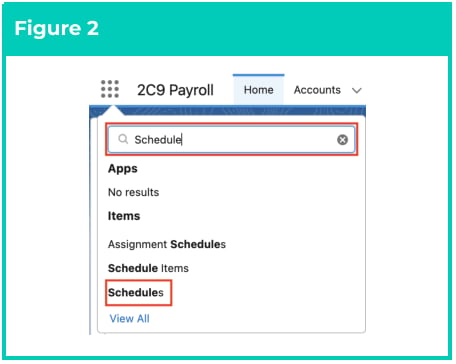
2. Go to the **Schedules** object by using the
Search function. (See Figure 2)
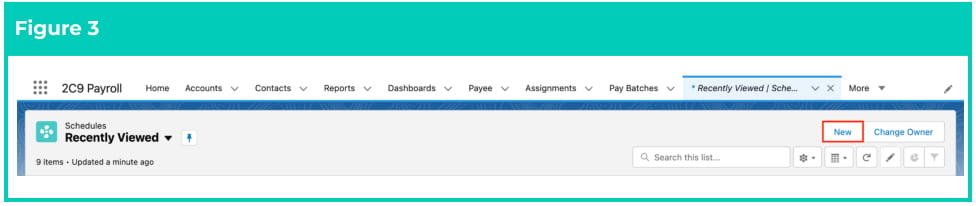
3. Click on the **New** button. (See Figure 3)
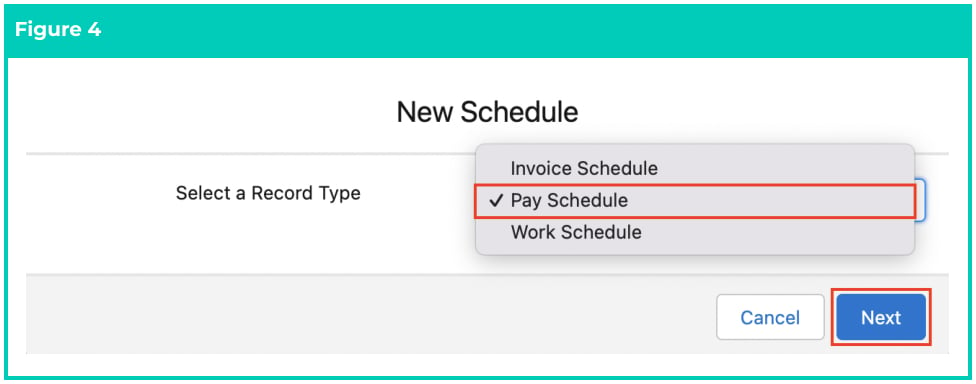
 4. Choose the record type of **Pay Schedule** and click **Next** . (See Figure 4)
 5. Follow this step in the sequence given below:
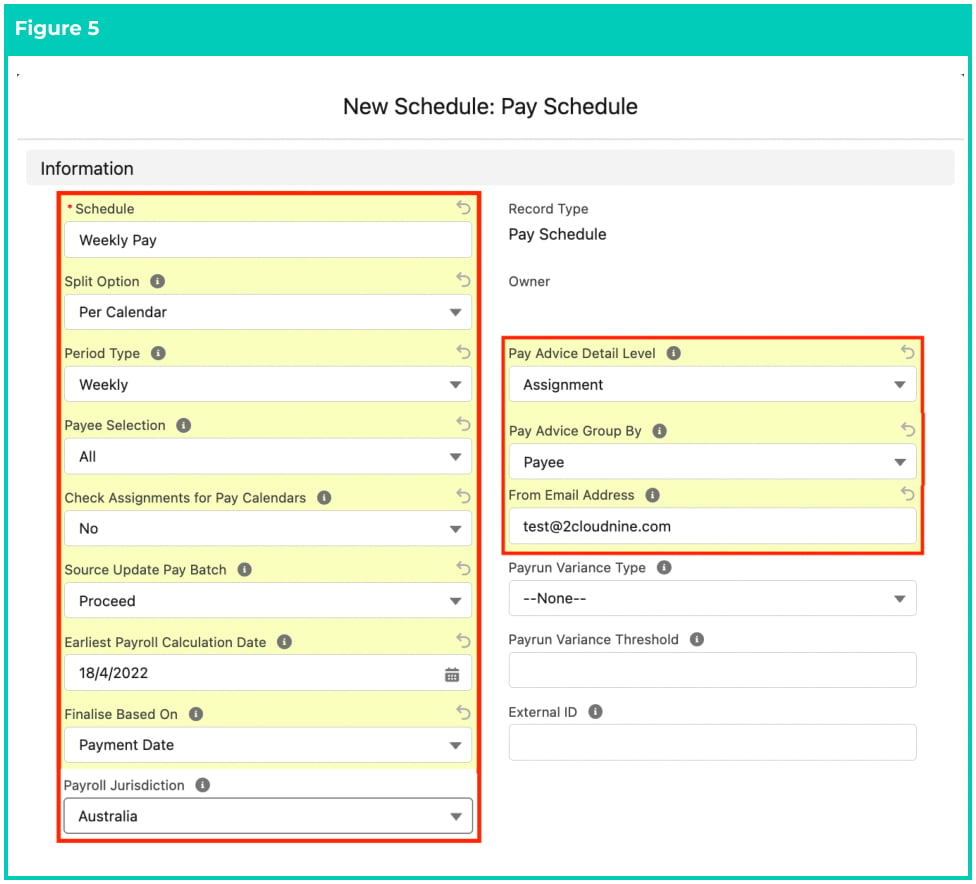
1. Populate the following required fields to provide the base details of the Payment
Schedule record: (See Figure 5)
1. **Schedule**
2. **Split Option**
3. **Period Type**
4. **Payee Selection**
5. **Check Assignments for Pay Calendars**
6. **Source Update Pay Batch**
7. **Earliest Payroll Calculation Date**
8. **Finalise Based On**
9. **Payroll Jurisdiction**
10. **Pay Advice Group By**
11. **Pay Advice Detail Level**
12. **From Email Address**
2. Populate the following optional fields as needed: (See Figure 5)
1. To integrate the Pay Schedule record with an external system, populate the
**External ID** field.
2. To provide a default variance threshold for the Pay Batch Manager reporting,
populate the **Payrun Variance Threshold** field.
3. To provide a default variance type for the Pay Batch Manager reporting, populate
the **Payrun Variance Type** field.
5. Follow this step in the sequence given below:
1. Populate the following required fields to provide the base details of the Payment
Schedule record: (See Figure 5)
1. **Schedule**
2. **Split Option**
3. **Period Type**
4. **Payee Selection**
5. **Check Assignments for Pay Calendars**
6. **Source Update Pay Batch**
7. **Earliest Payroll Calculation Date**
8. **Finalise Based On**
9. **Payroll Jurisdiction**
10. **Pay Advice Group By**
11. **Pay Advice Detail Level**
12. **From Email Address**
2. Populate the following optional fields as needed: (See Figure 5)
1. To integrate the Pay Schedule record with an external system, populate the
**External ID** field.
2. To provide a default variance threshold for the Pay Batch Manager reporting,
populate the **Payrun Variance Threshold** field.
3. To provide a default variance type for the Pay Batch Manager reporting, populate
the **Payrun Variance Type** field.
 The External ID field is available and should only be populated where system
integration is required for the record.
3. Populate the following required fields to provide the base details of the Pay Schedule
record: (See Figure 6)
1. **N/A**
4. Populate the following optional fields as needed: (See Figure 6)
1. To define the Pay Rate frequency, populate the **Default Pay Rate Frequency** field.
2. To define the default Pay Code value on a new Assignment Rate record, populate
the **Default Pay Rate Pay Code** .
3. To indicate whether Auto Pay should be set to Yes or No by default on the
creation of new Assignment Rate records, populate the **Default Pay Rate Auto**
**Pay** field.
4. To set the default Pro Rata Method value on a new Assignment Rate record,
populate the **Default Pay Rate Pro Rata Method** field.
5. To allocate which Pay Code will be used for payment of a Public Holiday for an
Auto Pay Assignment using Work Schedules, populate the **Auto Pay Public**
**Holiday Pay Code** field.
5. The following fields are populated automatically, however if there are any changes, users
must override the defaults:
1. **Auto Pay Days per Year**, **Auto Pay Days per Week**, **Auto Pay Weeks per Year**,
**Auto Pay Days per Fortnight**, **Auto Pay Fortnights per Year,** and **Auto Pay**
**Months per Year** .
The External ID field is available and should only be populated where system
integration is required for the record.
3. Populate the following required fields to provide the base details of the Pay Schedule
record: (See Figure 6)
1. **N/A**
4. Populate the following optional fields as needed: (See Figure 6)
1. To define the Pay Rate frequency, populate the **Default Pay Rate Frequency** field.
2. To define the default Pay Code value on a new Assignment Rate record, populate
the **Default Pay Rate Pay Code** .
3. To indicate whether Auto Pay should be set to Yes or No by default on the
creation of new Assignment Rate records, populate the **Default Pay Rate Auto**
**Pay** field.
4. To set the default Pro Rata Method value on a new Assignment Rate record,
populate the **Default Pay Rate Pro Rata Method** field.
5. To allocate which Pay Code will be used for payment of a Public Holiday for an
Auto Pay Assignment using Work Schedules, populate the **Auto Pay Public**
**Holiday Pay Code** field.
5. The following fields are populated automatically, however if there are any changes, users
must override the defaults:
1. **Auto Pay Days per Year**, **Auto Pay Days per Week**, **Auto Pay Weeks per Year**,
**Auto Pay Days per Fortnight**, **Auto Pay Fortnights per Year,** and **Auto Pay**
**Months per Year** .
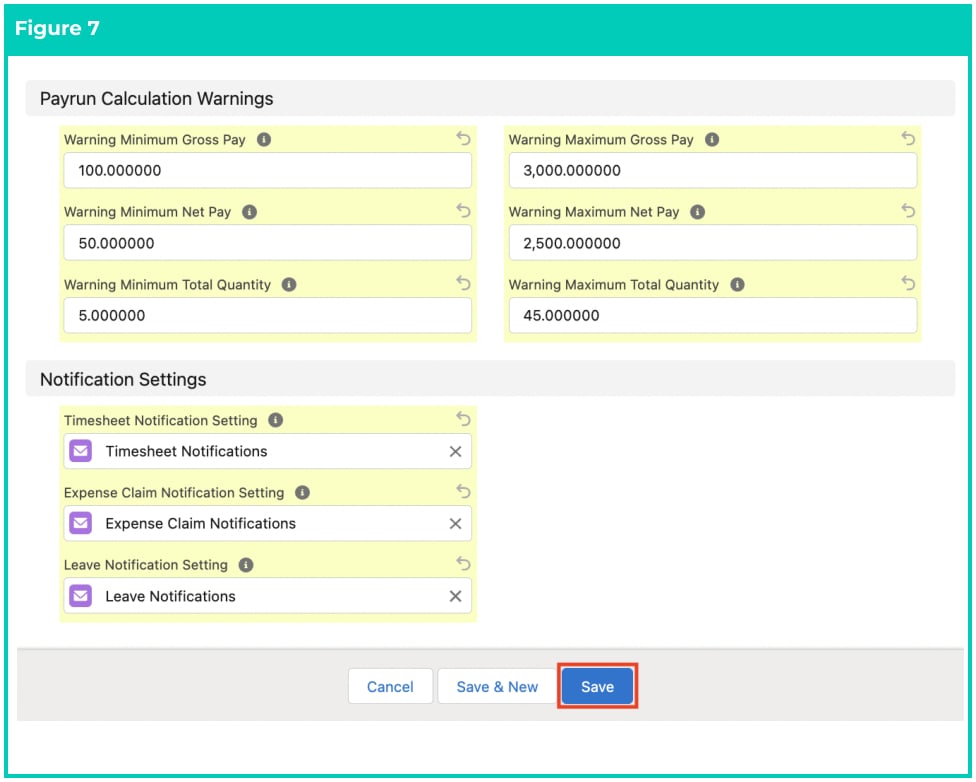
 6. Populate the following optional fields as needed: (See Figure 7)
1. To provide warnings about Payee Pay Batches containing fields that exceed the
Minimum or Maximum thresholds, populate the **Warning Minimum Gross Pay**,
**Warning Minimum Net Pay**, **Warning Minimum Total Quantity**, **Warning**
**Maximum Gross Pay**, **Warning Maximum Net Pay**, and **Warning Maximum Total**
**Quantity** fields with the required threshold value.
2. To default a Notification Setting when an Assignment is related to this Pay
Schedule, populate the picklists **Timesheet Notification Setting**, **Expense Claim**
**Notification Setting**, **Leave Notification Setting** fields. These can be overridden
at a Client level.
6. Click on the **Save** button.
6. Populate the following optional fields as needed: (See Figure 7)
1. To provide warnings about Payee Pay Batches containing fields that exceed the
Minimum or Maximum thresholds, populate the **Warning Minimum Gross Pay**,
**Warning Minimum Net Pay**, **Warning Minimum Total Quantity**, **Warning**
**Maximum Gross Pay**, **Warning Maximum Net Pay**, and **Warning Maximum Total**
**Quantity** fields with the required threshold value.
2. To default a Notification Setting when an Assignment is related to this Pay
Schedule, populate the picklists **Timesheet Notification Setting**, **Expense Claim**
**Notification Setting**, **Leave Notification Setting** fields. These can be overridden
at a Client level.
6. Click on the **Save** button.
 7. A new Pay Schedule record has been created. (See Figure 8)
 8. To modify an existing **Pay Schedule** record, open the required record and select the **Edit** button
available on the top right side of the page. You can also double click in any of the fields that need
editing, or just click on the pencil icon that appears within fields when you move your cursor
over the field.
9. When complete, click on the **Save** button.
Pay Schedule records CANNOT be deleted if they have related records or are used in
other records. Deleting records is not recommended unless absolutely essential.
## Field Descriptions
| Field Name | Description |
| ----------------------------------------------- | ------------------------------------------------------------------------------------------------------------------------------------------------------------------------------------------------------------------------------ |
| **Auto Pay Days per** **Fortnight** | are the standard days per fortnight for calculation of Amount per Period on Assignment Rate Records, where Auto Pay is Yes. |
| **Auto Pay Days per** **Week** | are the standard days per week for calculation of Amount per Period where Auto Pay is Yes. |
| **Auto Pay Days per** **Year** | are the standard days per year for calculation of Amount per Period where Auto Pay is Yes. |
| **Auto Pay** **Fortnights per Year** | are the standard fortnights per year for calculation of Amount per Period where Auto Pay is Yes. |
| **Auto Pay Months** **per Year** | are the standard months per year for calculation of Amount per Period where Auto Pay is Yes. |
| **Auto Pay Public** **Holiday Pay Code** | indicates which pay code will be used, if populated, for payment of a Public Holiday for an Auto Pay Assignment. |
| **Auto Pay Weeks** **per Year** | are the standard weeks per year for calculation of Amount per Period where Auto Pay is Yes. |
| **Check** **Assignments for** **Pay Calendars** | indicates whether a check for valid Pay Calendars is to be carried out when a new Assignment is created. |
| **Default Autopay** **Calculation Basis** | indicates how the Auto Pay Calculation Basis field will be populated by default on a new Assignment Rate. |
| **Default Pay Rate** **Auto Pay** | indicates whether Auto Pay should be set to Yes or No by default on the creation of new Assignment Rates. |
| **Default Pay Rate** **Frequency** | sets a default Pay Rate frequency to apply on Assignment Rates associated with this Pay Schedule. |
| **Default Pay Rate** **Pay Code** | sets a default Pay Code on new Assignment Rates associated with this Pay Schedule. |
| **Default Pay Rate** **Pro Rata Method** | sets a default Pro Rata Method on new Assignment Rates associated with this Pay Schedule. |
| **Earliest Payroll** **Calculation Date** | limits the earliest Calendar Period Start Date that will be considered during Pay Batch creation and calculation. |
| **Expense Claim** **Notification Setting** | defines the Notification Setting to be used for Expense Claim Notifications when an Assignment is related to this Pay Schedule. A Client-based override can be applied. |
| **External ID** | defines the ID of the corresponding record in an external system that has been used to create/update the record. Used in integrations. |
| **Finalise Based On** | defines if the finalise dates for Month, Quarter, and Year End dates are to be based on the Pay Batch Maximum Payroll Date or the Pay Batch Payment Date. |
| **From Email** **Address** | is the Sender’s Email Address used for the Pay Advice emails. |
| **Leave Notification** **Setting** | defines the Notification Setting to be used for Leave Notifications when an Assignment is related to the Pay Schedule. A Client-based override can be applied. |
| **Pay Advice Detail** **Level** | indicates what level of information will be shown in the breakdown of the Pay Advices, with the options being Payee, Assignment, or Project Code |
| **Pay Advice Group** **By** | defines within each Pay Batch, if Pay Advices will be created as one per Payee, regardless of how many Calendar Periods they have been paid for, or, one per Payee Pay Batch i.e. one per Calendar Period. |
| Payee Selection | is the default data selection that will be applied during Pay Batch creation. Transactions Only = Payees with Pay Transactions generated from Timesheets. All = considers other source records such as Autopay Employees, etc. |
| --- | --- |
| **Payroll Jurisdiction** | determines which payroll calculations and downstream processes will be associated with this Pay Schedule. |
| **Payrun Variance** **Threshold** | is the default variance threshold used in the Variance Reporting tab in Pay Batch Manager. |
| **Payrun Variance** **Type** | is the default variance type used in the Variance Reporting tab in Pay Batch Manager. |
| **Period Type** | is the frequency of pay cycles to Payees. |
| **Schedule** | is the name given to the Schedule record that is being created. |
| **Source Update Pay** **Batch** | field determines if an update to a Pay Batch Event or Payee Leave Rule impacting an already Calculated Pay Batch will revert the Pay Batch status and Payee Pay Batch record status to Uncalculated. |
| **Split Option** | defines if the Pay Batches associated with the Pay Schedule will be broken up upon creation by Pay Calendar Period, or if no split is required. |
| **Timesheet** **Notification Setting** | defines the Notification Setting to be used for Timesheet Notifications when an Assignment is related to this Pay Schedule. A Client based override can be applied. |
| **Warning Maximum** **Gross Pay** | If populated this will be the Minimum Gross Pay threshold for a Payee Pay Batch record and provide warnings if exceeded. |
| **Warning Maximum** **Net Pay** | If populated this will be the Maximum Net Pay threshold for a Payee Pay Batch record and provide warnings if exceeded. |
| **Warning Maximum** **Total Quantity** | If populated this will be the Minimum Total Quantity threshold for a Payee Pay Batch record and provide warnings if exceeded. |
| **Warning Minimum** **Gross Pay** | If populated this will be the Minimum Gross Pay threshold for a Payee Pay Batch record and provide warnings if exceeded. |
| **Warning Minimum** **Net Pay** | If populated this will be the Minimum Net Pay threshold for a Payee Pay Batch record and provide warnings if exceeded. |
| **Warning Minimum** **Total Quantity** | If populated this will be the Minimum Total Quantity threshold for a Payee Pay Batch record and provide warnings if exceeded. |
## Further Information
| Document | Document Type | Description |
| ------------------------------------------ | ----------------- | ------------------------------------------------- |
| QRG Create an Account - Client | Task Instructions | How to create a Client record |
| QRG Create Pay Calendar & Calendar Periods | Task Instructions | How to create a Pay Calendar and Calendar Periods |
8. To modify an existing **Pay Schedule** record, open the required record and select the **Edit** button
available on the top right side of the page. You can also double click in any of the fields that need
editing, or just click on the pencil icon that appears within fields when you move your cursor
over the field.
9. When complete, click on the **Save** button.
Pay Schedule records CANNOT be deleted if they have related records or are used in
other records. Deleting records is not recommended unless absolutely essential.
## Field Descriptions
| Field Name | Description |
| ----------------------------------------------- | ------------------------------------------------------------------------------------------------------------------------------------------------------------------------------------------------------------------------------ |
| **Auto Pay Days per** **Fortnight** | are the standard days per fortnight for calculation of Amount per Period on Assignment Rate Records, where Auto Pay is Yes. |
| **Auto Pay Days per** **Week** | are the standard days per week for calculation of Amount per Period where Auto Pay is Yes. |
| **Auto Pay Days per** **Year** | are the standard days per year for calculation of Amount per Period where Auto Pay is Yes. |
| **Auto Pay** **Fortnights per Year** | are the standard fortnights per year for calculation of Amount per Period where Auto Pay is Yes. |
| **Auto Pay Months** **per Year** | are the standard months per year for calculation of Amount per Period where Auto Pay is Yes. |
| **Auto Pay Public** **Holiday Pay Code** | indicates which pay code will be used, if populated, for payment of a Public Holiday for an Auto Pay Assignment. |
| **Auto Pay Weeks** **per Year** | are the standard weeks per year for calculation of Amount per Period where Auto Pay is Yes. |
| **Check** **Assignments for** **Pay Calendars** | indicates whether a check for valid Pay Calendars is to be carried out when a new Assignment is created. |
| **Default Autopay** **Calculation Basis** | indicates how the Auto Pay Calculation Basis field will be populated by default on a new Assignment Rate. |
| **Default Pay Rate** **Auto Pay** | indicates whether Auto Pay should be set to Yes or No by default on the creation of new Assignment Rates. |
| **Default Pay Rate** **Frequency** | sets a default Pay Rate frequency to apply on Assignment Rates associated with this Pay Schedule. |
| **Default Pay Rate** **Pay Code** | sets a default Pay Code on new Assignment Rates associated with this Pay Schedule. |
| **Default Pay Rate** **Pro Rata Method** | sets a default Pro Rata Method on new Assignment Rates associated with this Pay Schedule. |
| **Earliest Payroll** **Calculation Date** | limits the earliest Calendar Period Start Date that will be considered during Pay Batch creation and calculation. |
| **Expense Claim** **Notification Setting** | defines the Notification Setting to be used for Expense Claim Notifications when an Assignment is related to this Pay Schedule. A Client-based override can be applied. |
| **External ID** | defines the ID of the corresponding record in an external system that has been used to create/update the record. Used in integrations. |
| **Finalise Based On** | defines if the finalise dates for Month, Quarter, and Year End dates are to be based on the Pay Batch Maximum Payroll Date or the Pay Batch Payment Date. |
| **From Email** **Address** | is the Sender’s Email Address used for the Pay Advice emails. |
| **Leave Notification** **Setting** | defines the Notification Setting to be used for Leave Notifications when an Assignment is related to the Pay Schedule. A Client-based override can be applied. |
| **Pay Advice Detail** **Level** | indicates what level of information will be shown in the breakdown of the Pay Advices, with the options being Payee, Assignment, or Project Code |
| **Pay Advice Group** **By** | defines within each Pay Batch, if Pay Advices will be created as one per Payee, regardless of how many Calendar Periods they have been paid for, or, one per Payee Pay Batch i.e. one per Calendar Period. |
| Payee Selection | is the default data selection that will be applied during Pay Batch creation. Transactions Only = Payees with Pay Transactions generated from Timesheets. All = considers other source records such as Autopay Employees, etc. |
| --- | --- |
| **Payroll Jurisdiction** | determines which payroll calculations and downstream processes will be associated with this Pay Schedule. |
| **Payrun Variance** **Threshold** | is the default variance threshold used in the Variance Reporting tab in Pay Batch Manager. |
| **Payrun Variance** **Type** | is the default variance type used in the Variance Reporting tab in Pay Batch Manager. |
| **Period Type** | is the frequency of pay cycles to Payees. |
| **Schedule** | is the name given to the Schedule record that is being created. |
| **Source Update Pay** **Batch** | field determines if an update to a Pay Batch Event or Payee Leave Rule impacting an already Calculated Pay Batch will revert the Pay Batch status and Payee Pay Batch record status to Uncalculated. |
| **Split Option** | defines if the Pay Batches associated with the Pay Schedule will be broken up upon creation by Pay Calendar Period, or if no split is required. |
| **Timesheet** **Notification Setting** | defines the Notification Setting to be used for Timesheet Notifications when an Assignment is related to this Pay Schedule. A Client based override can be applied. |
| **Warning Maximum** **Gross Pay** | If populated this will be the Minimum Gross Pay threshold for a Payee Pay Batch record and provide warnings if exceeded. |
| **Warning Maximum** **Net Pay** | If populated this will be the Maximum Net Pay threshold for a Payee Pay Batch record and provide warnings if exceeded. |
| **Warning Maximum** **Total Quantity** | If populated this will be the Minimum Total Quantity threshold for a Payee Pay Batch record and provide warnings if exceeded. |
| **Warning Minimum** **Gross Pay** | If populated this will be the Minimum Gross Pay threshold for a Payee Pay Batch record and provide warnings if exceeded. |
| **Warning Minimum** **Net Pay** | If populated this will be the Minimum Net Pay threshold for a Payee Pay Batch record and provide warnings if exceeded. |
| **Warning Minimum** **Total Quantity** | If populated this will be the Minimum Total Quantity threshold for a Payee Pay Batch record and provide warnings if exceeded. |
## Further Information
| Document | Document Type | Description |
| ------------------------------------------ | ----------------- | ------------------------------------------------- |
| QRG Create an Account - Client | Task Instructions | How to create a Client record |
| QRG Create Pay Calendar & Calendar Periods | Task Instructions | How to create a Pay Calendar and Calendar Periods |