> ## Documentation Index
> Fetch the complete documentation index at: https://documentation.2cloudnine.com/llms.txt
> Use this file to discover all available pages before exploring further.
# QRG Create Payment Details
export const InlineImage = ({src, alt = "", height = "1.6em"}) => {
return  ;
};
## Purpose
The purpose of this quick reference guide is to step through the process of setting up Payment Details. The
intended audience for this document is System Administrators / Standard Users.
The Record Types explained in this QRG document are: Payee Australian Bank, Payee Cash, Payee Cheque,
Payee International Bank and Payment Entity Australian Bank.
## Steps
### Set Up Payment Details - Payee Australian Bank
The Payee Payment Detail record holds the Payee’s payment information to which all payments for a
Payee are made after processing a Pay Batch.
Create a Payment Details - Payee Australian Bank record by following the steps below:
1. Go to the **Payment Details** object
2. Click the **New** button
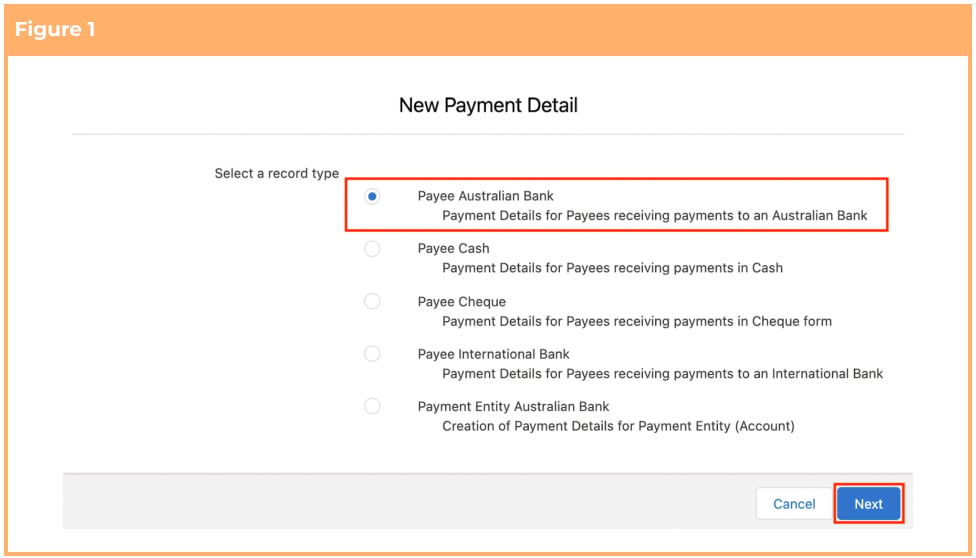
3. Select the **Payee Australian Bank** record type and click the **Next** button (see Figure 1)
;
};
## Purpose
The purpose of this quick reference guide is to step through the process of setting up Payment Details. The
intended audience for this document is System Administrators / Standard Users.
The Record Types explained in this QRG document are: Payee Australian Bank, Payee Cash, Payee Cheque,
Payee International Bank and Payment Entity Australian Bank.
## Steps
### Set Up Payment Details - Payee Australian Bank
The Payee Payment Detail record holds the Payee’s payment information to which all payments for a
Payee are made after processing a Pay Batch.
Create a Payment Details - Payee Australian Bank record by following the steps below:
1. Go to the **Payment Details** object
2. Click the **New** button
3. Select the **Payee Australian Bank** record type and click the **Next** button (see Figure 1)
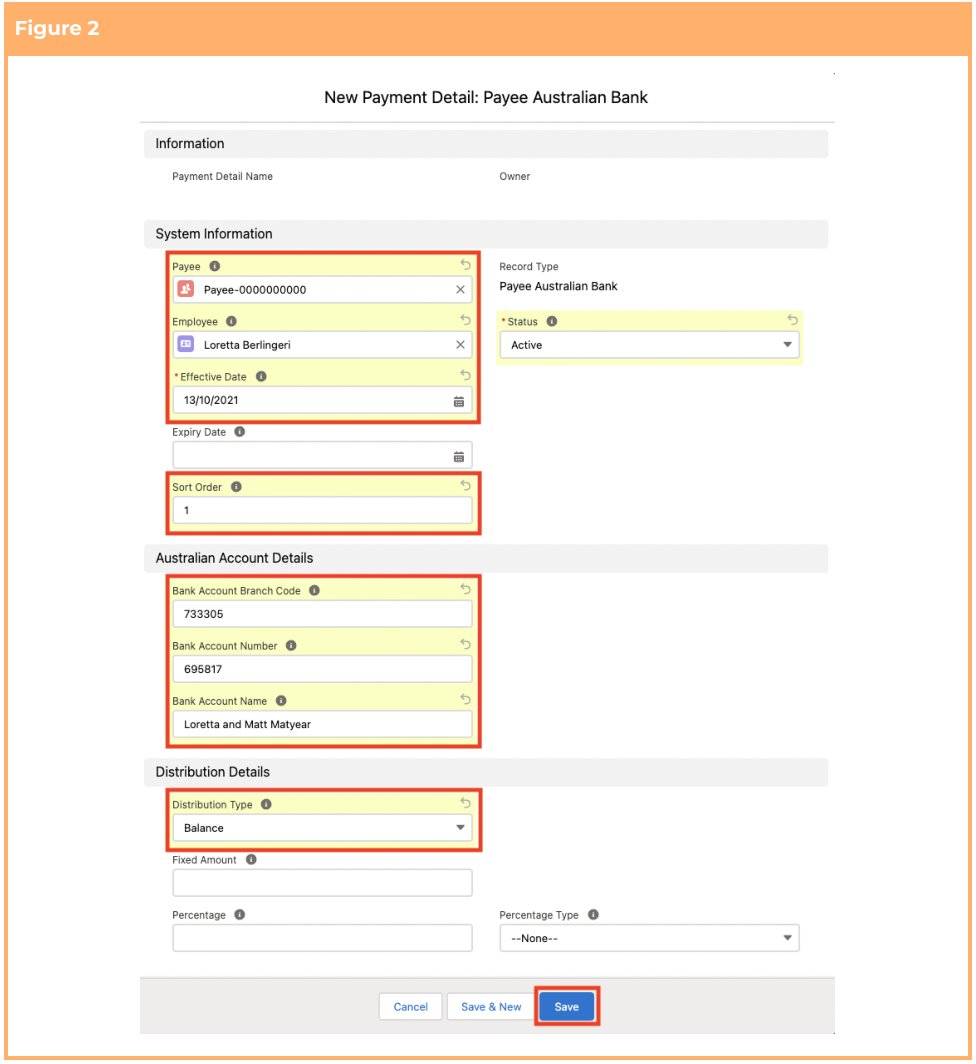
 4. Populate the following required fields to provide the base details of the Payment Details record:
(See Figure 2)
1. **Effective Date**
2. **Status**
3. **Payee**
4. **Employee**
5. **Sort Order**
6. **Bank Account Branch Code**
7. **Bank Account Number**
8. **Bank Account Name**
9. **Distribution Type**
5. Populate the following optional fields as needed: (See Figure 2)
1. To set an expiry date for the Payment Details record, populate the **Expiry Date** field. If
left blank, no Expiry Date will apply. (See Figure 2)
2. If the Distribution type is set to Fixed Amount, then populate the amount in the **Fixed**
**Amount** field.
3. If the Distribution type is set to Percentage, then populate the percentage in the
**Percentage** field, followed by populating the percentage type in the **Percentage**
**Type** field.
6. Click on the **Save** button. (See Figure 2)
4. Populate the following required fields to provide the base details of the Payment Details record:
(See Figure 2)
1. **Effective Date**
2. **Status**
3. **Payee**
4. **Employee**
5. **Sort Order**
6. **Bank Account Branch Code**
7. **Bank Account Number**
8. **Bank Account Name**
9. **Distribution Type**
5. Populate the following optional fields as needed: (See Figure 2)
1. To set an expiry date for the Payment Details record, populate the **Expiry Date** field. If
left blank, no Expiry Date will apply. (See Figure 2)
2. If the Distribution type is set to Fixed Amount, then populate the amount in the **Fixed**
**Amount** field.
3. If the Distribution type is set to Percentage, then populate the percentage in the
**Percentage** field, followed by populating the percentage type in the **Percentage**
**Type** field.
6. Click on the **Save** button. (See Figure 2)
 When using multiple Payment Detail records for a Payee, please ensure that there is at
least one Payment Details record with its Distribution Type as ‘Balance’. If there is a
Payment Detail record with Distribution Type as ‘Percentage’, the fields Percentage and
Percentage Type should be populated. Similarly, if there is a Payment Detail record with
Distribution Type as ‘Fixed Amount’, the field Fixed Amount should be populated.
7. A new Payment Detail record has been created ready for Payee payments to be deposited into (see
Figure 3).
When using multiple Payment Detail records for a Payee, please ensure that there is at
least one Payment Details record with its Distribution Type as ‘Balance’. If there is a
Payment Detail record with Distribution Type as ‘Percentage’, the fields Percentage and
Percentage Type should be populated. Similarly, if there is a Payment Detail record with
Distribution Type as ‘Fixed Amount’, the field Fixed Amount should be populated.
7. A new Payment Detail record has been created ready for Payee payments to be deposited into (see
Figure 3).
 The Status of the Payment Details record will be automatically updated upon saving the
record, based on the Effective Date and Expiry Date.
A Payment Details record can also be created using the related list of the Payee record.
8. To modify an existing **Payee Payment Details** record, open the required record and select the **Edit**
button available on the top right side of the page. You can also double click in any of the fields that
need editing or just click on the pencil icon that appears within fields when you move your
cursor over the field.
9. When complete, click on the **Save** button.
### Set Up Payment Details - Payee Cash
The Payee Payment Detail record holds the Payee’s payment information to which all payments for a
Payee are made after processing a Pay Batch.
Create a Payment Details - Payee Cash record by following the steps below:
1. Go to the **Payment Details** object.
2. Click the **New** button.
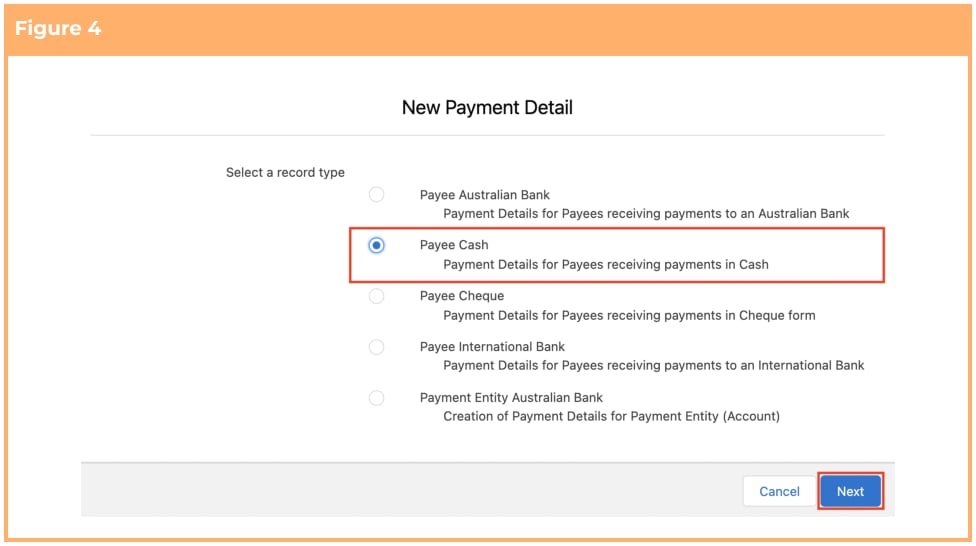
3. Select the **Payee Cash** record type and click the **Next** button (see Figure 4).
The Status of the Payment Details record will be automatically updated upon saving the
record, based on the Effective Date and Expiry Date.
A Payment Details record can also be created using the related list of the Payee record.
8. To modify an existing **Payee Payment Details** record, open the required record and select the **Edit**
button available on the top right side of the page. You can also double click in any of the fields that
need editing or just click on the pencil icon that appears within fields when you move your
cursor over the field.
9. When complete, click on the **Save** button.
### Set Up Payment Details - Payee Cash
The Payee Payment Detail record holds the Payee’s payment information to which all payments for a
Payee are made after processing a Pay Batch.
Create a Payment Details - Payee Cash record by following the steps below:
1. Go to the **Payment Details** object.
2. Click the **New** button.
3. Select the **Payee Cash** record type and click the **Next** button (see Figure 4).
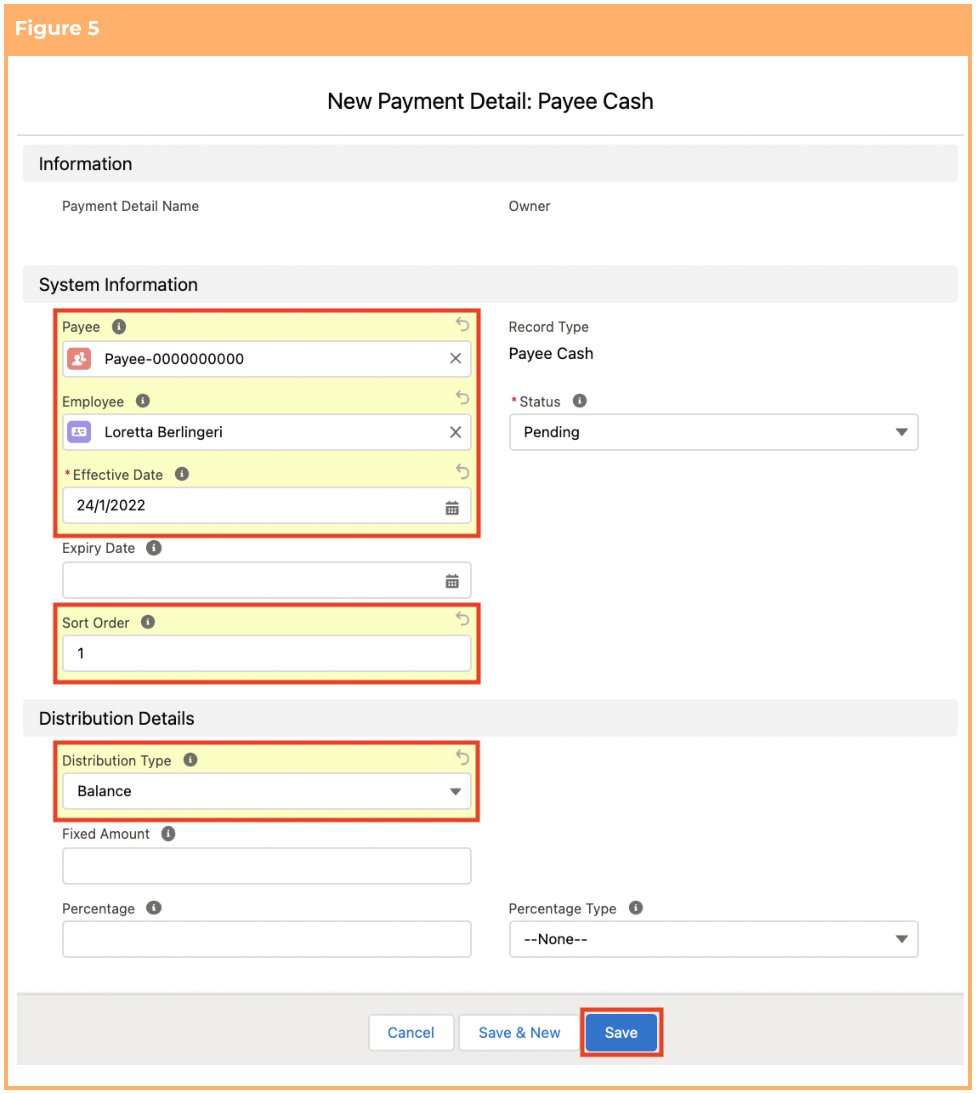
 4. Populate the following required fields to provide the base details of the Payment Details record:
(See Figure 5)
1. **Effective Date**
2. **Status**
3. **Payee**
4. **Employee**
5. **Sort Order**
6. **Distribution Type**
5. Populate the following optional fields as needed: (See Figure 5)
1. To set an expiry date for the Payment Details record, populate the **Expiry Date** field. If
left blank, no Expiry Date will apply (see Figure 5)
2. If the Distribution type is set to Fixed Amount, then populate the amount in the **Fixed**
**Amount** field.
3. If the Distribution type is set to Percentage, then populate the percentage in the
**Percentage** field, followed by populating the percentage type in the **Percentage**
**Type** field.
6. Click on the **Save** button. (See Figure 5)
4. Populate the following required fields to provide the base details of the Payment Details record:
(See Figure 5)
1. **Effective Date**
2. **Status**
3. **Payee**
4. **Employee**
5. **Sort Order**
6. **Distribution Type**
5. Populate the following optional fields as needed: (See Figure 5)
1. To set an expiry date for the Payment Details record, populate the **Expiry Date** field. If
left blank, no Expiry Date will apply (see Figure 5)
2. If the Distribution type is set to Fixed Amount, then populate the amount in the **Fixed**
**Amount** field.
3. If the Distribution type is set to Percentage, then populate the percentage in the
**Percentage** field, followed by populating the percentage type in the **Percentage**
**Type** field.
6. Click on the **Save** button. (See Figure 5)
 In case of multiple Payment Detail records for a Payee, please ensure that there is at
least one Payment Details record with its Distribution Type as ‘Balance’. If there is a
Payment Detail record with Distribution Type as ‘Percentage’, the fields Percentage and
Percentage Type should be populated. Similarly, if there is a Payment Detail record with
Distribution Type as ‘Fixed Amount’, the field Fixed Amount should be populated.
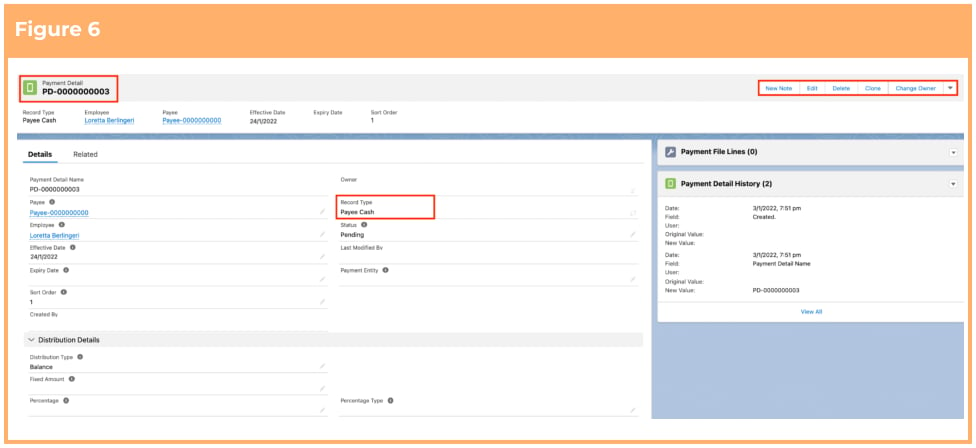
7. A new Payment Detail record has been created ready for Payee payments to be deposited to. (See
Figure 6)
In case of multiple Payment Detail records for a Payee, please ensure that there is at
least one Payment Details record with its Distribution Type as ‘Balance’. If there is a
Payment Detail record with Distribution Type as ‘Percentage’, the fields Percentage and
Percentage Type should be populated. Similarly, if there is a Payment Detail record with
Distribution Type as ‘Fixed Amount’, the field Fixed Amount should be populated.
7. A new Payment Detail record has been created ready for Payee payments to be deposited to. (See
Figure 6)
 The Status of the Payment Details record will be automatically updated upon saving the
record, based on the Effective Date and Expiry Date.
A Payment Details record can also be created using the related list of the Payee record.
8. To modify an existing **Payee Payment Details** record, open the required record and select the **Edit**
button available on the top right side of the page. You can also double click in any of the fields that
need editing or just click on the pencil icon that appears within fields when you move your
cursor over the field.
9. When complete, click on the **Save** button.
### Set Up Payment Details - Payee Cheque
The Payee Payment Detail record holds the Payee’s payment information to which all payments for a
Payee are made after processing a Pay Batch.
Create a Payment Details - Payee Cheque record by following the steps below:
1. Go to the **Payment Details** object.
2. Click the **New** button.
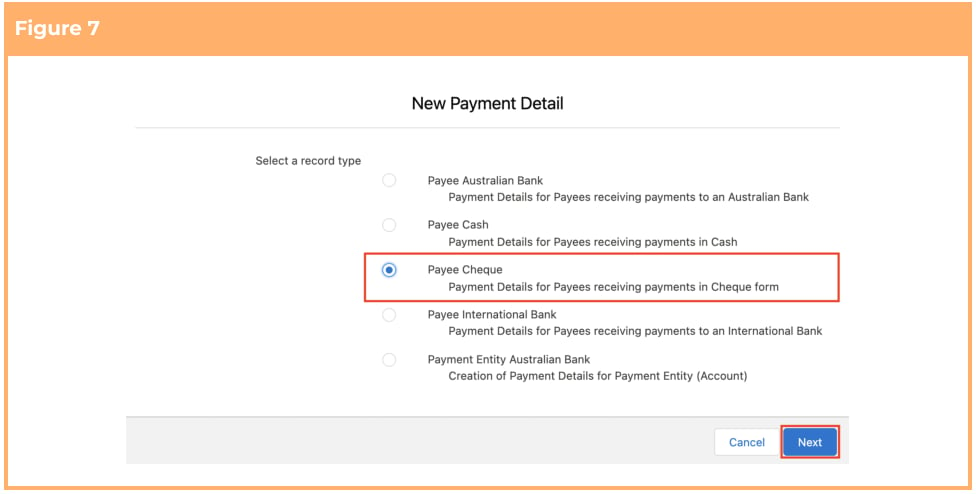
3. Select the **Payee Cheque** record type and click the **Next** button. (See Figure 7)
The Status of the Payment Details record will be automatically updated upon saving the
record, based on the Effective Date and Expiry Date.
A Payment Details record can also be created using the related list of the Payee record.
8. To modify an existing **Payee Payment Details** record, open the required record and select the **Edit**
button available on the top right side of the page. You can also double click in any of the fields that
need editing or just click on the pencil icon that appears within fields when you move your
cursor over the field.
9. When complete, click on the **Save** button.
### Set Up Payment Details - Payee Cheque
The Payee Payment Detail record holds the Payee’s payment information to which all payments for a
Payee are made after processing a Pay Batch.
Create a Payment Details - Payee Cheque record by following the steps below:
1. Go to the **Payment Details** object.
2. Click the **New** button.
3. Select the **Payee Cheque** record type and click the **Next** button. (See Figure 7)
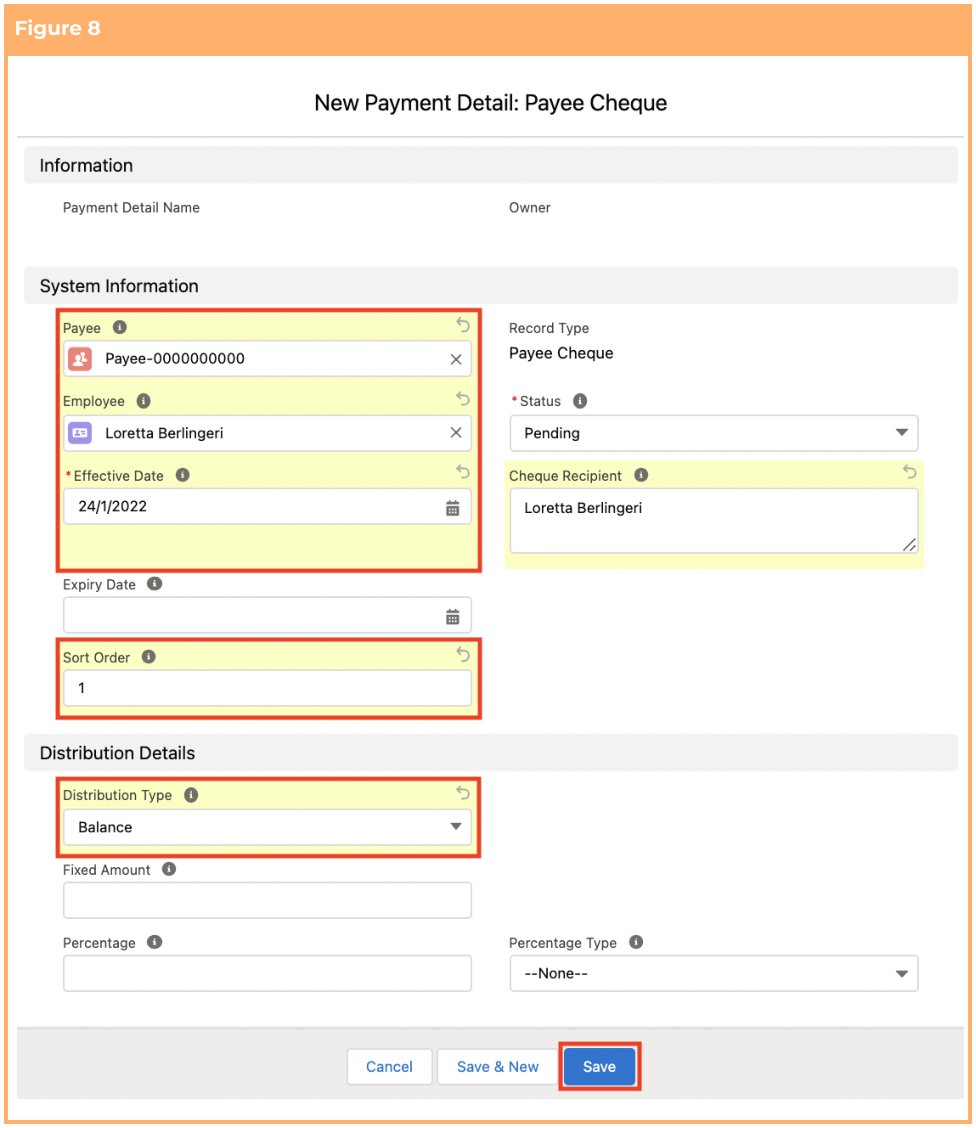
 4. Populate the following required fields to provide the base details of the Payment Details record:
(See Figure 8)
1. **Effective Date**
2. **Status**
3. **Payee**
4. **Employee**
5. **Sort Order**
6. **Cheque Recipient**
7. **Distribution Type**
5. Populate the following optional fields as needed: (See Figure 8)
1. To set an expiry date for the Payment Details record, populate the **Expiry Date** field. If
left blank, no Expiry Date will apply. (See Figure 8)
2. If the Distribution type is set to Fixed Amount, then populate the amount in the **Fixed**
**Amount** field.
3. If the Distribution type is set to Percentage, then populate the percentage in the
**Percentage** field, followed by populating the percentage type in the **Percentage**
**Type** field.
6. Click on the **Save** button. (See Figure 8)
4. Populate the following required fields to provide the base details of the Payment Details record:
(See Figure 8)
1. **Effective Date**
2. **Status**
3. **Payee**
4. **Employee**
5. **Sort Order**
6. **Cheque Recipient**
7. **Distribution Type**
5. Populate the following optional fields as needed: (See Figure 8)
1. To set an expiry date for the Payment Details record, populate the **Expiry Date** field. If
left blank, no Expiry Date will apply. (See Figure 8)
2. If the Distribution type is set to Fixed Amount, then populate the amount in the **Fixed**
**Amount** field.
3. If the Distribution type is set to Percentage, then populate the percentage in the
**Percentage** field, followed by populating the percentage type in the **Percentage**
**Type** field.
6. Click on the **Save** button. (See Figure 8)
 In case of multiple Payment Detail records for a Payee, please ensure that there is at
least one Payment Details record with its Distribution Type as ‘Balance’. If there is a
Payment Detail record with Distribution Type as ‘Percentage’, the fields Percentage and
Percentage Type should be populated. Similarly, if there is a Payment Detail record with
Distribution Type as ‘Fixed Amount’, the field Fixed Amount should be populated.
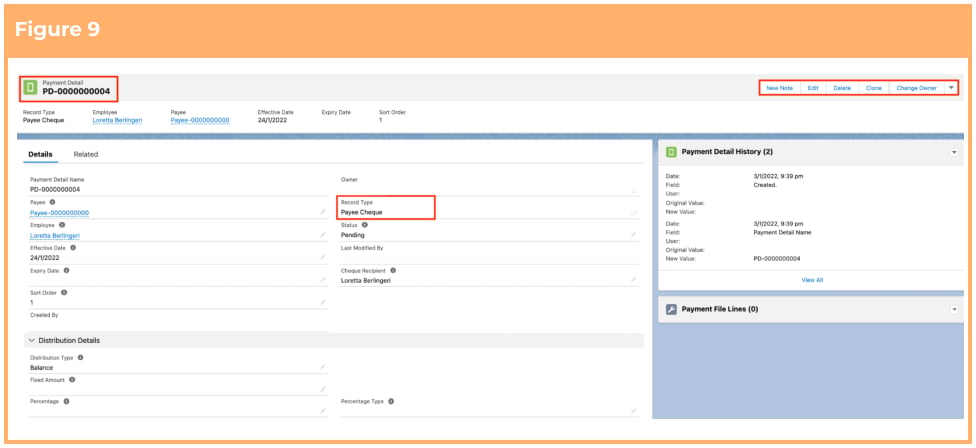
7. A new Payment Detail record has been created ready for Payee payments to be deposited to. (See
Figure 9)
In case of multiple Payment Detail records for a Payee, please ensure that there is at
least one Payment Details record with its Distribution Type as ‘Balance’. If there is a
Payment Detail record with Distribution Type as ‘Percentage’, the fields Percentage and
Percentage Type should be populated. Similarly, if there is a Payment Detail record with
Distribution Type as ‘Fixed Amount’, the field Fixed Amount should be populated.
7. A new Payment Detail record has been created ready for Payee payments to be deposited to. (See
Figure 9)
 The Status of the Payment Details record will be automatically updated upon saving the
record, based on the Effective Date and Expiry Date.
A Payment Details record can also be created using the related list of the Payee record.
8. To modify an existing **Payee Payment Details** record, open the required record and select the **Edit**
button available on the top right side of the page. You can also double click in any of the fields that
need editing or just click on the pencil icon that appears within fields when you move your
cursor over the field.
9. When complete, click on the **Save** button.
### Set Up Payment Details - Payee International Bank
The Payee Payment Detail record holds the Payee’s payment information to which all payments for a
Payee are made after processing a Pay Batch.
Create a Payment Details - Payee International Bank record by following the steps below:
1. Go to the **Payment Details** object.
2. Click the **New** button.
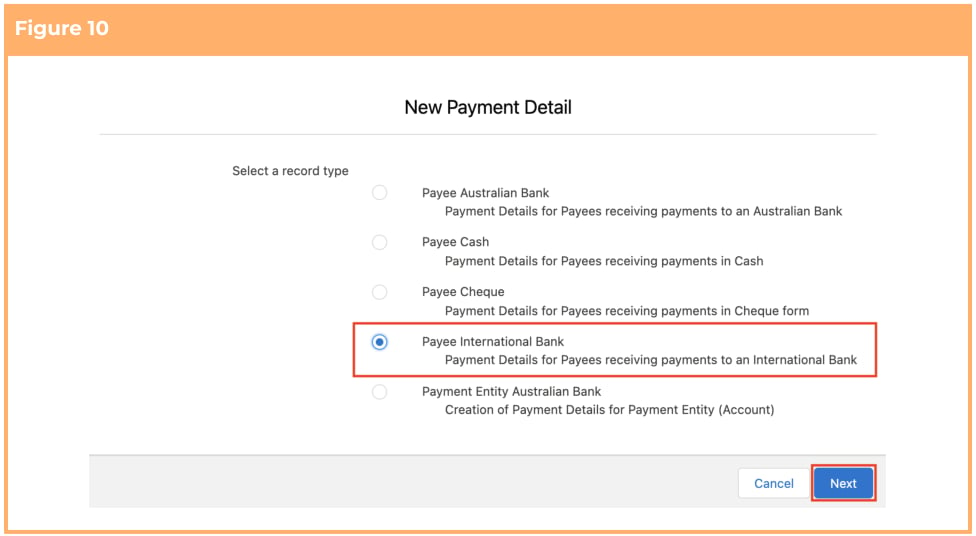
3. Select the **Payee International Bank** record type and click the **Next** button. (See Figure 10)
The Status of the Payment Details record will be automatically updated upon saving the
record, based on the Effective Date and Expiry Date.
A Payment Details record can also be created using the related list of the Payee record.
8. To modify an existing **Payee Payment Details** record, open the required record and select the **Edit**
button available on the top right side of the page. You can also double click in any of the fields that
need editing or just click on the pencil icon that appears within fields when you move your
cursor over the field.
9. When complete, click on the **Save** button.
### Set Up Payment Details - Payee International Bank
The Payee Payment Detail record holds the Payee’s payment information to which all payments for a
Payee are made after processing a Pay Batch.
Create a Payment Details - Payee International Bank record by following the steps below:
1. Go to the **Payment Details** object.
2. Click the **New** button.
3. Select the **Payee International Bank** record type and click the **Next** button. (See Figure 10)
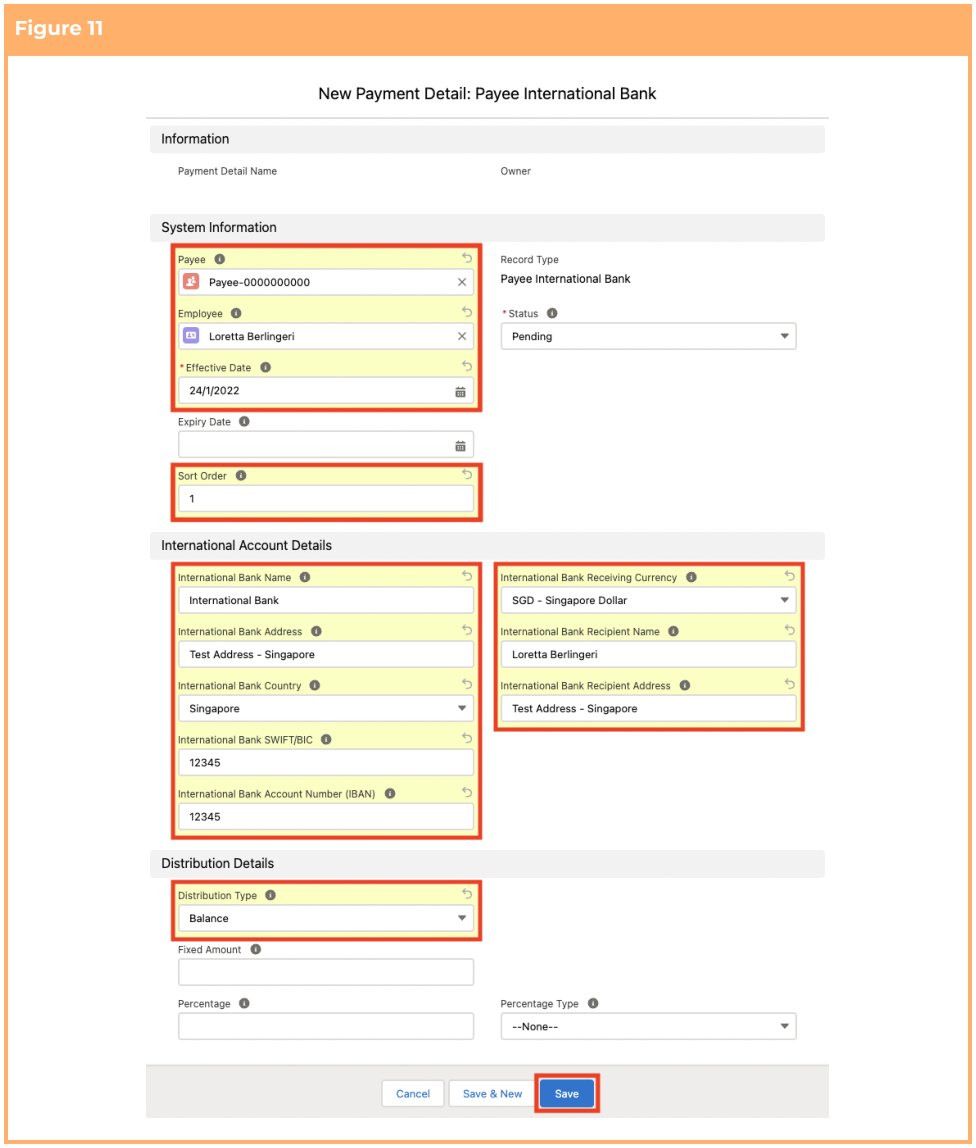
 4. Populate the following required fields to provide the base details of the Payment Details record:
(See Figure 11)
1. **Effective Date**
2. **Status**
3. **Payee**
4. **Employee**
5. **Sort Order**
6. **Payment Entity**
7. **Distribution Type**
8. **International Bank Name**
9. **International Bank Address**
10. **International Bank Country**
11. **International Bank SWIFT/BIC**
12. **International Bank Account Number (IBAN)**
13. **International Bank Receiving Currency**
14. **International Bank Recipient Name**
15. **International Bank Recipient Address**
5. Populate the following optional fields as needed: (See Figure 11)
1. To set an expiry date for the Payment Details record, populate the **Expiry Date** field. If
left blank, no Expiry Date will apply. (See Figure 11)
2. If the Distribution type is set to Fixed Amount, then populate the amount in the **Fixed**
**Amount** field.
3. If the Distribution type is set to Percentage, then populate the percentage in the
**Percentage** field, followed by populating the percentage type in the **Percentage**
**Type** field.
6. Click on the **Save** button. (See Figure 11)
4. Populate the following required fields to provide the base details of the Payment Details record:
(See Figure 11)
1. **Effective Date**
2. **Status**
3. **Payee**
4. **Employee**
5. **Sort Order**
6. **Payment Entity**
7. **Distribution Type**
8. **International Bank Name**
9. **International Bank Address**
10. **International Bank Country**
11. **International Bank SWIFT/BIC**
12. **International Bank Account Number (IBAN)**
13. **International Bank Receiving Currency**
14. **International Bank Recipient Name**
15. **International Bank Recipient Address**
5. Populate the following optional fields as needed: (See Figure 11)
1. To set an expiry date for the Payment Details record, populate the **Expiry Date** field. If
left blank, no Expiry Date will apply. (See Figure 11)
2. If the Distribution type is set to Fixed Amount, then populate the amount in the **Fixed**
**Amount** field.
3. If the Distribution type is set to Percentage, then populate the percentage in the
**Percentage** field, followed by populating the percentage type in the **Percentage**
**Type** field.
6. Click on the **Save** button. (See Figure 11)
 In case of multiple Payment Detail records for a Payee, please ensure that there is at
least one Payment Details record with its Distribution Type as ‘Balance’. If there is a
Payment Detail record with Distribution Type as ‘Percentage’, the fields Percentage and
Percentage Type should be populated. Similarly, if there is a Payment Detail record with
Distribution Type as ‘Fixed Amount’, the field Fixed Amount should be populated.
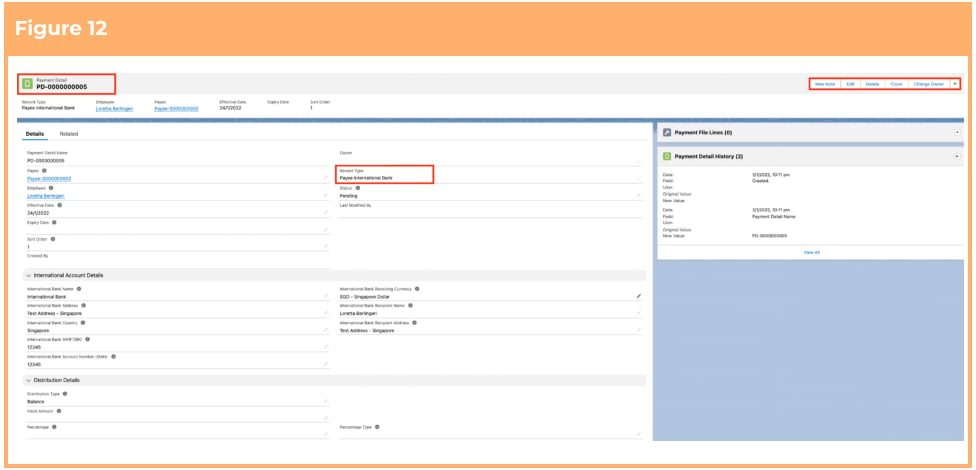
7. A new Payment Detail record has been created ready for Payee payments to be deposited into.
(See Figure 12)
In case of multiple Payment Detail records for a Payee, please ensure that there is at
least one Payment Details record with its Distribution Type as ‘Balance’. If there is a
Payment Detail record with Distribution Type as ‘Percentage’, the fields Percentage and
Percentage Type should be populated. Similarly, if there is a Payment Detail record with
Distribution Type as ‘Fixed Amount’, the field Fixed Amount should be populated.
7. A new Payment Detail record has been created ready for Payee payments to be deposited into.
(See Figure 12)
 The Status of the Payment Details record will be automatically updated upon saving the
record, based on the Effective Date and Expiry Date.
A Payment Details record can also be created using the related list of the Payee record.
8. To modify an existing **Payee Payment Details** record, open the required record and select the **Edit**
button available on the top right side of the page. You can also double click in any of the fields that
need editing or just click on the pencil icon that appears within fields when you move your
cursor over the field.
9. When complete, click on the **Save** button.
### Set Up Payment Details - Payment Entity Australian Bank
The Payment Entity Payment Detail record holds the Payment Entity’s payment information from which
all payments for a Payee are made after processing a Pay Batch.
Create a Payment Details - Payment Entity Australian Bank record by following the steps below:
1. Go to the **Payment Details** object.
2. Click the **New** button.
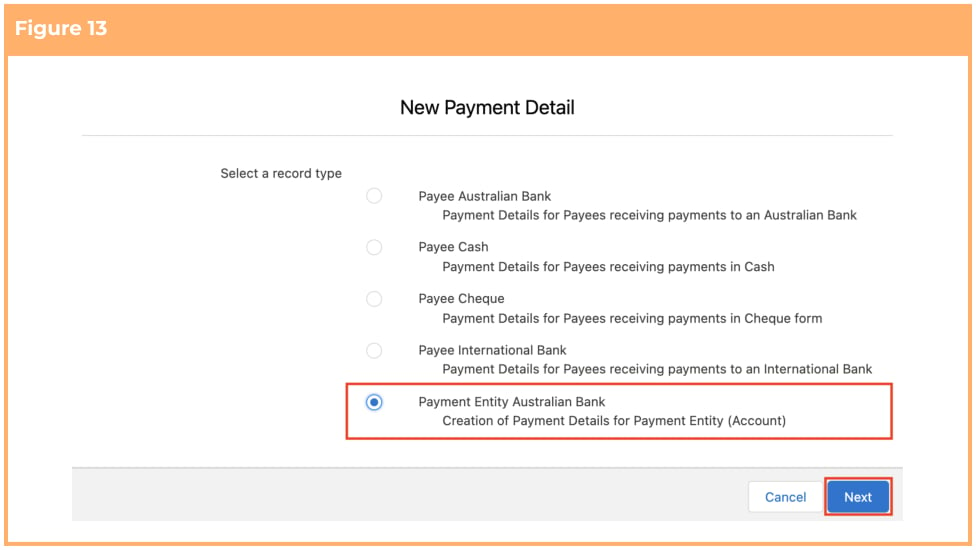
3. Select the **Payment Entity Australian Bank** record type and click the **Next** button. (See Figure 13)
The Status of the Payment Details record will be automatically updated upon saving the
record, based on the Effective Date and Expiry Date.
A Payment Details record can also be created using the related list of the Payee record.
8. To modify an existing **Payee Payment Details** record, open the required record and select the **Edit**
button available on the top right side of the page. You can also double click in any of the fields that
need editing or just click on the pencil icon that appears within fields when you move your
cursor over the field.
9. When complete, click on the **Save** button.
### Set Up Payment Details - Payment Entity Australian Bank
The Payment Entity Payment Detail record holds the Payment Entity’s payment information from which
all payments for a Payee are made after processing a Pay Batch.
Create a Payment Details - Payment Entity Australian Bank record by following the steps below:
1. Go to the **Payment Details** object.
2. Click the **New** button.
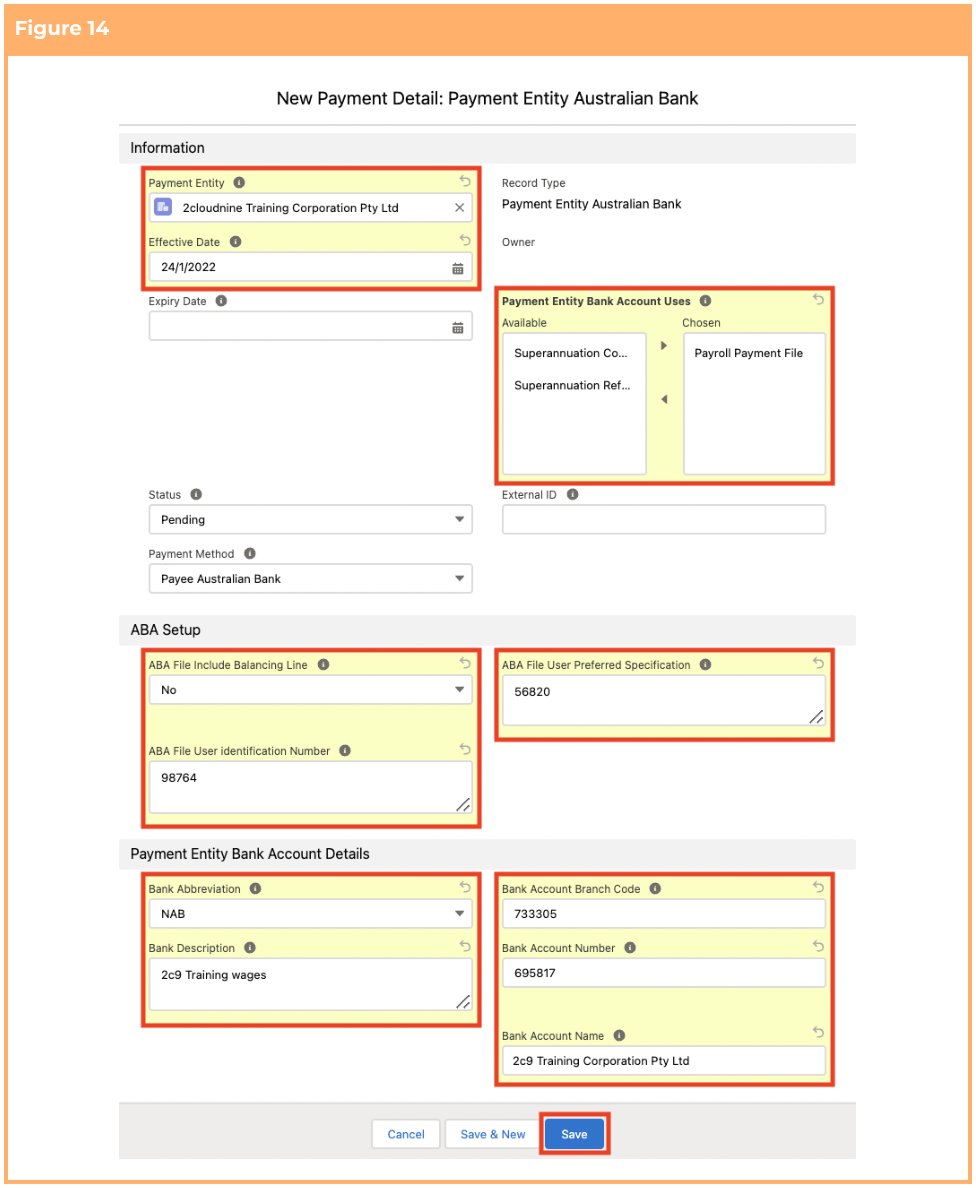
3. Select the **Payment Entity Australian Bank** record type and click the **Next** button. (See Figure 13)
 4. Populate the following required fields to provide the base details of the Payment Details record:
(See Figure 14)
1. **Payment Entity**
2. **Effective Date**
3. **Status**
4. **Payment Method**
5. **Payment Entity Bank Account Uses**
6. **ABA File Include Balancing Line**
7. **ABA File User Identification Number**
8. **ABA File User Preferred Specification**
9. **Bank Abbreviation**
10. **Bank Description**
11. **Bank Account Branch Code**
12. **Bank Account Number**
13. **Bank Account Name**
5. Populate the following optional fields as needed: (See Figure 14)
1. To set an expiry date for the Payment Details record, populate the **Expiry Date** field. If
left blank, no Expiry Date will apply. (See Figure 14)
6. Click on the **Save** button. (See Figure 14)
4. Populate the following required fields to provide the base details of the Payment Details record:
(See Figure 14)
1. **Payment Entity**
2. **Effective Date**
3. **Status**
4. **Payment Method**
5. **Payment Entity Bank Account Uses**
6. **ABA File Include Balancing Line**
7. **ABA File User Identification Number**
8. **ABA File User Preferred Specification**
9. **Bank Abbreviation**
10. **Bank Description**
11. **Bank Account Branch Code**
12. **Bank Account Number**
13. **Bank Account Name**
5. Populate the following optional fields as needed: (See Figure 14)
1. To set an expiry date for the Payment Details record, populate the **Expiry Date** field. If
left blank, no Expiry Date will apply. (See Figure 14)
6. Click on the **Save** button. (See Figure 14)
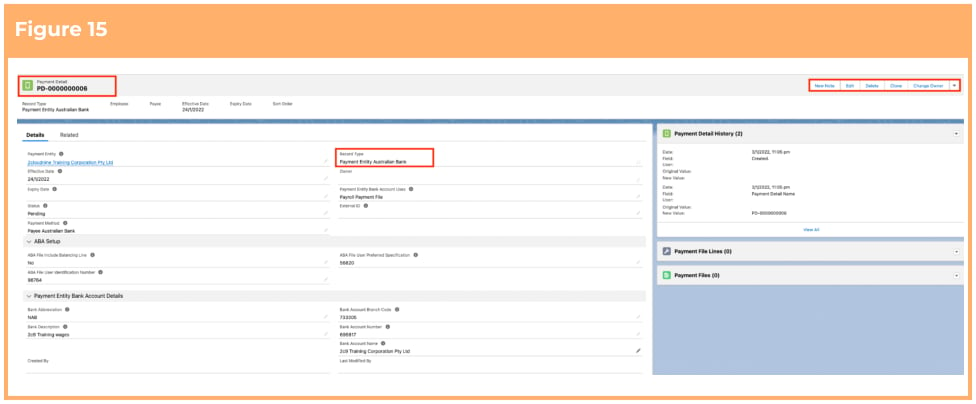
 7. A new Payment Detail record has been created ready for Payment Entity payments to be
processed. (See Figure 15)
7. A new Payment Detail record has been created ready for Payment Entity payments to be
processed. (See Figure 15)
 The Status of the Payment Details record will be automatically updated upon saving the
record, based on the Effective Date and Expiry Date.
A Payment Details record can also be created using the related list of the Payment Entity record.
8. To modify an existing **Payment Entity Payment Details** record, open the required record and
select the **Edit** button available on the top right side of the page. You can also double click in any of
the fields that need editing or just click on the pencil icon that appears within fields when you
move your cursor over the field.
9. When complete, click on the **Save** button.
## Field Descriptions
**Bank Account Branch Code** For Payees, the branch code of the Account that payments will be made into.
For Payment Entities, the branch code of the Account that payments will be made from.
**Bank Account Name** For Payees, the name of the Bank Account that payments will be made into. For
Payment Entities, the name of the Bank Account that payments will be made from.
**Bank Account Number** For Payees, the bank account number that payments will be made into. For
Payment Entities, the bank account number that payments will be made from.
**Cheque Recipient** For Payees, name to whom a cheque for payment should be made out to.
**Distribution Type** For Payees, how the payments made will be distributed.
* Where Fixed Amount is selected, funds will be distributed to the value defined in the Fixed
Amount field.
* Where Percentage is selected, funds remaining after any fixed amounts are taken will be
distributed at the percentage rate defined in the Percentage field.
* Where Balance is selected, all unallocated funds will be allocated.
**Effective Date** For Payees, the date the Payment Detail will become effective. Payments to this record will
not be made before this date. For Payment Entities, the date the Payment Detail will become effective.
Payments from this record will not be made before this date.
**Employee** is the Employee to whom the Payment Detail relates.
**Expiry Date** For Payees, the date the Payment Detail will expire. Payments to this record will not be made
after this date. For Payment Entities, the date the Payment Detail will expire. Payments from this record
will not be made after this date.
**Fixed Amount** For Payees, when the Distribution Type is ‘Fixed Amount' this field defines the value to be
distributed to the Payment Detail.
**International Bank Account Number** For Payees, the account number of the International Bank Account
that payments will be made into.
**International Bank Address** For Payees, the address of the International Bank Account that payments will
be made into.
**International Bank Country** For Payees, the country of the International Bank Account that payments will
be made into.
**International Bank Name** For Payees, the bank name of the International Bank Account that payments
will be made into.
**International Bank Receiving Currency** For Payees, the currency that the payment into the International
Bank Account will be made with.
**International Bank Recipient Address** For Payees, the address of the recipient the international payments
will be made into.
**International Bank Recipient Name** For Payees, the name of the recipient the international payments will
be made into.
**International Bank SWIFT/BIC** For Payees, the SWIFT/BIC of the International Bank Account that
payments will be made into.
**Payee** is the Payee to whom the Payment Detail relates.
**Payment Details Name** is the unique auto-numbered reference given to the Payment Detail record.
**Percentage** For Payees, when the Distribution Type is ‘Percentage', this field defines the percentage to be
distributed to the Payment Detail after any Fixed Amount distributions are taken.
**Percentage Type** For Payees, is required when the Distribution Type selected is ‘Percentage’, and details of
this will be calculated on the Total Net value, or, the net value remaining after previous distributions have
been applied.
**Sort Order** is the order in which the Payment Detail records for this payee will be considered during
Payment File creation.
**Status** indicates whether the Payment Details record is currently Pending, Active, On Hold or Inactive.
## Further Information
| Document | Document Type | Description |
| ------------------------------------------------- | ----------------- | ------------------------------------------------ |
| Create Payee Withholding Records - PAYG | Task Instructions | How to create PAYG Withholding Records |
| Create Payee Withholding Records - Superannuation | Task Instructions | How to create Superannuation Withholding Records |
| Create Payee Withholding Records - GST | Task Instructions | How to create GST Withholding Records |
| Create an Employee - Contact | Task Instructions | How to create an Employee record |
| Create Payee record | Task Instructions | How to create a Payee record |
The Status of the Payment Details record will be automatically updated upon saving the
record, based on the Effective Date and Expiry Date.
A Payment Details record can also be created using the related list of the Payment Entity record.
8. To modify an existing **Payment Entity Payment Details** record, open the required record and
select the **Edit** button available on the top right side of the page. You can also double click in any of
the fields that need editing or just click on the pencil icon that appears within fields when you
move your cursor over the field.
9. When complete, click on the **Save** button.
## Field Descriptions
**Bank Account Branch Code** For Payees, the branch code of the Account that payments will be made into.
For Payment Entities, the branch code of the Account that payments will be made from.
**Bank Account Name** For Payees, the name of the Bank Account that payments will be made into. For
Payment Entities, the name of the Bank Account that payments will be made from.
**Bank Account Number** For Payees, the bank account number that payments will be made into. For
Payment Entities, the bank account number that payments will be made from.
**Cheque Recipient** For Payees, name to whom a cheque for payment should be made out to.
**Distribution Type** For Payees, how the payments made will be distributed.
* Where Fixed Amount is selected, funds will be distributed to the value defined in the Fixed
Amount field.
* Where Percentage is selected, funds remaining after any fixed amounts are taken will be
distributed at the percentage rate defined in the Percentage field.
* Where Balance is selected, all unallocated funds will be allocated.
**Effective Date** For Payees, the date the Payment Detail will become effective. Payments to this record will
not be made before this date. For Payment Entities, the date the Payment Detail will become effective.
Payments from this record will not be made before this date.
**Employee** is the Employee to whom the Payment Detail relates.
**Expiry Date** For Payees, the date the Payment Detail will expire. Payments to this record will not be made
after this date. For Payment Entities, the date the Payment Detail will expire. Payments from this record
will not be made after this date.
**Fixed Amount** For Payees, when the Distribution Type is ‘Fixed Amount' this field defines the value to be
distributed to the Payment Detail.
**International Bank Account Number** For Payees, the account number of the International Bank Account
that payments will be made into.
**International Bank Address** For Payees, the address of the International Bank Account that payments will
be made into.
**International Bank Country** For Payees, the country of the International Bank Account that payments will
be made into.
**International Bank Name** For Payees, the bank name of the International Bank Account that payments
will be made into.
**International Bank Receiving Currency** For Payees, the currency that the payment into the International
Bank Account will be made with.
**International Bank Recipient Address** For Payees, the address of the recipient the international payments
will be made into.
**International Bank Recipient Name** For Payees, the name of the recipient the international payments will
be made into.
**International Bank SWIFT/BIC** For Payees, the SWIFT/BIC of the International Bank Account that
payments will be made into.
**Payee** is the Payee to whom the Payment Detail relates.
**Payment Details Name** is the unique auto-numbered reference given to the Payment Detail record.
**Percentage** For Payees, when the Distribution Type is ‘Percentage', this field defines the percentage to be
distributed to the Payment Detail after any Fixed Amount distributions are taken.
**Percentage Type** For Payees, is required when the Distribution Type selected is ‘Percentage’, and details of
this will be calculated on the Total Net value, or, the net value remaining after previous distributions have
been applied.
**Sort Order** is the order in which the Payment Detail records for this payee will be considered during
Payment File creation.
**Status** indicates whether the Payment Details record is currently Pending, Active, On Hold or Inactive.
## Further Information
| Document | Document Type | Description |
| ------------------------------------------------- | ----------------- | ------------------------------------------------ |
| Create Payee Withholding Records - PAYG | Task Instructions | How to create PAYG Withholding Records |
| Create Payee Withholding Records - Superannuation | Task Instructions | How to create Superannuation Withholding Records |
| Create Payee Withholding Records - GST | Task Instructions | How to create GST Withholding Records |
| Create an Employee - Contact | Task Instructions | How to create an Employee record |
| Create Payee record | Task Instructions | How to create a Payee record |