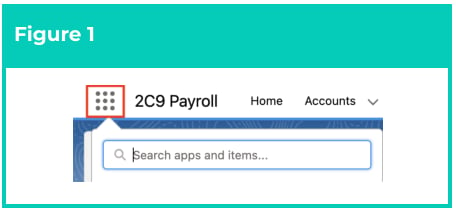
1. Click on the **App Launcher** icon (see
Figure 1).
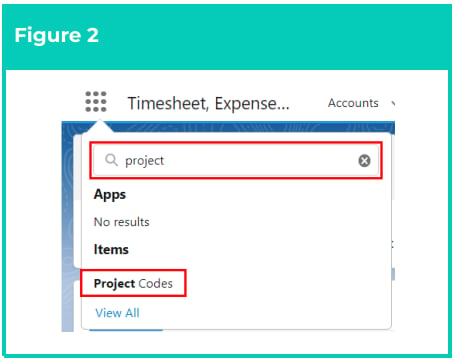
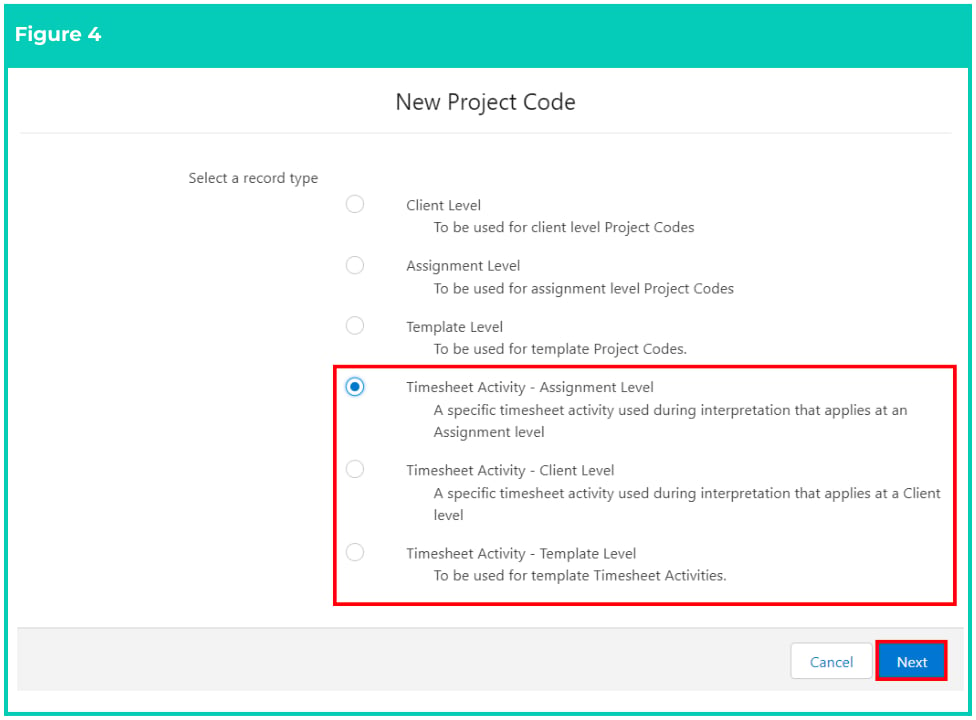
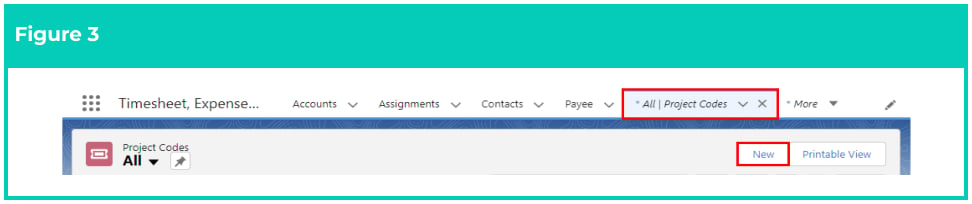 4. Select one of the **Timesheet Activity** record types from the available record types, and click on the
**Next** button (see Figure 4).
4. Select one of the **Timesheet Activity** record types from the available record types, and click on the
**Next** button (see Figure 4).
 5. If the **Timesheet Activity - Template Level** record type was selected, follow this step in the
sequence given below:
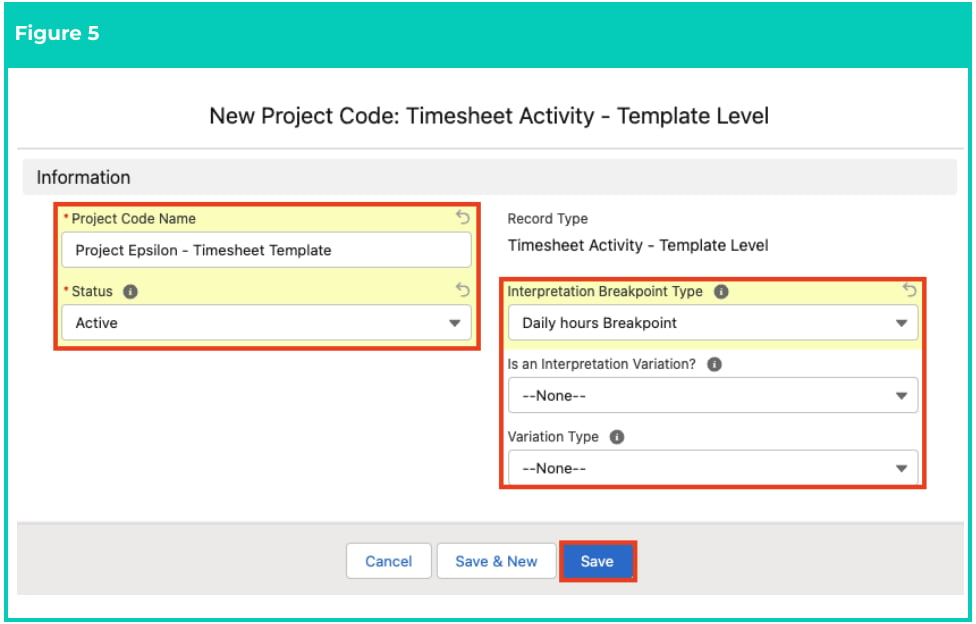
1. Populate the following required fields to provide the base details of the Project Code (see
Figure 5):
1. **Project Code Name**
2. **Status**
2. To define how the Interpretation should be completed for Timesheet Activities related to
this Project Code, populate one of the following fields:
1. To determine the Breakpoint Type that should be used during Timesheet
Interpretation related to this Project Code, select from the available picklist values
in the **Interpretation Breakpoint Type** field.
**OR**
2. To set up the Timesheet Activity as an Interpretation Variation, select ‘Yes’ from the
picklist values available in the **Is an Interpretation Variation?** field.
* If ‘Yes’ is selected, users must identify a Variation Type from the picklist
values available in the **Variation Type** field.
6. Click on the **Save** button (see Figure 5).
5. If the **Timesheet Activity - Template Level** record type was selected, follow this step in the
sequence given below:
1. Populate the following required fields to provide the base details of the Project Code (see
Figure 5):
1. **Project Code Name**
2. **Status**
2. To define how the Interpretation should be completed for Timesheet Activities related to
this Project Code, populate one of the following fields:
1. To determine the Breakpoint Type that should be used during Timesheet
Interpretation related to this Project Code, select from the available picklist values
in the **Interpretation Breakpoint Type** field.
**OR**
2. To set up the Timesheet Activity as an Interpretation Variation, select ‘Yes’ from the
picklist values available in the **Is an Interpretation Variation?** field.
* If ‘Yes’ is selected, users must identify a Variation Type from the picklist
values available in the **Variation Type** field.
6. Click on the **Save** button (see Figure 5).
 7. If the **Timesheet Activity - Client Level** record type was selected, follow this step in the sequence
given below:
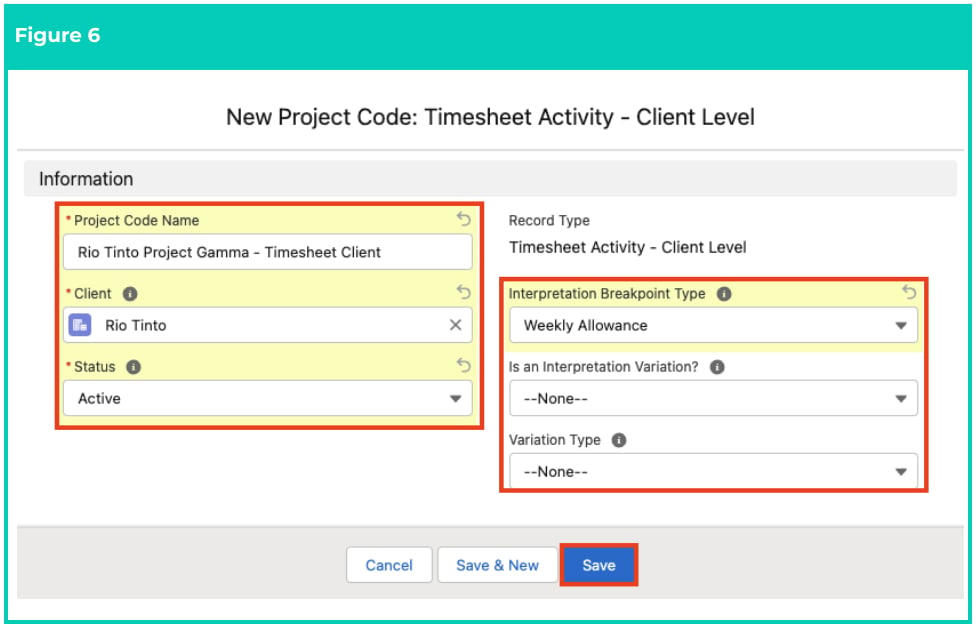
1. Populate the following required fields to provide the base details of the Project Code (see
Figure 6):
1. **Project Code Name**
2. **Client**
3. **Status**
2. To define how the Interpretation should be completed for Timesheet Activities related to
this Project Code, populate one of the following fields:
1. To determine the Breakpoint Type that should be used during Timesheet
Interpretation related to this Project Code, select from the available picklist values
in the **Interpretation Breakpoint Type** field.
**OR**
2. To set up the Timesheet Activity as an Interpretation Variation, select ‘Yes’ from the
picklist values available in the **Is an Interpretation Variation?** field.
* If ‘Yes’ is selected, users must identify a Variation Type from the picklist
values available in the **Variation Type** field.
8. Click on the **Save** button (see Figure 6).
7. If the **Timesheet Activity - Client Level** record type was selected, follow this step in the sequence
given below:
1. Populate the following required fields to provide the base details of the Project Code (see
Figure 6):
1. **Project Code Name**
2. **Client**
3. **Status**
2. To define how the Interpretation should be completed for Timesheet Activities related to
this Project Code, populate one of the following fields:
1. To determine the Breakpoint Type that should be used during Timesheet
Interpretation related to this Project Code, select from the available picklist values
in the **Interpretation Breakpoint Type** field.
**OR**
2. To set up the Timesheet Activity as an Interpretation Variation, select ‘Yes’ from the
picklist values available in the **Is an Interpretation Variation?** field.
* If ‘Yes’ is selected, users must identify a Variation Type from the picklist
values available in the **Variation Type** field.
8. Click on the **Save** button (see Figure 6).
 9. If the **Timesheet Activity - Assignment Level** record type was selected, follow this step in the
sequence given below:
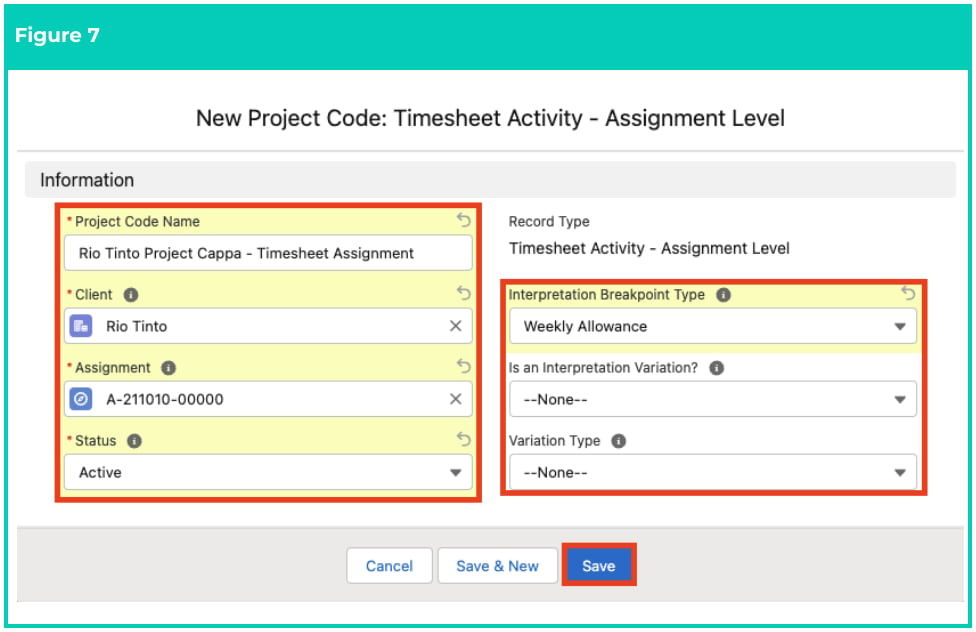
1. Populate the following required fields to provide the base details of the Project Code (see
Figure 7):
1. **Project Code Name**
2. **Client**
3. **Assignment**
4. **Status**
2. To define how Interpretation should be completed for Timesheet Activities related to this
Project Code, populate one of the following fields:
1. To determine the Breakpoint Type that should be used during Timesheet
Interpretation related to this Project Code, select from the available picklist values
in the **Interpretation Breakpoint Type** field.
**OR**
2. To set up the Timesheet Activity as an Interpretation Variation, select ‘Yes’ from the
picklist values available in the **Is an Interpretation Variation?** field.
* If ‘Yes’ is selected, users must identify a Variation Type from the picklist
values available in the **Variation Type** field.
10. Click on the **Save** button (see Figure 7).
9. If the **Timesheet Activity - Assignment Level** record type was selected, follow this step in the
sequence given below:
1. Populate the following required fields to provide the base details of the Project Code (see
Figure 7):
1. **Project Code Name**
2. **Client**
3. **Assignment**
4. **Status**
2. To define how Interpretation should be completed for Timesheet Activities related to this
Project Code, populate one of the following fields:
1. To determine the Breakpoint Type that should be used during Timesheet
Interpretation related to this Project Code, select from the available picklist values
in the **Interpretation Breakpoint Type** field.
**OR**
2. To set up the Timesheet Activity as an Interpretation Variation, select ‘Yes’ from the
picklist values available in the **Is an Interpretation Variation?** field.
* If ‘Yes’ is selected, users must identify a Variation Type from the picklist
values available in the **Variation Type** field.
10. Click on the **Save** button (see Figure 7).
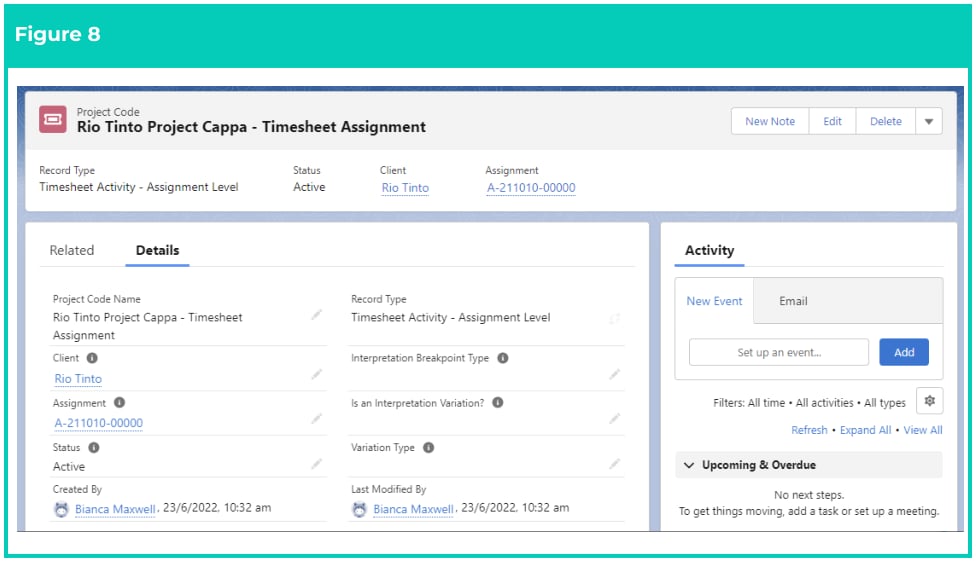
 A new **Timesheet Activity Project Code** has been created (see Figure 8).