> ## Documentation Index
> Fetch the complete documentation index at: https://documentation.2cloudnine.com/llms.txt
> Use this file to discover all available pages before exploring further.

# QRG Payday Super Data Updates - Pay Codes

## Purpose

The purpose of this quick reference guide is to step through the process of updating data to comply with Payday Super requirements. The intended audience for this document is System Administrators / Standard Users.

These updates can be made via dataloader if you are proficient with using that tool, ensuring the same checkboxes are updated to TRUE as detailed below, but this guide details how to update these in bulk via the use of list views. These updates MUST be completed before any calculations are done for Pay Batches with a Payment Date of 1 July 2026 or later.

## Steps

### Review and Update Pay Codes

To review and update Pay Codes, follow the steps below:

<Columns cols={2}>
  <div>
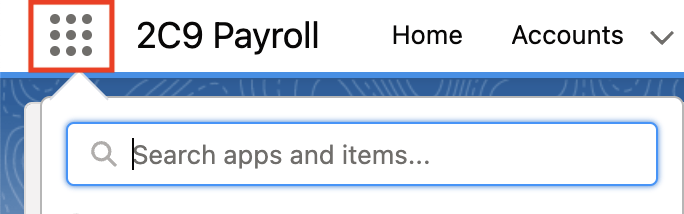
    1. Click on the **App Launcher** icon (see Figure 1).
  </div>

  <div>
    <Frame>
      <div style={{ border: "2px solid #00CDB9", borderRadius: "4px", overflow: "hidden" }}>
        <div style={{ background: "#00CDB9", color: "#FFFFFF", fontWeight: "700", fontSize: "16px", padding: "5px 18px" }}>Figure 1</div>

        <div style={{ background: "#FFFFFF", padding: "14px" }}>
          <img src="https://mintcdn.com/2cloudnine-2edf05eb/qYe5GHY1i2I6569E/images/generated/reference-guides/data-set-up-and-creation/qrg-payday-super-data-updates-pay-codes/qrg-payday-super-data-updates-pay-codes-figure-1.png?fit=max&auto=format&n=qYe5GHY1i2I6569E&q=85&s=54a0460823da4fdea870b0fc80c4db55" alt="Screenshot from QRG Payday Super Data Updates - Pay Codes" width="684" height="214" data-path="images/generated/reference-guides/data-set-up-and-creation/qrg-payday-super-data-updates-pay-codes/qrg-payday-super-data-updates-pay-codes-figure-1.png" />
        </div>
      </div>
    </Frame>
  </div>
</Columns>

<div style={{ height: "32px" }} />

<Columns cols={2}>
  <div>
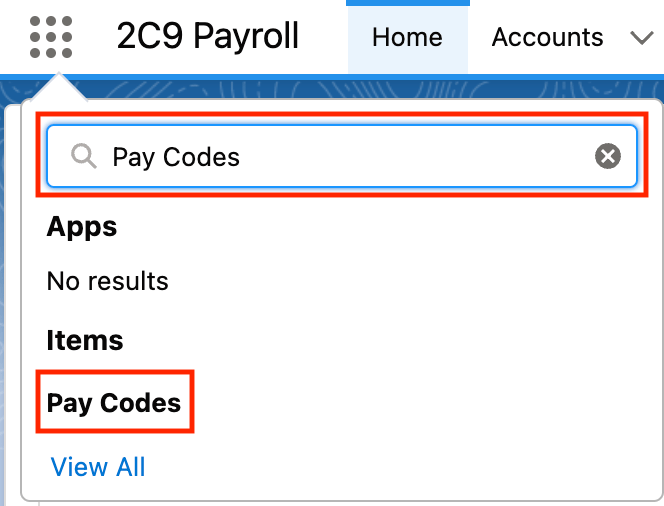
    2. Go to the **Pay Codes** object by using the Search function (see Figure 2).
  </div>

  <div>
    <Frame>
      <div style={{ border: "2px solid #00CDB9", borderRadius: "4px", overflow: "hidden" }}>
        <div style={{ background: "#00CDB9", color: "#FFFFFF", fontWeight: "700", fontSize: "16px", padding: "5px 18px" }}>Figure 2</div>

        <div style={{ background: "#FFFFFF", padding: "14px" }}>
          <img src="https://mintcdn.com/2cloudnine-2edf05eb/qYe5GHY1i2I6569E/images/generated/reference-guides/data-set-up-and-creation/qrg-payday-super-data-updates-pay-codes/qrg-payday-super-data-updates-pay-codes-figure-2.png?fit=max&auto=format&n=qYe5GHY1i2I6569E&q=85&s=7835c102bc07fcafde4522dc476cdf23" alt="Screenshot from QRG Payday Super Data Updates - Pay Codes" width="664" height="506" data-path="images/generated/reference-guides/data-set-up-and-creation/qrg-payday-super-data-updates-pay-codes/qrg-payday-super-data-updates-pay-codes-figure-2.png" />
        </div>
      </div>
    </Frame>
  </div>
</Columns>

<div style={{ height: "32px" }} />

<Columns cols={2}>
  <div>
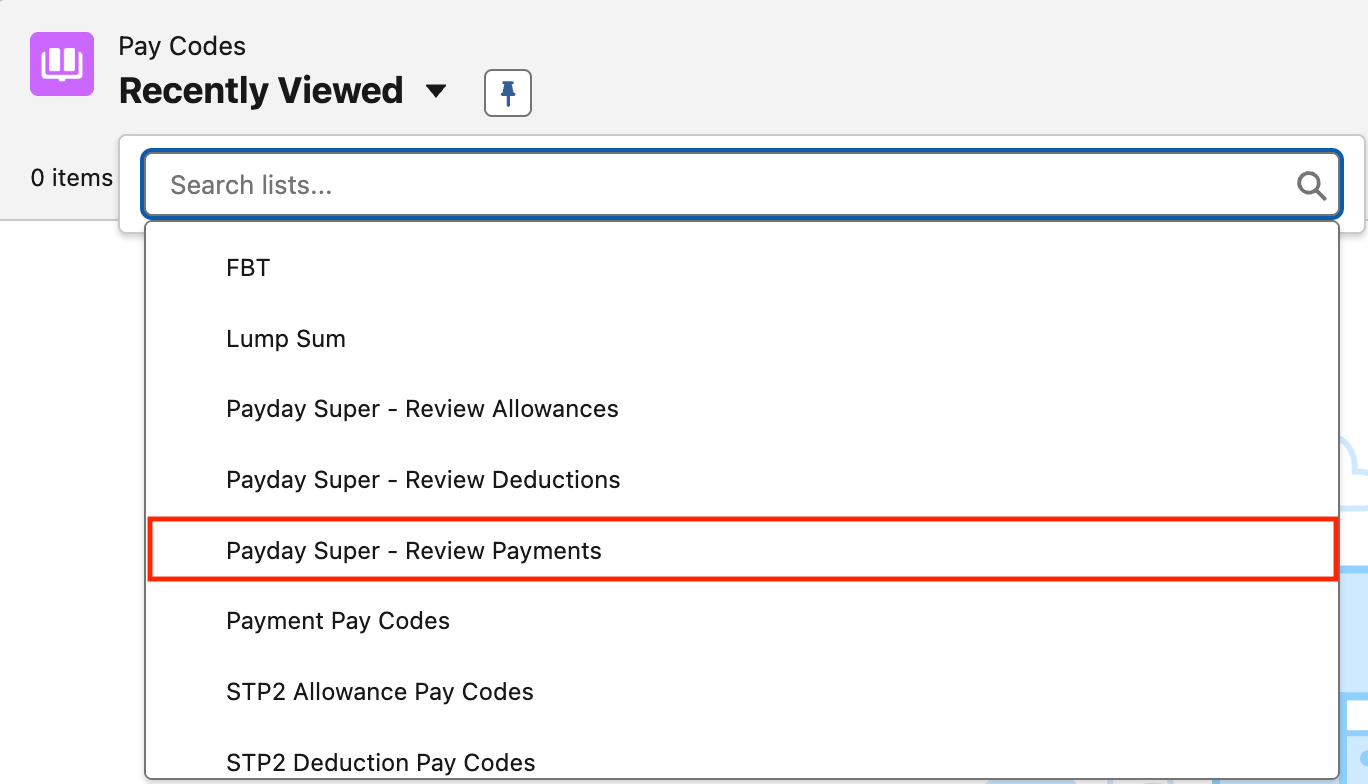
    3. Select the List View **Payday Super - Review Payments** (see Figure 3).
  </div>

  <div>
    <Frame>
      <div style={{ border: "2px solid #00CDB9", borderRadius: "4px", overflow: "hidden" }}>
        <div style={{ background: "#00CDB9", color: "#FFFFFF", fontWeight: "700", fontSize: "16px", padding: "5px 18px" }}>Figure 3</div>

        <div style={{ background: "#FFFFFF", padding: "14px" }}>
          <img src="https://mintcdn.com/2cloudnine-2edf05eb/qYe5GHY1i2I6569E/images/generated/reference-guides/data-set-up-and-creation/qrg-payday-super-data-updates-pay-codes/qrg-payday-super-data-updates-pay-codes-figure-3.png?fit=max&auto=format&n=qYe5GHY1i2I6569E&q=85&s=488d0aa66fb20c1ebd46841bdb08df8d" alt="Screenshot from QRG Payday Super Data Updates - Pay Codes" width="1368" height="784" data-path="images/generated/reference-guides/data-set-up-and-creation/qrg-payday-super-data-updates-pay-codes/qrg-payday-super-data-updates-pay-codes-figure-3.png" />
        </div>
      </div>
    </Frame>
  </div>
</Columns>

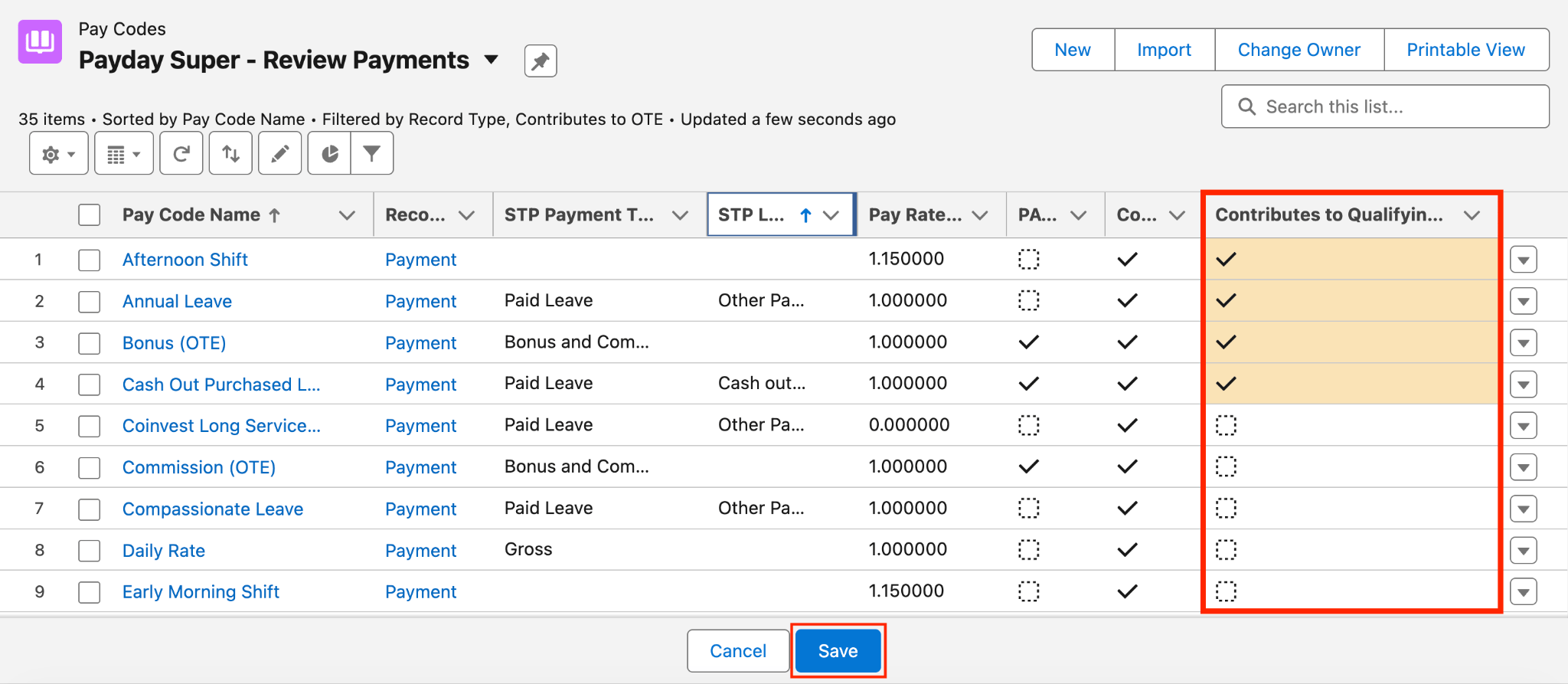
4. Select the checkbox to TRUE in the field **Contributes to Qualifying Earnings** for all Payment Pay Codes which need to be reported to the ATO as Qualifying Earnings.
5. Select **Save** to ensure all updates are saved (see Figure 4).

<Frame>
  <div style={{ border: "2px solid #00CDB9", borderRadius: "4px", overflow: "hidden" }}>
    <div style={{ background: "#00CDB9", color: "#FFFFFF", fontWeight: "700", fontSize: "16px", padding: "5px 18px" }}>Figure 4</div>

    <div style={{ background: "#FFFFFF", padding: "14px" }}>
      <img src="https://mintcdn.com/2cloudnine-2edf05eb/qYe5GHY1i2I6569E/images/generated/reference-guides/data-set-up-and-creation/qrg-payday-super-data-updates-pay-codes/qrg-payday-super-data-updates-pay-codes-figure-4.png?fit=max&auto=format&n=qYe5GHY1i2I6569E&q=85&s=f1c08fed8fd13e19278db7cd8387458f" alt="Screenshot from QRG Payday Super Data Updates - Pay Codes" width="2048" height="893" data-path="images/generated/reference-guides/data-set-up-and-creation/qrg-payday-super-data-updates-pay-codes/qrg-payday-super-data-updates-pay-codes-figure-4.png" />
    </div>
  </div>
</Frame>

<Columns cols={2}>
  <div>
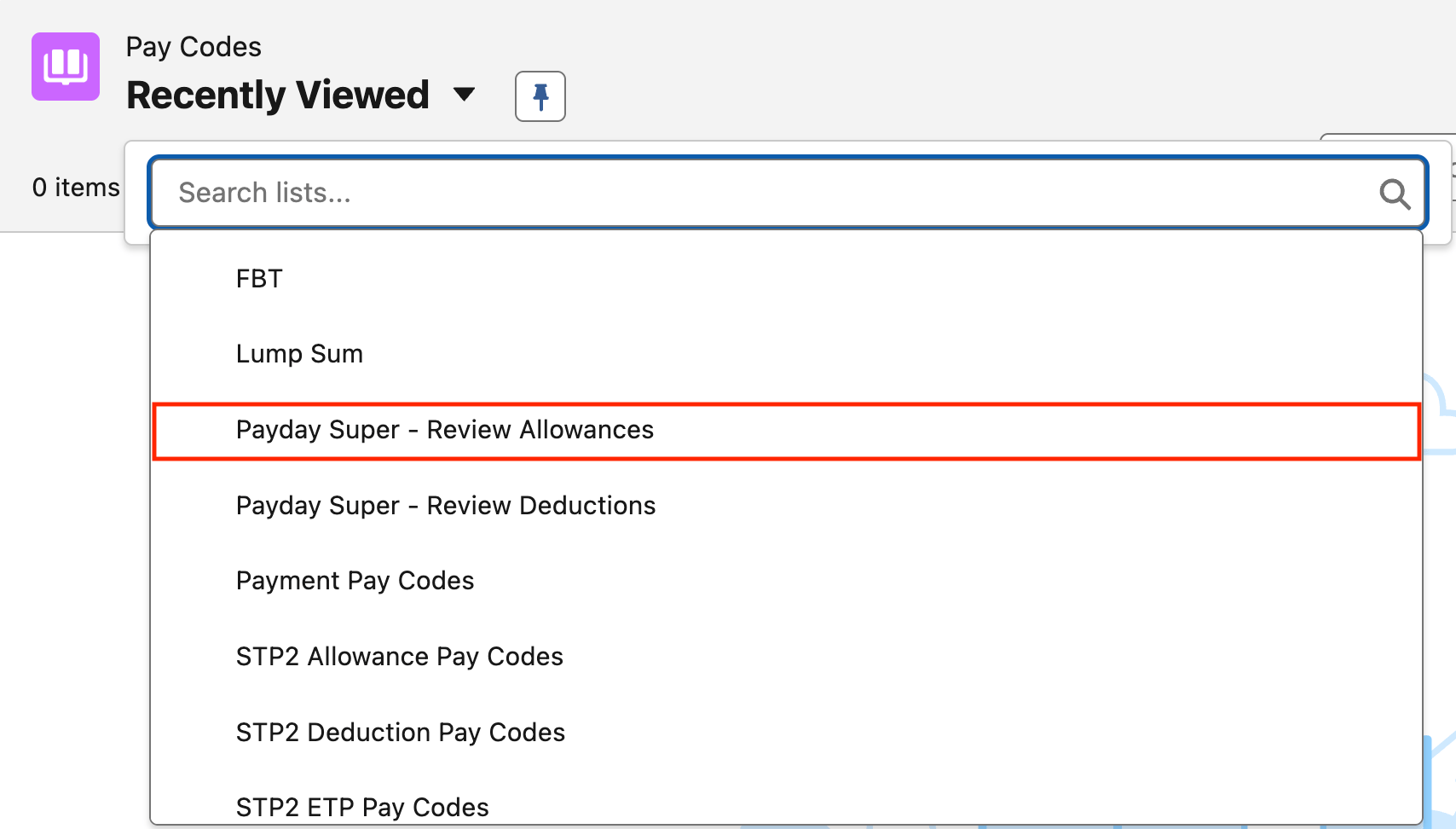
    6. Select the List View **Payday Super - Review Allowances** (see Figure 5).
  </div>

  <div>
    <Frame>
      <div style={{ border: "2px solid #00CDB9", borderRadius: "4px", overflow: "hidden" }}>
        <div style={{ background: "#00CDB9", color: "#FFFFFF", fontWeight: "700", fontSize: "16px", padding: "5px 18px" }}>Figure 5</div>

        <div style={{ background: "#FFFFFF", padding: "14px" }}>
          <img src="https://mintcdn.com/2cloudnine-2edf05eb/qYe5GHY1i2I6569E/images/generated/reference-guides/data-set-up-and-creation/qrg-payday-super-data-updates-pay-codes/qrg-payday-super-data-updates-pay-codes-figure-5.png?fit=max&auto=format&n=qYe5GHY1i2I6569E&q=85&s=edced5a470837d6bb73c7b86330d26ee" alt="Screenshot from QRG Payday Super Data Updates - Pay Codes" width="1708" height="972" data-path="images/generated/reference-guides/data-set-up-and-creation/qrg-payday-super-data-updates-pay-codes/qrg-payday-super-data-updates-pay-codes-figure-5.png" />
        </div>
      </div>
    </Frame>
  </div>
</Columns>

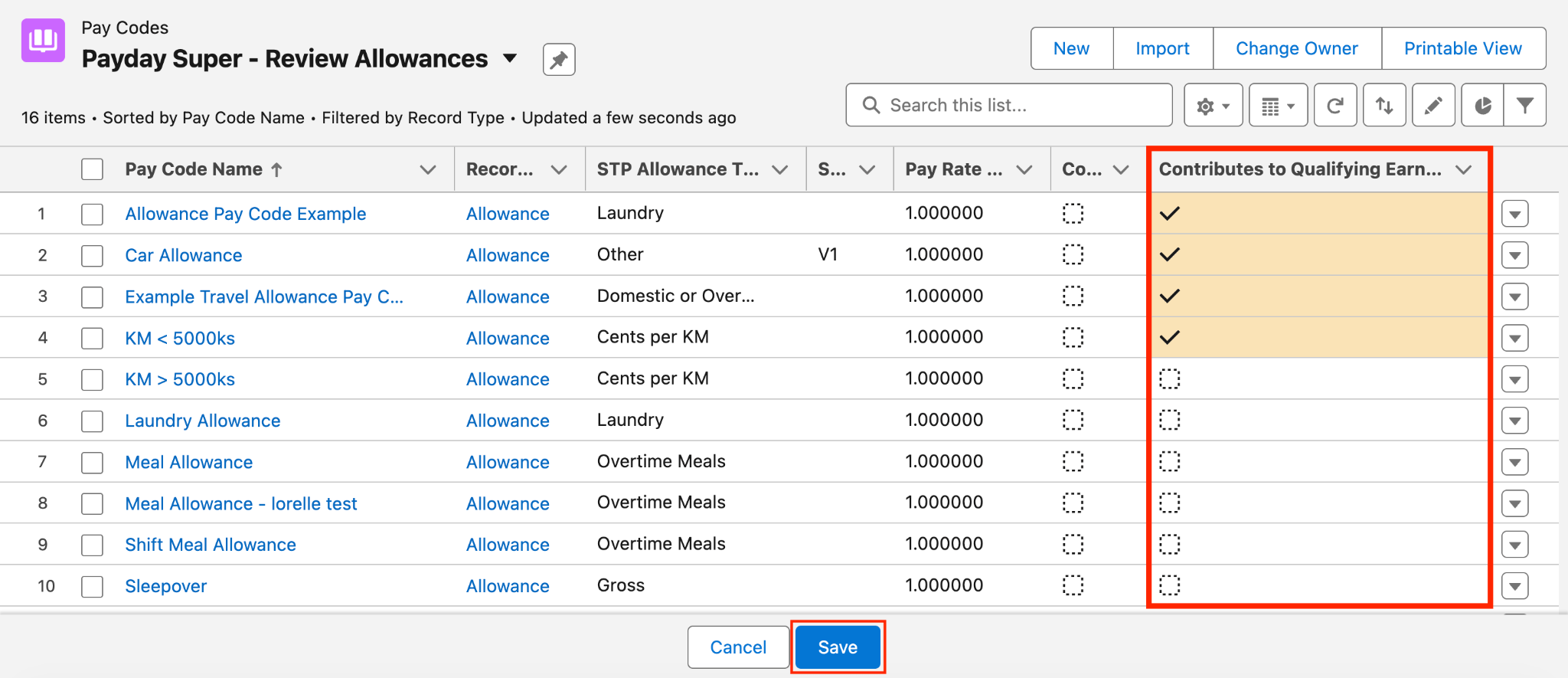
7. Select the checkbox to TRUE in the field **Contributes to Qualifying Earnings** for all Allowance Pay Codes which need to be reported to the ATO as Qualifying Earnings (see Figure 6).

<Frame>
  <div style={{ border: "2px solid #00CDB9", borderRadius: "4px", overflow: "hidden" }}>
    <div style={{ background: "#00CDB9", color: "#FFFFFF", fontWeight: "700", fontSize: "16px", padding: "5px 18px" }}>Figure 6</div>

    <div style={{ background: "#FFFFFF", padding: "14px" }}>
      <img src="https://mintcdn.com/2cloudnine-2edf05eb/qYe5GHY1i2I6569E/images/generated/reference-guides/data-set-up-and-creation/qrg-payday-super-data-updates-pay-codes/qrg-payday-super-data-updates-pay-codes-figure-6.png?fit=max&auto=format&n=qYe5GHY1i2I6569E&q=85&s=294e50d50d5290ef401882b875d6d66f" alt="Screenshot from QRG Payday Super Data Updates - Pay Codes" width="2048" height="885" data-path="images/generated/reference-guides/data-set-up-and-creation/qrg-payday-super-data-updates-pay-codes/qrg-payday-super-data-updates-pay-codes-figure-6.png" />
    </div>
  </div>
</Frame>

8. Select **Save** to ensure all updates are saved.

<Columns cols={2}>
  <div>
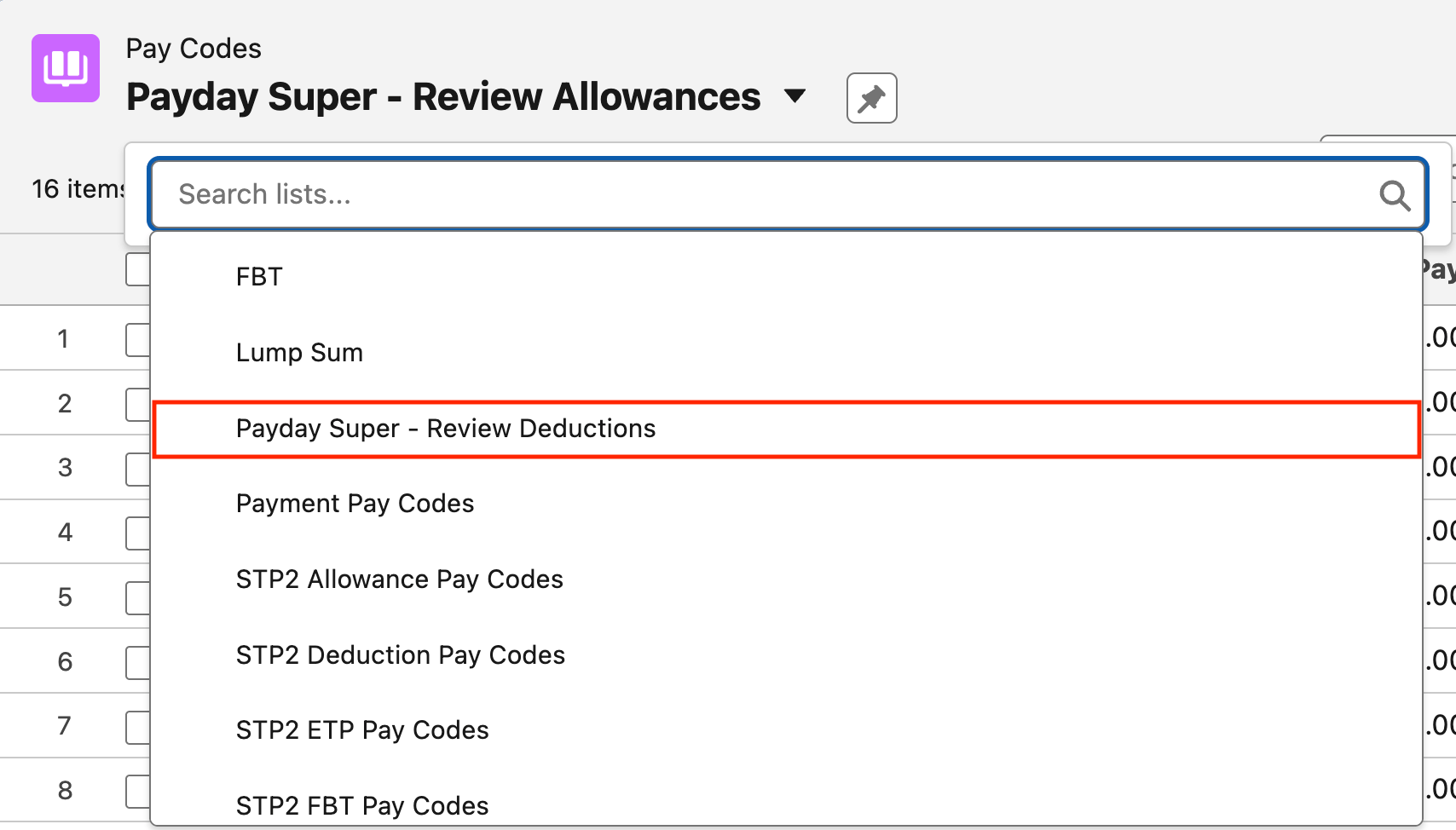
    9) Select the List View **Payday Super - Review Deductions** (see Figure 7).
  </div>

  <div>
    <Frame>
      <div style={{ border: "2px solid #00CDB9", borderRadius: "4px", overflow: "hidden" }}>
        <div style={{ background: "#00CDB9", color: "#FFFFFF", fontWeight: "700", fontSize: "16px", padding: "5px 18px" }}>Figure 7</div>

        <div style={{ background: "#FFFFFF", padding: "14px" }}>
          <img src="https://mintcdn.com/2cloudnine-2edf05eb/qYe5GHY1i2I6569E/images/generated/reference-guides/data-set-up-and-creation/qrg-payday-super-data-updates-pay-codes/qrg-payday-super-data-updates-pay-codes-figure-7.png?fit=max&auto=format&n=qYe5GHY1i2I6569E&q=85&s=976b104a8307c0ab864459aa47829f31" alt="Screenshot from QRG Payday Super Data Updates - Pay Codes" width="1708" height="974" data-path="images/generated/reference-guides/data-set-up-and-creation/qrg-payday-super-data-updates-pay-codes/qrg-payday-super-data-updates-pay-codes-figure-7.png" />
        </div>
      </div>
    </Frame>
  </div>
</Columns>

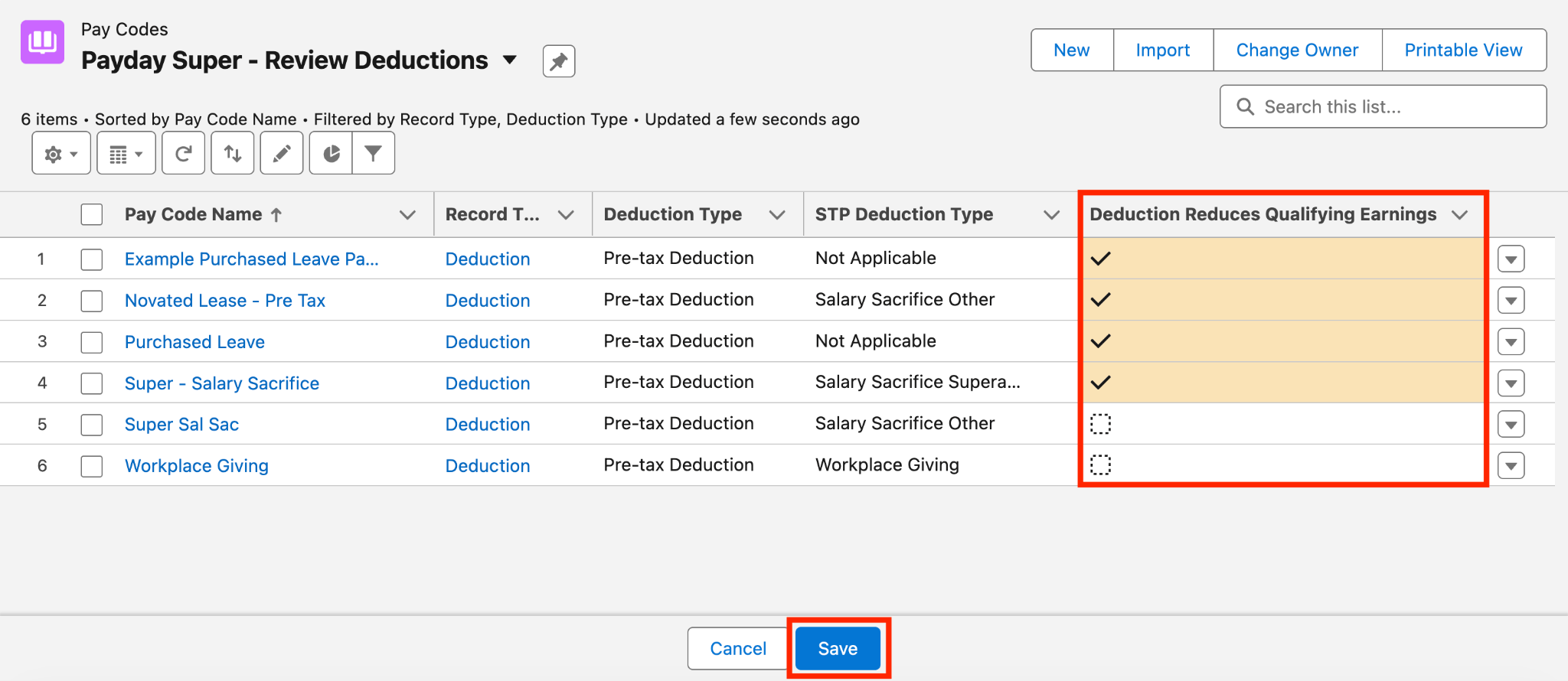
10. Select the checkbox to TRUE in the field **Deduction Reduces Qualifying Earnings** for all Pay Codes which should reduce the Qualifying Earnings (see Figure 8).

<Frame>
  <div style={{ border: "2px solid #00CDB9", borderRadius: "4px", overflow: "hidden" }}>
    <div style={{ background: "#00CDB9", color: "#FFFFFF", fontWeight: "700", fontSize: "16px", padding: "5px 18px" }}>Figure 8</div>

    <div style={{ background: "#FFFFFF", padding: "14px" }}>
      <img src="https://mintcdn.com/2cloudnine-2edf05eb/qYe5GHY1i2I6569E/images/generated/reference-guides/data-set-up-and-creation/qrg-payday-super-data-updates-pay-codes/qrg-payday-super-data-updates-pay-codes-figure-8.png?fit=max&auto=format&n=qYe5GHY1i2I6569E&q=85&s=2beb0cf69b3c5f70398c820947c1f237" alt="Screenshot from QRG Payday Super Data Updates - Pay Codes" width="2048" height="890" data-path="images/generated/reference-guides/data-set-up-and-creation/qrg-payday-super-data-updates-pay-codes/qrg-payday-super-data-updates-pay-codes-figure-8.png" />
    </div>
  </div>
</Frame>

11. Select **Save** to ensure all updates are saved.

<Note>
  **Contributes to Qualifying Earnings and Deduction Reduces Qualifying Earnings**

  If a Pay Code currently has the **Contributes to OTE** checkbox ticked, it will automatically contribute to Qualifying Earnings, even if the **Contributes to Qualifying Earnings** checkbox is NOT ticked.

  If a Deduction Pay Code relates to Salary Sacrifice Superannuation, then a validation will prevent the checkbox **Deduction Reduces Qualifying Earnings** from being checked to True.
</Note>

## Field Descriptions

| Field Name                                | Description                                                                                                                                    |
| ----------------------------------------- | ---------------------------------------------------------------------------------------------------------------------------------------------- |
| **Contributes to Qualifying Earnings?**   | Indicates whether related Pay Transactions contribute to the Payee's Qualifying Earnings for Payday Super reporting.                           |
| **Deduction Reduces Qualifying Earnings** | Determines whether related Pay Transactions are subtracted from the Payee's Qualifying Earnings for the purposes of Payday Super calculations. |

## Further Information

| Document                               | Document Type     | Description                       |
| -------------------------------------- | ----------------- | --------------------------------- |
| Create Pay Codes - Allowance Pay Codes | Task Instructions | How to create Allowance Pay Codes |
| Create Pay Codes - Deduction Pay Codes | Task Instructions | How to create Deduction Pay Codes |
| Create Pay Codes - Payment Pay Codes   | Task Instructions | How to create Payment Pay Codes   |