> ## Documentation Index
> Fetch the complete documentation index at: https://documentation.2cloudnine.com/llms.txt
> Use this file to discover all available pages before exploring further.
# QRG Enter Timesheets as Payroll User
## Purpose
The purpose of this quick reference guide is to step through the process of completing Timesheets as a
Payroll User. The intended audience for this document are standard users.
## Steps
### Complete a Timesheet record
The Timesheet record is used when processing Pay Transactions for the Calendar Period against a Temp
Assignment. The record holds Timesheet Entries, Expenses, Leave Events, Allowances, Pay Transactions
and Approval details.
Complete a Timesheet record as a Payroll User by following the below steps:
1. Open the **Assignment** record.
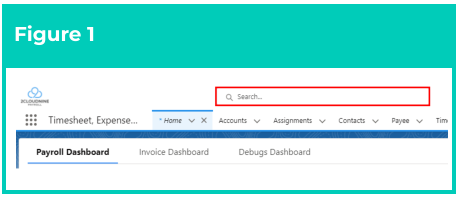
1. To identify an **Assignment**
record from the **Employee**
record, enter the **Employee**
name into the Global Search (see
Figure 1).
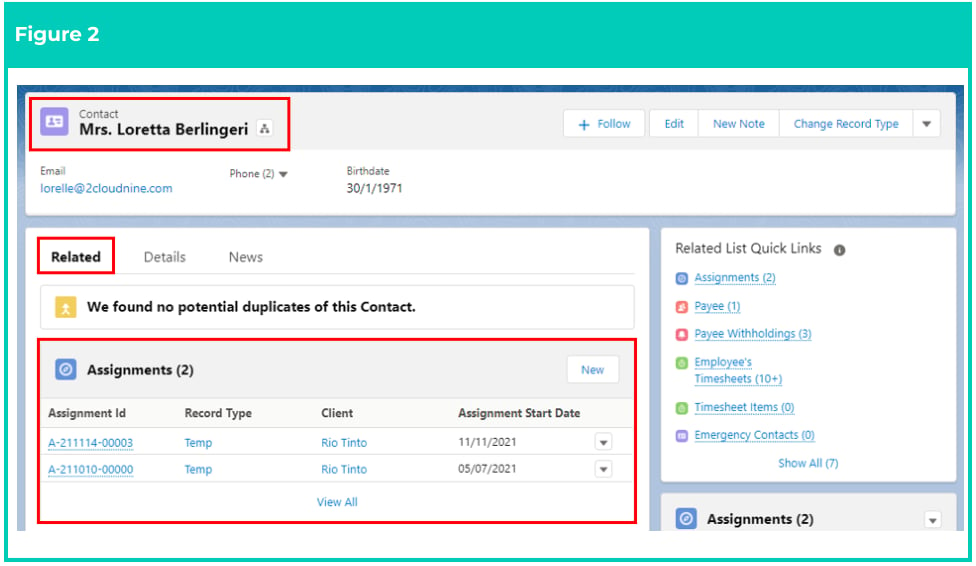
2. Open the **Related** tab (see Figure 2).
3. Go to the **Assignment** related list.
4. Select the relevant **Temp Assignment** record. The assignment record will then open to
view the Assignment’s Details and Related records.
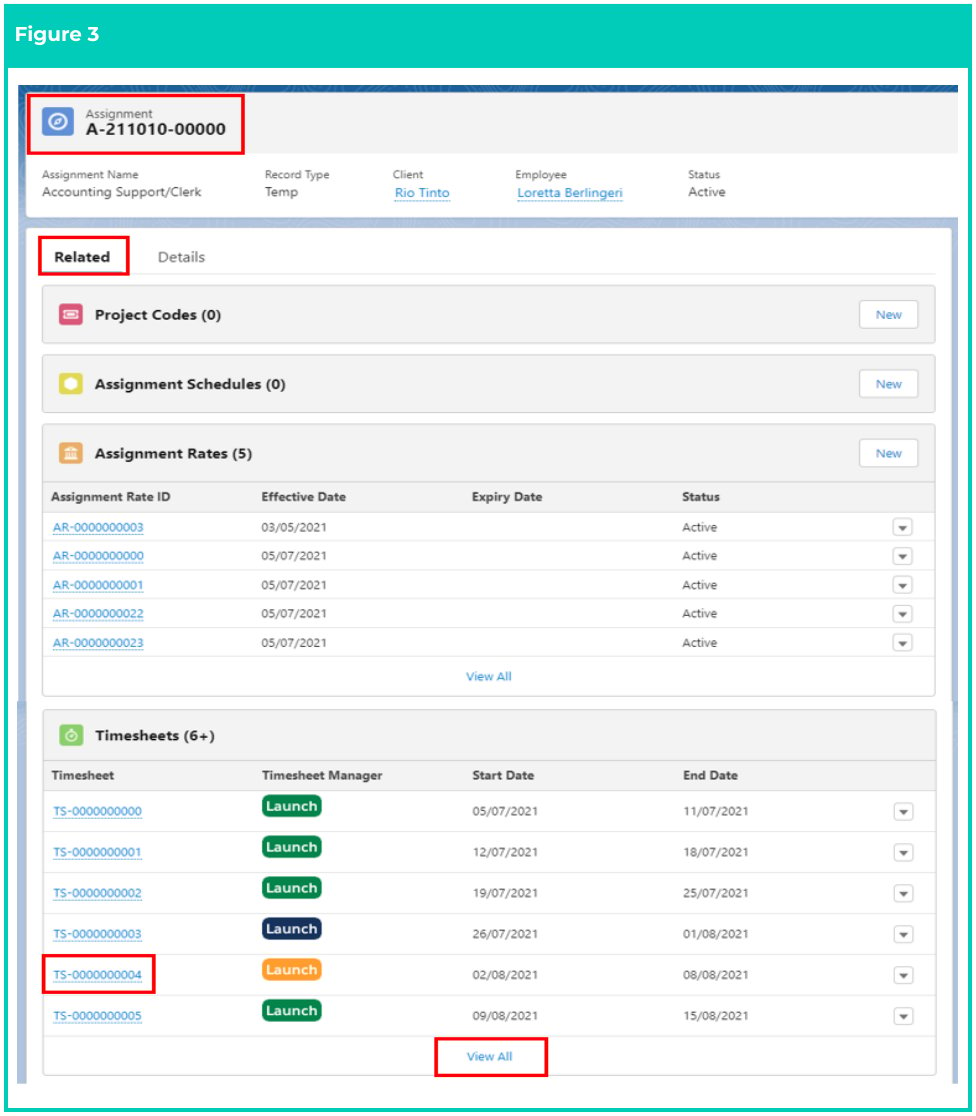
 2. Open the **Related** tab (see Figure 3).
3. Scroll to the **Timesheets** Related List.
4. Select the appropriate **TS-** reference number to open Timesheet Manager.
1. Select **View All** to identify any Timesheets not included in the initial view of the related List
View on the Assignment record.
2. Open the **Related** tab (see Figure 3).
3. Scroll to the **Timesheets** Related List.
4. Select the appropriate **TS-** reference number to open Timesheet Manager.
1. Select **View All** to identify any Timesheets not included in the initial view of the related List
View on the Assignment record.
 Timesheets are created via system automation once a Temp Assignment has been
configured with Assignment Rates, a Timesheet Calendar and an Interpretation Rule.
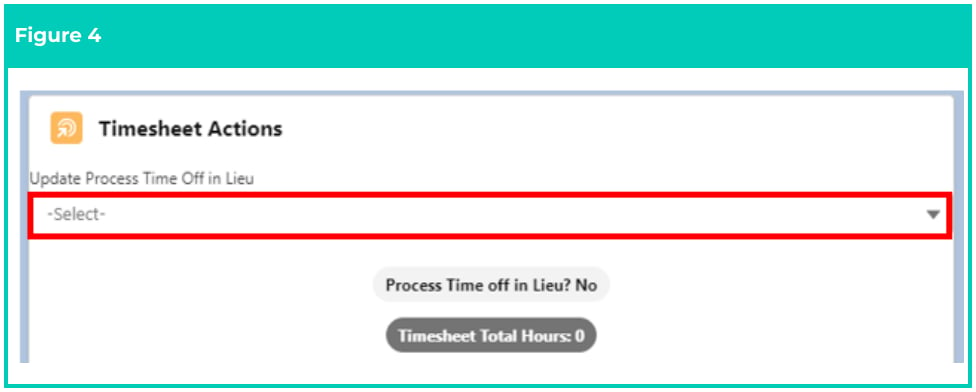
5. If the Payee has the Time In Lieu Leave Rule available, users can determine whether any overtime
should be attributed to Time Off in Lieu, by selecting from the picklist value in the optional **Update**
**Process Time Off in Lieu?** field (see Figure 4):
Timesheets are created via system automation once a Temp Assignment has been
configured with Assignment Rates, a Timesheet Calendar and an Interpretation Rule.
5. If the Payee has the Time In Lieu Leave Rule available, users can determine whether any overtime
should be attributed to Time Off in Lieu, by selecting from the picklist value in the optional **Update**
**Process Time Off in Lieu?** field (see Figure 4):
 6. Identify the Timesheet Entries within the Timesheet Manager **Time Entries** tab section (see Figure 5)
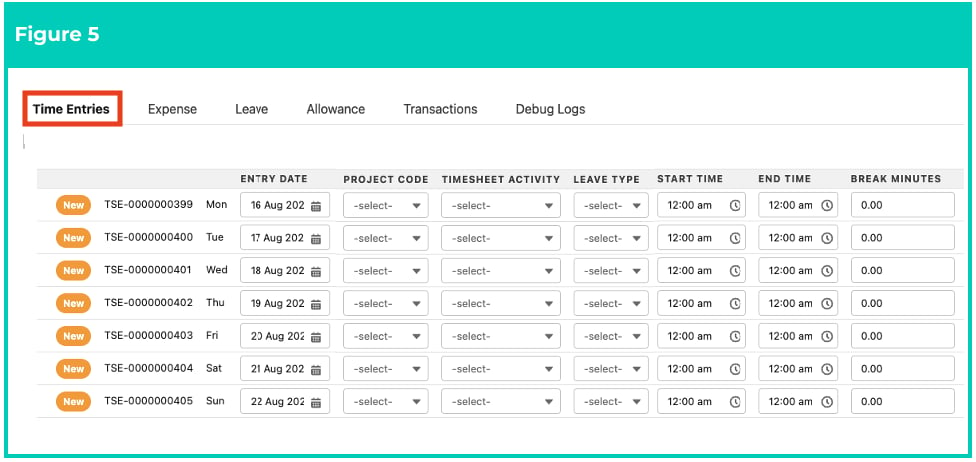 Timesheet formatting will differ depending on the Timesheet Calendar associated with
the related Assignment record.
If the Assignment has an Assignment Schedule, then the Timesheet Entries may be pre-populated with
the rostered work hours for the Employee. These hours can be manually overridden within the
Timesheet Entry fields if needed.
7. Complete **Timesheet Entries** :
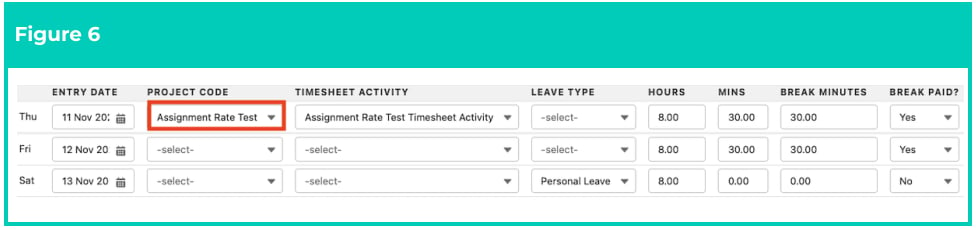
1. To associate time worked with a Project record, populate the **Project Code** field using the
picklist values provided (see Figure 6).
Timesheet formatting will differ depending on the Timesheet Calendar associated with
the related Assignment record.
If the Assignment has an Assignment Schedule, then the Timesheet Entries may be pre-populated with
the rostered work hours for the Employee. These hours can be manually overridden within the
Timesheet Entry fields if needed.
7. Complete **Timesheet Entries** :
1. To associate time worked with a Project record, populate the **Project Code** field using the
picklist values provided (see Figure 6).
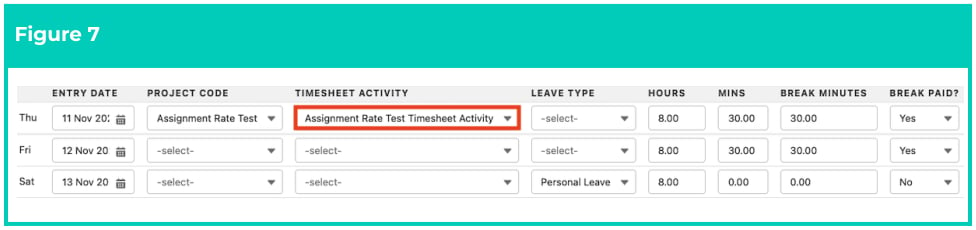
 2. To associate time worked with a specific task detailed in the Interpretation Rule, populate
the **Timesheet Activity** field using the picklist values provided (see Figure 7).
2. To associate time worked with a specific task detailed in the Interpretation Rule, populate
the **Timesheet Activity** field using the picklist values provided (see Figure 7).
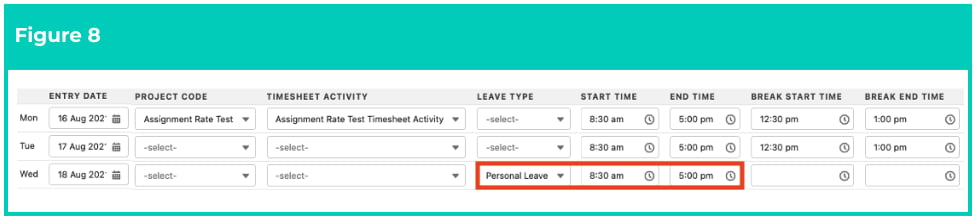
 3. If the Payee has Payee Leave Rules available, the Leave Type column will be visible to select
any of the Payee’s available Leave Types. To include Leave, select **Leave Type** from the
available picklist options within the Timesheet Entry row and enter either **Start Time** and
**End Time** or **Hours** and **Mins** for any Leave taken along with breaks if they would normally
take a break during that period (see Figures 8 - 9).
3. If the Payee has Payee Leave Rules available, the Leave Type column will be visible to select
any of the Payee’s available Leave Types. To include Leave, select **Leave Type** from the
available picklist options within the Timesheet Entry row and enter either **Start Time** and
**End Time** or **Hours** and **Mins** for any Leave taken along with breaks if they would normally
take a break during that period (see Figures 8 - 9).
 Leave Events may also be viewed within the Leave tab. However, no additions or changes to Leave
Events should be made using the Leave tab, which is only available to allow for the review of Leave
Events related to a Timesheet. Interpretation for Leave can only occur if Leave Events have been
recorded as Timesheet Entries within a Timesheet.
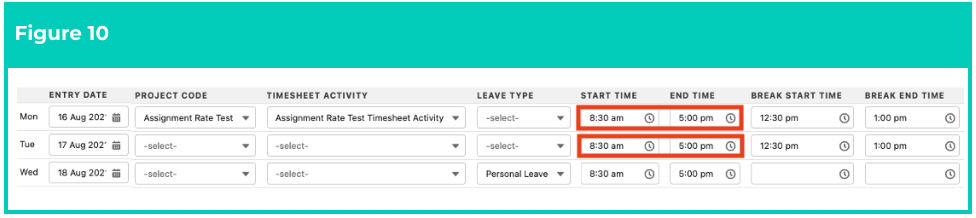
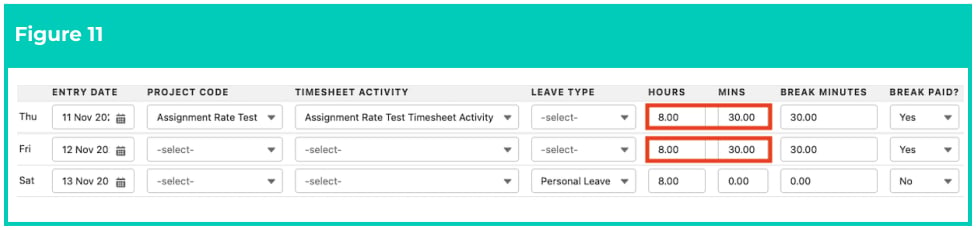
4. To capture time worked, enter the **Start** and **End Times** or **Hours** and **Mins** for each day
worked (see Figures 10 - 11).
Leave Events may also be viewed within the Leave tab. However, no additions or changes to Leave
Events should be made using the Leave tab, which is only available to allow for the review of Leave
Events related to a Timesheet. Interpretation for Leave can only occur if Leave Events have been
recorded as Timesheet Entries within a Timesheet.
4. To capture time worked, enter the **Start** and **End Times** or **Hours** and **Mins** for each day
worked (see Figures 10 - 11).
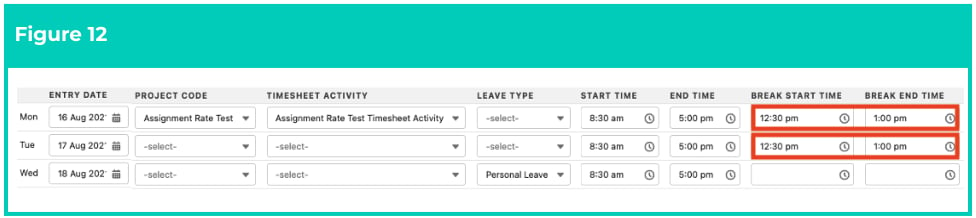
 5. To include Breaks, enter the **Break Start Time** and **Break End Times** or **Break Minutes** for
each Break taken, and select from the picklist options available in the **Break Paid?** field to
define whether or not the Break should be paid (see Figures 12 - 13).
5. To include Breaks, enter the **Break Start Time** and **Break End Times** or **Break Minutes** for
each Break taken, and select from the picklist options available in the **Break Paid?** field to
define whether or not the Break should be paid (see Figures 12 - 13).
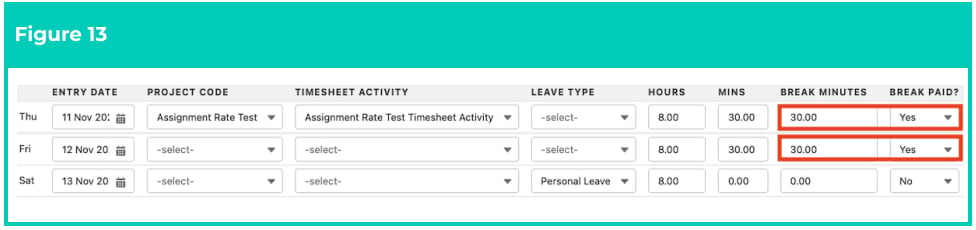 The Break Paid? field is only available in Timesheet Entries if the Timesheet Calendar associated
with the related Assignment record has the Enable Paid Breaks? checkbox selected.
The Break Paid? field is only available in Timesheet Entries if the Timesheet Calendar associated
with the related Assignment record has the Enable Paid Breaks? checkbox selected.
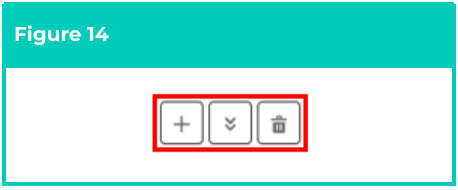
6) To add additional Timesheet
Entry lines, click the **plus** icon
and adjust the date for the line
as needed (see Figure 14)
1. You must Save at least
one Timesheet Entry row
before this option is
available
7) To copy the values from
Timesheet Entries to lower rows,
click the **downward arrow** icon
(see Figure 14)
1. You must Save at least
one Timesheet Entry row
before this option is
available
8) To delete a Timesheet Entry row,
select the **trash can** icon (see
Figure 14)
8. Once you are satisfied with the Timesheet Entries, click on the **Save** button (see Figures 15 - 16).
 Timesheet formatting will differ depending on the Timesheet Calendar associated with
the related Assignment record.
When completing Timesheet Entry rows using the Total Hours format, Minutes should be entered as
total minutes to the nearest whole number.
You must **Save** before proceeding further. Changes made past this point will cause any
unsaved Timesheet Entries to be erased, including Leave Entries (if applicable).
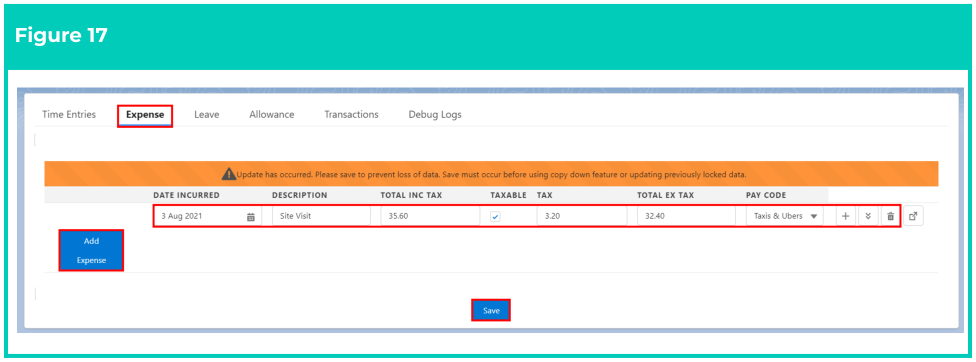
9. To add Expense entries to the Timesheet (see Figure 17):
1. Navigate to the **Expense** Tab and click the **Add Expense** button
2. Populate the following fields to provide the base details for the Expense entry:
1. To define the date that the Expense was incurred on, populate the **Date Incurred**
field by manually entering or using the calendar selection tool.
2. To provide a short description of the Expense, populate the **Description** field.
3. To provide the total amount of the Expense, populate the **Total Inc. Tax** field.
4. To relate a Pay Code to the Expense, select from the picklist values provided in the
**Pay Code** field.
3. Populate the following optional fields as required (see Figure 14):
1. To include the amount of tax related to the Expense, select the **Taxable** checkbox
2. To define the amount of Tax included in the Expense, populate the **Tax** field.
10. Repeat Step 9 for all Expenses related to the Timesheet.
11. Once complete, click on the **Save** button (see Figure 16).
Timesheet formatting will differ depending on the Timesheet Calendar associated with
the related Assignment record.
When completing Timesheet Entry rows using the Total Hours format, Minutes should be entered as
total minutes to the nearest whole number.
You must **Save** before proceeding further. Changes made past this point will cause any
unsaved Timesheet Entries to be erased, including Leave Entries (if applicable).
9. To add Expense entries to the Timesheet (see Figure 17):
1. Navigate to the **Expense** Tab and click the **Add Expense** button
2. Populate the following fields to provide the base details for the Expense entry:
1. To define the date that the Expense was incurred on, populate the **Date Incurred**
field by manually entering or using the calendar selection tool.
2. To provide a short description of the Expense, populate the **Description** field.
3. To provide the total amount of the Expense, populate the **Total Inc. Tax** field.
4. To relate a Pay Code to the Expense, select from the picklist values provided in the
**Pay Code** field.
3. Populate the following optional fields as required (see Figure 14):
1. To include the amount of tax related to the Expense, select the **Taxable** checkbox
2. To define the amount of Tax included in the Expense, populate the **Tax** field.
10. Repeat Step 9 for all Expenses related to the Timesheet.
11. Once complete, click on the **Save** button (see Figure 16).
 12. To review any Leave entries related to the Timesheet, navigate to the **Leave** tab (see Figure 18):
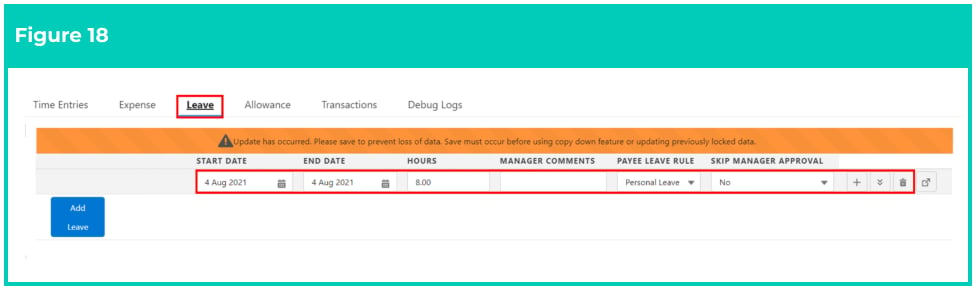 Any Leave Entries that have been saved within Timesheet Entries will be automatically populated
within the Leave Event Tab. However, the Leave tab should never be used to enter Leave events.
Leave Entries that have been entered using the Leave Event tab will not appear within the Timesheet
Entries, and will not be included in Timesheet Interpretation.
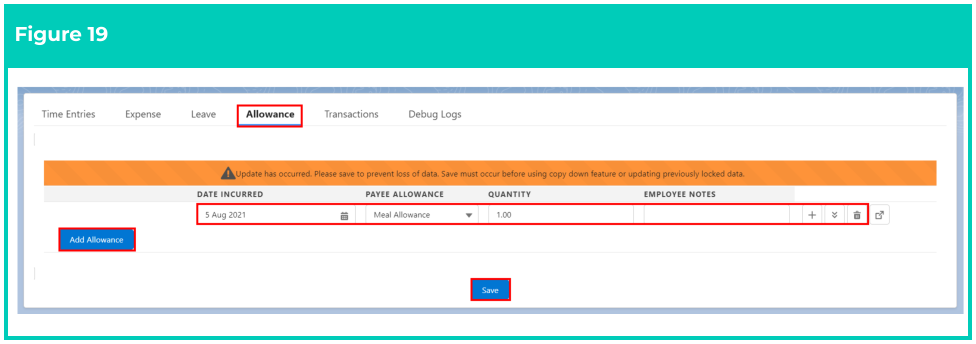
13. To add a Timesheet Allowance to the Timesheet (see Figure 19):
1. Navigate to the **Allowance** tab and click on the **Add Allowance** button
2. Populate the following fields to provide the base details for the Allowance entry:
1. To define the date that the Allowance is payable for, populate the **Date Incurred**
field by entering manually or using the calendar selection tool.
2. To define the Allowance payable, select from the picklist options available in the
**Payee Allowance** field.
3. To define the amount of times an Allowance is being claimed for on the date
specified, populate the **Quantity** field.
3. Populate the following optional fields as required:
1. To add notes or comments to the Allowance entry, populate the **Employee Notes**
field
14. Repeat Step **13** for all additional Allowances related to the Timesheet.
15. Once complete, click on the **Save** button
Any Leave Entries that have been saved within Timesheet Entries will be automatically populated
within the Leave Event Tab. However, the Leave tab should never be used to enter Leave events.
Leave Entries that have been entered using the Leave Event tab will not appear within the Timesheet
Entries, and will not be included in Timesheet Interpretation.
13. To add a Timesheet Allowance to the Timesheet (see Figure 19):
1. Navigate to the **Allowance** tab and click on the **Add Allowance** button
2. Populate the following fields to provide the base details for the Allowance entry:
1. To define the date that the Allowance is payable for, populate the **Date Incurred**
field by entering manually or using the calendar selection tool.
2. To define the Allowance payable, select from the picklist options available in the
**Payee Allowance** field.
3. To define the amount of times an Allowance is being claimed for on the date
specified, populate the **Quantity** field.
3. Populate the following optional fields as required:
1. To add notes or comments to the Allowance entry, populate the **Employee Notes**
field
14. Repeat Step **13** for all additional Allowances related to the Timesheet.
15. Once complete, click on the **Save** button
 In order for Allowances to be displayed on a Timesheet, a Timesheet Allowance record must be
configured for the Payee using the Allowance Pay Code..
Transactions are not created until the Timesheet is Approved. They will be processed in a scheduled
job or can be triggered manually by Payroll Users, based on the Interpretation Rule, Assignment
Rates, and other information populated in the Timesheet.
### Submit/Approve and Process a Timesheet record
Once the Timesheet Entries and any Expenses and Allowances have been saved, the Timesheet is ready to
be submitted for approval. Timesheets must be approved by a Timesheet Approver or Payroll User before
they will be processed for Pay Transaction creation.
Submit/Approve and Process a Timesheet by following the below steps:
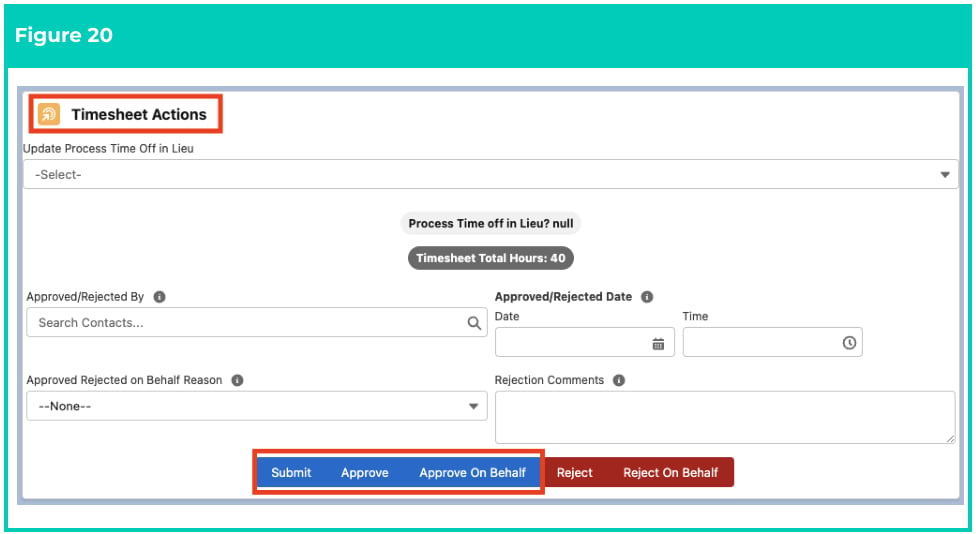
1. Identify the **Timesheet Actions** section within the Timesheet Manager page and complete one of
the following actions to prepare the Timesheet for Payroll Processing (see Figure 20):
1. To submit a Timesheet for Approval, click on the **Submit** button.
2. To approve a Timesheet:
1. Enter the Contact approving the Timesheet in the **Approved/Rejected by** field
2. Enter the date and time of the approval in the **Approved/Rejected Date** fields
3. Click on the **Approve** button.
3. To approve the Timesheet on behalf of another Approver:
1. Populate the **Approved Rejected on Behalf Reason** field using the picklist options
available.
2. Click on the **Approve On Behalf** button.
In order for Allowances to be displayed on a Timesheet, a Timesheet Allowance record must be
configured for the Payee using the Allowance Pay Code..
Transactions are not created until the Timesheet is Approved. They will be processed in a scheduled
job or can be triggered manually by Payroll Users, based on the Interpretation Rule, Assignment
Rates, and other information populated in the Timesheet.
### Submit/Approve and Process a Timesheet record
Once the Timesheet Entries and any Expenses and Allowances have been saved, the Timesheet is ready to
be submitted for approval. Timesheets must be approved by a Timesheet Approver or Payroll User before
they will be processed for Pay Transaction creation.
Submit/Approve and Process a Timesheet by following the below steps:
1. Identify the **Timesheet Actions** section within the Timesheet Manager page and complete one of
the following actions to prepare the Timesheet for Payroll Processing (see Figure 20):
1. To submit a Timesheet for Approval, click on the **Submit** button.
2. To approve a Timesheet:
1. Enter the Contact approving the Timesheet in the **Approved/Rejected by** field
2. Enter the date and time of the approval in the **Approved/Rejected Date** fields
3. Click on the **Approve** button.
3. To approve the Timesheet on behalf of another Approver:
1. Populate the **Approved Rejected on Behalf Reason** field using the picklist options
available.
2. Click on the **Approve On Behalf** button.
 If using the Approve of Behalf function, the **Approved/Rejected By** and
**Approved/Rejected Date** fields will be automatically populated with the name of the
user who has provided Approval, and the date/time that Approval was provided.
However, the automated values may be overridden if required.
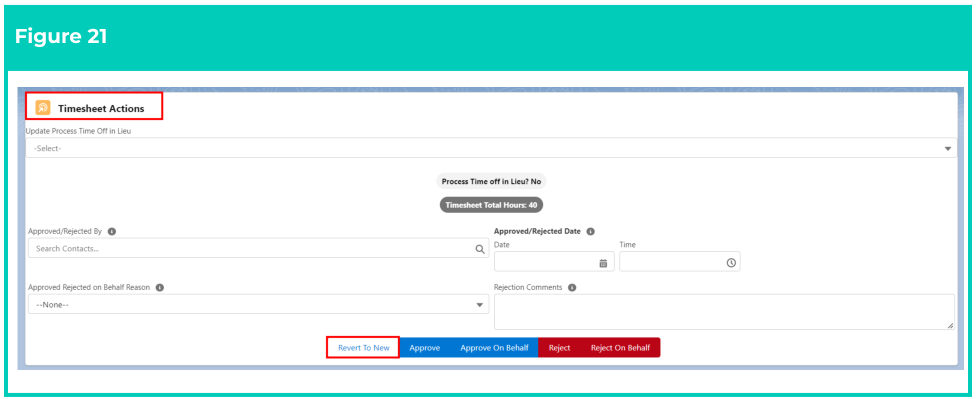
2. To make changes to a **Submitted**, **Rejected** or **Approved** Timesheet (see Figure 21):
1. Open the Submitted/Rejected Timesheet.
2. Navigate to **Timesheet Actions.**
3. Click the **Revert To New** button.
4. Make the necessary changes to the Timesheet and select **Save** .
5. Repeat Step 1 to prepare the Timesheet to be Processed
If using the Approve of Behalf function, the **Approved/Rejected By** and
**Approved/Rejected Date** fields will be automatically populated with the name of the
user who has provided Approval, and the date/time that Approval was provided.
However, the automated values may be overridden if required.
2. To make changes to a **Submitted**, **Rejected** or **Approved** Timesheet (see Figure 21):
1. Open the Submitted/Rejected Timesheet.
2. Navigate to **Timesheet Actions.**
3. Click the **Revert To New** button.
4. Make the necessary changes to the Timesheet and select **Save** .
5. Repeat Step 1 to prepare the Timesheet to be Processed
 3. To begin Processing an **Approved** Timesheet (see Figure 22):
1. Select **Process Transactions** to run the Interpretation Rule against this Timesheet and create the Pay Transactions
**OR**
Allow the next Schedule Job to automatically create the Pay Transactions against all
Approved Timesheets
3. To begin Processing an **Approved** Timesheet (see Figure 22):
1. Select **Process Transactions** to run the Interpretation Rule against this Timesheet and create the Pay Transactions
**OR**
Allow the next Schedule Job to automatically create the Pay Transactions against all
Approved Timesheets
 Timesheets that are Processed can only be edited if you use the **Revert to New**
function. No changes can be made to any Timesheets once they are either Invoiced or
included in a Pay Batch.
## Field Descriptions
**Approval Status** is the Approval Status of the Timesheet.
**Approved/Rejected by** is the Approver who approved/rejected the Timesheet.
**Approved Rejected on Behalf Reason** if the Timesheet was approved/rejected on Behalf of the Approver,
this field records the reason why the Timesheet was approved/rejected. The following default options are
available for selection from this field, however this may be customised according to your requirements:
* Could not contact Approver or Alternate Approver
* No hours or expense records
* Auto Approved
**Approved/Rejected Date** is the last Date/Time the Timesheet was Approved or Rejected.
**End Date** indicates the End Date of the Timesheet.
**Flagged For Review** identifies if the Timesheet is flagged for the Payroll User to review. This then comes
up in some standard Reports.
**Interpretation Rule** defines the Interpretation Rule that will be used in the processing of Timesheets into
Pay Transactions.
**Process Time Off in Lieu** indicates if the Timesheet should be processed as Time Off in Lieu instead of
Overtime.
**Project Code** indicates the Project that the Time Entry is related to, which also provides the ability for a
different Pay rate for the record time (and Invoice Rate if that function is also used).
**Related Split Over Month Timesheet** displays the related timesheet, if a timesheet has been split into 2
timesheets by the Split Timesheets Over Months functionality.
**Rejection Comments** if the Timesheet has an Approval Status of Rejected, this field defines the reason
given by the Approver for the rejection.
**Start Date** indicates the start date of the Timesheet.
**Start Day** indicates the start day of the Timesheet.
**Submitted Date** is the Date/Time the Timesheet was Submitted.
**Timesheet Activity** indicates the specific task detailed in the Interpretation Rule that the Time Entry is
related to, which will often require a different Pay Rate to regular working hours during that time.
**Total Hours** indicates the total number of hours for the Timesheet, by summarising the total hours of all
related Timesheet Entries.
**Total Timesheet Entries** is the total number of Timesheet Entries related to the Timesheet.
**Total Expenses** is the total number of Expenses related to the Timesheet.
**Timesheet Split Over Months** is set to True for Timesheets that have been split into two Timesheets by the
Split Timesheets Over Months functionality.
**Total Timesheet Allowances** is the count of the total number of Timesheet Allowances related to the
Timesheet.
**Transaction Creation Status** is the stage in the Pay Transaction creation process the Timesheet is in,
updated by the application automatically:
* New = Timesheet has not been Approved
* Ready = Timesheet is Approved, and is ready to be Processed
* Processed = Timesheet has had Pay Transactions created
* Failed = the process to create Pay Transactions failed, Users should check Debug Logs
**Process Time Off in Lieu** indicates if hours interpreted as overtime should be created as a Time Off In Lieu
credit instead of creating Overtime Pay Transactions.
## Further Information
| Document | Document Type | Description |
| ------------------------------------------------ | ----------------- | -------------------------------------------------------------- |
| QRG Create an Assignment - Temp | Task Instructions | How to create an Assignment record for Timesheet Employees |
| QRG Create an Assignment Rate record - Timesheet | Task Instructions | How to create a Assignment Rate record for Timesheet Employees |
| QRG Create Payee Allowance - Timesheet | Task Instructions | How to create a Payee Allowance record for Timesheet Employees |
| QRG Create Payee Leave Rule | Task Instructions | How to create a Payee Leave Rule |
Timesheets that are Processed can only be edited if you use the **Revert to New**
function. No changes can be made to any Timesheets once they are either Invoiced or
included in a Pay Batch.
## Field Descriptions
**Approval Status** is the Approval Status of the Timesheet.
**Approved/Rejected by** is the Approver who approved/rejected the Timesheet.
**Approved Rejected on Behalf Reason** if the Timesheet was approved/rejected on Behalf of the Approver,
this field records the reason why the Timesheet was approved/rejected. The following default options are
available for selection from this field, however this may be customised according to your requirements:
* Could not contact Approver or Alternate Approver
* No hours or expense records
* Auto Approved
**Approved/Rejected Date** is the last Date/Time the Timesheet was Approved or Rejected.
**End Date** indicates the End Date of the Timesheet.
**Flagged For Review** identifies if the Timesheet is flagged for the Payroll User to review. This then comes
up in some standard Reports.
**Interpretation Rule** defines the Interpretation Rule that will be used in the processing of Timesheets into
Pay Transactions.
**Process Time Off in Lieu** indicates if the Timesheet should be processed as Time Off in Lieu instead of
Overtime.
**Project Code** indicates the Project that the Time Entry is related to, which also provides the ability for a
different Pay rate for the record time (and Invoice Rate if that function is also used).
**Related Split Over Month Timesheet** displays the related timesheet, if a timesheet has been split into 2
timesheets by the Split Timesheets Over Months functionality.
**Rejection Comments** if the Timesheet has an Approval Status of Rejected, this field defines the reason
given by the Approver for the rejection.
**Start Date** indicates the start date of the Timesheet.
**Start Day** indicates the start day of the Timesheet.
**Submitted Date** is the Date/Time the Timesheet was Submitted.
**Timesheet Activity** indicates the specific task detailed in the Interpretation Rule that the Time Entry is
related to, which will often require a different Pay Rate to regular working hours during that time.
**Total Hours** indicates the total number of hours for the Timesheet, by summarising the total hours of all
related Timesheet Entries.
**Total Timesheet Entries** is the total number of Timesheet Entries related to the Timesheet.
**Total Expenses** is the total number of Expenses related to the Timesheet.
**Timesheet Split Over Months** is set to True for Timesheets that have been split into two Timesheets by the
Split Timesheets Over Months functionality.
**Total Timesheet Allowances** is the count of the total number of Timesheet Allowances related to the
Timesheet.
**Transaction Creation Status** is the stage in the Pay Transaction creation process the Timesheet is in,
updated by the application automatically:
* New = Timesheet has not been Approved
* Ready = Timesheet is Approved, and is ready to be Processed
* Processed = Timesheet has had Pay Transactions created
* Failed = the process to create Pay Transactions failed, Users should check Debug Logs
**Process Time Off in Lieu** indicates if hours interpreted as overtime should be created as a Time Off In Lieu
credit instead of creating Overtime Pay Transactions.
## Further Information
| Document | Document Type | Description |
| ------------------------------------------------ | ----------------- | -------------------------------------------------------------- |
| QRG Create an Assignment - Temp | Task Instructions | How to create an Assignment record for Timesheet Employees |
| QRG Create an Assignment Rate record - Timesheet | Task Instructions | How to create a Assignment Rate record for Timesheet Employees |
| QRG Create Payee Allowance - Timesheet | Task Instructions | How to create a Payee Allowance record for Timesheet Employees |
| QRG Create Payee Leave Rule | Task Instructions | How to create a Payee Leave Rule |