> ## Documentation Index
> Fetch the complete documentation index at: https://documentation.2cloudnine.com/llms.txt
> Use this file to discover all available pages before exploring further.
# QRG Field Service Extension - Create Pay Conditions
## Purpose
The purpose of this quick reference guide is to step through the process of creating Pay Conditions for use with the Field Service Extension. The intended audience for this document is System Administrators / Payroll Users.
## Steps
**Create a new Pay Condition**
The Field Service Extension uses Pay Condition and Pay Condition Allocations to automate the creation of 2cloudnine Timesheet data.
Pay Conditions define the specific 2cloudnine records to be created, when related Pay Condition Allocations are identified during Field Service Time Sheet integration.
Pay Conditions may be created to capture Payee Allowances, Timesheet Activities or Project Codes, along with any associated conditions.
* To define more than one 2cloudnine record for a Pay Condition (i.e. Payee Allowance and Project Code), use the Combination Record Type.
Create a Pay Condition by following the below steps:
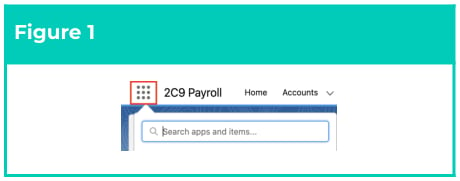
1. Click on the **App Launcher** icon (see Figure 1).
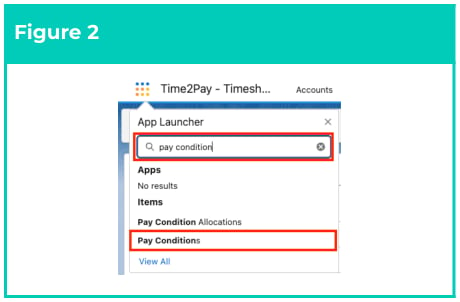
2. Go to the **Pay Condition** object by using the Search function (see Figure 2).
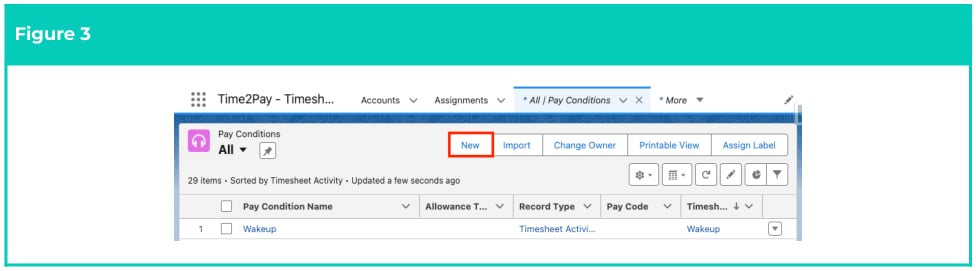
3. Click on the **New** button (see Figure 3).
 **Allowance Pay Condition**
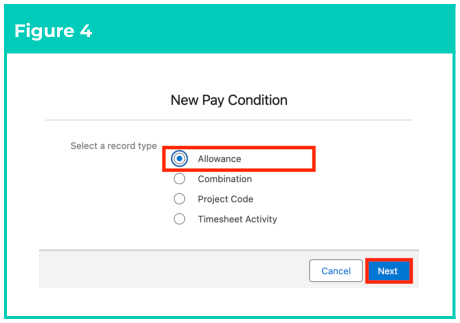
4. Select the **Allowance** Record Type and click the **Next** button (see Figure 4).
5. Enter an identifier for the record in the **Pay Condition Name** field (see Figure 5).
6. Define the method used to calculate the quantity of Allowance Timesheet Items created for linked Field Service Time Sheet data by selecting from the following picklist values in the **Allowance Type** field:
1. **Enterable Quantity** If selected, the Allowance quantity will be determined by the Quantity amount defined on the linked Field Service record.
2. **Predefined Quantity** If selected, define the Allowance quantity amount by populating the **Predefined Quantity** field.
7. To relate a Payee Allowance, populate the **Payee Allowance Record** field using the lookup options available.
1. If the required record cannot be identified from the Payee Allowance Record lookup results, populate the **Pay Code** field to relate the applicable record.
8. Limit the amount of times the related **Allowance** may be applied within a specific period each day by populating the following fields:
1. Enter the quantity cap for the related Allowance by populating the **Quantity Cap** field.
2. Define the time period applicable to the Quantity Cap entered above by populating the **Quantity Cap Start Time** and **Quantity Cap End Time** fields.
9. Click on the **Save** button.
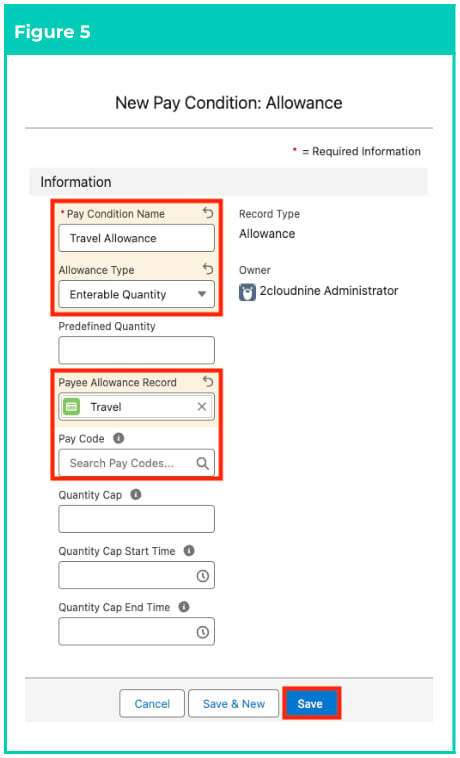
**Important Notes**\
*(Figure 5)*
Please ensure the Payee Allowance Template Record Type is used when populating this field, so that
the Pay Condition is not restricted to a single Payee.
Either the Payee Allowance Record field OR the Pay Code field MUST be populated.
For non-shift based Allowances, where the entered Quantity Cap should be applied to the entire day
(rather than a specific overnight or other shift-based window), populate 12:00 am as the Quantity Cap
Start Time, and 11:59 pm as the Quantity Can End Time.
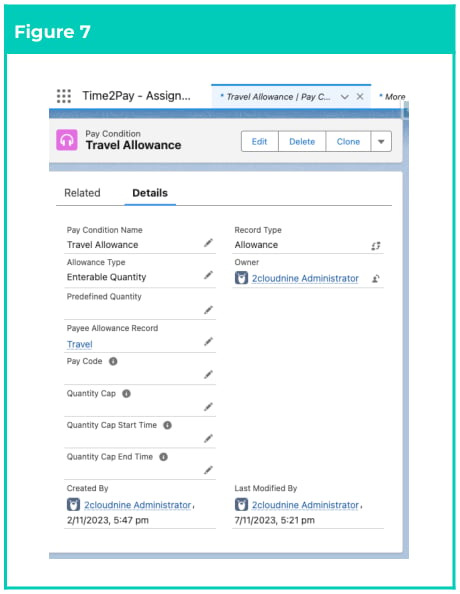
10. A new **Allowance Pay Condition** has been created (see Figure 7).
**Project Code Pay Condition**
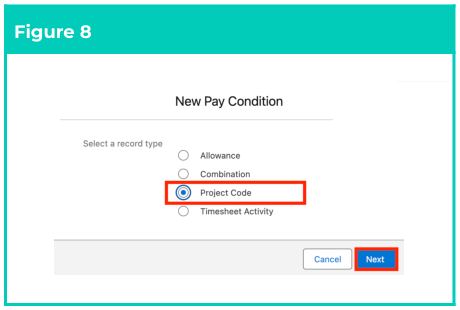
11. Select the **Project Code Record Type** and click the **Next** button (see Figure 8).
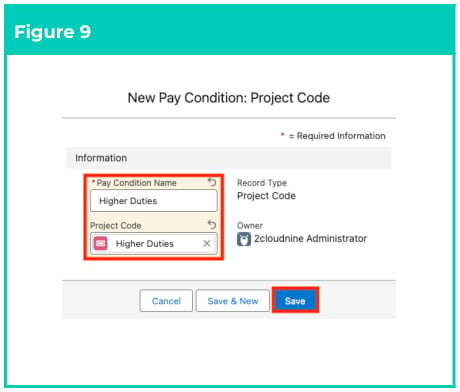
12. Enter a unique identifier for the record in the **Pay Condition Name** field (see Figure 9).
13. Relate a Project Code by populating the **Project Code** field using the lookup options available).
14. Click on the **Save** button.
**Important Notes**\
*(Figure 9)*
Only Template Level Project Code records should be populated, to ensure the Pay Condition is not
restricted to a single Payee.
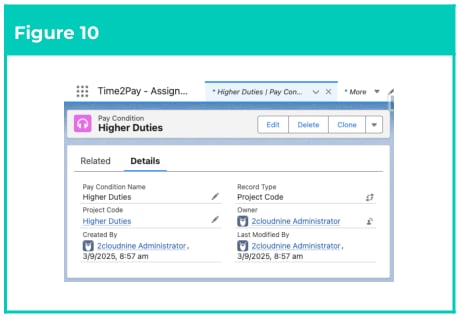
15. A new Project Code Pay Condition has been created (see Figure 10).
**Timesheet Activity Pay Condition**
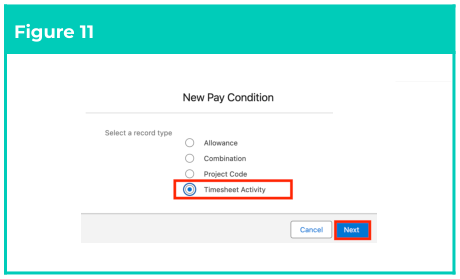
16. Select the **Timesheet Activity** Record Type and click the **Next** button (see Figure 11).
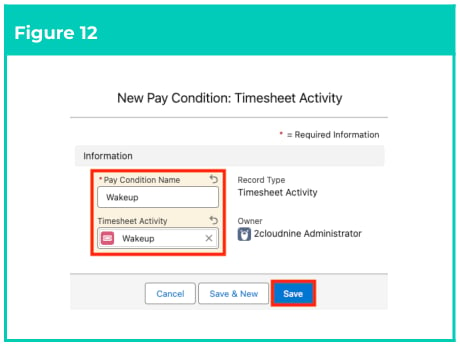
17. Enter a unique identifier for the record in the **Pay Condition Name** field (see Figure 12).
18. Relate a Timesheet Activity by populating the **Timesheet Activity** field using the lookup options available.
19. Click on the **Save** button.
**Important Notes**\
*(Figure 12)*
Only Template Level Timesheet Activity records should be populated to ensure the Pay Condition is
not restricted to a single Payee.
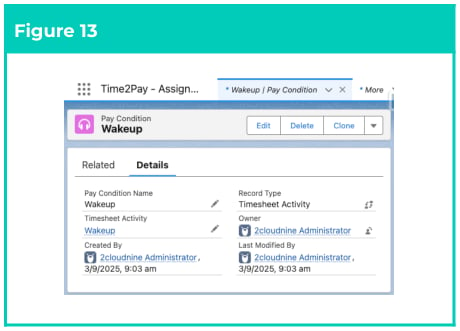
20. A new Timesheet Activity Pay Condition has been created (see Figure 13).
**Combination Pay Condition**
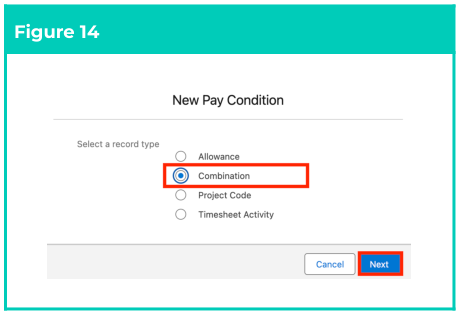
21. Select the **Combination** Record Type and click the **Next** button (see Figure 14).
22. Enter a unique identifier for the record in the **Pay Condition Name** field (see Figure 15).
23. If relating a Payee Allowance, define the method used to calculate the quantity of Allowance Timesheet Items created for linked Field Service Time Sheet data by selecting from the following picklist values in the **Allowance Type** field.
1. **Enterable Quantity** If selected, the Allowance quantity will be determined by the Quantity amount defined on the linked Field Service record.
2. **Allowance Type** if selected, define the Allowance quantity amount by populating the **Predefined Quantity** field.
24. To relate a Payee Allowance, populate the **Payee Allowance Record** field using the lookup options available.
1. If the required record cannot be identified from the Payee Allowance Record lookup results, populate the **Pay Code** field to relate the applicable record.
25. If a Payee Allowance or Pay Code has been defined in relation to a Timesheet Activity that does not require actual time worked to be captured (such as for Sleepover), define the period where time is not inserted by populating the following fields:
1. To define the beginning of the period where integration does not capture entered time, populate the **Deduct Hours Start Time** field.
2. To define the beginning of the period where integration does not capture entered time, populate the **Deduct Hours End Time** field.
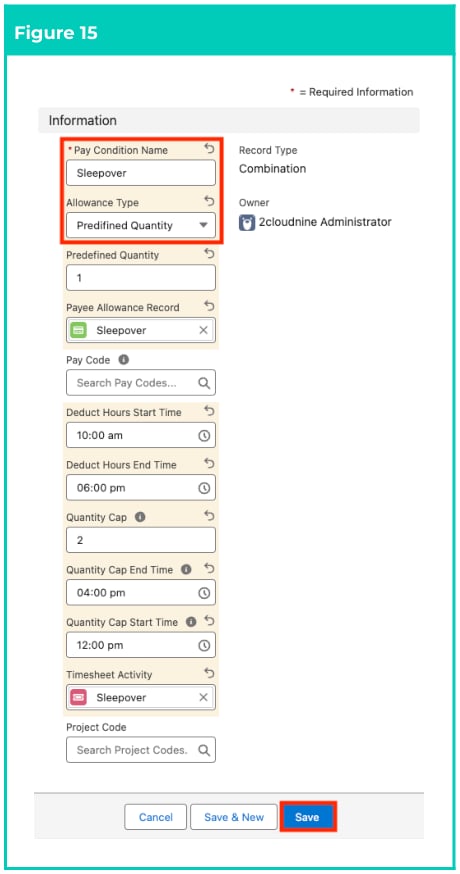
26. If a Payee Allowance is populated, define the quantity cap for the related Allowance by populating the following fields:
1. Define the Payee Allowance Quantity cap applicable during the cap times defined by populating the **Quantity Cap** field.
2. Define the specific time period for the entered **Quantity Cap** by populating the **Quantity Cap Start Time** and **Quantity Cap End Time** fields.
1. For example, a Quantity Cap spanning from 04:00 pm to 12:00 pm ensures the populated Payee Allowance may only be applied to time worked between 04:00 pm and 12:00 pm the following day.
2. If the Quantity Cap applies to the whole day, populate 12:00 am as the Quantity Cap Start Time, and 11:59 pm as the Quantity Cap End Time.
27. To insert a Timesheet Activity for the Payee Allowance, populate the **Timesheet Activity** field using the lookup options available.
28. To insert a Project Code for the Payee Allowance, populate the **Project Code** field using the lookup options available.
29. Click on the **Save** button.
**Important Notes**\
*(Figure 15)*
Please ensure the Payee Allowance Template Record Type is used when populating this field, so that
the Pay Condition is not restricted to a single Payee.
Either the Payee Allowance Record field or the Pay Code field MUST be populated. If both are entered,
the Field Service Extension will use the Pay Code to populate Timesheet Entries for integrated Field
Service data.
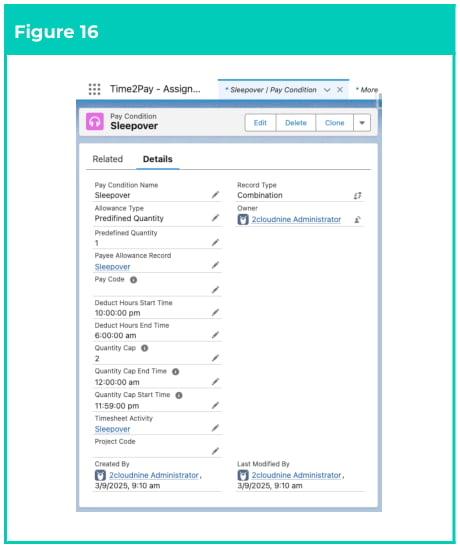
30. A new Combination Pay Condition has been created (see Figure 16).
## Field Descriptions
**Field Name** **Description** **Allowance Type** Defines how the related Payee **Allowance** should be applied during Timesheet Interpretation:
* **Enterable Quantity selecting this option enables the Allowance quantity to be determined**
according to **Quantity** entered on the linked Field Service record.
* **Predefined Quantity selecting this option allows a set quantity to be entered for the**
**Allowance** using the **Predefined Quantity** field. **Deduct Hours Start Time** & **Deduct Hours End Time** Defines the beginning and end of the period where the Field Service Extension will ONLY populate **Allowance** Timesheet Items, rather than inserting entered time.
* **For example, when Sleepover Wake Up or On Call entitlements apply, and actual time**
worked does not need to be captured. **Pay Code** The **Pay Code** used by the Field Service Extension to identify the related Payee **Allowance** to populate when inserting **Allowance** Timesheet Items. **Pay Condition Name** The identifier for the **Pay Condition** record. **Payee Allowance Record** The Payee **Allowance** Template record used by the Field Service Extension to identify the Payee **Allowance** for integrated Timesheet Entries . **Predefined Quantity** Defines the quantity to be applied when the Field Service Extension inserts the timesheet itemquantity. **Project Code** The **Project Code** populated for integrated Timesheet Entries created in relation to the **Pay Condition**. **Quantity Cap** Used to define the maximum units that may be inserted for integrated Timesheet Items within the period specified in the **Quantity Cap** Start and End **Time** fields. **Quantity Cap Start Time** Used to define the start time for the **Quantity Cap** period.
* **If the related Allowance is NOT shift-based, 12:00am may be populated so that the defined**
**Quantity Cap** is applied to the entire day. **Quantity Cap End Time** Used to define the end time for the **Quantity Cap** period.
* **If the related Allowance is NOT shift-based, 11:59pm may be populated so that the defined**
**Quantity Cap** is applied to the entire day. **Timesheet Activity** The **Timesheet Activity** populated for integrated Timesheet Entries created in relation to the Pay
## Further Information
Document Document Type **Description** 2cloudnine Field Service Extension - Key Information Information Quick Reference Outlines useful information relevant to the Field Service Extension functionality. The document includes definitions, prerequisites, and other non-instructional information. QRG Field Service Extension - Allocations Task Instructions How to create **Pay Condition** Allocations. QRG Field Service Extension - Integrate Payees & Service Resources Task Instructions How to integrate Payee and Service Resource records. QRG Field Service Extension - Integrate Payee Leave Events & Resource Absences Task Instructions How to integrate Payee Leave Events and Resource Absence records. QRG Field Service Extension - Integrate Timesheet Data Task Instructions How to integrate Field Service data with 2cloudnine Timesheets.