> ## Documentation Index
> Fetch the complete documentation index at: https://documentation.2cloudnine.com/llms.txt
> Use this file to discover all available pages before exploring further.
# QRG Create Accounting Segments - Cost Code
export const InlineImage = ({src, alt = "", height = "1.6em"}) => {
return  ;
};
## Purpose
The purpose of this quick reference guide is to step through the process of creating a Cost Code. The
intended audience for this document is System Administrators / Standard Users.
## Steps
### Create Accounting Segments - Cost Code
The Cost Code Accounting Segment links to a dimension within the Accounting System. Example
dimensions include cost code, cost centre, project code, etc.
To create a Cost Code Accounting Segment, the following steps should be completed:
;
};
## Purpose
The purpose of this quick reference guide is to step through the process of creating a Cost Code. The
intended audience for this document is System Administrators / Standard Users.
## Steps
### Create Accounting Segments - Cost Code
The Cost Code Accounting Segment links to a dimension within the Accounting System. Example
dimensions include cost code, cost centre, project code, etc.
To create a Cost Code Accounting Segment, the following steps should be completed:
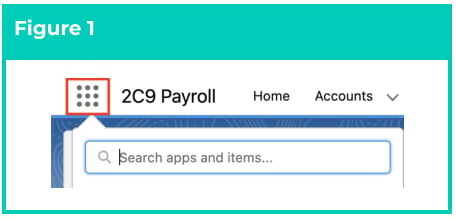
1. Click on the **App Launcher** icon. (See
Figure 1)
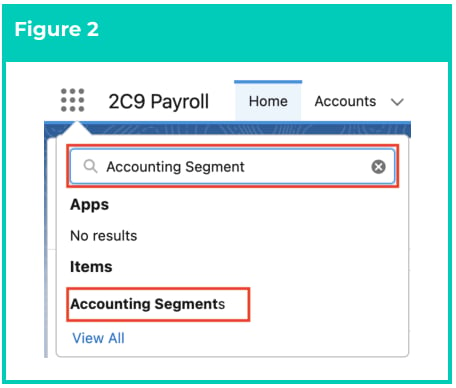
2. Go to the **Accounting Segments** object
by using the Search function. (See
Figure 2)
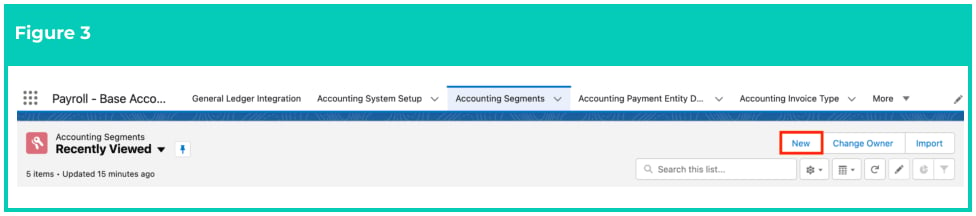
3. Click on the **New** button. (See Figure 3)
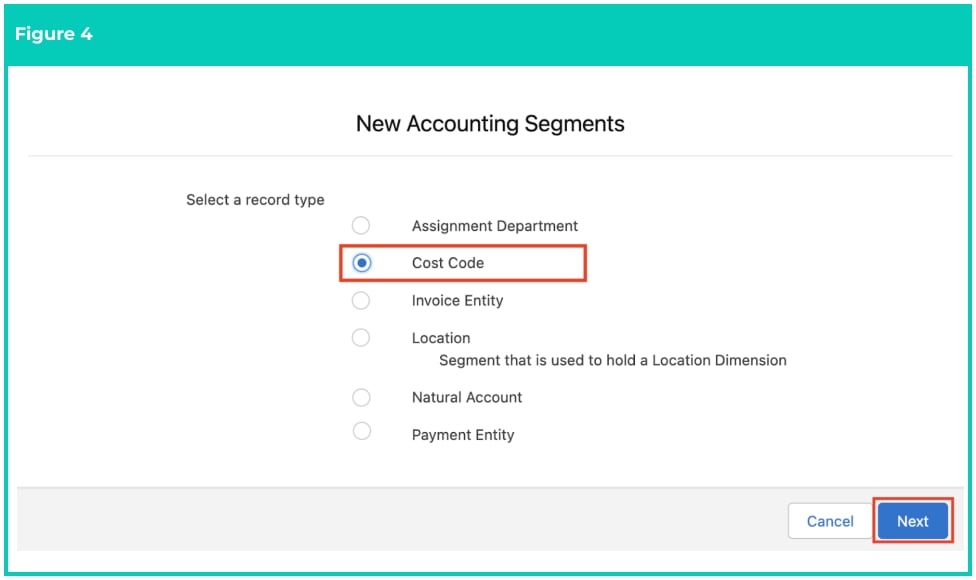
 4. Select **Cost Code** from the available record types and click on the **Next** button. (See Figure 4).
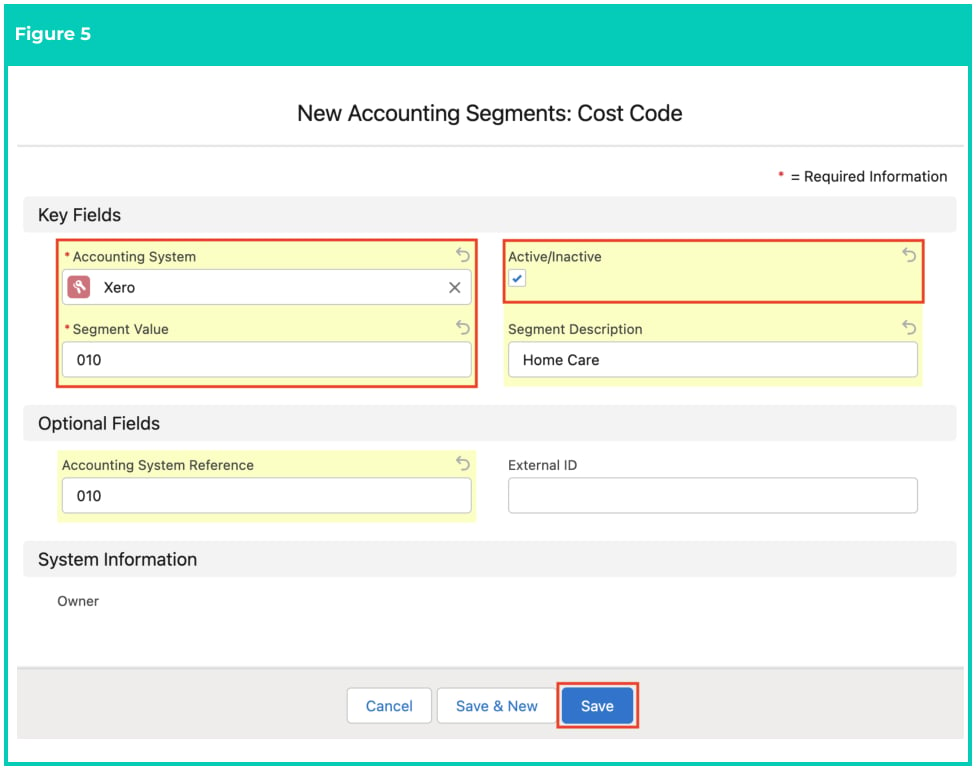
 5. Populate the following required fields to provide the base details of the Cost Code record (see
Figure 5):
1. **Accounting System**
2. **Active/Inactive** - set to true
3. **Segment Value** - this will be the accounting dimension code as per the Accounting
system (eg 2200)
6. Populate the following optional fields as required (see Figure 5):
1. **Segment Description** - description of this Cost Code (eg Cost\_Code\_A)
2. **Accounting System Reference** - can be used if the code requires additional description
as detailed in the Accounting software.
3. **External ID** - optional field for exporting data using the Accounting Systems Record Id.
7. Click on the **Save** button (see Figure 5).
5. Populate the following required fields to provide the base details of the Cost Code record (see
Figure 5):
1. **Accounting System**
2. **Active/Inactive** - set to true
3. **Segment Value** - this will be the accounting dimension code as per the Accounting
system (eg 2200)
6. Populate the following optional fields as required (see Figure 5):
1. **Segment Description** - description of this Cost Code (eg Cost\_Code\_A)
2. **Accounting System Reference** - can be used if the code requires additional description
as detailed in the Accounting software.
3. **External ID** - optional field for exporting data using the Accounting Systems Record Id.
7. Click on the **Save** button (see Figure 5).
 If there are a large number of Cost Codes to create, it is advisable to data load these
records using a suitable data loading tool.
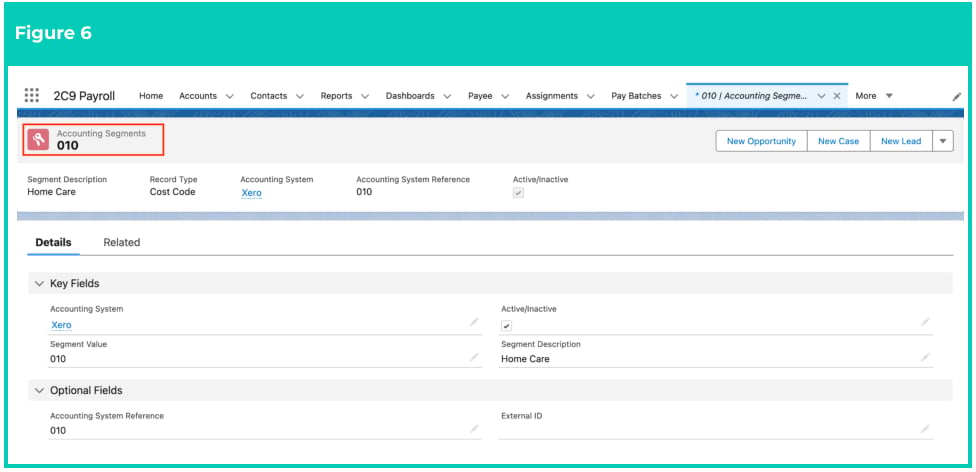
8. A new **Cost Code Accounting Segment** is now created (see Figure 6).
If there are a large number of Cost Codes to create, it is advisable to data load these
records using a suitable data loading tool.
8. A new **Cost Code Accounting Segment** is now created (see Figure 6).
 Cost Code records CAN NOT be deleted if they have related records or are used in
other records. Deleting records is not recommended unless absolutely essential.
9. To modify an existing **Cost Code Accounting Segment**, select the required record and select the
**Edit** button available on the top right side of the page. You can also double click within fields that
need editing or just click on the pencil icon that appears within fields when hovering
with your cursor.
10. When complete, click on the **Save** button.
## Field Descriptions
**Accounting System** is the Accounting System this Cost Code relates to.
**Accounting System Reference** is the reference given to this Cost Code within the external Accounting
System.
**Active/Inactive** defines if the record is currently active.
**External ID** defines the ID of the corresponding record in an external Accounting System that has been
used to create/update this record, or used if this data is integrated to an external Accounting System.
**Segment Description** is a description that is provided to the Cost Code.
**Segment Value** is the value given to the Cost Code for use within the Cost of Payroll Journals and
Accounting Invoices.
## Further Information
| Document | Document Type | Description |
| ------------------------------------------------------- | ----------------- | -------------------------------------------------------------------------------------------------------------------------------------------------------------------- |
| QRG General Ledger Key Information | Key Information | Outlines useful information relevant to the General Ledger functionality. The document includes definitions, prerequisites, and other non-instructional information. |
| Accounting System Setup | Task Instructions | How to create the Accounting System Setup record. |
| Create Accounting Segments - Payment Entity | Task Instructions | How to create a Payment Entity Accounting Segment record. |
| Create Accounting Segments - Invoice Entity | Task Instructions | How to create an Invoice Entity Accounting Segment record. |
| Create Accounting Segments - Natural Account | Task Instructions | How to create a Natural Account Accounting Segment record. |
| Create Accounting Segments - Assignment Department | Task Instructions | How to create an Assignment Department Accounting Segment record. |
| Create Accounting Segments - Location | Task Instructions | How to create a Location Accounting Segment record. |
| Accounting Invoice Type | Task Instructions | How to create the Accounting Invoice Type record. |
| Accounting Payment Entity Defaults | Task Instructions | How to create the Accounting Payment Entity Default record. |
| Accounting Default Account - Allowances and Expenses | Task Instructions | How to create the Accounting Default Account record for the record types of Allowance Pay Codes, or Expense Pay Codes. |
| Accounting Default Account - Deductions | Task Instructions | How to create the Accounting Default Account record for the record type of Deduction Pay Codes. |
| Accounting Default Account - Earnings | Task Instructions | How to create the Accounting Default Account record for Payment Pay Codes, and can be split by PAYG vs RCTI. |
| --- | --- | --- |
| Accounting Default Account - Leave Rules | Task Instructions | How to create the Accounting Default Account record for Leave Rules. |
| QRG Create an Employment Cost record - All record types | Task Instructions | How to create an Employment Cost record. |
| QRG Create an Employment Cost Template Group | Task Instructions | How to create an Employment Cost Template Group record. |
| QRG Create an Accounting Assignment Department | Task Instructions | How to create an Accounting Assignment Department record. |
| Create a Location Record | Task Instructions | How to create a Location record. |
| QRG Create Invoice Journal | Task Instructions | How to create an Invoice Journal record. |
| QRG Create an Assignment - Employee | Task Instructions | How to create an Assignment record. |
Cost Code records CAN NOT be deleted if they have related records or are used in
other records. Deleting records is not recommended unless absolutely essential.
9. To modify an existing **Cost Code Accounting Segment**, select the required record and select the
**Edit** button available on the top right side of the page. You can also double click within fields that
need editing or just click on the pencil icon that appears within fields when hovering
with your cursor.
10. When complete, click on the **Save** button.
## Field Descriptions
**Accounting System** is the Accounting System this Cost Code relates to.
**Accounting System Reference** is the reference given to this Cost Code within the external Accounting
System.
**Active/Inactive** defines if the record is currently active.
**External ID** defines the ID of the corresponding record in an external Accounting System that has been
used to create/update this record, or used if this data is integrated to an external Accounting System.
**Segment Description** is a description that is provided to the Cost Code.
**Segment Value** is the value given to the Cost Code for use within the Cost of Payroll Journals and
Accounting Invoices.
## Further Information
| Document | Document Type | Description |
| ------------------------------------------------------- | ----------------- | -------------------------------------------------------------------------------------------------------------------------------------------------------------------- |
| QRG General Ledger Key Information | Key Information | Outlines useful information relevant to the General Ledger functionality. The document includes definitions, prerequisites, and other non-instructional information. |
| Accounting System Setup | Task Instructions | How to create the Accounting System Setup record. |
| Create Accounting Segments - Payment Entity | Task Instructions | How to create a Payment Entity Accounting Segment record. |
| Create Accounting Segments - Invoice Entity | Task Instructions | How to create an Invoice Entity Accounting Segment record. |
| Create Accounting Segments - Natural Account | Task Instructions | How to create a Natural Account Accounting Segment record. |
| Create Accounting Segments - Assignment Department | Task Instructions | How to create an Assignment Department Accounting Segment record. |
| Create Accounting Segments - Location | Task Instructions | How to create a Location Accounting Segment record. |
| Accounting Invoice Type | Task Instructions | How to create the Accounting Invoice Type record. |
| Accounting Payment Entity Defaults | Task Instructions | How to create the Accounting Payment Entity Default record. |
| Accounting Default Account - Allowances and Expenses | Task Instructions | How to create the Accounting Default Account record for the record types of Allowance Pay Codes, or Expense Pay Codes. |
| Accounting Default Account - Deductions | Task Instructions | How to create the Accounting Default Account record for the record type of Deduction Pay Codes. |
| Accounting Default Account - Earnings | Task Instructions | How to create the Accounting Default Account record for Payment Pay Codes, and can be split by PAYG vs RCTI. |
| --- | --- | --- |
| Accounting Default Account - Leave Rules | Task Instructions | How to create the Accounting Default Account record for Leave Rules. |
| QRG Create an Employment Cost record - All record types | Task Instructions | How to create an Employment Cost record. |
| QRG Create an Employment Cost Template Group | Task Instructions | How to create an Employment Cost Template Group record. |
| QRG Create an Accounting Assignment Department | Task Instructions | How to create an Accounting Assignment Department record. |
| Create a Location Record | Task Instructions | How to create a Location record. |
| QRG Create Invoice Journal | Task Instructions | How to create an Invoice Journal record. |
| QRG Create an Assignment - Employee | Task Instructions | How to create an Assignment record. |