> ## Documentation Index
> Fetch the complete documentation index at: https://documentation.2cloudnine.com/llms.txt
> Use this file to discover all available pages before exploring further.
# Integrated Import Tool - Key Information QRG
## Prerequisites
Prior to attempting data import using the Integrated Import Tool, the following prerequisites must be
met:
1. 2cloudnine Payroll Users must be running the Salesforce Lightning Experience.
2. System-level Setup must be completed.
3. Ensure the 2cloudnine Payroll Import Tool Extension v1.60 Integrated Import Tool package is
installed (at minimum).
4. The configuration must be completed by Consultants as outlined in the 2cloudnine Integrated
Import Tool - Configuration and Implementation Guide - v1.1.
5. Users processing Imported Records using the Integrated Import Tool objects must have access to
create, edit and delete the records.
6. The 2cloudnine Integration User must be set up. The login credentials of this user must be
provided to the 2cloudnine Tech Services team and available within their 1Password vault.
### Integrated Import Tool Appearance and Usability
* Record pages related to the Integrated Import Tool are Lightning Enabled and must only be used
when the Salesforce Lightning Experience is active.
* All dates and times are displayed as per the location of the logged in User.
* Currency is calculated at 6 decimal places but displayed with two decimal places.
* The recommended browser is Chrome as per the Salesforce standard.
* The default display resolution supported for the Imported Record Object is 1920 x 1080 (1080p)
scaled at 100%. The minimum display resolution supported is 1024 x 768 as per the Salesforce
standard.
* Record pages related to the Integrated Import Tool will automatically resize in width and height
so that the components are stretched appropriately depending on resolution.
* In the event that the fields / tabs within record pages are unclear or overlap, zoom out (or zoom
in) through the web browser as needed.
## Definitions
The Integrated Import Tool enables large quantities of external data to be imported for use with
2cloudnine Payroll, utilising the Imported Record Object.
To familiarise yourself with the terms associated with the Integrated Import Tool, please refer to the
following definitions:
* **CSV File**
CSV files are the file format supported by the Integrated Import Tool. The CSV file refers to the
data file formatted according to the CSV Template related to the Import Record Type selected
during Imported Record creation.
* **CSV Template**
The CSV Files created as a guide to aid users in structuring external data in preparation for data
validation and import using the Integrated Import Tool.
* **Enhanced Import**
The Enhanced Import Type represents an Import Type that has been customised to tailor the
data supported for import. Enhanced CSVs contain fewer fields for data input, to streamline the
process of data collection and import, based on Org requirements.
* **External Id (it)**
This field must be manually populated on all 2cloudnine records for the following Objects,
whenever external data relates to existing records:
* Assignment
* Employee
* Pay Code
* Payee
* Payee Allowance Record
* Payment Entity
* Project Code
* Timesheet Activity
* **Failed Records**
Data may fail to be imported if it can not be validated, or if issues are encountered during data
loading. When an import fails, the number of rows of data that failed to be imported will be listed
as Failed Records on the Imported Record, and a Failed Records CSV file will be created. If any
errors are encountered during data validation or data loading, no data will be imported and any
changes made to existing data will be rolled back to allow data to be corrected before attempting import again.
* **Failed Records CSV**
When data fails to be validated or processed, a Failed Records CSV will be created and attached
to the Imported Record. This CSV is not an uploaded file, and will not replace any existing CSVs
related to the Imported Record. The title of the CSV will contain a number in brackets
representing the number of lines of data that failed to be validated during Import. It contains all
the rows of data that encountered errors during validation or processing, with an additional
column to detail the exact error encountered.
* **Imported Data**
Any 2cloudnine data created or updated as a result of external data imported into the Org using
the Import functionality.
* **Imported Record**
This is the 2cloudnine Object utilised when processing data imports using the Integrated Import
Tool.
* **Integrated Import Tool**
This is the latest version of the Import Tool that has been built using more agile technology. The
Integrated Import Tool uses the Imported Records Object to initiate data importing, rather than
the Import Tool UI that was built for the initial versions of the 2cloudnine Import Tool.
* **Records Attempted**
The total number of records that the Integrated Import Tool attempted to import.
* **Standard Import**
When the Standard Import Type is selected, the related CSV may be populated with data for all
standard fields available, according to the Record Type selected for the Imported Record. This Import Type has not been tailored to only include specific fields for streamlined data input.
* **Successful Records**
When data is successfully validated and no issues are encountered during processing, each row
of data that was successful will be recorded under the Successful Records heading on the
Imported Record.
* **Success Records CSV**
Following a data import attempt, a Success Record CSV will be created and attached to the
Imported Record, regardless of whether the entire Import has been processed successfully. As
with the Failed CSV, the title of the Success Record CSV will contain the number of lines that did
not encounter errors during processing. However, this is not an indication that the related data
has been successfully imported, as 2cloudnine data will only be created or updated if no errors
are encountered during import.
## Overview
### Prepare Data for Import
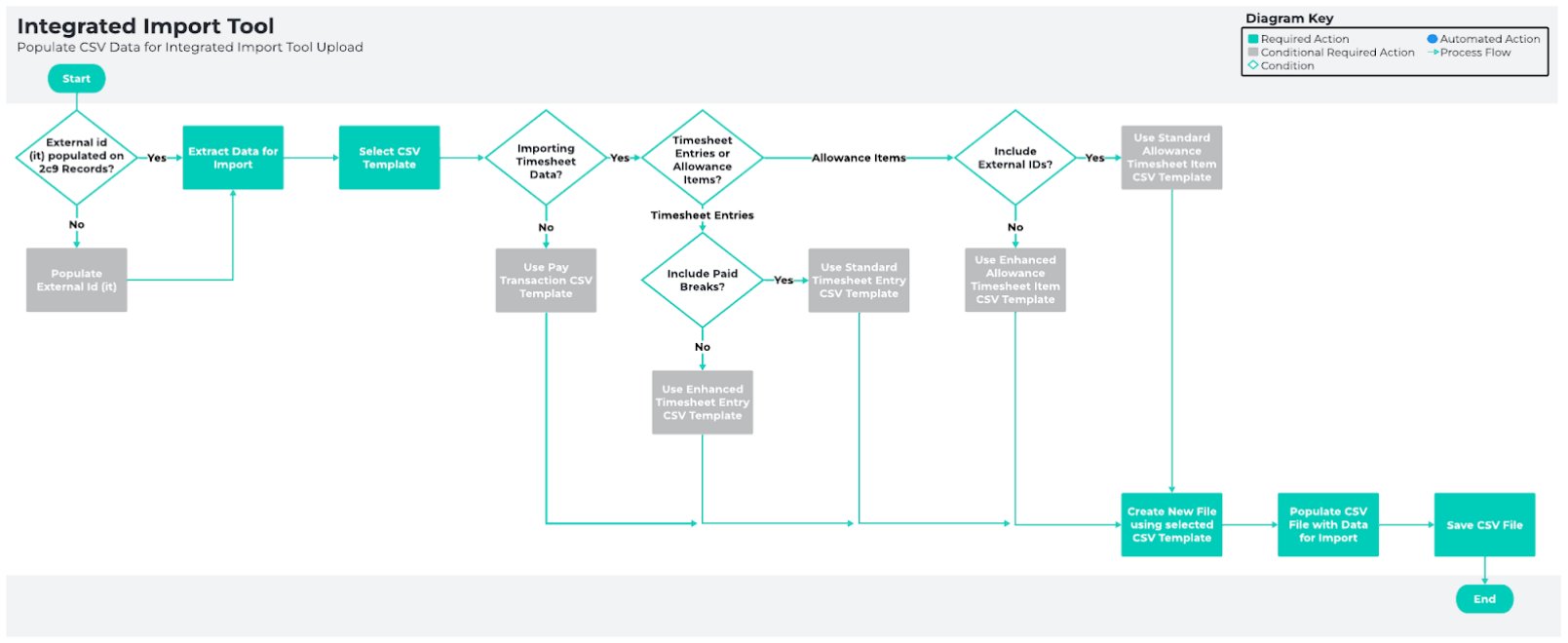
To enable the Integrated Import Tool to transform data for use within 2cloudnine Payroll, external data
must be extracted and prepared for import using one of the following CSV templates provided:
* [Integrated Import Tool - Pay Transactions Template.CSV](https://docs.google.com/spreadsheets/d/1K2XFE-0fN603sjYnOmx9dbVWAI-vqwkaLwHsW6WJ46s/edit?usp=drive_link)
* [Integrated Import Tool - Timesheet Entries Template (Standard).CSV](https://docs.google.com/spreadsheets/d/1kMSku3J-JnZktNVKdXfoqEl71K2f1_Bb9bk35eB4nuo/edit?usp=drive_link)
* [Integrated Import Tool - Timesheet Entries Template (Enhanced).CSV](https://docs.google.com/spreadsheets/d/19hiPzE3tZKI9yfAQ7dIncc5cxSDJXY645Z8pS04lHZo/edit?usp=drive_link)
* [Integrated Import Tool - Allowance Timesheet Items Template (Standard).CSV](https://docs.google.com/spreadsheets/d/1yDAmI4Tn070P2UOQBOjNeyzbIQgJoBOTNV0bAYgkWRU/edit?usp=drive_link)
* [Integrated Import Tool - Allowance Timesheet Items Template (Enhanced).CSV](https://docs.google.com/spreadsheets/d/1kQygaYgM1yw5Lgr44vR1Mo8AVJ__T1WdinyXJhTpCNc/edit?usp=drive_link)
### Minimum Data Requirements
The following minimum data requirements must be met for the import of each record type listed below:
Pay Transactions
Each row of CSV data entered must include an External Id (it) for the related Assignment, Payment Entity,
Pay Code, Employee and Pay Schedule records, Invoice Tax, Payee, Project Code and Invoice Schedule
records (if included). - The Date, Quantity and Pay Transaction Type must be included. Invoice data and defined Pay
Rates are optional, along with a brief description for each Pay Transaction. - No Enhanced Import Type exists for Pay Transaction data.
Timesheet Entries
When using the Standard Import Type, each row of CSV data must include the External Id (it) value for an
Assignment and an Employee record.
* Data may also be included for related Payee, Project Code and/or Timesheet Activities.
* Times and Breaks may be entered using either Start/End Times or Total Hours formats as detailed
on the Timesheet Format. Any relevant Employee comments may also be entered for inclusion.
The Enhanced Import Type has the same requirements, with the exclusion of Paid Break and Employee
Comments.
Allowance Timesheet Items
When using the Standard Import Type, each row of CSV data must include the External Id (it) value for
the related Employee, Payee, Assignment and Payee Allowance.
* If existing Timesheet records relate to the CSV data, these may also be related using the External
Id (it).
* If no existing Timesheet records are related, new Timesheets will be created for Allowance
Timesheet data upon successful import. Date and Quantity values are also required for each row
of data included.
The Enhanced Import Type has the same requirements, with the exclusion of the ability to relate existing
Timesheets.
Please refer to the diagram on the following page for an overview of the process to follow when
preparing CSV data for use with the Integrated Import Tool.
 ### Upload and Process Import Files
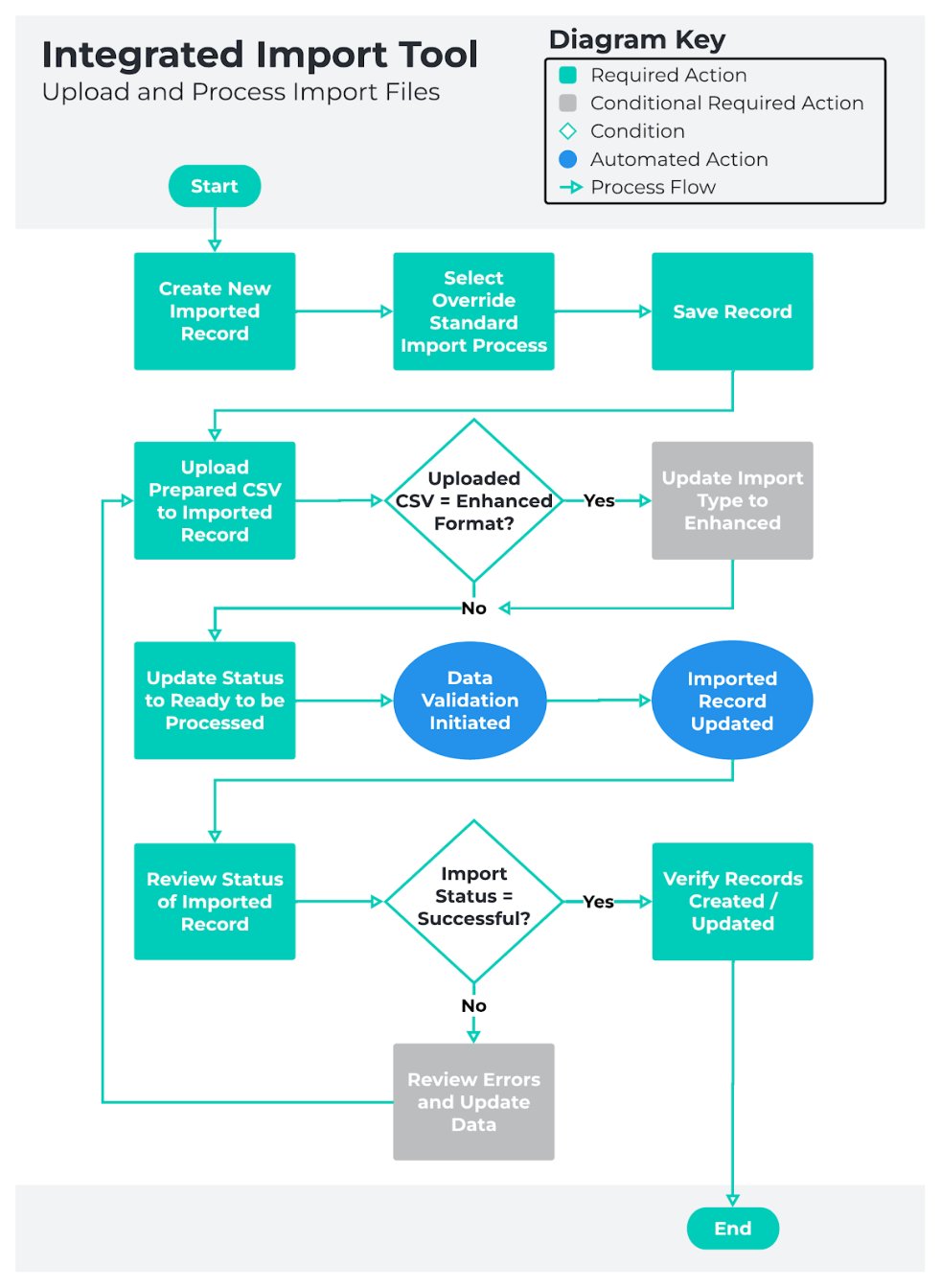
Once CSV data has been prepared for import, it must be uploaded directly to a new Imported Record for
validation and processing. The Record must then be edited to initiate data processing, following which
the Status will be updated to reflect the results of the most recent import attempt. The information
generated will either confirm successful processing of imported data, or advise that data corrections are
required before the next import attempt.
Where validation errors prevent CSV data from being successfully processed, the data import will be
reverted so that corrections can be made.
### Data Validation Success/Failure
There are a number of places the Imported Record will record the results of an import attempt.
Reviewing the Number of Imported Records, Error Summary and attached Success Records and/or Failed
Records files will confirm:
* Whether processing failed during data validation or data import.
* Errors that caused processing to fail.
* The specific data that encountered errors.
Refer to the below list to familiarise yourself with the success/fail logic used by the Integrated Import
Tool:
* If missing or incorrect data is encountered during validation:
1. Data import will not proceed, and all data will be listed as Failed Records.
2. Validation errors encountered will be listed under the Error Summary.
3. Separate Success and Failed CSV files will be attached to the Imported Record, itemising
the data rows that succeeded and failed to be imported, and detailing any errors
encountered.
* If validation is successful, but errors are encountered during data import:
1. No additional data will be imported. Any records created or modified before the error was
encountered will be rolled back.
2. The number of records that were successfully imported before being rolled back will be
listed as Successful Records.
3. The number of records that failed to be imported due to the error(s) encountered will be
listed as Failed Records.
4. Separate Success and Failed CSV files will be attached to the Imported Record, itemising
the data rows that succeeded and failed to be imported, and detailing any errors
encountered.
The Failed Records file contains columns to display the Status, Errors/Warnings and Results for each row
of data that has encountered errors. Many errors can be listed within each row.
The Number listed in brackets within the title of the file name reflects the number of rows of data that
have succeeded or failed to be imported.
Please refer to the diagram on the following page for an overview of how to upload and Process Import
Files.
### Upload and Process Import Files
Once CSV data has been prepared for import, it must be uploaded directly to a new Imported Record for
validation and processing. The Record must then be edited to initiate data processing, following which
the Status will be updated to reflect the results of the most recent import attempt. The information
generated will either confirm successful processing of imported data, or advise that data corrections are
required before the next import attempt.
Where validation errors prevent CSV data from being successfully processed, the data import will be
reverted so that corrections can be made.
### Data Validation Success/Failure
There are a number of places the Imported Record will record the results of an import attempt.
Reviewing the Number of Imported Records, Error Summary and attached Success Records and/or Failed
Records files will confirm:
* Whether processing failed during data validation or data import.
* Errors that caused processing to fail.
* The specific data that encountered errors.
Refer to the below list to familiarise yourself with the success/fail logic used by the Integrated Import
Tool:
* If missing or incorrect data is encountered during validation:
1. Data import will not proceed, and all data will be listed as Failed Records.
2. Validation errors encountered will be listed under the Error Summary.
3. Separate Success and Failed CSV files will be attached to the Imported Record, itemising
the data rows that succeeded and failed to be imported, and detailing any errors
encountered.
* If validation is successful, but errors are encountered during data import:
1. No additional data will be imported. Any records created or modified before the error was
encountered will be rolled back.
2. The number of records that were successfully imported before being rolled back will be
listed as Successful Records.
3. The number of records that failed to be imported due to the error(s) encountered will be
listed as Failed Records.
4. Separate Success and Failed CSV files will be attached to the Imported Record, itemising
the data rows that succeeded and failed to be imported, and detailing any errors
encountered.
The Failed Records file contains columns to display the Status, Errors/Warnings and Results for each row
of data that has encountered errors. Many errors can be listed within each row.
The Number listed in brackets within the title of the file name reflects the number of rows of data that
have succeeded or failed to be imported.
Please refer to the diagram on the following page for an overview of how to upload and Process Import
Files.
 ## Further Information
| Document | Document Type | Description |
| ------------------------------------------------------------------------------ | ------------------- | ------------------------------------------------------------------------------------------------------------------------------------- |
| Configuration Guide to 2cloudnine Payroll Suite | Configuration Guide | Configuration Guide for the implementation of 2cloudnine Payroll. |
| 2cloudnine Integrated Import Tool - Configuration and Implementation Guide | Configuration Guide | Configuration Guide for the implementation of the 2cloudnine Integrated Import Tool. |
| QRG Integrated Import Tool - Populate Timesheet CSV Files (Standard) | Task Instructions | How to populate data using the Standard CSV template for Timesheet Entries when uploading to Imported Records. |
| QRG Integrated Import Tool - Populate Timesheet CSV Files (Enhanced) | Task Instructions | How to populate data using the Enhanced CSV template for Timesheet Entries when uploading to Imported Records. |
| QRG Integrated Import Tool - Populate Allowance Timesheet CSV Files (Standard) | Task Instructions | How to populate data using the Standard CSV template for Allowance Timesheet Items when uploading to Imported Records. |
| QRG Integrated Import Tool - Populate Allowance Timesheet CSV Files (Enhanced) | Task Instructions | How to populate data using the Enhanced CSV template for Allowance Timesheet Items when uploading to Imported Records. |
| QRG Integrated Import Tool - Populate Pay Transaction CSV Files | Task Instructions | How to populate data using the Standard CSV template for Pay Transactions when uploading to Imported Records. |
| QRG Integrated Import Tool - Upload and Process Import Files | Task Instructions | How to use the Integrated Import Tool to validate and process external data for the automatic creation of 2cloudnine Payroll records. |
## Further Information
| Document | Document Type | Description |
| ------------------------------------------------------------------------------ | ------------------- | ------------------------------------------------------------------------------------------------------------------------------------- |
| Configuration Guide to 2cloudnine Payroll Suite | Configuration Guide | Configuration Guide for the implementation of 2cloudnine Payroll. |
| 2cloudnine Integrated Import Tool - Configuration and Implementation Guide | Configuration Guide | Configuration Guide for the implementation of the 2cloudnine Integrated Import Tool. |
| QRG Integrated Import Tool - Populate Timesheet CSV Files (Standard) | Task Instructions | How to populate data using the Standard CSV template for Timesheet Entries when uploading to Imported Records. |
| QRG Integrated Import Tool - Populate Timesheet CSV Files (Enhanced) | Task Instructions | How to populate data using the Enhanced CSV template for Timesheet Entries when uploading to Imported Records. |
| QRG Integrated Import Tool - Populate Allowance Timesheet CSV Files (Standard) | Task Instructions | How to populate data using the Standard CSV template for Allowance Timesheet Items when uploading to Imported Records. |
| QRG Integrated Import Tool - Populate Allowance Timesheet CSV Files (Enhanced) | Task Instructions | How to populate data using the Enhanced CSV template for Allowance Timesheet Items when uploading to Imported Records. |
| QRG Integrated Import Tool - Populate Pay Transaction CSV Files | Task Instructions | How to populate data using the Standard CSV template for Pay Transactions when uploading to Imported Records. |
| QRG Integrated Import Tool - Upload and Process Import Files | Task Instructions | How to use the Integrated Import Tool to validate and process external data for the automatic creation of 2cloudnine Payroll records. |