> ## Documentation Index
> Fetch the complete documentation index at: https://documentation.2cloudnine.com/llms.txt
> Use this file to discover all available pages before exploring further.
# QRG Integrated Import Tool - Upload and Process Import Files
## **Purpose**
The purpose of this quick reference guide is to step through the process of importing Timesheet or Pay Transaction data into a new Import record using the Integrated Import Tool. The intended audience for this document are System Administrators / Standard Users.
## **Steps**
## **Create Imported Record**
The Integrated Import Tool uses the Imported Records Object as a junction between uploaded CSV data files and the related 2cloudnine records. This allows external data related to Pay Transactions, Timesheet Entries and Allowance Timesheet Items to be validated and processed directly from the Imported Record, rather than requiring a separate UI to process.
Prior to attempting import, data must be formatted according to one of the following CSV Templates, so that it may be processed by the Integrated Import Tool:
* [Integrated Import Tool - Pay Transactions Template.CSV](https://docs.google.com/spreadsheets/d/1K2XFE-0fN603sjYnOmx9dbVWAI-vqwkaLwHsW6WJ46s/edit?usp=drive_link)
* [Integrated Import Tool - Timesheet Entries Template (Standard).CSV](https://docs.google.com/spreadsheets/d/1kMSku3J-JnZktNVKdXfoqEl71K2f1_Bb9bk35eB4nuo/edit?usp=drive_link)
* [Integrated Import Tool - Timesheet Entries Template (Enhanced).CSV](https://docs.google.com/spreadsheets/d/19hiPzE3tZKI9yfAQ7dIncc5cxSDJXY645Z8pS04lHZo/edit?usp=drive_link)
* [Integrated Import Tool - Allowance Timesheet Items Template (Standard).CSV](https://docs.google.com/spreadsheets/d/1yDAmI4Tn070P2UOQBOjNeyzbIQgJoBOTNV0bAYgkWRU/edit?usp=drive_link)
* [Integrated Import Tool - Allowance Timesheet Items Template (Enhanced).CSV](https://docs.google.com/spreadsheets/d/1kQygaYgM1yw5Lgr44vR1Mo8AVJ__T1WdinyXJhTpCNc/edit?usp=drive_link)
For information on how to format data for import, please see the individual QRGs listed in Further Information for more detailed instructions.
To initiate the process of importing external data via the Integrated Import Tool, first create a new Imported Record by following the below steps:
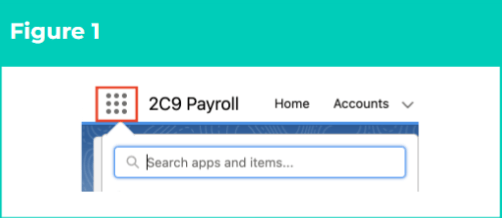
1. Click on the **App Launcher** icon (see Figure 1).
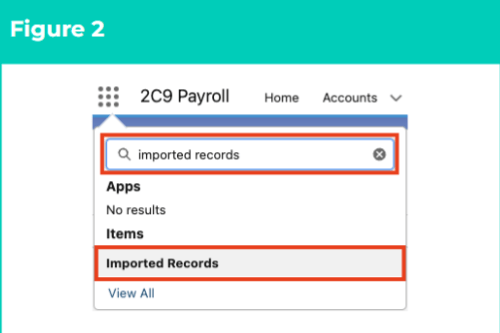
 2. Go to the **Imported Records** object by using the Search function (see Figure 2).
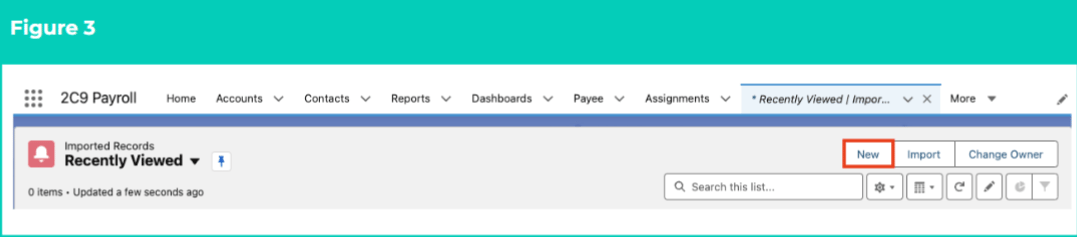
 3. Click on the **New** button (see Figure 3).
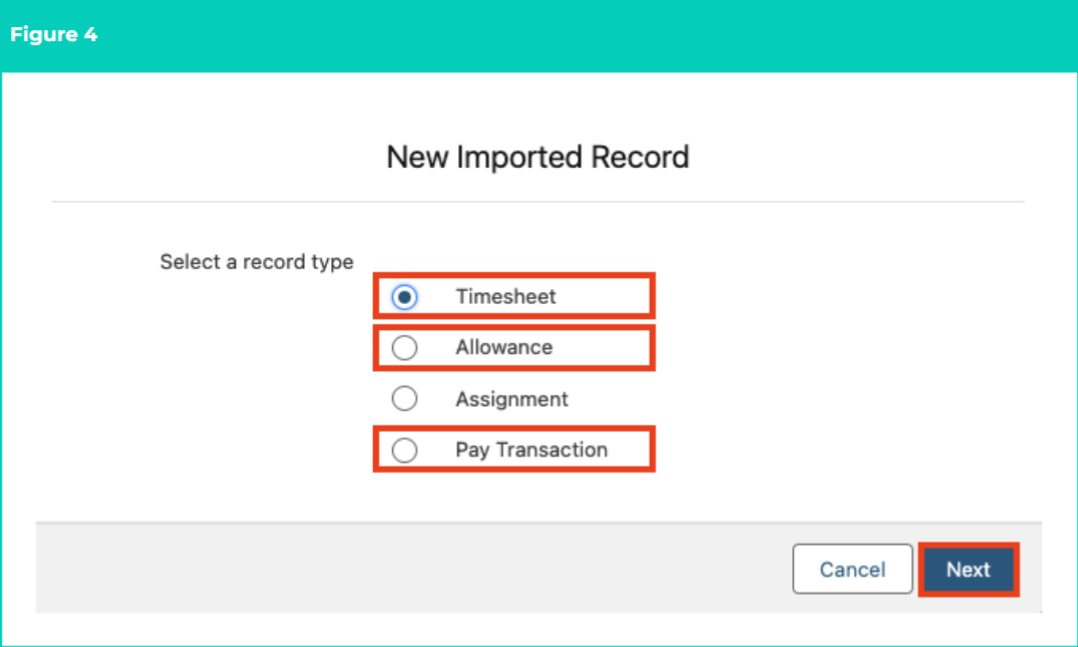
 4. Select **Timesheet** , **Allowance** or **Pay Transaction** from the available Record Types, and click on the **Next** button (see Figure 4).
 ***Important Notes***
*(Record Types)*
*Data import for Assignment records is not currently supported in the Integrated Import Tool, but is still available for use with the original Import Tool.*
*The Allowance Record Type is used to import Allowance Timesheet Item data.*
*If importing Timesheet Entries via the Timesheet Record Type, please ensure any associated Allowance Timesheet Items are imported BEFORE Timesheet Entry data.*
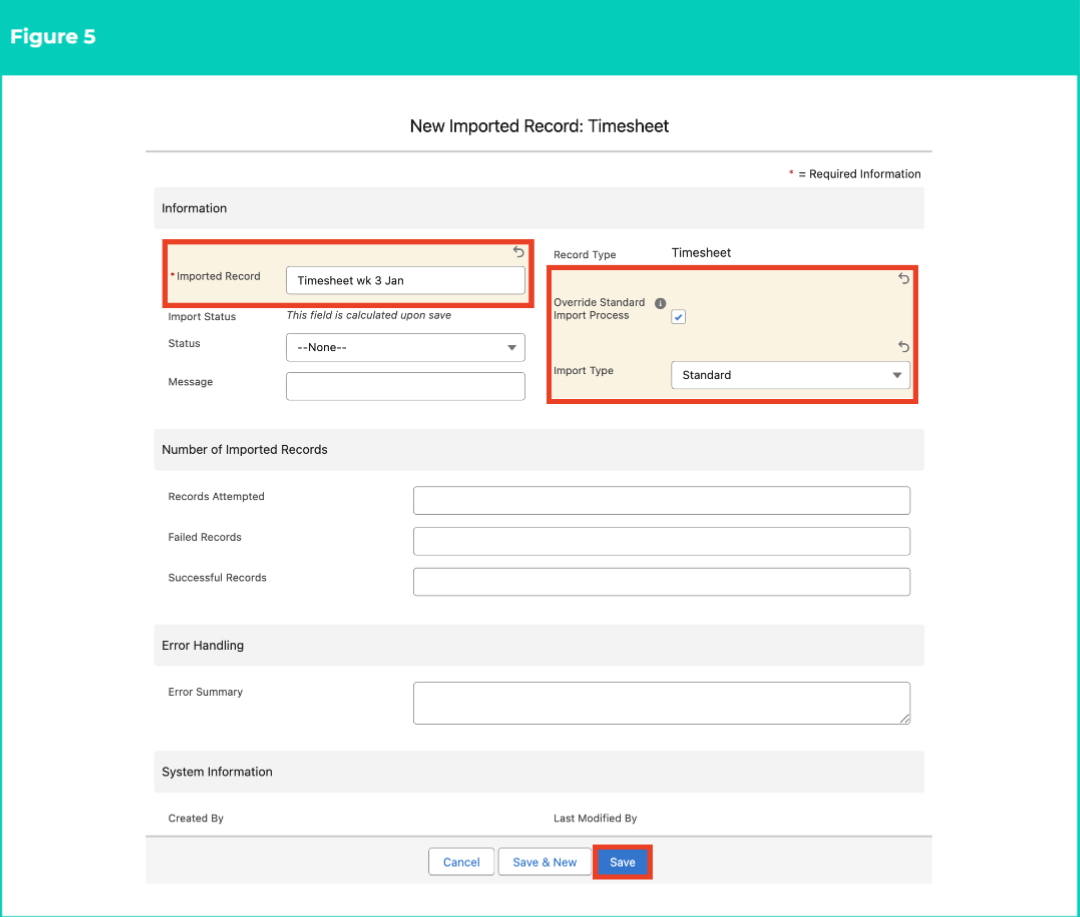
5. Populate the following fields (see Figure 5):
1. Populate the **Imported Record** field with a unique identifier for the data import file.
2. Define the CSV Template format used to prepare data by selecting either **Standard** or **Enhanced** from the available picklist options in the **Import Type** field.
3. Select the **Override Standard Import Process checkbox** field.
4. If the Pay Transaction Record Type was selected at step 4, and Pay Multipliers related to the data to be imported should be overridden to 1, populate the **Override Pay Multipliers** field.
6. Click on the **Save** button.
***Important Notes***
*(Record Types)*
*Data import for Assignment records is not currently supported in the Integrated Import Tool, but is still available for use with the original Import Tool.*
*The Allowance Record Type is used to import Allowance Timesheet Item data.*
*If importing Timesheet Entries via the Timesheet Record Type, please ensure any associated Allowance Timesheet Items are imported BEFORE Timesheet Entry data.*
5. Populate the following fields (see Figure 5):
1. Populate the **Imported Record** field with a unique identifier for the data import file.
2. Define the CSV Template format used to prepare data by selecting either **Standard** or **Enhanced** from the available picklist options in the **Import Type** field.
3. Select the **Override Standard Import Process checkbox** field.
4. If the Pay Transaction Record Type was selected at step 4, and Pay Multipliers related to the data to be imported should be overridden to 1, populate the **Override Pay Multipliers** field.
6. Click on the **Save** button.
 ***Important Notes***
*(Imported Record)*
*Picklist values for the Import Type field may differ, depending on customisations implemented for your Org. If the necessary values are not displayed, please contact your System Administrator for assistance.*
*The fields listed within the Number of Imported Records heading are automatically populated following each import attempt, and must not be manually overridden.*
## **Upload Data for Import**
Once the Imported Record has been created, the data that needs to be imported must be manually uploaded to the record, to enable validation and processing.
To upload data for processing using the Integrated Import Tool, the following steps should be completed:
7. Follow the instructions detailed in the applicable Populate CSV Files QRG to prepare your data for upload and import.
8. From the new Record page (created in steps 1-6), complete the following steps to upload files:
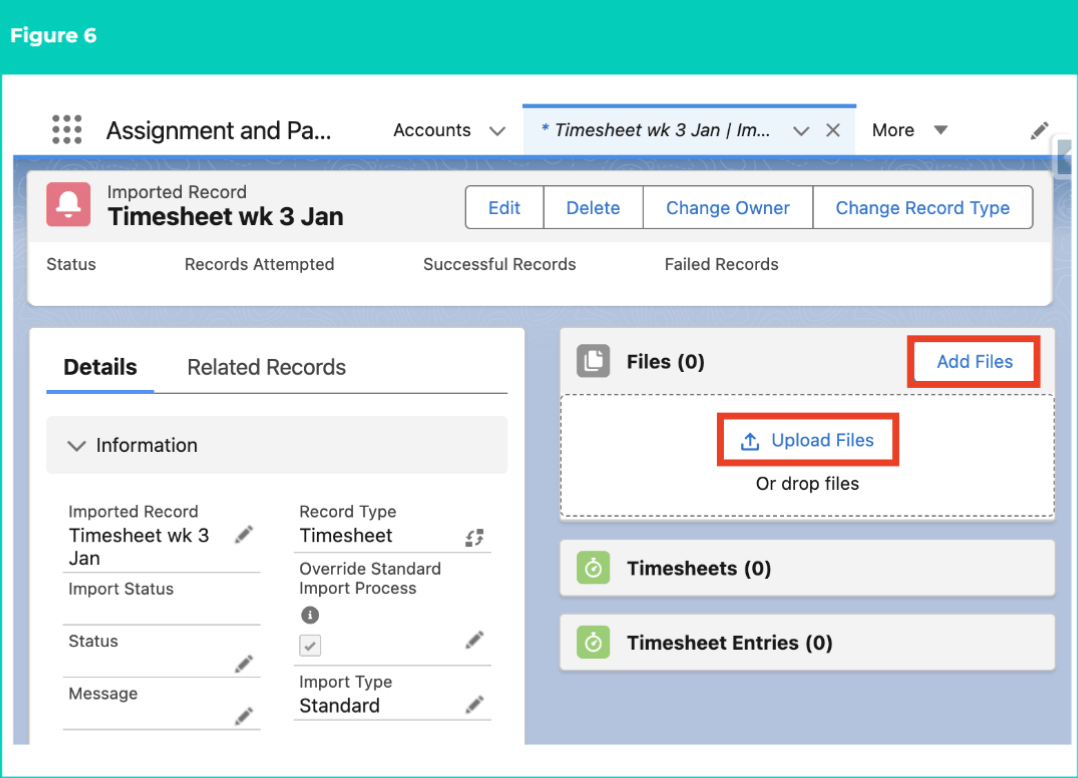
1. Select either **Add Files** or **Upload Files** to attach the prepared CSV to the Imported Record (see Figure 6).
***Important Notes***
*(Imported Record)*
*Picklist values for the Import Type field may differ, depending on customisations implemented for your Org. If the necessary values are not displayed, please contact your System Administrator for assistance.*
*The fields listed within the Number of Imported Records heading are automatically populated following each import attempt, and must not be manually overridden.*
## **Upload Data for Import**
Once the Imported Record has been created, the data that needs to be imported must be manually uploaded to the record, to enable validation and processing.
To upload data for processing using the Integrated Import Tool, the following steps should be completed:
7. Follow the instructions detailed in the applicable Populate CSV Files QRG to prepare your data for upload and import.
8. From the new Record page (created in steps 1-6), complete the following steps to upload files:
1. Select either **Add Files** or **Upload Files** to attach the prepared CSV to the Imported Record (see Figure 6).
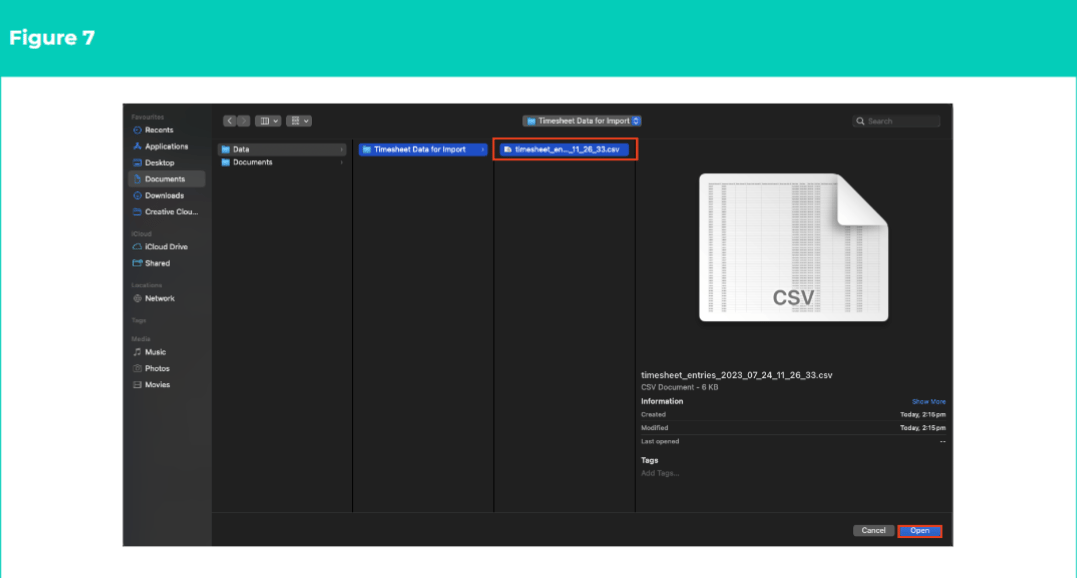
 2. Navigate to the data file to be uploaded, select the file and click on the **Open** button to begin the upload (see Figure 7).
 ***Important Notes***
*(CSV File)*
*All data uploaded for import must be formatted in line with the CSV Templates provided, and according to the instructions detailed in the associated QRGs.*
*The Integrated Import Tool has been designed to process complex data in large quantities. However, imitations still apply to the amount of data that may be imported within a single record. Please ensure data is broken up into logical segments where required, limiting to between 5,000 and 10,000 (max) rows of data, to avoid processing delays.*
*Although multiple CSV files may be uploaded, the Integrated Import Tool will only process ONE of the uploaded files for each Imported Record. Please do not attempt to upload multiple CSVs using the same Imported Record, as data inconsistencies may result from this practice.*
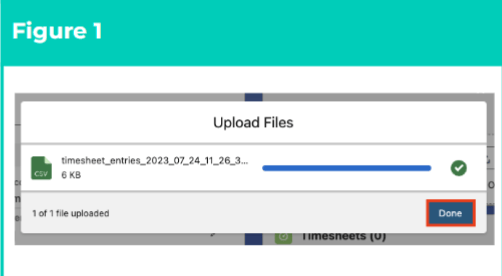
3. Wait for the progress bar in the Upload Files window to complete, then click on the **Done** button (see Figure 8).
***Important Notes***
*(CSV File)*
*All data uploaded for import must be formatted in line with the CSV Templates provided, and according to the instructions detailed in the associated QRGs.*
*The Integrated Import Tool has been designed to process complex data in large quantities. However, imitations still apply to the amount of data that may be imported within a single record. Please ensure data is broken up into logical segments where required, limiting to between 5,000 and 10,000 (max) rows of data, to avoid processing delays.*
*Although multiple CSV files may be uploaded, the Integrated Import Tool will only process ONE of the uploaded files for each Imported Record. Please do not attempt to upload multiple CSVs using the same Imported Record, as data inconsistencies may result from this practice.*
3. Wait for the progress bar in the Upload Files window to complete, then click on the **Done** button (see Figure 8).
 ## **Validate and Import Uploaded Data**
After creating a new Imported Record and uploading the file containing the data for import, the record must be manually edited to trigger validation and record creation for the imported data.
* Follow the below steps to import the uploaded data:
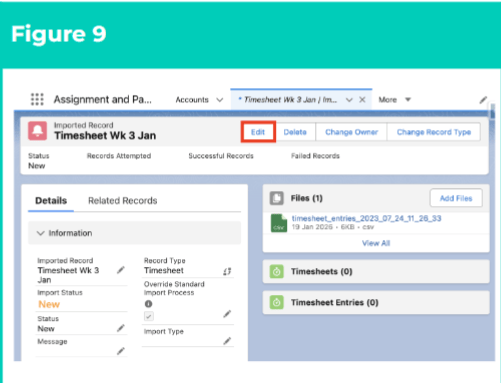
9. Click on the **Edit** button to modify the record (see Figure 9).
## **Validate and Import Uploaded Data**
After creating a new Imported Record and uploading the file containing the data for import, the record must be manually edited to trigger validation and record creation for the imported data.
* Follow the below steps to import the uploaded data:
9. Click on the **Edit** button to modify the record (see Figure 9).
 10. Populate the following fields to trigger validation and import of data for the uploaded file (see Figure 10):
1. Ensure the **Override Standard Import Process** field is checked (if not already selected).
2. In the **Status** field, select **Ready To Be Processed** from the available picklist values.
10. Populate the following fields to trigger validation and import of data for the uploaded file (see Figure 10):
1. Ensure the **Override Standard Import Process** field is checked (if not already selected).
2. In the **Status** field, select **Ready To Be Processed** from the available picklist values.
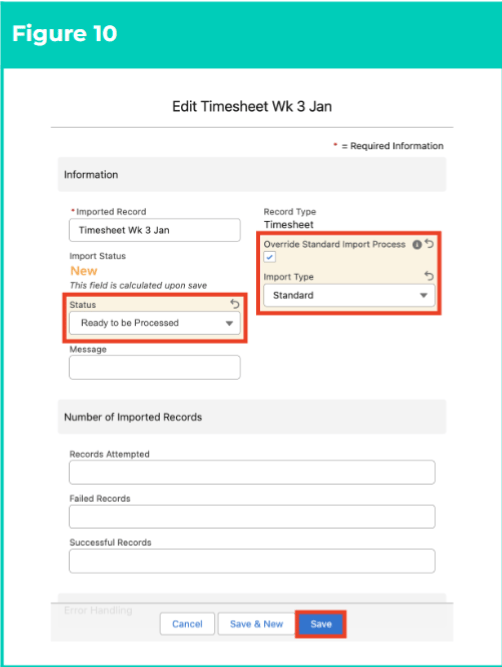 11. Click on the **Save** button.
***Important Notes***
*(Status = Ready to be Processed)*
*The Status field must NOT be updated to Ready To Be Processed unless the Override Standard Import Process checkbox is marked True. Failing to select this checkbox before updating the Status of the record will result in processing errors.*
## **Review Import Status**
Once the Status of the Imported Record has been updated and saved, the Integrated Import Tool will begin to validate the data contained within the uploaded file.
If data validation is successful, the Integrated Import Tool will create the data from the import file. If data validation is not successful, data from within the import file will not be created and will need to be manually amended before attempting validation again.
To determine whether data validation was successful, the following steps should be completed:
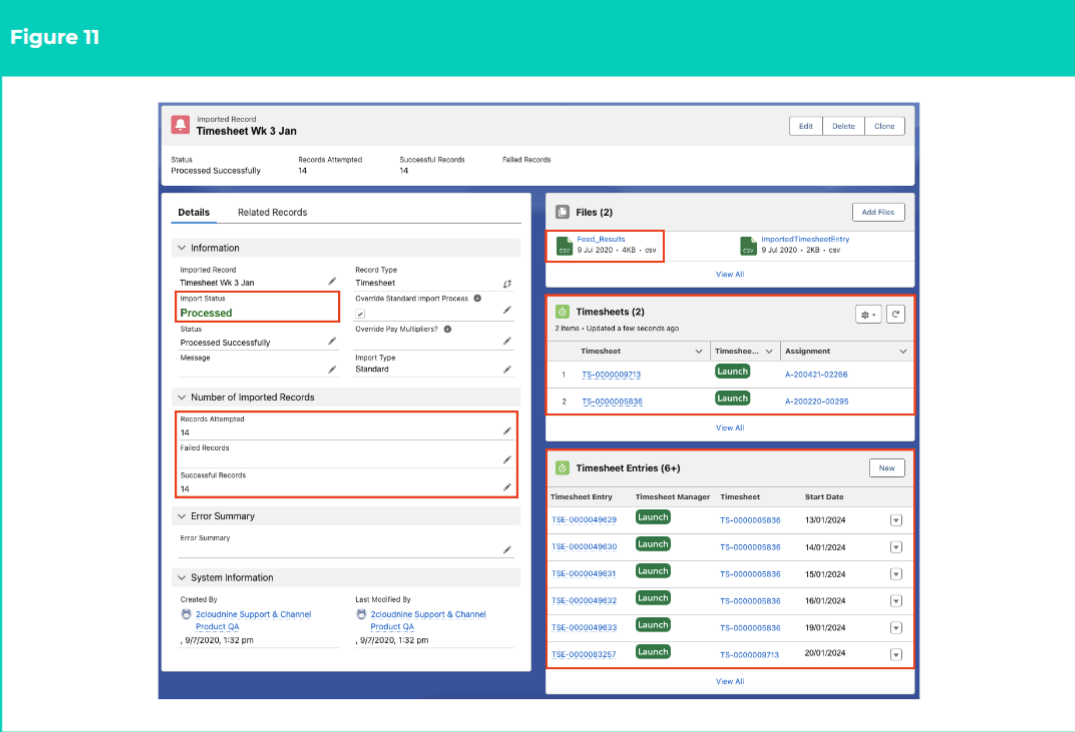
12. Review the **Import Status** field of the Imported Record (see Figure 11).
1. A **Failed** Status indicates that data validation was not successful.
2. A **Processed** Status indicates that data validation was successful and records have been imported.
13. Review the new CSV file automatically attached to the Imported Record upon completion of the validation attempt.
1. If successful, the CSV will be named **Success Records (\[number of records]).csv** , and will contain a new **Results** column that may contain additional information regarding the successful validation and import of source data.
2. If failed, the CSV will be named **Failed Records (\[number of records]).csv** .
14. Review the **Related Records** of the Imported Record.
1. If validation was successful, the new records created during data import will be listed in the related lists here.
15. Review the **Number of Imported Records** .
1. The number populated in the **Records Attempted** and **Successful Records** fields should be equal.
11. Click on the **Save** button.
***Important Notes***
*(Status = Ready to be Processed)*
*The Status field must NOT be updated to Ready To Be Processed unless the Override Standard Import Process checkbox is marked True. Failing to select this checkbox before updating the Status of the record will result in processing errors.*
## **Review Import Status**
Once the Status of the Imported Record has been updated and saved, the Integrated Import Tool will begin to validate the data contained within the uploaded file.
If data validation is successful, the Integrated Import Tool will create the data from the import file. If data validation is not successful, data from within the import file will not be created and will need to be manually amended before attempting validation again.
To determine whether data validation was successful, the following steps should be completed:
12. Review the **Import Status** field of the Imported Record (see Figure 11).
1. A **Failed** Status indicates that data validation was not successful.
2. A **Processed** Status indicates that data validation was successful and records have been imported.
13. Review the new CSV file automatically attached to the Imported Record upon completion of the validation attempt.
1. If successful, the CSV will be named **Success Records (\[number of records]).csv** , and will contain a new **Results** column that may contain additional information regarding the successful validation and import of source data.
2. If failed, the CSV will be named **Failed Records (\[number of records]).csv** .
14. Review the **Related Records** of the Imported Record.
1. If validation was successful, the new records created during data import will be listed in the related lists here.
15. Review the **Number of Imported Records** .
1. The number populated in the **Records Attempted** and **Successful Records** fields should be equal.
 If the data import has been successfully **Processed** , no further action is required.
If data import has **Failed** , the following steps should be completed:
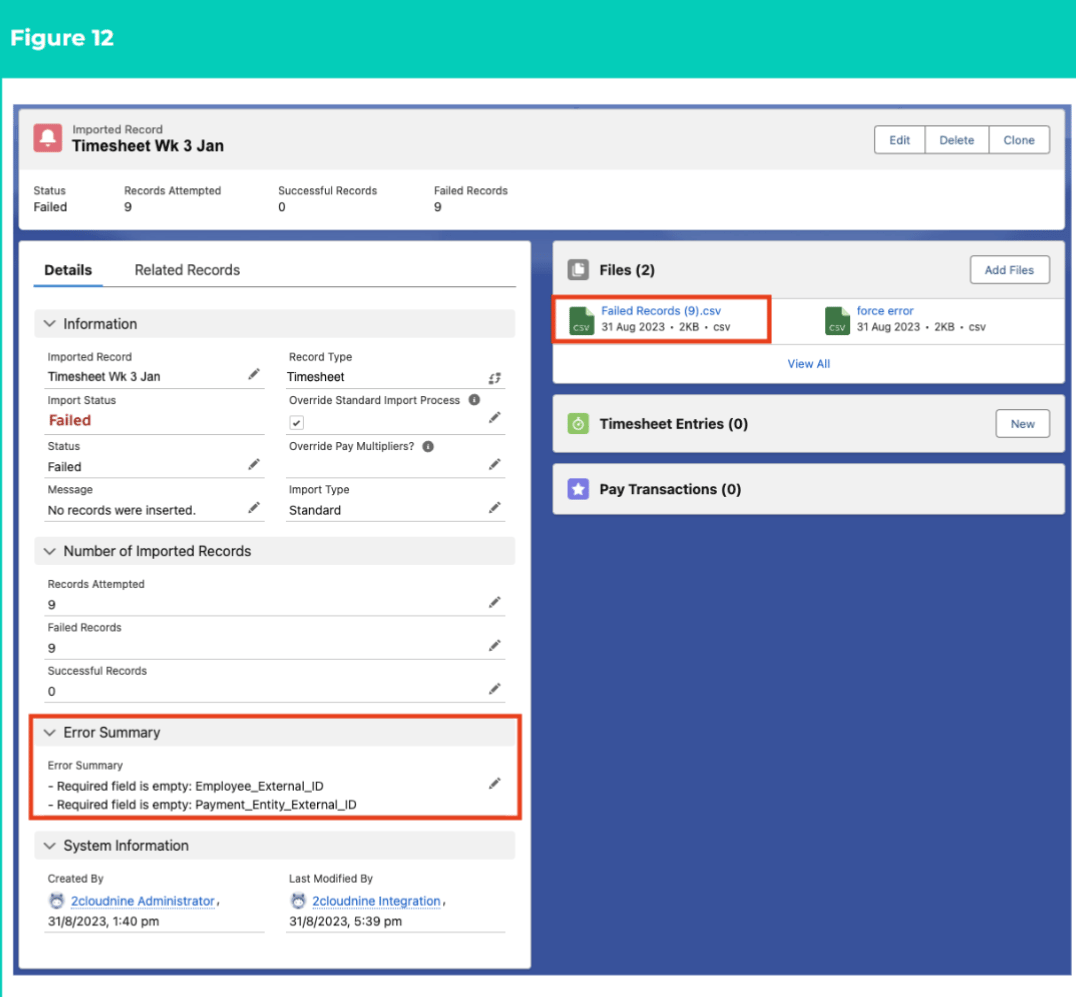
16. Review the warnings displayed in the Message and Error Summary fields (see Figure 12).
17. Open the attached **Failed Records** CSV file.
If the data import has been successfully **Processed** , no further action is required.
If data import has **Failed** , the following steps should be completed:
16. Review the warnings displayed in the Message and Error Summary fields (see Figure 12).
17. Open the attached **Failed Records** CSV file.
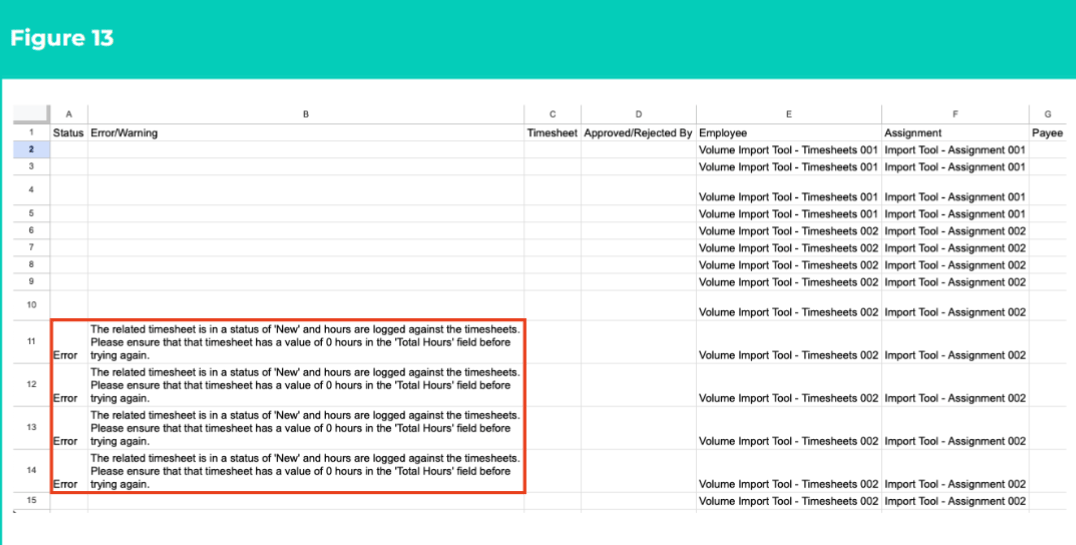
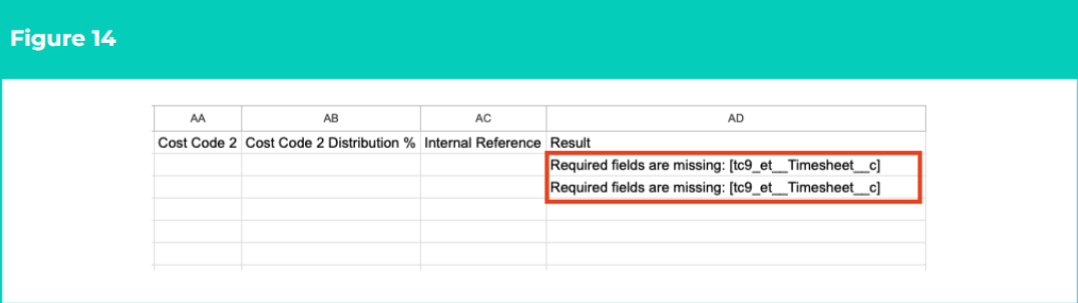
 18. Review the message populated in the **Status** & **Error/Warning** or **Result** fields for each line of data.
19. **Status** & **Error/Warning** fields will always be displayed in the first two columns of the CSV (see Figure 13).
18. Review the message populated in the **Status** & **Error/Warning** or **Result** fields for each line of data.
19. **Status** & **Error/Warning** fields will always be displayed in the first two columns of the CSV (see Figure 13).
 2. **Result** fields will always be displayed in the last column of the CSV (see Figure 14).
 19. Resolve the data issues as detailed in the attached Failed file by following the below steps:
20. To open and modify the CSV file:
1. Click on the uploaded **Figure 15** CSV file (see Figure 15).
19. Resolve the data issues as detailed in the attached Failed file by following the below steps:
20. To open and modify the CSV file:
1. Click on the uploaded **Figure 15** CSV file (see Figure 15).
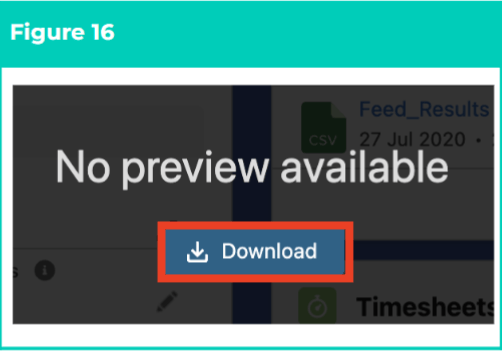
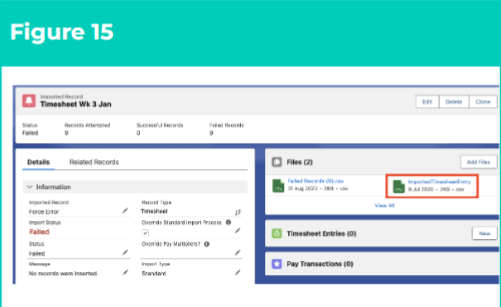 2. Click on the **Download** button (see Figure 16).
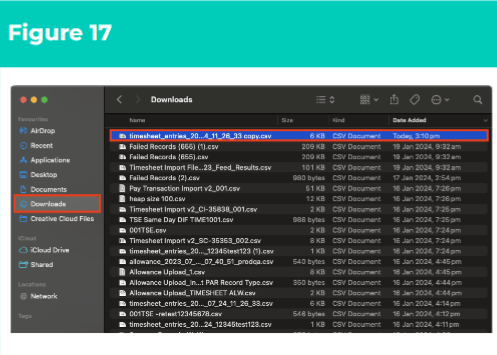
 3. Open the downloaded CSV file (see Figure 17).
 2. Make the necessary data corrections.
3. Replace the existing uploaded CSV data file with the corrected CSV file by following the below steps:
4. Click on the **View All** button beneath the related **Files** records (see Figure 18).
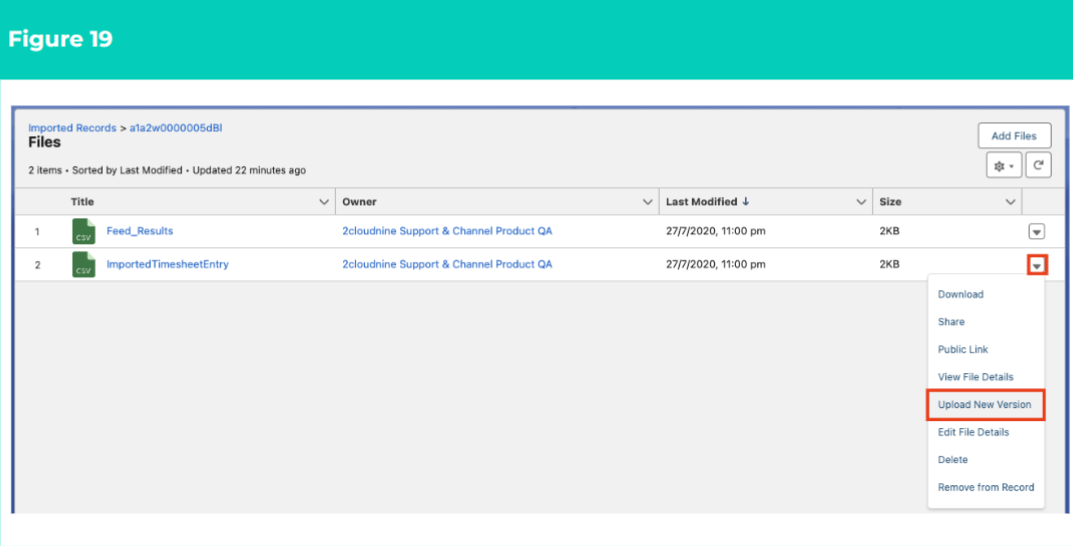
2. Click on the button and select **Upload New Version** to upload and overwrite the original CSV data file with the new CSV data file (see Figure 19).
2. Make the necessary data corrections.
3. Replace the existing uploaded CSV data file with the corrected CSV file by following the below steps:
4. Click on the **View All** button beneath the related **Files** records (see Figure 18).
2. Click on the button and select **Upload New Version** to upload and overwrite the original CSV data file with the new CSV data file (see Figure 19).
 21. Return to steps **9-15** to re-attempt validation and processing for the corrected data.
## **Field Descriptions**
| Field Name | Description |
| -------------------------------- | ------------------------------------------------------------------------------------------------------------------------------------------------------------------------------------------------------------------------------------------------------------------------------------------------------------------------------------------------------------------------------------------------------------------------------------------------------------------------------------------------------------------------------------------------------------------------------------------------------------------------------- |
| Error Summary | Provides a summary of errors encountered during either data validation or data import. |
| Failed Records | Details the number of imported records that were not successfully processed.
21. Return to steps **9-15** to re-attempt validation and processing for the corrected data.
## **Field Descriptions**
| Field Name | Description |
| -------------------------------- | ------------------------------------------------------------------------------------------------------------------------------------------------------------------------------------------------------------------------------------------------------------------------------------------------------------------------------------------------------------------------------------------------------------------------------------------------------------------------------------------------------------------------------------------------------------------------------------------------------------------------------- |
| Error Summary | Provides a summary of errors encountered during either data validation or data import. |
| Failed Records | Details the number of imported records that were not successfully processed.
- The Integrated Import Tool does not support partial data import:
- If any errors are encountered during data validation, data import will not occur and all records will be marked as failed.
- If errors are encountered during data import, any newly created records will be deleted, and updated records will revert to their original values. The number of records that failed to import will be marked as failed, and records that were able to be imported will be marked as successful.
|
| Import Status | Indicates the progress of the data import. |
| Import Type | Indicates the type of import used to process the Imported Record:
- Timesheet Standard or Enhanced
- Allowance Standard or Enhanced
- Pay Transaction Standard
|
| Imported Record | The unique name given to the Imported Record. |
| Message | Displays the last message generated for the Imported Record (i.e. ‘All records inserted successfully.’) |
| Override Pay Multipliers? | Indicates whether Pay Rate Multipliers need to be overridden to 1 during the Pay Transaction Import process. |
| Override Standard Import Process | When true, the attached CSV data file will be processed by the Integrated Import Tool. |
| Record Type | The record type of the data captured in the CSV for import (Timesheet, Allowance or Pay Transaction). |
| Records Attempted | Details the number of records where creation was attempted during processing. |
| Successful Records | Details the number of imported records that were successfully created. |
## **Further Information**
| Document | Document Type | Description |
| ----------------------------------------------------------------------------------- | --------------- | ---------------------------------------------------------------------------------------------------------------------------------------------------------------------------- |
| Integrated Import Tool - Key Information | Key Information | Outlines useful information relevant to the Integrated Import Tool functionality. The document includes definitions, prerequisites, and other non-instructional information. |
| QRG Integrated Import Tool - Populate Timesheet CSV Files (Standard) | QRG | How to populate data in the Standard CSV template for Timesheet Entries when uploading to Imported Records. |
| QRG Integrated Import Tool - Populate Timesheet CSV Files (Enhanced) | QRG | How to populate data in the Enhanced CSV template for Timesheet Entries when uploading to Imported Records. |
| QRG Integrated Import Tool - Populate Allowance Timesheet Item CSV Files (Standard) | QRG | How to populate data in the Standard CSV template for Allowance Timesheet Items when uploading to Imported Records. |
| QRG Integrated Import Tool - Populate Allowance Timesheet Item CSV Files (Enhanced) | QRG | How to populate data in the Enhanced CSV template for Allowance Timesheet Items when uploading to Imported Records. |
| QRG Integrated Import Tool - Populate Pay Transaction CSV Files | QRG | How to populate data in the Standard CSV template for Pay Transactions when uploading to Imported Records. |