> ## Documentation Index
> Fetch the complete documentation index at: https://documentation.2cloudnine.com/llms.txt
> Use this file to discover all available pages before exploring further.
# QRG Create Interpretation Rule - Create Custom Interpretation Variation
## Purpose
The purpose of this quick reference guide is to step through the process of creating a custom Variation
for an Interpretation Rule. The intended audience for this document are system administrators / standard
users.
## Steps
### Create a new Interpretation Variation Rule\*\*
The custom Variation allows new Breakpoints to be created in order to define the conditions that should
be applied when a particular Timesheet Activity is populated within a Timesheet Entry during
Interpretation. This enables Timesheet Interpretation to occur according to the conditions defined in the
Variation, instead of the Interpretation Rule.
When creating a custom Variation, most of the fields presented in the Interpretation Rule Builder will be
the same as those in an Hourly, Shift Start or Shift End Interpretation Rule. However, only certain fields
need to be populated in order to finalise the Variation. Weekday Rules, Weekend Rules, Public Holiday
Rules, Frequency Breakpoints and Pay Code Caps all must be completed before the Variation can be
finalised. However the data populated within Frequency Hours will be overwritten by the data in the base
Interpretation Rule, and is only required so that the Builder page is populated with the minimum data
requirements necessary to create Breakpoints.
There are other fields throughout the record which may be populated to override the values defined in
the base Interpretation Rule, but which only need to be completed if they relate to the changed work
conditions captured by the Variation.
Create a custom Variation by following the below steps:
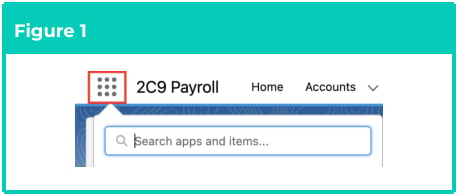
1. Click on the **App Launcher** icon (see
Figure 1).
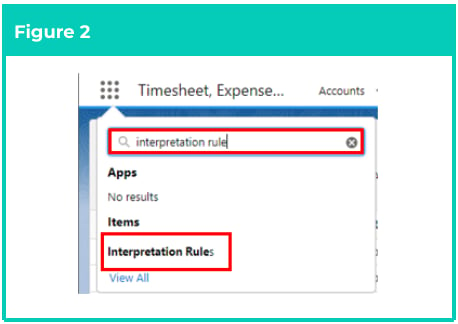
2. Go to the **Interpretation Rule** object by
using the Search function (see Figure 2).
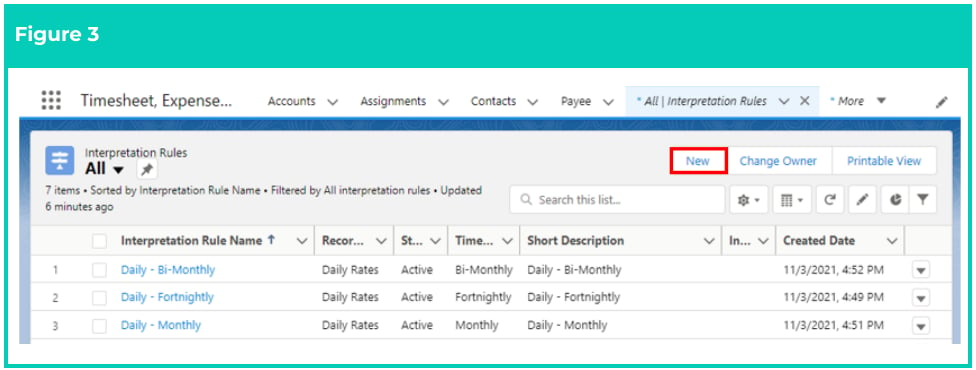
3. Click on the **New** button (see Figure 3).
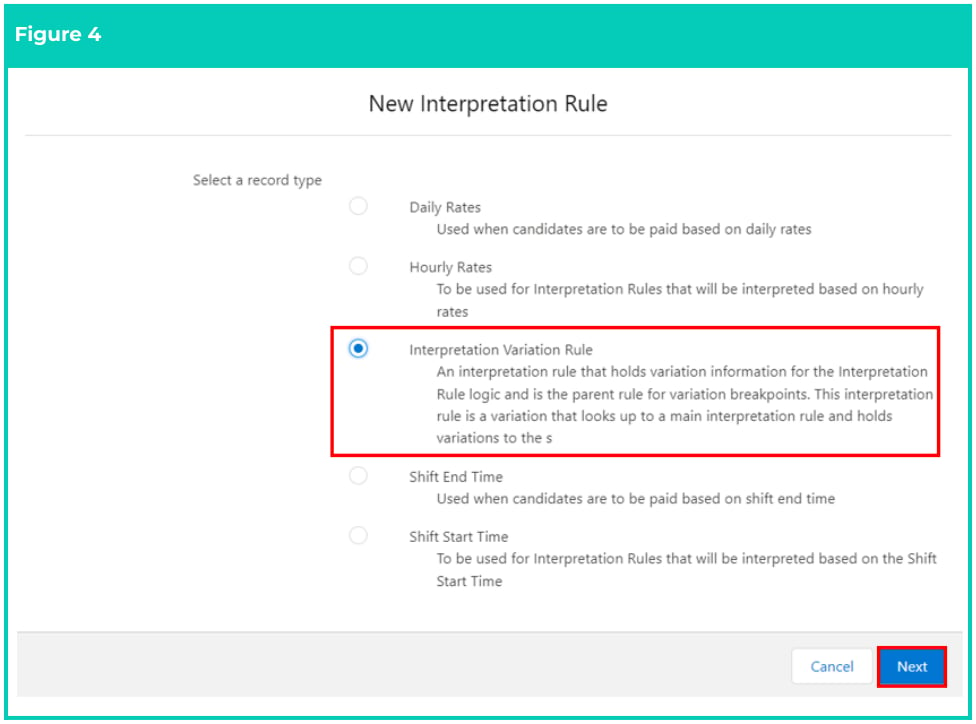
 4. Select **Interpretation Variation Rule** from the available Interpretation Rules and click on the **Next**
button (see Figure 4).
4. Select **Interpretation Variation Rule** from the available Interpretation Rules and click on the **Next**
button (see Figure 4).
 5. Follow this step in the sequence given (see Figure 5):
1. To determine the Variation type, select one of the custom Variation options from the
available picklist values in the **Variation Type** field.
2. To align the Variation with the Interpretation record type that it will be applied to, select
from the options in the **Variation Interpretation Type** field.
1. **Hourly**
2. **Shift Start**
3. **Shift End**
3. Click on the **Create** button.
5. Follow this step in the sequence given (see Figure 5):
1. To determine the Variation type, select one of the custom Variation options from the
available picklist values in the **Variation Type** field.
2. To align the Variation with the Interpretation record type that it will be applied to, select
from the options in the **Variation Interpretation Type** field.
1. **Hourly**
2. **Shift Start**
3. **Shift End**
3. Click on the **Create** button.
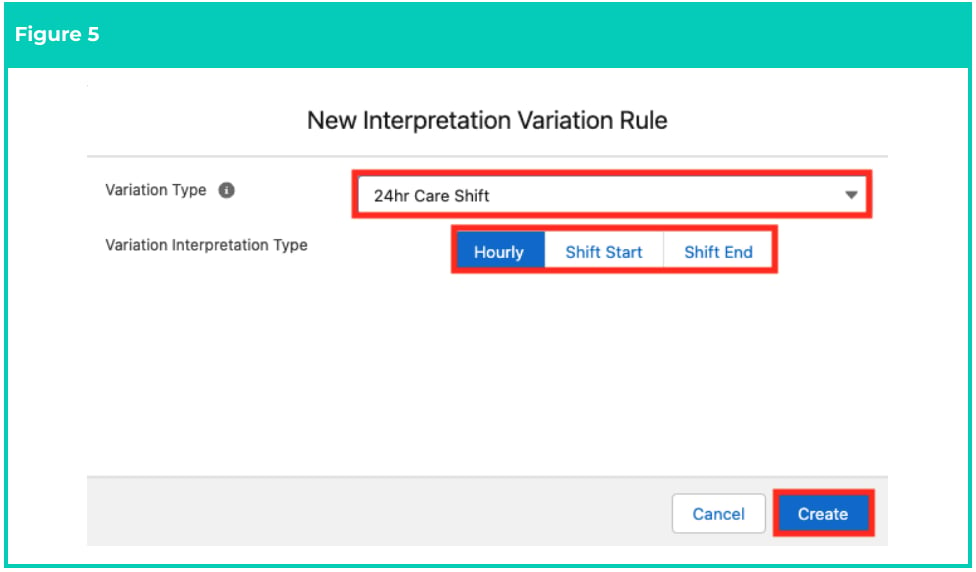 The options available in the Variation Type field will differ, depending on the names
given to the custom Variation Types created in an Org. This example has used the ‘24hr
Care Shift’ custom Variation Type.
If a required Variation Type is not available, contact the System Administrator for
assistance with the creation of a new Global Picklist value for the Interpretation
Variation Type.
The Variation Interpretation Type selected MUST match the record type of the base
Interpretation Rule.
Variations can only be applied during Interpretation when a Timesheet Activity has
been populated to indicate that changed work conditions apply for the Time entered.
If no Timesheet Activity Project Codes are associated with the Variation Type selected
in Step 5., the Variation will not be available for Interpretation. For more information on
how to create a Timesheet Activity Project Code associated with a Variation, follow the
instructions provided in the Create Project Code Timesheet Activity (Assignment Level)
QRG.
6. Follow this step in the sequence given (see Figure 6):
1. Populate the following required fields to provide the base details of the Variation:
1. To create a unique identifier for the Variation, populate the **Interpretation Rule**
**Name** field.
2. To determine the frequency of the Timesheet that applies to the Variation,
populate the **Timesheet Frequency** field using the lookup options available.
3. To identify the Interpretation Rule that the Variation will be related to, populate
the **Interpretation Rule** field using the lookup options available.
2. Populate the following optional fields as required:
1. To provide a description that can be used to quickly identify the Variation,
populate the **Short Description** field.
2. To provide a description that can be used to identify the configuration of the
Variation, populate the **Long Description** field.
The options available in the Variation Type field will differ, depending on the names
given to the custom Variation Types created in an Org. This example has used the ‘24hr
Care Shift’ custom Variation Type.
If a required Variation Type is not available, contact the System Administrator for
assistance with the creation of a new Global Picklist value for the Interpretation
Variation Type.
The Variation Interpretation Type selected MUST match the record type of the base
Interpretation Rule.
Variations can only be applied during Interpretation when a Timesheet Activity has
been populated to indicate that changed work conditions apply for the Time entered.
If no Timesheet Activity Project Codes are associated with the Variation Type selected
in Step 5., the Variation will not be available for Interpretation. For more information on
how to create a Timesheet Activity Project Code associated with a Variation, follow the
instructions provided in the Create Project Code Timesheet Activity (Assignment Level)
QRG.
6. Follow this step in the sequence given (see Figure 6):
1. Populate the following required fields to provide the base details of the Variation:
1. To create a unique identifier for the Variation, populate the **Interpretation Rule**
**Name** field.
2. To determine the frequency of the Timesheet that applies to the Variation,
populate the **Timesheet Frequency** field using the lookup options available.
3. To identify the Interpretation Rule that the Variation will be related to, populate
the **Interpretation Rule** field using the lookup options available.
2. Populate the following optional fields as required:
1. To provide a description that can be used to quickly identify the Variation,
populate the **Short Description** field.
2. To provide a description that can be used to identify the configuration of the
Variation, populate the **Long Description** field.
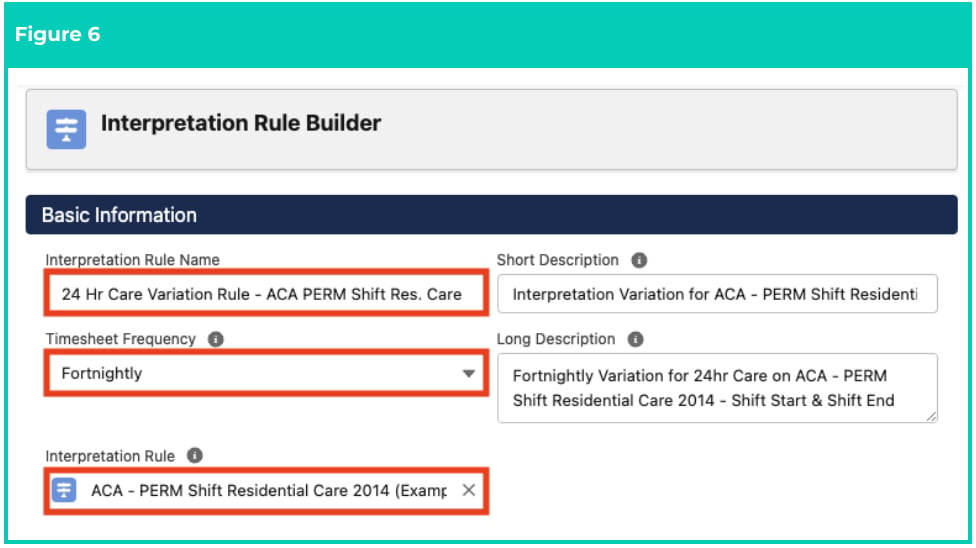 The Timesheet Frequency populated for the Variation MUST match the Timesheet
Frequency populated for the related Interpretation Rule.
7. Within the General Info section of the Interpretation Rule Builder, the following fields may be
populated, if required for the Variation, to override the values in the corresponding fields on the
related Interpretation Rule (see Figure 7):
1. **Apply Shift End or Shift Start Interpretation**
2. **Apply Break Time Interpretation**
3. **Apply Casual Loading**
4. **Apply Penalty Loading**
The Timesheet Frequency populated for the Variation MUST match the Timesheet
Frequency populated for the related Interpretation Rule.
7. Within the General Info section of the Interpretation Rule Builder, the following fields may be
populated, if required for the Variation, to override the values in the corresponding fields on the
related Interpretation Rule (see Figure 7):
1. **Apply Shift End or Shift Start Interpretation**
2. **Apply Break Time Interpretation**
3. **Apply Casual Loading**
4. **Apply Penalty Loading**
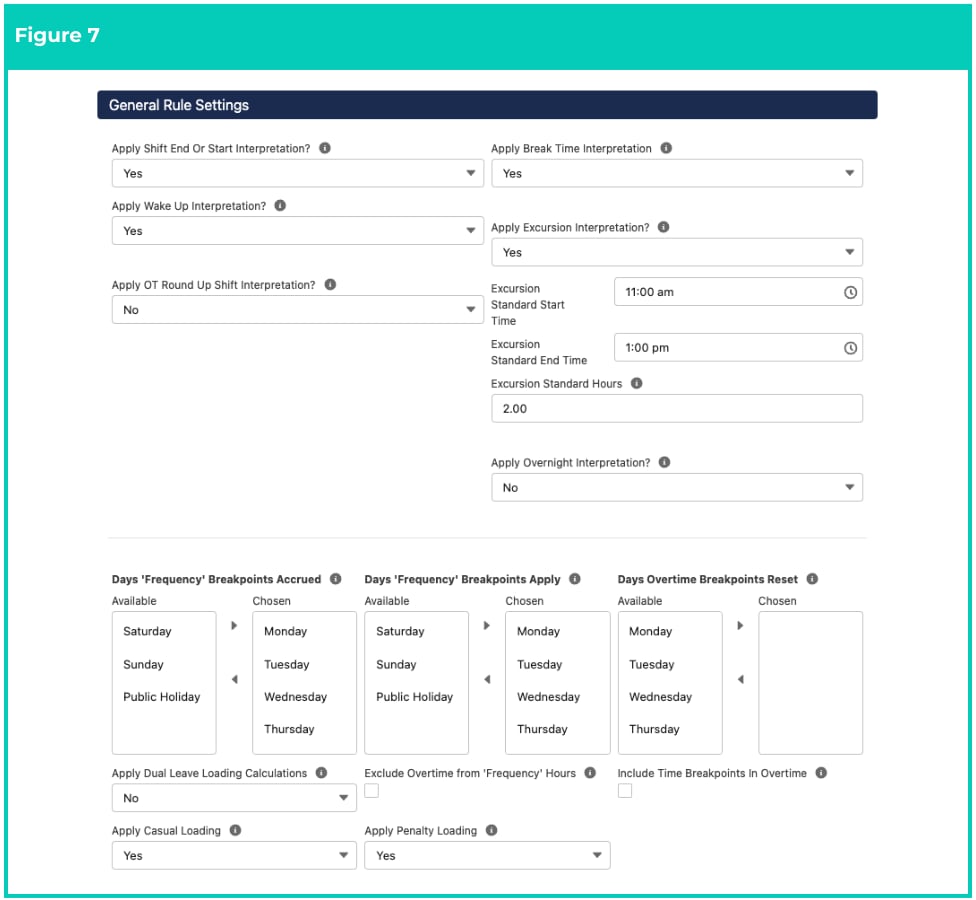 For more information on how to populate the fields indicated above, refer to the
instructions provided in the Populate Hourly Rate Breakpoints or Populate Shift Time
Breakpoints QRGs.
The Apply Shift End or Start Interpretation field is only available if Shift Start or Shift
End Variation Interpretation Types were selected at Step 5.
All fields within the General Rule Settings section, other than those indicated in Step 7.,
will be populated from the base Interpretation Rule. Updating these fields within a
Variation will not affect the base Interpretation Rule, and will be overridden by the
values defined in the Interpretation Rule. If changes to these fields are required, a new
Interpretation Rule should be created to facilitate them.
No fields within the Break Loading and Minimum Rest Rules or Split/Broken Shift or
Sleepover Rules should be populated within a Variation. Updating these fields within a
Variation will not affect the Interpretation Rule, and will be overridden by the values
defined in the Interpretation Rule. If changes to these fields are required, a new
Interpretation Rule should be created to facilitate them.
8. To populate the Ordinary Hours Breakpoints for the custom Variation, follow this step in the
sequence given below (see Figure 8):
1. To define the maximum Ordinary hours that may be paid within a single day before
Overtime Pay Codes from the related Interpretation Rule will be applied, populate the
**Weekday Standard Hours** field.
2. To define the minimum amount of hours that are payable each Weekday, regardless of
the actual hours entered within Timesheet Entries, populate the **Minimum Weekday**
**Paid Hours** field.
3. To define the Pay Codes for Weekday Variation Breakpoints, populate the **End Time**
**Breakpoints**, **Start Time Breakpoints** or **Time Breakpoints** as well as the **Hours**
**Breakpoints** per the instructions provided in the Populate Hourly Breakpoints QRG or
Populate Shift Time Breakpoints QRG, depending on the Variation Interpretation Type
selected at Step 5.
For more information on how to populate the fields indicated above, refer to the
instructions provided in the Populate Hourly Rate Breakpoints or Populate Shift Time
Breakpoints QRGs.
The Apply Shift End or Start Interpretation field is only available if Shift Start or Shift
End Variation Interpretation Types were selected at Step 5.
All fields within the General Rule Settings section, other than those indicated in Step 7.,
will be populated from the base Interpretation Rule. Updating these fields within a
Variation will not affect the base Interpretation Rule, and will be overridden by the
values defined in the Interpretation Rule. If changes to these fields are required, a new
Interpretation Rule should be created to facilitate them.
No fields within the Break Loading and Minimum Rest Rules or Split/Broken Shift or
Sleepover Rules should be populated within a Variation. Updating these fields within a
Variation will not affect the Interpretation Rule, and will be overridden by the values
defined in the Interpretation Rule. If changes to these fields are required, a new
Interpretation Rule should be created to facilitate them.
8. To populate the Ordinary Hours Breakpoints for the custom Variation, follow this step in the
sequence given below (see Figure 8):
1. To define the maximum Ordinary hours that may be paid within a single day before
Overtime Pay Codes from the related Interpretation Rule will be applied, populate the
**Weekday Standard Hours** field.
2. To define the minimum amount of hours that are payable each Weekday, regardless of
the actual hours entered within Timesheet Entries, populate the **Minimum Weekday**
**Paid Hours** field.
3. To define the Pay Codes for Weekday Variation Breakpoints, populate the **End Time**
**Breakpoints**, **Start Time Breakpoints** or **Time Breakpoints** as well as the **Hours**
**Breakpoints** per the instructions provided in the Populate Hourly Breakpoints QRG or
Populate Shift Time Breakpoints QRG, depending on the Variation Interpretation Type
selected at Step 5.
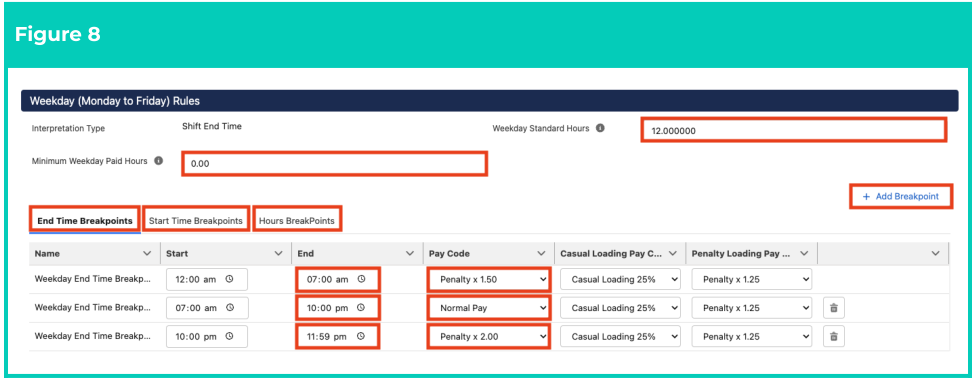 Breakpoints will default with the Start field of 12:00 am. The End field within each
Breakpoint will default to an overridable value of 11:59 pm, and every additional
Breakpoint is defaulted with Start values that correspond with the End value
populated in the previous line, negating the need for manual entry of the Start field.
To remove a Breakpoint, click on the Trash Can icon next to the corresponding line.
The Breakpoints populated for Variations MUST account for the full 24 hours of a shift,
including Overtime hours. Variation Breakpoints will override Breakpoints defined in
the related Interpretation Rule.
At least one Time Breakpoint, Shift End Time Breakpoint OR Shift Start Time
Breakpoint (depending on the Variation Interpretation Type selected at step 8.) AND
one Hours Breakpoint MUST be populated for Weekday, Saturday, Sunday AND Public
Holiday Rules, regardless of whether regular shifts occur on these days. This is required
to define the Ordinary Hours for the Timesheet Entries related to the custom Variation.
For further information on how Breakpoints are populated for each type of
Interpretation Rule, follow the instructions provided in the Populate Hourly
Breakpoints and Populate Shift Time Breakpoints QRGs.
1. Complete the required/optional fields and Breakpoints for Saturday Rules, per the instructions
provided in Step 8.
2. Complete the required/optional fields and Breakpoints for Sunday Rules, per the instructions
provided in Step 8.
3. Complete the required/optional fields and Breakpoints for Public Holiday Rules, per the
instructions provided in Step 8.
Saturday, Sunday and Public Holiday Rules will allow for the selection of different types
of Interpretation Breakpoints. Review the instructions provided in Steps 9. - 11. of the
Populate Hourly Rate Breakpoints QRG to assist with the creation of Standard Time
with Time Breakpoints or Standard Time with Time of Day Breakpoints.
No fields within the Allowance Rules or Allowance Junction Rules should be populated
within a Variation. Updating these fields within a Variation will not affect the
Interpretation Rule, and will be overridden by the values defined in the base
Interpretation Rule. If changes to Allowance Rules are required, a new Interpretation
Rule should be created to facilitate them. For instructions on how to populate
Allowance/Timesheet Activity Junction Breakpoints that relate to a custom Variation,
follow the instructions provided in Steps 8. - 9. of the Populate Allowance, Leave and
Allowance Junction Breakpoints QRG.
9. If Leave Rules are required to facilitate the changed conditions of the Variation from the base
Interpretation Rule, follow the instructions provided in Step 3. of the Populate Allowance, Leave
and Allowance Junction Breakpoints QRG.
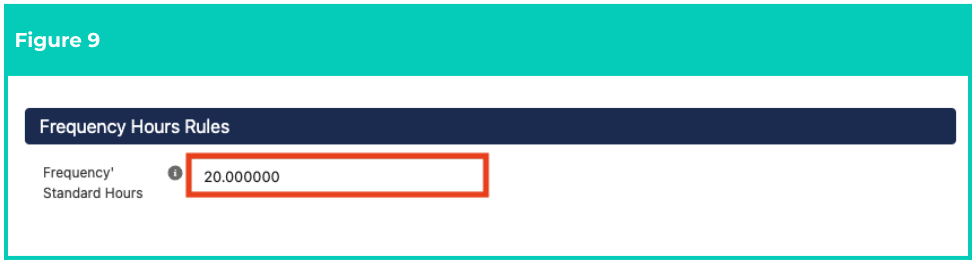
10. Populate the following required fields to provide the Frequency Hours Rules for the Interpretation Rule (see Figure 9):
1. To define the maximum amount of Ordinary Hours payable within the Timesheet Period before overtime must be paid, populate the **Frequency’ Standard Hours** field.
Breakpoints will default with the Start field of 12:00 am. The End field within each
Breakpoint will default to an overridable value of 11:59 pm, and every additional
Breakpoint is defaulted with Start values that correspond with the End value
populated in the previous line, negating the need for manual entry of the Start field.
To remove a Breakpoint, click on the Trash Can icon next to the corresponding line.
The Breakpoints populated for Variations MUST account for the full 24 hours of a shift,
including Overtime hours. Variation Breakpoints will override Breakpoints defined in
the related Interpretation Rule.
At least one Time Breakpoint, Shift End Time Breakpoint OR Shift Start Time
Breakpoint (depending on the Variation Interpretation Type selected at step 8.) AND
one Hours Breakpoint MUST be populated for Weekday, Saturday, Sunday AND Public
Holiday Rules, regardless of whether regular shifts occur on these days. This is required
to define the Ordinary Hours for the Timesheet Entries related to the custom Variation.
For further information on how Breakpoints are populated for each type of
Interpretation Rule, follow the instructions provided in the Populate Hourly
Breakpoints and Populate Shift Time Breakpoints QRGs.
1. Complete the required/optional fields and Breakpoints for Saturday Rules, per the instructions
provided in Step 8.
2. Complete the required/optional fields and Breakpoints for Sunday Rules, per the instructions
provided in Step 8.
3. Complete the required/optional fields and Breakpoints for Public Holiday Rules, per the
instructions provided in Step 8.
Saturday, Sunday and Public Holiday Rules will allow for the selection of different types
of Interpretation Breakpoints. Review the instructions provided in Steps 9. - 11. of the
Populate Hourly Rate Breakpoints QRG to assist with the creation of Standard Time
with Time Breakpoints or Standard Time with Time of Day Breakpoints.
No fields within the Allowance Rules or Allowance Junction Rules should be populated
within a Variation. Updating these fields within a Variation will not affect the
Interpretation Rule, and will be overridden by the values defined in the base
Interpretation Rule. If changes to Allowance Rules are required, a new Interpretation
Rule should be created to facilitate them. For instructions on how to populate
Allowance/Timesheet Activity Junction Breakpoints that relate to a custom Variation,
follow the instructions provided in Steps 8. - 9. of the Populate Allowance, Leave and
Allowance Junction Breakpoints QRG.
9. If Leave Rules are required to facilitate the changed conditions of the Variation from the base
Interpretation Rule, follow the instructions provided in Step 3. of the Populate Allowance, Leave
and Allowance Junction Breakpoints QRG.
10. Populate the following required fields to provide the Frequency Hours Rules for the Interpretation Rule (see Figure 9):
1. To define the maximum amount of Ordinary Hours payable within the Timesheet Period before overtime must be paid, populate the **Frequency’ Standard Hours** field.
 11. Click on the **Create Break Points** button within the Interpretation Rule Builder page (see Figure 10).
 12. Follow Steps 3. - 6. from the Create Breakpoints & Pay Code Caps QRG to populate Frequency
Hours Breakpoints for the Variation.
Frequency Standard Hours (including Overtime Hours) must be created for the
Variation before the record may be Finalised. However, the data populated within
these sections will be overridden by the base Interpretation Rule. If changes to these
fields are required, a new Interpretation Rule should be created to facilitate them.
13. Follow Steps 7. - 11. from the Create Breakpoints & Pay Code Caps QRG to create Pay Code Caps for the Variation.
14. Once Pay Code Caps have been created and populated, review and confirm the details of the Variation and click on the **Finalise** button to make the record Active (see Figure 11).
12. Follow Steps 3. - 6. from the Create Breakpoints & Pay Code Caps QRG to populate Frequency
Hours Breakpoints for the Variation.
Frequency Standard Hours (including Overtime Hours) must be created for the
Variation before the record may be Finalised. However, the data populated within
these sections will be overridden by the base Interpretation Rule. If changes to these
fields are required, a new Interpretation Rule should be created to facilitate them.
13. Follow Steps 7. - 11. from the Create Breakpoints & Pay Code Caps QRG to create Pay Code Caps for the Variation.
14. Once Pay Code Caps have been created and populated, review and confirm the details of the Variation and click on the **Finalise** button to make the record Active (see Figure 11).
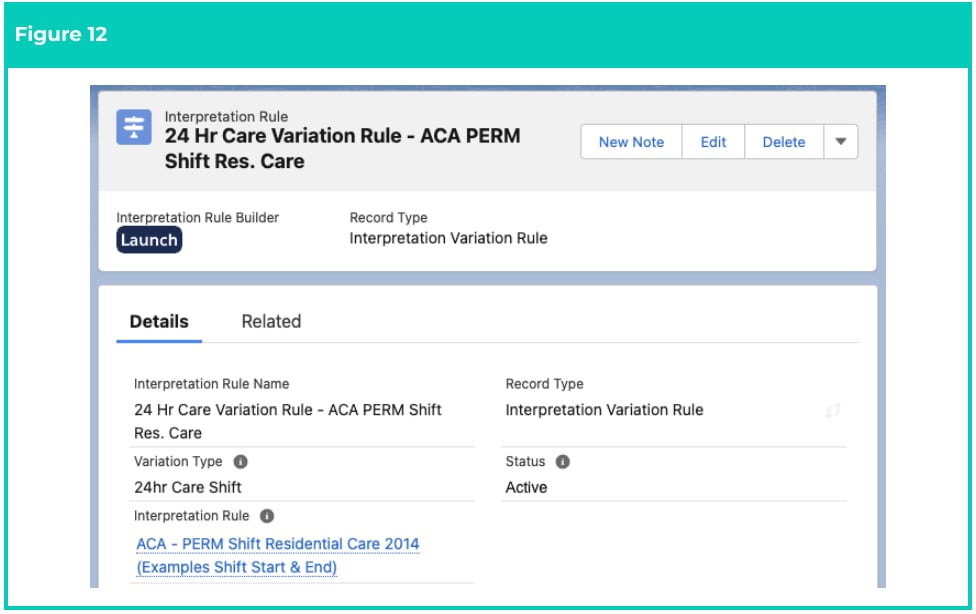
 15. A new **Custom Interpretation Variation** is now created (see Figure 12).
 Once a Variation has been Finalised and has Pay Transactions related to it, it is not
recommended to modify further, but instead to facilitate any changes required by
creating a new Variation.
Variations CANNOT be deleted if they have been used to create Pay Transactions from
Timesheet Entries. Deleting records is not recommended unless absolutely essential.
16. To modify an existing **Variation**, open the required record and select the **Launch** button to open
the Builder page, then select the **Unfinalise** button available at the bottom of the record.
17. When complete, click on the **Finalise** button.
If changes are made to Pay Codes or Breakpoints in an existing Variation, Pay Code
Caps MUST be re-populated, as the previous Pay Code Caps will no longer apply and
will be removed.
## Field Descriptions
**Apply Break Time Interpretation** indicates whether the Variation will apply Break Time logic to the
before, after, standard and overtime interpretation.
**Apply Casual Loading** indicates the requirement for a separate Pay Code for Casual Loading to be
applied during Interpretation and detailed as individual Pay Transactions in addition to the standard Pay
Transactions for the same quantity of time.
**Apply Excursion Interpretation?** indicates whether this Variation will apply Excursion Shift logic to the
related Interpretation Rule.
* **Excursion Standard End Time** indicates the Standard End Time for Timesheet Entries that have
populated an Excursion Timesheet Activity.
* **Excursion Standard Hours** indicates the Standard Hours for Timesheet Entries that have
populated an Excursion Timesheet Activity Excursions.
* **Excursion Standard Start Time** indicates the standard Start Time for Timesheet Entries that have
populated an Excursion Timesheet Activity.
**Apply Penalty Loading** indicates the requirement for a separate Pay Code for Penalty Loading to be
applied during Interpretation and detailed as individual Pay Transactions in addition to the standard Pay
Transactions for the same quantity of time.
**Apply Shift End or Start Interpretation?** indicates that both Shift Start and Shift End Breakpoints should
be defined for the Variation.
**Apply Wake Up Interpretation?** indicates whether this Variation will apply Wake Up Shift Logic to the
related Interpretation Rule.
**Casual Loading Pay Code** defines the Pay Code that applies to the casual loading Breakpoint value.
End defines the end of the Breakpoint.
**Frequency’ Standard Hours** defines the maximum Standard Hours from which Overtime is payable for
the remaining hours on the Timesheet (as determined by the Timesheet Frequency).
**Interpretation Rule** is the related Interpretation Rule that the Variation will be applied to.
**Interpretation Rule Name** defines the name for the Variation record.
**Long Description** is the description outlining the Variation’s purpose. Users are encouraged to detail here
the brief snapshot of how this Variation is configured, to assist with identifying differences between
various Interpretation Rules with similar conditions and/or names.
**Minimum Paid Hours defines** the minimum hours payable when assessing Timesheet Entries for
Weekday, Saturday, Sunday and Public Holiday Rules.
**Pay Code** defines the Pay Code that applies to the defined Breakpoint value.
**Penalty Loading Pay Code** defines the Pay Code that applies to the penalty loading Breakpoint value.
**Short Description** is the description that can be displayed in lookup search to assist users in selecting the
correct Interpretation Rule.
**Standard Hours** defines the maximum Ordinary hours payable before overtime is paid for Weekday,
Saturday, Sunday and Public Holiday Rules.
**Start** defines the start of the Breakpoint.
**Timesheet Frequency** defines the Timesheet Frequency for which the Variation has been set to interpret.
The Timesheet Frequency on the 24 Hour Care Shift Variation must match the Timesheet Frequency on
both the related Interpretation Rule and the Timesheet from the related Assignment. If the Variation
does not match the Timesheet Frequency populated for related Timesheets, interpretation will not occur.
**Variation Type** is the type of Variation record that is selected for creation:
* **Custom / 24hr Care Shift** is utilised for Variations where Employees have differing standard
hours, rates of pay or conditions of work from those outlined in the Interpretation Rule related to
a Payee’s Assignment. The name of this type of Variation will differ, as it is created on request and
determined by the requirements of each particular Org. The 24hr Care Shift has been used as an
example of a Custom Variation Type in this QRG.
* **Assignment** is utilised for part-time Employees with differing standard hours from those outlined
in the Interpretation Rule related to a Payee’s Assignment record.
**Variation Interpretation Type** indicates the record type for the Interpretation Rule that the Variation will
be applied to.
## Further Information
| Document | Document Type | Description |
| ------------------------------------------------------------------------------------------------- | --------------------------- | ------------------------------------------------------------------------------------------------------------------------------------------------------------------------- |
| Quick Reference Guide Index - Interpretation Rules | Index | Index document for Rate Calculator QRGs |
| QRG Interpretation Rule Builder Functionality - Key Information | Information Quick Reference | Outlines useful information relevant to the Interpretation Rule functionality. The document includes definitions, prerequisites, and other non-instructional information. |
| QRG Interpretation Rule Builder - Create Daily Rates Interpretation Rule | Task Instructions | How to create a Daily Rates Interpretation Rule. |
| QRG Interpretation Rule Builder - Populate Hourly Rate Breakpoints | Task Instructions | How to populate Breakpoints for the Hourly Rate Interpretation Rule Record Type. |
| QRG Interpretation Rule Builder - Populate Shift Time Breakpoints | Task Instructions | How to populate Breakpoints for the Shift Start or Shift End Interpretation Rule Record Type. |
| QRG Interpretation Rule Builder - Populate Break Loading & Minimum Rest Rules | Task Instructions | How to populate Breakpoints for the Break Loading and Minimum Rest Rules using the Interpretation Rule Builder. |
| QRG Interpretation Rule Builder - Populate Split/Broken Shift & Sleepover Rules | Task Instructions | How to populate Breakpoints for the Split/Broken Shift and Sleepover Rules using the Interpretation Rule Builder. |
| QRG Interpretation Rule Builder - Create Breakpoints & Pay Code Caps | Task Instructions | How to create Breakpoints and Pay Code Caps using the Interpretation Rule Builder. |
| QRG Interpretation Rule Builder - Populate Allowance, Leave & Allowance Junction Rule Breakpoints | Task Instructions | How to populate Breakpoints for Allowances, Leave and Allowance Junction Rules using the Interpretation Rule Builder. |
| QRG Create Interpretation Rule - Create Assignment Interpretation Variation | Task Instructions | How to create Assignment Interpretation Variations. |
Once a Variation has been Finalised and has Pay Transactions related to it, it is not
recommended to modify further, but instead to facilitate any changes required by
creating a new Variation.
Variations CANNOT be deleted if they have been used to create Pay Transactions from
Timesheet Entries. Deleting records is not recommended unless absolutely essential.
16. To modify an existing **Variation**, open the required record and select the **Launch** button to open
the Builder page, then select the **Unfinalise** button available at the bottom of the record.
17. When complete, click on the **Finalise** button.
If changes are made to Pay Codes or Breakpoints in an existing Variation, Pay Code
Caps MUST be re-populated, as the previous Pay Code Caps will no longer apply and
will be removed.
## Field Descriptions
**Apply Break Time Interpretation** indicates whether the Variation will apply Break Time logic to the
before, after, standard and overtime interpretation.
**Apply Casual Loading** indicates the requirement for a separate Pay Code for Casual Loading to be
applied during Interpretation and detailed as individual Pay Transactions in addition to the standard Pay
Transactions for the same quantity of time.
**Apply Excursion Interpretation?** indicates whether this Variation will apply Excursion Shift logic to the
related Interpretation Rule.
* **Excursion Standard End Time** indicates the Standard End Time for Timesheet Entries that have
populated an Excursion Timesheet Activity.
* **Excursion Standard Hours** indicates the Standard Hours for Timesheet Entries that have
populated an Excursion Timesheet Activity Excursions.
* **Excursion Standard Start Time** indicates the standard Start Time for Timesheet Entries that have
populated an Excursion Timesheet Activity.
**Apply Penalty Loading** indicates the requirement for a separate Pay Code for Penalty Loading to be
applied during Interpretation and detailed as individual Pay Transactions in addition to the standard Pay
Transactions for the same quantity of time.
**Apply Shift End or Start Interpretation?** indicates that both Shift Start and Shift End Breakpoints should
be defined for the Variation.
**Apply Wake Up Interpretation?** indicates whether this Variation will apply Wake Up Shift Logic to the
related Interpretation Rule.
**Casual Loading Pay Code** defines the Pay Code that applies to the casual loading Breakpoint value.
End defines the end of the Breakpoint.
**Frequency’ Standard Hours** defines the maximum Standard Hours from which Overtime is payable for
the remaining hours on the Timesheet (as determined by the Timesheet Frequency).
**Interpretation Rule** is the related Interpretation Rule that the Variation will be applied to.
**Interpretation Rule Name** defines the name for the Variation record.
**Long Description** is the description outlining the Variation’s purpose. Users are encouraged to detail here
the brief snapshot of how this Variation is configured, to assist with identifying differences between
various Interpretation Rules with similar conditions and/or names.
**Minimum Paid Hours defines** the minimum hours payable when assessing Timesheet Entries for
Weekday, Saturday, Sunday and Public Holiday Rules.
**Pay Code** defines the Pay Code that applies to the defined Breakpoint value.
**Penalty Loading Pay Code** defines the Pay Code that applies to the penalty loading Breakpoint value.
**Short Description** is the description that can be displayed in lookup search to assist users in selecting the
correct Interpretation Rule.
**Standard Hours** defines the maximum Ordinary hours payable before overtime is paid for Weekday,
Saturday, Sunday and Public Holiday Rules.
**Start** defines the start of the Breakpoint.
**Timesheet Frequency** defines the Timesheet Frequency for which the Variation has been set to interpret.
The Timesheet Frequency on the 24 Hour Care Shift Variation must match the Timesheet Frequency on
both the related Interpretation Rule and the Timesheet from the related Assignment. If the Variation
does not match the Timesheet Frequency populated for related Timesheets, interpretation will not occur.
**Variation Type** is the type of Variation record that is selected for creation:
* **Custom / 24hr Care Shift** is utilised for Variations where Employees have differing standard
hours, rates of pay or conditions of work from those outlined in the Interpretation Rule related to
a Payee’s Assignment. The name of this type of Variation will differ, as it is created on request and
determined by the requirements of each particular Org. The 24hr Care Shift has been used as an
example of a Custom Variation Type in this QRG.
* **Assignment** is utilised for part-time Employees with differing standard hours from those outlined
in the Interpretation Rule related to a Payee’s Assignment record.
**Variation Interpretation Type** indicates the record type for the Interpretation Rule that the Variation will
be applied to.
## Further Information
| Document | Document Type | Description |
| ------------------------------------------------------------------------------------------------- | --------------------------- | ------------------------------------------------------------------------------------------------------------------------------------------------------------------------- |
| Quick Reference Guide Index - Interpretation Rules | Index | Index document for Rate Calculator QRGs |
| QRG Interpretation Rule Builder Functionality - Key Information | Information Quick Reference | Outlines useful information relevant to the Interpretation Rule functionality. The document includes definitions, prerequisites, and other non-instructional information. |
| QRG Interpretation Rule Builder - Create Daily Rates Interpretation Rule | Task Instructions | How to create a Daily Rates Interpretation Rule. |
| QRG Interpretation Rule Builder - Populate Hourly Rate Breakpoints | Task Instructions | How to populate Breakpoints for the Hourly Rate Interpretation Rule Record Type. |
| QRG Interpretation Rule Builder - Populate Shift Time Breakpoints | Task Instructions | How to populate Breakpoints for the Shift Start or Shift End Interpretation Rule Record Type. |
| QRG Interpretation Rule Builder - Populate Break Loading & Minimum Rest Rules | Task Instructions | How to populate Breakpoints for the Break Loading and Minimum Rest Rules using the Interpretation Rule Builder. |
| QRG Interpretation Rule Builder - Populate Split/Broken Shift & Sleepover Rules | Task Instructions | How to populate Breakpoints for the Split/Broken Shift and Sleepover Rules using the Interpretation Rule Builder. |
| QRG Interpretation Rule Builder - Create Breakpoints & Pay Code Caps | Task Instructions | How to create Breakpoints and Pay Code Caps using the Interpretation Rule Builder. |
| QRG Interpretation Rule Builder - Populate Allowance, Leave & Allowance Junction Rule Breakpoints | Task Instructions | How to populate Breakpoints for Allowances, Leave and Allowance Junction Rules using the Interpretation Rule Builder. |
| QRG Create Interpretation Rule - Create Assignment Interpretation Variation | Task Instructions | How to create Assignment Interpretation Variations. |