> ## Documentation Index
> Fetch the complete documentation index at: https://documentation.2cloudnine.com/llms.txt
> Use this file to discover all available pages before exploring further.
# QRG Interpretation Rule Builder - Create Daily Rates Interpretation Rules
## Purpose
The purpose of this quick reference guide is to step through the process of creating a Daily Rates
Interpretation Rule using the Interpretation Rule Builder. The intended audience for this document are
system administrators / standard users.
## Steps
### Create a Daily Rate Interpretation Rule
Interpretation Rules are used to convert Timesheet Entries into Pay Transactions for payment of wages to
Payees, taking into account various calculations for the amount of time worked.
Interpretation Rules are created using the Interpretation Rule Builder, which consists of a series of
dynamic fields that differ based on the record type selected. These fields are broken into several sections,
some of which are optional, to allow for interpretation of various Award types.
See below for an ordered list of the QRGs related to each section of the Interpretation Rule Builder page
for Daily Rate record types:
1. Create Daily Rate Interpretation Rules
2. Create Allowance, Leave & Allowance Junction Rule Breakpoints **(optional)**
Daily Rate Interpretation Rules allow for Timesheet Entries to be calculated based on the amount of time
worked each day.
Create a Daily Rate Interpretation Rule using the Interpretation Rule Builder by following the below steps:
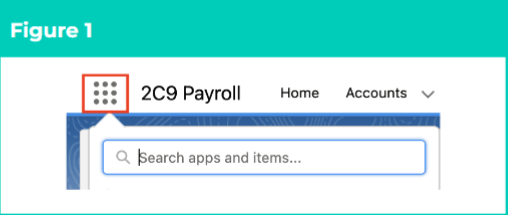
1. Click on the **App Launcher** icon (see
Figure 1).
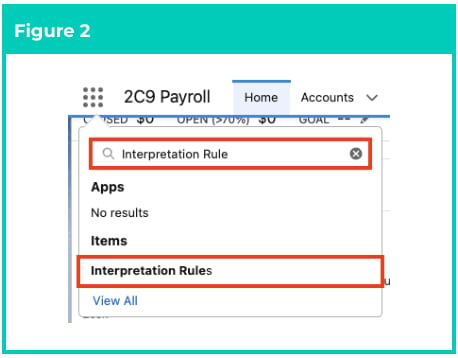
2. Go to the **Interpretation Rule** object by
using the Search function (see Figure 2).
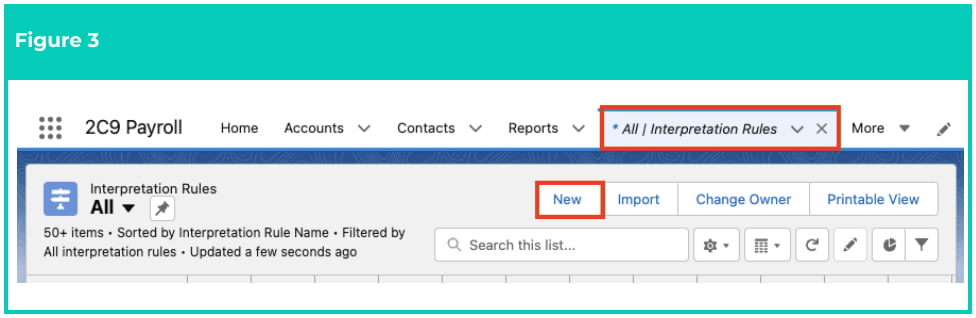
3. Click on the **New** button (see Figure 3).
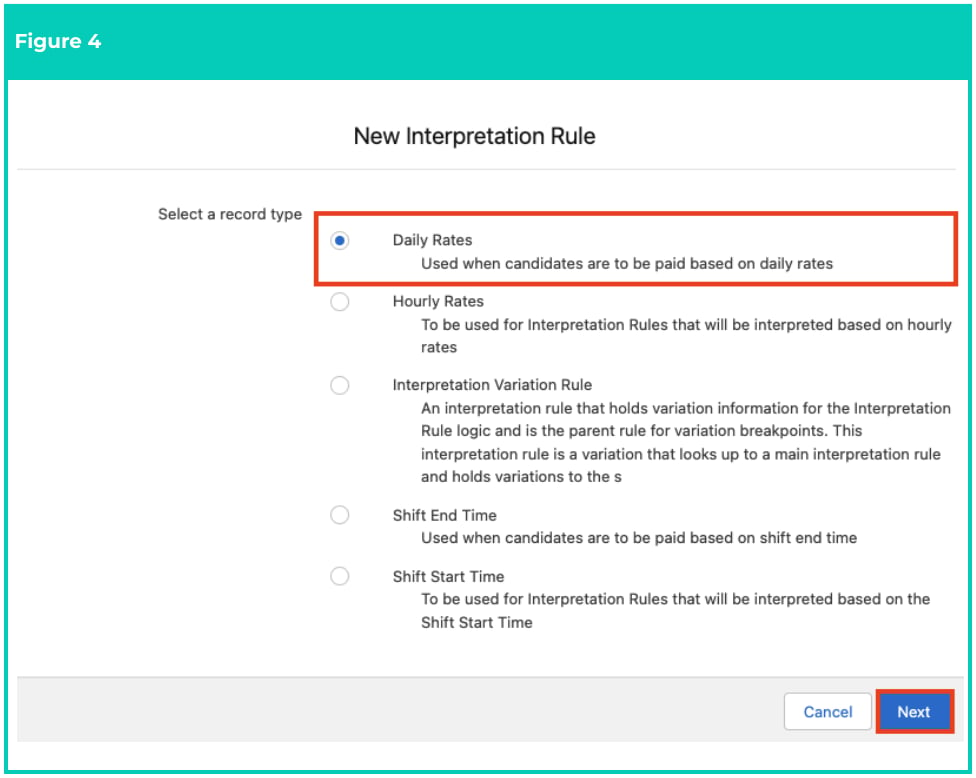
 4. Select **Daily Rates** from the available record types and click on the **Next** button (see Figure 4).
 5. Follow this step in the sequence given below:
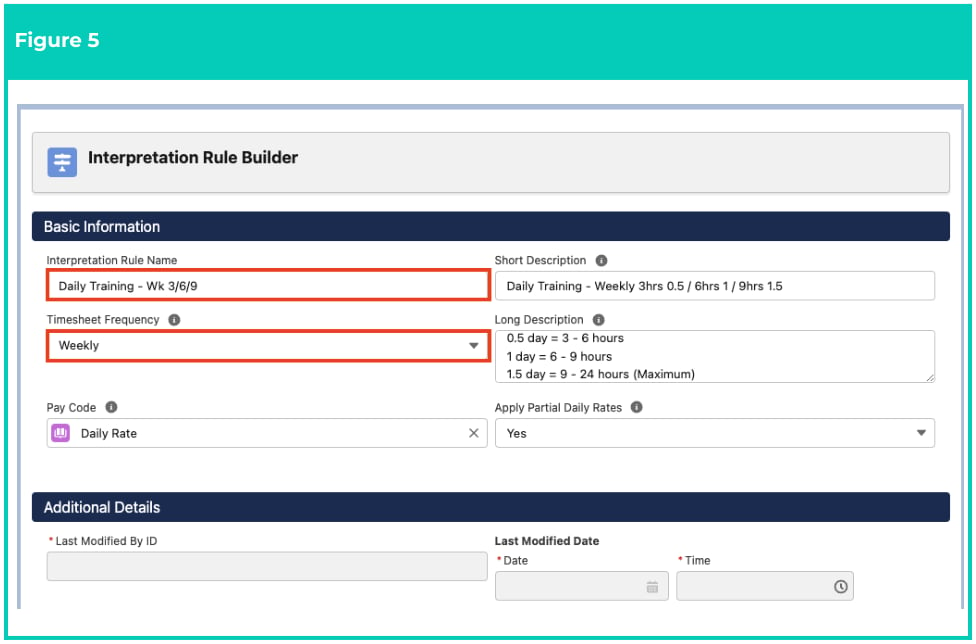
1. Populate the following required fields to provide the base details of the Interpretation
Rule (see Figure 5):
1. **Interpretation Rule Name**
2. **Timesheet Frequency**
2. Populate the following optional fields as required (see Figure 5):
1. To provide a description that can be used to quickly identify the Interpretation
Rule, populate the **Short Description** field.
2. To provide a description that can be used to quickly identify the configuration of
the Interpretation Rule, populate the **Long Description** field.
3. To define the Pay Code to be used when creating Pay Transactions in relation
with this Interpretation Rule, populate the **Pay Code** field using the lookup
options available.
4. To determine whether Employees may be paid partial Rates according to the
amount of hours worked each day, select from the available picklist options in the
**Apply Partial Daily Rates** field.
5. Follow this step in the sequence given below:
1. Populate the following required fields to provide the base details of the Interpretation
Rule (see Figure 5):
1. **Interpretation Rule Name**
2. **Timesheet Frequency**
2. Populate the following optional fields as required (see Figure 5):
1. To provide a description that can be used to quickly identify the Interpretation
Rule, populate the **Short Description** field.
2. To provide a description that can be used to quickly identify the configuration of
the Interpretation Rule, populate the **Long Description** field.
3. To define the Pay Code to be used when creating Pay Transactions in relation
with this Interpretation Rule, populate the **Pay Code** field using the lookup
options available.
4. To determine whether Employees may be paid partial Rates according to the
amount of hours worked each day, select from the available picklist options in the
**Apply Partial Daily Rates** field.
 The fields within the Additional Details section require no input and will be
automatically populated once updates and/or changes to the Interpretation Rule have
been saved.
For successful Pay Transaction creation, Assignment Rate records related to
Assignments referencing this Interpretation Rule must use the same Pay Code as the
Interpretation Rule.
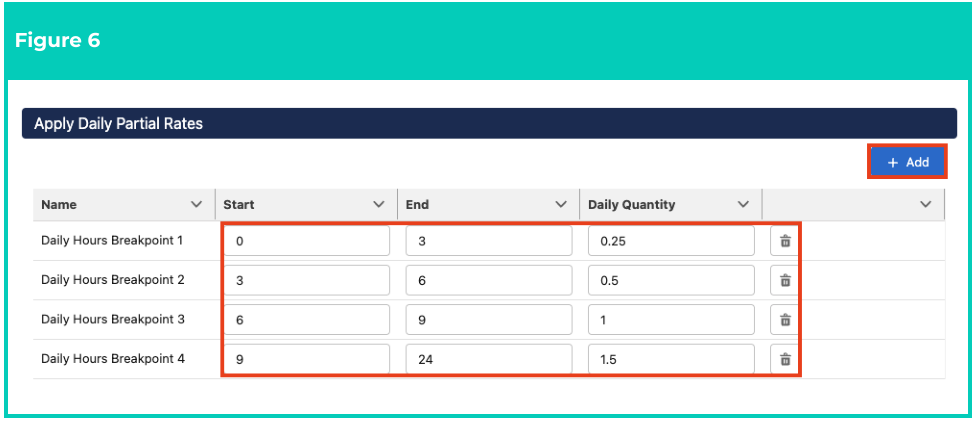
6. If the Apply Partial Daily Rates field was populated Yes in Step 5b., follow this step in the
sequence given below (see Figure 6):
1. To define Partial Daily Rate Breakpoints, populate the following required fields:
1. Click on the **+ Add** button and a new Daily Hours Breakpoint line will be added.
2. To define the amount of hours for the first Daily Hours Breakpoint, populate the
**End** field.
3. To define the amount of Pay Code units to be applied to related Pay Transactions,
populate the **Daily Quantity** field with a decimal percentage.
2. Repeat Step 6a. until a full 24 hours of Partial Rate Breakpoints have been accounted for.
The fields within the Additional Details section require no input and will be
automatically populated once updates and/or changes to the Interpretation Rule have
been saved.
For successful Pay Transaction creation, Assignment Rate records related to
Assignments referencing this Interpretation Rule must use the same Pay Code as the
Interpretation Rule.
6. If the Apply Partial Daily Rates field was populated Yes in Step 5b., follow this step in the
sequence given below (see Figure 6):
1. To define Partial Daily Rate Breakpoints, populate the following required fields:
1. Click on the **+ Add** button and a new Daily Hours Breakpoint line will be added.
2. To define the amount of hours for the first Daily Hours Breakpoint, populate the
**End** field.
3. To define the amount of Pay Code units to be applied to related Pay Transactions,
populate the **Daily Quantity** field with a decimal percentage.
2. Repeat Step 6a. until a full 24 hours of Partial Rate Breakpoints have been accounted for.
 Daily Hours Breakpoints must begin at 0. The End Time field within each Breakpoint
will be automatically populated with a value of 24, which can be overridden. Every
additional Breakpoint is automatically populated with Start Times that correspond
with the End Time populated in the previous line, negating the need for manual entry
of the Start field.
If Breakpoints are added to a Daily Rates Interpretation Rule, they must account for
the full 24 hours of a shift before the record can be saved.
To remove a Breakpoint, click on the Trash Can icon next to the corresponding line.
If Allowance Rules are required for the Interpretation Rule, follow the instructions
provided in the Allowance, Leave and Allowance Junction Rules QRG.
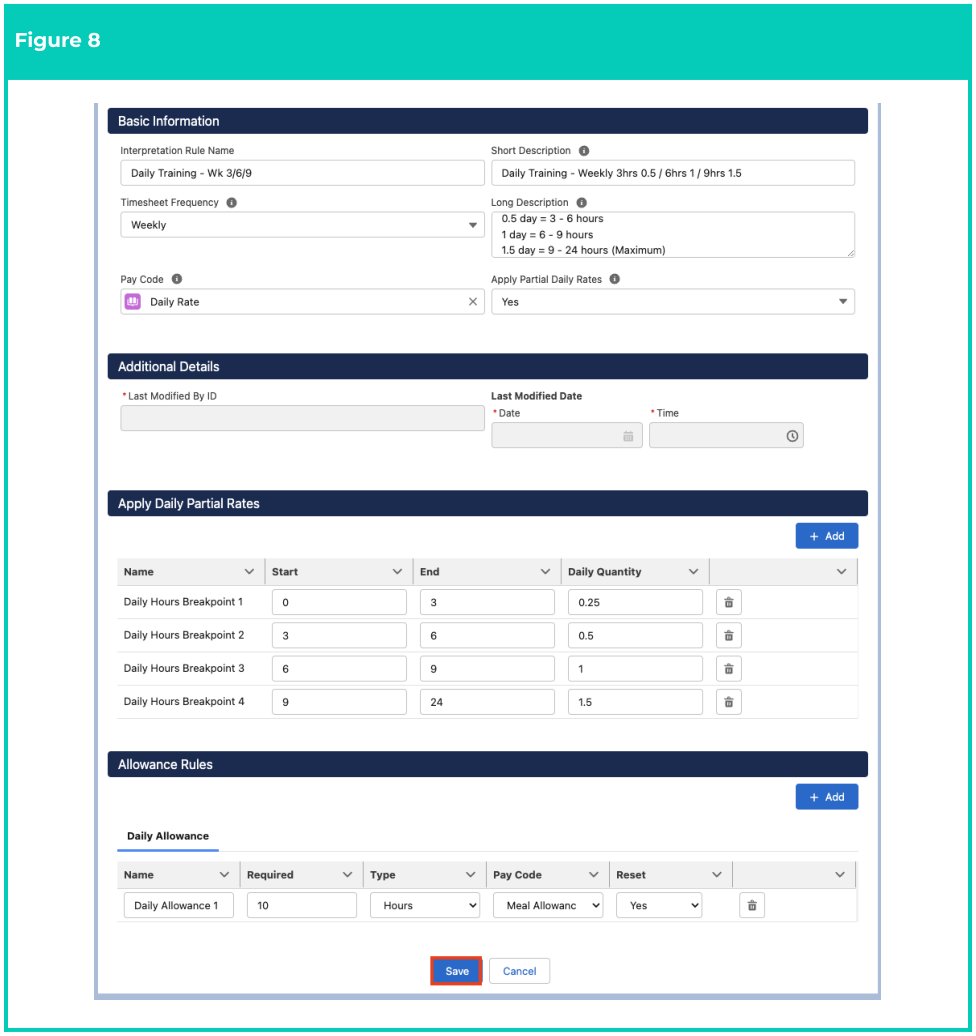
7. Click on the **Save** button (see Figure 8).
Daily Hours Breakpoints must begin at 0. The End Time field within each Breakpoint
will be automatically populated with a value of 24, which can be overridden. Every
additional Breakpoint is automatically populated with Start Times that correspond
with the End Time populated in the previous line, negating the need for manual entry
of the Start field.
If Breakpoints are added to a Daily Rates Interpretation Rule, they must account for
the full 24 hours of a shift before the record can be saved.
To remove a Breakpoint, click on the Trash Can icon next to the corresponding line.
If Allowance Rules are required for the Interpretation Rule, follow the instructions
provided in the Allowance, Leave and Allowance Junction Rules QRG.
7. Click on the **Save** button (see Figure 8).
 Once saved, the Interpretation Rule will be validated by the system. If no validation
errors are encountered, the Additional Details section will be populated, and the
Finalise button will appear.
Once saved, the Interpretation Rule will be validated by the system. If no validation
errors are encountered, the Additional Details section will be populated, and the
Finalise button will appear.
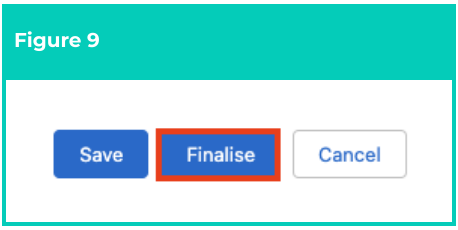
8. Review and confirm the details of the
Interpretation Rule, then click on the
**Finalise** button to activate the record
for use in Assignments and Timesheets
(see Figure 9).
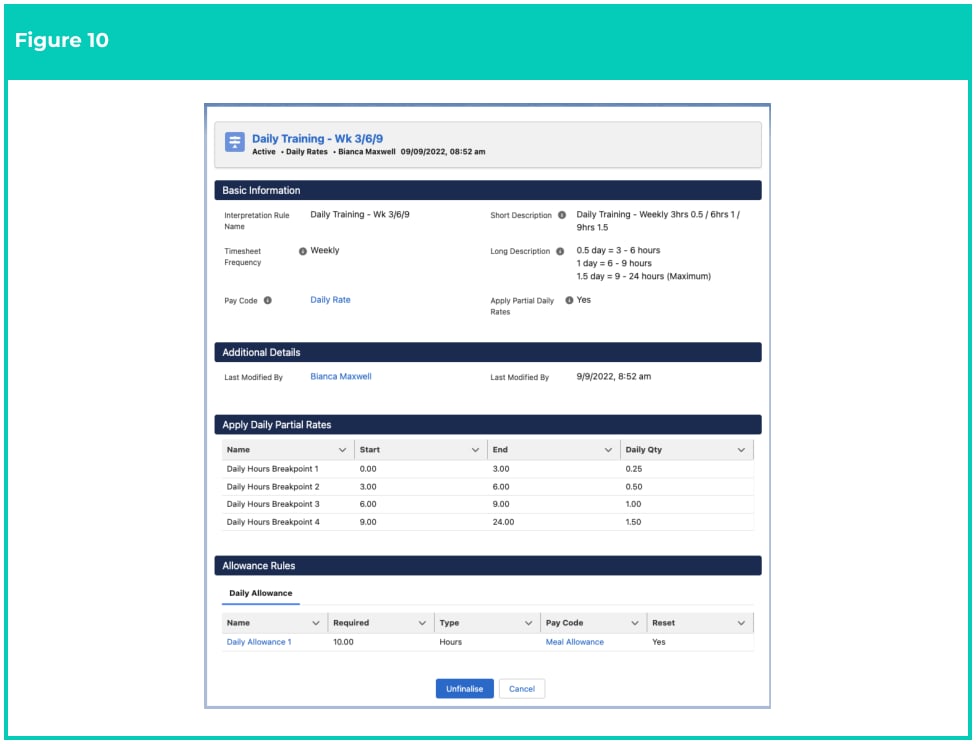
9. A new **Daily Rate Interpretation Rule** has been created (see Figure 10).
 If multiple Timesheet Frequencies are applicable for this Interpretation, separate
Interpretation Rules will need to be created for each Timesheet Frequency required.
Once an Interpretation Rule has been Finalised and related to another record, it
CANNOT be deleted from the system. Once no longer required, Interpretation Rules
are unable to be expired/end dated, so it may be preferred to rename this
Interpretation Rule with a name to easily identify it is a retired Interpretation Rule
## Field Descriptions
**Apply Partial Daily Rates** defines whether partial daily rates are to be interpreted.
**Daily Quantity** is the portion of the Daily Rate Pay Code to be applied to a Pay Transaction when a Partial
**Rate Breakpoint** is applied during Timesheet Interpretation.
**Interpretation Rule Name** defines the name for the Interpretation Rule which will be referenced in
Assignment Records.
**Long Description** is the description outlining the Interpretation Rules purpose.
**Pay Code** defines the Pay Code that applies to all Pay Transactions for this Daily Rates Interpretation
Rule.
**Short Description** is the description that can be displayed in the lookup search to assist users in selecting
the correct award.
**Start** / **End** is the amount of hours that must be worked for a Partial Rate Breakpoint to be applied to a
Pay Transaction created during Timesheet Interpretation.
**Timesheet Frequency** defines the Timesheet Frequency for which the Interpretation Rule will be
exclusively applicable to.
## Further Information
| Document | Document Type | Description |
| ------------------------------------------------------------------------------------------------- | --------------------------- | ------------------------------------------------------------------------------------------------------------------------------------------------------------------------- |
| Quick Reference Guide Index - Interpretation Rules | Index | Index document for Rate Calculator QRGs |
| QRG Interpretation Rule Builder Functionality - Key Information | Information Quick Reference | Outlines useful information relevant to the Interpretation Rule functionality. The document includes definitions, prerequisites, and other non-instructional information. |
| QRG Interpretation Rule Builder - Populate Hourly Rate Breakpoints | Task Instructions | How to populate Breakpoints for the Hourly Rate Interpretation Rule Record Type. |
| QRG Interpretation Rule Builder - Populate Shift Time Breakpoints | Task Instructions | How to populate Breakpoints for the Shift Start or Shift End Interpretation Rule Record Type. |
| QRG Interpretation Rule Builder - Populate Break Loading & Minimum Rest Rules | Task Instructions | How to populate Breakpoints for the Break Loading and Minimum Rest Rules using the Interpretation Rule Builder. |
| QRG Interpretation Rule Builder - Populate Split/Broken Shift & Sleepover Rules | Task Instructions | How to populate Breakpoints for the Split/Broken Shift and Sleepover Rules using the Interpretation Rule Builder. |
| QRG Interpretation Rule Builder - Create Breakpoints & Pay Code Caps | Task Instructions | How to create Breakpoints and Pay Code Caps using the Interpretation Rule Builder. |
| QRG Interpretation Rule Builder - Populate Allowance, Leave & Allowance Junction Rule Breakpoints | Task Instructions | How to populate Breakpoints for Allowances, Leave and Allowance Junction Rules using the Interpretation Rule Builder. |
| QRG Create Interpretation Rule - Create Custom Interpretation Variation | Task Instructions | How to create custom Interpretation Variations. |
| QRG Create Interpretation Rule - Create Assignment Interpretation Variation | Task Instructions | How to create Assignment Interpretation Variations. |
If multiple Timesheet Frequencies are applicable for this Interpretation, separate
Interpretation Rules will need to be created for each Timesheet Frequency required.
Once an Interpretation Rule has been Finalised and related to another record, it
CANNOT be deleted from the system. Once no longer required, Interpretation Rules
are unable to be expired/end dated, so it may be preferred to rename this
Interpretation Rule with a name to easily identify it is a retired Interpretation Rule
## Field Descriptions
**Apply Partial Daily Rates** defines whether partial daily rates are to be interpreted.
**Daily Quantity** is the portion of the Daily Rate Pay Code to be applied to a Pay Transaction when a Partial
**Rate Breakpoint** is applied during Timesheet Interpretation.
**Interpretation Rule Name** defines the name for the Interpretation Rule which will be referenced in
Assignment Records.
**Long Description** is the description outlining the Interpretation Rules purpose.
**Pay Code** defines the Pay Code that applies to all Pay Transactions for this Daily Rates Interpretation
Rule.
**Short Description** is the description that can be displayed in the lookup search to assist users in selecting
the correct award.
**Start** / **End** is the amount of hours that must be worked for a Partial Rate Breakpoint to be applied to a
Pay Transaction created during Timesheet Interpretation.
**Timesheet Frequency** defines the Timesheet Frequency for which the Interpretation Rule will be
exclusively applicable to.
## Further Information
| Document | Document Type | Description |
| ------------------------------------------------------------------------------------------------- | --------------------------- | ------------------------------------------------------------------------------------------------------------------------------------------------------------------------- |
| Quick Reference Guide Index - Interpretation Rules | Index | Index document for Rate Calculator QRGs |
| QRG Interpretation Rule Builder Functionality - Key Information | Information Quick Reference | Outlines useful information relevant to the Interpretation Rule functionality. The document includes definitions, prerequisites, and other non-instructional information. |
| QRG Interpretation Rule Builder - Populate Hourly Rate Breakpoints | Task Instructions | How to populate Breakpoints for the Hourly Rate Interpretation Rule Record Type. |
| QRG Interpretation Rule Builder - Populate Shift Time Breakpoints | Task Instructions | How to populate Breakpoints for the Shift Start or Shift End Interpretation Rule Record Type. |
| QRG Interpretation Rule Builder - Populate Break Loading & Minimum Rest Rules | Task Instructions | How to populate Breakpoints for the Break Loading and Minimum Rest Rules using the Interpretation Rule Builder. |
| QRG Interpretation Rule Builder - Populate Split/Broken Shift & Sleepover Rules | Task Instructions | How to populate Breakpoints for the Split/Broken Shift and Sleepover Rules using the Interpretation Rule Builder. |
| QRG Interpretation Rule Builder - Create Breakpoints & Pay Code Caps | Task Instructions | How to create Breakpoints and Pay Code Caps using the Interpretation Rule Builder. |
| QRG Interpretation Rule Builder - Populate Allowance, Leave & Allowance Junction Rule Breakpoints | Task Instructions | How to populate Breakpoints for Allowances, Leave and Allowance Junction Rules using the Interpretation Rule Builder. |
| QRG Create Interpretation Rule - Create Custom Interpretation Variation | Task Instructions | How to create custom Interpretation Variations. |
| QRG Create Interpretation Rule - Create Assignment Interpretation Variation | Task Instructions | How to create Assignment Interpretation Variations. |