> ## Documentation Index
> Fetch the complete documentation index at: https://documentation.2cloudnine.com/llms.txt
> Use this file to discover all available pages before exploring further.
# QRG Interpretation Rule Builder - Populate Allowance, Leave & Allowance Junction Rule Breakpoints
## **Purpose**
The purpose of this quick reference guide is to step through the process of creating Allowance Rules, Leave Rules and Allowance Junction Rules within the Interpretation Rule Builder. The intended audience for this document are system administrators / standard users.
## **Steps**
## **Populate Allowance Rules, Leave Rules and Allowance Junction Rules**
Interpretation Rules are used to convert Timesheet Entries into Pay Transactions for payment of wages to Payees, taking into account different calculations for the amount of time worked.
Interpretation Rules are created using the Interpretation Rule Builder, which consists of a series of dynamic fields that differ based on the Record Type selected. These fields are broken into several sections, some of which are optional, to allow for various interpretation types.
See below for an ordered list of the QRGs related to each section of the Interpretation Rule Builder page for Hourly Rate, Shift End Time or Shift Start Time record types:
1. Populate Hourly Rate Interpretation Rules OR Shift Time Interpretation Rules
2. Populate Break Loading and Minimum Rest Rules **(optional)**
3. Populate Split/Broken Shift and Sleepover Rules **(optional)**
4. Populate Allowance, Leave & Allowance Junction Rule Breakpoints **(optional)**
5. Create Breakpoints and Pay Code Caps
The Allowance & Leave Rules define the conditions that must be met before Allowances and/or Leave Entries are interpreted during Timesheet processing.
The Allowance Junction Rules enable Timesheet and Leave Entries containing Allowances to be payable during Interpretation.
## **Create Allowance Rule Breakpoints**
To enable Allowance Rule Interpretation, identify the Allowance Rules section of the Interpretation Rule Builder and follow the below steps.
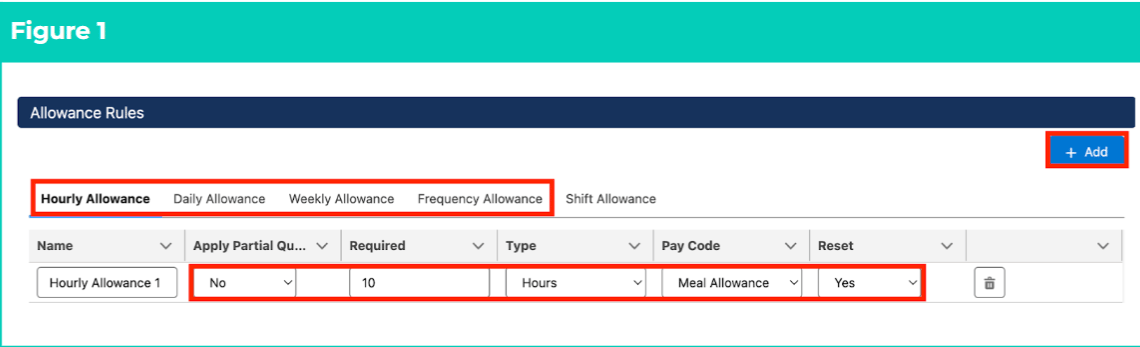
1. Populate the following fields (see Figure 1):
1. Click on the **Hourly Allowance** , **Daily Allowance** , **Weekly Allowance** or **Frequency Allowance** tab.
2. Click on the **+ Add** button.
1. A new Breakpoint line will appear with an auto-populated unique identifier in the **Name** field. This field should not be overwritten unless required.
3. To determine the number of units required for the Allowance to be applied, populate the **Required** field.
4. Define the unit of time of the Required field by selecting from the available picklist options in the **Type** field.
5. Define the Pay Code for the Allowance by selecting from the available lookup options in the **Pay Code** field.
6. If partial quantities of the Allowance should be payable when partial hours are worked (i.e. 7.5 hrs worked therefore 7.5 hrs can be applied), select **Yes** from the available picklist options in the **Apply Partial Quantity** field.
7. If the Allowance’s availability should reset after the amount of time defined in the Required field, select **Yes** from the available picklist options in the **Reset** field.
8. Click on the **+ Add** button to add a new Allowance to the current Allowance tab, or select another tab to create a different kind of Allowance.
9. To remove an Allowance, click on the **Trash Can** icon next to the corresponding line.
2. Repeat Step 1. until all Hourly, Daily, Weekly and/or Frequency Allowances have been populated for this Interpretation Rule.
 3. If Shift Logic is enabled, populate the following fields to enable Shift Allowances (see Figure 2):
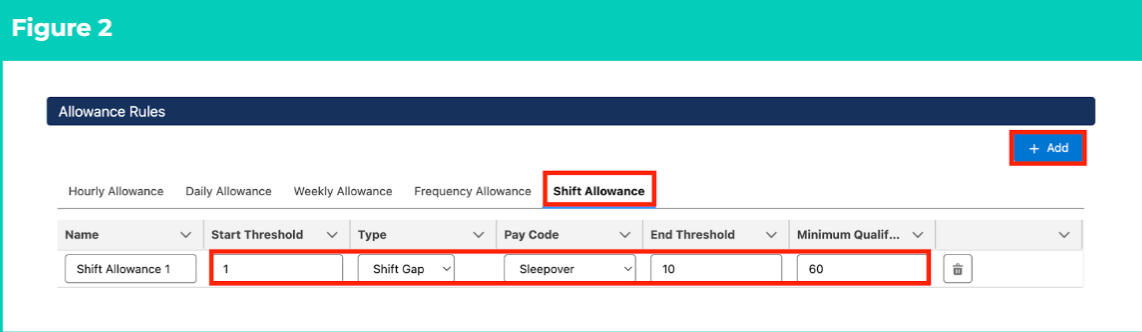
1. Click on the **Shift Allowance** tab.
2. Click on the **+ Add** button.
1. A new Breakpoint line will appear with an auto-populated descriptor in the **Name** field. This field should not be overwritten unless required.
3. To define the type of calculation to use for Shift Allowance Interpretation, select from the available picklist options in the **Type** field.
1. If **Shift Gap** :
* Define the minimum number of Shift Gaps between Timesheet Entries that meet the Minimum Qualifying Threshold for Shift Allowance by populating the **Start Threshold** field.
* Define the maximum number of Shift Gaps between Timesheet Entries that meet the Minimum Qualifying Threshold before they no longer qualify for the Shift Allowance by populating the **End Threshold** field.
* To define the minimum number of minutes that qualify a Shift Gap when Interpreting related Split/Broken Shift Timesheet Entries, populate the **Minimum Qualifying Threshold** field.
4. To determine the Pay Code that should be applied for the Shift Allowance, select from the available lookup options in the **Pay Code** field.
5. Click on the **+ Add** button to add another Shift Allowance.
6. To remove a Shift Allowance, click on the **Trash Can** icon next to the corresponding line.
4. Repeat the above until all Shift Allowances have been populated for this Interpretation Rule.
3. If Shift Logic is enabled, populate the following fields to enable Shift Allowances (see Figure 2):
1. Click on the **Shift Allowance** tab.
2. Click on the **+ Add** button.
1. A new Breakpoint line will appear with an auto-populated descriptor in the **Name** field. This field should not be overwritten unless required.
3. To define the type of calculation to use for Shift Allowance Interpretation, select from the available picklist options in the **Type** field.
1. If **Shift Gap** :
* Define the minimum number of Shift Gaps between Timesheet Entries that meet the Minimum Qualifying Threshold for Shift Allowance by populating the **Start Threshold** field.
* Define the maximum number of Shift Gaps between Timesheet Entries that meet the Minimum Qualifying Threshold before they no longer qualify for the Shift Allowance by populating the **End Threshold** field.
* To define the minimum number of minutes that qualify a Shift Gap when Interpreting related Split/Broken Shift Timesheet Entries, populate the **Minimum Qualifying Threshold** field.
4. To determine the Pay Code that should be applied for the Shift Allowance, select from the available lookup options in the **Pay Code** field.
5. Click on the **+ Add** button to add another Shift Allowance.
6. To remove a Shift Allowance, click on the **Trash Can** icon next to the corresponding line.
4. Repeat the above until all Shift Allowances have been populated for this Interpretation Rule.
 Shift Allowance Breakpoints are only applicable when Yes has been selected for the Apply Shift Based Interpretation field in General Rule Settings.
## **Create Leave Rule Breakpoints**
To enable Leave Rule Interpretation, identify the Leave Rule Breakpoints section of the Interpretation Rule Builder and follow the below steps.
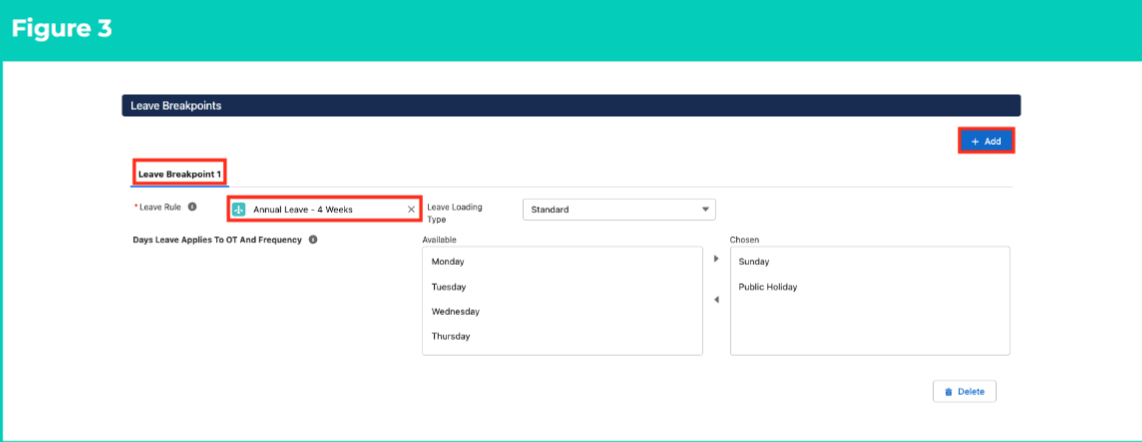
5. Populate the following fields (see Figure 3):
1. Click on the **+ Add** button
2. To define the Leave Rule that the Leave Breakpoint applies to, populate the **Leave Rule** field using the lookup options available.
3. If this is an Shift Time Interpretation Record Type, define the type of Leave Loading to be applied by selecting from the available picklist options in the **Leave Loading Type** field:
1. **Standard** - allows standard Leave Loading Pay Code to be defined for the Leave Breakpoint.
* This is the default Leave Loading Type applied to Hourly Interpretation Rule Record Types.
2. **Shift Loading** - allows Leave Loading Pay Codes to be defined according to Start and End Times of Entries related to the Leave Breakpoint.
4. To determine that Leave Events populated on certain days should be added to the count of Overtime and Frequency hours for the Timesheet Period during interpretation, use the arrow buttons to move days from the **Available** to the **Chosen** column in the **Days Leave Applies To OT and Frequency** field.
Shift Allowance Breakpoints are only applicable when Yes has been selected for the Apply Shift Based Interpretation field in General Rule Settings.
## **Create Leave Rule Breakpoints**
To enable Leave Rule Interpretation, identify the Leave Rule Breakpoints section of the Interpretation Rule Builder and follow the below steps.
5. Populate the following fields (see Figure 3):
1. Click on the **+ Add** button
2. To define the Leave Rule that the Leave Breakpoint applies to, populate the **Leave Rule** field using the lookup options available.
3. If this is an Shift Time Interpretation Record Type, define the type of Leave Loading to be applied by selecting from the available picklist options in the **Leave Loading Type** field:
1. **Standard** - allows standard Leave Loading Pay Code to be defined for the Leave Breakpoint.
* This is the default Leave Loading Type applied to Hourly Interpretation Rule Record Types.
2. **Shift Loading** - allows Leave Loading Pay Codes to be defined according to Start and End Times of Entries related to the Leave Breakpoint.
4. To determine that Leave Events populated on certain days should be added to the count of Overtime and Frequency hours for the Timesheet Period during interpretation, use the arrow buttons to move days from the **Available** to the **Chosen** column in the **Days Leave Applies To OT and Frequency** field.
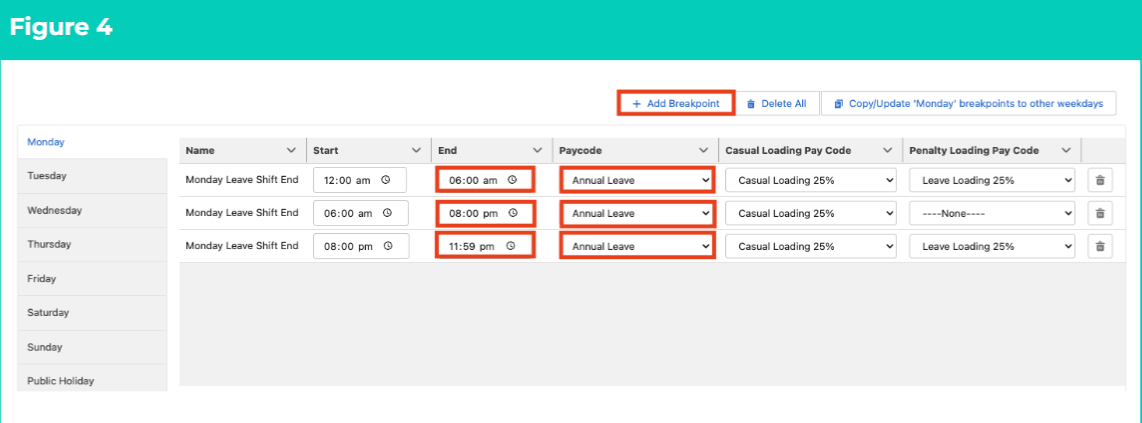
 6. If Shift Loading was selected in the Leave Loading field in Step 4.c., follow this step in the sequence given below (see Figure 4):
1. Click on the **+ Add Breakpoint** button.
2. As the Start field defaults to 12:00am, and does not need to be populated, define the first Leave Shift Loading Breakpoint that occurs on Mondays from 12:00am by populating the **End** field.
3. To define the Pay Code for the first Leave Shift Loading Breakpoint, populate the **Pay Code** field using the lookup options available.
4. If Casual Loading has been applied to the Interpretation Rule, populate the **Casual Loading Pay Code** field using the lookup options available.
5. If Penalty Loading has been applied to the Interpretation Rule, populate the **Penalty Loading Pay Code** field using the lookup options available.
6. To add the next Leave Shift Loading Breakpoint, click on the **+ Add Breakpoint** button and a new Breakpoint line will be added beneath the first.
7. Populate the **End** and **Pay Code** fields within the new Breakpoint to define the next Leave Shift Loading Breakpoint for Mondays.
7. Repeat the above until 24 hours of Leave Shift Loading Breakpoints have been accounted for Mondays.
8. Complete Leave Shift Loading Breakpoints for the rest of the Weekday tabs, or click on the **Copy/Update ‘Monday’ Breakpoints** to auto-populate Breakpoints from the Monday tab.
9. Complete Leave Shift Loading Breakpoints for the rest of the Weekend and Public Holiday tabs.
6. If Shift Loading was selected in the Leave Loading field in Step 4.c., follow this step in the sequence given below (see Figure 4):
1. Click on the **+ Add Breakpoint** button.
2. As the Start field defaults to 12:00am, and does not need to be populated, define the first Leave Shift Loading Breakpoint that occurs on Mondays from 12:00am by populating the **End** field.
3. To define the Pay Code for the first Leave Shift Loading Breakpoint, populate the **Pay Code** field using the lookup options available.
4. If Casual Loading has been applied to the Interpretation Rule, populate the **Casual Loading Pay Code** field using the lookup options available.
5. If Penalty Loading has been applied to the Interpretation Rule, populate the **Penalty Loading Pay Code** field using the lookup options available.
6. To add the next Leave Shift Loading Breakpoint, click on the **+ Add Breakpoint** button and a new Breakpoint line will be added beneath the first.
7. Populate the **End** and **Pay Code** fields within the new Breakpoint to define the next Leave Shift Loading Breakpoint for Mondays.
7. Repeat the above until 24 hours of Leave Shift Loading Breakpoints have been accounted for Mondays.
8. Complete Leave Shift Loading Breakpoints for the rest of the Weekday tabs, or click on the **Copy/Update ‘Monday’ Breakpoints** to auto-populate Breakpoints from the Monday tab.
9. Complete Leave Shift Loading Breakpoints for the rest of the Weekend and Public Holiday tabs.
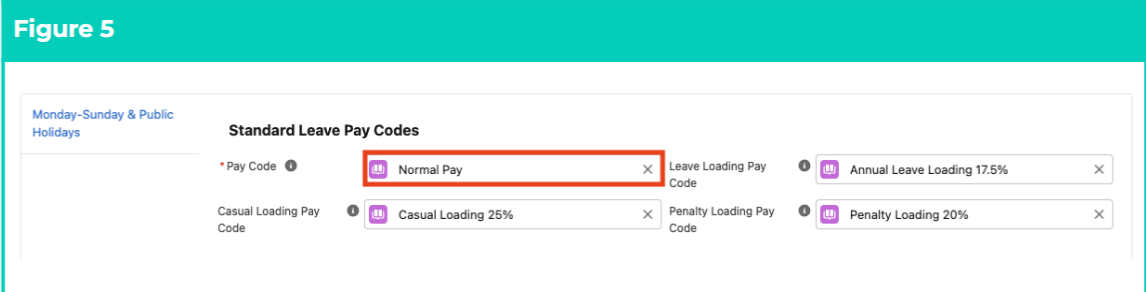
 10. If Standard was selected in the Leave Loading field in Step 4.c., follow this step in the sequence given below (see Figure 5):
11. To determine the Pay Code for Leave Entries, populate the **Pay Code** field using the lookup options available.
12. To define a Pay Code to be applied when calculating Leave Loading, populate the **Leave Loading Pay Code** field using the lookup options available.
13. If Casual Loading has been applied to the Interpretation Rule, populate the **Casual Loading Pay Code** field using the lookup options available.
14. If Penalty Loading has been applied to the Interpretation Rule, populate the **Penalty Loading Pay Code** field using the lookup options available.
15. To add another Leave Breakpoint, click on the **+ Add** button and a new Leave Breakpoint tab will be added next to the existing Leave Breakpoint tab(s).
16. To remove a Breakpoint, click on the **Trash Can** icon next to the corresponding line.
17. Repeat the above until Leave Breakpoints for all Payee Leave Rules related to this Interpretation Rule have been defined.
10. If Standard was selected in the Leave Loading field in Step 4.c., follow this step in the sequence given below (see Figure 5):
11. To determine the Pay Code for Leave Entries, populate the **Pay Code** field using the lookup options available.
12. To define a Pay Code to be applied when calculating Leave Loading, populate the **Leave Loading Pay Code** field using the lookup options available.
13. If Casual Loading has been applied to the Interpretation Rule, populate the **Casual Loading Pay Code** field using the lookup options available.
14. If Penalty Loading has been applied to the Interpretation Rule, populate the **Penalty Loading Pay Code** field using the lookup options available.
15. To add another Leave Breakpoint, click on the **+ Add** button and a new Leave Breakpoint tab will be added next to the existing Leave Breakpoint tab(s).
16. To remove a Breakpoint, click on the **Trash Can** icon next to the corresponding line.
17. Repeat the above until Leave Breakpoints for all Payee Leave Rules related to this Interpretation Rule have been defined.
 Leave Rules will only be Interpreted if the related Payee has Payee Leave Rules that match the Leave Rules referenced in the Leave Breakpoints.
## **Create Allowance Junction Rule Breakpoints**
To enable an Allowance Breakpoint to be associated with a specific Leave type, or only be payable in conjunction with a specific Timesheet Activity Project Code, identify the Allowance Rules section of the Interpretation Rule Builder and follow the below steps.
12. Create Breakpoints using the instructions provided in the Create Breakpoints & Pay Code Caps QRG.
All Breakpoints must be populated and created via the Create Breakpoints button before the Allowance Junction Rule Breakpoints will appear.
Pay Code Caps should be completed following the population of any required changes made to any of the Breakpoints in the Interpretation Rule.
13. To create an Allowance/Leave Junction, populate the following fields (see Figure 6):
14. Click on the **Allowance/Leave Junction** tab.
15. Click on the **+ Add** button.
1. A new Breakpoint line will appear with an auto-populated descriptor in the **Name** field. This field should not be overwritten unless required.
16. To define which Allowance Rule the Allowance Junction should be applied to, select from the available picklist options in the **Allowance Breakpoint** field.
17. To define which Leave Rule the Allowance Junction should be applied to, select from the available picklist options in the **Leave Header** field.
18. To add another Allowance Junction Rule, click on the **+ Add** button and a new Allowance/Leave Junction line will be added beneath the first.
19. To remove a Breakpoint, click on the **Trash Can** icon next to the corresponding line.
20. Repeat the above until the Allowance/Leave Junction Rules have been defined for all Allowances associated with Leave for this Interpretation Rule.
Leave Rules will only be Interpreted if the related Payee has Payee Leave Rules that match the Leave Rules referenced in the Leave Breakpoints.
## **Create Allowance Junction Rule Breakpoints**
To enable an Allowance Breakpoint to be associated with a specific Leave type, or only be payable in conjunction with a specific Timesheet Activity Project Code, identify the Allowance Rules section of the Interpretation Rule Builder and follow the below steps.
12. Create Breakpoints using the instructions provided in the Create Breakpoints & Pay Code Caps QRG.
All Breakpoints must be populated and created via the Create Breakpoints button before the Allowance Junction Rule Breakpoints will appear.
Pay Code Caps should be completed following the population of any required changes made to any of the Breakpoints in the Interpretation Rule.
13. To create an Allowance/Leave Junction, populate the following fields (see Figure 6):
14. Click on the **Allowance/Leave Junction** tab.
15. Click on the **+ Add** button.
1. A new Breakpoint line will appear with an auto-populated descriptor in the **Name** field. This field should not be overwritten unless required.
16. To define which Allowance Rule the Allowance Junction should be applied to, select from the available picklist options in the **Allowance Breakpoint** field.
17. To define which Leave Rule the Allowance Junction should be applied to, select from the available picklist options in the **Leave Header** field.
18. To add another Allowance Junction Rule, click on the **+ Add** button and a new Allowance/Leave Junction line will be added beneath the first.
19. To remove a Breakpoint, click on the **Trash Can** icon next to the corresponding line.
20. Repeat the above until the Allowance/Leave Junction Rules have been defined for all Allowances associated with Leave for this Interpretation Rule.
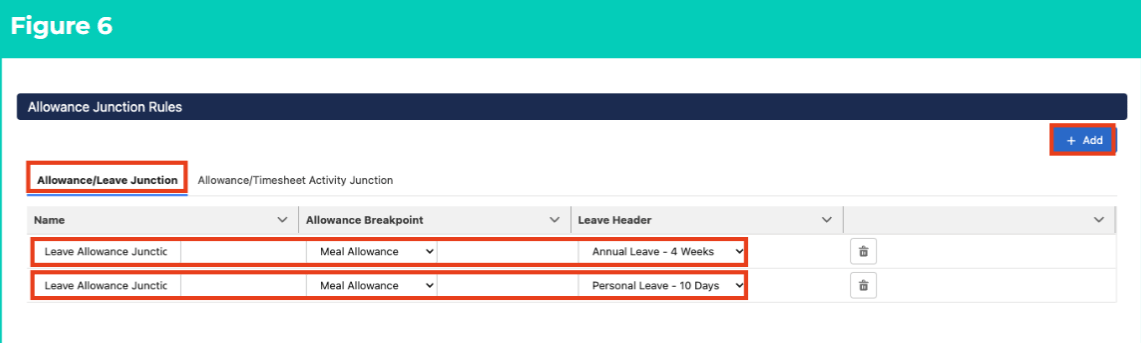 The Allowance Breakpoint and Leave Header picklist fields are automatically populated with data from the Allowance Rule and Leave Rule Breakpoints, and will not display any values until at least one Allowance and one Leave Breakpoint have been created for the Interpretation Rule.
15. To create an Allowance/Timesheet Activity Junction, populate the following fields (see Figure 7):
16. Click on the **Allowance/Timesheet Activity Junction** tab.
17. Click on the **+ Add** button.
1. A new Breakpoint line will appear with an auto-populated descriptor in the **Name** field. This field should not be overwritten unless required.
18. To define which Allowance Rule the Allowance Junction should be applied to, select from the available picklist options in the **Allowance Breakpoint** field.
19. To define which Timesheet Activity Project Code the Allowance Junction should be associated with, select from the available picklist options in the **Allowance Type** field.
20. To add another Allowance Junction Rule, click on the **+ Add** button and a new Allowance/Timesheet Activity Junction line will be added beneath the first.
21. To remove a Breakpoint, click on the **Trash Can** icon next to the corresponding line.
22. Repeat the above until the Allowance/Timesheet Activity Junction Rules have been defined for all Allowances associated with Timesheet Activities for this Interpretation Rule.
The Allowance Breakpoint and Leave Header picklist fields are automatically populated with data from the Allowance Rule and Leave Rule Breakpoints, and will not display any values until at least one Allowance and one Leave Breakpoint have been created for the Interpretation Rule.
15. To create an Allowance/Timesheet Activity Junction, populate the following fields (see Figure 7):
16. Click on the **Allowance/Timesheet Activity Junction** tab.
17. Click on the **+ Add** button.
1. A new Breakpoint line will appear with an auto-populated descriptor in the **Name** field. This field should not be overwritten unless required.
18. To define which Allowance Rule the Allowance Junction should be applied to, select from the available picklist options in the **Allowance Breakpoint** field.
19. To define which Timesheet Activity Project Code the Allowance Junction should be associated with, select from the available picklist options in the **Allowance Type** field.
20. To add another Allowance Junction Rule, click on the **+ Add** button and a new Allowance/Timesheet Activity Junction line will be added beneath the first.
21. To remove a Breakpoint, click on the **Trash Can** icon next to the corresponding line.
22. Repeat the above until the Allowance/Timesheet Activity Junction Rules have been defined for all Allowances associated with Timesheet Activities for this Interpretation Rule.
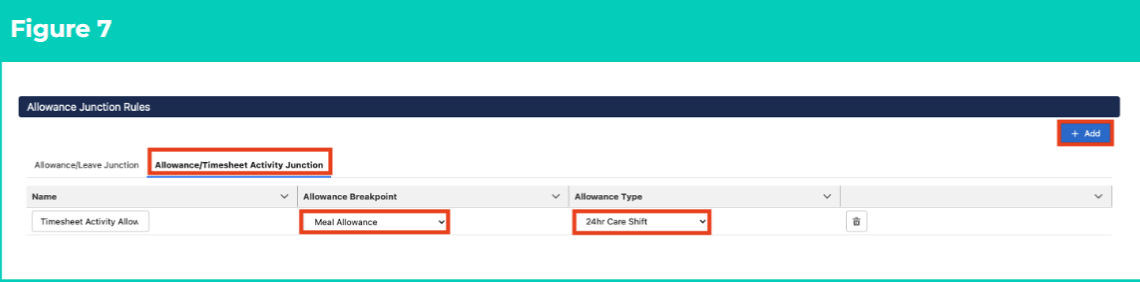 The Allowance Breakpoint picklist field is automatically populated with data from the Allowance Rule Breakpoints, and will not display any values until at least one Allowance Breakpoint has been created for the Interpretation Rule.
Allowance Type is a field available in both the Allowance/Timesheet Activity Junction Breakpoint and the Timesheet Activity Project Code record. To ensure a Breakpoint is associated with the correct Timesheet Activity Project Code, make sure the same Allowance Type value is selected for both records.
To relate an Allowance/Timesheet Activity Breakpoint to a custom Variation, ensure that the Variation Type populated in the Timesheet Activity Project Code associated with the Breakpoint is the same as the Variation Type selected for the custom Variation record.
17. Create Pay Code Caps using the instructions provided in the Create Breakpoints & Pay Code Caps QRG to complete the Interpretation Rule and finalise record creation.
The Interpretation Rule cannot be saved or finalised until all required sections of the Interpretation Rule Builder have been populated, and Breakpoint & Pay Code Cap creation is completed.
## **Field Descriptions**
| **Field Name** | **Description** |
| ---------------------------------------------- | ------------------------------------------------------------------------------------------------------------------------------------------------------------------------------------------------------------------------------------------------------------------------------------------------------------------------------------------------------------------------------------------------------------------------------------------------------------------------------------------------------------------------------------------------------------------------------------------------------------------------------- |
| **Allowance Breakpoint** | Defines which Allowance Rule Breakpoints the Allowance Junction is related to. |
| **Allowance Type** | Determines the category for the Allowance defined in the Allowance Breakpoint field. |
| **Apply Partial Quantity** | Defines whether Allowance quantities should be based on partial allowances if the completed time includes partial hours. |
| **Days Leave Applies To OT** **And Frequency** | Defines the days that Leave will be applied to ‘Overtime’ and ‘Frequency’ Interpretation logic. |
| **End Threshold** | The maximum amount of Shift Gaps meeting the Minimum Qualifying Threshold that are eligible for the Shift Allowance. |
| **Leave Header** | Defines which Leave Breakpoint the Allowance Junction is related to. |
| **Leave Loading Pay Code** | Defines the Pay Code to apply if Leave Loading Pay Transactions are to be interpreted. |
| **Leave Rule** | Defines the Leave Rule that the Leave Breakpoint applies to. |
| **Minimum Qualifying** **Threshold** | Defines the minimum number of minutes that qualify as a Shift Gap when interpreting related Shift Allowances. |
| **Name** | Defines a unique identifier for the Allowance Junction Rule. |
| **Required** | Defines the amount of time that must be worked before an Allowance is automatically applied based on the related Timesheet Entries |
| **Type** | For Hourly Allowance, Daily Allowance, Weekly Allowance and Frequency Allowance, this defines the unit of time that applies to the amount entered in the Required figure: ● **Hours**- total number of hours to be completed before the allowance is applied. ● **Days**- total number of days with time entered before the allowance is applied. For Shift Allowance, this defines the type of calculation that applies to the amounts entered in the Start Threshold and End Threshold fields: ● **Shift Gap**- calculates Shift Allowance entitlements based on the amount of time between Timesheet Entries within a Shift. |
| **Overtime Hours** | Total number of overtime hours before the allowance is applied. |
| **Pay Code** | Defines the Pay Code that is applied to the Breakpoint. |
| **Reset** | Defines whether an Allowance’s availability to be automatically paid should be reset to apply again each time the required amount of time is worked, or if it may only be claimed once per Timesheet/Timesheet Entry. |
| **Start Threshold** | The minimum amount Shift Gaps meeting the Minimum Qualifying Threshold that are entitled to the Shift Allowance. |
## **Further Information**
| **Document** | **Document Type** | **Description** |
| ------------------------------------------------------------------------------- | --------------------------- | ------------------------------------------------------------------------------------------------------------------------------------------------------------------------- |
| QRG Interpretation Rule Builder Functionality - Key Information | Information Quick Reference | Outlines useful information relevant to the Interpretation Rule functionality. The document includes definitions, prerequisites, and other non-instructional information. |
| QRG Interpretation Rule Builder - Create Daily Rates Interpretation Rule | Task Instructions | How to create a Daily Rates Interpretation Rule. |
| QRG Interpretation Rule Builder - Populate Hourly Rate Interpretation Rules | Task Instructions | How to populate Breakpoints for the Hourly Rate Interpretation Rule Record Type. |
| QRG Interpretation Rule Builder - Populate Shift Time Interpretation Rules | Task Instructions | How to populate Breakpoints for the Shift Start or Shift End Interpretation Rule Record Type. |
| QRG Interpretation Rule Builder - Populate Break Loading & Minimum Rest Rules | Task Instructions | How to populate Breakpoints for the Break Loading and Minimum Rest Rules using the Interpretation Rule Builder. |
| QRG Interpretation Rule Builder - Populate Split/Broken Shift & Sleepover Rules | Task Instructions | How to populate Breakpoints for the Split/Broken Shift and Sleepover Rules using the Interpretation Rule Builder. |
| QRG Interpretation Rule Builder - Create Breakpoints & Pay Code Caps | Task Instructions | How to create Breakpoints and Pay Code Caps using the Interpretation Rule Builder. |
| QRG Create Interpretation Rule - Create Custom Shift Interpretation Variation | Task Instructions | How to create custom Interpretation Variations. |
| QRG Create Interpretation Rule - Create Assignment Interpretation Variation | Task Instructions | How to create Assignment Interpretation Variations. |
The Allowance Breakpoint picklist field is automatically populated with data from the Allowance Rule Breakpoints, and will not display any values until at least one Allowance Breakpoint has been created for the Interpretation Rule.
Allowance Type is a field available in both the Allowance/Timesheet Activity Junction Breakpoint and the Timesheet Activity Project Code record. To ensure a Breakpoint is associated with the correct Timesheet Activity Project Code, make sure the same Allowance Type value is selected for both records.
To relate an Allowance/Timesheet Activity Breakpoint to a custom Variation, ensure that the Variation Type populated in the Timesheet Activity Project Code associated with the Breakpoint is the same as the Variation Type selected for the custom Variation record.
17. Create Pay Code Caps using the instructions provided in the Create Breakpoints & Pay Code Caps QRG to complete the Interpretation Rule and finalise record creation.
The Interpretation Rule cannot be saved or finalised until all required sections of the Interpretation Rule Builder have been populated, and Breakpoint & Pay Code Cap creation is completed.
## **Field Descriptions**
| **Field Name** | **Description** |
| ---------------------------------------------- | ------------------------------------------------------------------------------------------------------------------------------------------------------------------------------------------------------------------------------------------------------------------------------------------------------------------------------------------------------------------------------------------------------------------------------------------------------------------------------------------------------------------------------------------------------------------------------------------------------------------------------- |
| **Allowance Breakpoint** | Defines which Allowance Rule Breakpoints the Allowance Junction is related to. |
| **Allowance Type** | Determines the category for the Allowance defined in the Allowance Breakpoint field. |
| **Apply Partial Quantity** | Defines whether Allowance quantities should be based on partial allowances if the completed time includes partial hours. |
| **Days Leave Applies To OT** **And Frequency** | Defines the days that Leave will be applied to ‘Overtime’ and ‘Frequency’ Interpretation logic. |
| **End Threshold** | The maximum amount of Shift Gaps meeting the Minimum Qualifying Threshold that are eligible for the Shift Allowance. |
| **Leave Header** | Defines which Leave Breakpoint the Allowance Junction is related to. |
| **Leave Loading Pay Code** | Defines the Pay Code to apply if Leave Loading Pay Transactions are to be interpreted. |
| **Leave Rule** | Defines the Leave Rule that the Leave Breakpoint applies to. |
| **Minimum Qualifying** **Threshold** | Defines the minimum number of minutes that qualify as a Shift Gap when interpreting related Shift Allowances. |
| **Name** | Defines a unique identifier for the Allowance Junction Rule. |
| **Required** | Defines the amount of time that must be worked before an Allowance is automatically applied based on the related Timesheet Entries |
| **Type** | For Hourly Allowance, Daily Allowance, Weekly Allowance and Frequency Allowance, this defines the unit of time that applies to the amount entered in the Required figure: ● **Hours**- total number of hours to be completed before the allowance is applied. ● **Days**- total number of days with time entered before the allowance is applied. For Shift Allowance, this defines the type of calculation that applies to the amounts entered in the Start Threshold and End Threshold fields: ● **Shift Gap**- calculates Shift Allowance entitlements based on the amount of time between Timesheet Entries within a Shift. |
| **Overtime Hours** | Total number of overtime hours before the allowance is applied. |
| **Pay Code** | Defines the Pay Code that is applied to the Breakpoint. |
| **Reset** | Defines whether an Allowance’s availability to be automatically paid should be reset to apply again each time the required amount of time is worked, or if it may only be claimed once per Timesheet/Timesheet Entry. |
| **Start Threshold** | The minimum amount Shift Gaps meeting the Minimum Qualifying Threshold that are entitled to the Shift Allowance. |
## **Further Information**
| **Document** | **Document Type** | **Description** |
| ------------------------------------------------------------------------------- | --------------------------- | ------------------------------------------------------------------------------------------------------------------------------------------------------------------------- |
| QRG Interpretation Rule Builder Functionality - Key Information | Information Quick Reference | Outlines useful information relevant to the Interpretation Rule functionality. The document includes definitions, prerequisites, and other non-instructional information. |
| QRG Interpretation Rule Builder - Create Daily Rates Interpretation Rule | Task Instructions | How to create a Daily Rates Interpretation Rule. |
| QRG Interpretation Rule Builder - Populate Hourly Rate Interpretation Rules | Task Instructions | How to populate Breakpoints for the Hourly Rate Interpretation Rule Record Type. |
| QRG Interpretation Rule Builder - Populate Shift Time Interpretation Rules | Task Instructions | How to populate Breakpoints for the Shift Start or Shift End Interpretation Rule Record Type. |
| QRG Interpretation Rule Builder - Populate Break Loading & Minimum Rest Rules | Task Instructions | How to populate Breakpoints for the Break Loading and Minimum Rest Rules using the Interpretation Rule Builder. |
| QRG Interpretation Rule Builder - Populate Split/Broken Shift & Sleepover Rules | Task Instructions | How to populate Breakpoints for the Split/Broken Shift and Sleepover Rules using the Interpretation Rule Builder. |
| QRG Interpretation Rule Builder - Create Breakpoints & Pay Code Caps | Task Instructions | How to create Breakpoints and Pay Code Caps using the Interpretation Rule Builder. |
| QRG Create Interpretation Rule - Create Custom Shift Interpretation Variation | Task Instructions | How to create custom Interpretation Variations. |
| QRG Create Interpretation Rule - Create Assignment Interpretation Variation | Task Instructions | How to create Assignment Interpretation Variations. |