> ## Documentation Index
> Fetch the complete documentation index at: https://documentation.2cloudnine.com/llms.txt
> Use this file to discover all available pages before exploring further.
# QRG Create Invoiceable Fees
## Purpose
The purpose of this quick reference guide is to step through the process of creating an Invoiceable Fee
which can be created either from a Client record or from an Assignment record. The intended audience
for this document is System Administrators / Standard Payroll Users.
Users are advised after creating the Invoiceable Fee, they will be required to create the Pay Transaction,
and no Invoice can be created until this is completed.
## Steps
### **Create Invoiceable Fees from Client**
Create an Invoiceable Fees from the Client by following the below steps:
1. Go to the **Client** record.
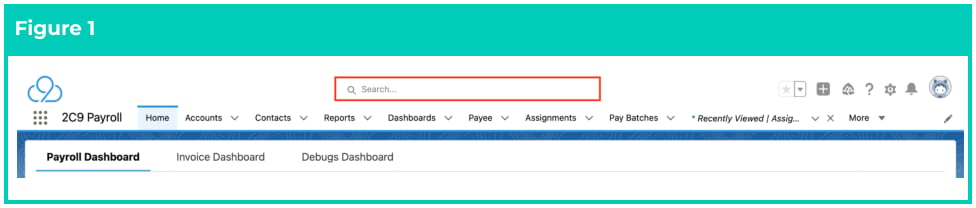
1. To identify a Client record, enter the Account name into the **Global Search** (see Figure 1).
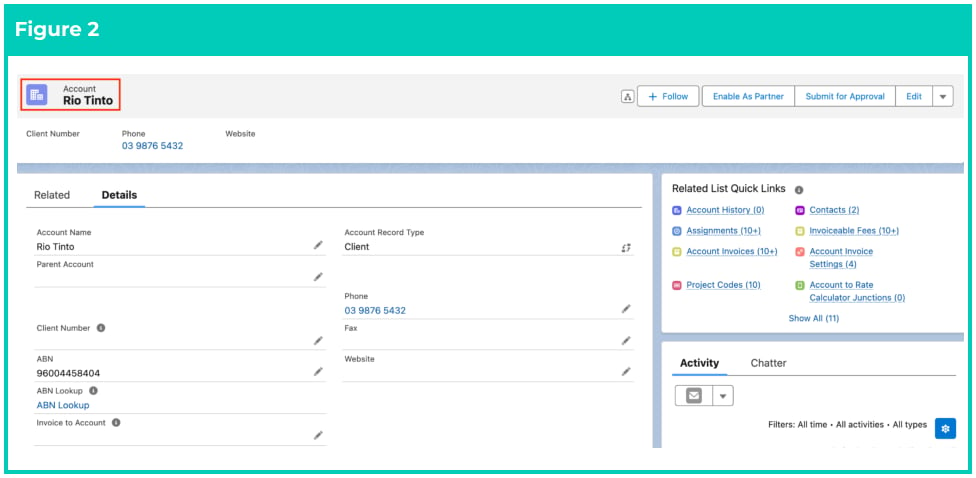
 2. Select the **Account** record from the suggestions provided (see Figure 2).
 2. Within the Client record, click on the icon on the top right hand side and then select **Create**
**Invoiceable Fee** (see Figure 3).
2. Within the Client record, click on the icon on the top right hand side and then select **Create**
**Invoiceable Fee** (see Figure 3).
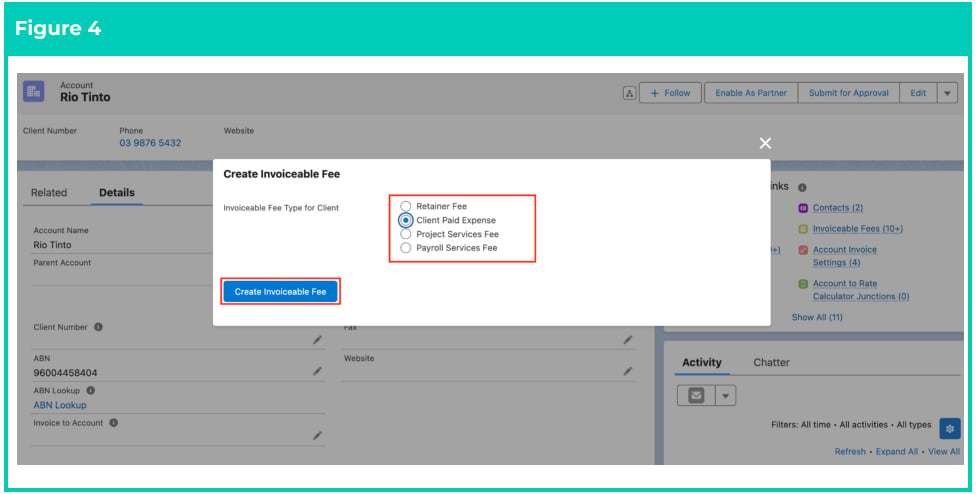
 3. A popup will display. Select one of the required options given below (see Figure 4). Please note
the Record Type cannot be changed after the record has been created:
1. **Retainer Fee**
2. **Client Paid Expense**
3. **Project Services Fee**
4. **Payroll Services Fee**
4. For this QRG example, we are selecting the **Client Paid Expense** radio button and clicking the
**Create Invoiceable Fee** button (see Figure 4).
3. A popup will display. Select one of the required options given below (see Figure 4). Please note
the Record Type cannot be changed after the record has been created:
1. **Retainer Fee**
2. **Client Paid Expense**
3. **Project Services Fee**
4. **Payroll Services Fee**
4. For this QRG example, we are selecting the **Client Paid Expense** radio button and clicking the
**Create Invoiceable Fee** button (see Figure 4).
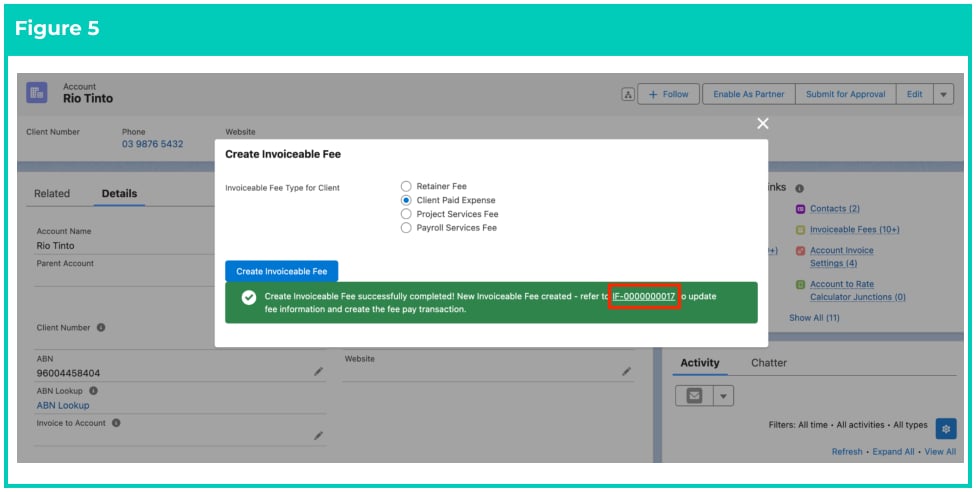
 5. The system will automatically create the Invoiceable Fee, and if successful, will display a
notification starting with ‘Create Invoiceable Fee successfully completed!’. Click on the link within
the notification starting with **IF-xxxxxxxxxx** (see Figure 5).
5. The system will automatically create the Invoiceable Fee, and if successful, will display a
notification starting with ‘Create Invoiceable Fee successfully completed!’. Click on the link within
the notification starting with **IF-xxxxxxxxxx** (see Figure 5).
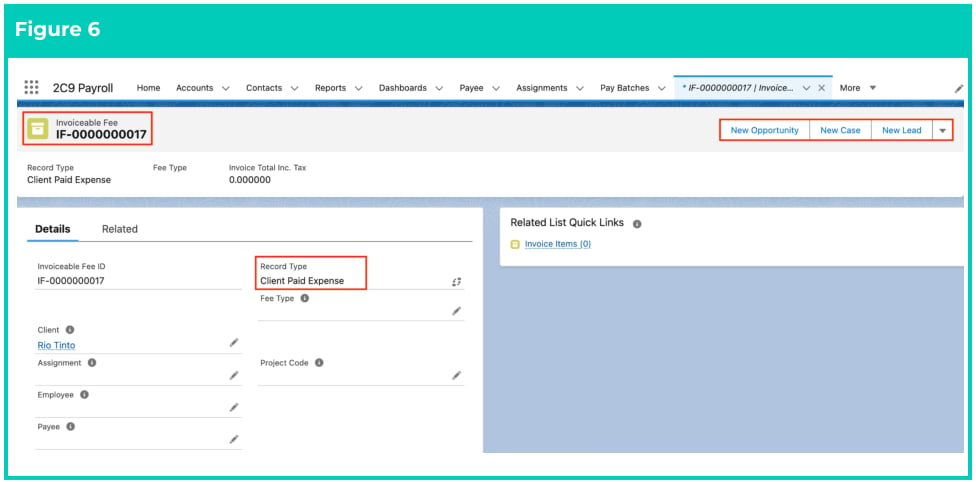
 6. A new Invoiceable Fee record has been created with a Record Type of Client Paid Expense (see
Figure 6).
6. A new Invoiceable Fee record has been created with a Record Type of Client Paid Expense (see
Figure 6).
 7. After creating the Invoiceable Fee, please refer to page 7 to learn how to create Pay Transactions.
Invoiceable Fees CAN NOT be deleted if they have related records or are used in other
records. Deleting records is not recommended unless absolutely essential.
8. To modify an existing **Invoiceable Fee** record, open the required record and select the **Edit**
button available on the top right side of the page. You can also double click in any of the fields
that need editing or just click on the pencil icon that appears within fields when you move
your cursor over the field.
9. When complete, click on the **Save** button.
### **Create Invoiceable Fees from Perm Assignment**
Create an Invoiceable Fee from the Perm Assignment by following the below steps:
1. Go to the **Assignment** record.
1. To identify an Assignment record from an Employee record, enter the Employee name into the **Global Search** (see Figure 7).
7. After creating the Invoiceable Fee, please refer to page 7 to learn how to create Pay Transactions.
Invoiceable Fees CAN NOT be deleted if they have related records or are used in other
records. Deleting records is not recommended unless absolutely essential.
8. To modify an existing **Invoiceable Fee** record, open the required record and select the **Edit**
button available on the top right side of the page. You can also double click in any of the fields
that need editing or just click on the pencil icon that appears within fields when you move
your cursor over the field.
9. When complete, click on the **Save** button.
### **Create Invoiceable Fees from Perm Assignment**
Create an Invoiceable Fee from the Perm Assignment by following the below steps:
1. Go to the **Assignment** record.
1. To identify an Assignment record from an Employee record, enter the Employee name into the **Global Search** (see Figure 7).
 2. Select the **Employee** record from the suggestions provided.
3. Open the **Related** tab.
4. Identify the **Assignment** record(s).
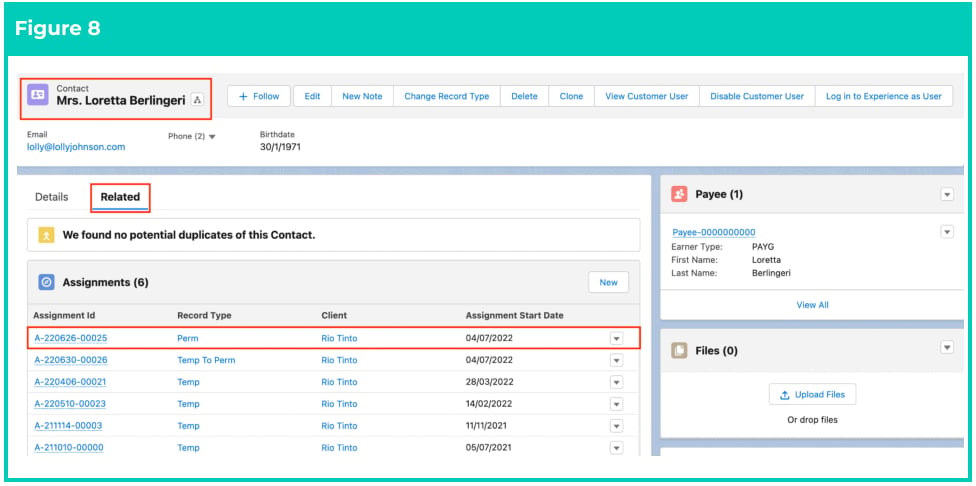
5. Select the suitable **Assignment** record for this Invoiceable Fee (see Figure 8).
2. Select the **Employee** record from the suggestions provided.
3. Open the **Related** tab.
4. Identify the **Assignment** record(s).
5. Select the suitable **Assignment** record for this Invoiceable Fee (see Figure 8).
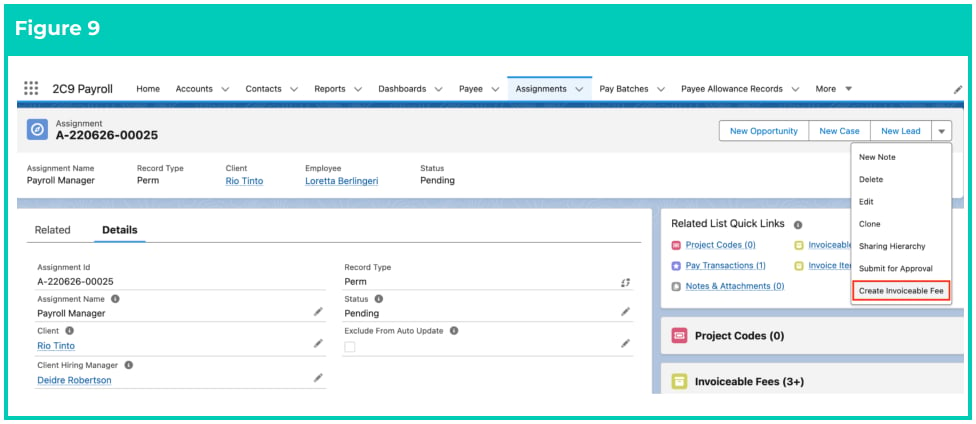
 2. Within the Assignment record, click on the icon on the top right hand side and then select
**Create Invoiceable Fee** (see Figure 9).
2. Within the Assignment record, click on the icon on the top right hand side and then select
**Create Invoiceable Fee** (see Figure 9).
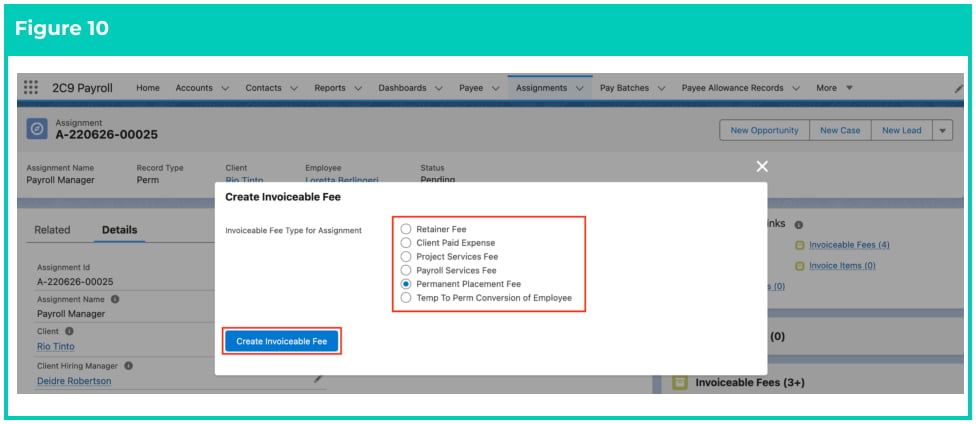
 3. A popup will display. Select one of the required options given below (see Figure 10). Please note
the Record Type cannot be changed after the record has been created:
1. **Retainer Fee**
2. **Client Paid Expense**
3. **Project Services Fee**
4. **Payroll Services Fee**
5. **Permanent Placement Fee**
6. **Temp To Perm Conversion of Employee**
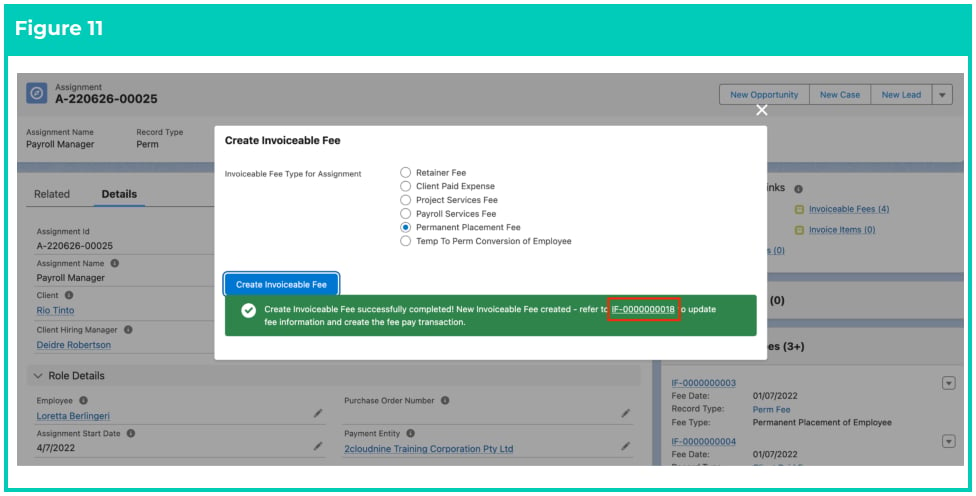
4. For this QRG example, we are selecting the **Permanent Placement Fee** radio button and clicking
the **Create Invoiceable Fee** button (see Figure 10).
3. A popup will display. Select one of the required options given below (see Figure 10). Please note
the Record Type cannot be changed after the record has been created:
1. **Retainer Fee**
2. **Client Paid Expense**
3. **Project Services Fee**
4. **Payroll Services Fee**
5. **Permanent Placement Fee**
6. **Temp To Perm Conversion of Employee**
4. For this QRG example, we are selecting the **Permanent Placement Fee** radio button and clicking
the **Create Invoiceable Fee** button (see Figure 10).
 5. The system will automatically create the Invoiceable Fee, and if successful, will display a
notification starting with ‘Create Invoiceable Fee successfully completed!’. Click on the link within
the notification starting with **IF-xxxxxxxxxx** (see Figure 11).
5. The system will automatically create the Invoiceable Fee, and if successful, will display a
notification starting with ‘Create Invoiceable Fee successfully completed!’. Click on the link within
the notification starting with **IF-xxxxxxxxxx** (see Figure 11).
 6. A new Invoiceable Fee record has been created with a Record Type of Perm Fee (see Figure 12).
 1. To modify an existing **Invoiceable Fee** record, open the required record and select the
**Edit** button available on the top right side of the page. You can also double click in any of
the fields that need editing or just click on the pencil icon that appears within fields
when you move your cursor over the field.
2. When complete, click on the **Save** button.
3. After creating the Invoiceable Fee, please refer to the next page to learn how to create Pay
Transactions.
Invoiceable Fees CAN NOT be deleted if they have related records or are used in other
records. Deleting records is not recommended unless absolutely essential.
### **Create Pay Transactions from Invoiceable Fee**
Create a Pay Transaction from the Invoiceable Fee by following the below steps:
1. Open the Invoiceable Fee record that you have created above.
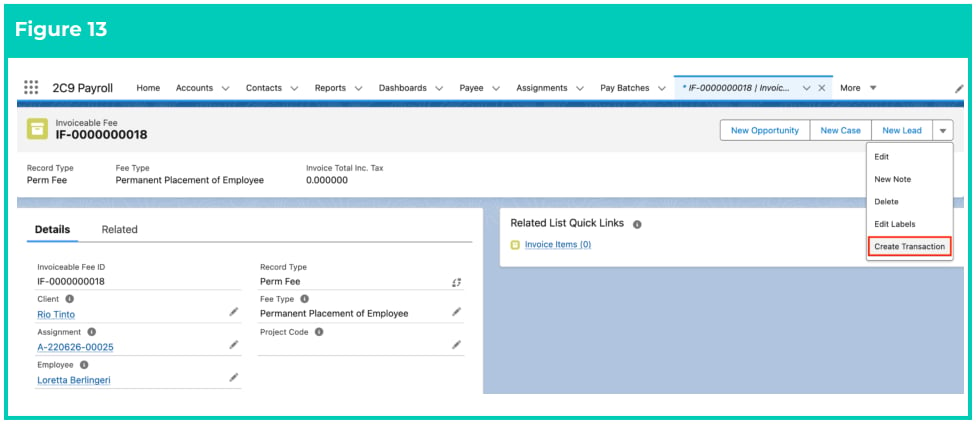
2. Within the Invoiceable Fee record, click on the icon on the top right hand side and then click
on the **Create Transaction** button (see Figure 13).
1. To modify an existing **Invoiceable Fee** record, open the required record and select the
**Edit** button available on the top right side of the page. You can also double click in any of
the fields that need editing or just click on the pencil icon that appears within fields
when you move your cursor over the field.
2. When complete, click on the **Save** button.
3. After creating the Invoiceable Fee, please refer to the next page to learn how to create Pay
Transactions.
Invoiceable Fees CAN NOT be deleted if they have related records or are used in other
records. Deleting records is not recommended unless absolutely essential.
### **Create Pay Transactions from Invoiceable Fee**
Create a Pay Transaction from the Invoiceable Fee by following the below steps:
1. Open the Invoiceable Fee record that you have created above.
2. Within the Invoiceable Fee record, click on the icon on the top right hand side and then click
on the **Create Transaction** button (see Figure 13).
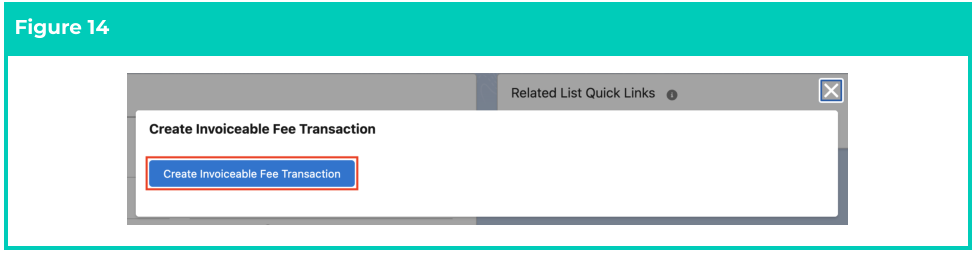
 3. A new popup will open. Click on the **Create Invoiceable Fee Transaction** button (see Figure 14).
 4. If successful, you will see a confirmation message as shown in the screenshot below with a link to
the newly created Pay Transaction record. Click on the link **xxxxxxxxxxxxxxx** (see Figure 15).
4. If successful, you will see a confirmation message as shown in the screenshot below with a link to
the newly created Pay Transaction record. Click on the link **xxxxxxxxxxxxxxx** (see Figure 15).
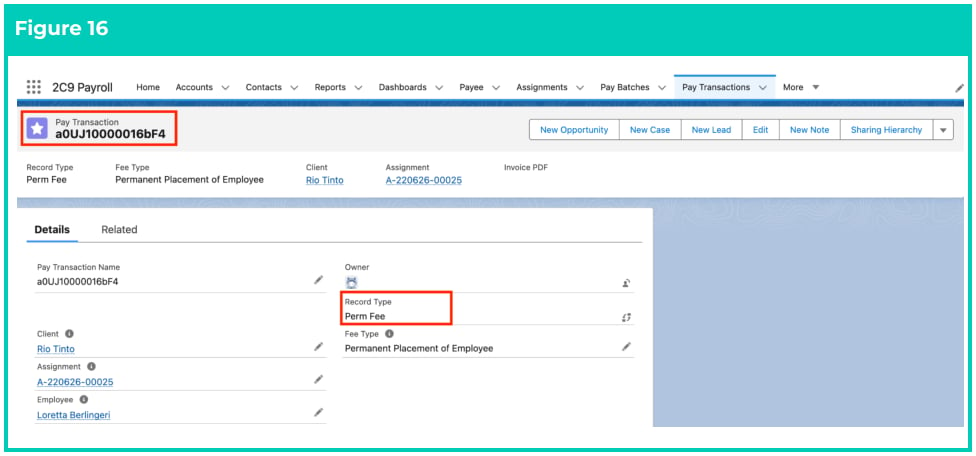
 5. The Pay Transaction record that has been created will have a Record Type as per the Invoiceable
Fee Record Type (i.e Retainer Fee, Client Paid Expense, Project Services Fee, Payroll Services Fee,
Permanent Placement Fee, Temp To Perm Conversion of Employee) (see Figure 16).
5. The Pay Transaction record that has been created will have a Record Type as per the Invoiceable
Fee Record Type (i.e Retainer Fee, Client Paid Expense, Project Services Fee, Payroll Services Fee,
Permanent Placement Fee, Temp To Perm Conversion of Employee) (see Figure 16).
 Pay Transactions CAN NOT be deleted if they have related records or are used in other
records. Deleting records is not recommended unless absolutely essential.
1. To modify an existing **Pay Transaction**, open the required record and select the **Edit**
button available on the top right side of the page. You can also double click in any of the
fields that need editing or just click on the pencil icon that appears within fields
when you move your cursor over the field.
2. When complete, click on the **Save** button.
## Field Descriptions
No field descriptions are required for this QRG document.
## Further Information
| Document | Document Type | Description |
| ---------------------------------------------- | ----------------- | ------------------------------------------------------ |
| QRG Creating Invoices | Task Instructions | How to create Invoices |
| QRG Create Invoice Settings | Task Instructions | How to create Invoice Settings |
| QRG Create Invoice Schedules | Task Instructions | How to create an Invoice Schedule |
| QRG Create Invoice Calendar & Calendar Periods | Task Instructions | How to create an Invoice Calendar and Calendar Periods |
| QRG Create an Account - Invoice Entity | Task Instructions | How to create an Invoice Entity |
| QRG Create Credit Notes | Task Instructions | How to create a Credit Note from an existing Invoice |
Pay Transactions CAN NOT be deleted if they have related records or are used in other
records. Deleting records is not recommended unless absolutely essential.
1. To modify an existing **Pay Transaction**, open the required record and select the **Edit**
button available on the top right side of the page. You can also double click in any of the
fields that need editing or just click on the pencil icon that appears within fields
when you move your cursor over the field.
2. When complete, click on the **Save** button.
## Field Descriptions
No field descriptions are required for this QRG document.
## Further Information
| Document | Document Type | Description |
| ---------------------------------------------- | ----------------- | ------------------------------------------------------ |
| QRG Creating Invoices | Task Instructions | How to create Invoices |
| QRG Create Invoice Settings | Task Instructions | How to create Invoice Settings |
| QRG Create Invoice Schedules | Task Instructions | How to create an Invoice Schedule |
| QRG Create Invoice Calendar & Calendar Periods | Task Instructions | How to create an Invoice Calendar and Calendar Periods |
| QRG Create an Account - Invoice Entity | Task Instructions | How to create an Invoice Entity |
| QRG Create Credit Notes | Task Instructions | How to create a Credit Note from an existing Invoice |