> ## Documentation Index
> Fetch the complete documentation index at: https://documentation.2cloudnine.com/llms.txt
> Use this file to discover all available pages before exploring further.
# QRG Invoicing - Key Information
## Prerequisites
Prior to the creation of Invoices, the following prerequisites must be met:
1. 2cloudnine Payroll Users must be running the Salesforce Lightning Experience.
2. For Invoices to create, Users must have access to create Invoices via the Invoice GeneratioManager page.
3. For an Invoice to be generated, Pay Transactions must have been created first, either through Timesheets, Expense Claims or Invoiceable Fee records.
4. Before creating Pay Transactions, Users must create and allocate Account Invoice Settings for Payroll Items or Invoiceable Fees to the related Client records. This can be done via the Related List to the Client record.
5. Similarly, before creating Invoices, there are other required records that need to be created. These will be referenced in the Assignment, Client or in the Pay Transactions when they are created as a result of what has been referenced in those other records. These requirements include Invoice Schedule, Invoice Calendar & Calendar Periods, Invoice to Account (may be different to the Client Account), Invoice Contact, and Invoice Group By.
6. If Credit Notes are required, Users will need to ensure they also have Credit Invoice Settings created against the Client for the relevant Record type of Payroll Items or Invoiceable Fees, or the Credit Note will not be created.
7. Any Credit Invoice Settings must have Yes selected for the field 0 and Negative Pay Transactions Invoiced to enable negative amounts to be invoiced on the Invoice Generation Manager page, as well as any Credit Notes to be created as required using the Credit Note function.
8. A Logo must be uploaded to the Invoice Entity before creation of the Invoice for it to be displayed on the Invoices.
### **Invoice Generation Manager Interface Appearance and Usability**
* The Invoice Generation Manager page is Lightning Enabled and must only be used when the Salesforce Lightning Experience is active.
* All dates and times are displayed as per the location of the logged in User.
* Currency is calculated at 6 decimal places but displayed with two decimal places.
* The recommended browser is Chrome as per the Salesforce standard.
* The default display resolution supported for the Invoice Generation Manager is 1920 x 1080 (1080p) scaled at 100%. The minimum display resolution supported is 1024 x 768 as per the Salesforce standard.
* The Invoice Generation Manager will automatically resize in width and height so that the components are stretched appropriately depending on resolution.
* In the event that the fields / tabs within the Invoice Generation Manager are unclear or overlap, zoom out (or zoom in) through the web browser as needed.
## Definitions
Invoices are generated using the Invoice Generation Manager, based on the information contained in the
filtered Pay Transactions and their related Clients. These Pay Transactions are created from the
Timesheets and Expense Claims for Payroll Invoices, or from the Invoiceable Fee records for the
Invoiceable Fee Invoices.
Invoices are reversible and deleted using the Delete Invoice & Invoice Items button, as long as the Invoice
has not been sent to the Client, or recorded as having been paid, or recorded within any GL reports,
which rolls back the Invoice and Invoice Items as if they were never created. Alternatively, if this has been
issued, this can be reversed by creating a Credit Note. If this then requires a new Invoice with corrections
to the original Invoice, this would then be created as a Re-Invoice using the Re-Invoice function on the
Credit Note record.
To familiarise yourself with these terms, please refer to the following definitions:
* **Invoices**
Invoices are created based on Pay Transactions, to provide details of payment due from a Client
to the Invoice Entity. Invoice PDFs are based on the ATO guidelines, and include details relating
to the Invoice Entity, the Client, and specific details of the Invoiceable Fee or the Payroll Items
due for Payment.
* **Credit Notes**\
A Credit Note is used to reverse and nullify the original Invoice. A Credit Note is created through an Invoice record and clones all original Pay Transactions, Invoice Items and the Invoice, and makes all quantities and totals to be negative. Credit Notes are created against the full amount of the initial Invoice, so if you require a partial Credit Note, users must create a Credit Note for the full amount of the Invoice, then on the Re-invoice only include the items that need to remain as invoiced to the Client.
* **Re-Invoices**\
A Re-Invoice is used to re-generate an Invoice where changes are required, and is only available to be generated where a Credit Note has been created. Re-invoices normally consist of deletion of Pay Transactions or corrections to the Rates, Quantity, or Pay Codes contained in the original Invoice.
* **Invoiceable Fee**\
Any type of Fee that can be Invoiced to the Client e.g. travel expenses, psychometric testing, Seek advertising. This is created in the form of an Invoiceable Fee record, to create Pay Transactions and then create an Invoice.
* **Assignment - Perm**\
This is the Assignment record that is used for new hires at Clients sourced from the Invoice Entity. Details included in the Perm Assignment would include the Base Salary, other Salary Package Components, Fee Amount, and Invoicing Details.
* **Assignment - Temp to Perm**\
This is the Assignment record that is used for new hires at Clients which were sourced from the Invoice Entity, from a Temp to Perm conversion relationship.
* **Pay Transactions**\
Pay Transactions contain details of what will be used to create the Invoices, Credit Notes and Re-Invoices. The details are populated when the Pay Transactions are created, so if changes are required after the Pay Transactions are created, users will require the suitable access to make any necessary changes prior to Invoices being generated. Pay Transactions for Payroll Items are also used for the payment of Payees within Pay Batches, so once they are included in a Pay Batch, or invoiced, minimal changes can be made.
* **Invoice Settings**\
Required to provide specific details on the Invoices:
* Invoiceable Fee - are required to specify the details on Invoices relating to Permanent Placements or ad-hoc services provided by the Invoice Entity which are due for payment by the Client to the Invoice Entity.
* Payroll Items - are required to specify the details on Invoices relating to Temporary or Contract staffing. These details are usually generated directly from Pay Transactions relating to Timesheets, but can also include Expense Claims.
## General Overview
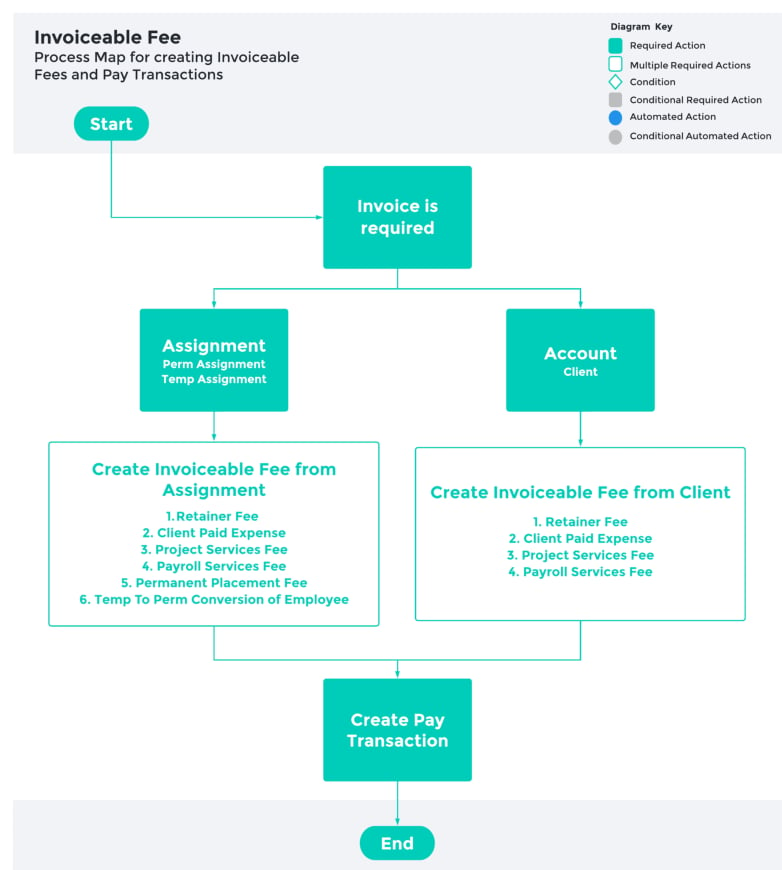
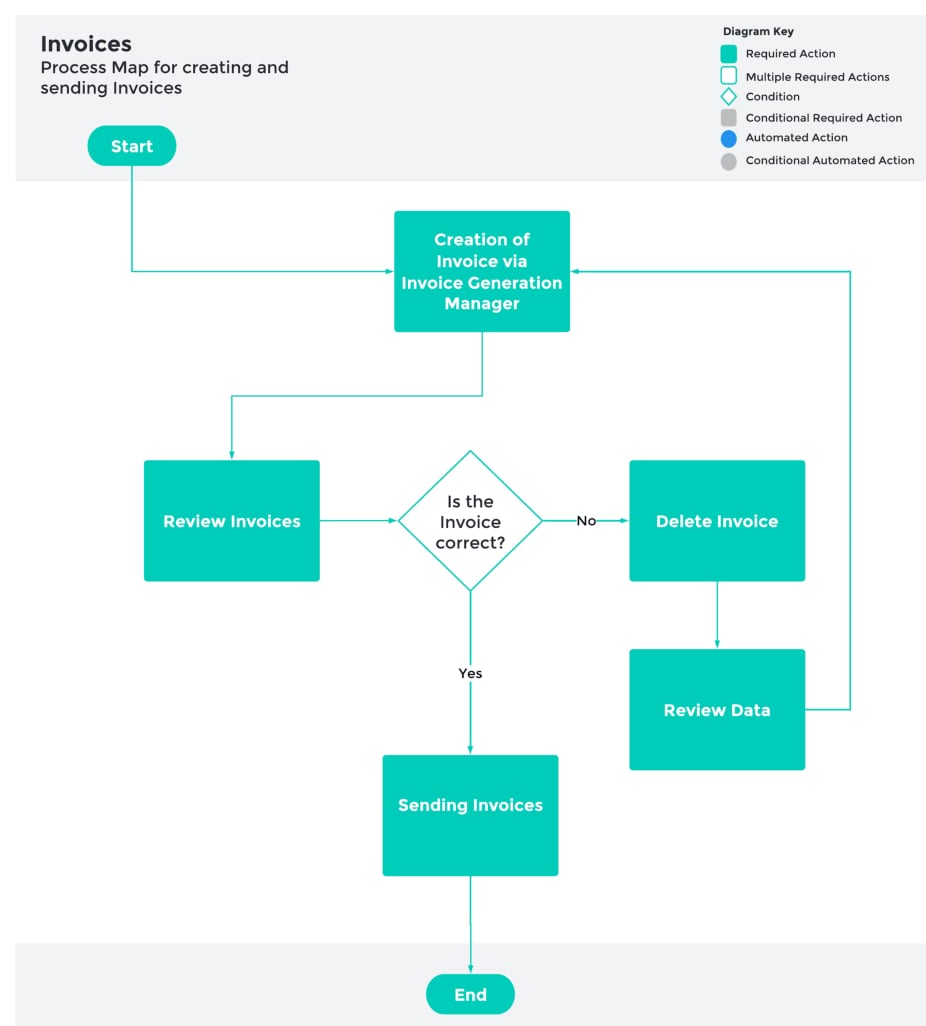
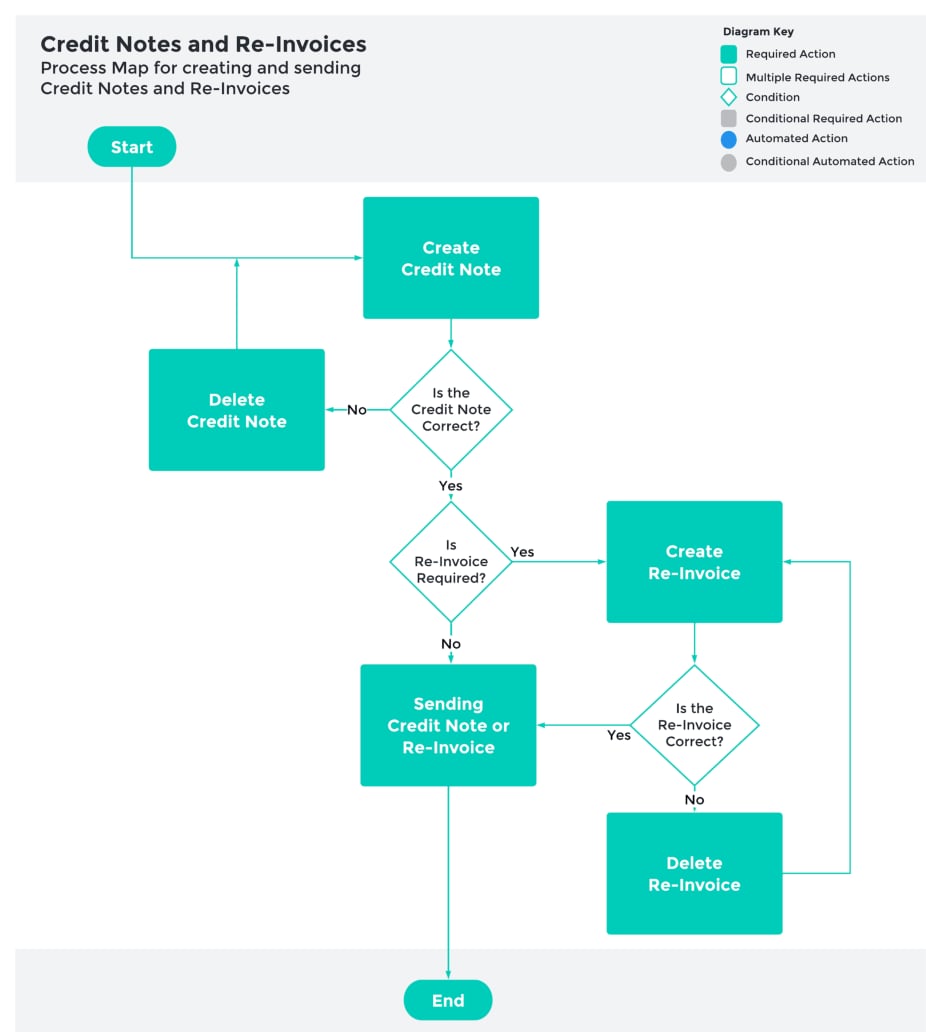
The Invoicing functionality and process can be split into three parts: Creation of Invoiceable Fee and Pay
Transactions, Create and Send Invoices, and Create and Send Credit Notes and Re-Invoices. Each part is
detailed below in a diagram. QRGs for each part are also listed below:
### **Create Invoiceable Fees and Pay Transactions**
* [Create Invoiceable Fees from Client](https://drive.google.com/open?id=1OesLHYKHXhcz8KrZwql6DWY2pL2oaXqy)
* Retainer Fee
* Client Paid Expense
* Project Services Fee
* Payroll Services Fee
* [Create Invoiceable Fees from Perm Assignment](https://drive.google.com/open?id=1OesLHYKHXhcz8KrZwql6DWY2pL2oaXqy)
* Retainer Fee
* Client Paid Expense
* Project Services Fee
* Payroll Services Fee
* Permanent Placement Fee
* Temp To Perm Conversion of Employee
 ### **Create and send Invoices**
* [Creating Invoices](https://drive.google.com/open?id=1e9oUsGGRUC_I-doUwaLw3fLCPkrlKvNy)
* Using Invoice Generation Manager
* Filter Pay Transactions
* [Review Invoices](https://drive.google.com/open?id=1X1bjq81mwaUmKkBIlnb0GNqot3kYF-Za)
* View Invoice PDFs
* Delete Invoices
* [Sending Invoices](https://drive.google.com/open?id=16dePOAB1kEcSoiW8HaKnaVD7rD3tOT3D)
* Sending Individual Invoices
* Sending Bulk Invoices
### **Create and send Invoices**
* [Creating Invoices](https://drive.google.com/open?id=1e9oUsGGRUC_I-doUwaLw3fLCPkrlKvNy)
* Using Invoice Generation Manager
* Filter Pay Transactions
* [Review Invoices](https://drive.google.com/open?id=1X1bjq81mwaUmKkBIlnb0GNqot3kYF-Za)
* View Invoice PDFs
* Delete Invoices
* [Sending Invoices](https://drive.google.com/open?id=16dePOAB1kEcSoiW8HaKnaVD7rD3tOT3D)
* Sending Individual Invoices
* Sending Bulk Invoices
 ### **Create and send Credit Notes and Re-Invoices**
* [Creating Credit Notes](https://drive.google.com/open?id=1_DrkrO7TWgflizhjtjXPxo-jG3sE44iV)
* Create Credit Notes
* Delete Credit Notes
* [Creating Re-Invoices](https://drive.google.com/open?id=1LcGF2BREJeFdVqVXQ1Rd28ZlqfCzaI8d)
* Create Re-Invoices
* Delete Re-Invoices
* [Sending Credit Notes or Re-Invoices](https://drive.google.com/open?id=16dePOAB1kEcSoiW8HaKnaVD7rD3tOT3D)
* Sending Individual Credit Notes or Re-Invoices
* Sending Bulk Credit Notes or Re-Invoices
### **Create and send Credit Notes and Re-Invoices**
* [Creating Credit Notes](https://drive.google.com/open?id=1_DrkrO7TWgflizhjtjXPxo-jG3sE44iV)
* Create Credit Notes
* Delete Credit Notes
* [Creating Re-Invoices](https://drive.google.com/open?id=1LcGF2BREJeFdVqVXQ1Rd28ZlqfCzaI8d)
* Create Re-Invoices
* Delete Re-Invoices
* [Sending Credit Notes or Re-Invoices](https://drive.google.com/open?id=16dePOAB1kEcSoiW8HaKnaVD7rD3tOT3D)
* Sending Individual Credit Notes or Re-Invoices
* Sending Bulk Credit Notes or Re-Invoices
 ## Additional Process Outlines
This section provides additional information about the Invoicing Process that is not covered in the QRGs.
It is recommended to review the following points before you complete the above QRGs.
### **Invoice Group By**
Invoice Group By is the primary field used to specify how the Pay Transactions will be grouped when
Invoices are created. The field must be populated for Invoices to be created. The Invoice Group By’s that
are available to be selected on a Client record are:
* Client
* Assignment
* Invoice to Account
* Invoice to Contact
* PO Number
* Hiring Manager (Invoice Client)
* Hiring Manager (Invoice Hiring Manager)
* Custom Invoice Group By Id
The Invoices will be created using the following logic for the recipients of the Invoices:
Group By for Invoice Contact:
* When the Invoice Group By is equal to ‘Hiring Manager (or Invoice Hiring Manager)’, the Client Hiring Manager on the Assignment record will be used as the Invoice Contact on Invoices.
* When the Invoice Group By is equal to ‘Client’, ‘Hiring Manager (Invoice Client)’, ‘PO Number’ or ‘Invoice To Account’, the Invoice Contact on the Client record related to the Assignment will be used on Invoices.
* When the Invoice Group By is equal to ‘Assignment’ or ‘Invoice To Contact’, the Invoice To Contact detailed on the Assignment record will be used on Invoices.
Group By for Bill To Account:
* When the Invoice Group By is equal to ‘Invoice To Account’, ‘Invoice To Contact’ or ‘Assignment’, Invoice To Account on the Assignment record will be the Account detailed on Invoices.
* When the Invoice Group By is equal to ‘Client’, ‘Hiring Manager (Invoice Client)’, ‘Hiring Manager (Invoice Hiring Manager)’ and ‘PO Number’, the Client detailed on the Assignment will be the Account details on Invoices.
### **Creating Invoiceable Fees**
Users will be able to create Invoiceable Fees by three possible methods: from within the Client record,
from the Assignment - Perm, and from the Assignment - Temp to Perm.
* The Record Type of the Invoiceable Fee record cannot be changed after the record has been created.
* Pay Transactions related to an Invoiceable Fee record can be reviewed from the Invoiceable Fee record, under the Related List Quick Links tab.
### **Creating Pay Transactions**
Pay Transactions can be created from Timesheets, Allowances, Expenses, and from Invoiceable Fees:
* Invoices are generated directly from the details within Pay Transactions, and those Pay Transactions are created from Timesheets, Timesheet Entries, Expense Claims, or Invoiceable Fees.
* Timesheets and Expenses can create Pay Transactions automatically via the Scheduled Job, or manually when the button is pressed. Pay Transactions from the Invoiceable Fee can only be created manually by pressing the button on the Invoiceable Fee record.
* The Invoiceable Fee Pay Transactions will appear only on the Invoiceable Fee Invoices, whereas all other Pay Transactions will only appear on Payroll Item Invoices.
### **Creating Invoices using Invoice Generation Manager**
Invoices can ONLY be generated via the Invoice Generation Manager. Some important details about the
Invoice Generation Manager:
* The Invoice PDF within the Invoice record is created via a scheduled job which runs every 10 minutes irrespective of the day, date and time. If you are selecting a large amount of Pay Transactions, it may take a few minutes before the PDF is created.
* To create Invoices for Payroll Items only, you can select the value ‘Temp’ under Invoice Type field which filters the Pay Transactions. To create Invoices for Invoiceable Fees, select the suitable value under the Invoice Type field in the Invoice Generation Manager page.
* To filter Pay Transactions for a particular Calendar Period, enter a Maximum Invoice Date from within that Calendar Period. To include a wider range of Pay Transactions, ensure the ‘Include Earlier Periods’ is selected, and the Maximum Invoice Date will be the last Calendar Period date included for the Pay Transactions filtered.
* Invoice records have Invoice Items which are related to individual Pay Transactions making it easier to identify individual Pay Codes, Expenses or different Invoiceable Fees within the one Invoice.
* The Invoice Type field has the picklist values to enable filtering of Invoice creation:
* All
* Perm
* Perm - Perm Fee Only
* Temp
* Temp - Payroll Items Only
* Temp - Invoiceable Fees Only
* Temp To Perm
* Temp To Perm - Temp to Perm Fee Only
* Invoiceable Fees
### **Review Invoices**
* Only limited fields can be updated after the creation and sending of an Invoice to a Client. These fields include Invoice Email CC, Delivery Method and Invoice Message.
* If any fields within the Invoice record are updated, the PDF will not update automatically. Users will be required to click the Create Invoice PDF button to create a new PDF, and will be required to manually send the Invoice to the Client again.
### **Creating Credit Notes**
Credit Notes can be created from within the Invoice records. Some important details about Credit Notes:
* Credit Notes can only be created for the full amount of the original Invoice.
* The Credit Notes process creates new Pay Transactions and will update the original Invoice to indicate that it’s been credited, and include a lookup to the Credit Note.
* Credit Notes are created using the next sequential number of Invoices, and do not have any difference on the records other than their Record Type, and their values being negative. However the PDF will detail it as a Credit Note, and will include details of the original Invoice.
### **Creating Re-Invoices**
Re-Invoices can be created from within the Credit Note records. Some important details about Re-Invoices:
* Re-Invoices can be created for the exact same amount as a Credit Note or can exclude particular Pay Transactions or make changes to the Quantity, Rate or Pay Codes of particular Pay Transactions. Currently, additional Pay Transactions not in the original Invoice cannot be included in a Re-Invoice.
* Re-Invoicing allows Users to update the Invoice Date to a new Invoice Date.
* The Re-Invoice feature allows the Users to update various aspects from the original Pay Transactions e.g. the Pay Codes, Invoice Rate and Quantity either individually or for multiple items.
* The Re-Invoicing process creates new Pay Transactions and will update the original Pay Transactions and the Credit Note Pay Transactions as Re-Invoiced.
### **Sending Invoices**
* When successful in sending the Invoice, the system will display these messages:
* “A batch class has been initiated to send emails for the selected Invoices with delivery method of 'Email with URL Online Link' or 'Email with PDF Attachment'. Invoices with any other delivery method (ie. Print, Blank) will not be emailed.”
* Emails have been sent successfully. Any invoices that were previously sent that do not have bulk resend enabled were skipped.
* To email an Invoice more than once, Enable Bulk Resend checkbox must be ticked as Yes. If Users attempt to resend an Invoice previously sent without ticking the Enable Bulk ReSend checkbox, the system will give the following error message:
* “Invoice not sent as 'Enable Bulk Resend' is false and invoice has previously been emailed. Either check 'Enable Bulk Resend' or send email via Invoice.”
* Sending of Invoices uses the Email Templates populated on the Invoice Settings record, and will send either as a PDF attached to the email, or as a URL link in the email, whichever Delivery Method is selected on the Account Invoice Settings record.
* Sending of Invoices via the Send Invoice Email button uses the Standard Salesforce functionality of Salesforce Email Templates. It also allows Users to amend the text, font settings and format of the email, and uses merge fields to provide specific details of the Invoice and Client.
* To view the status of emails sent and if they have been opened, etc, Users can review the Activity displayed in a panel related to the Client record.
## Further Information
| Document | Document Type | Description |
| ---------------------------------------------- | ----------------- | -------------------------------------------------------------------------------- |
| QRG Create Invoice Settings | Task Instructions | How to create Invoice Settings |
| QRG Create Invoice Schedules | Task Instructions | How to create an Invoice Schedule |
| QRG Create Invoice Calendar & Calendar Periods | Task Instructions | How to create an Invoice Calendar and Calendar Periods |
| QRG Create an Account - Invoice Entity | Task Instructions | How to create an Invoice Entity |
| QRG Creating Invoices | Task Instructions | How to create Invoices using the Invoice Generation Manager |
| QRG Review Invoices | Task Instructions | How to review the Invoices created and their PDFs |
| QRG Sending Invoices | Task Instructions | How to send Invoices & Credit Notes |
| QRG Create Credit Notes | Task Instructions | How to create a Credit Note from an existing Invoice |
| QRG Creating Re-Invoices | Task Instructions | How to create a Re-Invoice from a Credit Note |
| QRG Create Invoiceable Fees | Task Instructions | How to create Invoiceable Fees from a Client record and a Perm Assignment record |
## Additional Process Outlines
This section provides additional information about the Invoicing Process that is not covered in the QRGs.
It is recommended to review the following points before you complete the above QRGs.
### **Invoice Group By**
Invoice Group By is the primary field used to specify how the Pay Transactions will be grouped when
Invoices are created. The field must be populated for Invoices to be created. The Invoice Group By’s that
are available to be selected on a Client record are:
* Client
* Assignment
* Invoice to Account
* Invoice to Contact
* PO Number
* Hiring Manager (Invoice Client)
* Hiring Manager (Invoice Hiring Manager)
* Custom Invoice Group By Id
The Invoices will be created using the following logic for the recipients of the Invoices:
Group By for Invoice Contact:
* When the Invoice Group By is equal to ‘Hiring Manager (or Invoice Hiring Manager)’, the Client Hiring Manager on the Assignment record will be used as the Invoice Contact on Invoices.
* When the Invoice Group By is equal to ‘Client’, ‘Hiring Manager (Invoice Client)’, ‘PO Number’ or ‘Invoice To Account’, the Invoice Contact on the Client record related to the Assignment will be used on Invoices.
* When the Invoice Group By is equal to ‘Assignment’ or ‘Invoice To Contact’, the Invoice To Contact detailed on the Assignment record will be used on Invoices.
Group By for Bill To Account:
* When the Invoice Group By is equal to ‘Invoice To Account’, ‘Invoice To Contact’ or ‘Assignment’, Invoice To Account on the Assignment record will be the Account detailed on Invoices.
* When the Invoice Group By is equal to ‘Client’, ‘Hiring Manager (Invoice Client)’, ‘Hiring Manager (Invoice Hiring Manager)’ and ‘PO Number’, the Client detailed on the Assignment will be the Account details on Invoices.
### **Creating Invoiceable Fees**
Users will be able to create Invoiceable Fees by three possible methods: from within the Client record,
from the Assignment - Perm, and from the Assignment - Temp to Perm.
* The Record Type of the Invoiceable Fee record cannot be changed after the record has been created.
* Pay Transactions related to an Invoiceable Fee record can be reviewed from the Invoiceable Fee record, under the Related List Quick Links tab.
### **Creating Pay Transactions**
Pay Transactions can be created from Timesheets, Allowances, Expenses, and from Invoiceable Fees:
* Invoices are generated directly from the details within Pay Transactions, and those Pay Transactions are created from Timesheets, Timesheet Entries, Expense Claims, or Invoiceable Fees.
* Timesheets and Expenses can create Pay Transactions automatically via the Scheduled Job, or manually when the button is pressed. Pay Transactions from the Invoiceable Fee can only be created manually by pressing the button on the Invoiceable Fee record.
* The Invoiceable Fee Pay Transactions will appear only on the Invoiceable Fee Invoices, whereas all other Pay Transactions will only appear on Payroll Item Invoices.
### **Creating Invoices using Invoice Generation Manager**
Invoices can ONLY be generated via the Invoice Generation Manager. Some important details about the
Invoice Generation Manager:
* The Invoice PDF within the Invoice record is created via a scheduled job which runs every 10 minutes irrespective of the day, date and time. If you are selecting a large amount of Pay Transactions, it may take a few minutes before the PDF is created.
* To create Invoices for Payroll Items only, you can select the value ‘Temp’ under Invoice Type field which filters the Pay Transactions. To create Invoices for Invoiceable Fees, select the suitable value under the Invoice Type field in the Invoice Generation Manager page.
* To filter Pay Transactions for a particular Calendar Period, enter a Maximum Invoice Date from within that Calendar Period. To include a wider range of Pay Transactions, ensure the ‘Include Earlier Periods’ is selected, and the Maximum Invoice Date will be the last Calendar Period date included for the Pay Transactions filtered.
* Invoice records have Invoice Items which are related to individual Pay Transactions making it easier to identify individual Pay Codes, Expenses or different Invoiceable Fees within the one Invoice.
* The Invoice Type field has the picklist values to enable filtering of Invoice creation:
* All
* Perm
* Perm - Perm Fee Only
* Temp
* Temp - Payroll Items Only
* Temp - Invoiceable Fees Only
* Temp To Perm
* Temp To Perm - Temp to Perm Fee Only
* Invoiceable Fees
### **Review Invoices**
* Only limited fields can be updated after the creation and sending of an Invoice to a Client. These fields include Invoice Email CC, Delivery Method and Invoice Message.
* If any fields within the Invoice record are updated, the PDF will not update automatically. Users will be required to click the Create Invoice PDF button to create a new PDF, and will be required to manually send the Invoice to the Client again.
### **Creating Credit Notes**
Credit Notes can be created from within the Invoice records. Some important details about Credit Notes:
* Credit Notes can only be created for the full amount of the original Invoice.
* The Credit Notes process creates new Pay Transactions and will update the original Invoice to indicate that it’s been credited, and include a lookup to the Credit Note.
* Credit Notes are created using the next sequential number of Invoices, and do not have any difference on the records other than their Record Type, and their values being negative. However the PDF will detail it as a Credit Note, and will include details of the original Invoice.
### **Creating Re-Invoices**
Re-Invoices can be created from within the Credit Note records. Some important details about Re-Invoices:
* Re-Invoices can be created for the exact same amount as a Credit Note or can exclude particular Pay Transactions or make changes to the Quantity, Rate or Pay Codes of particular Pay Transactions. Currently, additional Pay Transactions not in the original Invoice cannot be included in a Re-Invoice.
* Re-Invoicing allows Users to update the Invoice Date to a new Invoice Date.
* The Re-Invoice feature allows the Users to update various aspects from the original Pay Transactions e.g. the Pay Codes, Invoice Rate and Quantity either individually or for multiple items.
* The Re-Invoicing process creates new Pay Transactions and will update the original Pay Transactions and the Credit Note Pay Transactions as Re-Invoiced.
### **Sending Invoices**
* When successful in sending the Invoice, the system will display these messages:
* “A batch class has been initiated to send emails for the selected Invoices with delivery method of 'Email with URL Online Link' or 'Email with PDF Attachment'. Invoices with any other delivery method (ie. Print, Blank) will not be emailed.”
* Emails have been sent successfully. Any invoices that were previously sent that do not have bulk resend enabled were skipped.
* To email an Invoice more than once, Enable Bulk Resend checkbox must be ticked as Yes. If Users attempt to resend an Invoice previously sent without ticking the Enable Bulk ReSend checkbox, the system will give the following error message:
* “Invoice not sent as 'Enable Bulk Resend' is false and invoice has previously been emailed. Either check 'Enable Bulk Resend' or send email via Invoice.”
* Sending of Invoices uses the Email Templates populated on the Invoice Settings record, and will send either as a PDF attached to the email, or as a URL link in the email, whichever Delivery Method is selected on the Account Invoice Settings record.
* Sending of Invoices via the Send Invoice Email button uses the Standard Salesforce functionality of Salesforce Email Templates. It also allows Users to amend the text, font settings and format of the email, and uses merge fields to provide specific details of the Invoice and Client.
* To view the status of emails sent and if they have been opened, etc, Users can review the Activity displayed in a panel related to the Client record.
## Further Information
| Document | Document Type | Description |
| ---------------------------------------------- | ----------------- | -------------------------------------------------------------------------------- |
| QRG Create Invoice Settings | Task Instructions | How to create Invoice Settings |
| QRG Create Invoice Schedules | Task Instructions | How to create an Invoice Schedule |
| QRG Create Invoice Calendar & Calendar Periods | Task Instructions | How to create an Invoice Calendar and Calendar Periods |
| QRG Create an Account - Invoice Entity | Task Instructions | How to create an Invoice Entity |
| QRG Creating Invoices | Task Instructions | How to create Invoices using the Invoice Generation Manager |
| QRG Review Invoices | Task Instructions | How to review the Invoices created and their PDFs |
| QRG Sending Invoices | Task Instructions | How to send Invoices & Credit Notes |
| QRG Create Credit Notes | Task Instructions | How to create a Credit Note from an existing Invoice |
| QRG Creating Re-Invoices | Task Instructions | How to create a Re-Invoice from a Credit Note |
| QRG Create Invoiceable Fees | Task Instructions | How to create Invoiceable Fees from a Client record and a Perm Assignment record |