> ## Documentation Index
> Fetch the complete documentation index at: https://documentation.2cloudnine.com/llms.txt
> Use this file to discover all available pages before exploring further.
# QRG Review Invoices
export const InlineImage = ({src, alt = "", height = "1.6em"}) => {
return  ;
};
## Purpose
The purpose of this quick reference guide is to step through the process of reviewing Invoice Records
and their related PDFs. The intended audience for this document is Standard Payroll Users.
## Steps
### **View Invoices**
To view an Invoice, follow the steps below:
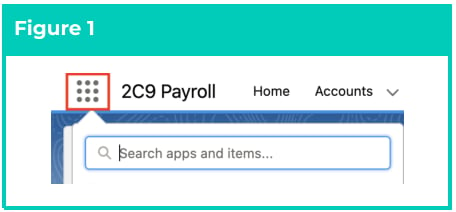
1. Click on the **App Launcher** icon (see Figure 1).
;
};
## Purpose
The purpose of this quick reference guide is to step through the process of reviewing Invoice Records
and their related PDFs. The intended audience for this document is Standard Payroll Users.
## Steps
### **View Invoices**
To view an Invoice, follow the steps below:
1. Click on the **App Launcher** icon (see Figure 1).
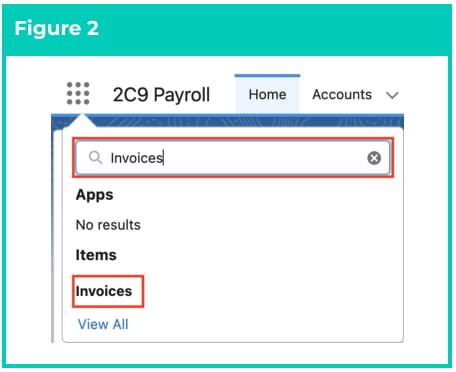
 2. Go to the **Invoices** object by using the Search function (see Figure 2).
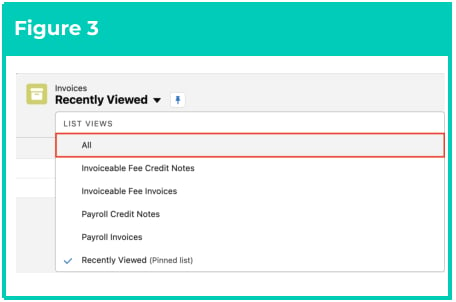
 3. From the displayed List View, if required, click on the down arrow and select a relevant List View (see Figure 3).
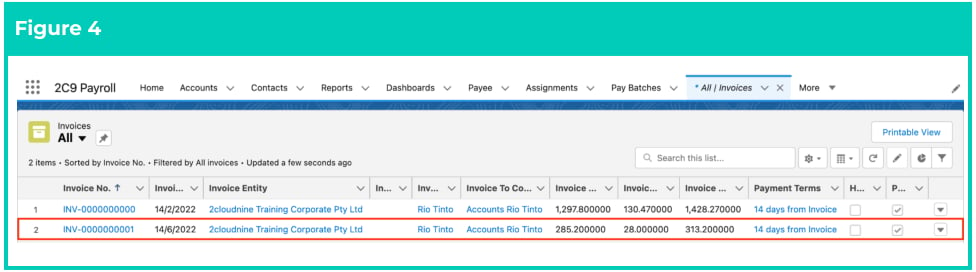
 4. Open the required Invoice record (see Figure 4).
 5. The PDF files are created via a scheduled job that runs every 10 minutes. To view the existing
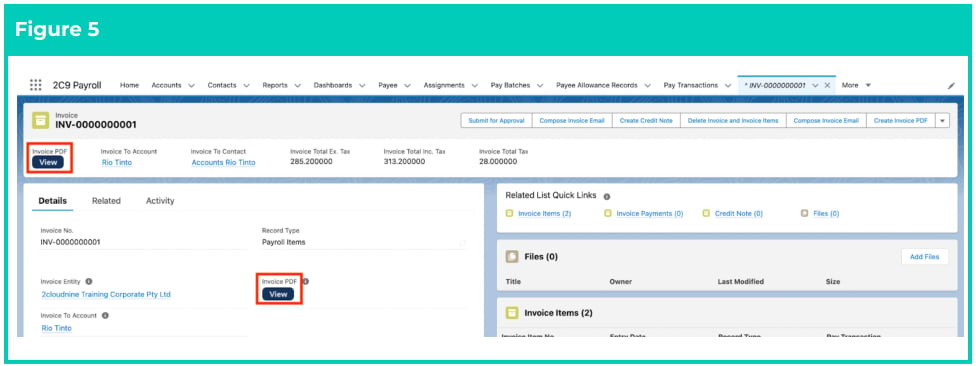
PDF(s) created, select the PDF displayed in the Files tab or select the **View** button (see Figure 5).
Otherwise, to create a new Invoice PDF, please skip to step 7 on the next page.
5. The PDF files are created via a scheduled job that runs every 10 minutes. To view the existing
PDF(s) created, select the PDF displayed in the Files tab or select the **View** button (see Figure 5).
Otherwise, to create a new Invoice PDF, please skip to step 7 on the next page.
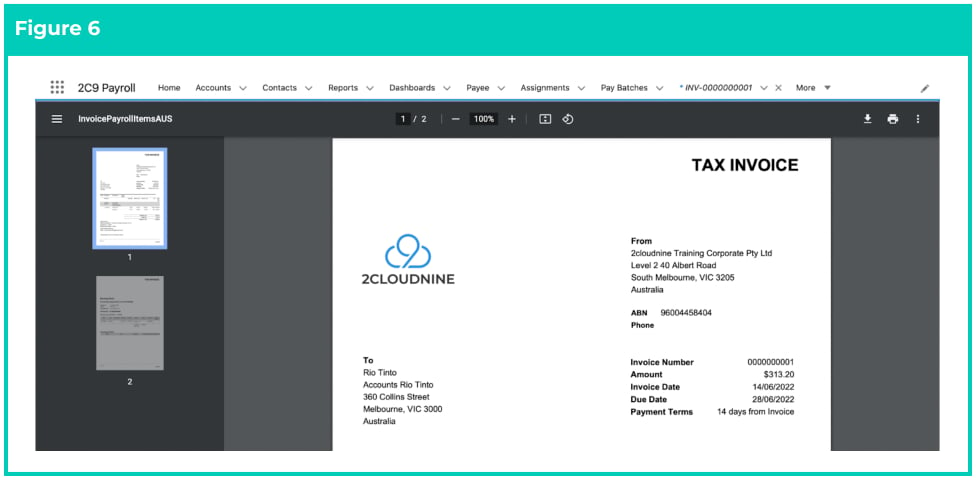
 6. The current version of the Invoice PDF will be displayed (see Figure 6).
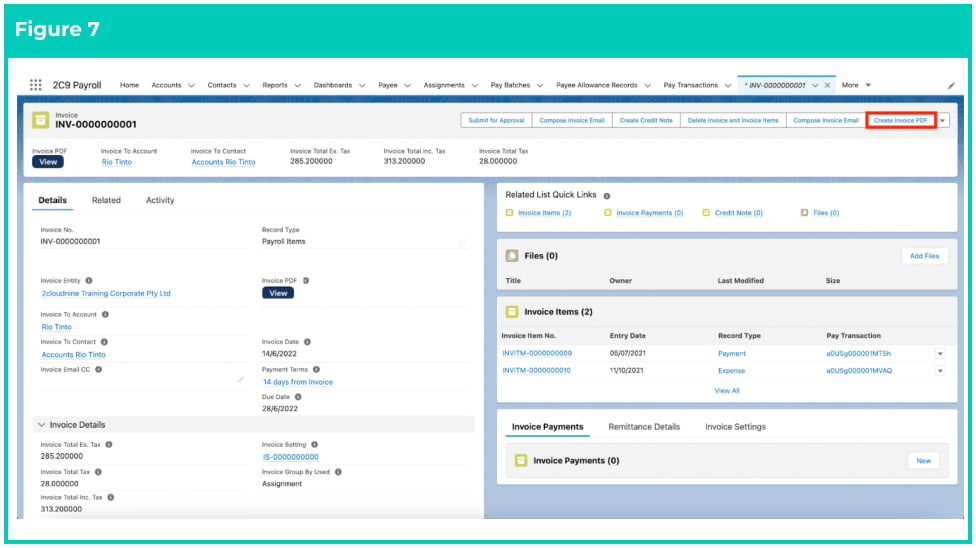
 7. If there is no PDF visible under the Files tab, or if details on the existing PDF have changed, click
on the **Create Invoice PDF** button to create a new Invoice PDF (see Figure 7).
7. If there is no PDF visible under the Files tab, or if details on the existing PDF have changed, click
on the **Create Invoice PDF** button to create a new Invoice PDF (see Figure 7).
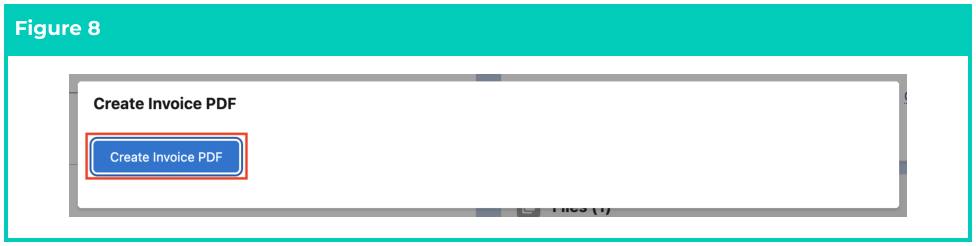
 8. A pop-up will appear. Click on the **Create Invoice PDF** button, which creates the PDF file instantly
(see Figure 8).
8. A pop-up will appear. Click on the **Create Invoice PDF** button, which creates the PDF file instantly
(see Figure 8).
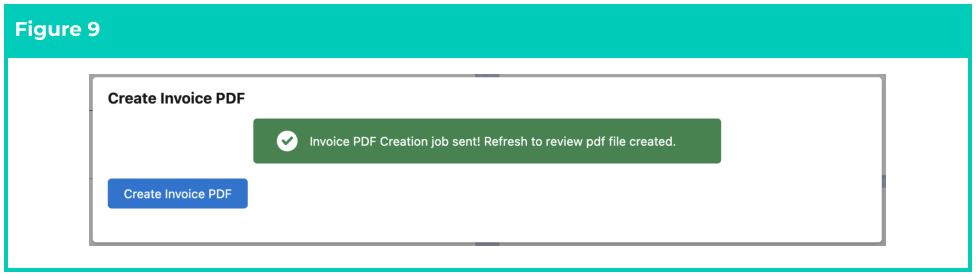
 9. If successful, a confirmation message will appear. Refresh the browser to see the updated list of
PDF files under the Files tab (see Figure 9).
9. If successful, a confirmation message will appear. Refresh the browser to see the updated list of
PDF files under the Files tab (see Figure 9).
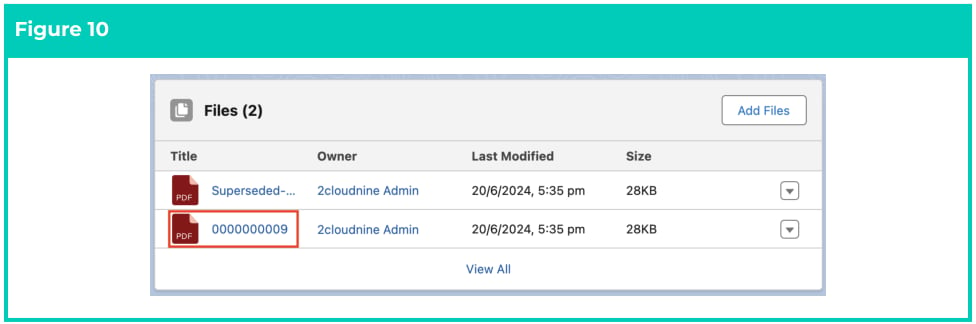
 10. A new Invoice PDF will be created under Files, and the existing Invoice PDF will be superseded if
it exists. Click on the new PDF name to view it (see Figure 10).
10. A new Invoice PDF will be created under Files, and the existing Invoice PDF will be superseded if
it exists. Click on the new PDF name to view it (see Figure 10).
 ***Important Notes***
*(New PDF replacing the existing PDF)*
*If the Create Invoice PDF button is selected, and there is already a PDF attached, it renders a new PDF to replace the original, and the previous File is renamed with the prefix “Superseded”. This also occurs when the Send Invoice Email button is selected.*
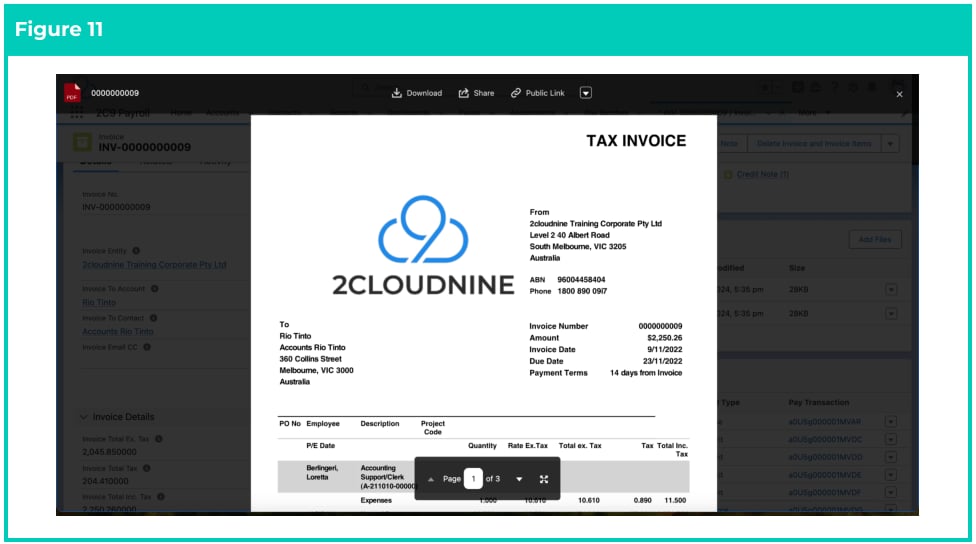
11. A new Invoice PDF has been created (see Figure 11).
***Important Notes***
*(New PDF replacing the existing PDF)*
*If the Create Invoice PDF button is selected, and there is already a PDF attached, it renders a new PDF to replace the original, and the previous File is renamed with the prefix “Superseded”. This also occurs when the Send Invoice Email button is selected.*
11. A new Invoice PDF has been created (see Figure 11).
 1. To modify an existing Invoices record, open the required record and select the **Edit** button
available on the top right side of the page. You can also double-click on any of the fields that
need editing, or just click the pencil icon that appears within the fields.
2. When complete, click on the **Save** button.
***Important Notes***
*(Updating fields post sending an Invoice)*
*Some fields can be updated after the creation and sending of an Invoice to a Client. These fields include Invoice Date, Due Date, Invoice Email CC, Invoice Setting, Delivery Method, and Invoice Message. If these fields are changed, Users will be required to select the Create Invoice PDF button to create a new PDF and will be required to manually send the Invoice to the Client again.*
### **Delete Invoices**
In some circumstances, the need to delete an Invoice is required, but this is only possible if the following
criteria are met:
1. The Invoice has not been sent to the Client; and
2. The Invoice field ‘Invoice Payments Total’ remains blank; and
3. The Invoice has not been reflected in the General Ledger Accounting Invoices.
If the above are all true, follow the steps below to delete an Invoice:
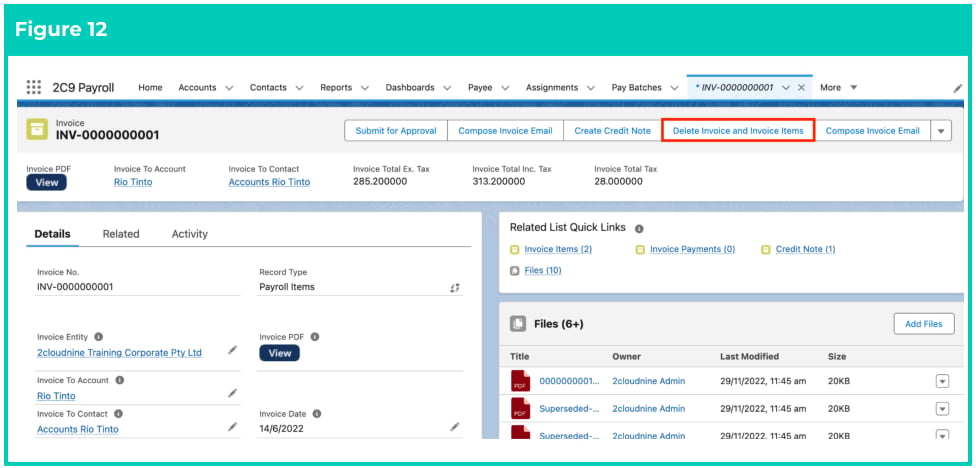
1. Select the **Delete Invoice and Invoice Items** button on the individual Invoice (see Figure 12).
1. To modify an existing Invoices record, open the required record and select the **Edit** button
available on the top right side of the page. You can also double-click on any of the fields that
need editing, or just click the pencil icon that appears within the fields.
2. When complete, click on the **Save** button.
***Important Notes***
*(Updating fields post sending an Invoice)*
*Some fields can be updated after the creation and sending of an Invoice to a Client. These fields include Invoice Date, Due Date, Invoice Email CC, Invoice Setting, Delivery Method, and Invoice Message. If these fields are changed, Users will be required to select the Create Invoice PDF button to create a new PDF and will be required to manually send the Invoice to the Client again.*
### **Delete Invoices**
In some circumstances, the need to delete an Invoice is required, but this is only possible if the following
criteria are met:
1. The Invoice has not been sent to the Client; and
2. The Invoice field ‘Invoice Payments Total’ remains blank; and
3. The Invoice has not been reflected in the General Ledger Accounting Invoices.
If the above are all true, follow the steps below to delete an Invoice:
1. Select the **Delete Invoice and Invoice Items** button on the individual Invoice (see Figure 12).
 OR
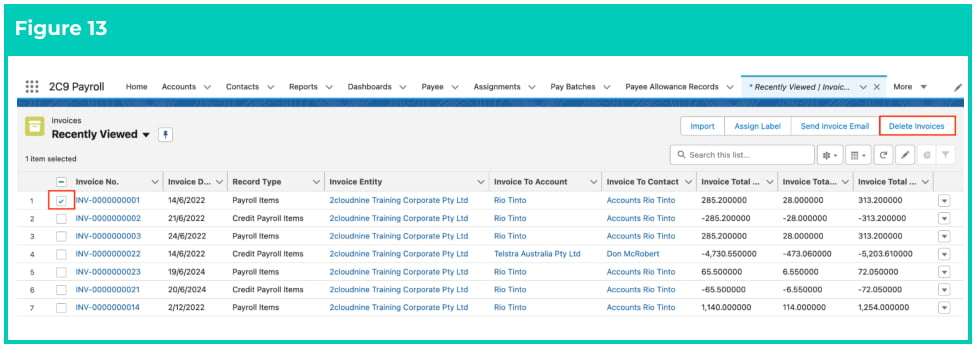
2. Select suitable Invoices from a List View and then click the **Delete Invoices** button (see Figure 13).
OR
2. Select suitable Invoices from a List View and then click the **Delete Invoices** button (see Figure 13).
 ***Important Notes***
*(New PDF replacing the existing PDF)*
If the Delete button does not complete the deletion of the Invoice(s), then Users will be required to
proceed with creating a Credit Note. Please refer to the QRG Creating Credit Notes for more
information.
## Field Descriptions
No field descriptions are required for this QRG document.
## Further Information
| Document | Document Type | Description |
| ---------------------------------------------- | ----------------- | ------------------------------------------------------ |
| QRG Create Invoice Settings | Task Instructions | How to create Invoice Settings |
| QRG Create Invoice Schedules | Task Instructions | How to create an Invoice Schedule |
| QRG Create Invoice Calendar & Calendar Periods | Task Instructions | How to create an Invoice Calendar and Calendar Periods |
| QRG Create an Account - Invoice Entity | Task Instructions | How to create an Invoice Entity |
| QRG Create Credit Notes | Task Instructions | How to create a Credit Note from an existing Invoice |
***Important Notes***
*(New PDF replacing the existing PDF)*
If the Delete button does not complete the deletion of the Invoice(s), then Users will be required to
proceed with creating a Credit Note. Please refer to the QRG Creating Credit Notes for more
information.
## Field Descriptions
No field descriptions are required for this QRG document.
## Further Information
| Document | Document Type | Description |
| ---------------------------------------------- | ----------------- | ------------------------------------------------------ |
| QRG Create Invoice Settings | Task Instructions | How to create Invoice Settings |
| QRG Create Invoice Schedules | Task Instructions | How to create an Invoice Schedule |
| QRG Create Invoice Calendar & Calendar Periods | Task Instructions | How to create an Invoice Calendar and Calendar Periods |
| QRG Create an Account - Invoice Entity | Task Instructions | How to create an Invoice Entity |
| QRG Create Credit Notes | Task Instructions | How to create a Credit Note from an existing Invoice |