> ## Documentation Index
> Fetch the complete documentation index at: https://documentation.2cloudnine.com/llms.txt
> Use this file to discover all available pages before exploring further.
# QRG Sending Invoices and Credit Notes
## Purpose
The purpose of this quick reference guide is to step through the process of sending Invoices and Credit
Notes. The intended audience for this document is Standard Payroll Users.
## Steps
### **Sending Bulk Invoices and Credit Notes**
To send Invoices and Credit Notes in bulk, follow the steps below:
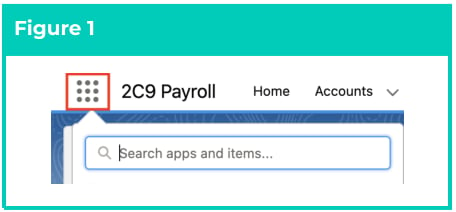
1. Click on the **App Launcher** icon (see Figure 1).
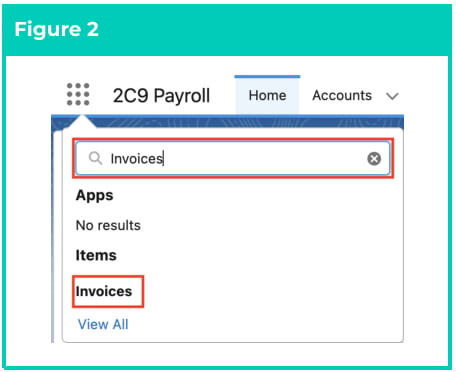
 2. Go to the **Invoices** object by using the Search function (see Figure 2).
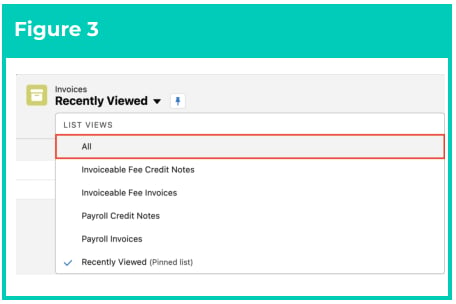
 3. From the displayed List View, if required, click on the down arrow and select a relevant List View (see Figure 3).
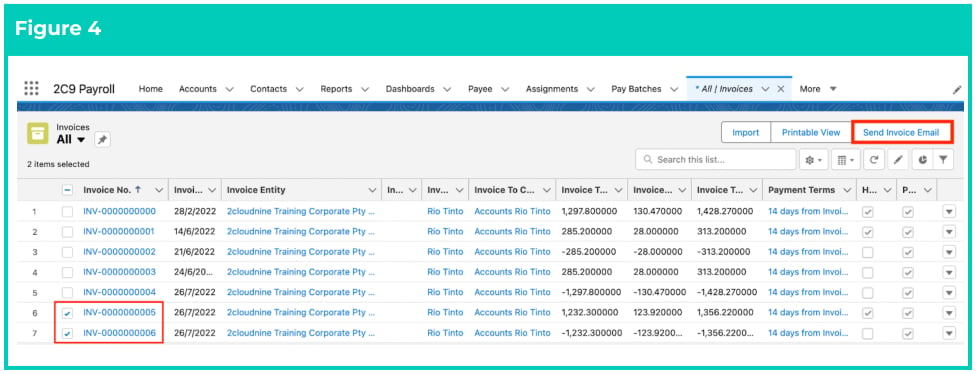
 4. Select the required Invoices and Credit Notes for sending by ticking the checkboxes as shown
below, and click on the **Send Invoice Email** button. To send all the listed Invoices, you can select
the checkbox in the heading line next to the Invoice No. column (see Figure 4).
4. Select the required Invoices and Credit Notes for sending by ticking the checkboxes as shown
below, and click on the **Send Invoice Email** button. To send all the listed Invoices, you can select
the checkbox in the heading line next to the Invoice No. column (see Figure 4).
 **Important Notes**
*(Enable Bulk Resend)*
If you received an error message saying “Invoice not sent as ‘Enable Bulk Resend’ is false and invoice
has previously been emailed. Either check ‘Enable Bulk Resend’ or send email via Invoice.”, you will
need to tick the Enable Bulk Resend checkbox on the relevant Invoice or the Credit Note.
5. You will see a confirmation message as per the below (see Figure 5).
**Important Notes**
*(Enable Bulk Resend)*
If you received an error message saying “Invoice not sent as ‘Enable Bulk Resend’ is false and invoice
has previously been emailed. Either check ‘Enable Bulk Resend’ or send email via Invoice.”, you will
need to tick the Enable Bulk Resend checkbox on the relevant Invoice or the Credit Note.
5. You will see a confirmation message as per the below (see Figure 5).
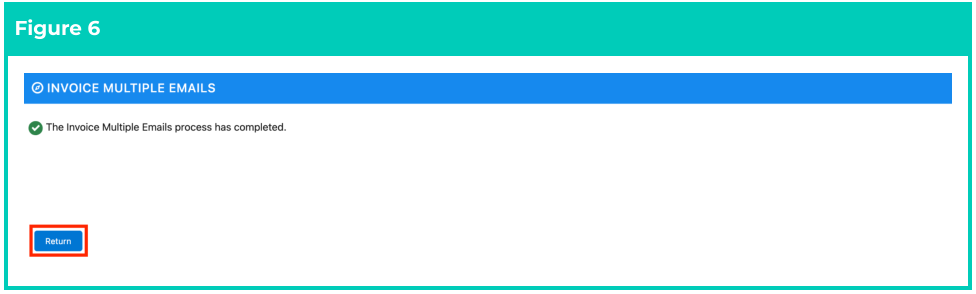
 6. If successful, you will see another confirmation message as per the below (see Figure 6).
7. Click on the **Return** button.
6. If successful, you will see another confirmation message as per the below (see Figure 6).
7. Click on the **Return** button.
 **Important Notes**
*(New PDF replacing the existing PDF)*
*After selecting the Send Invoice Email button, a new PDF of the Invoice will be created for each record selected and sent to the Invoice to Contacts, replacing any existing PDF. The existing PDFs, if any, will be updated and renamed with the prefix ‘Superseded’, but will remain attached as Files to this Invoice Record.*
### **Sending Individual Invoices and Credit Notes**
To send Invoices and Credit Notes individually, follow the steps below:
1. Click on the **App Launcher** icon (see Figure 7).
**Important Notes**
*(New PDF replacing the existing PDF)*
*After selecting the Send Invoice Email button, a new PDF of the Invoice will be created for each record selected and sent to the Invoice to Contacts, replacing any existing PDF. The existing PDFs, if any, will be updated and renamed with the prefix ‘Superseded’, but will remain attached as Files to this Invoice Record.*
### **Sending Individual Invoices and Credit Notes**
To send Invoices and Credit Notes individually, follow the steps below:
1. Click on the **App Launcher** icon (see Figure 7).
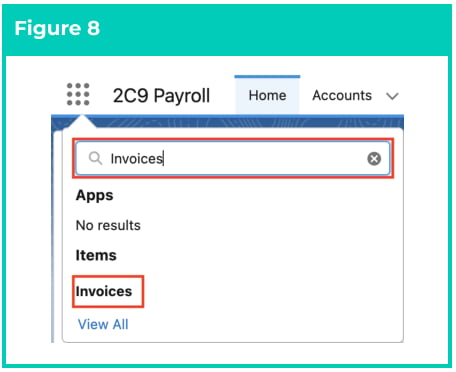
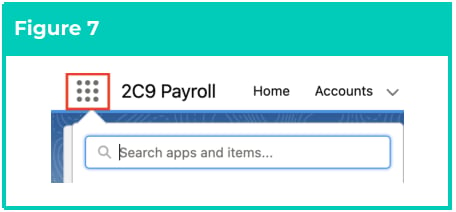 2. Go to the **Invoices** object by using the Search function (see Figure 8).
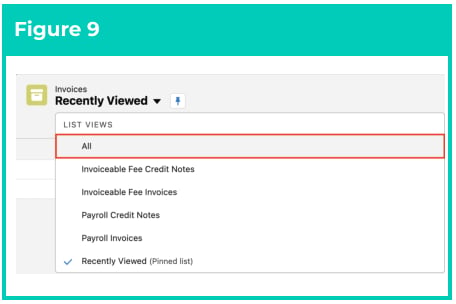
 3. From the displayed List View, if required, click on the down arrow and select a relevant List View (see Figure 9).
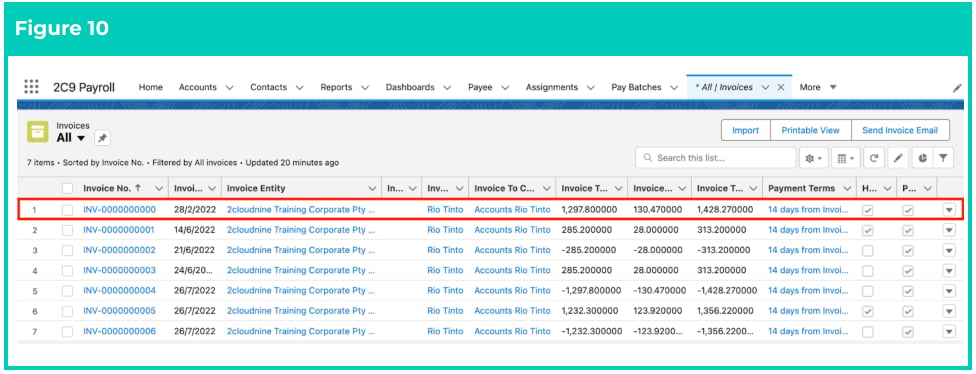
 4. Open the required Invoice or Credit Note record (see Figure 10).
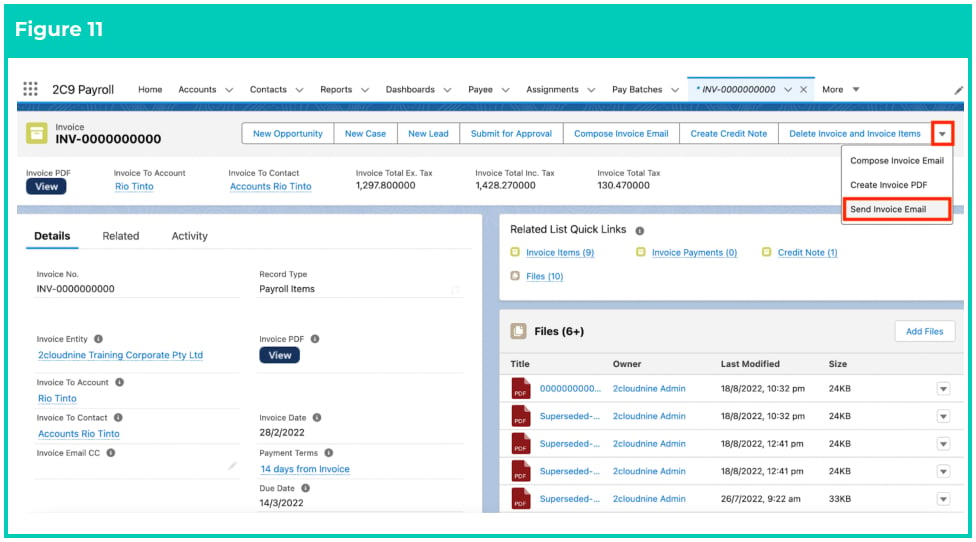
 5. To send an Invoice without customising the email message or recipients, click on the down
arrow and then click on the **Send Invoice Email** button (see Figure 11). To customise the email
message and recipients, skip to step 8.
5. To send an Invoice without customising the email message or recipients, click on the down
arrow and then click on the **Send Invoice Email** button (see Figure 11). To customise the email
message and recipients, skip to step 8.
 6. A pop-up will appear. Click on the **Send Email** button (see Figure 12).
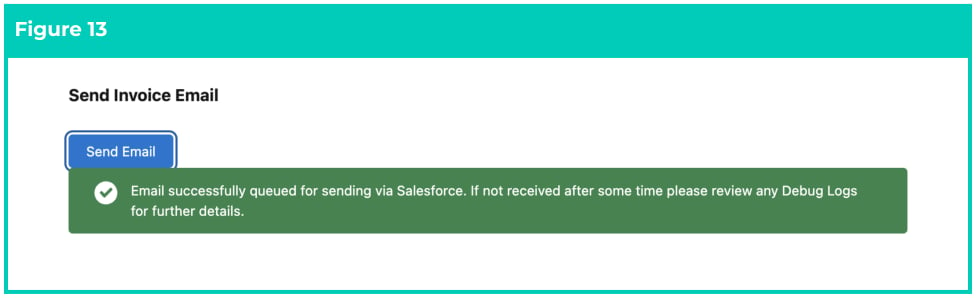
 7. If successful, you will see a confirmation message as shown in the screenshot below (see Figure
13\).
7. If successful, you will see a confirmation message as shown in the screenshot below (see Figure
13\).
 **Important Notes**
*(New PDF replacing the existing PDF)*
*After selecting the Send Invoice Email button, a new PDF of the Invoice will be created for the selected record to replace any existing PDFs and sent to the Invoice to Contact. The existing PDFs, if any, will be updated and renamed with the prefix ‘Superseded’, but will remain attached as Files to this Invoice Record.*
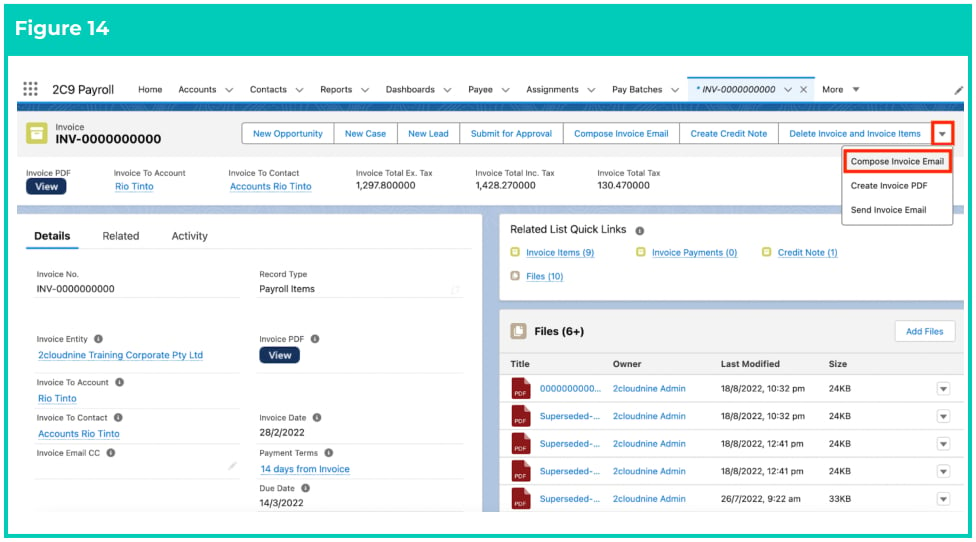
8. To customise the email message and recipients, click on the down arrow and click on the **Compose Invoice Email** button (see Figure 14).
**Important Notes**
*(New PDF replacing the existing PDF)*
*After selecting the Send Invoice Email button, a new PDF of the Invoice will be created for the selected record to replace any existing PDFs and sent to the Invoice to Contact. The existing PDFs, if any, will be updated and renamed with the prefix ‘Superseded’, but will remain attached as Files to this Invoice Record.*
8. To customise the email message and recipients, click on the down arrow and click on the **Compose Invoice Email** button (see Figure 14).
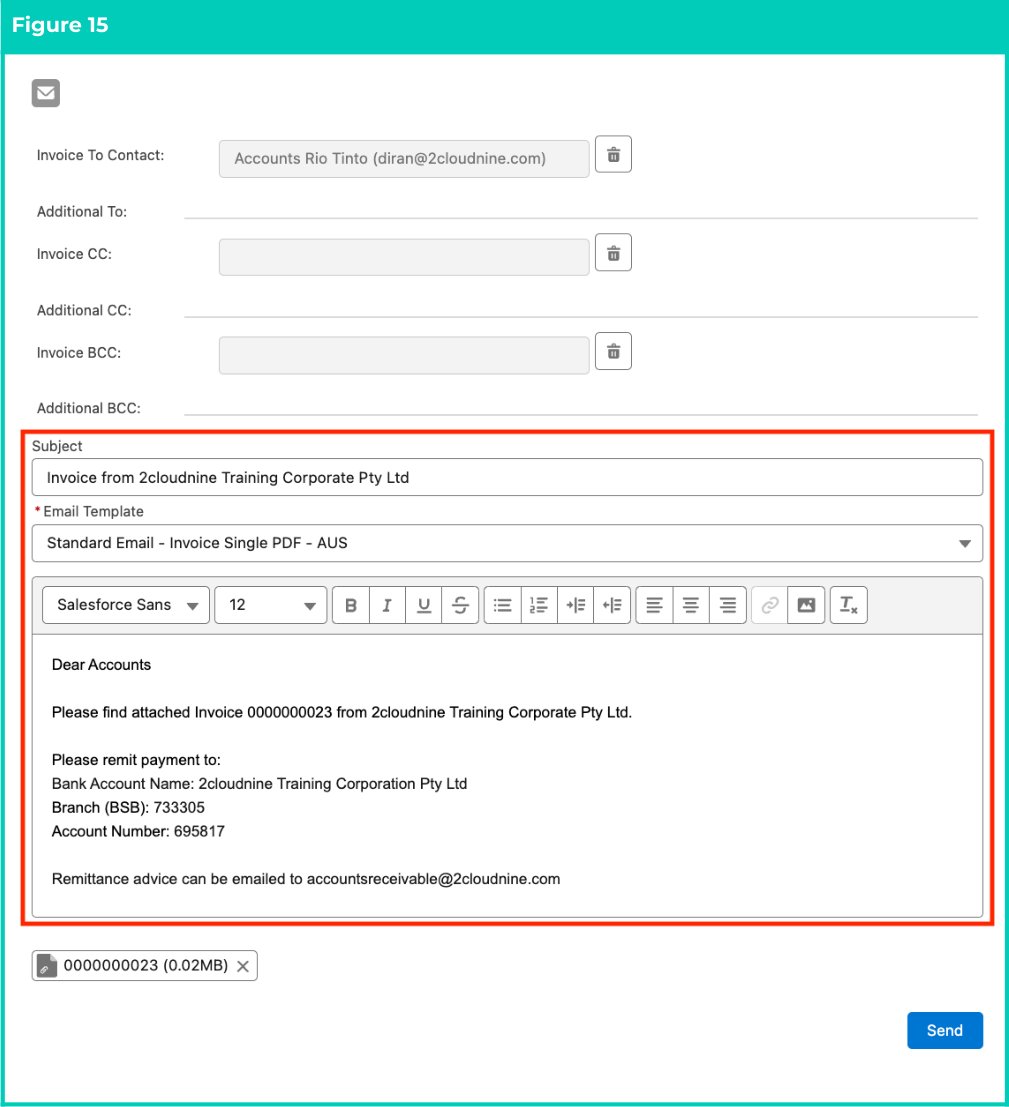
 9. On the Compose Invoice Email pop-up, the **Invoice To Contact** field will be pre-populated.
10. Choose a template for the email by clicking on the **Email Template** picklist, which populates the Subject and Email text (see Figure 15).
11. Populate the following optional fields:
1. **Cc**
2. **Bcc**
3. **Template**
12. If required, you can make changes to the email text, which auto-populates only when the Template field is populated, or you can type in some text without the use of a Template.
9. On the Compose Invoice Email pop-up, the **Invoice To Contact** field will be pre-populated.
10. Choose a template for the email by clicking on the **Email Template** picklist, which populates the Subject and Email text (see Figure 15).
11. Populate the following optional fields:
1. **Cc**
2. **Bcc**
3. **Template**
12. If required, you can make changes to the email text, which auto-populates only when the Template field is populated, or you can type in some text without the use of a Template.
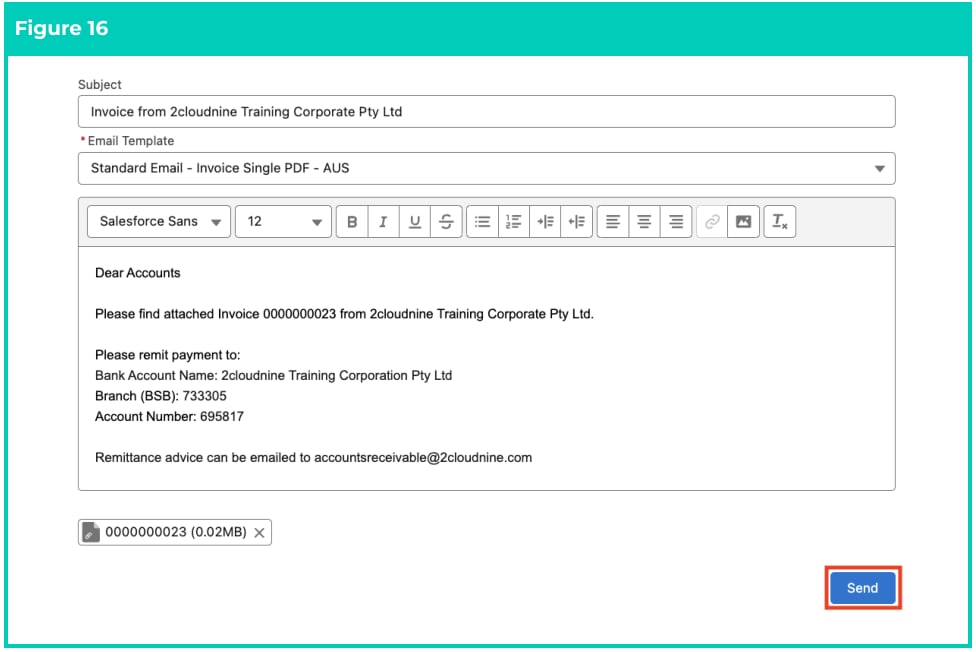
 13. When you are satisfied with the content of the email, click on the **Send** button (see Figure 16).
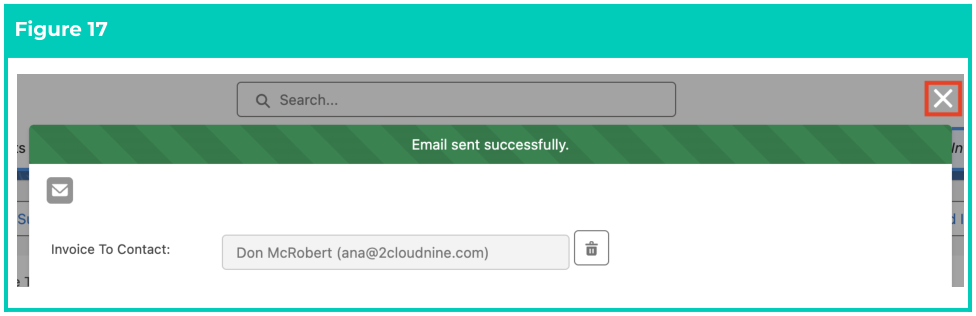
 14. A confirmation message will appear. To remove the pop-up window and return to the Invoice/Credit Note, click on the **X** button shown below (see Figure 17).
 ## Field Descriptions
No field descriptions are required for this QRG document.
## Further Information
| Document | Document Type | Description |
| --------------------------- | ----------------- | ----------------------------------------------------------- |
| QRG Create Invoice Settings | Task Instructions | How to create Invoice Settings |
| QRG Creating Invoices | Task Instructions | How to create Invoices using the Invoice Generation Manager |
| QRG Create Credit Notes | Task Instructions | How to create a Credit Note from an existing Invoice |
| QRG Review Invoices | Task Instructions | How to review the Invoices created and their PDFs |
## Field Descriptions
No field descriptions are required for this QRG document.
## Further Information
| Document | Document Type | Description |
| --------------------------- | ----------------- | ----------------------------------------------------------- |
| QRG Create Invoice Settings | Task Instructions | How to create Invoice Settings |
| QRG Creating Invoices | Task Instructions | How to create Invoices using the Invoice Generation Manager |
| QRG Create Credit Notes | Task Instructions | How to create a Credit Note from an existing Invoice |
| QRG Review Invoices | Task Instructions | How to review the Invoices created and their PDFs |