> ## Documentation Index
> Fetch the complete documentation index at: https://documentation.2cloudnine.com/llms.txt
> Use this file to discover all available pages before exploring further.
# QRG Create Leave Accruals Manually
## Purpose
The purpose of this quick reference guide is to step through the process of manually creating Leave
Accruals. Users are reminded any adjustments made using this process do not result in a financial
payment to a Payee. The intended audience for this document are Standard Users.
## Steps
### **Create Leave Accruals Manually**
To create manual Leave Accruals for a Payee for a period:
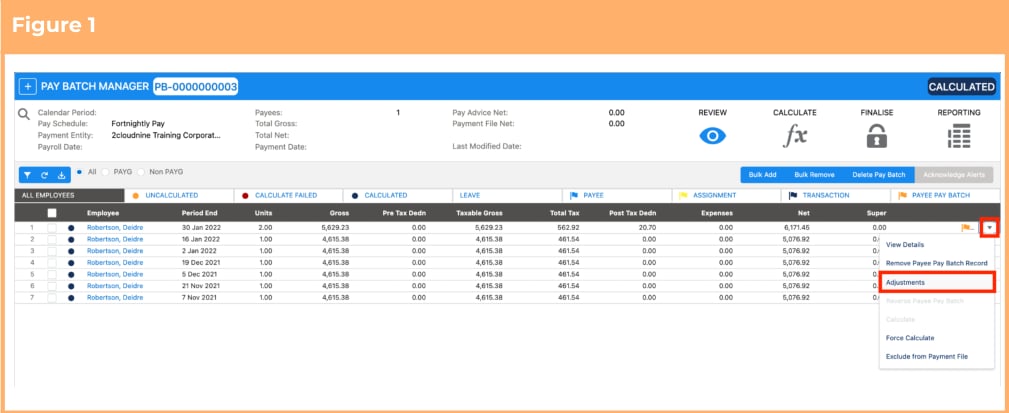
1. Open the Pay Batch and navigate to the Payee Pay Batch row that needs manual accruals created.
2. Click on the highlighted arrow and choose the **Adjustments** option. (See Figure 1)
 3. Within the Manual Adjustments Interface, click on the **Leave** tab. (See Figure 2)
4. Navigate to the **Leave Accruals** section.
5. Click the add button against the required Payee Leave Rule-Leave Type record.
3. Within the Manual Adjustments Interface, click on the **Leave** tab. (See Figure 2)
4. Navigate to the **Leave Accruals** section.
5. Click the add button against the required Payee Leave Rule-Leave Type record.
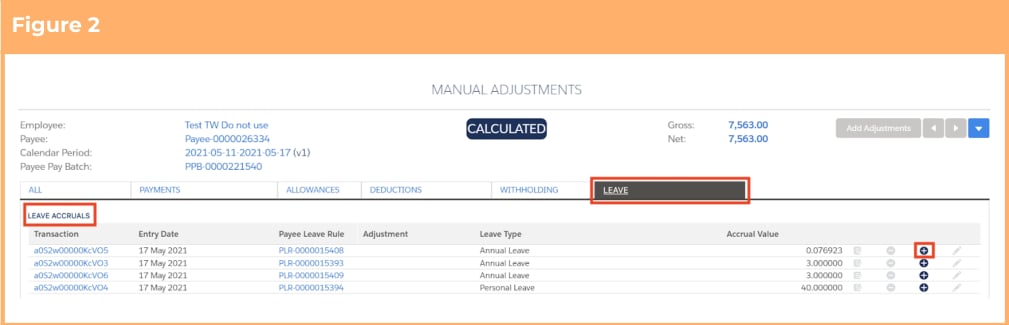 If there are currently no leave accruals listed in the Leave tab of the Adjustments UI you won’t be able to select the button, instead select the Add Adjustments button (top right hand corner).
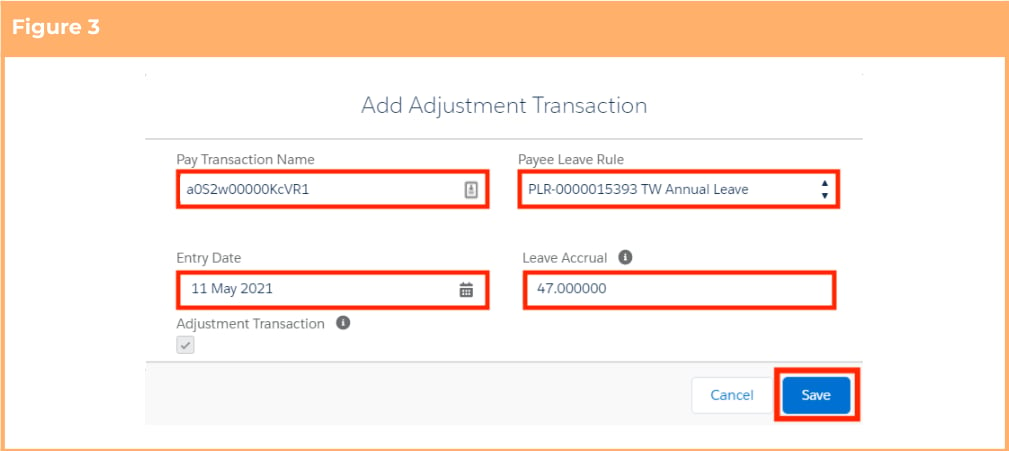
6. This will clone the Pay Transaction that was selected, so please ensure the following pre-populated
fields are updated to the values as required: (See Figure 3)
1. **Pay Transaction Name**
2. **Payee Leave Rule** (available as Picklist values)
3. **Entry Date**
4. **Leave Accrual** (hours to accrue)
7. Click on the **Save** button.
If there are currently no leave accruals listed in the Leave tab of the Adjustments UI you won’t be able to select the button, instead select the Add Adjustments button (top right hand corner).
6. This will clone the Pay Transaction that was selected, so please ensure the following pre-populated
fields are updated to the values as required: (See Figure 3)
1. **Pay Transaction Name**
2. **Payee Leave Rule** (available as Picklist values)
3. **Entry Date**
4. **Leave Accrual** (hours to accrue)
7. Click on the **Save** button.
 8. A new Manual Adjustment record has been created. (See Figure 4)
 The Adjustment Transaction checkbox is uneditable by users. It is managed within the software validations.
### **Edit/Update/Delete the Manual Leave Accrual record**
To edit an Adjustment Leave Accrual:
1. Click the highlighted edit symbol against the Adjustment Transaction (see Figure 5). This will only be available on Adjustment Leave Pay Transactions created.
The Adjustment Transaction checkbox is uneditable by users. It is managed within the software validations.
### **Edit/Update/Delete the Manual Leave Accrual record**
To edit an Adjustment Leave Accrual:
1. Click the highlighted edit symbol against the Adjustment Transaction (see Figure 5). This will only be available on Adjustment Leave Pay Transactions created.
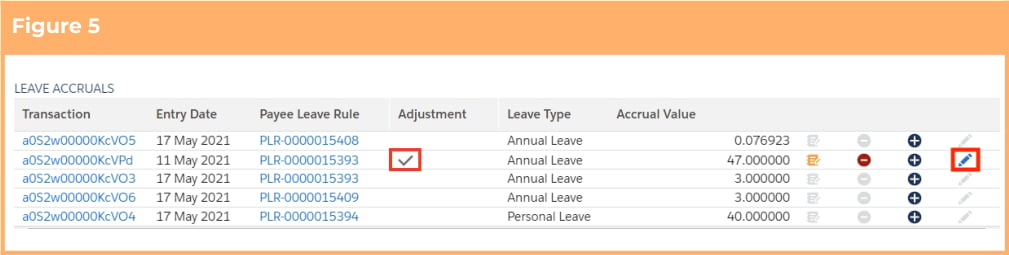 The newly created Leave Event record can be distinguished by the sign under the ‘Adjustment’ column.
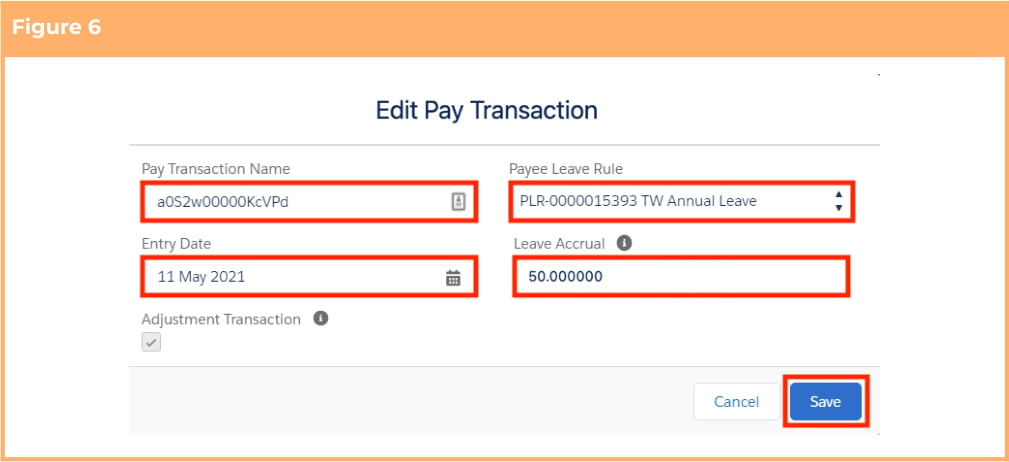
2. Edit any fields as required. (See Figure 6)
3. Click the **Save** button.
The newly created Leave Event record can be distinguished by the sign under the ‘Adjustment’ column.
2. Edit any fields as required. (See Figure 6)
3. Click the **Save** button.
 To delete an Adjustment Leave Accrual:
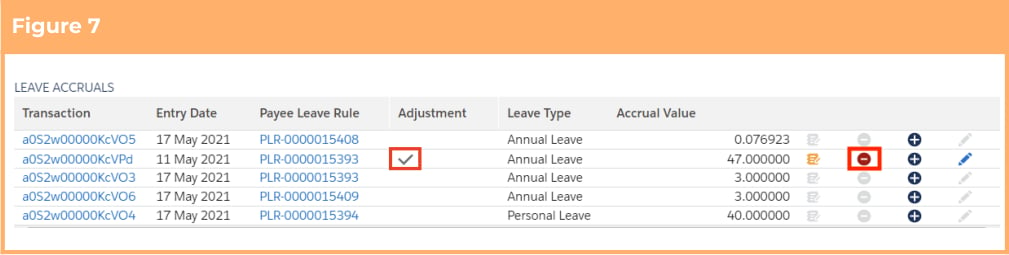
1. Click the highlighted delete symbol against the Adjustment Transaction (see Figure 7). This will only be available on Adjustment Leave Pay Transactions created.
To delete an Adjustment Leave Accrual:
1. Click the highlighted delete symbol against the Adjustment Transaction (see Figure 7). This will only be available on Adjustment Leave Pay Transactions created.
 2. Confirm the **Delete**. (See Figure 8)
 ## Field Descriptions
No field descriptions are required for this QRG document.
## Further Information
| Document | Document Type | Description |
| -------------------------------------------- | --------------------------- | -------------------------------------------------------------------------------------------------------------------------------------------------------------------------------------------------------------------------------------------------------------------------------------------------------------------------------------------------------------------------------- |
| Quick Reference Guide Index - Leave | Index | An index document that lists and provides links to all Quick Reference Guides relating to Leave |
| Leave Setup and Processing - Key Information | Information Quick Reference | Outlines useful information relevant to Leave within 2cloudnine Payroll. The document includes definitions, prerequisites, and other non-instructional information relating to Leave. This includes details on creation and management of Leave Rules, Payee Leave Rules, and Leave Templates, along with the taking of Leave Events, Accruals, etc. |
| QRG Pay Batch Key Information | Information Quick Reference | Outlines useful information relevant to 2cloudnine Payroll’s Pay Batch functionality. The document includes definitions, prerequisites, and other non-instructional information relating to the Pay Batch. This includes details on the Pay Batch Manager and how it facilitates efficient management of Pay Batches from Creation through Review, Calculation and Finalisation. |
| QRG Review a Pay Batch | Task Instructions | How to Review the Pay Batch on a Pay Batch level and an individual Payee Pay Batch level as well as the steps required to use the Remove Pay Transaction, Remove Individual Payee Pay Batch records, Bulk Remove, Bulk Add and Manual Adjustment functionalities within the Pay Batch Manager. |
| QRG Create a New Pay Batch | Task Instructions | How to create a new Pay Batch through the Pay Batch Manager. |
| QRG Calculate a Pay Batch | Task Instructions | How to Calculate and Force Calculate a Pay Batch as well as the steps to View and Resolve / Acknowledge Flags through the Pay Batch Manager. |
| QRG Finalise a Pay Batch | Task Instructions | How to Finalise a Pay Batch, Unfinalise a Pay Batch, Create and Distribute Pay Advice documents, and Create and Release Payment Files through the Pay Batch Manager. |
## Field Descriptions
No field descriptions are required for this QRG document.
## Further Information
| Document | Document Type | Description |
| -------------------------------------------- | --------------------------- | -------------------------------------------------------------------------------------------------------------------------------------------------------------------------------------------------------------------------------------------------------------------------------------------------------------------------------------------------------------------------------- |
| Quick Reference Guide Index - Leave | Index | An index document that lists and provides links to all Quick Reference Guides relating to Leave |
| Leave Setup and Processing - Key Information | Information Quick Reference | Outlines useful information relevant to Leave within 2cloudnine Payroll. The document includes definitions, prerequisites, and other non-instructional information relating to Leave. This includes details on creation and management of Leave Rules, Payee Leave Rules, and Leave Templates, along with the taking of Leave Events, Accruals, etc. |
| QRG Pay Batch Key Information | Information Quick Reference | Outlines useful information relevant to 2cloudnine Payroll’s Pay Batch functionality. The document includes definitions, prerequisites, and other non-instructional information relating to the Pay Batch. This includes details on the Pay Batch Manager and how it facilitates efficient management of Pay Batches from Creation through Review, Calculation and Finalisation. |
| QRG Review a Pay Batch | Task Instructions | How to Review the Pay Batch on a Pay Batch level and an individual Payee Pay Batch level as well as the steps required to use the Remove Pay Transaction, Remove Individual Payee Pay Batch records, Bulk Remove, Bulk Add and Manual Adjustment functionalities within the Pay Batch Manager. |
| QRG Create a New Pay Batch | Task Instructions | How to create a new Pay Batch through the Pay Batch Manager. |
| QRG Calculate a Pay Batch | Task Instructions | How to Calculate and Force Calculate a Pay Batch as well as the steps to View and Resolve / Acknowledge Flags through the Pay Batch Manager. |
| QRG Finalise a Pay Batch | Task Instructions | How to Finalise a Pay Batch, Unfinalise a Pay Batch, Create and Distribute Pay Advice documents, and Create and Release Payment Files through the Pay Batch Manager. |