> ## Documentation Index
> Fetch the complete documentation index at: https://documentation.2cloudnine.com/llms.txt
> Use this file to discover all available pages before exploring further.
# QRG Create Leave Credit - Payroll Users
## Purpose
The purpose of this quick reference guide is to step through the process of creating Leave Events as
Payroll Users. The intended audience for this document are standard users.
## Steps
### **Create a Leave Credit Event**
To create a new Leave Credit record, follow these steps:
1. Go to the **Payee** record.
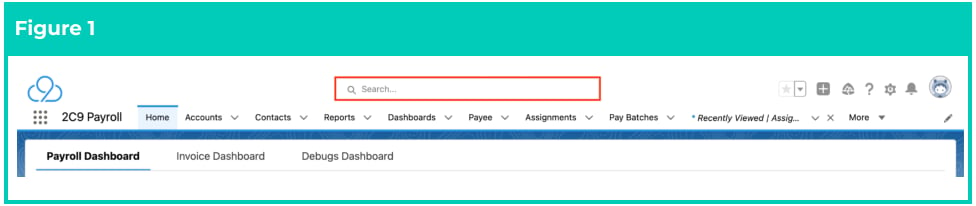
1. To identify a Payee record from an Employee record, enter the Employee name into the **Global Search**. (See Figure 1)
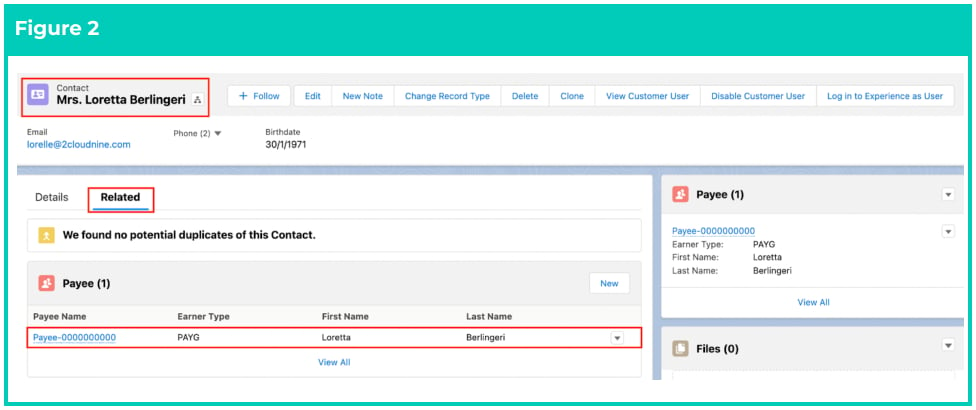
 2. Select the **Employee** record from the suggestions provided. (See Figure 2)
3. Open the **Related** tab.
4. Identify the **Payee** record(s).
5. Select the **Payee** record.
2. Select the **Employee** record from the suggestions provided. (See Figure 2)
3. Open the **Related** tab.
4. Identify the **Payee** record(s).
5. Select the **Payee** record.
 2. Within the Payee record, navigate to the **Leave** tab. (See Figure 3)
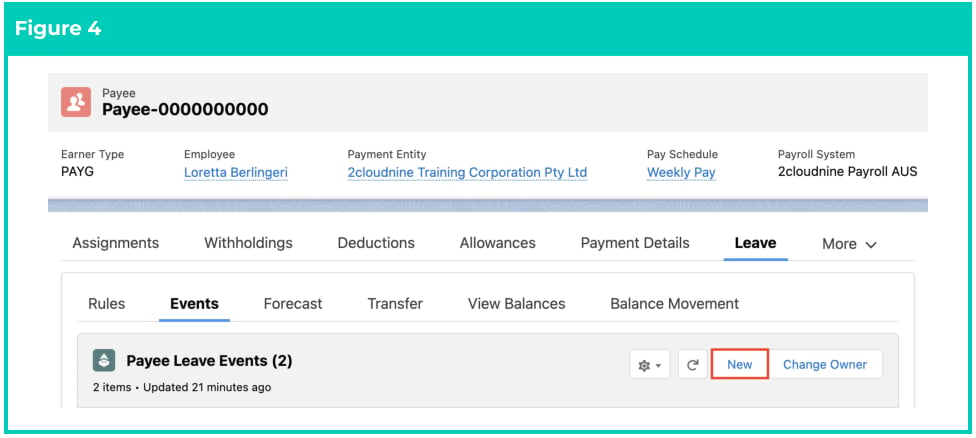
3. Click on the **Events** sub-tab.
2. Within the Payee record, navigate to the **Leave** tab. (See Figure 3)
3. Click on the **Events** sub-tab.
 4. Click on the **New** button. (See Figure 4)
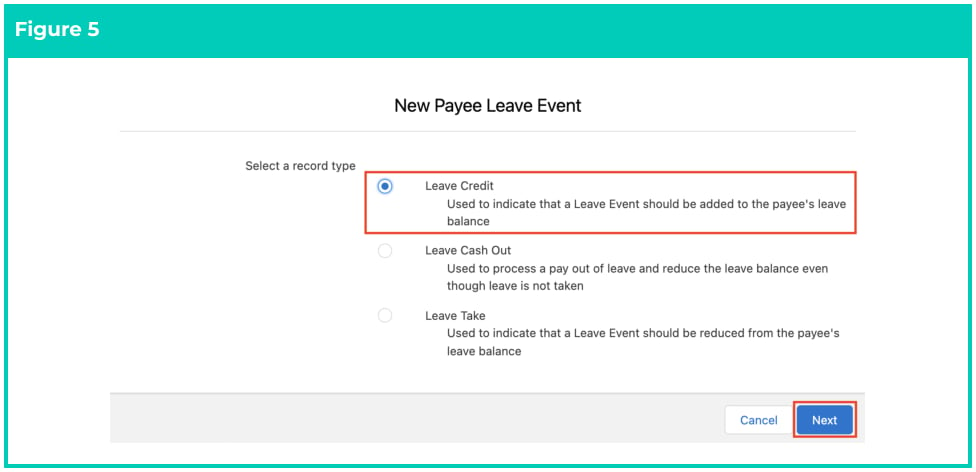
 5. Select **Leave Credit** record type and click on the **Next** button. (See Figure 5)
 6. Follow this step in the sequence given below:
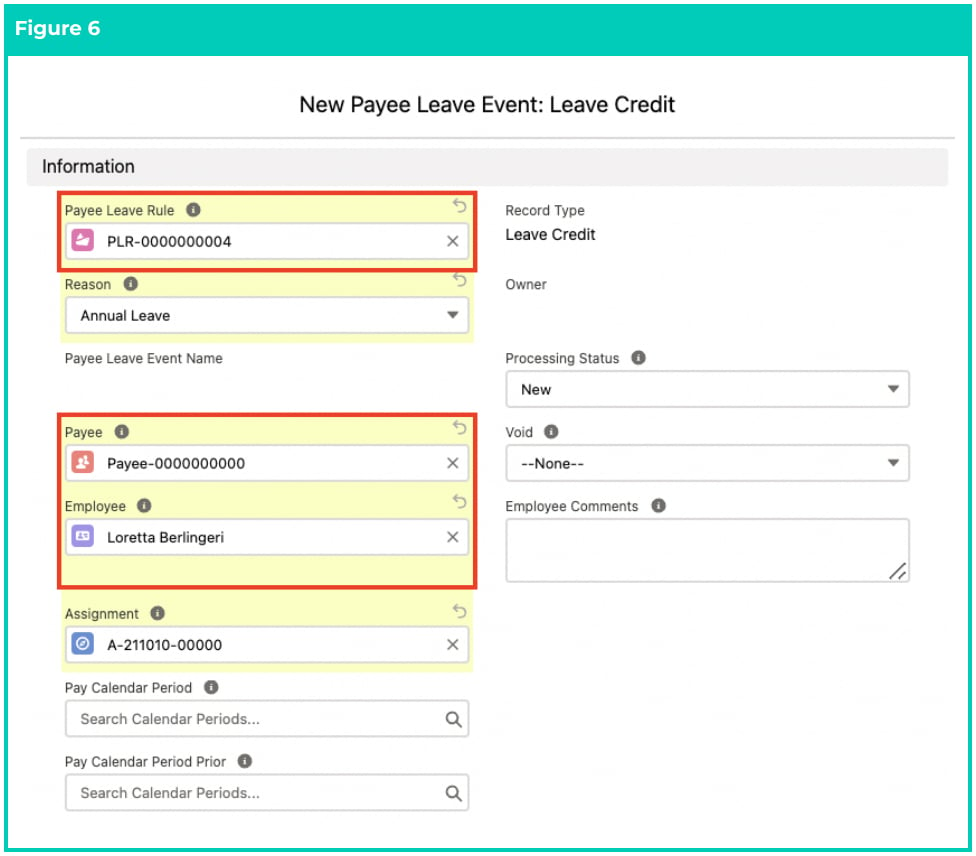
1. Populate the following required fields to provide the base details of the Leave Credit record: (See Figure 6)
1. **Payee Leave Rule**
2. **Payee**
3. **Employee**
2. Populate the following optional fields as needed: (See Figure 6)
1. If the parent Payee Leave Rule has the Assignment field populated, then populate
the **Assignment** field for this Leave Credit record. If the Assignment field is NOT
populated on the Payee Leave Rule, then this field can be left blank.
2. To record additional comments provided by the Employee, populate the field
**Employee Comments**.
3. If this is a new Leave Event, the Void field should be populated as No, or it can be left blank. If it is populated with Yes, it would be ignored from Pay Batch Processing. ‘Yes’ should only be selected on Fully Processed Leave Events that are to be reversed in a future Pay Batch.
6. Follow this step in the sequence given below:
1. Populate the following required fields to provide the base details of the Leave Credit record: (See Figure 6)
1. **Payee Leave Rule**
2. **Payee**
3. **Employee**
2. Populate the following optional fields as needed: (See Figure 6)
1. If the parent Payee Leave Rule has the Assignment field populated, then populate
the **Assignment** field for this Leave Credit record. If the Assignment field is NOT
populated on the Payee Leave Rule, then this field can be left blank.
2. To record additional comments provided by the Employee, populate the field
**Employee Comments**.
3. If this is a new Leave Event, the Void field should be populated as No, or it can be left blank. If it is populated with Yes, it would be ignored from Pay Batch Processing. ‘Yes’ should only be selected on Fully Processed Leave Events that are to be reversed in a future Pay Batch.
 All new Leave Events should be populated with ‘No’ in the Void field. If they are populated with ‘Yes’ this would prevent the Leave Event from being processed in a Pay Batch.
If the Leave Event Processing Status is Fully Processed, and you require it to be reversed, Users would be required to update this field to ‘Yes’. The Leave Event will then be completely cancelled and reversed out when a new Pay Batch is Created and Calculated that matches the Pay Calendar Period Dates.
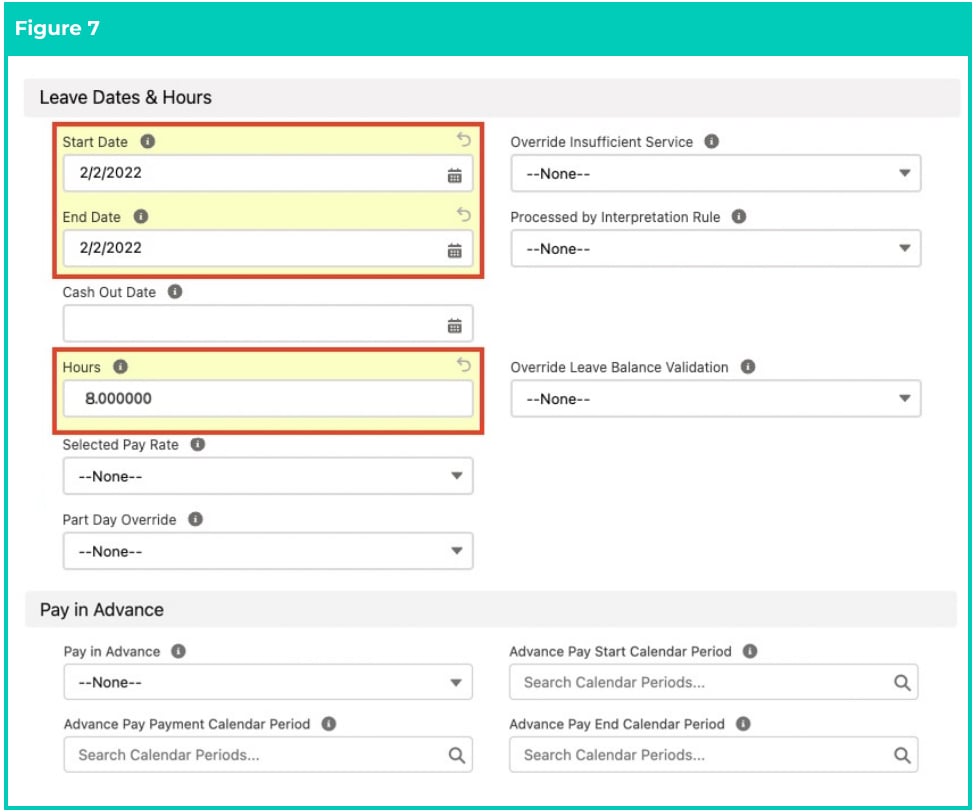
4. Populate the following required fields to provide the base details of the Leave Credit
record: (See Figure 7)
1. **Start Date**
2. **End Date**
3. **Hours**
All new Leave Events should be populated with ‘No’ in the Void field. If they are populated with ‘Yes’ this would prevent the Leave Event from being processed in a Pay Batch.
If the Leave Event Processing Status is Fully Processed, and you require it to be reversed, Users would be required to update this field to ‘Yes’. The Leave Event will then be completely cancelled and reversed out when a new Pay Batch is Created and Calculated that matches the Pay Calendar Period Dates.
4. Populate the following required fields to provide the base details of the Leave Credit
record: (See Figure 7)
1. **Start Date**
2. **End Date**
3. **Hours**
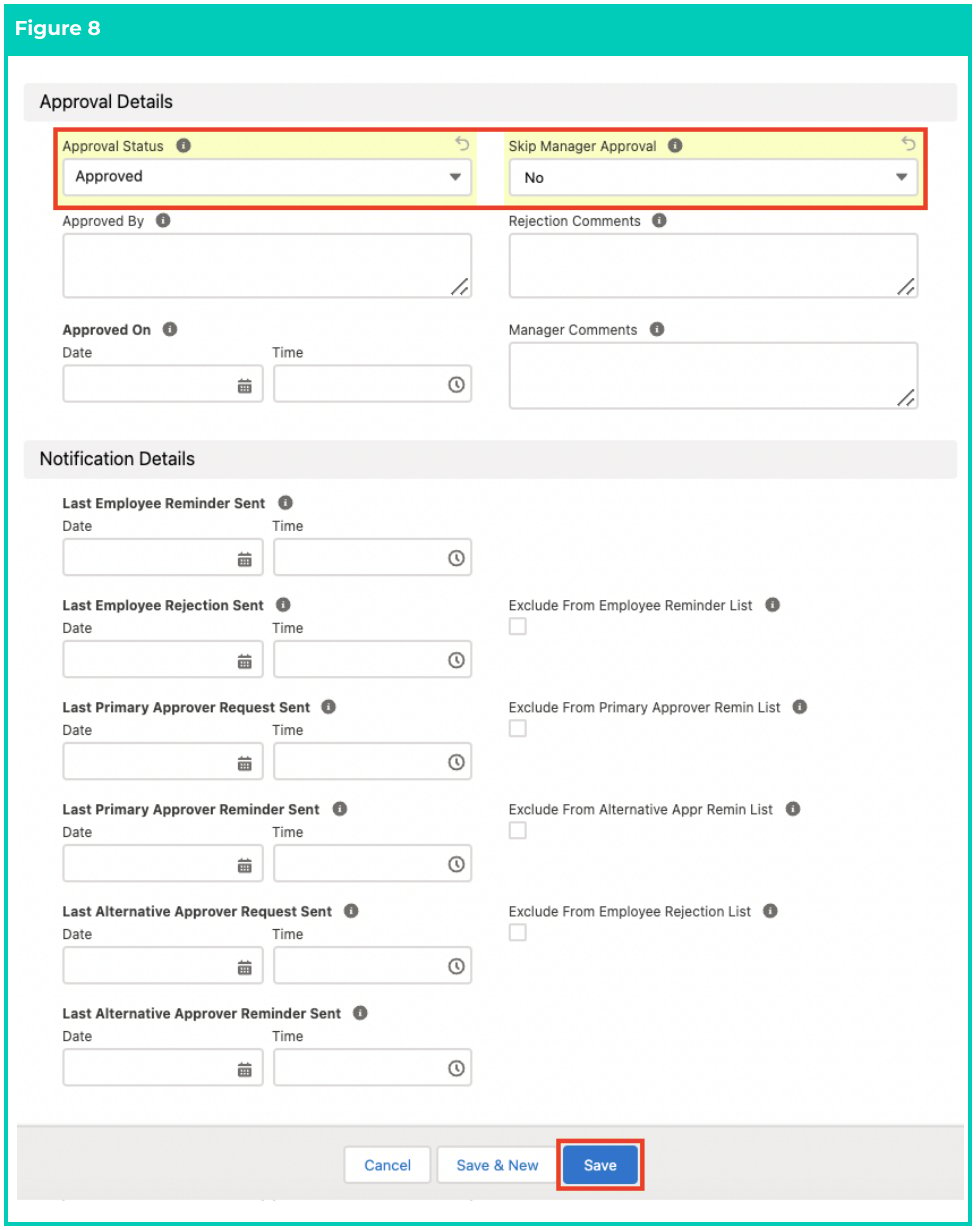
 5. Populate the following required fields to provide the base details of the Leave Credit record: (See Figure 8)
1. **Approval Status** - If the Approval Status is:
1. **Submitted** - it’s awaiting the Leave Approver to approve.
2. **Approved** - it’s ready for Pay Batch processing.
3. **New** - saved as draft, nothing further occurs.
4. **Recalled** - returned to Payee for editing and resubmission.
5. **Rejected** - rejected for approval, Payee can delete, or edit and resubmit.
2. **Skip Manager Approval**
6. Populate the following optional fields as needed: (See Figure 8)
1. To provide details of the Leave approval for an already approved Credit, populate the fields **Approved By**, **Approved On**, and **Manager Comments** as required.
2. If the Approval Status is Rejected and to provide details of the Leave rejection, you must populate the field **Rejection Comments**.
7. The following fields do not need to be populated for this record as: (See Figures 6, 7 and 8)
1. They do not have an impact during record creation, or they are not required for this
Record Type:
1. **Selected Pay Rate, Pay Calendar Period Prior**, **Pay in Advance**, **Advanced Pay**
**Start Calendar Period**, **Advanced Pay Payment Calendar Period**, **Advanced Pay**
**End Calendar Period**, **Processed By Interpretation Rule, Override Insufficient**
**Service, Override Leave Balance Validation,** and **Part Day Override**.
2. They are automated fields:
1. **Processing Status, Pay Calendar Period, Last Employee Reminder Sent**, **Last**
**Employee Rejection Sent**, **Last Primary Approver Request Sent**, **Last Primary**
**Approver Reminder Sent**, **Last Alternative Approver Request Sent**, and **Last**
**Alternative Approver Reminder Sent**.
8. Click on the **Save** button.
5. Populate the following required fields to provide the base details of the Leave Credit record: (See Figure 8)
1. **Approval Status** - If the Approval Status is:
1. **Submitted** - it’s awaiting the Leave Approver to approve.
2. **Approved** - it’s ready for Pay Batch processing.
3. **New** - saved as draft, nothing further occurs.
4. **Recalled** - returned to Payee for editing and resubmission.
5. **Rejected** - rejected for approval, Payee can delete, or edit and resubmit.
2. **Skip Manager Approval**
6. Populate the following optional fields as needed: (See Figure 8)
1. To provide details of the Leave approval for an already approved Credit, populate the fields **Approved By**, **Approved On**, and **Manager Comments** as required.
2. If the Approval Status is Rejected and to provide details of the Leave rejection, you must populate the field **Rejection Comments**.
7. The following fields do not need to be populated for this record as: (See Figures 6, 7 and 8)
1. They do not have an impact during record creation, or they are not required for this
Record Type:
1. **Selected Pay Rate, Pay Calendar Period Prior**, **Pay in Advance**, **Advanced Pay**
**Start Calendar Period**, **Advanced Pay Payment Calendar Period**, **Advanced Pay**
**End Calendar Period**, **Processed By Interpretation Rule, Override Insufficient**
**Service, Override Leave Balance Validation,** and **Part Day Override**.
2. They are automated fields:
1. **Processing Status, Pay Calendar Period, Last Employee Reminder Sent**, **Last**
**Employee Rejection Sent**, **Last Primary Approver Request Sent**, **Last Primary**
**Approver Reminder Sent**, **Last Alternative Approver Request Sent**, and **Last**
**Alternative Approver Reminder Sent**.
8. Click on the **Save** button.
 9. A new Leave Credit record has been created. (See Figure 9)
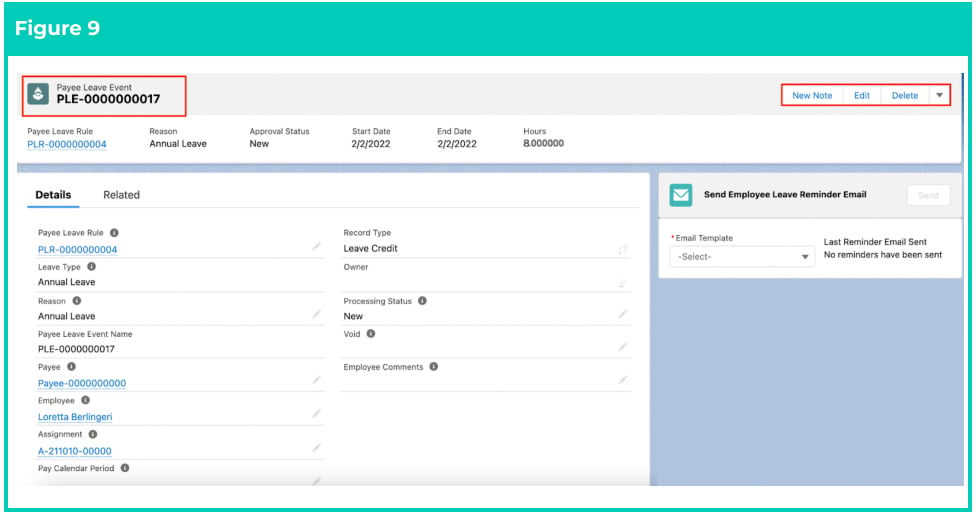 Payee Leave Event records CAN NOT be deleted if they have related records or are
used in other records. Deleting records is not recommended unless absolutely
essential.
10. To modify an existing **Payee Leave Event** record, open the required record and select the **Edit**
button available on the top right side of the page. You can also double click in any of the fields
that need editing or just click on the pencil icon that appears within fields when you move
your cursor over the field.
11. When complete, click on the **Save** button.
### **Cancelling processed Leave Credit Events**
This functionality details how to cancel a Leave Credit Event that has been previously processed in a Pay
Batch. This will not work if the Leave Credit Event has the field **Processed by Interpretation Rule** marked
as Yes. If that field is blank or No, follow the steps below:
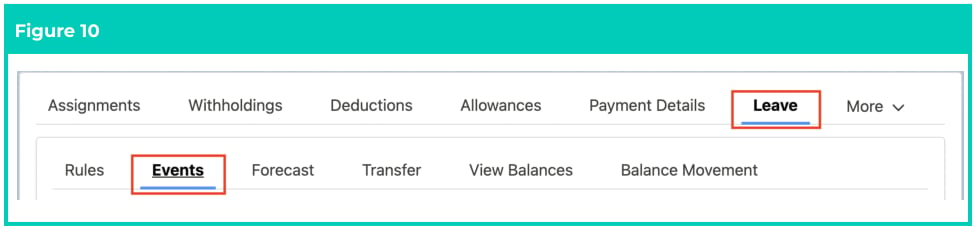
1. Open the **Payee** record, click on the **Leave** tab and then on the **Events** sub-tab under the Leave tab. (See Figure 10)
Payee Leave Event records CAN NOT be deleted if they have related records or are
used in other records. Deleting records is not recommended unless absolutely
essential.
10. To modify an existing **Payee Leave Event** record, open the required record and select the **Edit**
button available on the top right side of the page. You can also double click in any of the fields
that need editing or just click on the pencil icon that appears within fields when you move
your cursor over the field.
11. When complete, click on the **Save** button.
### **Cancelling processed Leave Credit Events**
This functionality details how to cancel a Leave Credit Event that has been previously processed in a Pay
Batch. This will not work if the Leave Credit Event has the field **Processed by Interpretation Rule** marked
as Yes. If that field is blank or No, follow the steps below:
1. Open the **Payee** record, click on the **Leave** tab and then on the **Events** sub-tab under the Leave tab. (See Figure 10)
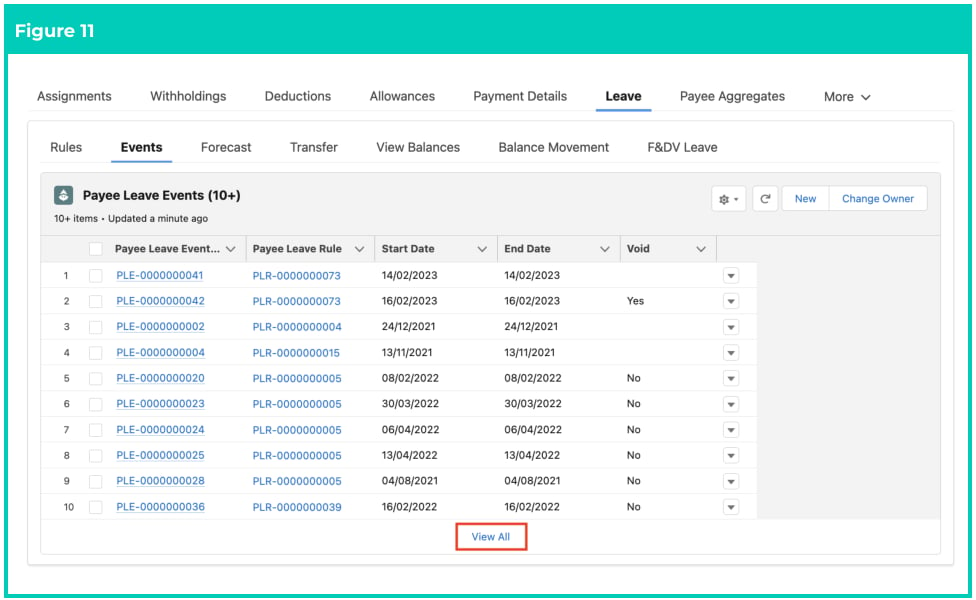
 2. Click on **View All**. (See Figure 11)
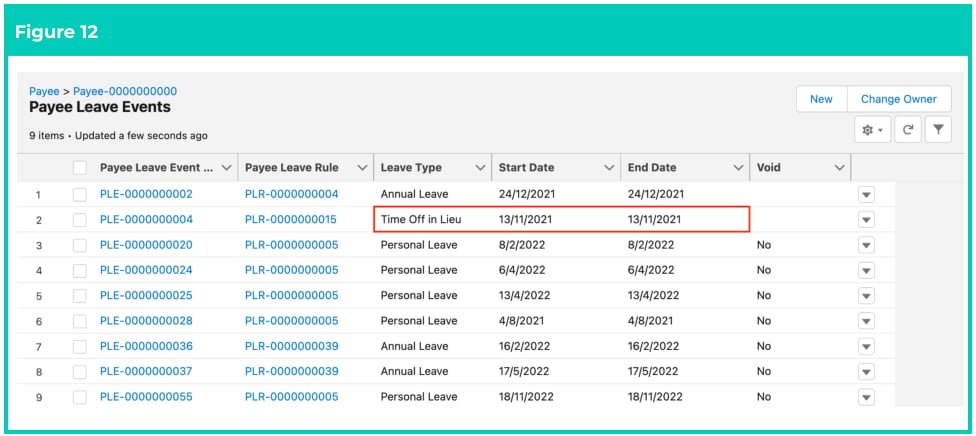
 3. Select the **Payee Leave Event** that needs to be cancelled. You will be able to select it based on
the Start Date, End Date and Leave Type. (See Figure 12)
3. Select the **Payee Leave Event** that needs to be cancelled. You will be able to select it based on
the Start Date, End Date and Leave Type. (See Figure 12)
 4. Within the Payee Leave Event record, click the pencil icon located on the right hand side of the Void field. (See Figure 13)
 5. On the field **Void**, change the picklist value to Yes. (See Figure 14)
6. Click on the **Save** button.
5. On the field **Void**, change the picklist value to Yes. (See Figure 14)
6. Click on the **Save** button.
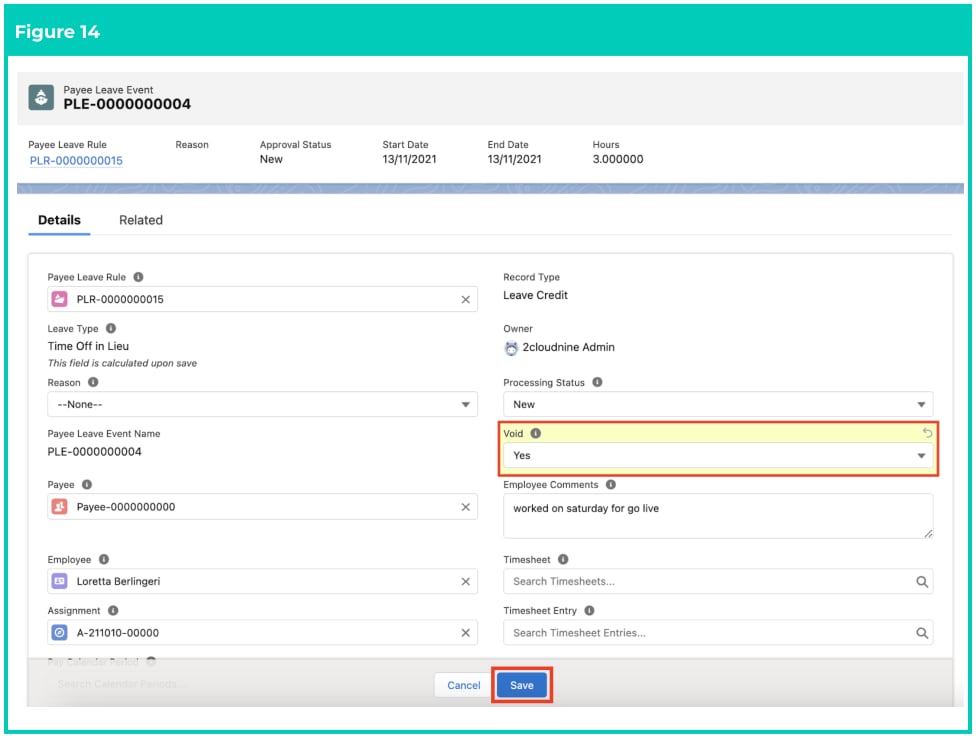 7. The voided Payee Leave Event will be processed in the next Pay Batch.
If the Payee Leave Event record has the Processed By Interpretation Rule field marked
as Yes, then updating the Void field to Yes on this record will not result in the
automatic reversal of the original Leave Credit. The reversal of the processed leave
would need to be done by creating duplicate Pay Transactions to reverse the original
leave credit. For further assistance in how to do this, please contact the Support Team.
## Field Descriptions
**Advance Pay End Calendar Period** This field is irrelevant for Leave Credit.
**Advance Pay Payment Calendar Period** This field is irrelevant for Leave Credit.
**Advance Pay Start Calendar Period** This field is irrelevant for Leave Credit.
**Approval Status** is the approval status of the Payee Leave Event.
**Approved By** is the name of the manager or Payroll User who approved the Payee Leave Event.
**Approved On** is the Date/Time the approval was granted.
**Assignment** is a lookup to the related Assignment.
**Employee** is a lookup to the related Employee. This must match the Employee of the Payee.
**Employee Comments** are comments about this Payee Leave Event recorded from the Payee.
**End Date** is the End Date of the Payee Leave Event.
**Exclude From Alternative Appr Remin List (checkbox)** when TRUE, the Leave will be excluded from Bulk
Alternative Approver Reminders, and will only be sent on an individual basis via the Leave Events.
**Exclude From Employee Reminder List (checkbox)** indicates that this Payee Leave Event will not trigger
Employee Reminder Notifications.
**Hours** is the number of hours to be credited.
**Last Alternative Approver Reminder Sent** defines the Date/Time the last email was sent to remind the
Alternative Approver of the Leave awaiting approval.
**Last Alternative Approver Request Sent** defines the Date/Time the last email was sent to notify the
Alternative Approver of the Submitted Leave Event awaiting approval.
**Last Employee Reminder Sent** defines the Date/Time the last email was sent to remind the Employee to
submit their Payee Leave Event.
**Last Employee Rejection Sent** defines the Date/Time the last email was sent to the Employee to advise
the Leave is Rejected. This field is reset to blank on re-submission.
**Last Primary Approver Reminder Sent** defines the Date/Time the last email was sent to remind the
Primary Approver of the Leave Event awaiting approval.
**Last Primary Approver Request Sent** defines the Date/Time the last email was sent to notify the Primary
Approver of the Leave submission and request its approval.
**Manager Comments** are the comments about this Payee Leave Event that were entered by the Leave
Approver.
**Override Insufficient Service** This field is irrelevant for Leave Credit.
**Override Leave Balance Validation** This field is irrelevant for Leave Credit.
**Part Day Override** This field is irrelevant for Leave Credit.
**Pay Calendar Period** defines the most recent Pay Calendar Period that applies to the Payee Leave Event.
The value is automatically updated during Pay Batch Manager calculations.
**Pay in Advance?** This field is irrelevant for Leave Credit.
**Payee** is a lookup to the related Payee. This must match a Payee of the Employee.
**Payee Leave Event Name** is the name given to the Payee Leave Event record that is being created.
**Payee Leave Rule** is a lookup to the related Payee Leave Rule.
**Processed by Interpretation Rule** indicates the Payee Leave Event was created by entering the Leave
Takes via a Timesheet, and therefore processed by an Interpretation Rule.
**Processing Status** is the current Processing Status of this Payee Leave Event.
**Reason** is the user-entered reason for this Payee Leave Event.
**Rejection Comments** are the comments about the Payee Leave Event to indicate why the Approval
Status was changed to Rejected.
**Selected Pay Rate** This field is irrelevant for Leave Credit.
**Skip Manager Approval** indicates whether the approval process can be skipped for this Payee Leave
Event.
**Start Date** is the Start Date of the Payee Leave Event.
**Void** indicates whether a user has voided this Payee Leave Event to prevent it from being included in Pay Batch calculation, or reversed if it’s a status of Fully Processed and not Processed by Interpretation Rule.
## Further Information
| Document | Document Type | Description |
| ------------------------------------------ | --------------------------- | ---------------------------------------------------------------------------------------------------------------------------------------------------------------------------------------------------------------------------------------------------------------------------------------------------------------------------------------------------- |
| Quick Reference Guide Index - Leave | Index | An index document that lists and provides links to all Quick Reference Guides relating to Leave |
| Managing Payee Leave Event Key Information | Information Quick Reference | Outlines useful information relevant to Leave within 2cloudnine Payroll. The document includes definitions, prerequisites, and other non-instructional information relating to Leave. This includes details on creation and management of Leave Rules, Payee Leave Rules, and Leave Templates, along with the taking of Leave Events, Accruals, etc. |
| QRG Setup Payee Leave Rules | Task Instructions | How to create Payee Leave Rules |
| QRG Create Leave Cash Out - Payroll Users | Task Instructions | How to create Payee Leave Events of Record Type Leave Cash Out, as Payroll Users. |
| QRG Create Leave Takes - Payroll Users | Task Instructions | How to create Payee Leave Events of Record Type Leave Take, as Payroll Users. |
7. The voided Payee Leave Event will be processed in the next Pay Batch.
If the Payee Leave Event record has the Processed By Interpretation Rule field marked
as Yes, then updating the Void field to Yes on this record will not result in the
automatic reversal of the original Leave Credit. The reversal of the processed leave
would need to be done by creating duplicate Pay Transactions to reverse the original
leave credit. For further assistance in how to do this, please contact the Support Team.
## Field Descriptions
**Advance Pay End Calendar Period** This field is irrelevant for Leave Credit.
**Advance Pay Payment Calendar Period** This field is irrelevant for Leave Credit.
**Advance Pay Start Calendar Period** This field is irrelevant for Leave Credit.
**Approval Status** is the approval status of the Payee Leave Event.
**Approved By** is the name of the manager or Payroll User who approved the Payee Leave Event.
**Approved On** is the Date/Time the approval was granted.
**Assignment** is a lookup to the related Assignment.
**Employee** is a lookup to the related Employee. This must match the Employee of the Payee.
**Employee Comments** are comments about this Payee Leave Event recorded from the Payee.
**End Date** is the End Date of the Payee Leave Event.
**Exclude From Alternative Appr Remin List (checkbox)** when TRUE, the Leave will be excluded from Bulk
Alternative Approver Reminders, and will only be sent on an individual basis via the Leave Events.
**Exclude From Employee Reminder List (checkbox)** indicates that this Payee Leave Event will not trigger
Employee Reminder Notifications.
**Hours** is the number of hours to be credited.
**Last Alternative Approver Reminder Sent** defines the Date/Time the last email was sent to remind the
Alternative Approver of the Leave awaiting approval.
**Last Alternative Approver Request Sent** defines the Date/Time the last email was sent to notify the
Alternative Approver of the Submitted Leave Event awaiting approval.
**Last Employee Reminder Sent** defines the Date/Time the last email was sent to remind the Employee to
submit their Payee Leave Event.
**Last Employee Rejection Sent** defines the Date/Time the last email was sent to the Employee to advise
the Leave is Rejected. This field is reset to blank on re-submission.
**Last Primary Approver Reminder Sent** defines the Date/Time the last email was sent to remind the
Primary Approver of the Leave Event awaiting approval.
**Last Primary Approver Request Sent** defines the Date/Time the last email was sent to notify the Primary
Approver of the Leave submission and request its approval.
**Manager Comments** are the comments about this Payee Leave Event that were entered by the Leave
Approver.
**Override Insufficient Service** This field is irrelevant for Leave Credit.
**Override Leave Balance Validation** This field is irrelevant for Leave Credit.
**Part Day Override** This field is irrelevant for Leave Credit.
**Pay Calendar Period** defines the most recent Pay Calendar Period that applies to the Payee Leave Event.
The value is automatically updated during Pay Batch Manager calculations.
**Pay in Advance?** This field is irrelevant for Leave Credit.
**Payee** is a lookup to the related Payee. This must match a Payee of the Employee.
**Payee Leave Event Name** is the name given to the Payee Leave Event record that is being created.
**Payee Leave Rule** is a lookup to the related Payee Leave Rule.
**Processed by Interpretation Rule** indicates the Payee Leave Event was created by entering the Leave
Takes via a Timesheet, and therefore processed by an Interpretation Rule.
**Processing Status** is the current Processing Status of this Payee Leave Event.
**Reason** is the user-entered reason for this Payee Leave Event.
**Rejection Comments** are the comments about the Payee Leave Event to indicate why the Approval
Status was changed to Rejected.
**Selected Pay Rate** This field is irrelevant for Leave Credit.
**Skip Manager Approval** indicates whether the approval process can be skipped for this Payee Leave
Event.
**Start Date** is the Start Date of the Payee Leave Event.
**Void** indicates whether a user has voided this Payee Leave Event to prevent it from being included in Pay Batch calculation, or reversed if it’s a status of Fully Processed and not Processed by Interpretation Rule.
## Further Information
| Document | Document Type | Description |
| ------------------------------------------ | --------------------------- | ---------------------------------------------------------------------------------------------------------------------------------------------------------------------------------------------------------------------------------------------------------------------------------------------------------------------------------------------------- |
| Quick Reference Guide Index - Leave | Index | An index document that lists and provides links to all Quick Reference Guides relating to Leave |
| Managing Payee Leave Event Key Information | Information Quick Reference | Outlines useful information relevant to Leave within 2cloudnine Payroll. The document includes definitions, prerequisites, and other non-instructional information relating to Leave. This includes details on creation and management of Leave Rules, Payee Leave Rules, and Leave Templates, along with the taking of Leave Events, Accruals, etc. |
| QRG Setup Payee Leave Rules | Task Instructions | How to create Payee Leave Rules |
| QRG Create Leave Cash Out - Payroll Users | Task Instructions | How to create Payee Leave Events of Record Type Leave Cash Out, as Payroll Users. |
| QRG Create Leave Takes - Payroll Users | Task Instructions | How to create Payee Leave Events of Record Type Leave Take, as Payroll Users. |