> ## Documentation Index
> Fetch the complete documentation index at: https://documentation.2cloudnine.com/llms.txt
> Use this file to discover all available pages before exploring further.
# QRG Family and Domestic Violence Leave
## Purpose
The purpose of this quick reference guide is to step through the process of creating a Paid Family and
Domestic Violence Leave Event as a Payroll User. The intended audience for this document is system
administrators / standard users. This process does not need to be followed until there is a need to create
the first Leave Event for Paid Family and Domestic Violence Leave for any Payees in the Org.
Please note that this is the proposed 2cloudnine solution for managing Paid Family & Domestic Violence
Leave. In the event you wish to process this Leave type in a different way, please contact Customer
Success. The steps in this QRG will process the Leave Events for record keeping purposes, and the Leave
Events will not be processed in any Pay Batches. The Payees will be paid as per normal attendance to
work, and if they are paid by Timesheets, they should submit their normal standard work hours on a
Timesheet for Payment.
## Steps
### **Creation of Family and Domestic Violence Leave Events**
To create a new Family & Domestic Violence Leave, follow the steps below:
To create a new Payee Leave Event record, follow these steps:
1. Go to the **Payee** record.
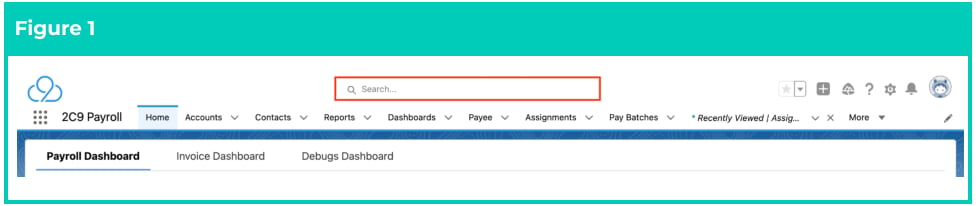
1. To identify a Payee record from an Employee record, enter the Employee name into the **Global Search**. (See Figure 1)
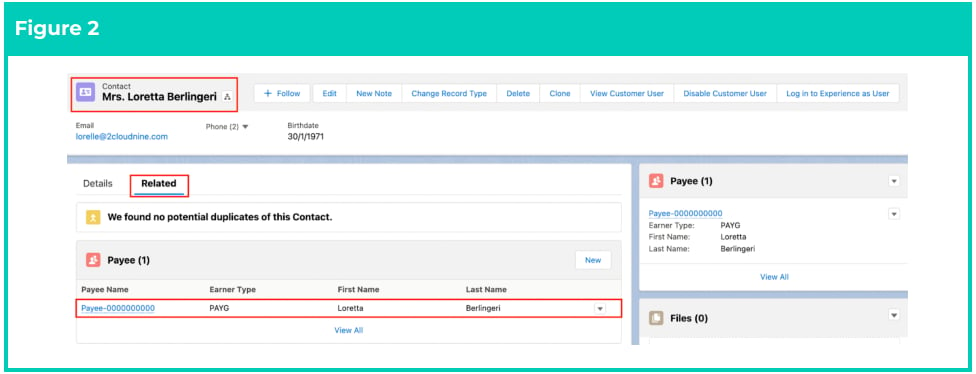
 2. Select the **Employee** record from the suggestions provided. (See Figure 2)
3. Open the **Related** tab.
4. Identify the **Payee** record(s).
5. Select the **Payee** record.
2. Select the **Employee** record from the suggestions provided. (See Figure 2)
3. Open the **Related** tab.
4. Identify the **Payee** record(s).
5. Select the **Payee** record.
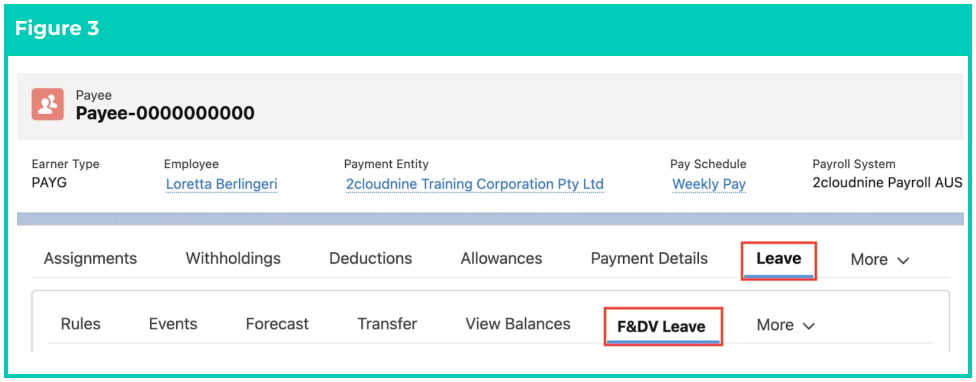
 2. Within the Payee record, navigate to the **Leave** tab. (See Figure 3)
3. Click on the **F\&DV Leave** sub-tab.
2. Within the Payee record, navigate to the **Leave** tab. (See Figure 3)
3. Click on the **F\&DV Leave** sub-tab.
 4. The next page will display one of the following screens:
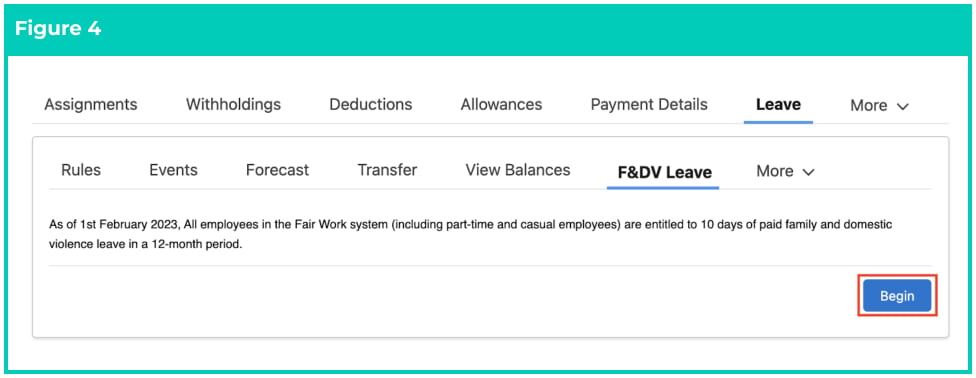
1. A Payee who has not yet had a Payee Leave Rule created for Paid Family and Domestic
Violence Leave previously, or the previous Payee Leave Rule for Paid Family & Domestic
Violence Leave has expired, will display an introduction screen. (See Figure 4)
OR
2. If the required Leave Rule and the Payee Leave Rule is already created for this Payee,
Users will be presented with a different screen that includes the current details of the
Payee Leave Rule, along with all Payee Leave Events for this type of leave recorded so far.
If this is the screen you are presented with, please skip the next steps and proceed at step 9.
5. Click on the **Begin** button. Upon clicking this button, the system will check if a Leave Rule for
Paid Family & Domestic Violence Leave already exists, and if not, will create a new Leave Rule in
line with the new legislation which came into effect from 01/02/2023.
4. The next page will display one of the following screens:
1. A Payee who has not yet had a Payee Leave Rule created for Paid Family and Domestic
Violence Leave previously, or the previous Payee Leave Rule for Paid Family & Domestic
Violence Leave has expired, will display an introduction screen. (See Figure 4)
OR
2. If the required Leave Rule and the Payee Leave Rule is already created for this Payee,
Users will be presented with a different screen that includes the current details of the
Payee Leave Rule, along with all Payee Leave Events for this type of leave recorded so far.
If this is the screen you are presented with, please skip the next steps and proceed at step 9.
5. Click on the **Begin** button. Upon clicking this button, the system will check if a Leave Rule for
Paid Family & Domestic Violence Leave already exists, and if not, will create a new Leave Rule in
line with the new legislation which came into effect from 01/02/2023.
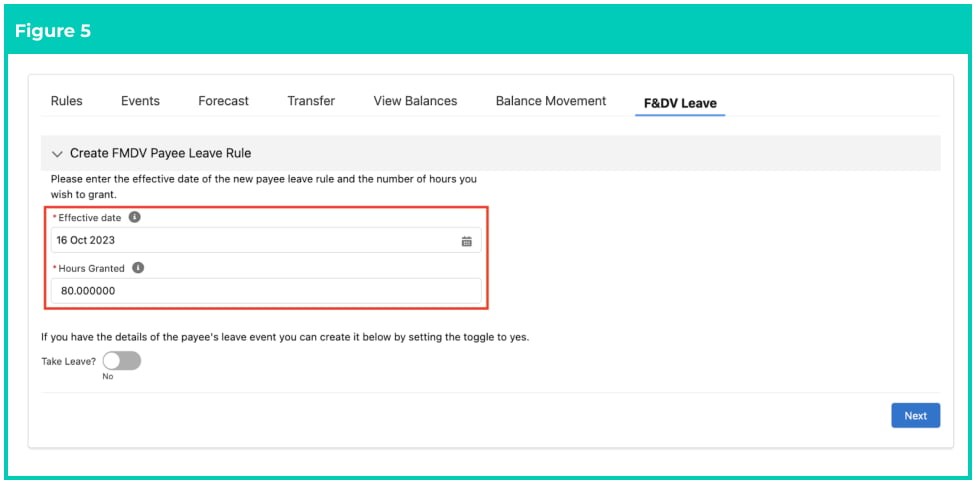
 6. Populate the following required fields to provide the base details of the new Payee Leave Rule record: (See Figure 5)
1. **Effective Date**
2. **Hours Granted**
7. Please choose one of the following as required:
1. If you do not wish to create a new Payee Leave Event at this point in time, you can click the **Next** button to create just the Payee Leave Rule and finish the process. (See Figure 5)
OR
2. If you do not click the Next button and wish to create a Payee Leave Event in addition to the Payee Leave Rule, continue to the next step.
6. Populate the following required fields to provide the base details of the new Payee Leave Rule record: (See Figure 5)
1. **Effective Date**
2. **Hours Granted**
7. Please choose one of the following as required:
1. If you do not wish to create a new Payee Leave Event at this point in time, you can click the **Next** button to create just the Payee Leave Rule and finish the process. (See Figure 5)
OR
2. If you do not click the Next button and wish to create a Payee Leave Event in addition to the Payee Leave Rule, continue to the next step.
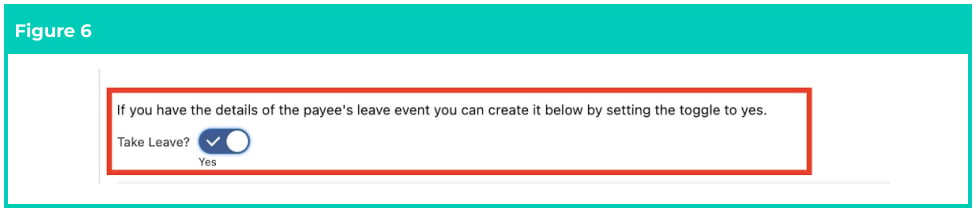
 8. To create a Payee Leave Event in addition to the Payee Leave Rule, click on the Toggle button
called Take Leave?. (See Figure 6)
8. To create a Payee Leave Event in addition to the Payee Leave Rule, click on the Toggle button
called Take Leave?. (See Figure 6)
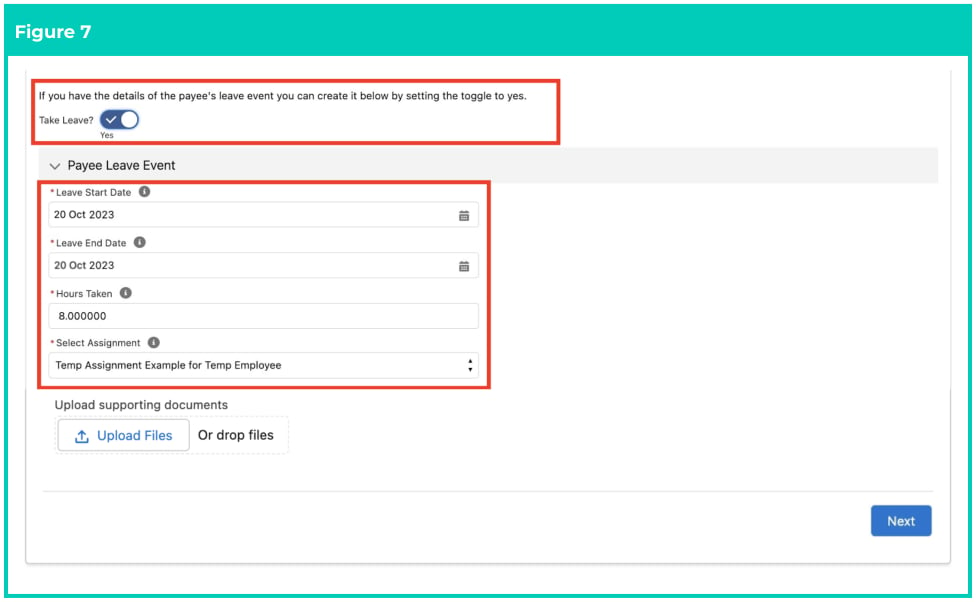
 9. Populate the following required fields to provide the base details of the new Payee Leave Event:
(See Figure 7)
1. **Leave Start Date**
2. **Leave End Date**
3. **Hours Taken**
4. **Select Assignment**
9. Populate the following required fields to provide the base details of the new Payee Leave Event:
(See Figure 7)
1. **Leave Start Date**
2. **Leave End Date**
3. **Hours Taken**
4. **Select Assignment**
 For this functionality to work, please ensure that the Start Date and End Date fall
within the dates of the related Assignment.
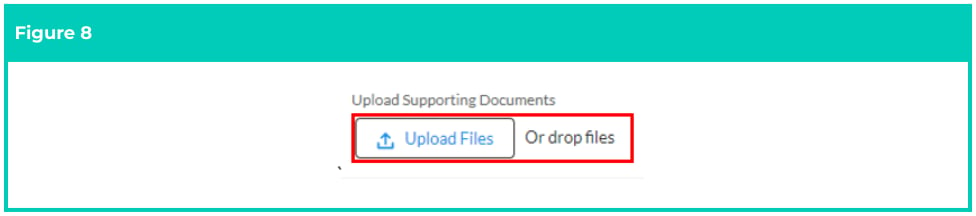
10. If you need to store any documentation against the Payee Leave Event, click **Upload Files** under
the Upload Supporting Documents section, or use the drag-and-drop feature to upload (see
Figure 8).
For this functionality to work, please ensure that the Start Date and End Date fall
within the dates of the related Assignment.
10. If you need to store any documentation against the Payee Leave Event, click **Upload Files** under
the Upload Supporting Documents section, or use the drag-and-drop feature to upload (see
Figure 8).
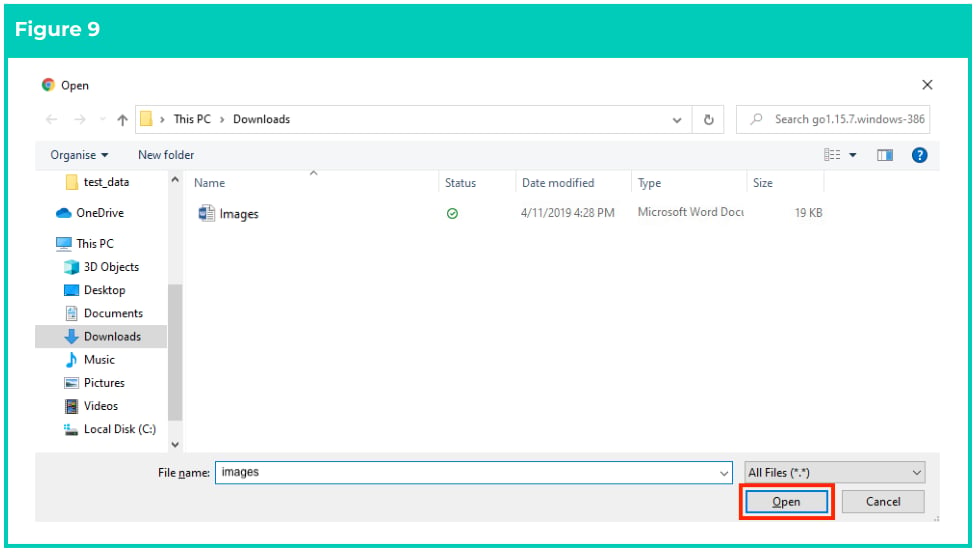
 11. Select the file and click on the **Open** button. (See Figure 9)
 12. The selected file will upload as an attachment to the Payee Leave Event record, and a
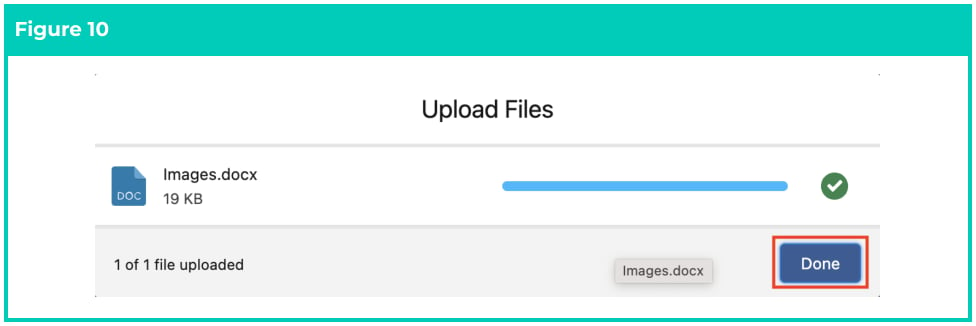
confirmation will appear as shown below. Click on the **Done** button. (See Figure 10)
12. The selected file will upload as an attachment to the Payee Leave Event record, and a
confirmation will appear as shown below. Click on the **Done** button. (See Figure 10)
 Please note, there is no other confirmation on the Page Layout that the file has been uploaded.
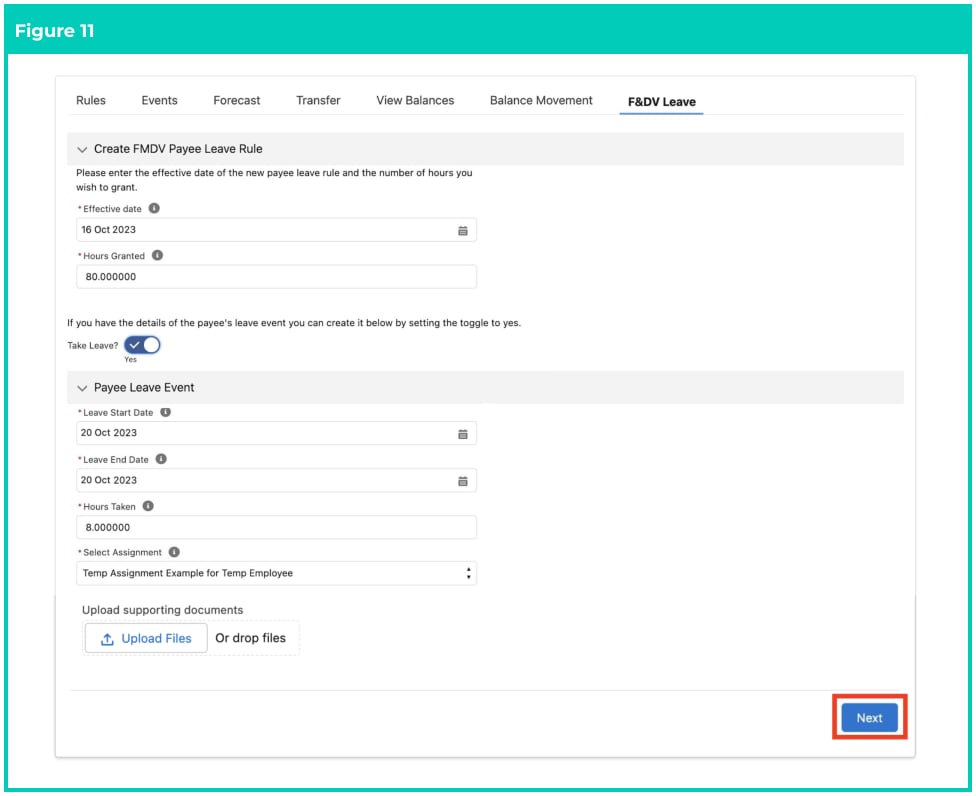
13. Click on the **Next** button. (See Figure 11)
14. The system will check if a Family & Domestic Violence Payee Leave Rule already exists, and will create a new Payee Leave Rule if required, and will create the Payee Leave Event.
Please note, there is no other confirmation on the Page Layout that the file has been uploaded.
13. Click on the **Next** button. (See Figure 11)
14. The system will check if a Family & Domestic Violence Payee Leave Rule already exists, and will create a new Payee Leave Rule if required, and will create the Payee Leave Event.
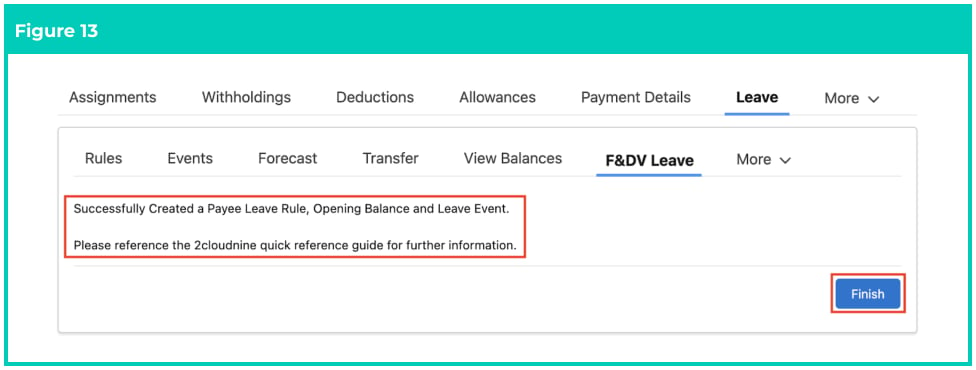
 15. Once completed, you will receive a confirmation message. (See Figure 13)
16. Click on the **Finish** button.
15. Once completed, you will receive a confirmation message. (See Figure 13)
16. Click on the **Finish** button.
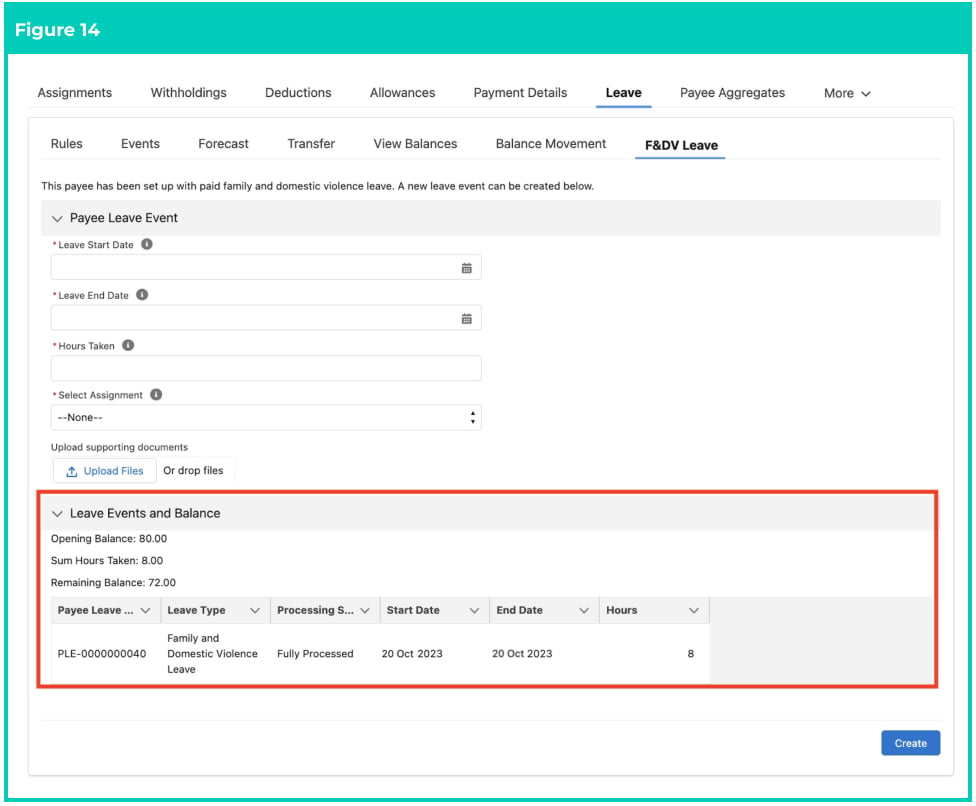
 17. You will then be able to review all Family & Domestic Violence Payee Leave Events for this Payee as well as seeing the Opening Balance, Sum of Hours Taken and Remaining Hours (see Figure 14). The files that were uploaded during creation of Leave can be located in the Related Files section
of the Payee Leave Event record.
17. You will then be able to review all Family & Domestic Violence Payee Leave Events for this Payee as well as seeing the Opening Balance, Sum of Hours Taken and Remaining Hours (see Figure 14). The files that were uploaded during creation of Leave can be located in the Related Files section
of the Payee Leave Event record.
 The Expiry Date of the Payee Leave Rule is determined automatically. If there is an
Original Leave Service Date, the system will use that date, find the next occurrence of
it, and enters 1 day less as the Expiry Date. If that is not provided, it uses the Payroll
Start Date, finds the next occurrence of it, and uses 1 day less for the Expiry Date.
If an Employee is granted the Family and Domestic Violence Leave and the dates of
the Payee Leave Events go beyond the Expiry Date of the current Payee Leave Rule,
then Payroll Users will be required to create a 2nd Payee Leave Rule to continue
immediately after the first, and to allocate all Payee Leave Events to the Payee Leave
Rules and their dates.
### **Cancelling incorrectly entered Family and Domestic Violence Leave Events**
To cancel a Family & Domestic Violence Leave Event that has been entered in error, follow the steps
below:
1. Open the **Payee** record, click on the **Leave** tab and the **F\&DV Leave** sub-tab by following steps 1 to 3 on page 1.
2. Scroll down or navigate to the **Leave Events and Balance** section.
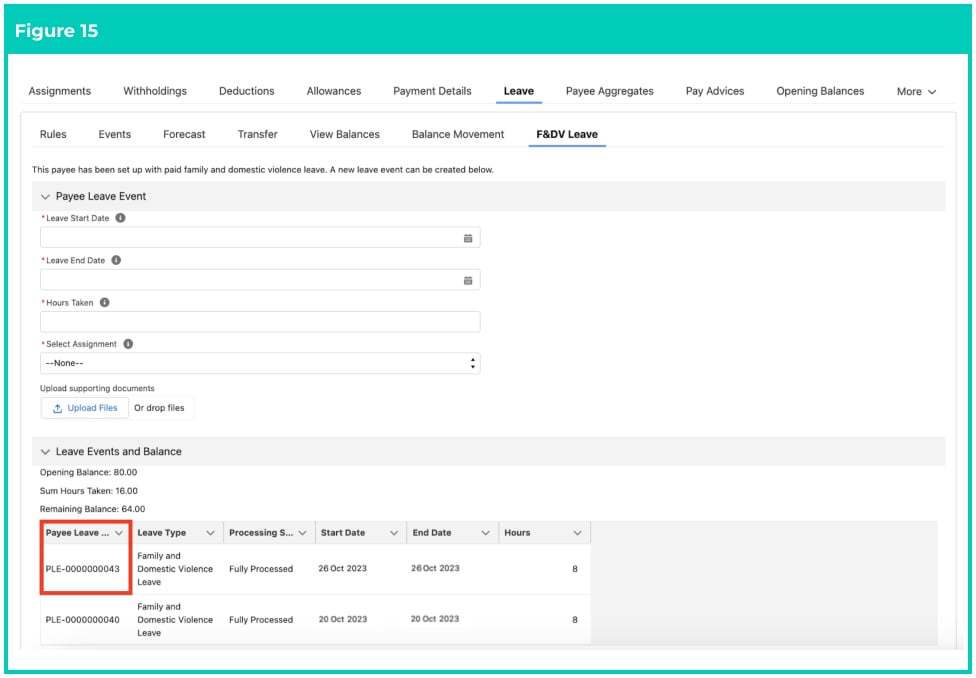
3. Under the Payee Leave Event Name column, check the name of the Payee Leave Event that was incorrectly created and needs to be removed (e.g. PLE-0000000043 in the screenshot below). (See Figure 15)
The Expiry Date of the Payee Leave Rule is determined automatically. If there is an
Original Leave Service Date, the system will use that date, find the next occurrence of
it, and enters 1 day less as the Expiry Date. If that is not provided, it uses the Payroll
Start Date, finds the next occurrence of it, and uses 1 day less for the Expiry Date.
If an Employee is granted the Family and Domestic Violence Leave and the dates of
the Payee Leave Events go beyond the Expiry Date of the current Payee Leave Rule,
then Payroll Users will be required to create a 2nd Payee Leave Rule to continue
immediately after the first, and to allocate all Payee Leave Events to the Payee Leave
Rules and their dates.
### **Cancelling incorrectly entered Family and Domestic Violence Leave Events**
To cancel a Family & Domestic Violence Leave Event that has been entered in error, follow the steps
below:
1. Open the **Payee** record, click on the **Leave** tab and the **F\&DV Leave** sub-tab by following steps 1 to 3 on page 1.
2. Scroll down or navigate to the **Leave Events and Balance** section.
3. Under the Payee Leave Event Name column, check the name of the Payee Leave Event that was incorrectly created and needs to be removed (e.g. PLE-0000000043 in the screenshot below). (See Figure 15)
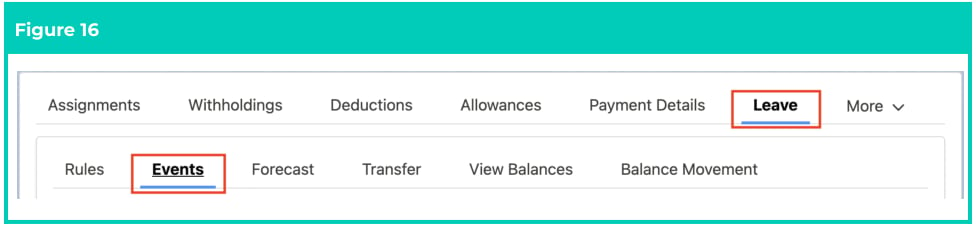
 4. Click on the **Events** sub-tab under the Leave tab. (See Figure 16)
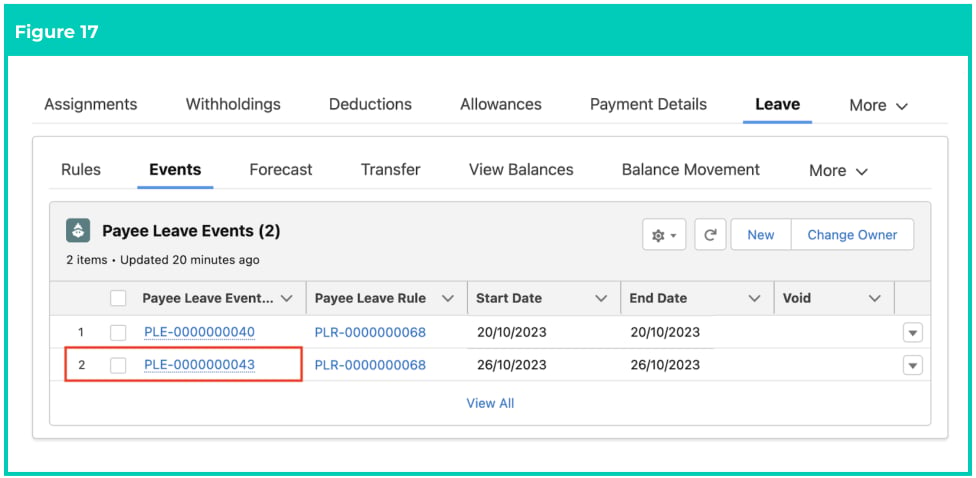
 5. Select the **Payee Leave Event** for the dates that were incorrectly created as noted in step 3 on the
previous page. (See Figure 17)
5. Select the **Payee Leave Event** for the dates that were incorrectly created as noted in step 3 on the
previous page. (See Figure 17)
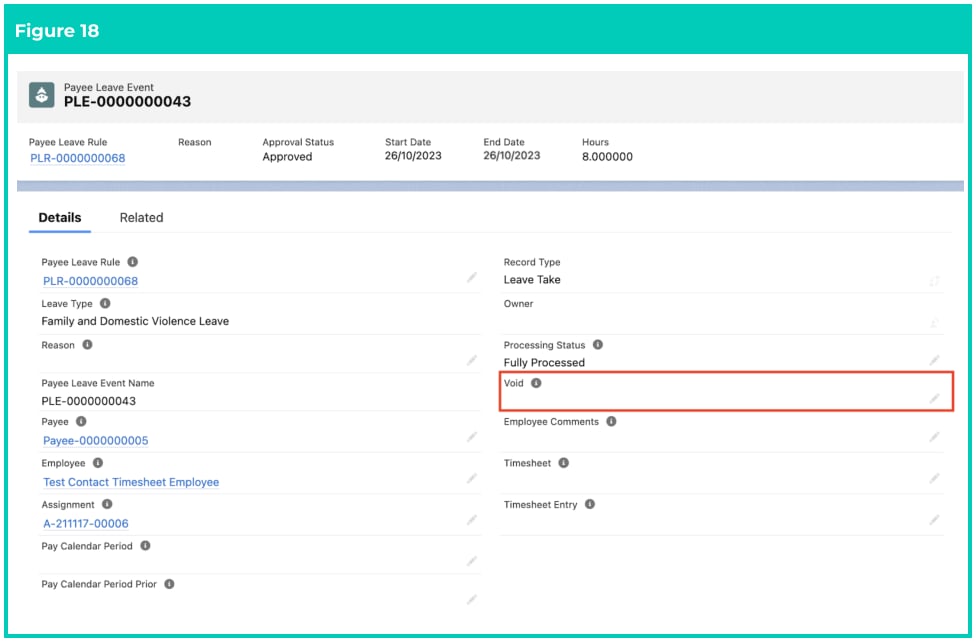
 6. Within the Payee Leave Event record, click the pencil icon located on the right hand side of the Void field. (See Figure 18)
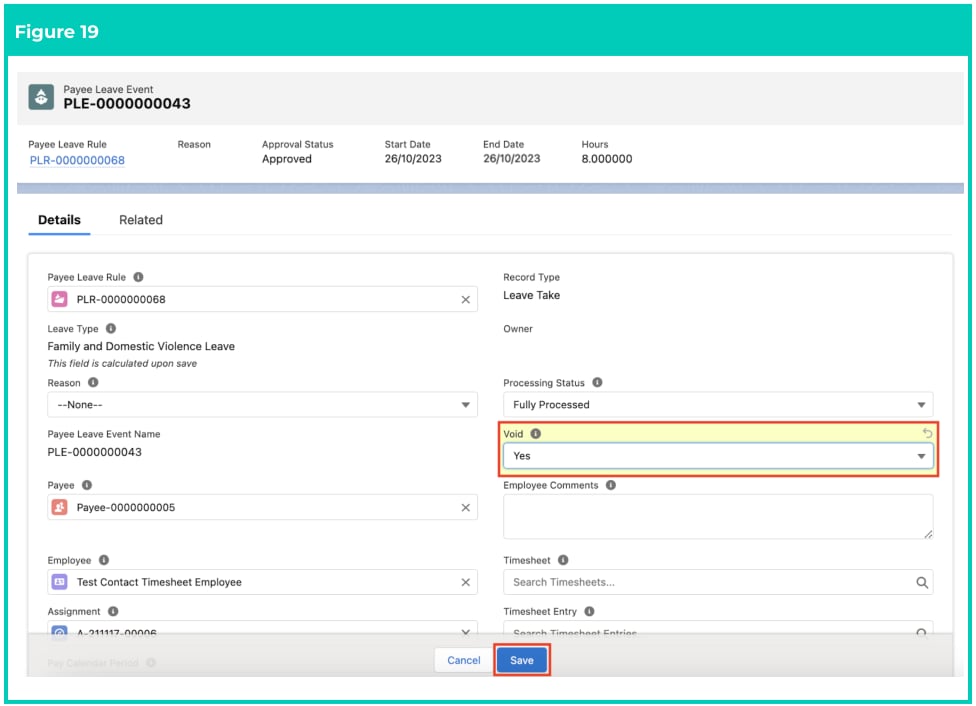
 7. On the field **Void**, change the picklist value to Yes. (See Figure 19)
8. Click on the **Save** button.
7. On the field **Void**, change the picklist value to Yes. (See Figure 19)
8. Click on the **Save** button.
 9. Click the **Leave** tab and the **F\&DV Leave** sub-tab again.
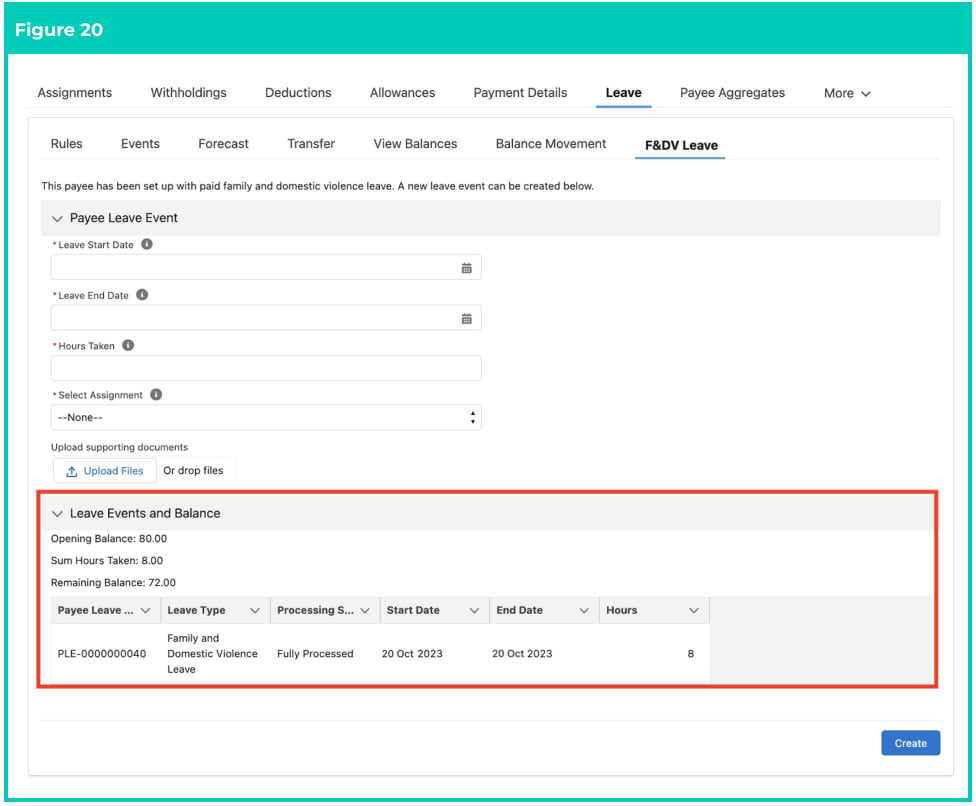
10. When you go to the **Leave Events and Balance** section on the F\&DV Leave screen, the Sum
Hours Taken will no longer include the hours that have now been voided, and the Remaining
Balance will also be adjusted accordingly. (See Figure 20)
9. Click the **Leave** tab and the **F\&DV Leave** sub-tab again.
10. When you go to the **Leave Events and Balance** section on the F\&DV Leave screen, the Sum
Hours Taken will no longer include the hours that have now been voided, and the Remaining
Balance will also be adjusted accordingly. (See Figure 20)
 ## Field Descriptions
**Effective Date** is the Effective Date of the Paid Family and Domestic Violence Payee Leave Rule.
**Hours Granted** are the number of hours granted for the Paid Family and Domestic Violence Payee Leave
Rule, which should be equivalent to 10 days for the Payee.
**Hours Taken** are the number of hours taken by the Payee for the Paid Family and Domestic Violence
Leave Event.
**Leave End Date** is the Leave End Date of the Paid Family and Domestic Violence Leave Event.
**Leave Start Date** is the Leave Start Date of the Paid Family and Domestic Violence Leave Event.
**Select Assignment** is the Payee’s Assignment that is related to the Leave Event.
**Take Leave?** is the toggle button used to enable the fields to create a Payee Leave Event.
## Further Information
| Document | Document Type | Description |
| -------------------------------------------- | --------------------------- | ---------------------------------------------------------------------------------------------------------------------------------------------------------------------------------------------------------------------------------------------------------------------------------------------------------------------------------------------------- |
| Quick Reference Guide Index - Leave | Index | An index document that lists and provides links to all Quick Reference Guides relating to Leave |
| Leave Setup and Processing - Key Information | Information Quick Reference | Outlines useful information relevant to Leave within 2cloudnine Payroll. The document includes definitions, prerequisites, and other non-instructional information relating to Leave. This includes details on creation and management of Leave Rules, Payee Leave Rules, and Leave Templates, along with the taking of Leave Events, Accruals, etc. |
| QRG Setup Leave Rules | Task Instructions | How to create Leave Rules |
| QRG Setup Payee Leave Rules | Task Instructions | How to create Payee Leave Rules |
## Field Descriptions
**Effective Date** is the Effective Date of the Paid Family and Domestic Violence Payee Leave Rule.
**Hours Granted** are the number of hours granted for the Paid Family and Domestic Violence Payee Leave
Rule, which should be equivalent to 10 days for the Payee.
**Hours Taken** are the number of hours taken by the Payee for the Paid Family and Domestic Violence
Leave Event.
**Leave End Date** is the Leave End Date of the Paid Family and Domestic Violence Leave Event.
**Leave Start Date** is the Leave Start Date of the Paid Family and Domestic Violence Leave Event.
**Select Assignment** is the Payee’s Assignment that is related to the Leave Event.
**Take Leave?** is the toggle button used to enable the fields to create a Payee Leave Event.
## Further Information
| Document | Document Type | Description |
| -------------------------------------------- | --------------------------- | ---------------------------------------------------------------------------------------------------------------------------------------------------------------------------------------------------------------------------------------------------------------------------------------------------------------------------------------------------- |
| Quick Reference Guide Index - Leave | Index | An index document that lists and provides links to all Quick Reference Guides relating to Leave |
| Leave Setup and Processing - Key Information | Information Quick Reference | Outlines useful information relevant to Leave within 2cloudnine Payroll. The document includes definitions, prerequisites, and other non-instructional information relating to Leave. This includes details on creation and management of Leave Rules, Payee Leave Rules, and Leave Templates, along with the taking of Leave Events, Accruals, etc. |
| QRG Setup Leave Rules | Task Instructions | How to create Leave Rules |
| QRG Setup Payee Leave Rules | Task Instructions | How to create Payee Leave Rules |