> ## Documentation Index
> Fetch the complete documentation index at: https://documentation.2cloudnine.com/llms.txt
> Use this file to discover all available pages before exploring further.
# QRG Payee Leave Transfer
## Purpose
The purpose of this quick reference guide is to step through the process of Payee Leave Transfer. The
intended audience for this document are Standard Users.
## Steps
### **Navigate to the Payee Leave Transfer**
To transfer a Payee’s Leave Balance to a new Payee Leave Rule, follow these steps:
1. Go to the **Payee** record.
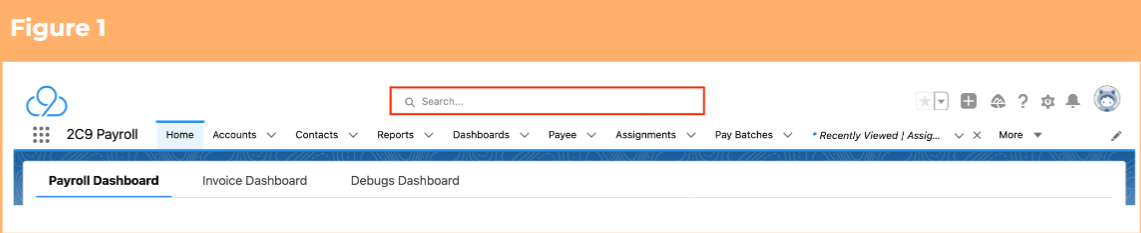
1. To identify a Payee record from an Employee record, enter the Employee name into the **Global Search**. (See Figure 1)
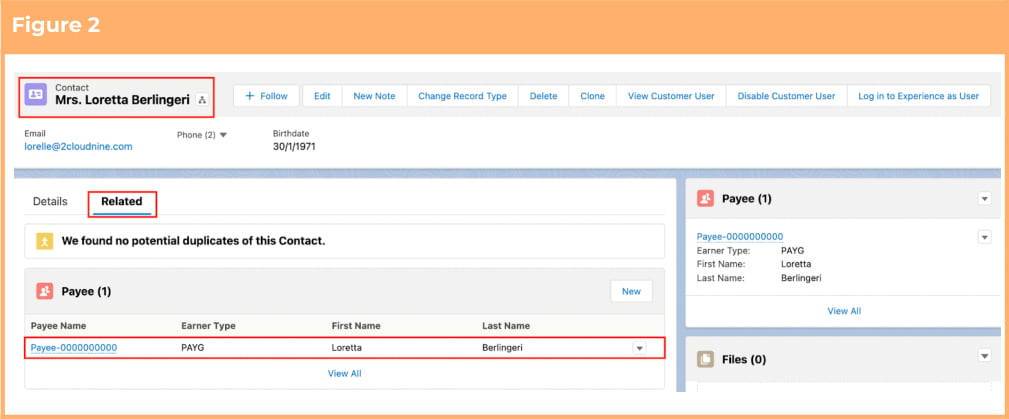
 2. Select the **Employee** record from the suggestions provided.
3. Open the **Related** tab.
4. Identify the **Payee** record(s).
5. Select the **Payee** record. (See Figure 2)
2. Select the **Employee** record from the suggestions provided.
3. Open the **Related** tab.
4. Identify the **Payee** record(s).
5. Select the **Payee** record. (See Figure 2)
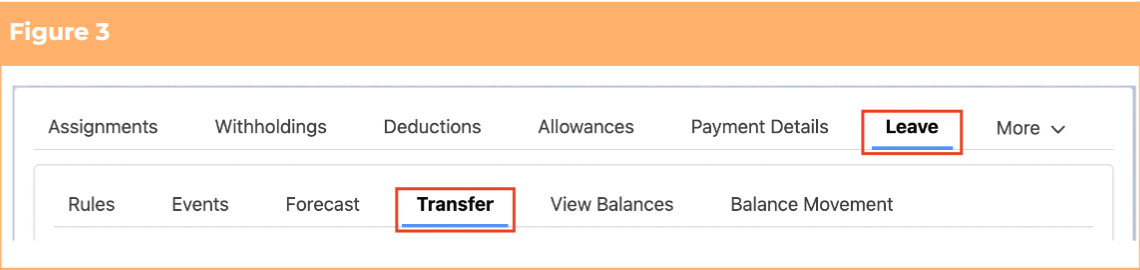
 2. Within the Payee record, navigate to the **Leave** tab. (See Figure 3)
3. Click on the **Transfer** sub-tab.
2. Within the Payee record, navigate to the **Leave** tab. (See Figure 3)
3. Click on the **Transfer** sub-tab.
 ### **Payee Leave Transfer - To a new Payee Leave Rule**
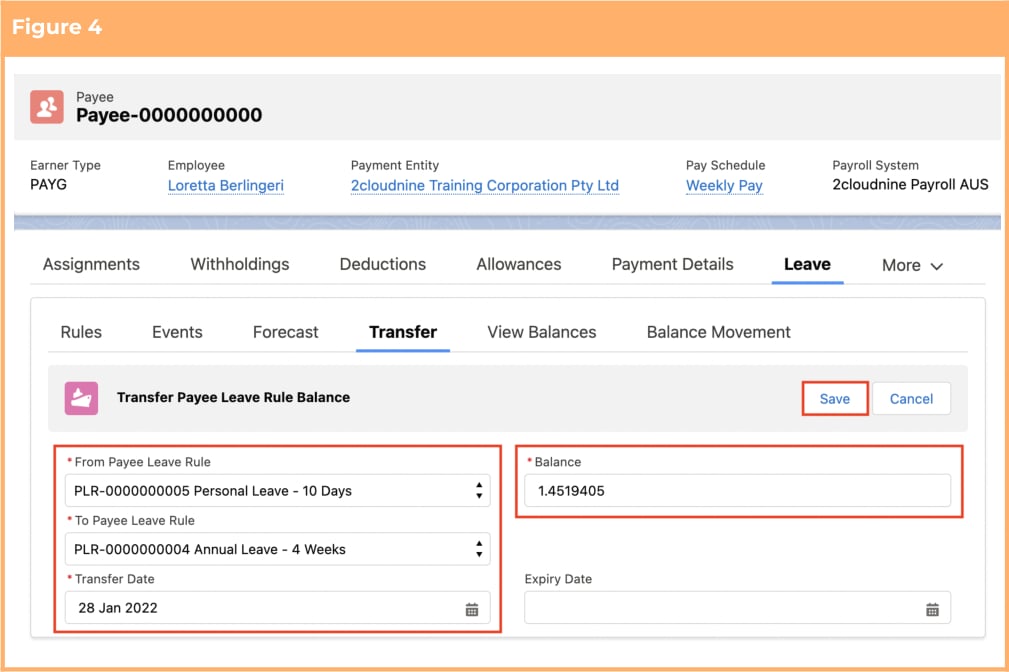
1. To transfer a Leave Balance from one Payee Leave Rule to a new Payee Leave Rule, populate the
following required fields to provide the base details of the Leave Transfer:
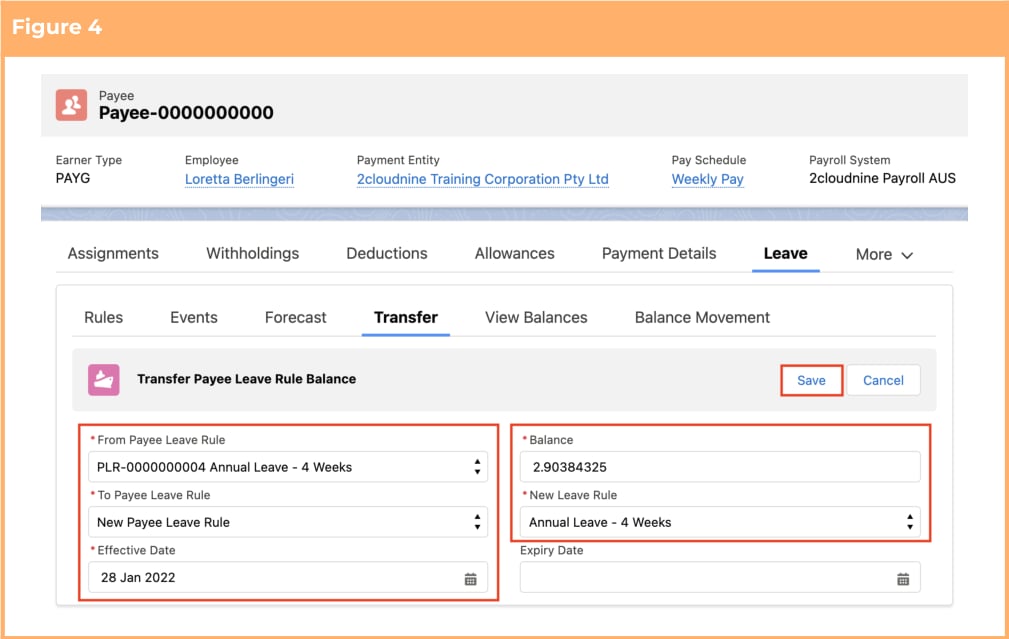
1. Select a Payee Leave Rule in the **From Payee Leave Rule** field that you need to transfer the Leave balance from (See Figure 4).
2. The Balance field will populate automatically with the current available balance. You can manually override the **Balance** value if not all of the balance should be transferred.
3. Select New Payee Leave Rule option under the **To Payee Leave Rule** picklist.
4. Upon selecting the New Payee Leave Rule option, a new field named **New Leave Rule** will appear in the right hand side column. Select a Leave Rule from the picklist values available.
5. Enter the **Effective Date**, which will become the Effective Date for the New Payee Leave Rule.
6. Enter the **Expiry Date** for the Old Payee Leave Rule (if the old Payee Leave Rule needs to be expired) and click **Save**.
### **Payee Leave Transfer - To a new Payee Leave Rule**
1. To transfer a Leave Balance from one Payee Leave Rule to a new Payee Leave Rule, populate the
following required fields to provide the base details of the Leave Transfer:
1. Select a Payee Leave Rule in the **From Payee Leave Rule** field that you need to transfer the Leave balance from (See Figure 4).
2. The Balance field will populate automatically with the current available balance. You can manually override the **Balance** value if not all of the balance should be transferred.
3. Select New Payee Leave Rule option under the **To Payee Leave Rule** picklist.
4. Upon selecting the New Payee Leave Rule option, a new field named **New Leave Rule** will appear in the right hand side column. Select a Leave Rule from the picklist values available.
5. Enter the **Effective Date**, which will become the Effective Date for the New Payee Leave Rule.
6. Enter the **Expiry Date** for the Old Payee Leave Rule (if the old Payee Leave Rule needs to be expired) and click **Save**.
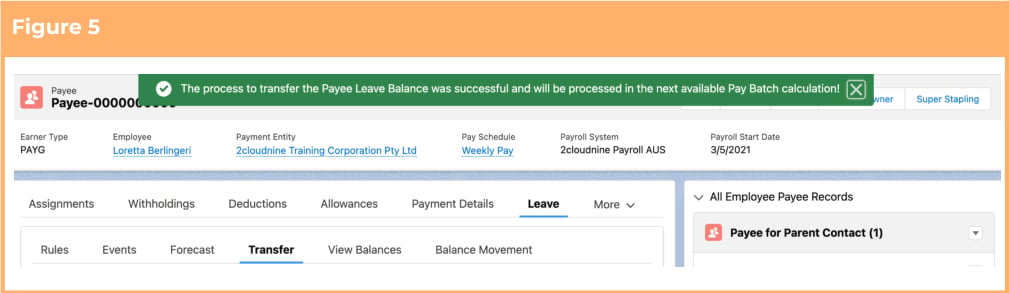
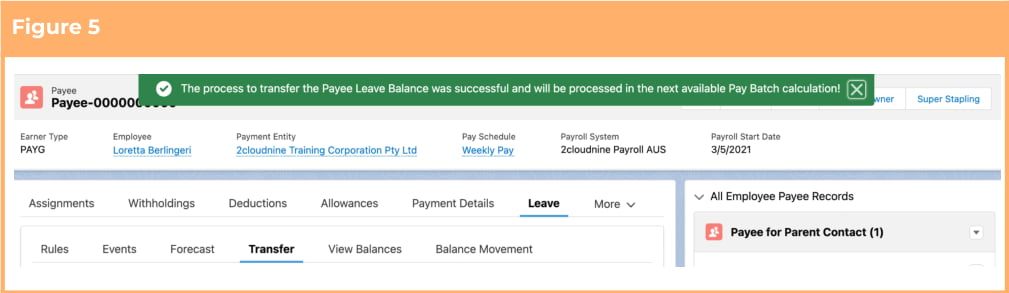
 2. A popup message indicating that the process to transfer the Payee Leave Balance was successful will be displayed. (See Figure 5)
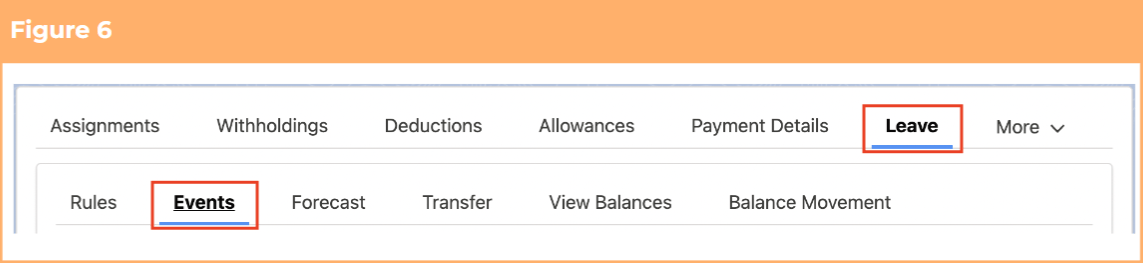
 3. To check the transferred Leave Balance, click on the **Events** sub-tab under the Leave tab. (See Figure 6)
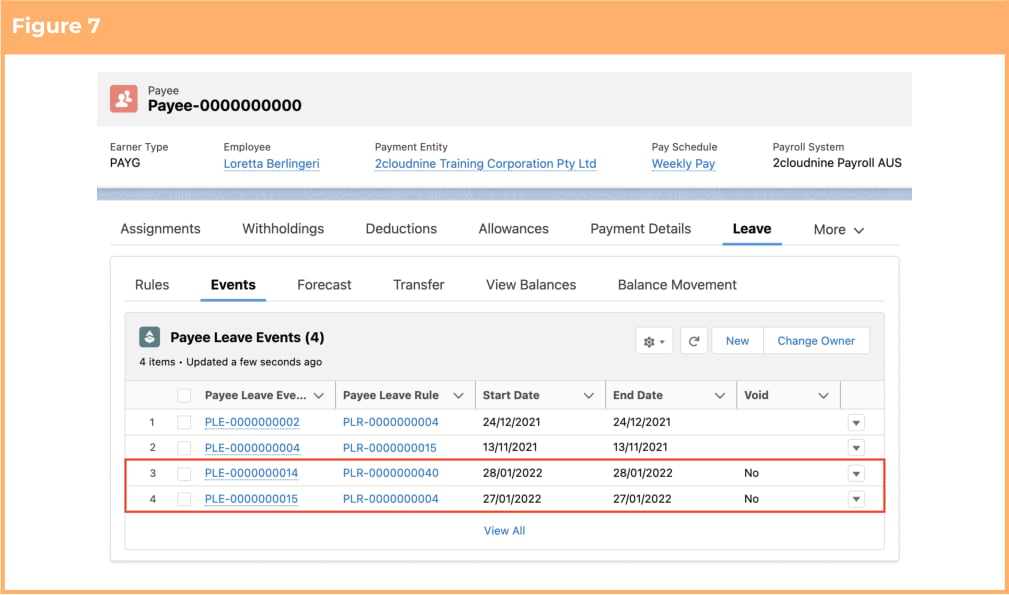
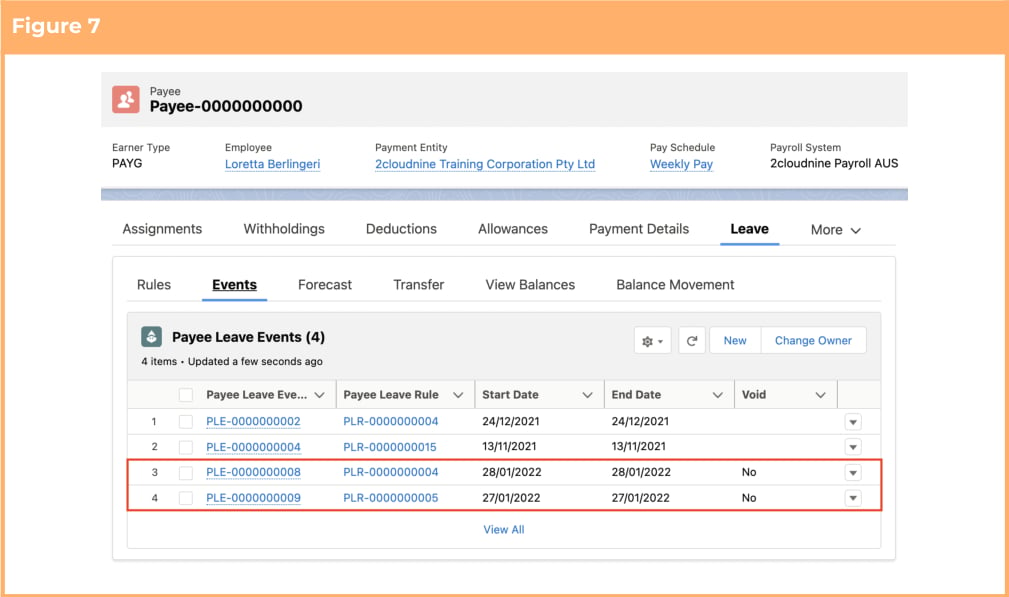
 4. Click on the new **Payee Leave Event** records with the Effective Date that you entered during the
transfer. (See Figure 7)
4. Click on the new **Payee Leave Event** records with the Effective Date that you entered during the
transfer. (See Figure 7)
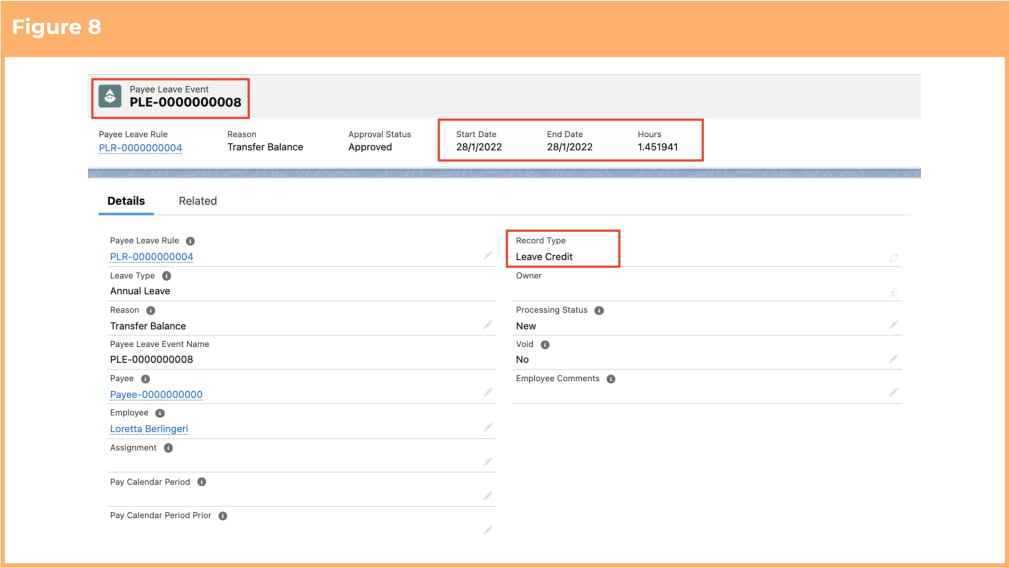
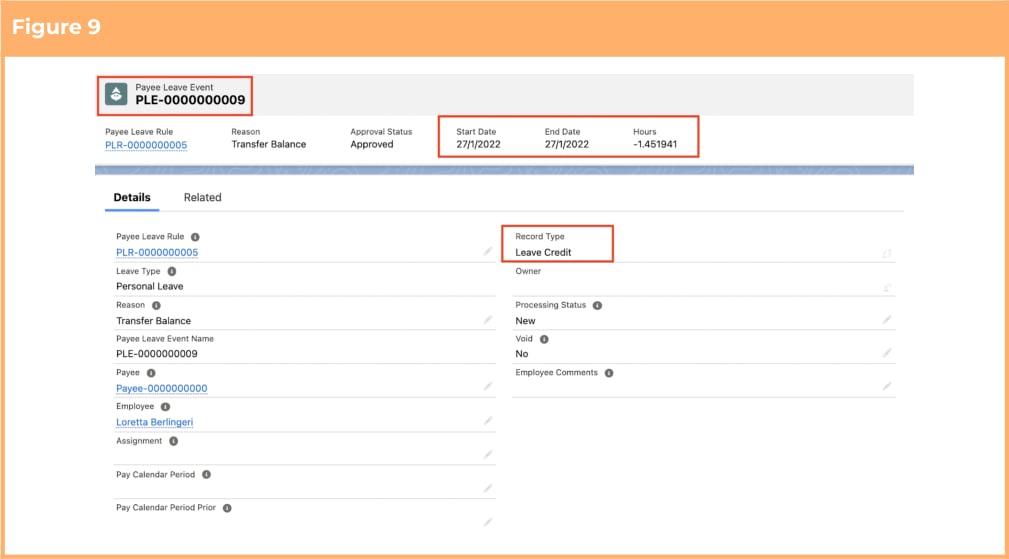
 5. Two Payee Leave Event records have been created with the Record Type of Leave Credit, which
need to be processed within a Pay Batch for the transfers to be completed. (See Figures 8 and 9)
5. Two Payee Leave Event records have been created with the Record Type of Leave Credit, which
need to be processed within a Pay Batch for the transfers to be completed. (See Figures 8 and 9)
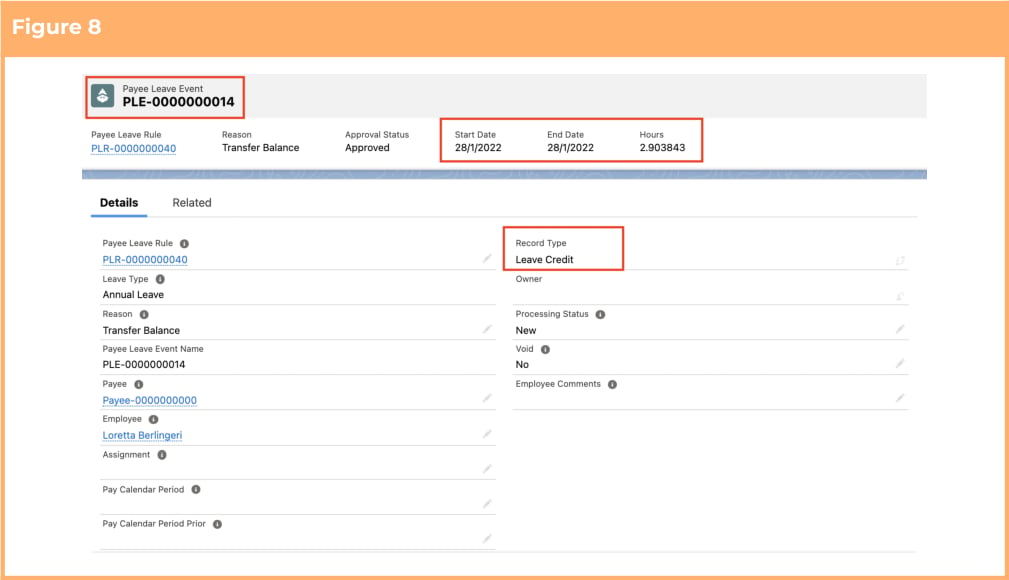
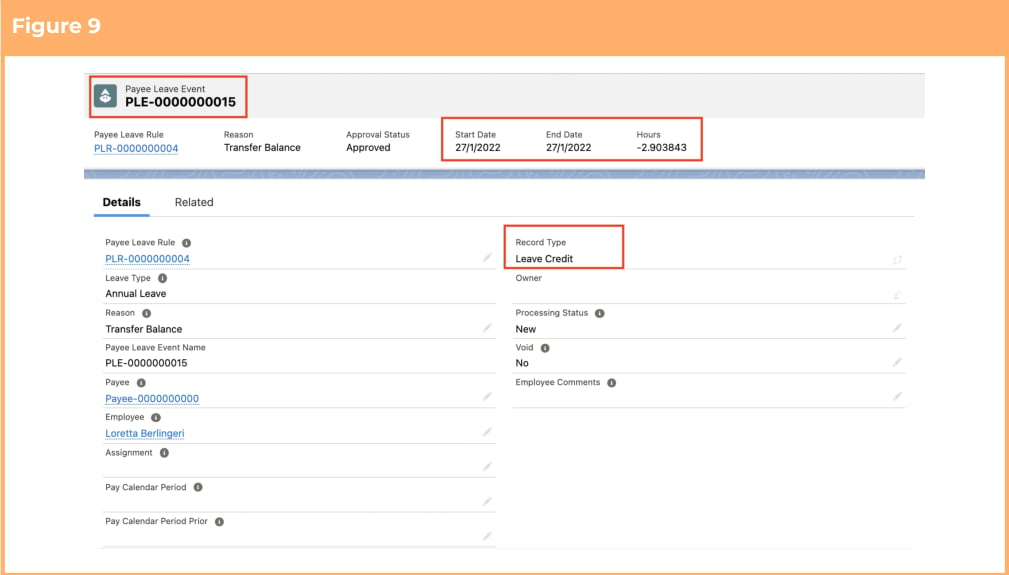 On the Leave Event which gets created to credit the balance transfer to the new Payee
Leave Rule, the Start Date and End Date fields will be the Transfer Date. On the Leave
Event which gets created to debit the balance transfer from the original Payee Leave
Rule, the Start Date and End Date will be the Transfer Date -1.
### **Payee Leave Transfer - To an existing Payee Leave Rule**
1. Go to the **Payee** object, **Leave** tab and then the **Transfer** sub-tab using the steps outlined on the first page.
2. To transfer a Leave Balance from one Payee Leave Rule to an existing Payee Leave Rule, populate the following required fields to provide the base details of the Leave Transfer:
1. Select a Payee Leave Rule in the **From Payee Leave Rule** field that you need to transfer the Leave balance from. (See Figure 4)
2. The Balance field will populate automatically with the current available balance. You can manually override the **Balance** value if not all of the balance should be transferred.
3. Select a Payee Leave Rule in the **To Payee Leave Rule** field that this Balance should be transferred to.
4. Enter the **Transfer Date** for the balances to be processed in a Pay Batch.
5. Enter the **Expiry Date** (if the From Payee Leave Rule needs to be expired) and click **Save**.
On the Leave Event which gets created to credit the balance transfer to the new Payee
Leave Rule, the Start Date and End Date fields will be the Transfer Date. On the Leave
Event which gets created to debit the balance transfer from the original Payee Leave
Rule, the Start Date and End Date will be the Transfer Date -1.
### **Payee Leave Transfer - To an existing Payee Leave Rule**
1. Go to the **Payee** object, **Leave** tab and then the **Transfer** sub-tab using the steps outlined on the first page.
2. To transfer a Leave Balance from one Payee Leave Rule to an existing Payee Leave Rule, populate the following required fields to provide the base details of the Leave Transfer:
1. Select a Payee Leave Rule in the **From Payee Leave Rule** field that you need to transfer the Leave balance from. (See Figure 4)
2. The Balance field will populate automatically with the current available balance. You can manually override the **Balance** value if not all of the balance should be transferred.
3. Select a Payee Leave Rule in the **To Payee Leave Rule** field that this Balance should be transferred to.
4. Enter the **Transfer Date** for the balances to be processed in a Pay Batch.
5. Enter the **Expiry Date** (if the From Payee Leave Rule needs to be expired) and click **Save**.
 3. A popup message indicating that the process to transfer the Payee Leave Balance was successful
will be displayed. (See Figure 5)
3. A popup message indicating that the process to transfer the Payee Leave Balance was successful
will be displayed. (See Figure 5)
 5. Click on the new **Payee Leave Event** records with the Effective Date that you entered during the
transfer. (See Figure 7)
5. Click on the new **Payee Leave Event** records with the Effective Date that you entered during the
transfer. (See Figure 7)
 6. Two Payee Leave Event records have been created with the Record Type of Leave Credit, which
need to be processed within a Pay Batch for the transfers to be completed. (See Figures 8 and 9)
6. Two Payee Leave Event records have been created with the Record Type of Leave Credit, which
need to be processed within a Pay Batch for the transfers to be completed. (See Figures 8 and 9)
 On the Leave Event which gets created to credit the balance transfer to the existing
Payee Leave Rule, the Start Date and End Date fields will be the Transfer Date. On the
Leave Event which gets created to debit the balance transfer from the original Payee
Leave Rule, the Start Date and End Date will be the Transfer Date -1.
## Field Descriptions
No field descriptions are required for this QRG document.
## Further Information
| Document | Document Type | Description |
| -------------------------------------------- | --------------------------- | ---------------------------------------------------------------------------------------------------------------------------------------------------------------------------------------------------------------------------------------------------------------------------------------------------------------------------------------------------- |
| Quick Reference Guide Index - Leave | Index | An index document that lists and provides links to all Quick Reference Guides relating to Leave |
| Leave Setup and Processing - Key Information | Information Quick Reference | Outlines useful information relevant to Leave within 2cloudnine Payroll. The document includes definitions, prerequisites, and other non-instructional information relating to Leave. This includes details on creation and management of Leave Rules, Payee Leave Rules, and Leave Templates, along with the taking of Leave Events, Accruals, etc. |
| QRG Setup Payee Leave Rules | Task Instructions | How to create Payee Leave Rules |
| QRG Payee Leave Forecast | Task Instructions | How to forecast a Leave Balance to a defined future date. |
On the Leave Event which gets created to credit the balance transfer to the existing
Payee Leave Rule, the Start Date and End Date fields will be the Transfer Date. On the
Leave Event which gets created to debit the balance transfer from the original Payee
Leave Rule, the Start Date and End Date will be the Transfer Date -1.
## Field Descriptions
No field descriptions are required for this QRG document.
## Further Information
| Document | Document Type | Description |
| -------------------------------------------- | --------------------------- | ---------------------------------------------------------------------------------------------------------------------------------------------------------------------------------------------------------------------------------------------------------------------------------------------------------------------------------------------------- |
| Quick Reference Guide Index - Leave | Index | An index document that lists and provides links to all Quick Reference Guides relating to Leave |
| Leave Setup and Processing - Key Information | Information Quick Reference | Outlines useful information relevant to Leave within 2cloudnine Payroll. The document includes definitions, prerequisites, and other non-instructional information relating to Leave. This includes details on creation and management of Leave Rules, Payee Leave Rules, and Leave Templates, along with the taking of Leave Events, Accruals, etc. |
| QRG Setup Payee Leave Rules | Task Instructions | How to create Payee Leave Rules |
| QRG Payee Leave Forecast | Task Instructions | How to forecast a Leave Balance to a defined future date. |