> ## Documentation Index
> Fetch the complete documentation index at: https://documentation.2cloudnine.com/llms.txt
> Use this file to discover all available pages before exploring further.
# QRG Setup Leave Rules
export const InlineImage = ({src, alt = "", height = "1.6em"}) => {
return  ;
};
## Purpose
The purpose of this quick reference guide is to step through the process of creating Leave Rules. The
intended audience for this document are System Administrators.
## Steps
### **Create Leave Rule record**
Leave Rules are created to determine available types of leave that Employees can use.
To create a new Leave Rule record, follow the steps below:
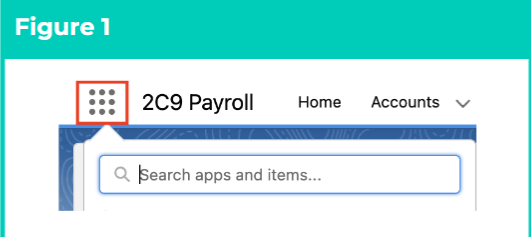
1. Click on the **App Launcher** icon. (See Figure 1)
;
};
## Purpose
The purpose of this quick reference guide is to step through the process of creating Leave Rules. The
intended audience for this document are System Administrators.
## Steps
### **Create Leave Rule record**
Leave Rules are created to determine available types of leave that Employees can use.
To create a new Leave Rule record, follow the steps below:
1. Click on the **App Launcher** icon. (See Figure 1)
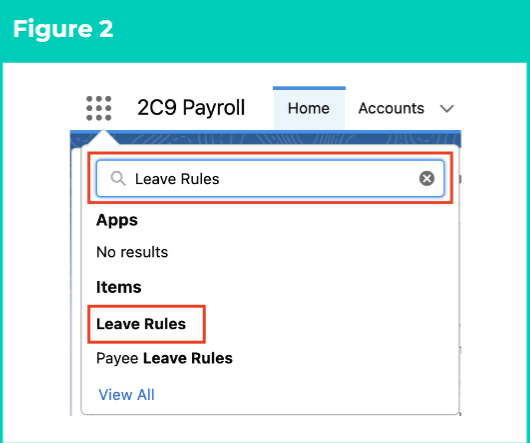
 2. Go to the **Leave Rules** object by using the Search function. (See Figure 2)
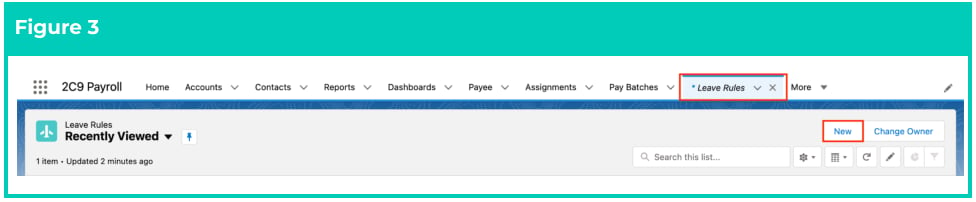
 3. Click on the **New** button. (See Figure 3)
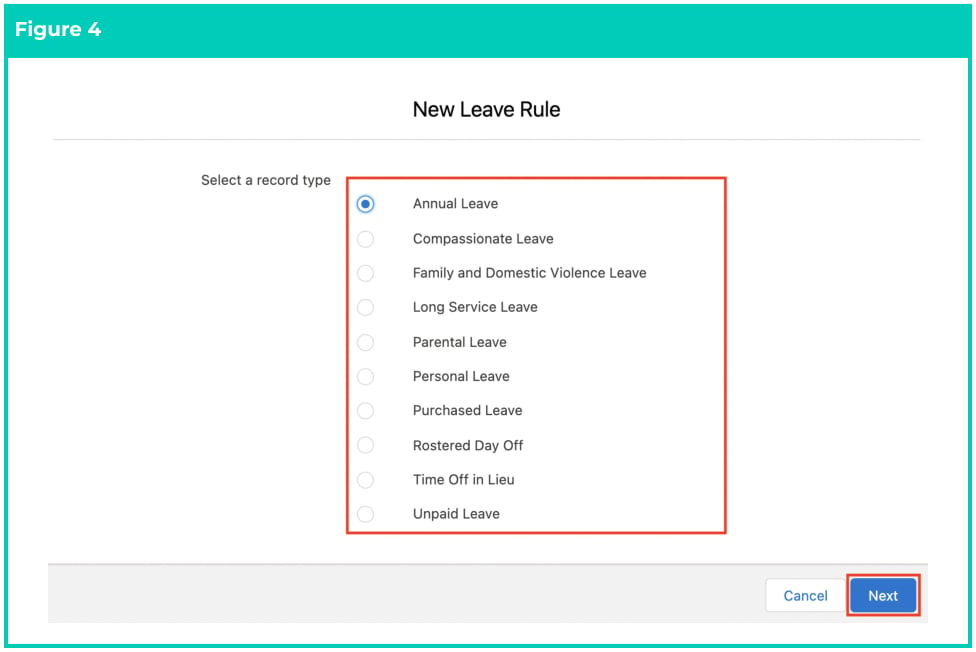
 4. Select the required **Record Type** based on the types available and click **Next.** (See Figure 4)
 If you have a requirement for a different Leave Rule to be created that is not currently
available in the Record Types, please discuss this with your System Administrator or
relevant software support contacts.
5. Follow this step in the sequence given below:
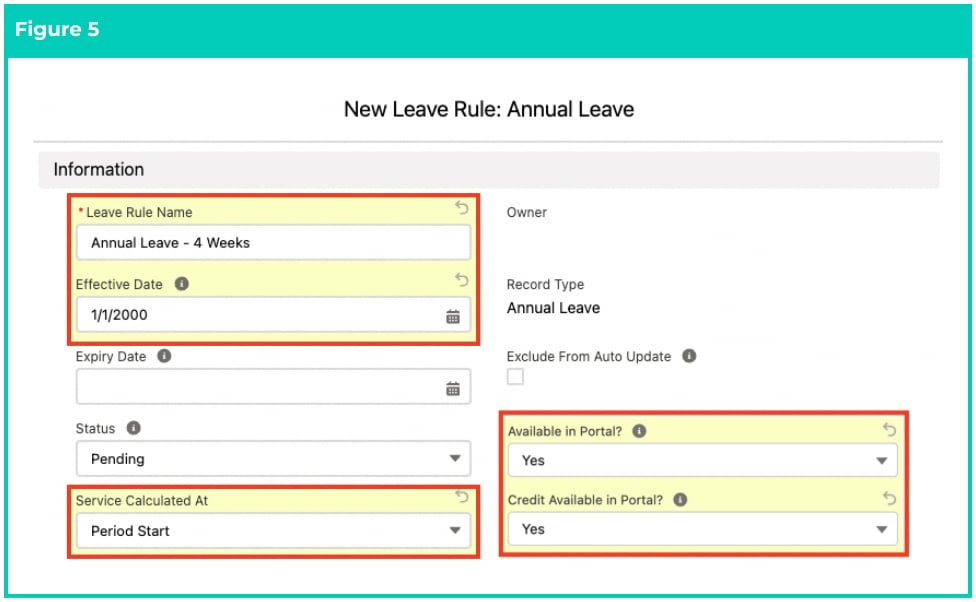
1. Populate the following required fields to provide the base details of the Leave Rule record: (See Figure 5)
1. **Leave Rule Name**
2. **Effective Date**
3. **Service Calculated At**
4. **Available In Portal** (must be ‘Yes’ for Community users)
5. **Credit Available in Portal** ( ‘Yes’, only if the Community Users require the ability to create leave credits in the Community, otherwise set to ‘No’).
2. Populate the following optional fields as needed: (See Figure 5)
1. To set an expiry date for the Leave Rule record, populate the **Expiry Date** field. If left blank, no expiry date will apply.
If you have a requirement for a different Leave Rule to be created that is not currently
available in the Record Types, please discuss this with your System Administrator or
relevant software support contacts.
5. Follow this step in the sequence given below:
1. Populate the following required fields to provide the base details of the Leave Rule record: (See Figure 5)
1. **Leave Rule Name**
2. **Effective Date**
3. **Service Calculated At**
4. **Available In Portal** (must be ‘Yes’ for Community users)
5. **Credit Available in Portal** ( ‘Yes’, only if the Community Users require the ability to create leave credits in the Community, otherwise set to ‘No’).
2. Populate the following optional fields as needed: (See Figure 5)
1. To set an expiry date for the Leave Rule record, populate the **Expiry Date** field. If left blank, no expiry date will apply.
 If Expiry Date is populated, once this date is reached the Leave Rule will no longer apply.
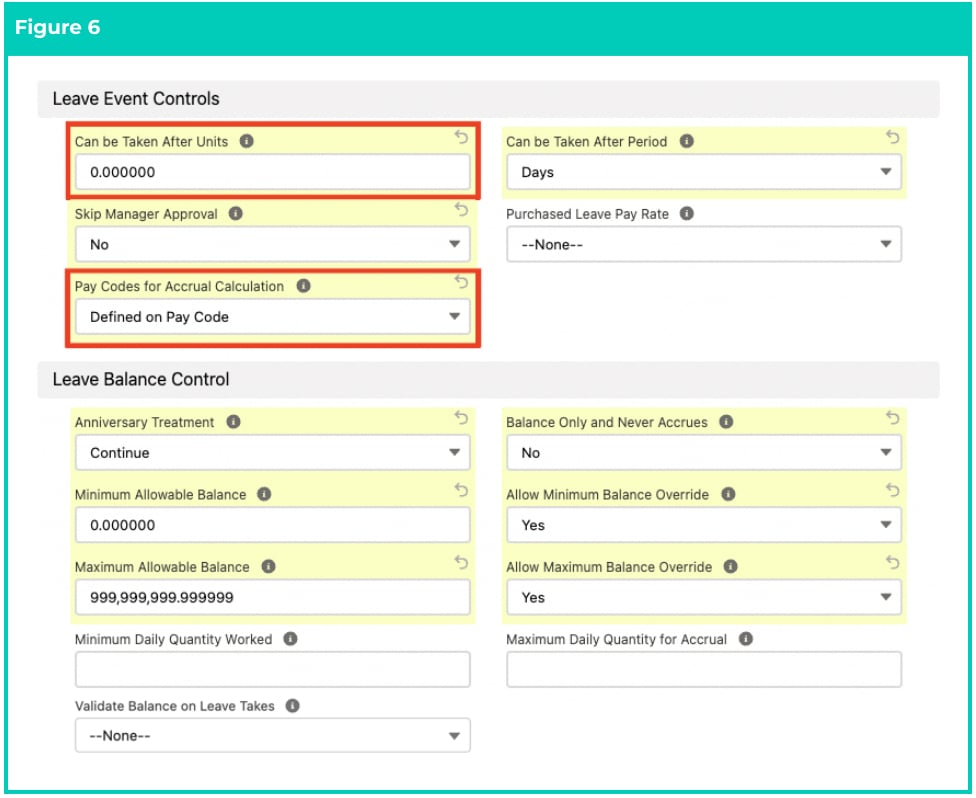
3. Populate the following required fields to provide the base details of the Leave Rule record:
(See Figure 6)
1. **Can Be Taken After Units**
2. **Pay Codes for Accrual Calculation**
4. Populate the following optional fields as needed: (See Figure 6)
1. To skip manager approval for this Leave Rule, populate the field **Skip Manager** **Approval** as ‘Yes’, or populate ‘No’ to make it mandatory. This can be overridden on a Payee Leave Rule.
2. If the leave type is purchase leave, populate the **Purchase Leave Pay Rate** field accordingly.
3. To define the minimum allowable balance for this Leave Rule, populate the **Minimum Allowable Balance** field.
4. To define the maximum allowable balance for this Leave Rule, populate the **Maximum Allowable Balance** field.
5. To define the minimum number of units which must be worked per day for leave to accrue, populate the **Minimum Daily Quantity Worked** field.
6. To validate the available Leave Balance when a Payee Leave Event is created with a record type of Leave Take, populate the **Validate Balance on Leave Takes** field as Yes.
7. If the Minimum Allowable Balance can be overridden at the Payee Leave Rule level, populate the **Allow Minimum Balance Override** field as Yes.
8. If the Maximum Allowable Balance can be overridden at the Payee Leave Rule level, populate the **Allow Maximum Balance Override** field as Yes.
9. To define the maximum quantity worked per day which will be considered for leave accrual per quantity worked, populate the **Maximum Daily Quantity for** **Accrual** field.
If Expiry Date is populated, once this date is reached the Leave Rule will no longer apply.
3. Populate the following required fields to provide the base details of the Leave Rule record:
(See Figure 6)
1. **Can Be Taken After Units**
2. **Pay Codes for Accrual Calculation**
4. Populate the following optional fields as needed: (See Figure 6)
1. To skip manager approval for this Leave Rule, populate the field **Skip Manager** **Approval** as ‘Yes’, or populate ‘No’ to make it mandatory. This can be overridden on a Payee Leave Rule.
2. If the leave type is purchase leave, populate the **Purchase Leave Pay Rate** field accordingly.
3. To define the minimum allowable balance for this Leave Rule, populate the **Minimum Allowable Balance** field.
4. To define the maximum allowable balance for this Leave Rule, populate the **Maximum Allowable Balance** field.
5. To define the minimum number of units which must be worked per day for leave to accrue, populate the **Minimum Daily Quantity Worked** field.
6. To validate the available Leave Balance when a Payee Leave Event is created with a record type of Leave Take, populate the **Validate Balance on Leave Takes** field as Yes.
7. If the Minimum Allowable Balance can be overridden at the Payee Leave Rule level, populate the **Allow Minimum Balance Override** field as Yes.
8. If the Maximum Allowable Balance can be overridden at the Payee Leave Rule level, populate the **Allow Maximum Balance Override** field as Yes.
9. To define the maximum quantity worked per day which will be considered for leave accrual per quantity worked, populate the **Maximum Daily Quantity for** **Accrual** field.
 If Skip Manager Approval is set to Yes, then all LeaveEvents on this Leave Rule will
automatically be approved and can then be processed in Payroll
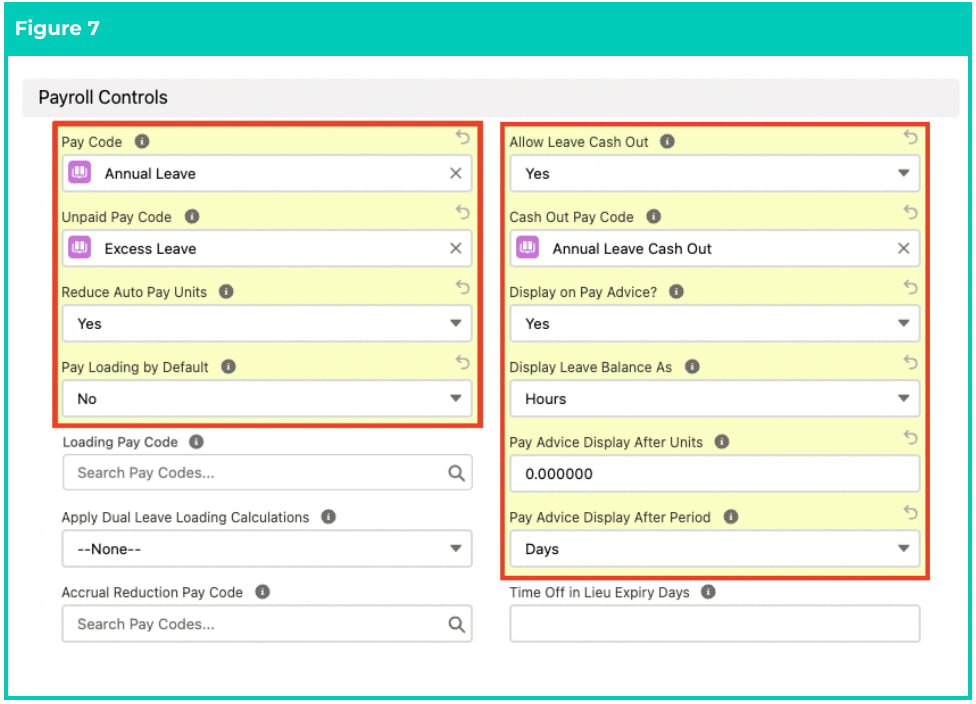
5. Populate the following required fields to provide the base details of the Leave Rule record:
(See Figure 7)
1. **Pay Code**
2. **Unpaid Pay Code**
3. **Reduce Auto Pay Units**
4. **Pay Loading by Default**
5. **Allow Leave Cash Out** (must be ‘Yes’ if leave cash out is required)
6. **Cash Out Pay Code** (only if Allow Leave Cash Out = Yes)
7. **Display On Pay Advice?**
8. **Display Leave Balance As**
9. **Pay Advice Display After Units**
10. **Pay Advice Display After Period**
6. Populate the following optional fields as needed: (See Figure 7)
1. To define a Pay Code that will be used in the creation of Leave Loading Pay Transactions, populate the **Loading Pay Code** field.
2. If Leave Loading function is applied to this leave rule during Interpretation Rule processing, populate the **Apply Dual Leave Loading Calculations** field.
3. To offset Leave Accrual hours each Pay Calendar Period from a Payee’s gross pay, populate the Pay Code in the **Accrual Reduction Pay Code** field.
4. If Time Off In Lieu leave type and the balance has an expiry period to apply, populate the **Time Off In Lieu Expiry Days** field.
If Skip Manager Approval is set to Yes, then all LeaveEvents on this Leave Rule will
automatically be approved and can then be processed in Payroll
5. Populate the following required fields to provide the base details of the Leave Rule record:
(See Figure 7)
1. **Pay Code**
2. **Unpaid Pay Code**
3. **Reduce Auto Pay Units**
4. **Pay Loading by Default**
5. **Allow Leave Cash Out** (must be ‘Yes’ if leave cash out is required)
6. **Cash Out Pay Code** (only if Allow Leave Cash Out = Yes)
7. **Display On Pay Advice?**
8. **Display Leave Balance As**
9. **Pay Advice Display After Units**
10. **Pay Advice Display After Period**
6. Populate the following optional fields as needed: (See Figure 7)
1. To define a Pay Code that will be used in the creation of Leave Loading Pay Transactions, populate the **Loading Pay Code** field.
2. If Leave Loading function is applied to this leave rule during Interpretation Rule processing, populate the **Apply Dual Leave Loading Calculations** field.
3. To offset Leave Accrual hours each Pay Calendar Period from a Payee’s gross pay, populate the Pay Code in the **Accrual Reduction Pay Code** field.
4. If Time Off In Lieu leave type and the balance has an expiry period to apply, populate the **Time Off In Lieu Expiry Days** field.
 You MUST populate different values in the Pay Code and Unpaid Pay Code fields.
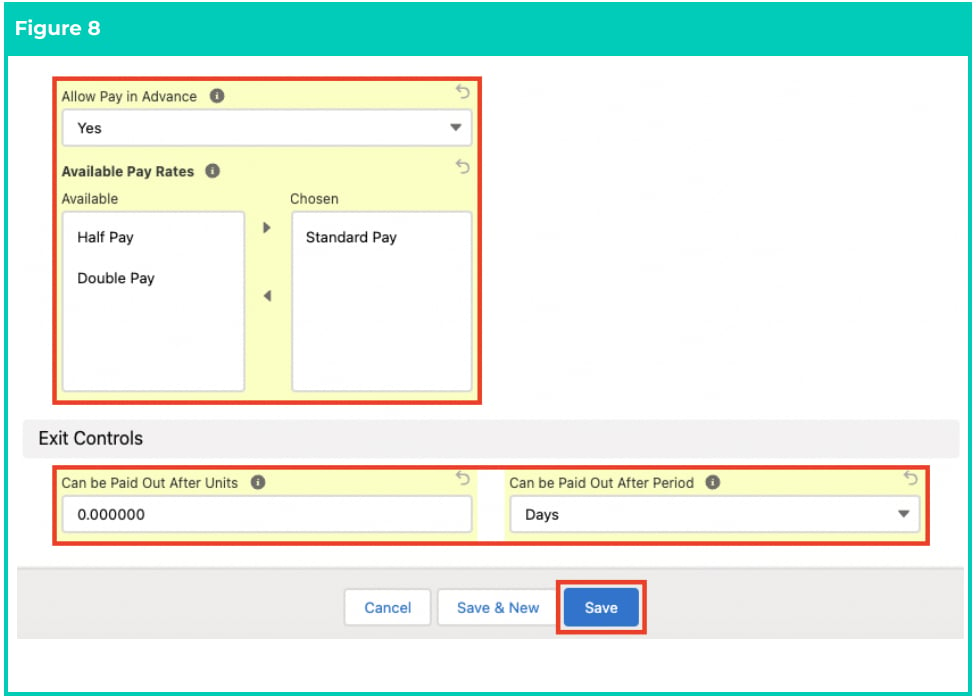
7. Populate the following required fields to provide the base details of the Leave Rule record:
(See Figure 8)
1. **Allow Pay in Advance**
2. **Available Pay Rates** (Standard Pay by default, and/or Half Pay and/or Double Pay. This is a multi-picklist field. You can select 1, 2 or all 3 values if required).
3. **Can be Paid Out After Units**
4. **Can be Paid Out After Period**
8. Click on the **Save** button.
You MUST populate different values in the Pay Code and Unpaid Pay Code fields.
7. Populate the following required fields to provide the base details of the Leave Rule record:
(See Figure 8)
1. **Allow Pay in Advance**
2. **Available Pay Rates** (Standard Pay by default, and/or Half Pay and/or Double Pay. This is a multi-picklist field. You can select 1, 2 or all 3 values if required).
3. **Can be Paid Out After Units**
4. **Can be Paid Out After Period**
8. Click on the **Save** button.
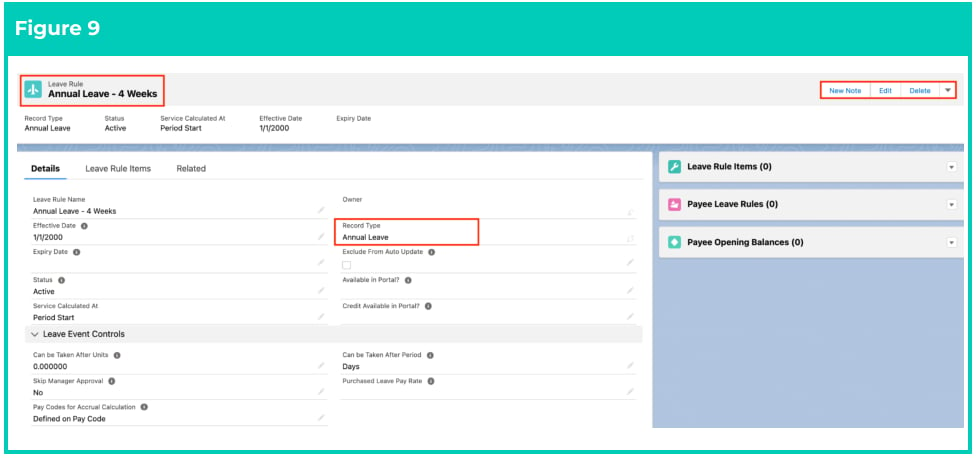
 7. A new Leave Rule record has been created. (See Figure 9)
 8. You can create and relate a Leave Rule Item record to this Leave Rule record if there are accruals
required (either Fixed Per Period, Units per Hour Worked, or Leave Grant). Please refer to the Setup
Leave Rule Items QRG for more information.
9. To modify an existing **Leave Rule** record, open the required record and select the **Edit** button
available on the top right side of the page. You can also double click in any of the fields that need
editing or just click on the pencil icon that appears within fields when you move your cursor over the field.
10. When complete, click on the **Save** button.
In order to delete a Leave Rule, please ensure: a) the associated Leave Rule Item is
deleted, b) Leave Ruleis not used in a leave template,c) Leave Rule is not used in a
Payee Leave Rule and d) Leave Rule is not used in a Leave Event.
## Field Descriptions
**Accrual Reduction Pay Code** is the Pay Code used to offset Leave Accrual hours each Pay Calendar Period
from a payee’s gross pay. A common use case for this feature is the accrual of RDO.
**Allow Leave Cash Out** indicates whether Leave Cash Out can be processed for this Leave Rule.
**Allow Maximum Balance Override** indicates whether the Maximum Allowable Balance value can be
overridden at a Payee Leave Rule record level.
**Allow Minimum Balance Override** indicates whether the Minimum Allowable Balance value can be
overridden at a Payee Leave Rule record level.
**Allow Pay in Advance** indicates that Payee Leave Events related to this Leave Rule can be paid in advance.
Only payee leave events covering complete Pay Calendar Periods can be paid in advance.
**Apply Dual Leave Loading Calculations** indicates if during Timesheet Interpretation, two Interpretation
Rules are required for loading calculations.
**Available in Portal?** indicates whether the Leave Rule should be available within the Community.
**Available Pay Rates** defines which Pay Rates are available for user-selection when a Leave Take Payee
Leave Event is created. Available values are Half Pay, Standard Pay and Double Pay.
**Can be Paid Out After Period** indicates the type of period after which this Leave Rule can be paid out
upon Payee Exit. The picklist values are Days, Weeks, Months and Years.
**Can be Paid Out After Units** indicates the number of units after which this Leave Rule can be paid out
upon Payee Exit.
**Can be Taken After Period** indicates the type of period after which this Leave Rule can be taken.
**Can be Taken After Units** indicates the number of units after which this Leave Rule can be taken.
**Cash Out Pay Code** is the Pay Code that will be used in the Pay Transaction when a leave cash out is
processed during pay batch calculation.
**Credit Available in Portal?** defines if the Payee Leave Rule is available in the Community to add a Payee
Leave Event credit record.
**Display Leave Balance As** controls how the Leave Balance will be displayed on pay advice PDFs and in the
Community. The picklist values are Hours, Days, and Hours and Days.
**Display on Pay Advice?** indicates whether this Leave Balance should be displayed on Pay Advice PDFs..
**Effective Date** is the earliest date this Leave Rule can be referenced in a Payee Leave Rule.
**Expiry Date** if populated, this date will be the last that the Leave rule can be used in any Leave Events,
Leave Accruals, Cash Outs, and Payee Exits. If left blank, the Leave Rule is ongoing.
**Leave Rule Name** is the name given to the new Leave Rule record being created.
**Loading Pay Code** is the Pay Code that will be used in the creation of Leave Loading Pay Transactions
when a Payee uses this Leave Rule.
**Maximum Allowable Balance** is the maximum allowable balance for the Leave Rule. This can be
overridden on a Payee Leave Rule.
**Minimum Allowable Balance** is the lowest allowable balance for the Leave Rule. This can be overridden on
a Payee Leave Rule.
**Minimum Daily Quantity Worked** is to be populated if there is a threshold of minimum units which must
be worked per day for the Leave Accrual to apply. This is most useful for RDO Leave Rules where accruals
may be based on hours per day.
**Pay Advice Display After Period** indicates the type of period after which this Leave Rule balance will be
available for display on Pay Advices. The picklist values are Days, Weeks, Months and Years.
**Pay Advice Display After Units** indicates the number of units after which this Leave Rule balance can be
displayed on a Pay Advice.
**Pay Code** indicates the Pay Code used in Pay Transactions created for Payee Leave Events associated with
this Leave Rule.
**Pay Codes for Accrual Calculation** indicates whether the Quantity of Units Worked for Leave accrual
calculation will be based on all Pay Codes where 'Accrues Leave' = True, OR, based on a custom list. The
picklist values are Defined on Pay Code and Custom List. This is most useful for RDO accruals where the
standard accrual of leave does not always apply.
**Pay Loading by Default** indicates whether related Payee Leave Rules will be set up to pay loading by
default when they are created. This can be overridden on a Payee Leave Rule.
**Purchased Leave Pay Rate** defines which Pay Rate the Payee will receive when they take Purchased Leave
which is related to a Payee Deduction record. Either the average Pay Rate based on the total amount
deducted, or the Pay Rate they are on when they take the Leave.
**Reduce Auto Pay Units** indicates whether leave takes for this Leave Rule should automatically reduce a
Payee's Auto Pay Payment.
**Service Calculated At** indicates whether service is calculated at the start or end date of the pay calendar
period during accrual calculations. The picklist values are Period Start and Period End.
**Skip Manager Approval** indicates whether manager approval can be skipped for this leave rule. This can
be overridden on a Payee Leave Rule.
**Time Off in Lieu Expiry Days** defines how many days the Time Off In Lieu Balance remains available to be
used. Once reached, any balance that has been here for that period will be removed.
**Unpaid Pay Code** defines the Pay Code that will be used for processing the unpaid component of a leave
take when the Payee’s leave balance has been exhausted.
**Validate Balance on Leave Takes** indicates whether the available leave balance will be validated when a
Payee Leave Event is created with a record type of Leave Take.
## Further Information
| Document | Document Type | Description |
| -------------------------------------------- | --------------------------- | ---------------------------------------------------------------------------------------------------------------------------------------------------------------------------------------------------------------------------------------------------------------------------------------------------------------------------------------------------- |
| Quick Reference Guide Index - Leave | Index | An index document that lists and provides links to all Quick Reference Guides relating to Leave |
| Leave Setup and Processing - Key Information | Information Quick Reference | Outlines useful information relevant to Leave within 2cloudnine Payroll. The document includes definitions, prerequisites, and other non-instructional information relating to Leave. This includes details on creation and management of Leave Rules, Payee Leave Rules, and Leave Templates, along with the taking of Leave Events, Accruals, etc. |
| QRG Setup Leave Rule Items | Task Instructions | How to create Leave Rule Items |
| QRG Create Pay Codes - Payment Pay Codes | Task Instructions | How to create Payment Pay Codes |
| Create Leave Templates | Task Instructions | How to create Leave Templates |
8. You can create and relate a Leave Rule Item record to this Leave Rule record if there are accruals
required (either Fixed Per Period, Units per Hour Worked, or Leave Grant). Please refer to the Setup
Leave Rule Items QRG for more information.
9. To modify an existing **Leave Rule** record, open the required record and select the **Edit** button
available on the top right side of the page. You can also double click in any of the fields that need
editing or just click on the pencil icon that appears within fields when you move your cursor over the field.
10. When complete, click on the **Save** button.
In order to delete a Leave Rule, please ensure: a) the associated Leave Rule Item is
deleted, b) Leave Ruleis not used in a leave template,c) Leave Rule is not used in a
Payee Leave Rule and d) Leave Rule is not used in a Leave Event.
## Field Descriptions
**Accrual Reduction Pay Code** is the Pay Code used to offset Leave Accrual hours each Pay Calendar Period
from a payee’s gross pay. A common use case for this feature is the accrual of RDO.
**Allow Leave Cash Out** indicates whether Leave Cash Out can be processed for this Leave Rule.
**Allow Maximum Balance Override** indicates whether the Maximum Allowable Balance value can be
overridden at a Payee Leave Rule record level.
**Allow Minimum Balance Override** indicates whether the Minimum Allowable Balance value can be
overridden at a Payee Leave Rule record level.
**Allow Pay in Advance** indicates that Payee Leave Events related to this Leave Rule can be paid in advance.
Only payee leave events covering complete Pay Calendar Periods can be paid in advance.
**Apply Dual Leave Loading Calculations** indicates if during Timesheet Interpretation, two Interpretation
Rules are required for loading calculations.
**Available in Portal?** indicates whether the Leave Rule should be available within the Community.
**Available Pay Rates** defines which Pay Rates are available for user-selection when a Leave Take Payee
Leave Event is created. Available values are Half Pay, Standard Pay and Double Pay.
**Can be Paid Out After Period** indicates the type of period after which this Leave Rule can be paid out
upon Payee Exit. The picklist values are Days, Weeks, Months and Years.
**Can be Paid Out After Units** indicates the number of units after which this Leave Rule can be paid out
upon Payee Exit.
**Can be Taken After Period** indicates the type of period after which this Leave Rule can be taken.
**Can be Taken After Units** indicates the number of units after which this Leave Rule can be taken.
**Cash Out Pay Code** is the Pay Code that will be used in the Pay Transaction when a leave cash out is
processed during pay batch calculation.
**Credit Available in Portal?** defines if the Payee Leave Rule is available in the Community to add a Payee
Leave Event credit record.
**Display Leave Balance As** controls how the Leave Balance will be displayed on pay advice PDFs and in the
Community. The picklist values are Hours, Days, and Hours and Days.
**Display on Pay Advice?** indicates whether this Leave Balance should be displayed on Pay Advice PDFs..
**Effective Date** is the earliest date this Leave Rule can be referenced in a Payee Leave Rule.
**Expiry Date** if populated, this date will be the last that the Leave rule can be used in any Leave Events,
Leave Accruals, Cash Outs, and Payee Exits. If left blank, the Leave Rule is ongoing.
**Leave Rule Name** is the name given to the new Leave Rule record being created.
**Loading Pay Code** is the Pay Code that will be used in the creation of Leave Loading Pay Transactions
when a Payee uses this Leave Rule.
**Maximum Allowable Balance** is the maximum allowable balance for the Leave Rule. This can be
overridden on a Payee Leave Rule.
**Minimum Allowable Balance** is the lowest allowable balance for the Leave Rule. This can be overridden on
a Payee Leave Rule.
**Minimum Daily Quantity Worked** is to be populated if there is a threshold of minimum units which must
be worked per day for the Leave Accrual to apply. This is most useful for RDO Leave Rules where accruals
may be based on hours per day.
**Pay Advice Display After Period** indicates the type of period after which this Leave Rule balance will be
available for display on Pay Advices. The picklist values are Days, Weeks, Months and Years.
**Pay Advice Display After Units** indicates the number of units after which this Leave Rule balance can be
displayed on a Pay Advice.
**Pay Code** indicates the Pay Code used in Pay Transactions created for Payee Leave Events associated with
this Leave Rule.
**Pay Codes for Accrual Calculation** indicates whether the Quantity of Units Worked for Leave accrual
calculation will be based on all Pay Codes where 'Accrues Leave' = True, OR, based on a custom list. The
picklist values are Defined on Pay Code and Custom List. This is most useful for RDO accruals where the
standard accrual of leave does not always apply.
**Pay Loading by Default** indicates whether related Payee Leave Rules will be set up to pay loading by
default when they are created. This can be overridden on a Payee Leave Rule.
**Purchased Leave Pay Rate** defines which Pay Rate the Payee will receive when they take Purchased Leave
which is related to a Payee Deduction record. Either the average Pay Rate based on the total amount
deducted, or the Pay Rate they are on when they take the Leave.
**Reduce Auto Pay Units** indicates whether leave takes for this Leave Rule should automatically reduce a
Payee's Auto Pay Payment.
**Service Calculated At** indicates whether service is calculated at the start or end date of the pay calendar
period during accrual calculations. The picklist values are Period Start and Period End.
**Skip Manager Approval** indicates whether manager approval can be skipped for this leave rule. This can
be overridden on a Payee Leave Rule.
**Time Off in Lieu Expiry Days** defines how many days the Time Off In Lieu Balance remains available to be
used. Once reached, any balance that has been here for that period will be removed.
**Unpaid Pay Code** defines the Pay Code that will be used for processing the unpaid component of a leave
take when the Payee’s leave balance has been exhausted.
**Validate Balance on Leave Takes** indicates whether the available leave balance will be validated when a
Payee Leave Event is created with a record type of Leave Take.
## Further Information
| Document | Document Type | Description |
| -------------------------------------------- | --------------------------- | ---------------------------------------------------------------------------------------------------------------------------------------------------------------------------------------------------------------------------------------------------------------------------------------------------------------------------------------------------- |
| Quick Reference Guide Index - Leave | Index | An index document that lists and provides links to all Quick Reference Guides relating to Leave |
| Leave Setup and Processing - Key Information | Information Quick Reference | Outlines useful information relevant to Leave within 2cloudnine Payroll. The document includes definitions, prerequisites, and other non-instructional information relating to Leave. This includes details on creation and management of Leave Rules, Payee Leave Rules, and Leave Templates, along with the taking of Leave Events, Accruals, etc. |
| QRG Setup Leave Rule Items | Task Instructions | How to create Leave Rule Items |
| QRG Create Pay Codes - Payment Pay Codes | Task Instructions | How to create Payment Pay Codes |
| Create Leave Templates | Task Instructions | How to create Leave Templates |