> ## Documentation Index
> Fetch the complete documentation index at: https://documentation.2cloudnine.com/llms.txt
> Use this file to discover all available pages before exploring further.
# QRG Setup Payee Leave Rules
## Purpose
The purpose of this quick reference guide is to step through the process of setting up Payee Leave Rules.
The intended audience for this document are Standard Users.
## Steps
### **Create a new Payee Leave Rule**
To create a new Payee Leave Rule, follow these steps:
1. Go to the **Payee** record.
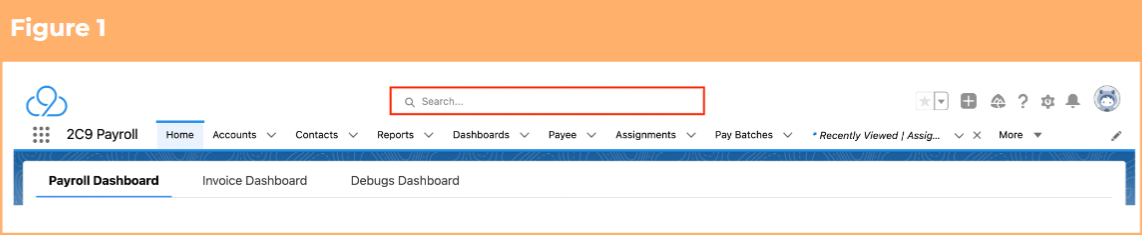
1. To identify a Payee record from an Employee record, enter the Employee name into the **Global Search** . (See Figure 1)
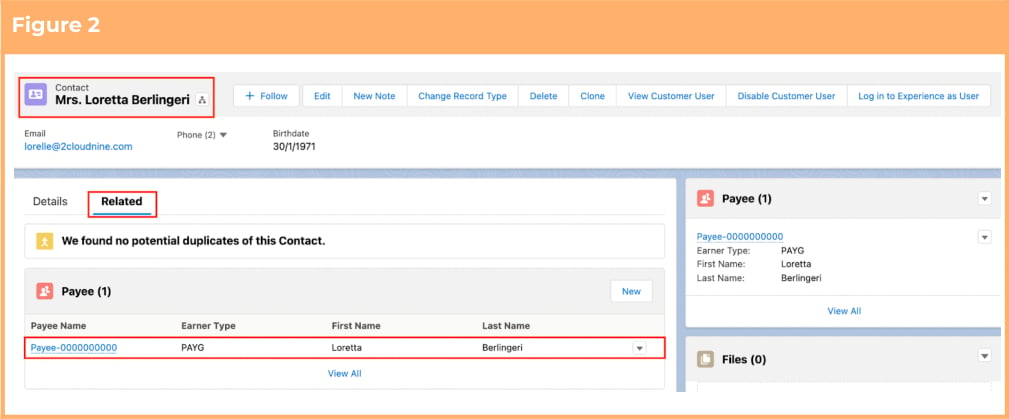
 2. Select the **Employee** record from the suggestions provided. (See Figure 2)
3. Open the **Related** tab.
4. Identify the **Payee** record(s).
5. Select the **Payee** record.
2. Select the **Employee** record from the suggestions provided. (See Figure 2)
3. Open the **Related** tab.
4. Identify the **Payee** record(s).
5. Select the **Payee** record.
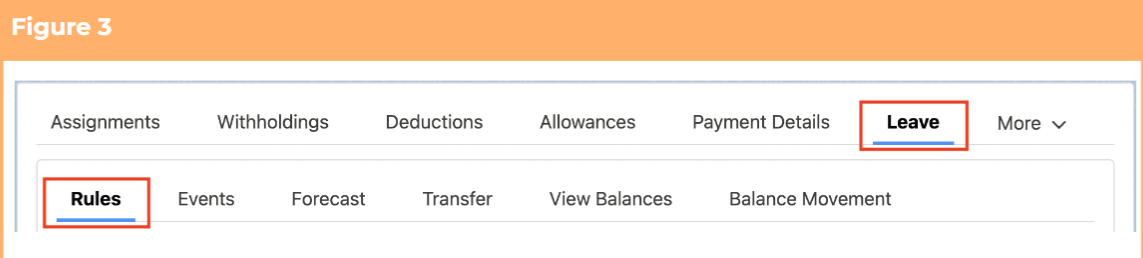
 2. Within the Payee record, navigate to the **Leave** tab. (See Figure 3)
3. Click on the **Rules** sub-tab.
2. Within the Payee record, navigate to the **Leave** tab. (See Figure 3)
3. Click on the **Rules** sub-tab.
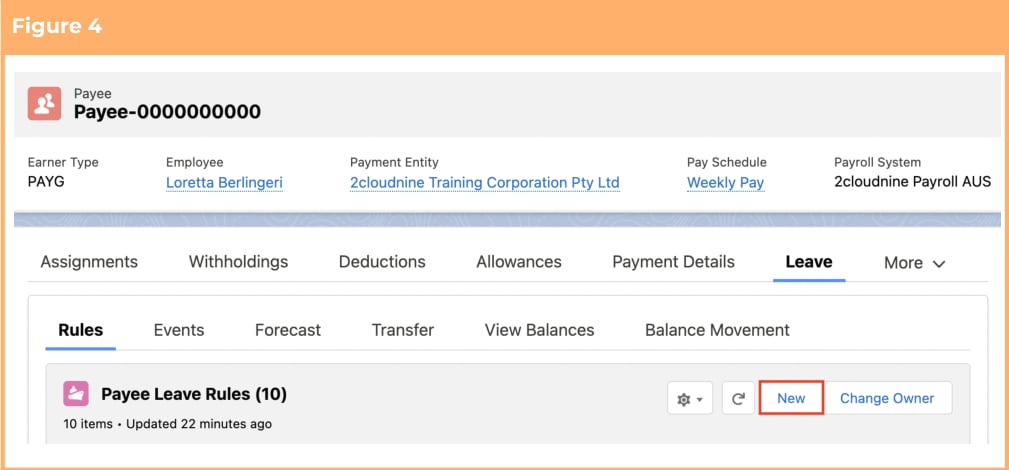
 4. Within the Payee Leave Rules panel, click on the **New** button. (See Figure 4)
 5. Follow this step in the sequence given below:
1. Populate the following required fields to provide the base details of the Payee Leave Rule:
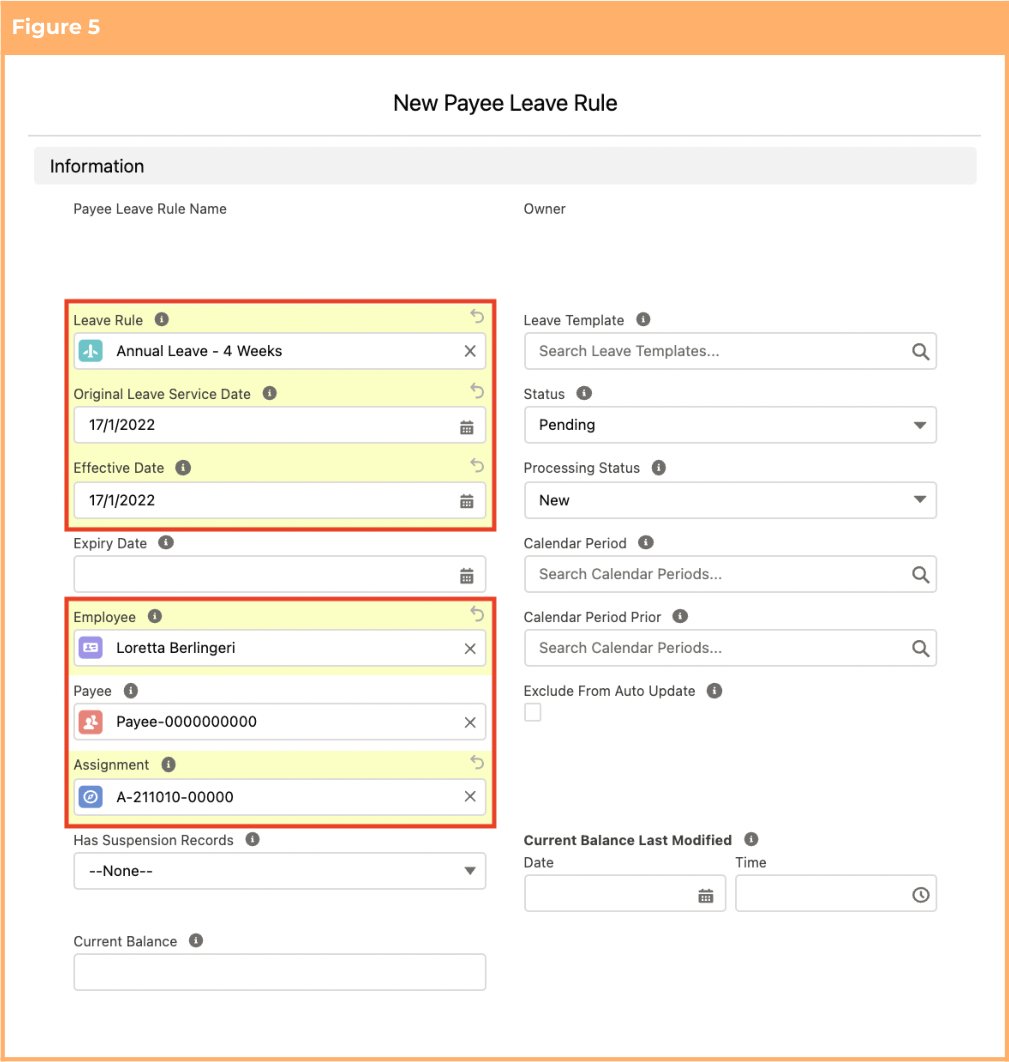
(See Figure 5)
1. **Leave Rule**
2. **Original Leave Service Date**
3. **Effective Date**
4. **Employee**
5. **Payee**
2. Populate the following optional fields as needed: (See Figure 5)
1. To set an expiry date for the Payee Leave Rule record, populate the **Expiry Date** field. If left blank, no Expiry Date will apply.
2. If you want this Leave Rule to be specific to only one Assignment or if this is a Payee Leave Rule for an RDO Leave Rule, populate theAssignmentfield.
5. Follow this step in the sequence given below:
1. Populate the following required fields to provide the base details of the Payee Leave Rule:
(See Figure 5)
1. **Leave Rule**
2. **Original Leave Service Date**
3. **Effective Date**
4. **Employee**
5. **Payee**
2. Populate the following optional fields as needed: (See Figure 5)
1. To set an expiry date for the Payee Leave Rule record, populate the **Expiry Date** field. If left blank, no Expiry Date will apply.
2. If you want this Leave Rule to be specific to only one Assignment or if this is a Payee Leave Rule for an RDO Leave Rule, populate theAssignmentfield.
 Only a record with processing status of New can be edited. Any Payee Leave Rule that
has been processed in at least a single Pay Batch cannot be modified. To make changes,
you will need to enter an Expiry Date to the Payee Leave Rule, and then create a new
Payee Leave Rule with a suitable Effective Date that has the new changes required.
Expiry Date field should only be populated if there is a known date when a Payee Leave
Rule should expire. In most circumstances it is blank until the Payee is terminated or the
Payee Leave Rule is no longer applicable to the Payee.
3. Populate the following required fields to provide the base details of the Payee Leave Rule:
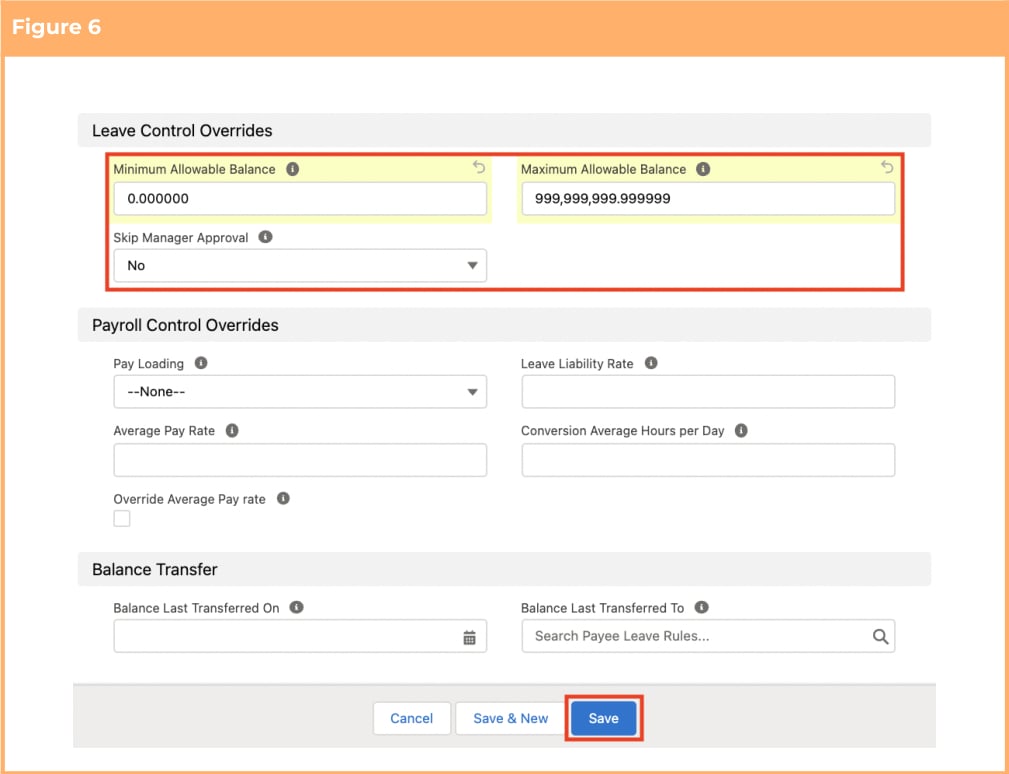
(See Figure 6)
1. **Skip Manager Approval**
4. Populate the following optional fields as needed: (See Figure 6)
1. If the minimum amount of allowable balance is different to the value defined in system-level Leave Rule, populate the **Minimum Allowable Balance** field.
2. If the maximum amount of allowable balance is different to the value defined in system-level Leave Rule, populate the **Maximum Allowable Balance** field.
3. To apply Leave Loading to this Payee Leave Rule (overriding the system-level Leave Rule), populate the **Pay Loading** field. If left blank, the field will inherit the behaviour of the system-level Leave Rule record.
4. To enter an average Pay Rate which will be used if the parent Leave Rule is configured to make payment using an average pay rate, populate the **Average Pay Rate** field. This can be left blank if you are not required to pay using the Average Pay Rate.
5. To convert Payee Leave Events and Payee Aggregate values from hours to days by using the average number of hours per day, populate the **Conversion Average Hours per Day** field. This can be left blank if you are not required to have any reporting of this Payee Leave Rule as days.
5. Click on the **Save** button.
Only a record with processing status of New can be edited. Any Payee Leave Rule that
has been processed in at least a single Pay Batch cannot be modified. To make changes,
you will need to enter an Expiry Date to the Payee Leave Rule, and then create a new
Payee Leave Rule with a suitable Effective Date that has the new changes required.
Expiry Date field should only be populated if there is a known date when a Payee Leave
Rule should expire. In most circumstances it is blank until the Payee is terminated or the
Payee Leave Rule is no longer applicable to the Payee.
3. Populate the following required fields to provide the base details of the Payee Leave Rule:
(See Figure 6)
1. **Skip Manager Approval**
4. Populate the following optional fields as needed: (See Figure 6)
1. If the minimum amount of allowable balance is different to the value defined in system-level Leave Rule, populate the **Minimum Allowable Balance** field.
2. If the maximum amount of allowable balance is different to the value defined in system-level Leave Rule, populate the **Maximum Allowable Balance** field.
3. To apply Leave Loading to this Payee Leave Rule (overriding the system-level Leave Rule), populate the **Pay Loading** field. If left blank, the field will inherit the behaviour of the system-level Leave Rule record.
4. To enter an average Pay Rate which will be used if the parent Leave Rule is configured to make payment using an average pay rate, populate the **Average Pay Rate** field. This can be left blank if you are not required to pay using the Average Pay Rate.
5. To convert Payee Leave Events and Payee Aggregate values from hours to days by using the average number of hours per day, populate the **Conversion Average Hours per Day** field. This can be left blank if you are not required to have any reporting of this Payee Leave Rule as days.
5. Click on the **Save** button.
 If there is a need for a Payee Leave Rule to have some values different to the system-level Leave Rule it’s associated with, then populating the field here will override what it inherits from the Leave Rule.
Some fields like Current Balance, Processing Status, Pay Calendar Period and Pay Calendar Period Prior should NOT be populated manually. These fields are automatically populated by the system. If these are updated manually, they will cause issues with the processing of these records.
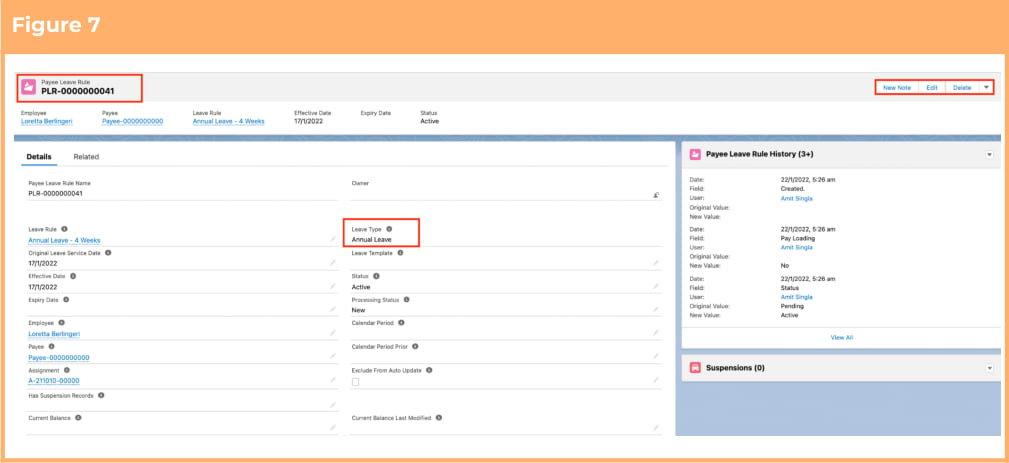
7. A new Payee Leave Rule record has been created. (See Figure 7)
If there is a need for a Payee Leave Rule to have some values different to the system-level Leave Rule it’s associated with, then populating the field here will override what it inherits from the Leave Rule.
Some fields like Current Balance, Processing Status, Pay Calendar Period and Pay Calendar Period Prior should NOT be populated manually. These fields are automatically populated by the system. If these are updated manually, they will cause issues with the processing of these records.
7. A new Payee Leave Rule record has been created. (See Figure 7)
 To alleviate time in creating individual Payee Leave Rules for each Payee, users can
create and use a Leave Template which is populated on the Payee record, and all
associated Leave Rules will be automatically created as required Payee Leave Rules.
Payee Leave Rule records CAN NOT be deleted if they have related records or are used in
other records. Deleting records is not recommended unless absolutely essential.
8. To modify an existing **Payee Leave Rule** record, open the required record and select the **Edit**
button available on the top right side of the page. You can also double click in any of the fields that
need editing or just click on the pencil icon that appears within fields when you move your cursor over the field.
9. When complete, click on the **Save** button.
## Field Descriptions
**Assignment** is a lookup to the related Assignment if the Payee Leave Rule is to be applied to a specific
Assignment. This can be left blank.
**Average Pay Rate** is the average Pay Rate which will be used if the parent Leave Rule is configured to
make payment using an Average Pay Rate.
**Balance Last Transferred On** is a field automatically updated by the software, indicating the date a
balance transfer was last processed for this Payee Leave Rule.
**Balance Last Transferred To** if a Balance Transfer has been actioned against this Payee Leave Rule, this
field is the Payee Leave Rule the balance was last transferred to.
**Calendar Period** is updated automatically to the last Pay Calendar Period the Leave Rule has been
included in during Pay Batch calculations.
**Calendar Period Prior** is updated automatically by the product, to indicate the previous Pay Calendar
Period from the most recent Calendar Period in which this Payee Leave Rule was assessed for processing.
**Conversion Average Hours per Day** is the average number of hours per day used to convert Payee Leave
Events and Payee Aggregate values from hours to days. This can be left blank if you are not required to
have any reporting of this Payee Leave Rule as days.
**Current Balance** is the most recently calculated balance for this Payee Leave Rule. This is auto populated
when the Payee Aggregates get updated, and should not be amended by users.
**Current Balance Last Modified** is the date and time that the Current Balance was updated on this Payee
Leave Rule.
**Effective Date** is the earliest date the Payee Leave Rule can be assessed for Leave Accruals, and Leave
Events. Any Leave Events dated earlier will not be submitted.
**Employee** is a lookup to the related Employee.
**Exclude From Auto Update (checkbox)** When this box is checked, the record will be skipped by the
Automatic Status Update Scheduled Job.
**Expiry Date** is the latest date the Payee Leave Rule can be used in a Payee Leave Event, or have Leave
Accruals apply within the Payee Pay Batch calculations.
**Has Suspension Records** indicates whether the Payee Leave Rule has related Suspension records. This
field is populated automatically by the system and should not be edited by users.
**Leave Liability Rate** is the hourly rate to be used for calculation of leave liability within Leave Accrual Pay
Transactions.
**Leave Rule** is a lookup to the related Leave Rule.
**Leave Template** is a lookup to the source Leave Template if one was defined.
**Maximum Allowable Balance** is where an override can be applied to the Leave Rule record and indicates
the Payee-specific maximum allowable balance for this Leave Rule.
**Minimum Allowable Balance** is where an override can be applied to the Leave Rule record and indicates
the Payee-specific minimum allowable balance for this Leave rule.
**Original Leave Service Date** is the original date from which this Leave Type should accrue. Determines
length of service for the purpose of accruing and taking leave as well as displaying balances.
**Override Average Pay Rate (checkbox)** indicates that the product will not calculate the Average Pay Rate
and the entered value will be used.
**Pay Loading** indicates Leave Loading will be paid when a Payee Leave Event is calculated for this Payee
Leave Rule.
**Payee** is a lookup to the related Payee.
**Processing Status** is the Pay Batch processing status of the related Pay Batch Event record. This should
not be updated by users, and any changes made will impact the functionality of the Leave Rule.
**Skip Manager Approval** indicates that Payee Leave Events related to this Payee Leave Rule will not be
directed to a manager for approval, and automatically assessed within Pay Batch calculations.
**Status** is the status of the Payee Leave Rule record.
## Further Information
| Document | Document Type | Description |
| -------------------------------------------- | --------------------------- | ---------------------------------------------------------------------------------------------------------------------------------------------------------------------------------------------------------------------------------------------------------------------------------------------------------------------------------------------------- |
| Quick Reference Guide Index - Leave | Index | An index document that lists and provides links to all Quick Reference Guides relating to Leave |
| Leave Setup and Processing - Key Information | Information Quick Reference | Outlines useful information relevant to Leave within 2cloudnine Payroll. The document includes definitions, prerequisites, and other non-instructional information relating to Leave. This includes details on creation and management of Leave Rules, Payee Leave Rules, and Leave Templates, along with the taking of Leave Events, Accruals, etc. |
| QRG Setup Leave Rules | Task Instructions | How to create Leave Rules |
| QRG Payee Leave Transfer | Task Instructions | How to transfer Leave Balance from a Payee Leave Rule to a new or existing Payee Leave Rule |
| QRG Payee Leave Forecast | Task Instructions | How to forecast a Leave Balance to a defined future date. |
To alleviate time in creating individual Payee Leave Rules for each Payee, users can
create and use a Leave Template which is populated on the Payee record, and all
associated Leave Rules will be automatically created as required Payee Leave Rules.
Payee Leave Rule records CAN NOT be deleted if they have related records or are used in
other records. Deleting records is not recommended unless absolutely essential.
8. To modify an existing **Payee Leave Rule** record, open the required record and select the **Edit**
button available on the top right side of the page. You can also double click in any of the fields that
need editing or just click on the pencil icon that appears within fields when you move your cursor over the field.
9. When complete, click on the **Save** button.
## Field Descriptions
**Assignment** is a lookup to the related Assignment if the Payee Leave Rule is to be applied to a specific
Assignment. This can be left blank.
**Average Pay Rate** is the average Pay Rate which will be used if the parent Leave Rule is configured to
make payment using an Average Pay Rate.
**Balance Last Transferred On** is a field automatically updated by the software, indicating the date a
balance transfer was last processed for this Payee Leave Rule.
**Balance Last Transferred To** if a Balance Transfer has been actioned against this Payee Leave Rule, this
field is the Payee Leave Rule the balance was last transferred to.
**Calendar Period** is updated automatically to the last Pay Calendar Period the Leave Rule has been
included in during Pay Batch calculations.
**Calendar Period Prior** is updated automatically by the product, to indicate the previous Pay Calendar
Period from the most recent Calendar Period in which this Payee Leave Rule was assessed for processing.
**Conversion Average Hours per Day** is the average number of hours per day used to convert Payee Leave
Events and Payee Aggregate values from hours to days. This can be left blank if you are not required to
have any reporting of this Payee Leave Rule as days.
**Current Balance** is the most recently calculated balance for this Payee Leave Rule. This is auto populated
when the Payee Aggregates get updated, and should not be amended by users.
**Current Balance Last Modified** is the date and time that the Current Balance was updated on this Payee
Leave Rule.
**Effective Date** is the earliest date the Payee Leave Rule can be assessed for Leave Accruals, and Leave
Events. Any Leave Events dated earlier will not be submitted.
**Employee** is a lookup to the related Employee.
**Exclude From Auto Update (checkbox)** When this box is checked, the record will be skipped by the
Automatic Status Update Scheduled Job.
**Expiry Date** is the latest date the Payee Leave Rule can be used in a Payee Leave Event, or have Leave
Accruals apply within the Payee Pay Batch calculations.
**Has Suspension Records** indicates whether the Payee Leave Rule has related Suspension records. This
field is populated automatically by the system and should not be edited by users.
**Leave Liability Rate** is the hourly rate to be used for calculation of leave liability within Leave Accrual Pay
Transactions.
**Leave Rule** is a lookup to the related Leave Rule.
**Leave Template** is a lookup to the source Leave Template if one was defined.
**Maximum Allowable Balance** is where an override can be applied to the Leave Rule record and indicates
the Payee-specific maximum allowable balance for this Leave Rule.
**Minimum Allowable Balance** is where an override can be applied to the Leave Rule record and indicates
the Payee-specific minimum allowable balance for this Leave rule.
**Original Leave Service Date** is the original date from which this Leave Type should accrue. Determines
length of service for the purpose of accruing and taking leave as well as displaying balances.
**Override Average Pay Rate (checkbox)** indicates that the product will not calculate the Average Pay Rate
and the entered value will be used.
**Pay Loading** indicates Leave Loading will be paid when a Payee Leave Event is calculated for this Payee
Leave Rule.
**Payee** is a lookup to the related Payee.
**Processing Status** is the Pay Batch processing status of the related Pay Batch Event record. This should
not be updated by users, and any changes made will impact the functionality of the Leave Rule.
**Skip Manager Approval** indicates that Payee Leave Events related to this Payee Leave Rule will not be
directed to a manager for approval, and automatically assessed within Pay Batch calculations.
**Status** is the status of the Payee Leave Rule record.
## Further Information
| Document | Document Type | Description |
| -------------------------------------------- | --------------------------- | ---------------------------------------------------------------------------------------------------------------------------------------------------------------------------------------------------------------------------------------------------------------------------------------------------------------------------------------------------- |
| Quick Reference Guide Index - Leave | Index | An index document that lists and provides links to all Quick Reference Guides relating to Leave |
| Leave Setup and Processing - Key Information | Information Quick Reference | Outlines useful information relevant to Leave within 2cloudnine Payroll. The document includes definitions, prerequisites, and other non-instructional information relating to Leave. This includes details on creation and management of Leave Rules, Payee Leave Rules, and Leave Templates, along with the taking of Leave Events, Accruals, etc. |
| QRG Setup Leave Rules | Task Instructions | How to create Leave Rules |
| QRG Payee Leave Transfer | Task Instructions | How to transfer Leave Balance from a Payee Leave Rule to a new or existing Payee Leave Rule |
| QRG Payee Leave Forecast | Task Instructions | How to forecast a Leave Balance to a defined future date. |