> ## Documentation Index
> Fetch the complete documentation index at: https://documentation.2cloudnine.com/llms.txt
> Use this file to discover all available pages before exploring further.
# QRG View Leave Balances
## Purpose
The purpose of this quick reference guide is to step through the process of viewing Leave Balances. The
intended audience for this document are Standard Users.
## Steps
A Payee’s Leave balance and summary of Leave movements can be seen after Pay Batch Finalisation via;
* the View Balances tool
* the Balance Movement tool
* the Payee Leave Rule
### **Navigate to the Payee Record**
1. Go to the **Payee** record.
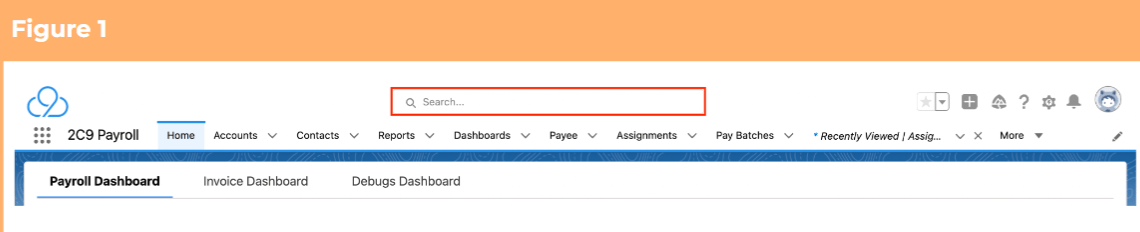
1. To identify a Payee record from an Employee record, enter the Employee name into the **Global Search**. (See Figure 1)
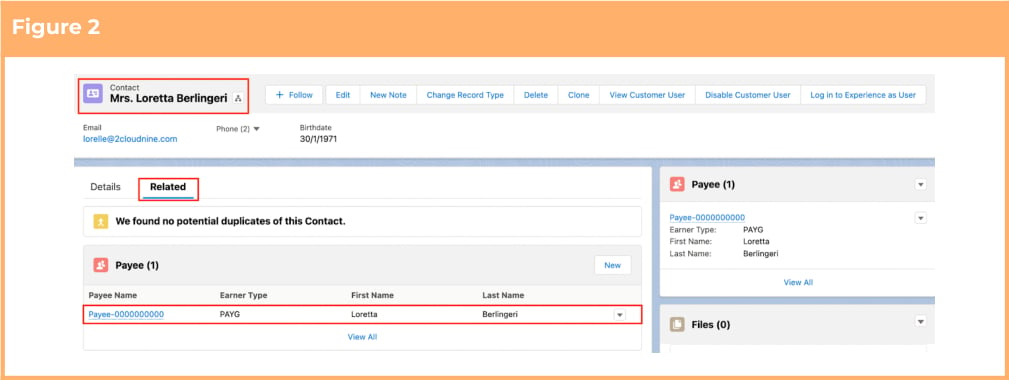
 2. Select the **Employee** record from the suggestions provided. (See Figure 2)
3. Open the **Related** tab.
4. Identify the **Payee** record(s).
5. Select the **Payee** record.
2. Select the **Employee** record from the suggestions provided. (See Figure 2)
3. Open the **Related** tab.
4. Identify the **Payee** record(s).
5. Select the **Payee** record.
 ### **View Balances page - Date Range**
To view Leave Balances via the View Balances tool under the Payee Object:
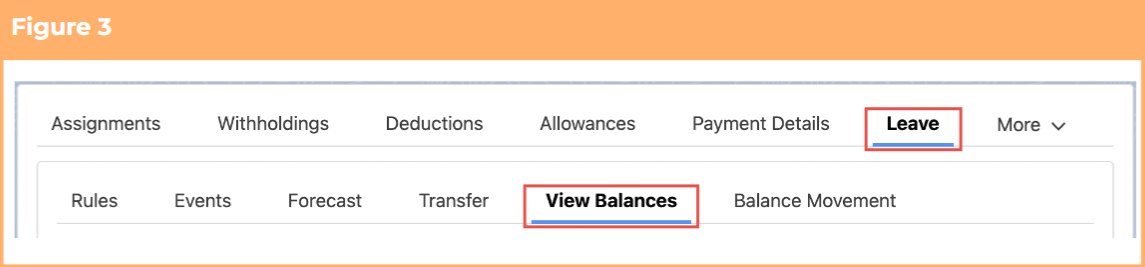
1. Within the Payee record, navigate to the **Leave** tab. (See Figure 3)
2. Click on the **View Balances** sub-tab.
### **View Balances page - Date Range**
To view Leave Balances via the View Balances tool under the Payee Object:
1. Within the Payee record, navigate to the **Leave** tab. (See Figure 3)
2. Click on the **View Balances** sub-tab.
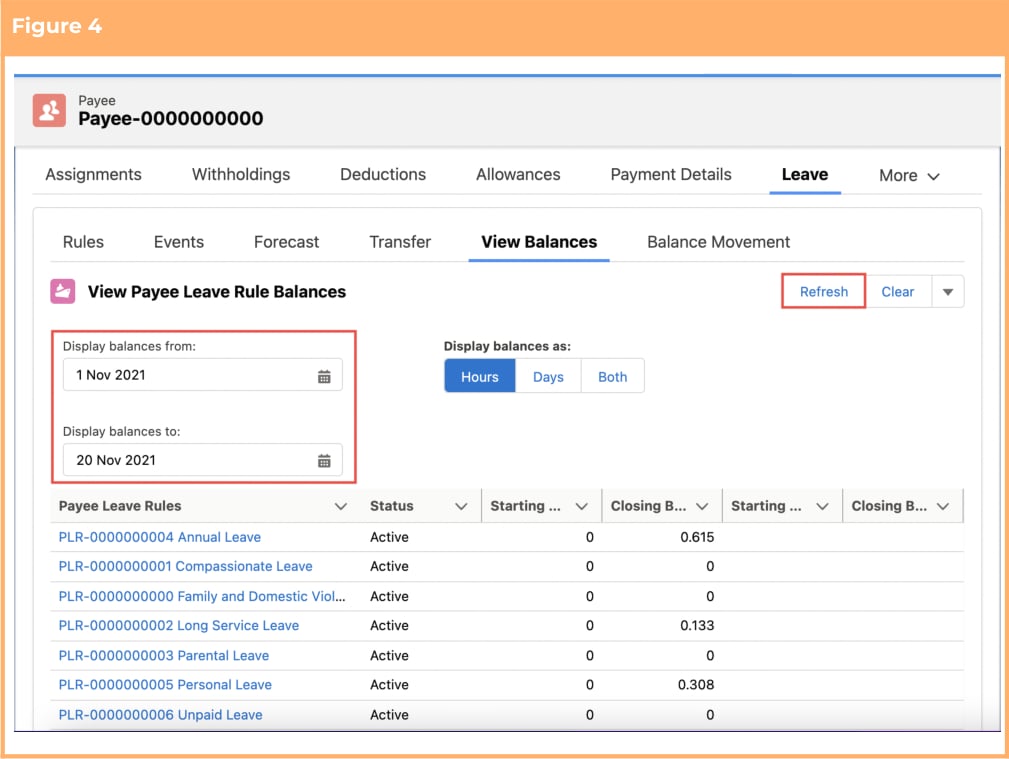
 3. Define the **Display balances from** Date. (See Figure 4)
4. Define the **Display balances to** Date. (this will be auto populated but can be amended if required)
5. Choose whether the balance units should be displayed as **Hours, Days** or **Both**.
6. Click on the **Refresh** button to display the balance.
3. Define the **Display balances from** Date. (See Figure 4)
4. Define the **Display balances to** Date. (this will be auto populated but can be amended if required)
5. Choose whether the balance units should be displayed as **Hours, Days** or **Both**.
6. Click on the **Refresh** button to display the balance.
 ### **View Balances page - As at Date**
To view Leave Balances via the View Balances tool under the Payee Object:
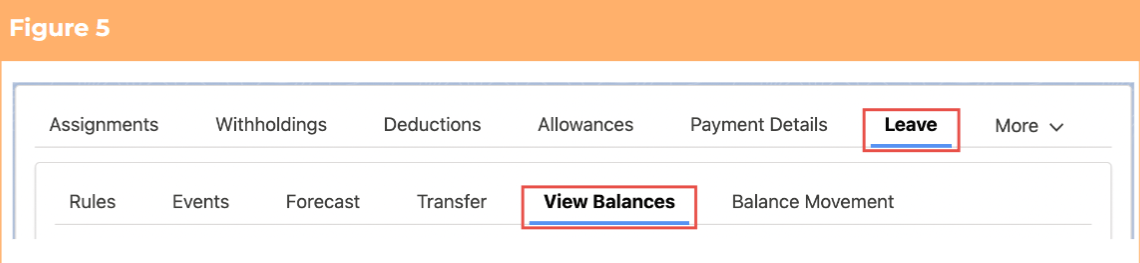
1. Within the Payee record, navigate to the **Leave** tab. (See Figure 5)
2. Click on the **View Balances** sub-tab.
### **View Balances page - As at Date**
To view Leave Balances via the View Balances tool under the Payee Object:
1. Within the Payee record, navigate to the **Leave** tab. (See Figure 5)
2. Click on the **View Balances** sub-tab.
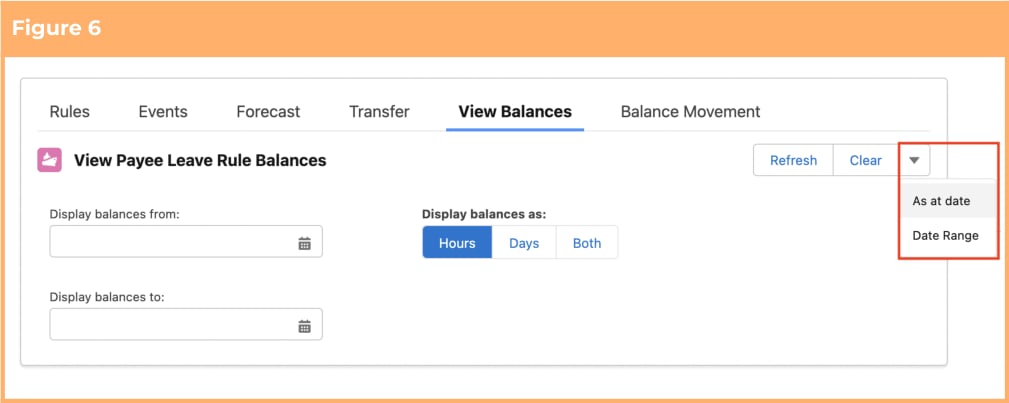
 3. On the View Balances page, click on the dropdown arrow and select **As at date**. (See Figure 6)
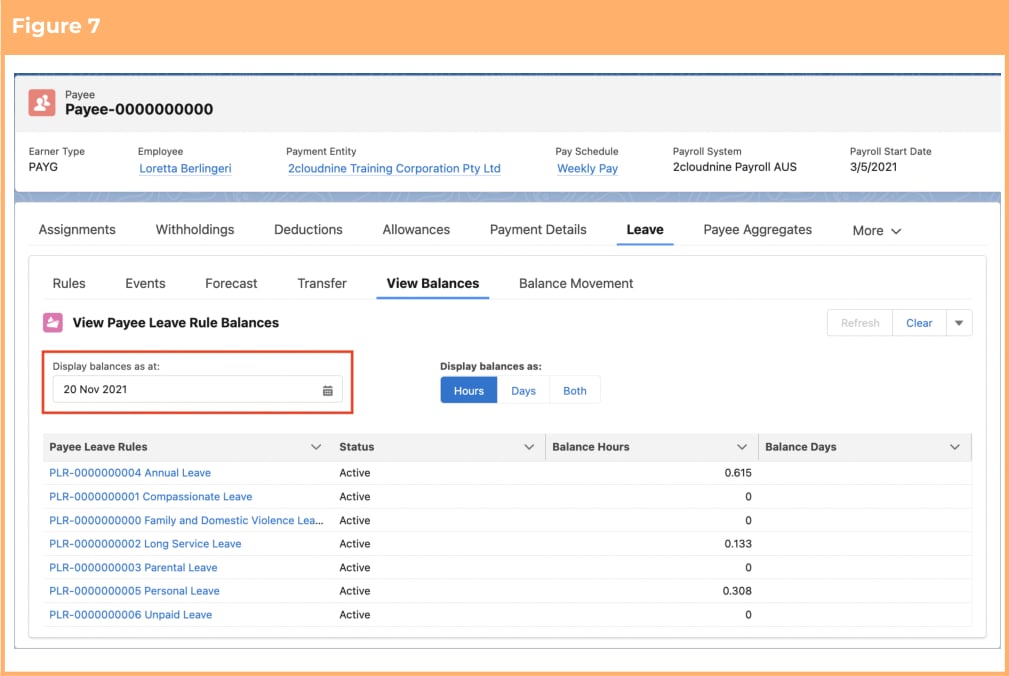
 4. Define the **Display balances as at** Date. (See Figure 7)
 ### **Balance Movement page**
To view Leave Balances via the Balance Movement tool:
1. Go to the **Payee** object using the steps outlined on the first page.
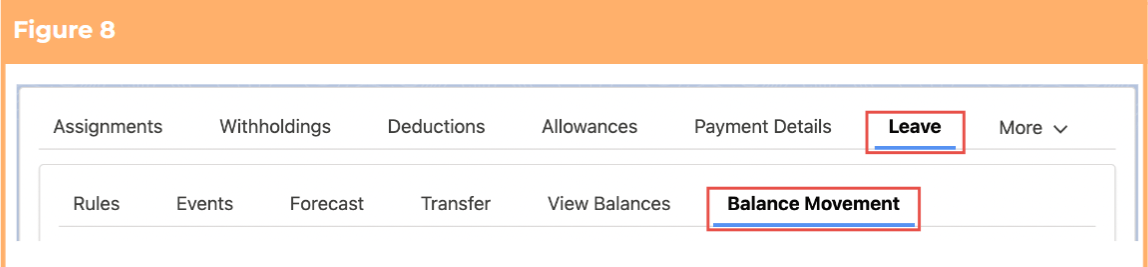
2. Navigate to the **Leave** tab. (See Figure 8)
3. Click on the **Balance Movement** sub-tab.
### **Balance Movement page**
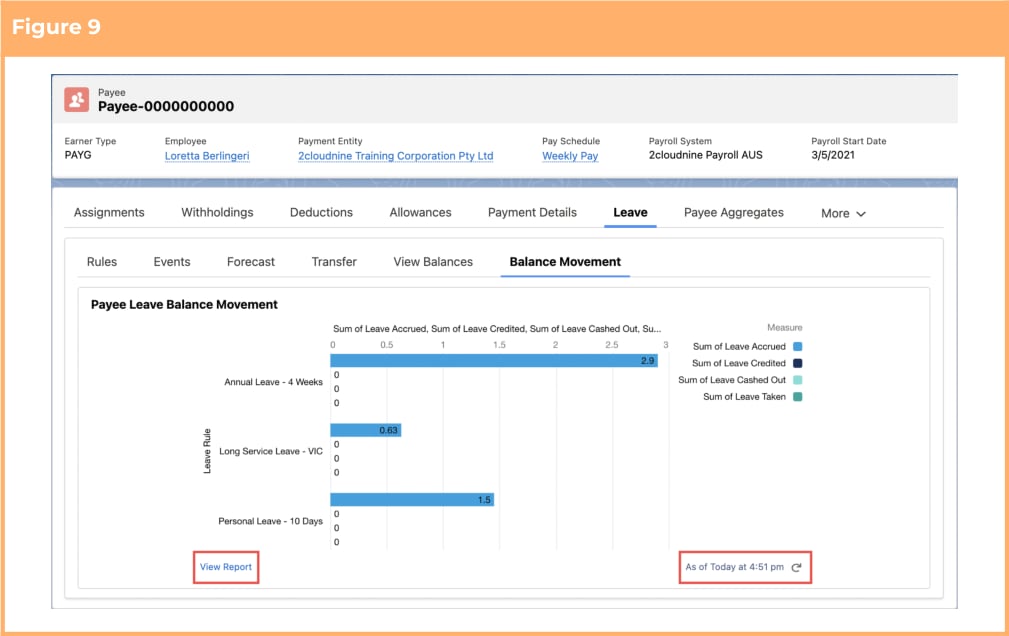
To view Leave Balances via the Balance Movement tool:
1. Go to the **Payee** object using the steps outlined on the first page.
2. Navigate to the **Leave** tab. (See Figure 8)
3. Click on the **Balance Movement** sub-tab.
 4. Click the **refresh** icon if you wish to update the displayed table. (See Figure 9)
5. Click **View Report** if you wish to open the related Salesforce Report.
4. Click the **refresh** icon if you wish to update the displayed table. (See Figure 9)
5. Click **View Report** if you wish to open the related Salesforce Report.
 ### **Payee Leave Rule**
To view a Payee’s current Leave Balance specific to a Payee Leave Rule:
1. Go to the **Payee** object using the steps outlined on the first page.
2. Select the **Leave** Tab, and then the **Rules** sub-tab. (See Figure 10)
### **Payee Leave Rule**
To view a Payee’s current Leave Balance specific to a Payee Leave Rule:
1. Go to the **Payee** object using the steps outlined on the first page.
2. Select the **Leave** Tab, and then the **Rules** sub-tab. (See Figure 10)
 3. Open the respective processed **Payee Leave Rule** record and view the Balance. The balance
displayed here is the last Finalised Pay Batch amount. (See Figure 11)
3. Open the respective processed **Payee Leave Rule** record and view the Balance. The balance
displayed here is the last Finalised Pay Batch amount. (See Figure 11)
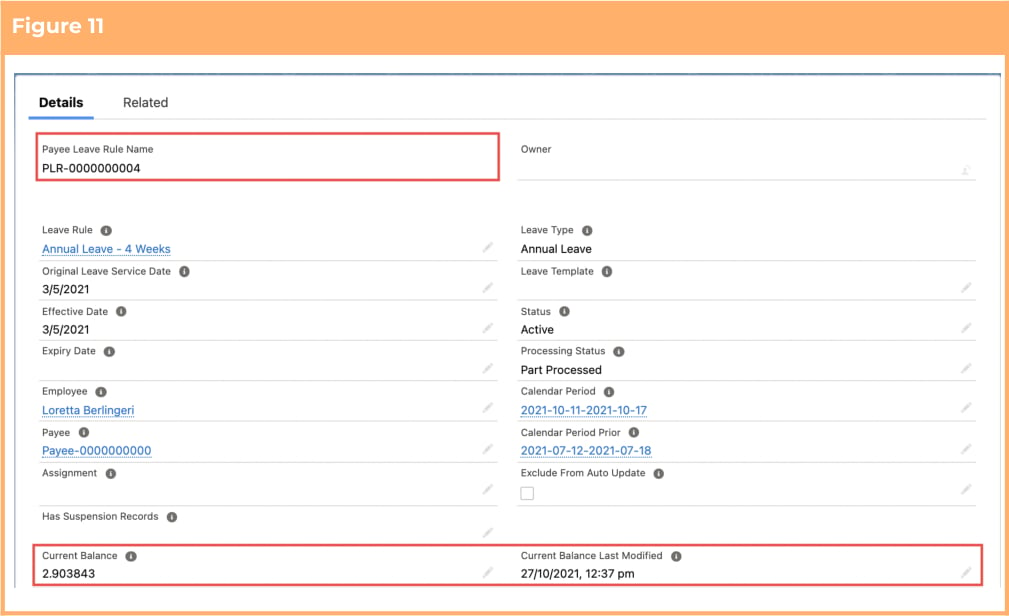 The Current Balance field is updated after a Pay Batch is Payment File Released with
the current balance. This field is also editable, and any changes made here are not
reflected in the actual Payee Leave Balance as reported elsewhere. Its purpose is for
quick reference and to be able to report on it.
## Field Descriptions
No field descriptions are required for this QRG document.
## Further Information
| Document | Document Type | Description |
| -------------------------------------------- | --------------------------- | ---------------------------------------------------------------------------------------------------------------------------------------------------------------------------------------------------------------------------------------------------------------------------------------------------------------------------------------------------- |
| Quick Reference Guide Index - Leave | Index | An index document that lists and provides links to all Quick Reference Guides relating to Leave |
| Leave Setup and Processing - Key Information | Information Quick Reference | Outlines useful information relevant to Leave within 2cloudnine Payroll. The document includes definitions, prerequisites, and other non-instructional information relating to Leave. This includes details on creation and management of Leave Rules, Payee Leave Rules, and Leave Templates, along with the taking of Leave Events, Accruals, etc. |
The Current Balance field is updated after a Pay Batch is Payment File Released with
the current balance. This field is also editable, and any changes made here are not
reflected in the actual Payee Leave Balance as reported elsewhere. Its purpose is for
quick reference and to be able to report on it.
## Field Descriptions
No field descriptions are required for this QRG document.
## Further Information
| Document | Document Type | Description |
| -------------------------------------------- | --------------------------- | ---------------------------------------------------------------------------------------------------------------------------------------------------------------------------------------------------------------------------------------------------------------------------------------------------------------------------------------------------- |
| Quick Reference Guide Index - Leave | Index | An index document that lists and provides links to all Quick Reference Guides relating to Leave |
| Leave Setup and Processing - Key Information | Information Quick Reference | Outlines useful information relevant to Leave within 2cloudnine Payroll. The document includes definitions, prerequisites, and other non-instructional information relating to Leave. This includes details on creation and management of Leave Rules, Payee Leave Rules, and Leave Templates, along with the taking of Leave Events, Accruals, etc. |