> ## Documentation Index
> Fetch the complete documentation index at: https://documentation.2cloudnine.com/llms.txt
> Use this file to discover all available pages before exploring further.
# QRG Payroll Tax Lodgements
## Purpose
The purpose of this quick reference guide is to step through the process of creating and sending Payroll
Tax Lodgements. The intended audience for this document are Standard Users.
## Steps
### **Create a new Payroll Tax Lodgement**
To create a new Payroll Tax Lodgement, follow these steps:
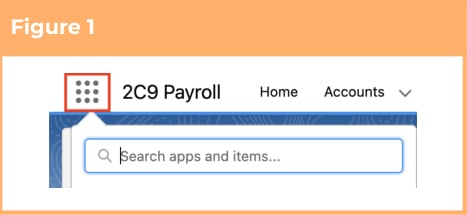
1. Click on the **App Launcher** icon. (See Figure 1)
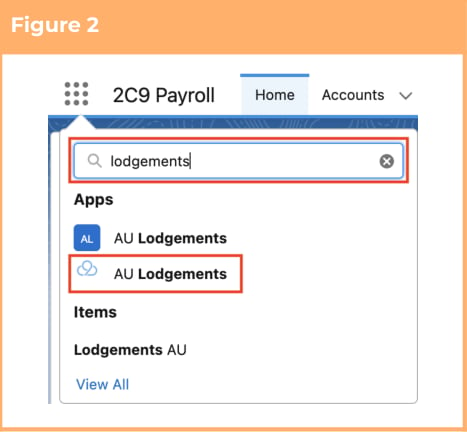
 2. Go to the **AU Lodgements** app by using the Search function. (See Figure 2)
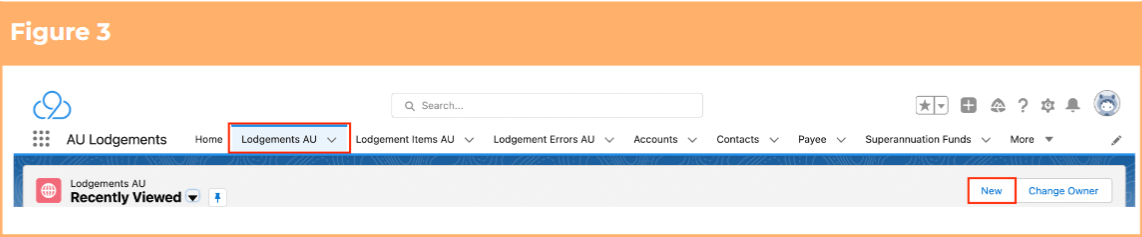
 3. Go to the **Lodgements AU** object. (See Figure 3)
4. Click on the **New** button.
3. Go to the **Lodgements AU** object. (See Figure 3)
4. Click on the **New** button.
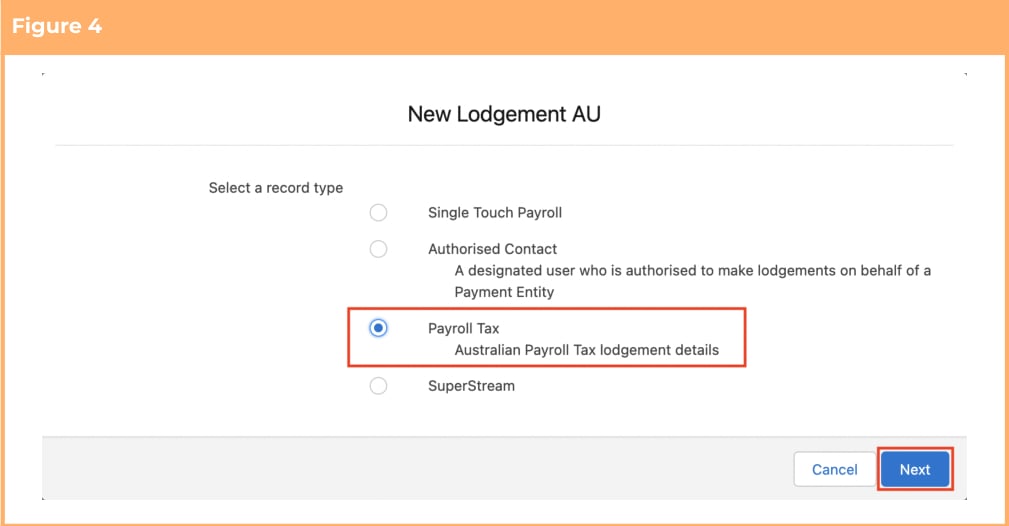
 5. Choose **Payroll Tax** record type and click **Next** . (See Figure 4)
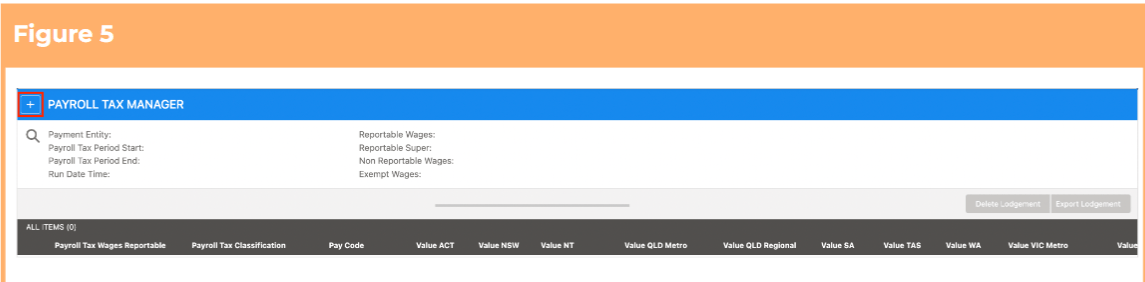
 6. Click the button on the left-hand side of the screen where it says Payroll Tax Manager. (See
Figure 5)
6. Click the button on the left-hand side of the screen where it says Payroll Tax Manager. (See
Figure 5)
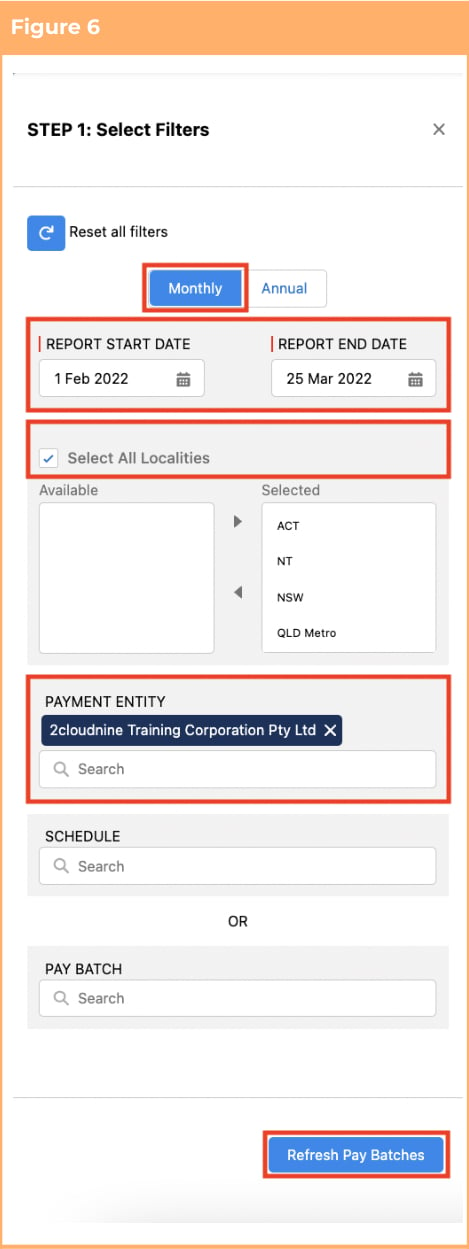
7. Almost all lodgements will use the Monthly option unless preparing the year end Annual Lodgements. If users are completing the Annual Lodgement, please ensure they select Annual instead of the default Monthly (see Figure 6).
8. Populate the Filter Panel with the following fields: (See Figure 6)
1. Report Start Date
2. Report End Date
3. Localities
4. Payment Entity (up to 5 if required)
5. Schedule
OR
6. Pay Batch
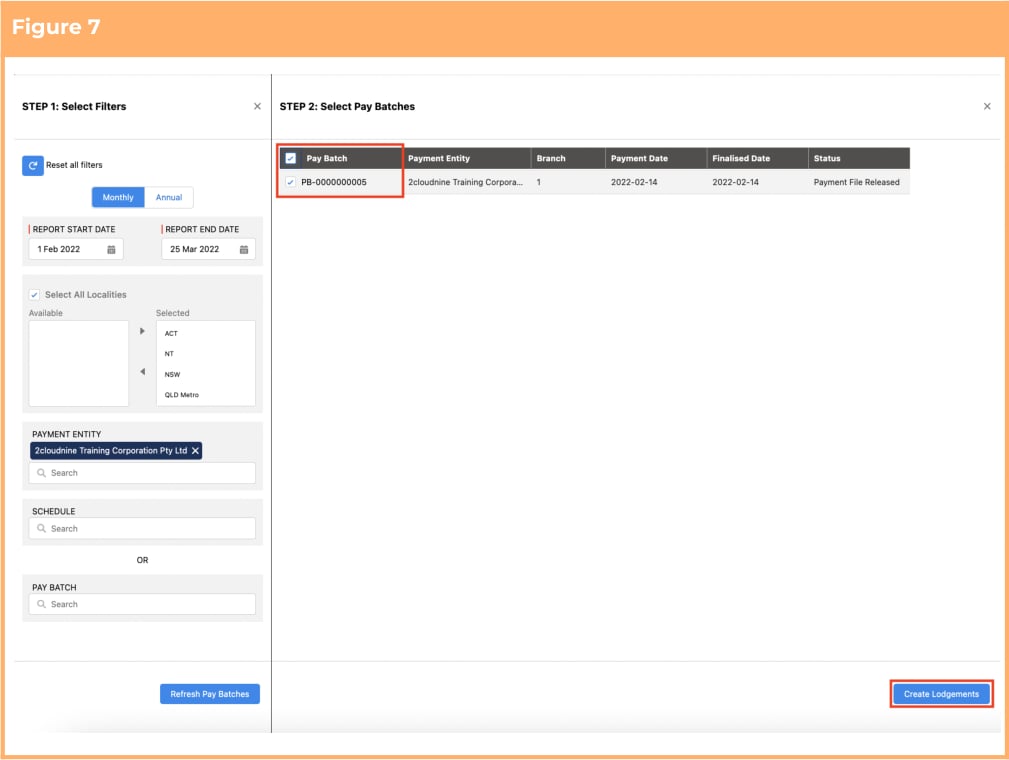
9. Click on the **Refresh Pay Batches** button and a new panel called Select Pay Batches will appear
displaying all Pay Batches that match that criteria. (See Figure 7)
10. To create the Payroll Tax Lodgement, select the required Pay Batch(s) by ticking the checkboxes as
required and click **Create Lodgements** on the Select Pay Batches panel. (See Figure 7)
 If you need to amend the filters or start again at any time, click **Reset all FIlters** in the
top left of the **Select Filters** screen.
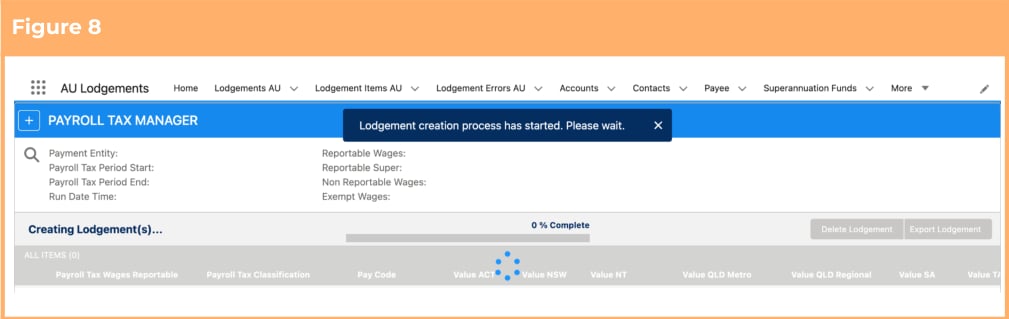
11. You will see a pop up message including a progress bar indicating that the Lodgement creation process has started. (See Figure 8)
If you need to amend the filters or start again at any time, click **Reset all FIlters** in the
top left of the **Select Filters** screen.
11. You will see a pop up message including a progress bar indicating that the Lodgement creation process has started. (See Figure 8)
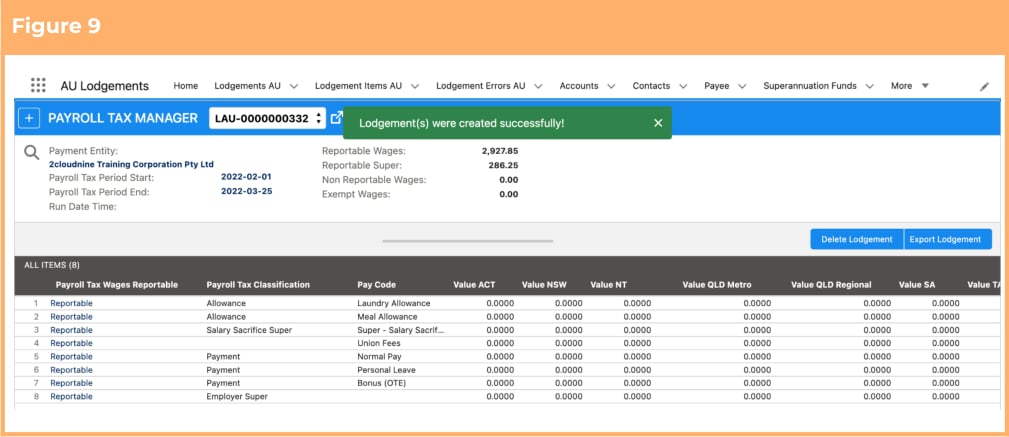
 12. A new Payroll Tax Lodgement has been created. (See Figure 9)
 13. You can scroll left or right within the “All Items” section. Scroll to the relevant Payroll Tax Locality to
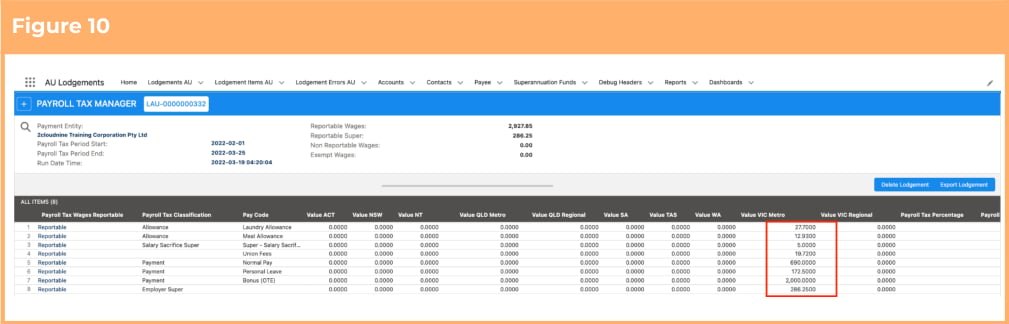
review the Reportable and non Reportable Wages as highlighted in the snapshot. (See Figure 10)
13. You can scroll left or right within the “All Items” section. Scroll to the relevant Payroll Tax Locality to
review the Reportable and non Reportable Wages as highlighted in the snapshot. (See Figure 10)
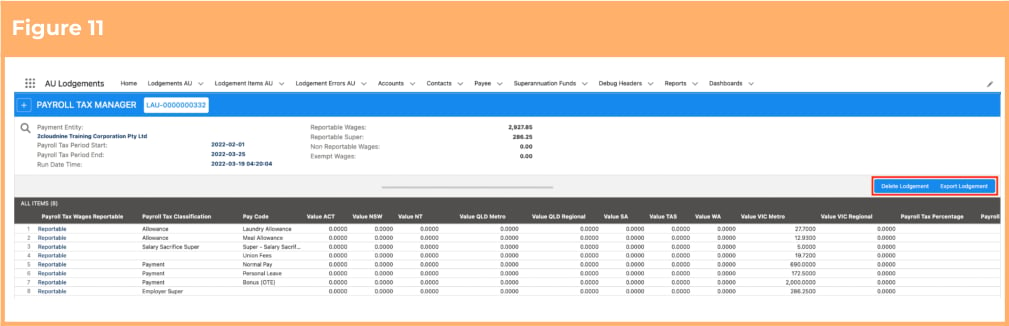
 14. To download the lodgement as a csv file, click on the **Export Lodgement** button. (See Figure 11)
15. If you need to delete the lodgement and start again, click on the **Delete Lodgement** button.
14. To download the lodgement as a csv file, click on the **Export Lodgement** button. (See Figure 11)
15. If you need to delete the lodgement and start again, click on the **Delete Lodgement** button.
 ## Field Descriptions
**Report Start Date** is the Payment Date of Pay Batches used during the search criteria start dates, for the
creation of the Payroll Tax Reporting Lodgement
**Report End Date** is the Payment Date of Pay Batches used during the search criteria end dates, for the
creation of the Payroll Tax Reporting Lodgement.
**Payment Entity** is the Payment Entity at the filter selection. During the creation stage, up to 5 can be
entered into this filter screen, however once created, each Payroll Tax Lodgement will be specific to one
Payment Entity.
**Schedule** defines the Pay Schedule (up to 5) that applies to the Payroll Tax Lodgement.
**Pay Batch** is the Pay Batch selected during the Filter criteria for creating the Payroll Tax Lodgement. This
is an optional field
**Payroll Tax Locality** is the Payroll Tax locality applied to the various Payees and Pay Codes within the
Payroll Tax Lodgement.
## Further Information
| Document | Document Type | Description |
| ------------------------------------------------------------ | --------------------------- | --------------------------------------------------------------------------------------------------------------------------------------------------------------------------------------------------- |
| Quick Reference Guide Index - STP and SuperStream Lodgements | Index | An index document that lists and provides links to all Quick Reference Guides relating to STP and SuperStream Lodgements. |
| QRG Creating and Sending STP Lodgements - Key Information | Information Quick Reference | A quick reference guide outlining some useful information relevant to the STP lodgements functionality. The document includes definitions, pre-requisites, and other non-instructional information. |
## Field Descriptions
**Report Start Date** is the Payment Date of Pay Batches used during the search criteria start dates, for the
creation of the Payroll Tax Reporting Lodgement
**Report End Date** is the Payment Date of Pay Batches used during the search criteria end dates, for the
creation of the Payroll Tax Reporting Lodgement.
**Payment Entity** is the Payment Entity at the filter selection. During the creation stage, up to 5 can be
entered into this filter screen, however once created, each Payroll Tax Lodgement will be specific to one
Payment Entity.
**Schedule** defines the Pay Schedule (up to 5) that applies to the Payroll Tax Lodgement.
**Pay Batch** is the Pay Batch selected during the Filter criteria for creating the Payroll Tax Lodgement. This
is an optional field
**Payroll Tax Locality** is the Payroll Tax locality applied to the various Payees and Pay Codes within the
Payroll Tax Lodgement.
## Further Information
| Document | Document Type | Description |
| ------------------------------------------------------------ | --------------------------- | --------------------------------------------------------------------------------------------------------------------------------------------------------------------------------------------------- |
| Quick Reference Guide Index - STP and SuperStream Lodgements | Index | An index document that lists and provides links to all Quick Reference Guides relating to STP and SuperStream Lodgements. |
| QRG Creating and Sending STP Lodgements - Key Information | Information Quick Reference | A quick reference guide outlining some useful information relevant to the STP lodgements functionality. The document includes definitions, pre-requisites, and other non-instructional information. |