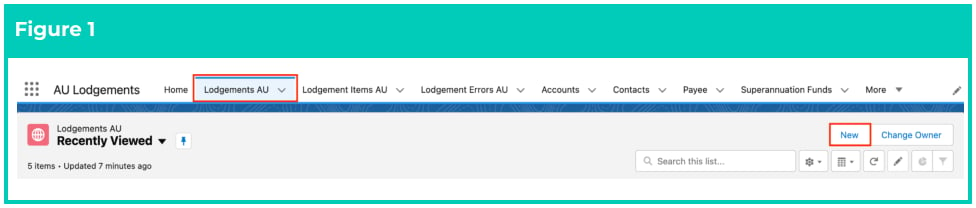
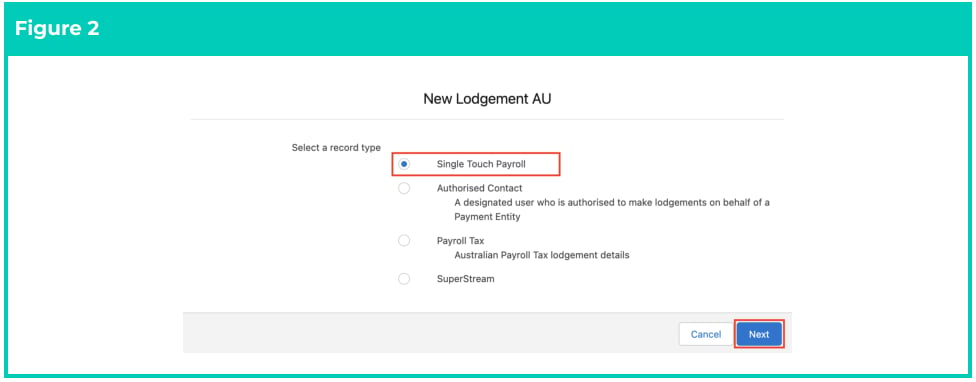
 2. Choose **Single Touch Payroll** record type and click **Next** (see Figure 2).
 3. Click the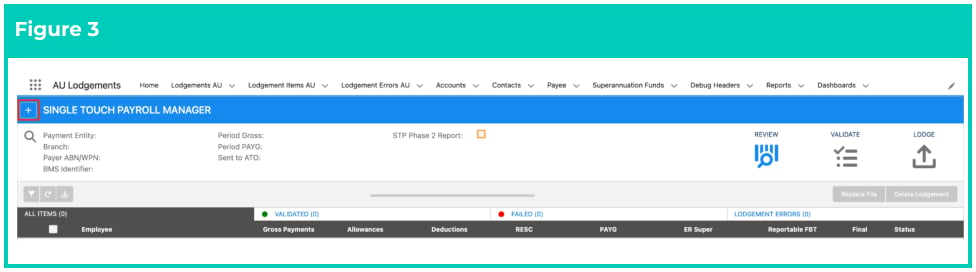
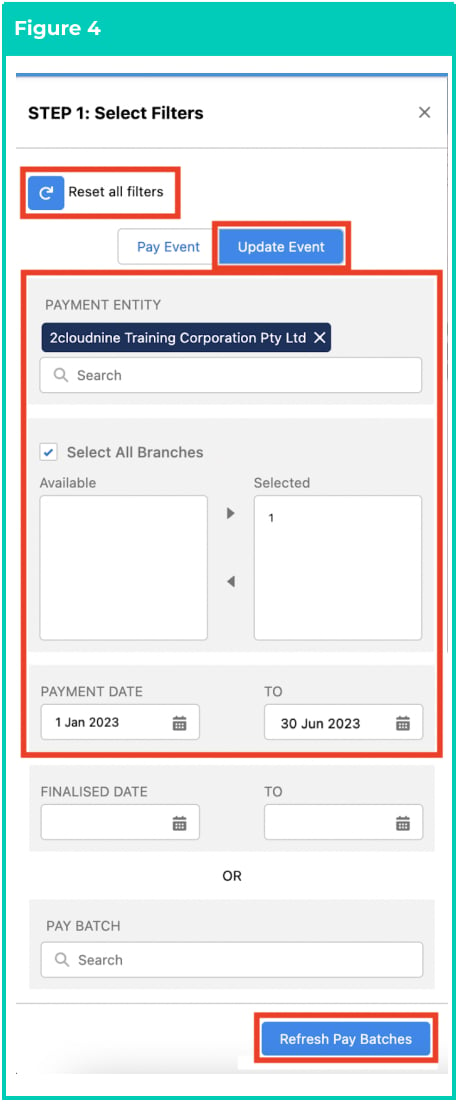
4. Click the **Update Event** filter to create lodgements for End of Year processing or to report corrected data for previous Pay Event Lodgements (see Figure 4).
5. Populate the Filter Panel with the following fields: (See Figure 4)
1. **Payment Entity**
2. Select **All Branches** or choose
from the Available branches
3. **Payment Date From** and **Payment Date To**
6. If you need to amend the filters or start again at any time, click Reset all FIlters.
7. Once ready, click on the **Refresh Pay** **Batches** button and a new panel called Select Pay Batches will appear
If this Update Event Lodgement is being created as part of your Year End Processing, you must ensure the Payment Dates span the full financial year.
When creating lodgements for Update Events, the Pay Batch filter field does not provide any results, this filter field only applies to Pay Events.
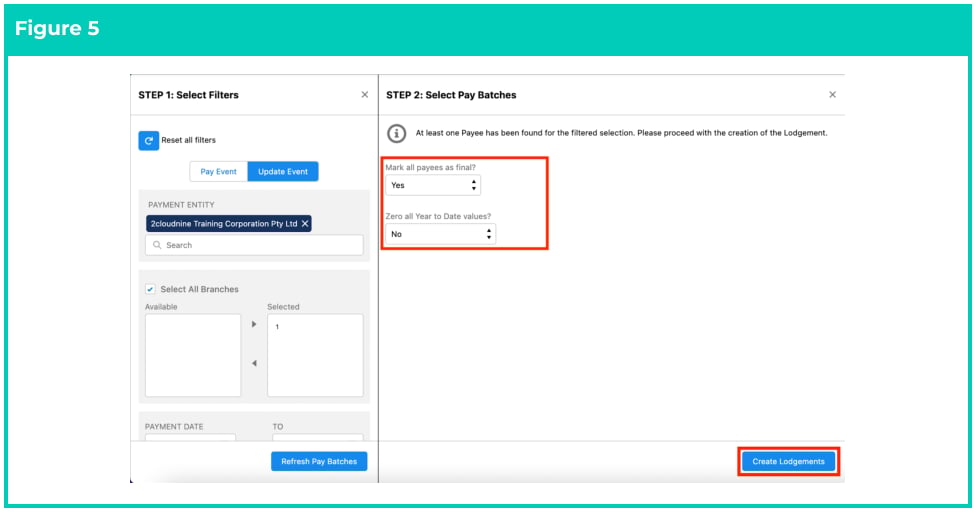 10. A confirmation message will appear indicating the Lodgement creation process has started (see Figure 6).
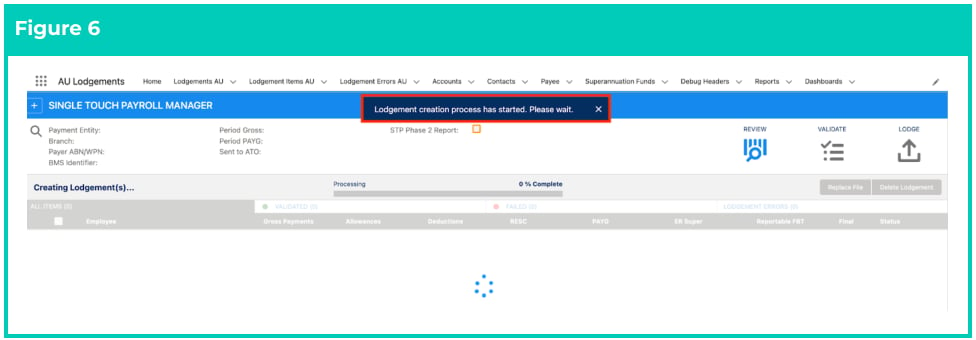 11. A new Update Event Lodgement has been created with a status of NEW (see Figure 7).
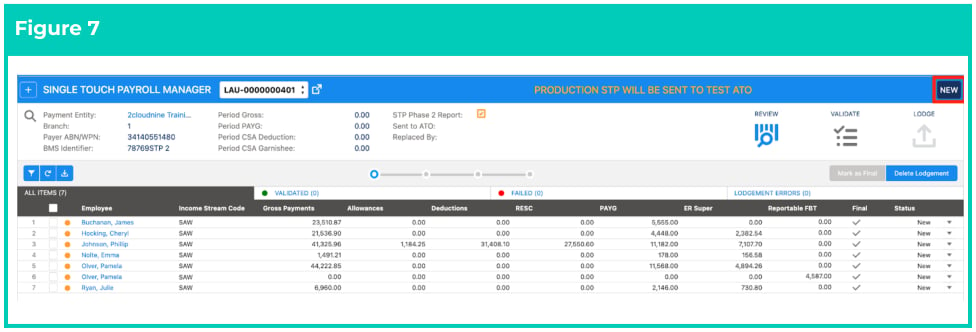 12. Click on the blue coloured **Validate STP** button (see Figure 8).
 13. If the validation fails, the status will change to Validate Failed. Click on **Lodgement Errors** to see
details of the error. Any Lodgement Errors identified in the Single Touch Payroll Lodgement need
to be investigated and resolved before the lodgement can be revalidated and sent to the ATO.
14. Once done, a confirmation message will appear indicating the Lodgement Validation process has
started (see Figure 9).
13. If the validation fails, the status will change to Validate Failed. Click on **Lodgement Errors** to see
details of the error. Any Lodgement Errors identified in the Single Touch Payroll Lodgement need
to be investigated and resolved before the lodgement can be revalidated and sent to the ATO.
14. Once done, a confirmation message will appear indicating the Lodgement Validation process has
started (see Figure 9).
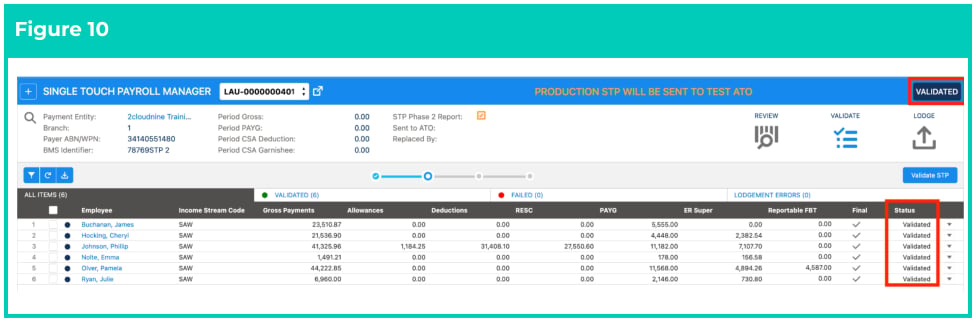
 15. Once completed, the Update Event Lodgement status will change to **Validated** (see Figure 10).
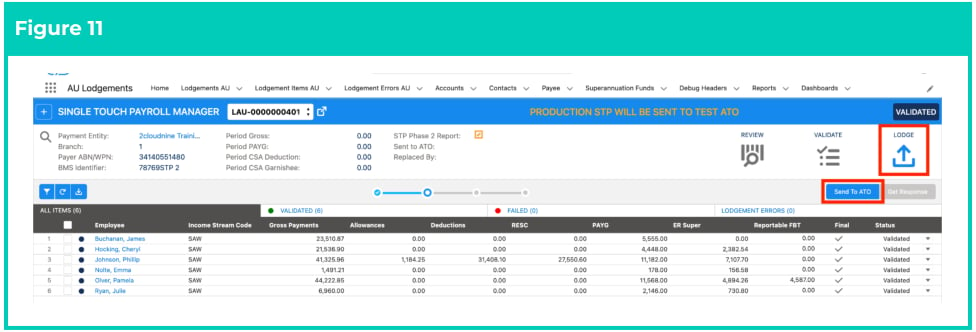
 16. Now click on the **Lodge** tab and click on the **Send to ATO** button (see Figure 11).

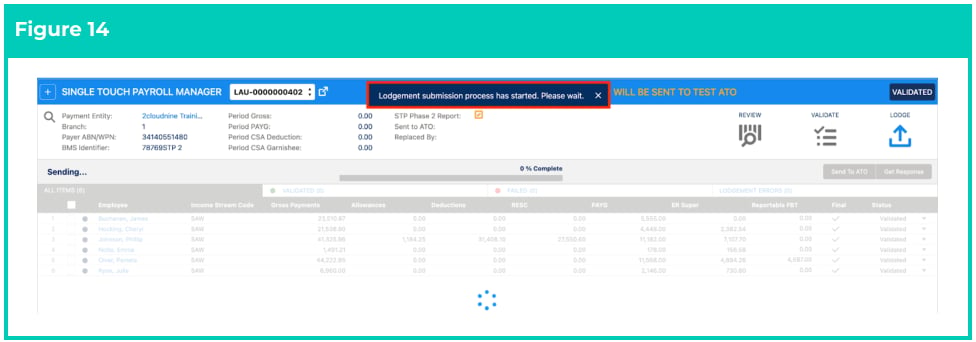
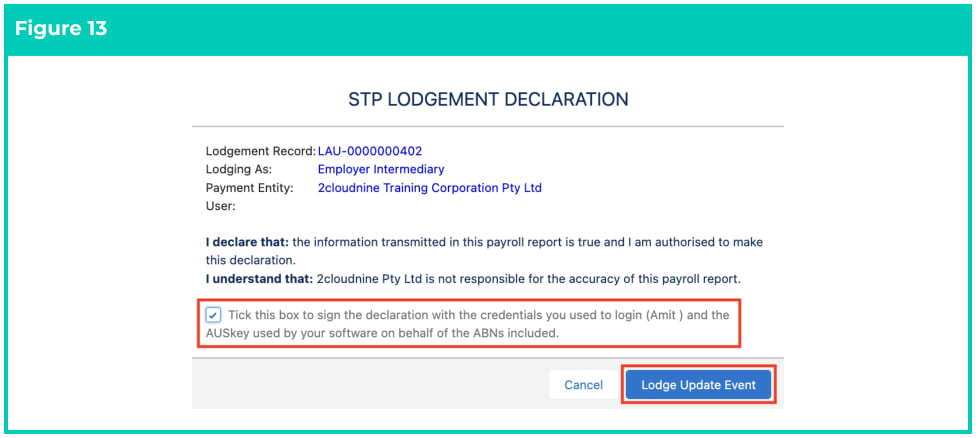 18. A message will appear saying ‘Lodgement submission process has started. Please wait’ (see Figure 14).
 19. Once completed, the status of the Single Touch Payroll Lodgement will change to **Confirmed**
when the Lodgement has been successfully received by the ATO (see Figure 15).
19. Once completed, the status of the Single Touch Payroll Lodgement will change to **Confirmed**
when the Lodgement has been successfully received by the ATO (see Figure 15).
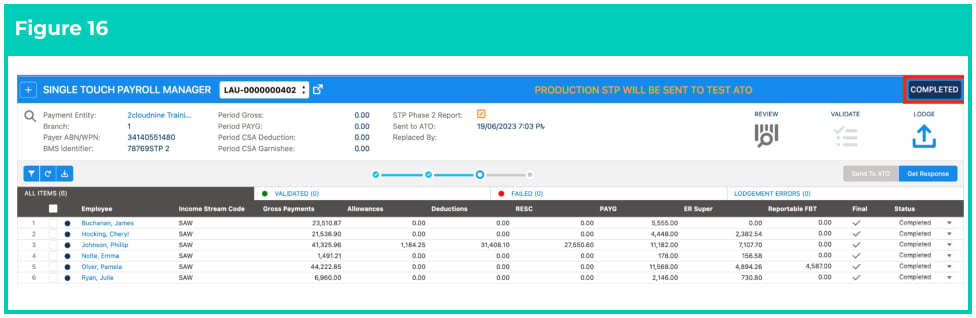
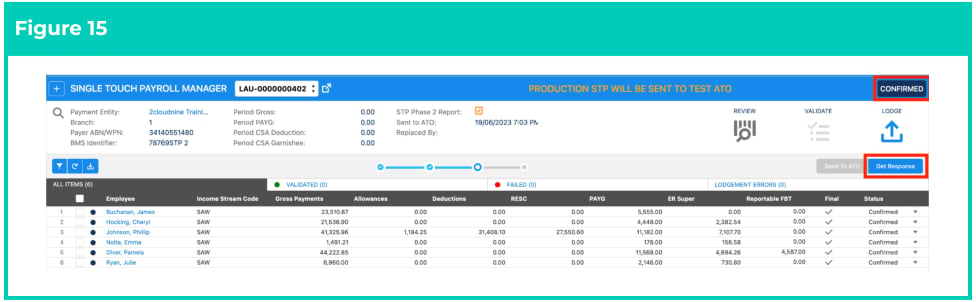 20. To receive a response or feedback related to the Lodgement record, click on **Get Response**
button. Once the ATO successfully processes the data, the status of the Lodgement record is
changed to Completed and all the options under the Review icon and the Validate icon are
disabled (see Figure 16).
20. To receive a response or feedback related to the Lodgement record, click on **Get Response**
button. Once the ATO successfully processes the data, the status of the Lodgement record is
changed to Completed and all the options under the Review icon and the Validate icon are
disabled (see Figure 16).
 ### **Update a Final Single Touch Payroll Update Event Lodgement**
If you need to make a correction, you’ll be required to make the adjustments within an Adjustment Pay
Batch created using the Adjustment button in the Pay Batch Manager filter criteria. Adjustment Pay
Batches enable the Payment Date field in Pay Batch Manager to change to a date from a prior financial
year. For more details on this, please refer to the Pay Batch Manager QRG or contact your support team.
Upon completing the corrections within Pay Batch Manager and proceeding to the Payment File
Released stage, you will need to re-create and lodge a replacement Single Touch Payroll Update Event
Lodgement following these steps:
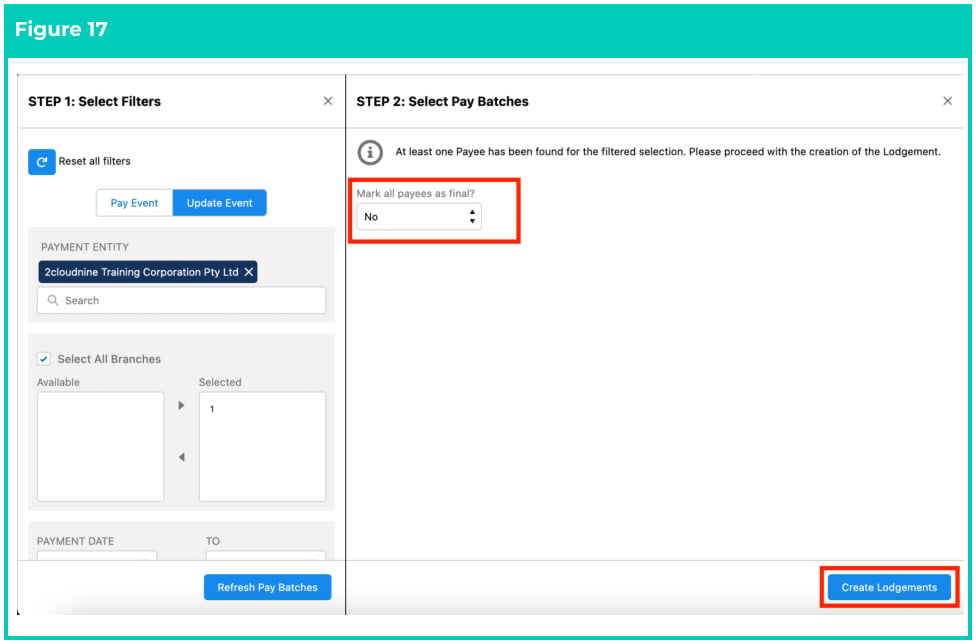
1. Create a new Update Event Lodgement following the exact steps and filter criteria used in your
original Update Event Lodgement, however this time ensure that Mark all payees as final? Is set
to ‘No’ (see Figure 17):
### **Update a Final Single Touch Payroll Update Event Lodgement**
If you need to make a correction, you’ll be required to make the adjustments within an Adjustment Pay
Batch created using the Adjustment button in the Pay Batch Manager filter criteria. Adjustment Pay
Batches enable the Payment Date field in Pay Batch Manager to change to a date from a prior financial
year. For more details on this, please refer to the Pay Batch Manager QRG or contact your support team.
Upon completing the corrections within Pay Batch Manager and proceeding to the Payment File
Released stage, you will need to re-create and lodge a replacement Single Touch Payroll Update Event
Lodgement following these steps:
1. Create a new Update Event Lodgement following the exact steps and filter criteria used in your
original Update Event Lodgement, however this time ensure that Mark all payees as final? Is set
to ‘No’ (see Figure 17):
 2. Once the status has been changed to Completed, you must once again re-create and lodge
another Single Touch Payroll Update Event with the **Mark all payees as final?** set to ‘Yes’, as per
Step 8 on page 3 of this document. This will lodge the Single Touch Payroll Update Event as a
Final Lodgement.
## Field Descriptions
**Branch** is the ATO branch number for this lodgement associated to the Payment Entity as required on
Single Touch Payroll Lodgements
**Finalised Date From** is the Finalised Date of Pay Batches used during the search criteria start date, for
the creation of Single Touch Payroll Lodgements.
**Finalised Date To** is the Finalised Date of Pay Batches used during the search criteria end date, for the
creation of Single Touch Payroll Lodgements .
**Pay Batch** is the specific Pay Batch ID used to search for the creation of the Single Touch Payroll
Lodgements. Using this filter field for Update Event Lodgements will not provide any results.
**Payment Date From** is the Payment Date of Pay Batches used during the search criteria start date, for
the creation of the Single Touch Payroll Lodgements.
**Payment Date To** is the Payment Date of Pay Batches used during the search criteria end date, for the
creation of the Single Touch Payroll Lodgements.
**Payment Entity** is the Payment Entity for this Single Touch Payroll Lodgement.
## Further Information
| Document | Document Type | Description |
| ------------------------------------------------------------ | --------------------------- | --------------------------------------------------------------------------------------------------------------------------------------------------------------------------------------------------- |
| Quick Reference Guide Index - STP and SuperStream Lodgements | Index | An index document that lists and provides links to all Quick Reference Guides relating to STP and SuperStream Lodgements. |
| QRG Creating and Sending STP Lodgements - Key Information | Information Quick Reference | A quick reference guide outlining some useful information relevant to the STP lodgements functionality. The document includes definitions, pre-requisites, and other non-instructional information. |
| QRG Creating and Sending STP Lodgements - Pay Event | Task Instructions | Step-by-step instructions on how to create a new Single Touch Payroll Lodgement. This includes creating new and editing existing Single Touch Payroll Lodgements. |
| QRG Create a New Pay Batch | Task Instructions | How to create a new Pay Batch through the Pay Batch Manager. |
2. Once the status has been changed to Completed, you must once again re-create and lodge
another Single Touch Payroll Update Event with the **Mark all payees as final?** set to ‘Yes’, as per
Step 8 on page 3 of this document. This will lodge the Single Touch Payroll Update Event as a
Final Lodgement.
## Field Descriptions
**Branch** is the ATO branch number for this lodgement associated to the Payment Entity as required on
Single Touch Payroll Lodgements
**Finalised Date From** is the Finalised Date of Pay Batches used during the search criteria start date, for
the creation of Single Touch Payroll Lodgements.
**Finalised Date To** is the Finalised Date of Pay Batches used during the search criteria end date, for the
creation of Single Touch Payroll Lodgements .
**Pay Batch** is the specific Pay Batch ID used to search for the creation of the Single Touch Payroll
Lodgements. Using this filter field for Update Event Lodgements will not provide any results.
**Payment Date From** is the Payment Date of Pay Batches used during the search criteria start date, for
the creation of the Single Touch Payroll Lodgements.
**Payment Date To** is the Payment Date of Pay Batches used during the search criteria end date, for the
creation of the Single Touch Payroll Lodgements.
**Payment Entity** is the Payment Entity for this Single Touch Payroll Lodgement.
## Further Information
| Document | Document Type | Description |
| ------------------------------------------------------------ | --------------------------- | --------------------------------------------------------------------------------------------------------------------------------------------------------------------------------------------------- |
| Quick Reference Guide Index - STP and SuperStream Lodgements | Index | An index document that lists and provides links to all Quick Reference Guides relating to STP and SuperStream Lodgements. |
| QRG Creating and Sending STP Lodgements - Key Information | Information Quick Reference | A quick reference guide outlining some useful information relevant to the STP lodgements functionality. The document includes definitions, pre-requisites, and other non-instructional information. |
| QRG Creating and Sending STP Lodgements - Pay Event | Task Instructions | Step-by-step instructions on how to create a new Single Touch Payroll Lodgement. This includes creating new and editing existing Single Touch Payroll Lodgements. |
| QRG Create a New Pay Batch | Task Instructions | How to create a new Pay Batch through the Pay Batch Manager. |