> ## Documentation Index
> Fetch the complete documentation index at: https://documentation.2cloudnine.com/llms.txt
> Use this file to discover all available pages before exploring further.
# QRG SuperStream Reporting
## Purpose
The purpose of this quick reference guide is to step through the process of creating and exporting
SuperStream Reports. The intended audience for this document are standard users.
## Steps
### **Create a new SuperStream Record**
To create a new SuperStream Report, the following steps should be completed:
1. Go to the **Lodgements AU** object. (See Figure 1)
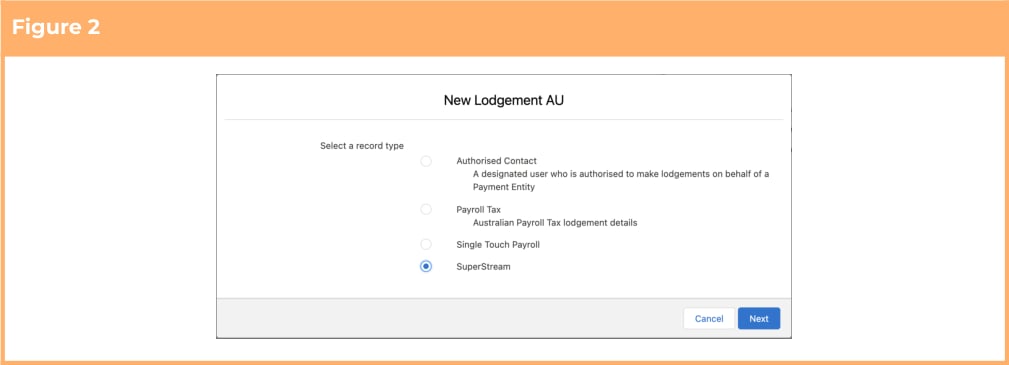
 2. Click the **New** button, then choose **SuperStream** record type and click **Next**. (See Figure 2)
 3. Click the button on the left-hand side of the screen where it says Superannuation Lodgement
Manager (See Figure 3)
3. Click the button on the left-hand side of the screen where it says Superannuation Lodgement
Manager (See Figure 3)

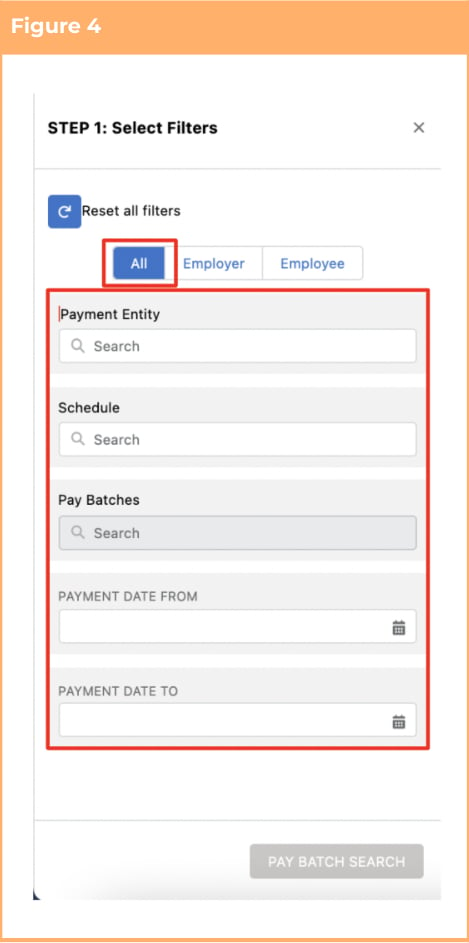
4. Within this filter screen, users have the option of creating reports specific to Employer, Employee, or All Contributions. Unless you need to split out the report to be specific to Employer or Employee, most users will keep this to the default of **All** (See Figure 4).
5. Populate the Filter Panel with the following fields:
1. Payment Entity (up to 5 if required)
2. Schedule (up to 5 if required)
3. Pay Batches (up to 5 if required)
OR
4. Payment Date From
5. Payment Date To
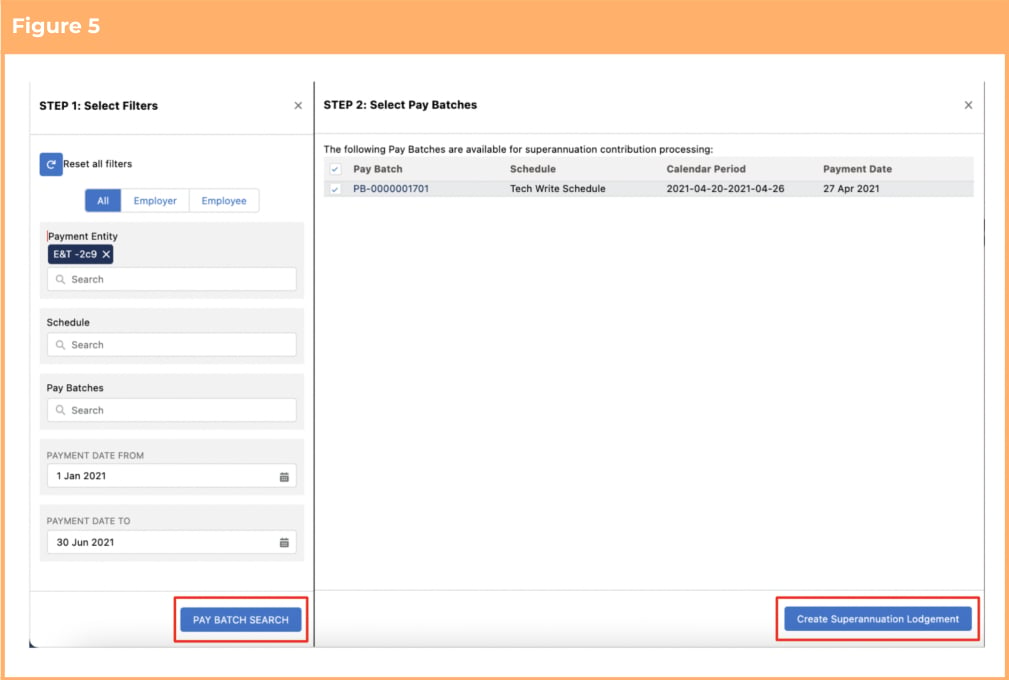
6. Click on the **Pay Batch Search** button, which becomes available only once the entered fields have
records available to proceed and not yet lodged for SuperStream. (See Figure 5)
7. A new panel called ‘Select Pay Batches’ will appear with a list of those Pay Batches.
8. To create the SuperStream Report, select the required Pay Batch(s) by ticking the checkbox(s) and
click **Create Superannuation Lodgement**.
 If you need to amend the filters or start again at any time, click **Reset all Filters**.
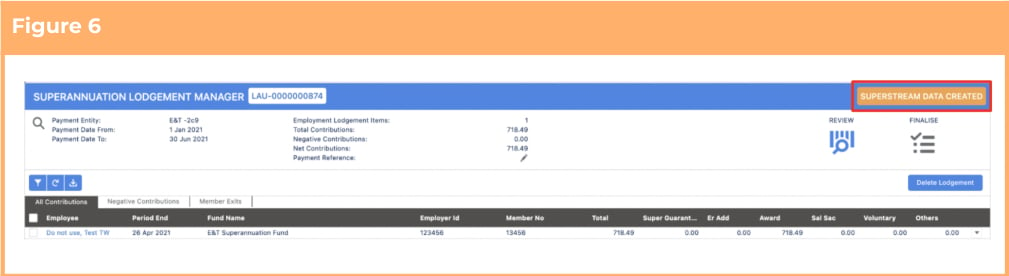
9. A new SuperStream Batch has been created with the status of SUPERSTEAM DATA CREATED.
(See Figure 6)
If you need to amend the filters or start again at any time, click **Reset all Filters**.
9. A new SuperStream Batch has been created with the status of SUPERSTEAM DATA CREATED.
(See Figure 6)
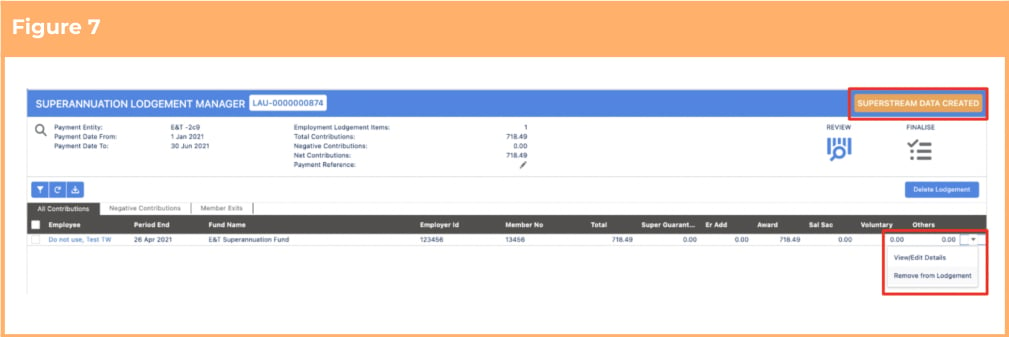
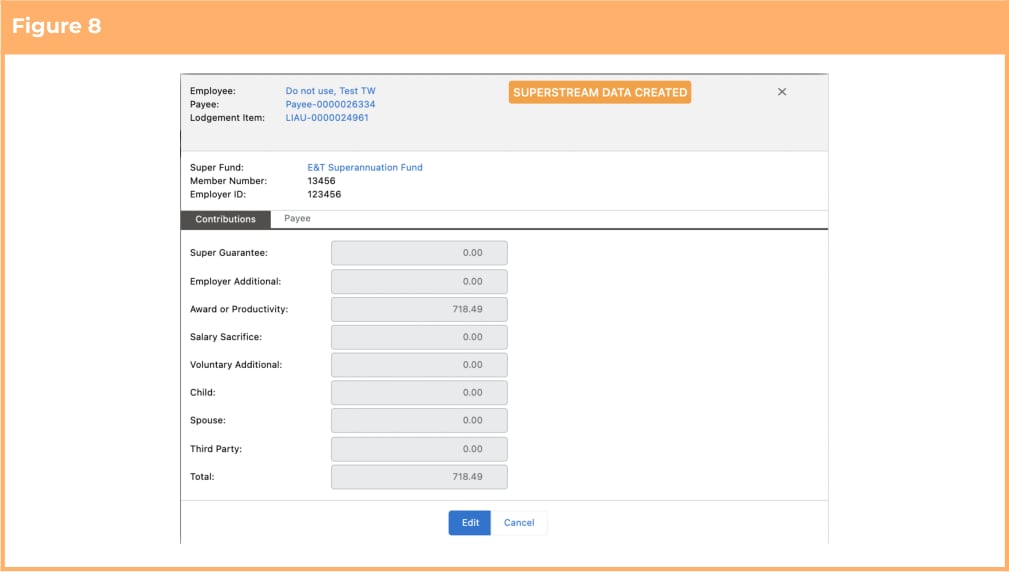
 10. You can view the details of individual records by clicking on the down arrow on the right hand side
and then clicking on **View/Edit Details**. (See Figures 7 and 8)
10. You can view the details of individual records by clicking on the down arrow on the right hand side
and then clicking on **View/Edit Details**. (See Figures 7 and 8)
 For the SuperStream Lodgements to send successfully, ensure the Payee’s Contact
Record is complete.The report is created and needsto be submitted by the end
providers’ online portal and each of the end providers have different requirements e.g.
Address, Birthdate, Gender, Phone and Mobile.
11. To check the details of the Contact record, open the relevant Employee record directly from the
Lodgements Manager UI or by clicking on **View/Edit Details** button and then clicking on the
**Employee** record name (See Figure 8 on the above page). Enter the address details under heading
‘Address Information’, or check the Birthdate, Gender, Phone or Mobile if they are missing or
update the details if they are incorrect. (See Figure 9)
For the SuperStream Lodgements to send successfully, ensure the Payee’s Contact
Record is complete.The report is created and needsto be submitted by the end
providers’ online portal and each of the end providers have different requirements e.g.
Address, Birthdate, Gender, Phone and Mobile.
11. To check the details of the Contact record, open the relevant Employee record directly from the
Lodgements Manager UI or by clicking on **View/Edit Details** button and then clicking on the
**Employee** record name (See Figure 8 on the above page). Enter the address details under heading
‘Address Information’, or check the Birthdate, Gender, Phone or Mobile if they are missing or
update the details if they are incorrect. (See Figure 9)
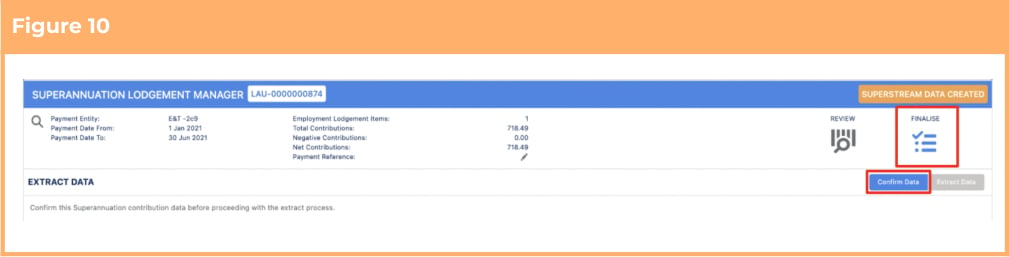
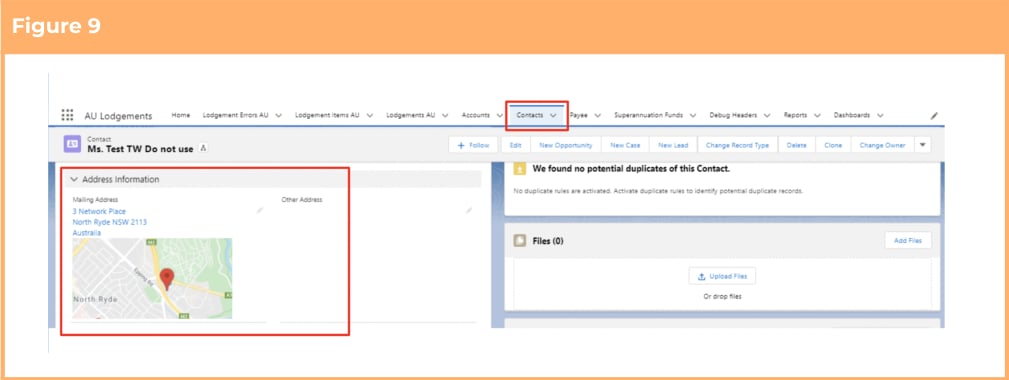 12. Select the **Finalise** tab and click on **Confirm Data**. (See Figure 10)
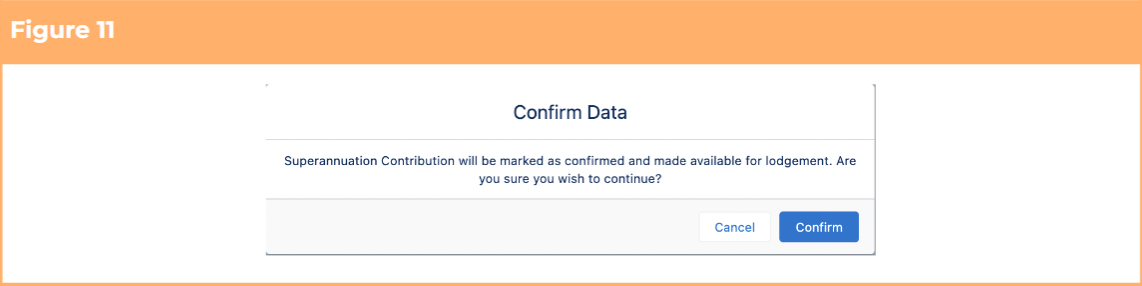
 13. A pop up message will appear. Click on the **Confirm** button on the pop up message. (See Figure 11)
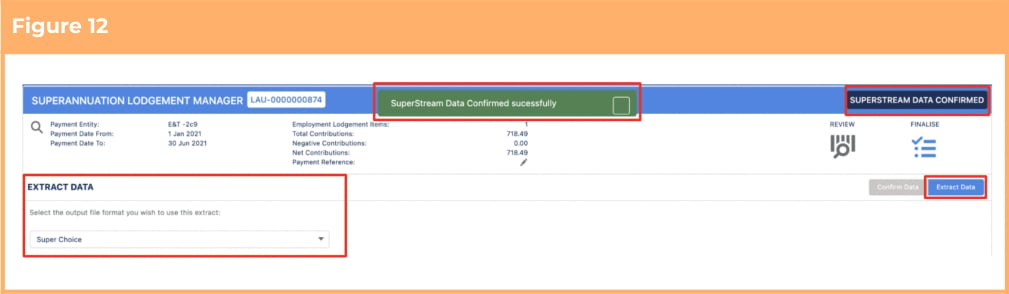
 14. You will see a message ‘SuperStream Data Confirmed successfully’ and the status will change to Superstream Data Confirmed. (See Figure 12)
15. To proceed further, select one of the 4 options of the report as required from the **Extract Data** picklist below on the left hand side.
* The four options are Super Choice, Quick Super, One Path and SAFF.
14. You will see a message ‘SuperStream Data Confirmed successfully’ and the status will change to Superstream Data Confirmed. (See Figure 12)
15. To proceed further, select one of the 4 options of the report as required from the **Extract Data** picklist below on the left hand side.
* The four options are Super Choice, Quick Super, One Path and SAFF.
 The format users need to use will be dependent upon the format required by their
superannuation fund/clearing house. Users should be aware of any requirements based
on their current processing in their existing payroll software.
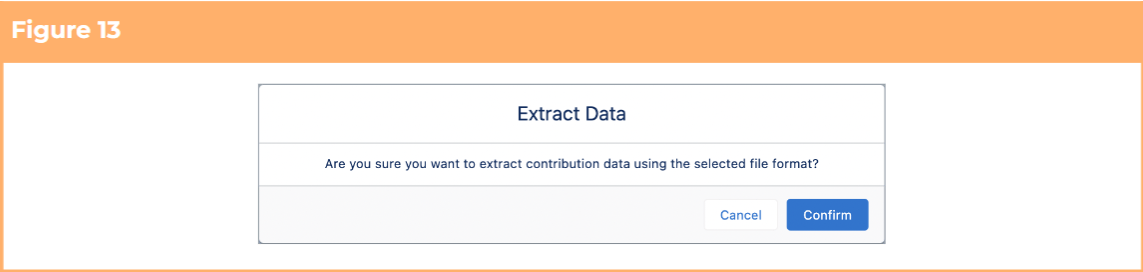
16. Click on the blue-coloured **Extract Data** button and then click on **Confirm** button. (See Figure 13)
The format users need to use will be dependent upon the format required by their
superannuation fund/clearing house. Users should be aware of any requirements based
on their current processing in their existing payroll software.
16. Click on the blue-coloured **Extract Data** button and then click on **Confirm** button. (See Figure 13)
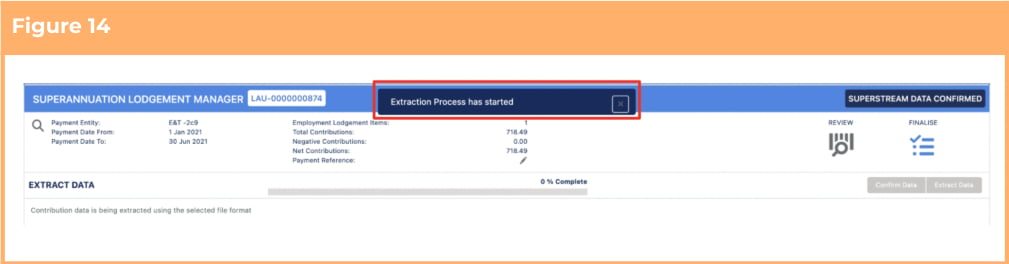
 17. A message will appear ‘Extraction Process has started’. (See Figure 14)
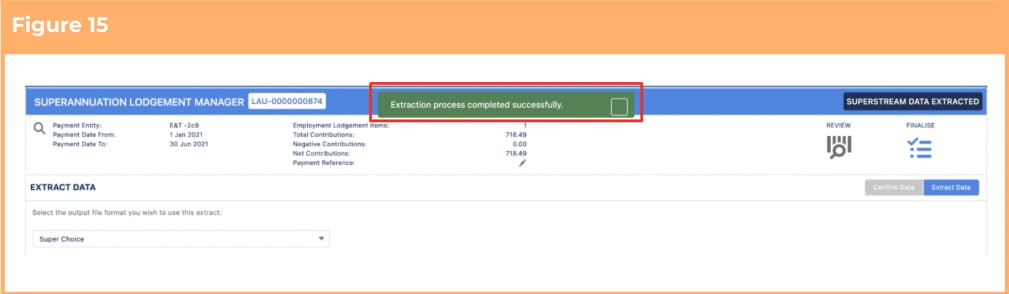
 18. The message will change to ‘Extract process completed successfully’ and the status will change to Superstream Data Extracted. (See Figure 15)
19. A file will download to your computer (shown at the bottom of your screen or in your downloads
folder). The file can be opened to review, moved to another folder if required, and is ready to be
uploaded/sent to the clearing house/superfund. The same file can be accessed from the ‘File’
related list to the Lodgement Record.
18. The message will change to ‘Extract process completed successfully’ and the status will change to Superstream Data Extracted. (See Figure 15)
19. A file will download to your computer (shown at the bottom of your screen or in your downloads
folder). The file can be opened to review, moved to another folder if required, and is ready to be
uploaded/sent to the clearing house/superfund. The same file can be accessed from the ‘File’
related list to the Lodgement Record.
 If opening the csv file, it's recommended to use a text editor to review, rather than a
spreadsheet application, to ensure there is no interference with the required formatting
of fields.
## Field Descriptions
**Pay Batch** is the specific Pay Batch Id used to search for the creation of the SuperStream Reporting
Lodgements.
**Payment Date From** is the Payment Date of Pay Batches used during the search criteria start dates, for
the creation of the SuperStream Reporting.
**Payment Date To** is the Payment Date of Pay Batches used during the search criteria end dates, for the
creation of the SuperStream Reporting Lodgement.
**Payment Entity** is the Payment Entity for this SuperStream Reporting Lodgement.
**Schedule** defines a specific Pay Schedule that applies to the SuperStream Reporting Lodgement.
## Further Information
| Document | Document Type | Description |
| ------------------------------------------------------------ | --------------------------- | ----------------------------------------------------------------------------------------------------------------------------------------------------------------------------------------------------------- |
| Quick Reference Guide Index - STP and SuperStream Lodgements | Index | An index document that lists and provides links to all Quick Reference Guides relating to STP and SuperStream Lodgements. |
| QRG SuperStream Reporting - Key Information | Information Quick Reference | A quick reference guide outlining some useful information relevant to the SuperStream lodgements functionality. The document includes definitions, pre-requisites, and other non-instructional information. |
If opening the csv file, it's recommended to use a text editor to review, rather than a
spreadsheet application, to ensure there is no interference with the required formatting
of fields.
## Field Descriptions
**Pay Batch** is the specific Pay Batch Id used to search for the creation of the SuperStream Reporting
Lodgements.
**Payment Date From** is the Payment Date of Pay Batches used during the search criteria start dates, for
the creation of the SuperStream Reporting.
**Payment Date To** is the Payment Date of Pay Batches used during the search criteria end dates, for the
creation of the SuperStream Reporting Lodgement.
**Payment Entity** is the Payment Entity for this SuperStream Reporting Lodgement.
**Schedule** defines a specific Pay Schedule that applies to the SuperStream Reporting Lodgement.
## Further Information
| Document | Document Type | Description |
| ------------------------------------------------------------ | --------------------------- | ----------------------------------------------------------------------------------------------------------------------------------------------------------------------------------------------------------- |
| Quick Reference Guide Index - STP and SuperStream Lodgements | Index | An index document that lists and provides links to all Quick Reference Guides relating to STP and SuperStream Lodgements. |
| QRG SuperStream Reporting - Key Information | Information Quick Reference | A quick reference guide outlining some useful information relevant to the SuperStream lodgements functionality. The document includes definitions, pre-requisites, and other non-instructional information. |