> ## Documentation Index
> Fetch the complete documentation index at: https://documentation.2cloudnine.com/llms.txt
> Use this file to discover all available pages before exploring further.
# QRG Calculate a Pay Batch
## Purpose
The purpose of this quick reference guide is to step through the process of Calculating a Pay Batch, and
Reviewing and Resolving / Acknowledging Flags through the Pay Batch Manager. The intended audience
for this document is Standard Payroll Users.
Once the Pay Batch has been created, the first step is to Calculate the Pay Batch which changes the
status from Uncalculated. Pay Batches will be required to have a Part Calculate or Calculate All performed
once or multiple times as required, before the eventual Finalise of a Pay Batch, to ensure any
adjustments or changes made have been included in the overall calculations of the Pay Batch.
A Pay Batch is considered as successfully calculated when the Status changes to Calculated. This is done
by using the Part Calculate or Calculate All buttons as required. After calculating, the Pay Batch will
display amounts in the Total Gross and Total Net fields.
If there are any errors or warnings during the Calculate process, they must be acknowledged or resolved
before proceeding with the Calculate process again, or with Finalising the Pay Batch.
## Steps
### **Calculate a Pay Batch**
To Calculate a Pay Batch, the following steps should be completed. Please skip to step 4, if you already
have the Pay Batch Manager UI open on your screen:
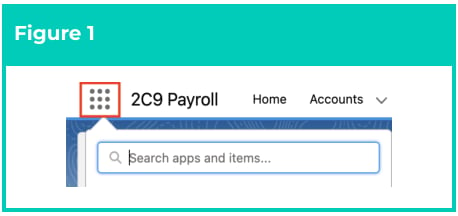
1. Click on the **App Launcher** icon (see Figure 1).
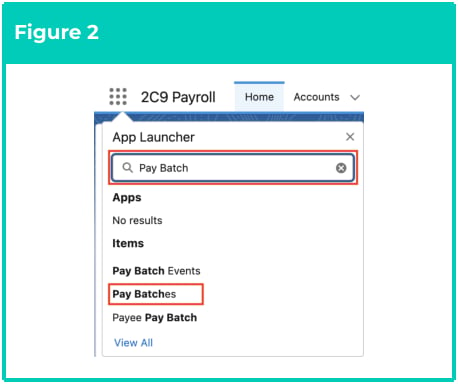
 2. Go to the **Pay Batches** object by using the Search function (see Figure 2).
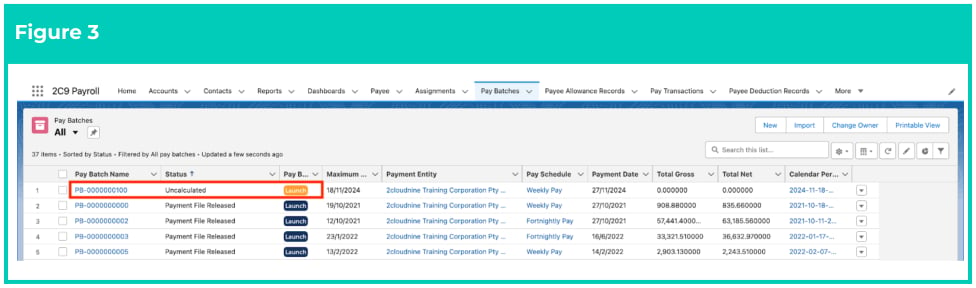
 3. From the List View, select the Pay Batch you want to review with the status of Uncalculated, Part
Calculated, Calculated with Errors, or Calculate Failed and click the **Launch** button (see Figure 3).
3. From the List View, select the Pay Batch you want to review with the status of Uncalculated, Part
Calculated, Calculated with Errors, or Calculate Failed and click the **Launch** button (see Figure 3).
 4. From within the Pay Batch Manager, go to the **Calculate** navigation icon available from the
vertical navigation icons (see Figure 4).
4. From within the Pay Batch Manager, go to the **Calculate** navigation icon available from the
vertical navigation icons (see Figure 4).
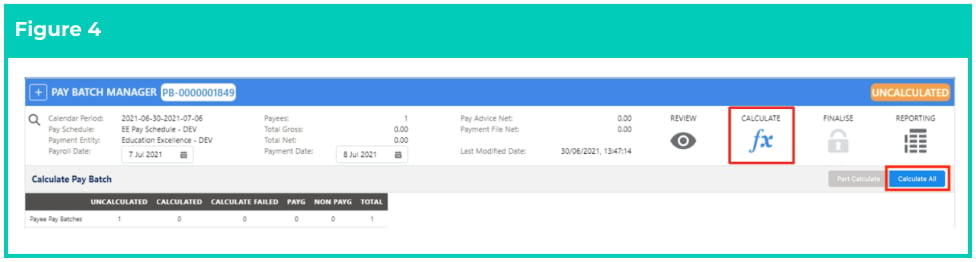 5. Click on the **Calculate All** button.
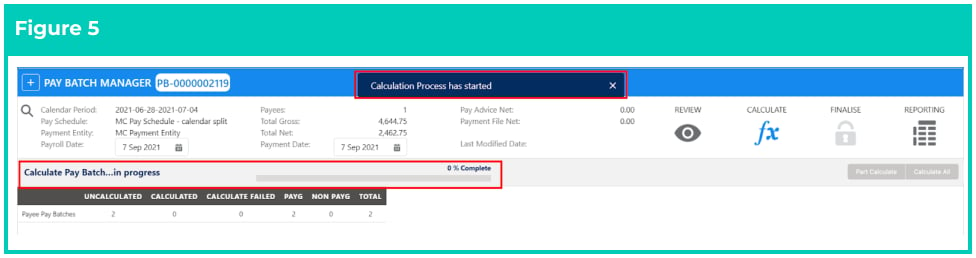
A pop-up message indicating that the Calculation Process has commenced will be shown. The
Pay Batch Status will be updated to Calculating, and a progress bar showing the progress of the
Calculation Process will be displayed (see Figure 5).
 6. Once the Calculation Process is complete, the Payee Pay Batch Status will be updated to
Calculated, Calculate Failed, or Calculated with Errors, based on the successful completion of the
process:
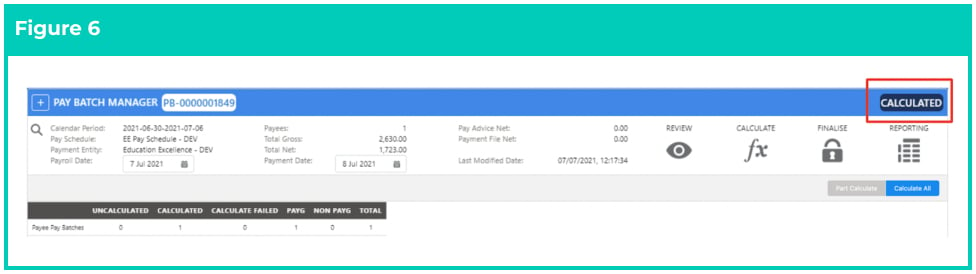
1. If the Calculation Process is completed successfully, the Status of the Pay Batch will be updated to Calculated.
The Pay Batch will now display values in the Total Gross and Total Net fields (see Figure 6). Any applicable PAYG Tax, GST, Superannuation, Deductions, and Allowance Pay Transactions will be available for review via Record Detail View or Adjustments Manager for each Payee Pay Batch.
6. Once the Calculation Process is complete, the Payee Pay Batch Status will be updated to
Calculated, Calculate Failed, or Calculated with Errors, based on the successful completion of the
process:
1. If the Calculation Process is completed successfully, the Status of the Pay Batch will be updated to Calculated.
The Pay Batch will now display values in the Total Gross and Total Net fields (see Figure 6). Any applicable PAYG Tax, GST, Superannuation, Deductions, and Allowance Pay Transactions will be available for review via Record Detail View or Adjustments Manager for each Payee Pay Batch.
 2. If the Calculation Process fails, the Status of the Pay Batch will be updated to Calculated with Errors or Calculate Failed. The reason for the failure must be addressed before the Pay Batch can be Calculated again or Finalised.
Generally, a Calculation Failed status results from an error with one or more of the records associated with the Pay Batch. If this occurs, a Debug Log will be created to provide details of the error.
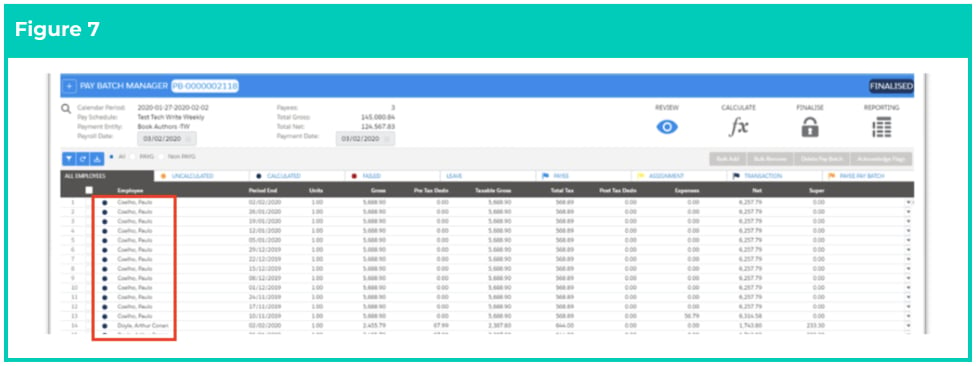
3. Within the All Employees tab of the Payee Pay Batch table, the Payee Pay Batch records that are successfully Calculated will display a blue coloured dot to the left of the Payee Name. A red coloured dot will display if the Calculation Failed. The orange coloured dot will be displayed for those Payee Pay Batch records that remain Uncalculated or Part Calculated, which occurs when additions are made to the Payee Pay Batch since the last Calculation was performed on the Pay Batch (see Figure 7).
To assist Users in isolating the Payees with a status that needs to be reviewed (except Calculated), the Filter Tabs of Uncalculated / Calculate Failed / Calculated Quick can be used to filter these records.
2. If the Calculation Process fails, the Status of the Pay Batch will be updated to Calculated with Errors or Calculate Failed. The reason for the failure must be addressed before the Pay Batch can be Calculated again or Finalised.
Generally, a Calculation Failed status results from an error with one or more of the records associated with the Pay Batch. If this occurs, a Debug Log will be created to provide details of the error.
3. Within the All Employees tab of the Payee Pay Batch table, the Payee Pay Batch records that are successfully Calculated will display a blue coloured dot to the left of the Payee Name. A red coloured dot will display if the Calculation Failed. The orange coloured dot will be displayed for those Payee Pay Batch records that remain Uncalculated or Part Calculated, which occurs when additions are made to the Payee Pay Batch since the last Calculation was performed on the Pay Batch (see Figure 7).
To assist Users in isolating the Payees with a status that needs to be reviewed (except Calculated), the Filter Tabs of Uncalculated / Calculate Failed / Calculated Quick can be used to filter these records.
 ### **Re-Calculate a Pay Batch**
After making adjustments or changes to Calculated records, use the Part Calculate or Calculate All
buttons to recalculate the values held for each Payee Pay Batch. This can be completed in 2 ways:
1. **Calculate All** - to kick off the Calculate process for an entire Pay Batch; or
2. Part Calculate - to kick off the Calculate process for only Payees who have Payee Pay Batches
where the status is Uncalculated via the standard UI List.
### **Calculate All**
To perform a full Calculation on the entire Pay Batch, even for Pay Batches that already have a Status of
Calculated, the following steps should be completed:
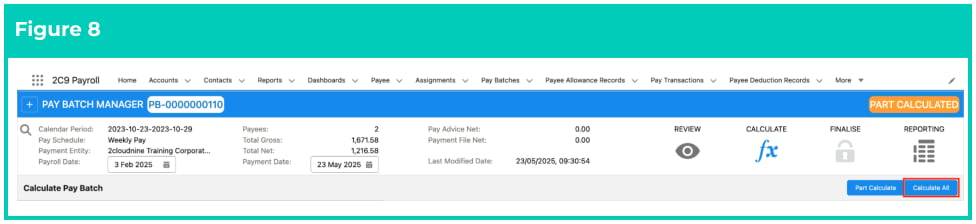
1. Go to the **Calculate** navigation icon.
2. Click the **Calculate All** button (see Figure 8).
### **Re-Calculate a Pay Batch**
After making adjustments or changes to Calculated records, use the Part Calculate or Calculate All
buttons to recalculate the values held for each Payee Pay Batch. This can be completed in 2 ways:
1. **Calculate All** - to kick off the Calculate process for an entire Pay Batch; or
2. Part Calculate - to kick off the Calculate process for only Payees who have Payee Pay Batches
where the status is Uncalculated via the standard UI List.
### **Calculate All**
To perform a full Calculation on the entire Pay Batch, even for Pay Batches that already have a Status of
Calculated, the following steps should be completed:
1. Go to the **Calculate** navigation icon.
2. Click the **Calculate All** button (see Figure 8).
 ### **Part Calculate an Entire Pay Batch**
To Calculate only Payees within a Pay Batch, who have Payee Pay Batches that are not a Status of
Calculated, the following steps should be completed:
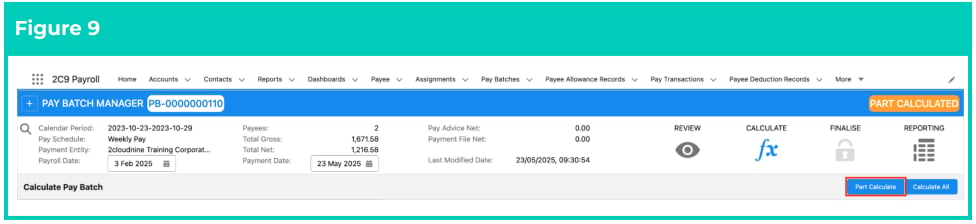
1. Go to the **Calculate** navigation icon.
2. Click the **Part Calculate** button (see Figure 9).
### **Part Calculate an Entire Pay Batch**
To Calculate only Payees within a Pay Batch, who have Payee Pay Batches that are not a Status of
Calculated, the following steps should be completed:
1. Go to the **Calculate** navigation icon.
2. Click the **Part Calculate** button (see Figure 9).
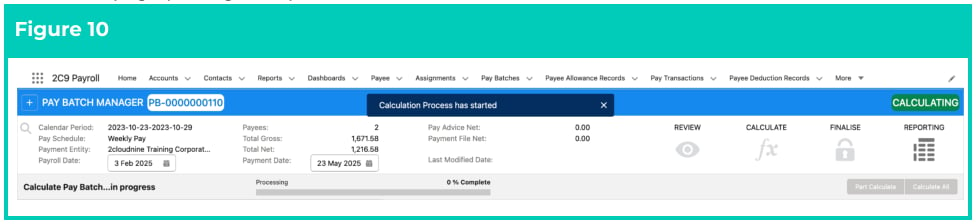
 The Calculation process will commence with a summary of the Calculation progress shown on
the page (see Figure 10).
The Calculation process will commence with a summary of the Calculation progress shown on
the page (see Figure 10).
 ### **Calculate Payee Pay Batches for a Single Payee**
To learn more about calculating Payee Pay Batches for an individual Payee, please refer to the QRG
Calculate a Single Payee within a Pay Batch.
### **Viewing, Actioning, and Acknowledging Flags**
Flags are used to provide Users with a way of identifying Warnings and Critical Alerts. While Payee Pay
Batches with Warnings can be included within a Finalised Pay Batch, those with Critical Alerts can not.
The Calculation Process determines if one or more Flags apply.
Users can identify flags that apply to a Pay Batch by completing the following:
1. Go to the Review navigation icon.
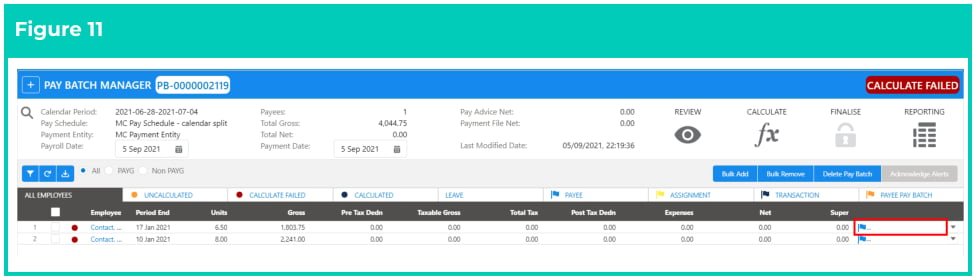
2. If there are any flags that apply to a Payee Pay Batch, outlined on the **All Payees**, **Uncalculated**,
**Calculate Failed**, and **Calculated** tabs, a **Flag Icon** (, , and/or ) will be displayed at the end of the row of the table, to the left of the action button (See Figure 11).
### **Calculate Payee Pay Batches for a Single Payee**
To learn more about calculating Payee Pay Batches for an individual Payee, please refer to the QRG
Calculate a Single Payee within a Pay Batch.
### **Viewing, Actioning, and Acknowledging Flags**
Flags are used to provide Users with a way of identifying Warnings and Critical Alerts. While Payee Pay
Batches with Warnings can be included within a Finalised Pay Batch, those with Critical Alerts can not.
The Calculation Process determines if one or more Flags apply.
Users can identify flags that apply to a Pay Batch by completing the following:
1. Go to the Review navigation icon.
2. If there are any flags that apply to a Payee Pay Batch, outlined on the **All Payees**, **Uncalculated**,
**Calculate Failed**, and **Calculated** tabs, a **Flag Icon** (, , and/or ) will be displayed at the end of the row of the table, to the left of the action button (See Figure 11).
 The messages related to any flags need to be reviewed and acknowledged before the
Pay Batch can be Finalised, if the Custom Setting for ‘Enforce Flag Validation’ on
Payroll Configuration is set.
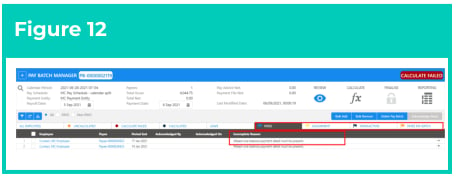
3. If there are any Flags identified, the details of Flags can be viewed/actioned:
* **On a Pay Batch level**, through the flag filter tabs of Payee, Employee, Transactions and Payee Pay Batch (see Figure 12).
The messages related to any flags need to be reviewed and acknowledged before the
Pay Batch can be Finalised, if the Custom Setting for ‘Enforce Flag Validation’ on
Payroll Configuration is set.
3. If there are any Flags identified, the details of Flags can be viewed/actioned:
* **On a Pay Batch level**, through the flag filter tabs of Payee, Employee, Transactions and Payee Pay Batch (see Figure 12).
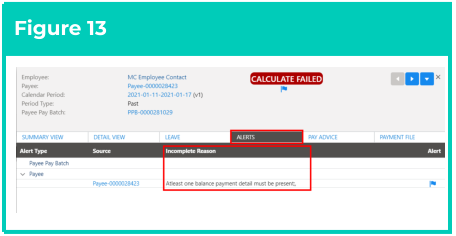
 * **On an individual Payee Pay Batch record level**, through the Payee Pay Batch View Details screen within the Alerts tab (see Figure 13).
 Critical Alerts must be resolved. Warnings must also be reviewed, and possibly resolved and/or acknowledged.
4. The reason provided in the area ‘Incomplete Reason’ for the Flag(s) to be
reviewed/acknowledged, can be used to determine the action required to correct the issue.
### **To Resolve the Warnings and Critical Alerts**
To Resolve Warnings and Critical Alerts:
1. Create any additional source records and/or edit existing source records to resolve the issue detailed as the flag reason.
2. To verify that the Warning / Critical Alert is resolved, perform a Calculate Payee on the Payee Pay Batch or a Part Calculate on the Pay Batch.
### **To Acknowledge Flags for Warnings**
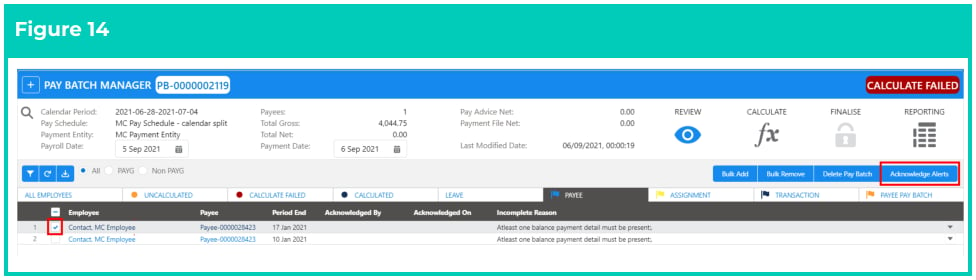
1. To Acknowledge Warnings, at the Pay Batch level:
1. Multi-select the checkboxes alongside the Flag(s) to be acknowledged.
2. Click on the **Acknowledge Alerts** button (see Figure 14).
Critical Alerts must be resolved. Warnings must also be reviewed, and possibly resolved and/or acknowledged.
4. The reason provided in the area ‘Incomplete Reason’ for the Flag(s) to be
reviewed/acknowledged, can be used to determine the action required to correct the issue.
### **To Resolve the Warnings and Critical Alerts**
To Resolve Warnings and Critical Alerts:
1. Create any additional source records and/or edit existing source records to resolve the issue detailed as the flag reason.
2. To verify that the Warning / Critical Alert is resolved, perform a Calculate Payee on the Payee Pay Batch or a Part Calculate on the Pay Batch.
### **To Acknowledge Flags for Warnings**
1. To Acknowledge Warnings, at the Pay Batch level:
1. Multi-select the checkboxes alongside the Flag(s) to be acknowledged.
2. Click on the **Acknowledge Alerts** button (see Figure 14).
 2. To Acknowledge Warnings at the Payee Pay Batch level:
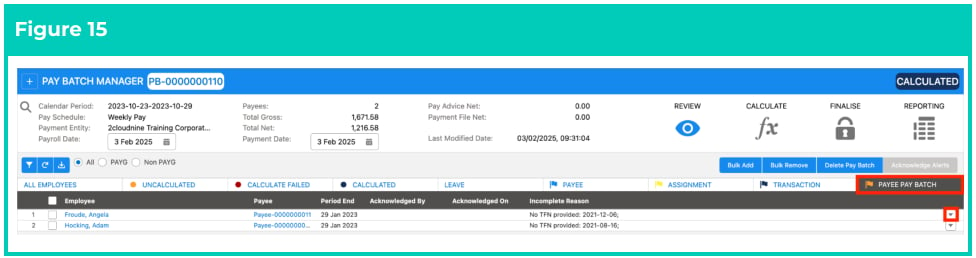
1. From within the Pay Bach, go to the **Payee Pay Batch** Tab (see Figure 15).
2. Click the Action drop-down button next to the relevant **Payee Pay Batch** .
2. To Acknowledge Warnings at the Payee Pay Batch level:
1. From within the Pay Bach, go to the **Payee Pay Batch** Tab (see Figure 15).
2. Click the Action drop-down button next to the relevant **Payee Pay Batch** .
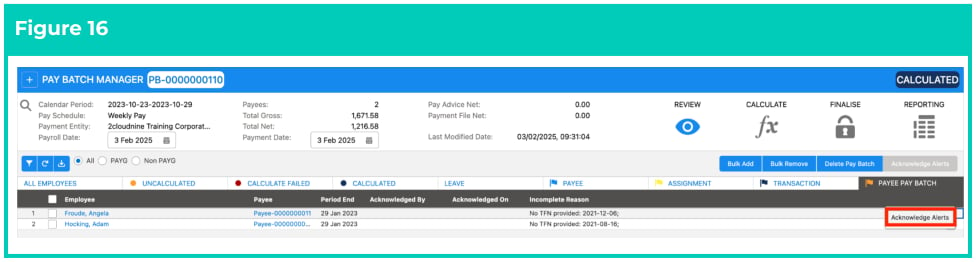
 3. Select the **Acknowledge Alerts** option. (see Figure 16).
 ## Field Descriptions
| Field Name | Description |
| ----------------------------------------------------------------------------------------- | ------------------------------------------------------------------------------------------------------------------------------------------------------------------------------------------------------------------ |
| **Main UI** | |
| Calculate All (Blue Button) | click this button to Calculate the Pay Batch. |
| Calculate (navigation icon) | click this navigation icon to view options related to calculating the Pay Batch and the Part Calculate or Calculate All buttons. |
| Calendar Period | is the date range applicable for this Pay Batch. The Pay Batch may also contain Payee Pay batches relating to earlier Pay Calendar Periods if it was created with the ‘Include Earlier Periods’ checkbox selected. |
| Finalise (navigation icon) | click this navigation icon to view and action various options related to finalising the Pay Batch. |
| Part Calculate (Blue Button) | click this button to Part Calculate the Pay Batch that has been Calculated already or where the required adjustments have been made. |
| Pay Advice Net | is the total net amount of related Pay Advices. |
| Pay Schedule | defines the Pay Schedule of the Pay Batch. |
| Payees | is the count of unique Payees from related Payee Pay Batch records. |
| Payment Date | defines the Payment Date on the Payment File. This can be in the future, but it can not be in the past. |
| Payment Entity (on the Main UI) | is the Payment Entity that this Pay Batch is associated with. |
| Payment File Net | is the total net amount of the related Payment File. |
| Payroll Date | is the date that a Pay Batch will be finalised. This date can be in the future, but can not be a historic date. |
| Reporting (navigation icon) | click this navigation icon to generate a Variation Report for this Pay Batch to compare it to another Pay Batch. |
| Review (navigation icon) | click this navigation icon to view options related to reviewing the Pay Batch. |
| Total Gross | is the total gross earnings from all related Payee Pay Batch records. |
| Total Net | is the total net earnings from all related Payee Pay Batch records. |
| **Payee Pay Batch rows (under the action drop-down button next to Payee Pay Batch rows)** | |
| Adjustments | click this button to open the Adjustments screen for an individual Payee Pay Batch. |
| Calculate Payee | use this button to calculate the individual Payee Pay Batch. |
| Exclude from Payment File | use this button to exclude the total net amount associated with this Payee Pay Batch from the Payment File. This can be reversed at any time up until the Payment File is a status of Released. |
| Include in Payment File | use this button to include this Payee Pay Batch if previously ‘excluded from the Payment File’ back into the Payment File. |
| Remove Payee Pay Batch Record | use this button to delete the individual Payee Pay Batch record. |
| Reverse Payee Pay Batch | use this button to reverse all components of this Payee Pay Batch, to be processed in a new Pay Batch. |
| View Details | click this button to open the View Details Panel. |
## Further Information
| Document | Document Type | Description |
| ----------------------------------------------- | --------------------------- | ---------------------------------------------------------------------------------------------------------------------------------------------------------------------------------------------------------------------------------------------------------------------------------------------------------------- |
| QRG Pay Batch Key Information | Information Quick Reference | Outlines useful information relevant to 2cloudnine Payroll’s Pay Batch functionality. The document includes definitions, prerequisites, diagrams, and other non-instructional information on how it facilitates efficient management of Pay Batches from Creation through Review, Calculation, and Finalisation. |
| QRG Create a New Pay Batch | Task Instructions | How to create a new Pay Batch through the Pay Batch Manager. |
| QRG Review a Pay Batch | Task Instructions | How to Review the Pay Batch on a Pay Batch level and an individual Payee Pay Batch level, as well as the steps required to use the Remove Pay Transaction, Remove Individual Payee Pay Batch records, Bulk Remove, Bulk Add, and Manual Adjustment functionalities within the Pay Batch Manager. |
| QRG Finalise a Pay Batch | Task Instructions | How to Finalise a Pay Batch, Unfinalise a Pay Batch, Create and Distribute Pay Advice documents, and Create and Release Payment Files through the Pay Batch Manager. |
| QRG View Leave Accruals via Pay Batch Manager | Task Instructions | How to view Automatic Leave Accruals using Pay Batch Manager. |
| QRG Calculate a single Payee within a Pay Batch | Task Instructions | How to Calculate a Payee in isolation within the Pay Batch Manager. |
| QRG Reverse Payee Pay Batch | Task Instructions | How to Reverse a Payee Pay Batch within the Pay Batch Manager. |
| QRG Exclude from Payment File | Task Instructions | How to Exclude a Payee Pay Batch from the Payment File. |
| QRG Create a Variance Report | Task Instructions | How to create a Variance Report within the Pay Batch Manager. |
## Field Descriptions
| Field Name | Description |
| ----------------------------------------------------------------------------------------- | ------------------------------------------------------------------------------------------------------------------------------------------------------------------------------------------------------------------ |
| **Main UI** | |
| Calculate All (Blue Button) | click this button to Calculate the Pay Batch. |
| Calculate (navigation icon) | click this navigation icon to view options related to calculating the Pay Batch and the Part Calculate or Calculate All buttons. |
| Calendar Period | is the date range applicable for this Pay Batch. The Pay Batch may also contain Payee Pay batches relating to earlier Pay Calendar Periods if it was created with the ‘Include Earlier Periods’ checkbox selected. |
| Finalise (navigation icon) | click this navigation icon to view and action various options related to finalising the Pay Batch. |
| Part Calculate (Blue Button) | click this button to Part Calculate the Pay Batch that has been Calculated already or where the required adjustments have been made. |
| Pay Advice Net | is the total net amount of related Pay Advices. |
| Pay Schedule | defines the Pay Schedule of the Pay Batch. |
| Payees | is the count of unique Payees from related Payee Pay Batch records. |
| Payment Date | defines the Payment Date on the Payment File. This can be in the future, but it can not be in the past. |
| Payment Entity (on the Main UI) | is the Payment Entity that this Pay Batch is associated with. |
| Payment File Net | is the total net amount of the related Payment File. |
| Payroll Date | is the date that a Pay Batch will be finalised. This date can be in the future, but can not be a historic date. |
| Reporting (navigation icon) | click this navigation icon to generate a Variation Report for this Pay Batch to compare it to another Pay Batch. |
| Review (navigation icon) | click this navigation icon to view options related to reviewing the Pay Batch. |
| Total Gross | is the total gross earnings from all related Payee Pay Batch records. |
| Total Net | is the total net earnings from all related Payee Pay Batch records. |
| **Payee Pay Batch rows (under the action drop-down button next to Payee Pay Batch rows)** | |
| Adjustments | click this button to open the Adjustments screen for an individual Payee Pay Batch. |
| Calculate Payee | use this button to calculate the individual Payee Pay Batch. |
| Exclude from Payment File | use this button to exclude the total net amount associated with this Payee Pay Batch from the Payment File. This can be reversed at any time up until the Payment File is a status of Released. |
| Include in Payment File | use this button to include this Payee Pay Batch if previously ‘excluded from the Payment File’ back into the Payment File. |
| Remove Payee Pay Batch Record | use this button to delete the individual Payee Pay Batch record. |
| Reverse Payee Pay Batch | use this button to reverse all components of this Payee Pay Batch, to be processed in a new Pay Batch. |
| View Details | click this button to open the View Details Panel. |
## Further Information
| Document | Document Type | Description |
| ----------------------------------------------- | --------------------------- | ---------------------------------------------------------------------------------------------------------------------------------------------------------------------------------------------------------------------------------------------------------------------------------------------------------------- |
| QRG Pay Batch Key Information | Information Quick Reference | Outlines useful information relevant to 2cloudnine Payroll’s Pay Batch functionality. The document includes definitions, prerequisites, diagrams, and other non-instructional information on how it facilitates efficient management of Pay Batches from Creation through Review, Calculation, and Finalisation. |
| QRG Create a New Pay Batch | Task Instructions | How to create a new Pay Batch through the Pay Batch Manager. |
| QRG Review a Pay Batch | Task Instructions | How to Review the Pay Batch on a Pay Batch level and an individual Payee Pay Batch level, as well as the steps required to use the Remove Pay Transaction, Remove Individual Payee Pay Batch records, Bulk Remove, Bulk Add, and Manual Adjustment functionalities within the Pay Batch Manager. |
| QRG Finalise a Pay Batch | Task Instructions | How to Finalise a Pay Batch, Unfinalise a Pay Batch, Create and Distribute Pay Advice documents, and Create and Release Payment Files through the Pay Batch Manager. |
| QRG View Leave Accruals via Pay Batch Manager | Task Instructions | How to view Automatic Leave Accruals using Pay Batch Manager. |
| QRG Calculate a single Payee within a Pay Batch | Task Instructions | How to Calculate a Payee in isolation within the Pay Batch Manager. |
| QRG Reverse Payee Pay Batch | Task Instructions | How to Reverse a Payee Pay Batch within the Pay Batch Manager. |
| QRG Exclude from Payment File | Task Instructions | How to Exclude a Payee Pay Batch from the Payment File. |
| QRG Create a Variance Report | Task Instructions | How to create a Variance Report within the Pay Batch Manager. |