> ## Documentation Index
> Fetch the complete documentation index at: https://documentation.2cloudnine.com/llms.txt
> Use this file to discover all available pages before exploring further.

# QRG Create a New Pay Batch

## Purpose

The purpose of this quick reference guide is to step through the process of creating a new Pay Batch
using the Pay Batch Manager. The intended audience for this document is Standard Payroll Users.

A Pay Batch is used to process calculations and send payments to numerous Payees. The Pay Batch
process within 2cloudnine Payroll involves steps that are outlined in different Quick Reference Guides
(QRGs) e.g. Create a Pay Batch, Review a Pay Batch, Calculate a Pay Batch, and Finalise a Pay Batch.

This document covers the first steps to Create a Pay Batch. Pay Batches created within the 2cloudnine
Payroll can be either Standard Pay Batches or Adjustment Pay Batches for when backdated Payment
Files are required to be processed.

Within Standard Pay Batches, the Payee Aggregates created during the Finalise Process of the Pay Batch
will be accumulated based on the current financial year's Calendar Periods. When this Pay Batch Type is
used, the Payment Date cannot be earlier than the current date.

Within Adjustment Pay Batches, the Payee Aggregates created during the Finalise Process of the Pay
Batch will be accumulated based on the relevant month, quarter, or even the previous financial year's
calendar periods as would match the Payment Date Calendar Periods. When this Pay Batch Type is used,
the Payment Date can be set at an earlier date than the current date, however, this would normally only
be used when the payment by aba file has already been completed.

## Steps

### **Initiating the Create Pay Batch Process**

To initiate the Create Pay Batch process, follow the below steps:

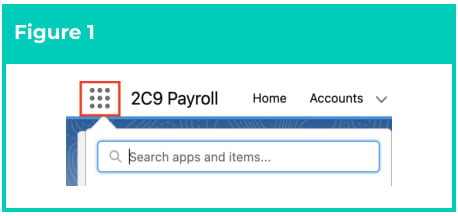
1. Click on the **App Launcher** icon (see Figure 1).
<Frame>
  <img src="https://mintcdn.com/2cloudnine-2edf05eb/P_8JsyPL0mRWMOqm/images/generated/reference-guides/pay-batch/qrg-create-a-new-pay-batch/qrg-create-a-new-pay-batch-pdf-0-figure-1.png?fit=max&auto=format&n=P_8JsyPL0mRWMOqm&q=85&s=bd2743c6b86b151b788a5e76e9be624e" alt="Screenshot from QRG Create a New Pay Batch" width="458" height="216" data-path="images/generated/reference-guides/pay-batch/qrg-create-a-new-pay-batch/qrg-create-a-new-pay-batch-pdf-0-figure-1.png" />
</Frame>

2. Go to the **Pay Batches** object by using the Search function (see Figure 2).

<Frame>
  <img src="https://mintcdn.com/2cloudnine-2edf05eb/P_8JsyPL0mRWMOqm/images/generated/reference-guides/pay-batch/qrg-create-a-new-pay-batch/qrg-create-a-new-pay-batch-pdf-0-figure-2.png?fit=max&auto=format&n=P_8JsyPL0mRWMOqm&q=85&s=c26a0072d096756186d29cda2db382b6" alt="Screenshot from QRG Create a New Pay Batch" width="458" height="386" data-path="images/generated/reference-guides/pay-batch/qrg-create-a-new-pay-batch/qrg-create-a-new-pay-batch-pdf-0-figure-2.png" />
</Frame>

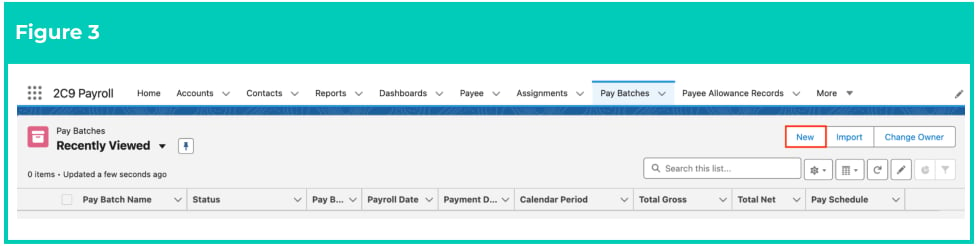
3. On the List View page, click on the **New** button (see Figure 3).
<Frame>
  <img src="https://mintcdn.com/2cloudnine-2edf05eb/P_8JsyPL0mRWMOqm/images/generated/reference-guides/pay-batch/qrg-create-a-new-pay-batch/qrg-create-a-new-pay-batch-pdf-1-figure-3.png?fit=max&auto=format&n=P_8JsyPL0mRWMOqm&q=85&s=cab4e509b833efb8c04f41cb812a3615" alt="Screenshot from QRG Create a New Pay Batch" width="978" height="246" data-path="images/generated/reference-guides/pay-batch/qrg-create-a-new-pay-batch/qrg-create-a-new-pay-batch-pdf-1-figure-3.png" />
</Frame>

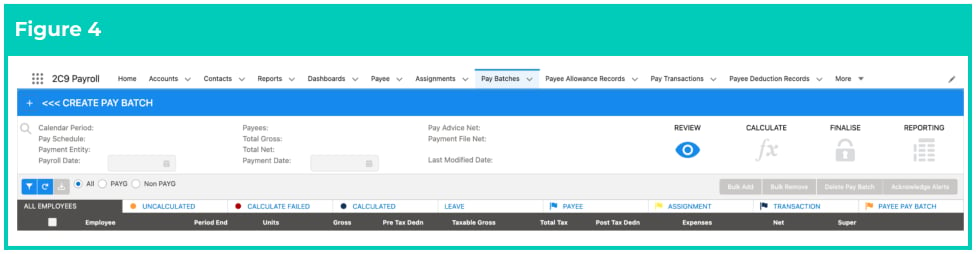
4. The Pay Batch Manager UI will open. You will be presented with the **Create Pay Batch** screen that
   shows the various filter options available (see Figure 4).
<Frame>
  <img src="https://mintcdn.com/2cloudnine-2edf05eb/P_8JsyPL0mRWMOqm/images/generated/reference-guides/pay-batch/qrg-create-a-new-pay-batch/qrg-create-a-new-pay-batch-pdf-1-figure-4.png?fit=max&auto=format&n=P_8JsyPL0mRWMOqm&q=85&s=71e3c149c163414c1f38cd35eae6723e" alt="Screenshot from QRG Create a New Pay Batch" width="976" height="254" data-path="images/generated/reference-guides/pay-batch/qrg-create-a-new-pay-batch/qrg-create-a-new-pay-batch-pdf-1-figure-4.png" />
</Frame>

### **Create a new Pay Batch**

Once the Pay Batch Manager UI has opened, follow the steps below to create a new Pay Batch:

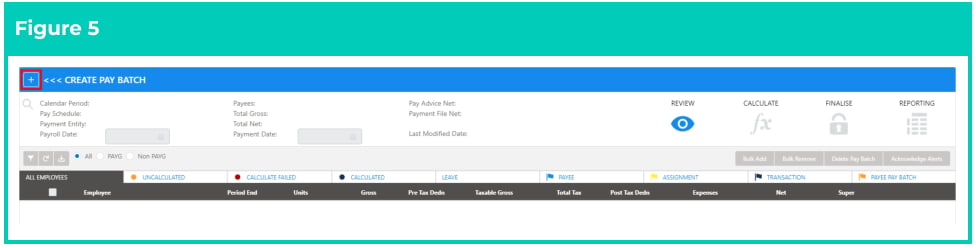
1. Click the <Icon icon="square-plus" /> button on the left-hand side of the screen (see Figure 5).
<Frame>
  <img src="https://mintcdn.com/2cloudnine-2edf05eb/P_8JsyPL0mRWMOqm/images/generated/reference-guides/pay-batch/qrg-create-a-new-pay-batch/qrg-create-a-new-pay-batch-pdf-1-figure-5.png?fit=max&auto=format&n=P_8JsyPL0mRWMOqm&q=85&s=b0e9109130ffbbf35942a5f950b74436" alt="Screenshot from QRG Create a New Pay Batch" width="976" height="248" data-path="images/generated/reference-guides/pay-batch/qrg-create-a-new-pay-batch/qrg-create-a-new-pay-batch-pdf-1-figure-5.png" />
</Frame>

<Warning>
  The Create Pay Batch <Icon icon="square-plus" /> button is only available for use when no Pay Batches are
  open within the Manager. The button and Filter Panel are disabled once a Pay Batch is
  created or while an existing Pay Batch is open. If the button is disabled you must close
  the Pay Batch Manager and recommence from Step 1.
</Warning>

### **Populating the Select Filter panel**

<Columns cols={2}>
  <div>
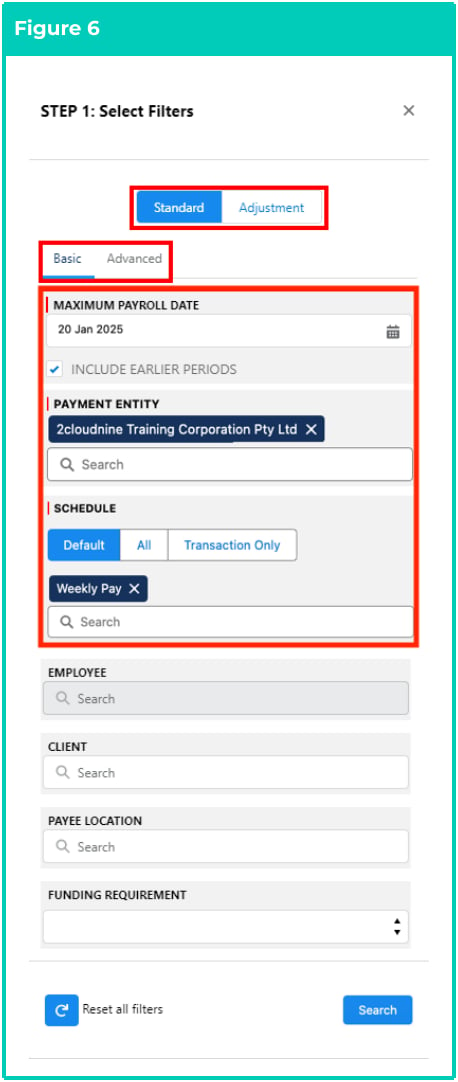
    2. Select the **Pay Batch Type** ( **Standard** or **Adjustment** ) (see Figure 6). By default, Standard is selected.
    3. Click on the **Basic** tab.
    4. Populate the following required fields:
       1. **Maximum Payroll Date**
       2. **Include Earlier Periods** (deselect when only the current Calendar Period is needed in Pay Batch)
       3. **Payment Entity** (up to 5 can be entered, and will create a separate Pay Batch for each)
    5. **Payee Selection Filters** (displayed under the Schedule heading as option buttons). These buttons will not be enabled until a Payment Entity is selected
       1. Choose **Default** to select Payee records based on the Payee Selection field held on the Pay Schedule record.
       2. Choose **Transaction Only** to include Payee-related Pay Transactions, which are generated via processes external to the Pay Batch calculation (e.g. Timesheet Interpretation or Expense Claims).
       3. Choose **All** to include the Payee-related Pay Transactions which are generated via processes external to the Pay Batch Calculation as well as records relating to Payees who are paid via remuneration-based / auto-pay Assignment Rates.
       4. **Schedule** This filter will not be enabled until a Payment Entity is selected, and is to be populated with the Pay Schedule(s) (up to 5 if required)
    6. If required, populate the following optional fields:
       1. To filter the Pay Batch based on specific Employees, populate the **Employee** field (up to 5 if required)
       2. To filter the Pay Batch creation based on specific Clients, populate the **Client** field (up to 5 if required)
       3. To filter the Pay Batch creation based on specific Payee Locations, populate the **Payee** **Location** field (up to 5 if required)
       4. To filter the Pay Batch creation based on whether funding is required or not, populate the **Funding Requirement** field.
  </div>

  <div>
    <Frame>
      <img src="https://mintcdn.com/2cloudnine-2edf05eb/P_8JsyPL0mRWMOqm/images/generated/reference-guides/pay-batch/qrg-create-a-new-pay-batch/qrg-create-a-new-pay-batch-pdf-2-figure-6.png?fit=max&auto=format&n=P_8JsyPL0mRWMOqm&q=85&s=14e7324afdfeb9b5e92db15d345b5084" alt="Screenshot from QRG Create a New Pay Batch" width="458" height="1082" data-path="images/generated/reference-guides/pay-batch/qrg-create-a-new-pay-batch/qrg-create-a-new-pay-batch-pdf-2-figure-6.png" />
    </Frame>
  </div>
</Columns>

<Warning>
  The Standard Pay Batch Type should be used when creating most Pay Batches. The
  Select Filter behaves the same way for both the Standard and the Adjustment Pay
  Batch Types, however, the option does impact the processing of the new Pay Batch.
  The Adjustment Pay Batch Type should only be used if the Pay Batch is to be an
  adjustment for the previous financial year, or the Payment File is required to be
  backdated.
</Warning>

<Warning>
  When defining the value in any of the filters, if a valid value is entered, the user is
  prompted with a list of all the values/records that will satisfy the Maximum Payroll
  Date defined, as well as any filters already defined above. The user can then select the
  value/record as needed.
</Warning>

<Columns cols={2}>
  <div>
    7. Click on the **Advanced** tab to select some Optional filters (see Figure 7) (Note: The completion of this tab is optional and can be skipped. If not required, proceed to Step 12)
       1. If required, define the **Pay** **Transaction Record Types** to Include (Selected) or Remove (Available)
       2. If required, define specific **Pay** **Batch Calculation Classes** as Active or Inactive
    8. Click the **Search** button. The Select Calendar Period Panel will open to display further options.

    <Warning>
      The Search button is enabled once the minimum required filter fields are defined to create a Pay Batch.
    </Warning>

    <Warning>
      If there are no relevant records available to create a Pay Batch, a message ‘No payroll calendars found! Please refine the criteria for the filters and click the Refresh Payroll Calendar Search button’ will be shown.
    </Warning>
  </div>

  <div>
    <Frame>
      <img src="https://mintcdn.com/2cloudnine-2edf05eb/P_8JsyPL0mRWMOqm/images/generated/reference-guides/pay-batch/qrg-create-a-new-pay-batch/qrg-create-a-new-pay-batch-pdf-3-figure-7.png?fit=max&auto=format&n=P_8JsyPL0mRWMOqm&q=85&s=ae69275406de5717d218c33f0a2efff3" alt="Screenshot from QRG Create a New Pay Batch" width="458" height="984" data-path="images/generated/reference-guides/pay-batch/qrg-create-a-new-pay-batch/qrg-create-a-new-pay-batch-pdf-3-figure-7.png" />
    </Frame>
  </div>
</Columns>

### **Using the Select Calendar Period Panel to Create the Pay Batch**

<Warning>
  The records presented on the Select Calendar Period panel will be dependent on the
  types of records available for inclusion within the Pay Batch.
  If there are Payees with Pay Transactions created before creating a Pay Batch, you will
  see a list of relevant Calendar Periods.

  If there are Payees paid via remuneration-based / auto-pay Assignment Rates, you will
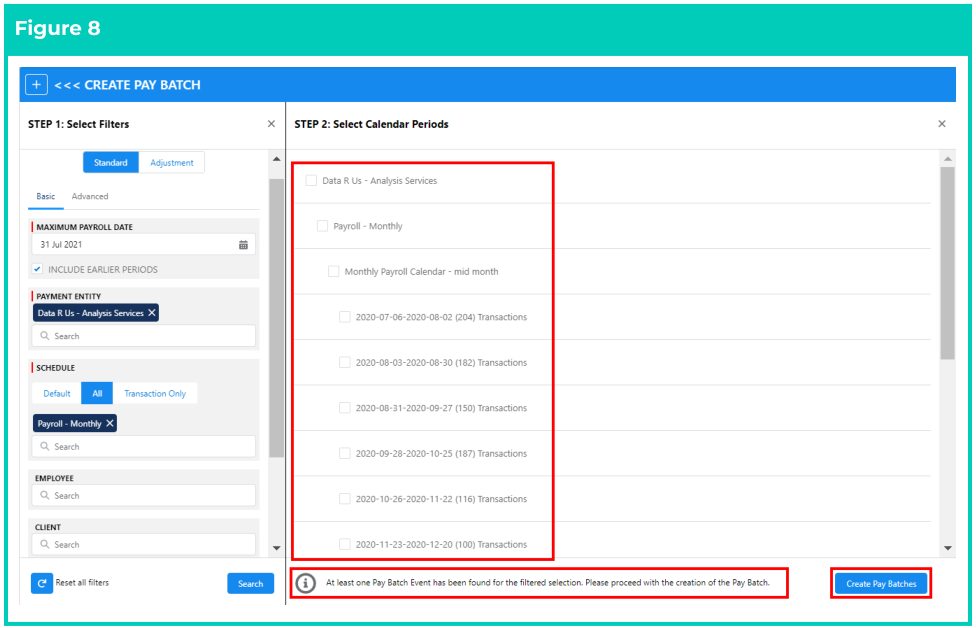
  see a message at the bottom of the Select Calendar Periods panel saying ‘At least one
  Pay Batch Event has been found for the filtered selection. Please proceed with the
  creation of the Pay Batch’.
</Warning>

9. Select the checkboxes for the relevant **Calendar Periods** to be included (see Figure 8).
10. Click the **Create Pay Batches** button.
<Frame>
  <img src="https://mintcdn.com/2cloudnine-2edf05eb/P_8JsyPL0mRWMOqm/images/generated/reference-guides/pay-batch/qrg-create-a-new-pay-batch/qrg-create-a-new-pay-batch-pdf-4-figure-8.png?fit=max&auto=format&n=P_8JsyPL0mRWMOqm&q=85&s=0cc7c0acc6412c0f70671756b5495066" alt="Screenshot from QRG Create a New Pay Batch" width="976" height="628" data-path="images/generated/reference-guides/pay-batch/qrg-create-a-new-pay-batch/qrg-create-a-new-pay-batch-pdf-4-figure-8.png" />
</Frame>

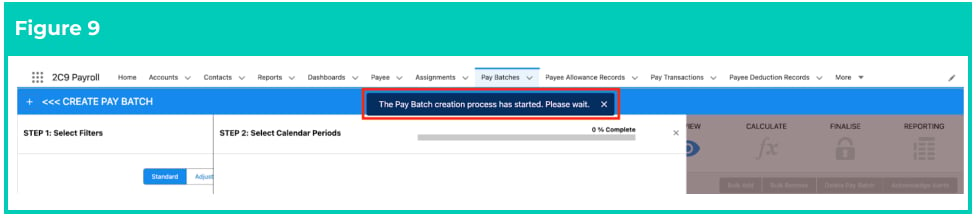
11. Once the Create Pay Batches button is clicked, a pop-up message displaying ‘The Pay Batch creation process has started. Please wait’ will appear to advise that the creation process has started (see Figure 9).
<Frame>
  <img src="https://mintcdn.com/2cloudnine-2edf05eb/P_8JsyPL0mRWMOqm/images/generated/reference-guides/pay-batch/qrg-create-a-new-pay-batch/qrg-create-a-new-pay-batch-pdf-4-figure-9.png?fit=max&auto=format&n=P_8JsyPL0mRWMOqm&q=85&s=7e534fed700c04e271bb93b493a3aec3" alt="Screenshot from QRG Create a New Pay Batch" width="976" height="218" data-path="images/generated/reference-guides/pay-batch/qrg-create-a-new-pay-batch/qrg-create-a-new-pay-batch-pdf-4-figure-9.png" />
</Frame>

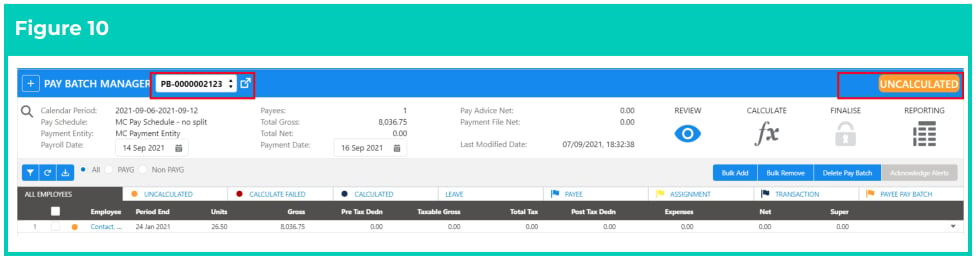
12. When the new Pay Batch is created, it will automatically open within the Pay Batch Manager with the Status of Uncalculated, and be ready to commence the review and subsequent processing of the payroll (see Figure 10).

If there are multiple Pay Batches created, the field with the Pay Batch identifier becomes a picklist field, and users can switch between the various Pay Batches that are created at the same time directly within the Pay Batch Manager. Alternatively, the other Pay Batches can be accessed via the Pay Batch List View.
<Frame>
  <img src="https://mintcdn.com/2cloudnine-2edf05eb/P_8JsyPL0mRWMOqm/images/generated/reference-guides/pay-batch/qrg-create-a-new-pay-batch/qrg-create-a-new-pay-batch-pdf-5-figure-10.png?fit=max&auto=format&n=P_8JsyPL0mRWMOqm&q=85&s=0bda5dd30ac260a9885460d29488b3fc" alt="Screenshot from QRG Create a New Pay Batch" width="976" height="260" data-path="images/generated/reference-guides/pay-batch/qrg-create-a-new-pay-batch/qrg-create-a-new-pay-batch-pdf-5-figure-10.png" />
</Frame>

## Field Descriptions

| Field Name                                                                                                               | Description                                                                                                                                                                                                                                                                                                                                                                                                                                                                                                                                                                                                                                                                                                                                                                                                                                                                                                                                            |
| ------------------------------------------------------------------------------------------------------------------------ | ------------------------------------------------------------------------------------------------------------------------------------------------------------------------------------------------------------------------------------------------------------------------------------------------------------------------------------------------------------------------------------------------------------------------------------------------------------------------------------------------------------------------------------------------------------------------------------------------------------------------------------------------------------------------------------------------------------------------------------------------------------------------------------------------------------------------------------------------------------------------------------------------------------------------------------------------------ |
| **Main UI**                                                                                                              |                                                                                                                                                                                                                                                                                                                                                                                                                                                                                                                                                                                                                                                                                                                                                                                                                                                                                                                                                        |
| Acknowledge Alerts                                                                                                       | is used to accept alerts that appear as warnings but do not need any further action or updates to the records.                                                                                                                                                                                                                                                                                                                                                                                                                                                                                                                                                                                                                                                                                                                                                                                                                                         |
| Tabs (All Employees, Uncalculated, Calculate Failed, Calculated, Leave, Payee, Assignment, Transaction, and Payee Batch) | <strong>All Employees</strong> tab displays all the Payee Pay Batches in this Pay Batch.<br /><strong>Uncalculated</strong> tab displays only the Uncalculated Payee Pay Batches.<br /><strong>Calculate Failed</strong> tab displays only the Payee Pay Batches with a status of Failed.<br /><strong>Calculated</strong> tab displays only the Calculated Payee Pay Batches.<br /><strong>Leave</strong> tab will display all leave Transactions and Accruals.<br /><strong>Payee</strong> tab displays a list of warnings flagged for Payees to be reviewed.<br /><strong>Assignment</strong> tab displays a list of warnings flagged for Assignments to be reviewed.<br /><strong>Transaction</strong> tab displays a list of warnings flagged for Transactions to be reviewed.<br /><strong>Payee Pay Batch</strong> tab displays a list of warnings flagged for Payee Pay Batches to be reviewed.                                                |
| Bulk Add                                                                                                                 | is used to add Payee Pay Batches or individual Pay Transactions that match the original filter of the Pay Batch creation to the Pay Batch.                                                                                                                                                                                                                                                                                                                                                                                                                                                                                                                                                                                                                                                                                                                                                                                                             |
| Bulk Remove                                                                                                              | is used to remove Payee Pay Batches from the Pay Batch in bulk.                                                                                                                                                                                                                                                                                                                                                                                                                                                                                                                                                                                                                                                                                                                                                                                                                                                                                        |
| Calculate (navigation icon)                                                                                              | click this navigation icon to view options related to calculating the Pay Batch and the Part Calculate or Calculate All buttons.                                                                                                                                                                                                                                                                                                                                                                                                                                                                                                                                                                                                                                                                                                                                                                                                                       |
| Calendar Period                                                                                                          | is the date range applicable for this Pay Batch. The Pay Batch may also contain Payee Pay batches relating to other Pay Calendar Periods if it was created with the ‘Include Earlier Periods’ checkbox selected.                                                                                                                                                                                                                                                                                                                                                                                                                                                                                                                                                                                                                                                                                                                                       |
| Delete Pay Batch                                                                                                         | This option can be used to permanently delete the Pay Batch. Using this option doesn’t delete any Payee data but deletes the Pay Batch and any relationship with this Pay Batch on related records only (i.e. Pay Transactions, Leave Events, etc) so that a new Pay Batch can be created.                                                                                                                                                                                                                                                                                                                                                                                                                                                                                                                                                                                                                                                             |
| Finalise (navigation icon)                                                                                               | click this navigation icon to view and action various options related to finalising the Pay Batch.                                                                                                                                                                                                                                                                                                                                                                                                                                                                                                                                                                                                                                                                                                                                                                                                                                                     |
| Pay Advice Net                                                                                                           | is the total net amount of related Pay Advices.                                                                                                                                                                                                                                                                                                                                                                                                                                                                                                                                                                                                                                                                                                                                                                                                                                                                                                        |
| Pay Schedule                                                                                                             | defines the Pay Schedule of the Pay Batch.                                                                                                                                                                                                                                                                                                                                                                                                                                                                                                                                                                                                                                                                                                                                                                                                                                                                                                             |
| Payees                                                                                                                   | is the count of unique Payees from related Payee Pay Batch records.                                                                                                                                                                                                                                                                                                                                                                                                                                                                                                                                                                                                                                                                                                                                                                                                                                                                                    |
| Payment Date                                                                                                             | defines the Payment Date on the Payment File. This can be in the future, but it can not be in the past.                                                                                                                                                                                                                                                                                                                                                                                                                                                                                                                                                                                                                                                                                                                                                                                                                                                |
| Payment Entity (on the Main UI)                                                                                          | is the Payment Entity that this Pay Batch is associated with.                                                                                                                                                                                                                                                                                                                                                                                                                                                                                                                                                                                                                                                                                                                                                                                                                                                                                          |
| Payment File Net                                                                                                         | is the total net amount of the related Payment File.                                                                                                                                                                                                                                                                                                                                                                                                                                                                                                                                                                                                                                                                                                                                                                                                                                                                                                   |
| Payroll Date                                                                                                             | is the date that a Pay Batch will be finalised. This date can be in the future, but can not be a historic date.                                                                                                                                                                                                                                                                                                                                                                                                                                                                                                                                                                                                                                                                                                                                                                                                                                        |
| Reporting (navigation icon)                                                                                              | click this navigation icon to generate a Variation Report for this Pay Batch to compare it to another Pay Batch.                                                                                                                                                                                                                                                                                                                                                                                                                                                                                                                                                                                                                                                                                                                                                                                                                                       |
| Review (navigation icon)                                                                                                 | click this navigation icon to view options related to reviewing the Pay Batch.                                                                                                                                                                                                                                                                                                                                                                                                                                                                                                                                                                                                                                                                                                                                                                                                                                                                         |
| Total Gross                                                                                                              | is the total gross earnings from all related Payee Pay Batch records.                                                                                                                                                                                                                                                                                                                                                                                                                                                                                                                                                                                                                                                                                                                                                                                                                                                                                  |
| Total Net                                                                                                                | is the total net earnings from all related Payee Pay Batch records.                                                                                                                                                                                                                                                                                                                                                                                                                                                                                                                                                                                                                                                                                                                                                                                                                                                                                    |
| **Select Filters and Select Calendar Periods Panels**                                                                    |                                                                                                                                                                                                                                                                                                                                                                                                                                                                                                                                                                                                                                                                                                                                                                                                                                                                                                                                                        |
| Adjustment                                                                                                               | provides the ability for Payee Aggregates created during the Finalise process of the Pay Batch to be accumulated based on a historical period. When this Pay Batch Type is used, once the Pay Batch is created, the Payment Date can be set at an earlier date than the current date, however, the Payment File functionality within the Finalisation stage is disabled.                                                                                                                                                                                                                                                                                                                                                                                                                                                                                                                                                                               |
| Advanced                                                                                                                 | filter panel allows the Users to populate additional and advanced filtering to create a new Pay Batch. This is only to be used if you require further filtering during the Pay Batch creation stage.                                                                                                                                                                                                                                                                                                                                                                                                                                                                                                                                                                                                                                                                                                                                                   |
| Basic                                                                                                                    | filter panel allows the users to populate the basic fields to create a new Pay Batch.                                                                                                                                                                                                                                                                                                                                                                                                                                                                                                                                                                                                                                                                                                                                                                                                                                                                  |
| Client                                                                                                                   | When populated, the Pay Batch created will be filtered specifically to data relating to the Client(s) entered. Up to 5 Clients can be entered into this field.                                                                                                                                                                                                                                                                                                                                                                                                                                                                                                                                                                                                                                                                                                                                                                                         |
| Employee                                                                                                                 | if entered (up to 5), this Pay Batch will be created specifically for those defined Employees only.                                                                                                                                                                                                                                                                                                                                                                                                                                                                                                                                                                                                                                                                                                                                                                                                                                                    |
| Funding Requirement                                                                                                      | if populated, only that Funding Arrangement selected will be applied in the creation of the Pay Batch.<br /><br /><ul><li><strong>No Funding Requirement</strong> to include all where specific Funding Arrangements will not be selected.</li><li><strong>Payroll before invoice</strong> to create the Pay Batch for those where Payroll is processed before an Invoice is created.</li><li><strong>Invoiced before payroll</strong> creates the Pay Batch for those Pay Transactions where an Invoice is issued before the Pay Batch gets created.</li><li><strong>Invoice paid before payroll</strong> to create the Pay Batch for Pay Transactions where an Invoice is created and paid before being included in a Pay Batch.</li><li><strong>If blank</strong>, this filter is ignored and all are included.</li></ul>                                                                                                                           |
| Include Earlier Periods                                                                                                  | by default, this is checked. This indicates during the Pay Batch creation process to review all prior Calendar Periods up to 12 months prior for any earlier Pay Calendar Periods that are also required to be created.                                                                                                                                                                                                                                                                                                                                                                                                                                                                                                                                                                                                                                                                                                                                |
| Maximum Payroll Date                                                                                                     | is the maximum Payroll Date to use when entered on the Pay Batch creation page to determine the Calendar Period.                                                                                                                                                                                                                                                                                                                                                                                                                                                                                                                                                                                                                                                                                                                                                                                                                                       |
| Pay Batch Calculation Classes (Active/Inactive Toggle under Advanced tab)                                                | <strong>Assignment Rates</strong> indicates whether the calculation of Auto Pay Assignment Rates will occur in this Pay Batch. By default, this is on, and therefore all are included.<br /><strong>Payee Allowances</strong> indicates whether the calculation of Payee Allowance Records will occur in this Pay Batch. By default, this is on, and therefore all are included.<br /><strong>Payee Deductions</strong> indicates whether the calculation of Payee Deduction Records will occur in this Pay Batch. By default, this is on, and therefore all are included.<br /><strong>Payee Leave Rules</strong> indicates whether the calculation of Payee Leave Rules will occur in this Pay Batch. By default, this is on, and therefore all are included.<br /><strong>Payee Leave Events</strong> indicates whether the calculation of Payee Leave Events will occur in this Pay Batch. By default, this is on, and therefore all are included. |
| Pay Transaction Record Types                                                                                             | this filter is available under the Advanced option and is used to filter the transactions based on their record types for inclusion in the Pay Batch.                                                                                                                                                                                                                                                                                                                                                                                                                                                                                                                                                                                                                                                                                                                                                                                                  |
| Payee Location                                                                                                           | when populated the Pay Batch created will be filtered by this Payee Location.                                                                                                                                                                                                                                                                                                                                                                                                                                                                                                                                                                                                                                                                                                                                                                                                                                                                          |
| Payee Selection                                                                                                          | allows filtering of the Pay Batch based on the Pay Transaction creation status.<br /><br /><ul><li><strong>Default</strong> to select Payee records based on the Payee Selection field held on the Pay Schedule record.</li><li><strong>Transaction Only</strong> to include only Payee-related Pay Transactions, which are generated via processes external to the Pay Batch (e.g. Timesheet Interpretation or Expense Claims).</li><li><strong>All</strong> to include the Payee-related Pay Transactions which are generated via processes external to the Pay Batch as well as records relating to Payees who are paid via remuneration-based/auto-pay Assignment Rates.</li></ul>                                                                                                                                                                                                                                                                 |
| Payment Entity (on the Select Filters Panel)                                                                             | the Payment Entity is required to be entered during the creation stage, up to 5 can be entered into this filter screen, however once created, each Pay Batch will be specific to one Payment Entity.                                                                                                                                                                                                                                                                                                                                                                                                                                                                                                                                                                                                                                                                                                                                                   |
| Reset all filters                                                                                                        | is used to clear all the fields that have been populated.                                                                                                                                                                                                                                                                                                                                                                                                                                                                                                                                                                                                                                                                                                                                                                                                                                                                                              |
| Schedule                                                                                                                 | defines the Pay Schedule (up to 5) that applies to the Pay Batch.                                                                                                                                                                                                                                                                                                                                                                                                                                                                                                                                                                                                                                                                                                                                                                                                                                                                                      |
| Select Calendar Periods                                                                                                  | this panel appears next to the Select Filters panel after the Filters are populated and the Search button is clicked. It displays a list of available Calendar Periods and Transactions that can be selected using checkboxes and the button Create Pay Batches is clicked after that. For the creation of Autopay/Remuneration Pay Batches, no list of Payee Pay batches will appear, however, it will have a message at the bottom of the screen to confirm if Pay Batches can be created or not based on the filter data provided.                                                                                                                                                                                                                                                                                                                                                                                                                  |
| Select Filters                                                                                                           | this panel appears when the New button is clicked and contains various Filters that allow selecting Payment Entities, Schedules, etc. Some filters are optional, others are required.                                                                                                                                                                                                                                                                                                                                                                                                                                                                                                                                                                                                                                                                                                                                                                  |
| Standard                                                                                                                 | demonstrates that the Payee Aggregates created during the Finalise process of the Pay Batch will be accumulated based on the current financial year's Calendar Periods. When this Pay Batch Type is used, once the Pay Batch is created, the Payment Date cannot be earlier than the current date.                                                                                                                                                                                                                                                                                                                                                                                                                                                                                                                                                                                                                                                     |

## Further Information

| Document                                        | Document Type               | Description                                                                                                                                                                                                                                                                                                      |
| ----------------------------------------------- | --------------------------- | ---------------------------------------------------------------------------------------------------------------------------------------------------------------------------------------------------------------------------------------------------------------------------------------------------------------- |
| QRG Pay Batch Key Information                   | Information Quick Reference | Outlines useful information relevant to 2cloudnine Payroll’s Pay Batch functionality. The document includes definitions, prerequisites, diagrams, and other non-instructional information on how it facilitates efficient management of Pay Batches from Creation through Review, Calculation, and Finalisation. |
| QRG Review a Pay Batch                          | Task Instructions           | How to Review the Pay Batch on a Pay Batch level and an individual Payee Pay Batch level, as well as the steps required to use the Remove Pay Transaction, Remove Individual Payee Pay Batch records, Bulk Remove, Bulk Add, and Manual Adjustment functionalities within the Pay Batch Manager.                 |
| QRG Calculate a Pay Batch                       | Task Instructions           | How to Part Calculate and Calculate All a Pay Batch as well as the steps to View and Resolve / Acknowledge Flags through the Pay Batch Manager.                                                                                                                                                                  |
| QRG Finalise a Pay Batch                        | Task Instructions           | How to Finalise a Pay Batch, Unfinalise a Pay Batch, Create and Distribute Pay Advice documents, and Create and Release Payment Files through the Pay Batch Manager.                                                                                                                                             |
| QRG View Leave Accruals via Pay Batch Manager   | Task Instructions           | How to view Automatic Leave Accruals using Pay Batch Manager.                                                                                                                                                                                                                                                    |
| QRG Calculate a single Payee within a Pay Batch | Task Instructions           | How to Calculate a Payee in isolation within the Pay Batch Manager.                                                                                                                                                                                                                                              |
| QRG Reverse Payee Pay Batch                     | Task Instructions           | How to Reverse a Payee Pay Batch within the Pay Batch Manager.                                                                                                                                                                                                                                                   |
| QRG Exclude from Payment File                   | Task Instructions           | How to Exclude a Payee Pay Batch from the Payment File.                                                                                                                                                                                                                                                          |
| QRG Create a Variance Report                    | Task Instructions           | How to create a Variance Report within the Pay Batch Manager.                                                                                                                                                                                                                                                    |
