> ## Documentation Index
> Fetch the complete documentation index at: https://documentation.2cloudnine.com/llms.txt
> Use this file to discover all available pages before exploring further.
# QRG Employee Portal - Forecast Leave Balance as a Payee
## Purpose
The purpose of this quick reference guide is to step through the process of using the Leave Forecast tool as a Payee set up as a Community User within the Community. The intended audience for this document are Payees.
## Steps
### Leave Forecasting Tool
Payee Leave Forecasting may be accessed by Payees within the Employee Portal as a standard Community User. The values displayed reflect the forecasted Leave Balances for the entered period, based on the Payee’s entitlements.
Forecast Leave as a Payee Community User by following the below steps:
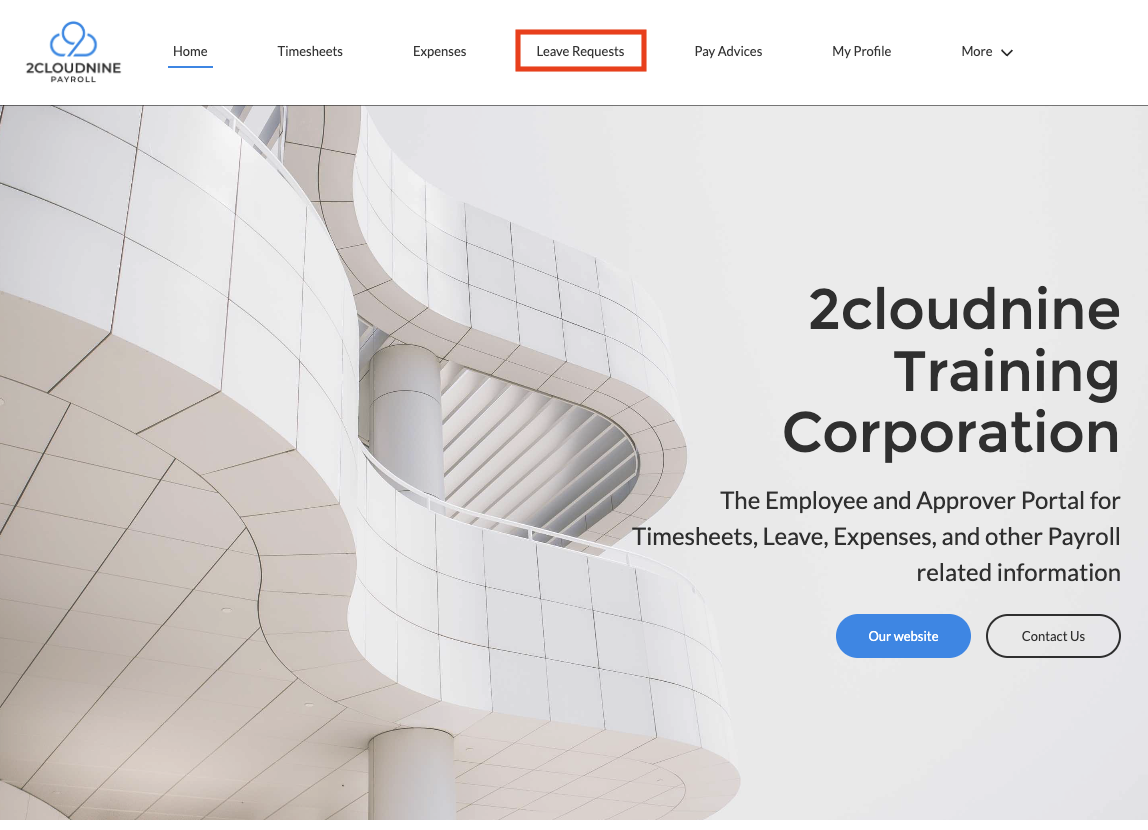
1. From within the Community Portal click the **Leave Requests** tab (see Figure 1).
**Important Notes**
*(Payee Leave)*
*The exact naming convention for Leave will differ from one Org to another (based on the specific customisations applied) however should still be available for selection from the Community menu banner as indicated in the above screenshot.*
*If the Leave tab is not displayed within the menu banner, click the More button to select from the additional navigation options available.*
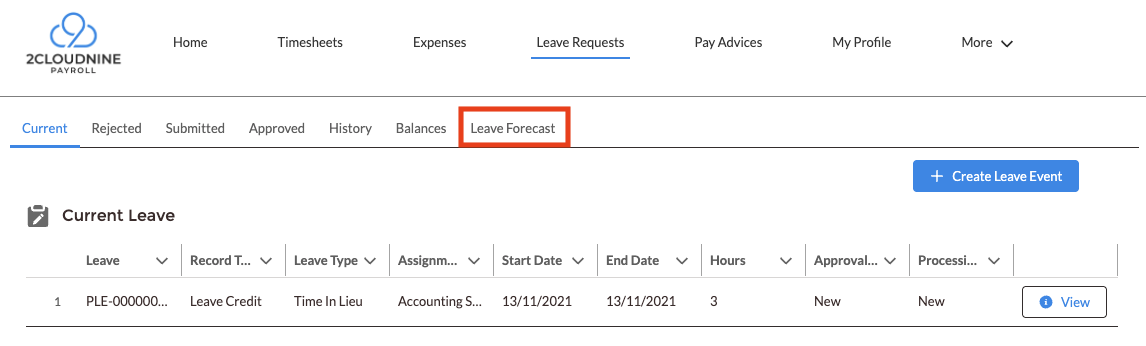
2. Click the **Leave Forecast** menu option from the Leave navigation banner (see Figure 2).
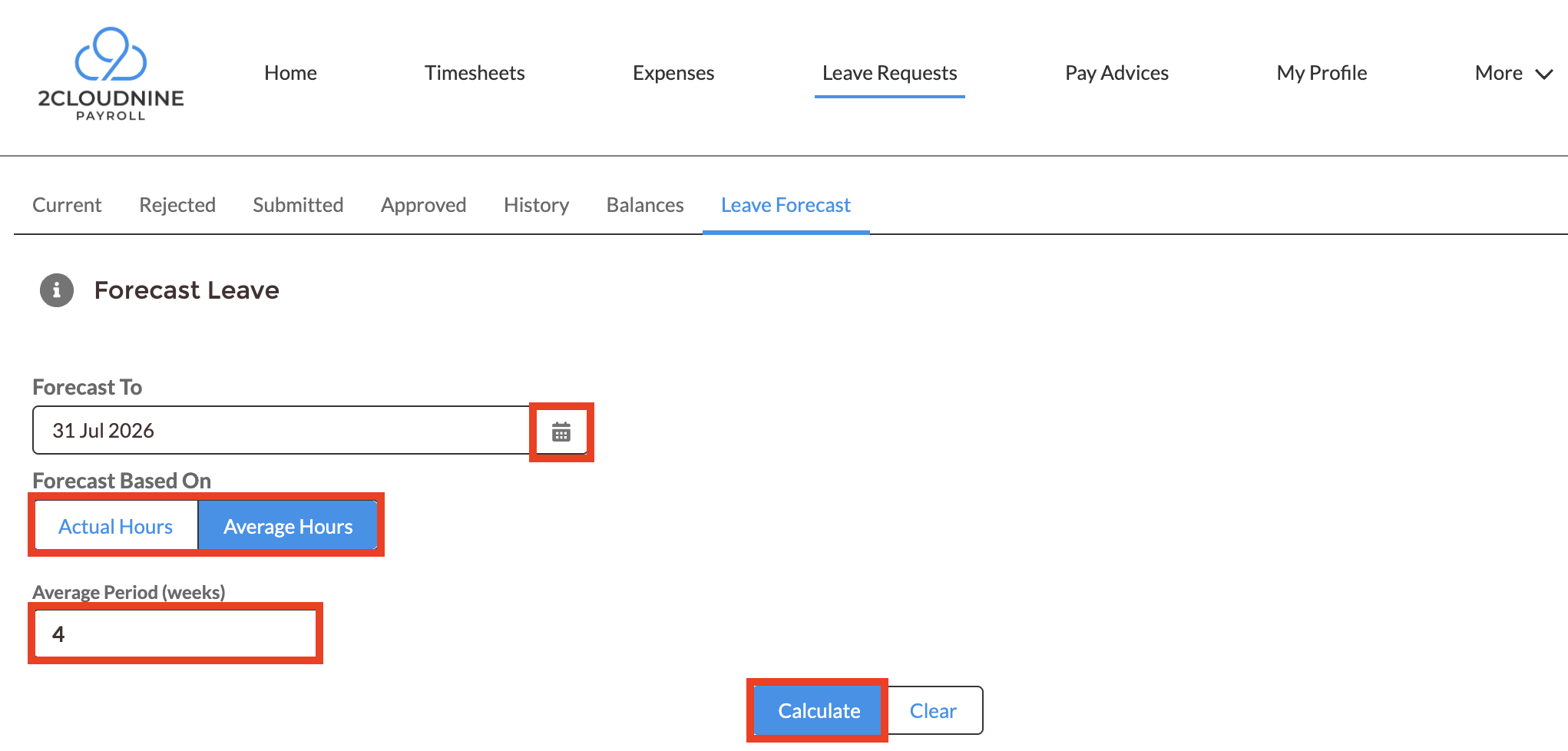
3. Populate the following values to define the Forecast conditions (see Figure 3).
- In the **Forecast To** field, populate the future date for Leave Balance projections using the available date selection tool (see Figure 3).
- Under **Forecast Based On**, select either the **Actual Hours** or **Average Hours** button.
- If **Average Hours** is selected, populate the **Average Period (weeks)** field with the number of weeks to use to calculate the Leave forecast.
**Important Notes**
*(Average Period)*
*If Average Hours is selected as the Forecasting method, but no Average Period is entered, Leave Balance will be calculated against a four week period by default.*
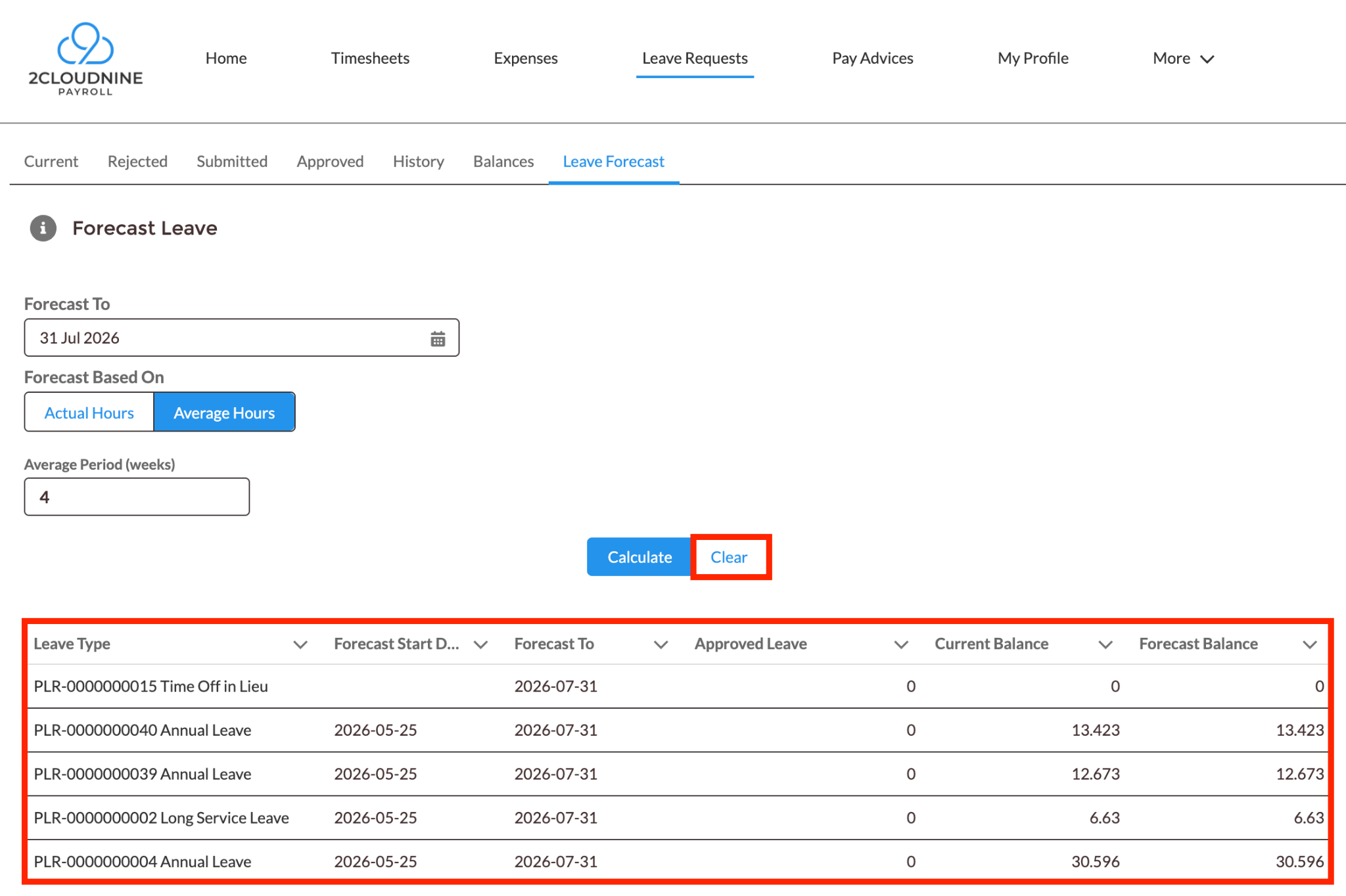
4. Click **Calculate** (see Figure 4).
- The projected balance is displayed under the **Forecast Balance** column heading.
5. To modify the Forecast To date, or the basis of hours for the calculation, click the **Clear** button to reset the input values.
## Field Descriptions
| Field Name | Description |
| - | - |
| Approved Leave | The Employee’s current Approved Leave awaiting processing, which has been taken into account to reduce the Forecast Leave Balance. |
| Average Period (weeks) | The number of weeks of recent pay history used to calculate the Payee's average hours when generating Leave Balance Forecast values.
Only displayed when Forecast Based On is set to Average Hours. |
| Current Balance | The Employee’s current available Leave Balance as at the Forecast Start Date, before any future-dated Approved Leave is applied or any calculations on future accruals.. |
| Forecast Balance | Resulting projected Leave Balance as at the date in the Forecast To field. |
| Forecast Based On | Basis for the forecast calculation — Actual Hours or Average Hours.
Actual Hours: Forecast Leave Balance calculated according to the Payee’s standard contracted hours.
Average Hours: Forecast Leave Balance calculated according to the Payee’s average hours for the defined period. |
| Forecast Start Date | The date from which the Current Balance is accrued to. The Leave Forecast will use this as its starting point for calculations. |
| Forecast To | The future date to project the Leave Balance to. |
| Leave Type | The category of Leave being Forecast (i.e. Annual Leave, Personal/Carer’s Leave etc.). |
## Further Information
| Document | Document Type | Description |
| - | - | - |
| QRG Employee Portal - Update Profile Information as a Payee | Task Instructions | How to update personal data using the Employee Community Experience as a Payee. |
| QRG Employee Portal - View Leave Balance as a Payee | Task Instructions | How to access available Leave Balances using the Employee Community Experience as a Payee. |
| QRG Employee Portal - Create Payee Leave Events as a Payee | Task Instructions | How to update personal Employee data using the Employee Community Experience as a Payee. |
| QRG Employee Portal - Enter Payee Timesheets | Task Instructions | How to complete and submit Timesheets using the Employee Community Experience as a Payee. |
| QRG Employee Portal - Enter an Expense Claim as a Payee | Task Instructions | How to submit an Expense using the Employee Community Experience as a Payee. |
* First Published: 05 October, 2026
* Last Published: 05 October, 2026