> ## Documentation Index
> Fetch the complete documentation index at: https://documentation.2cloudnine.com/llms.txt
> Use this file to discover all available pages before exploring further.
# QRG Employee Portal - View Leave Balance as a Payee
## Purpose
The purpose of this quick reference guide is to step through the process of viewing Leave Balances as a Payee User within the Community. The intended audience for this document are Payees.
## Steps
### View online Leave Balances
Payee Leave Balances may be accessed by Payees within the Employee Portal as a standard Community User. The values displayed reflect current Leave accrued according to the Payee’s entitlements.
View Leave Balances as a Payee Community User by following the below steps:
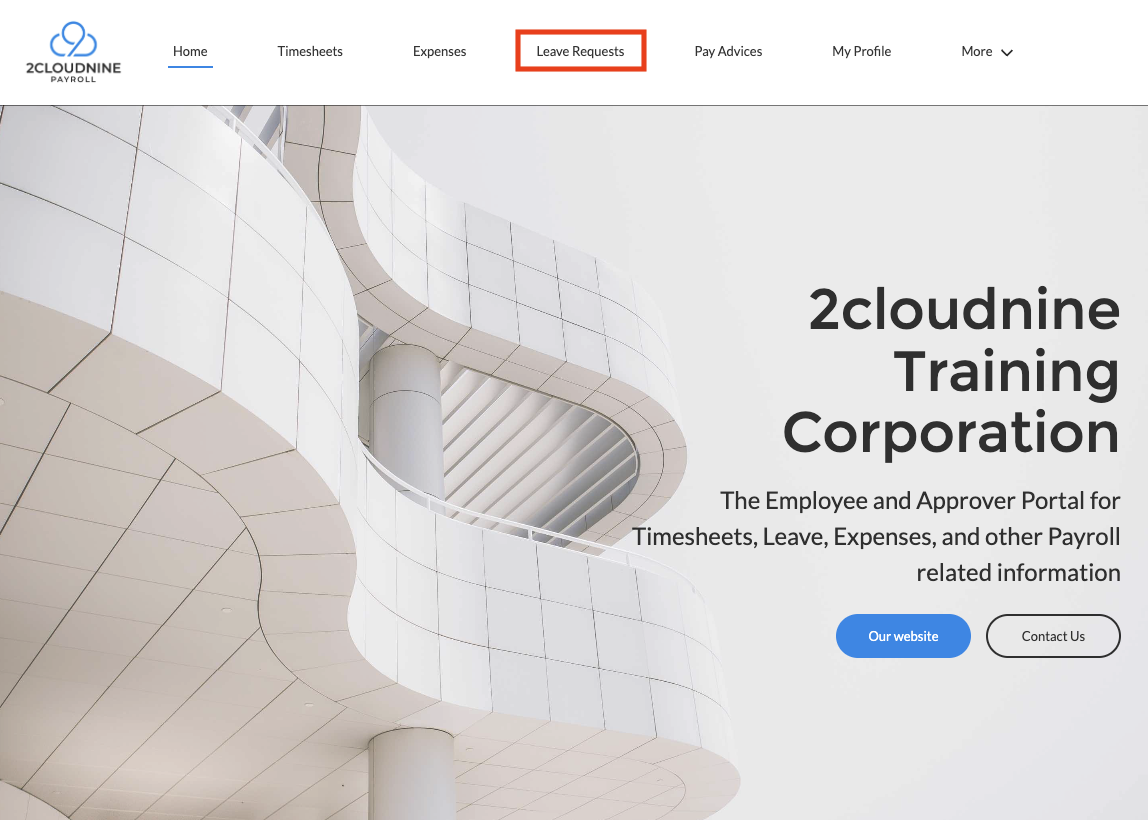
1. From within the Community Portal click the tab associated with **Leave** (see Figure 1).
Figure 1
**Important Notes**
*(Payee Leave)*
*The exact naming convention for Leave will differ from one Org to another (based on the specific customisations applied) however should still be available for selection from the Community menu banner as indicated in the above screenshot.*
*If Leave is not initially visible within the menu banner, click the More button to select from the additional navigation options available.*
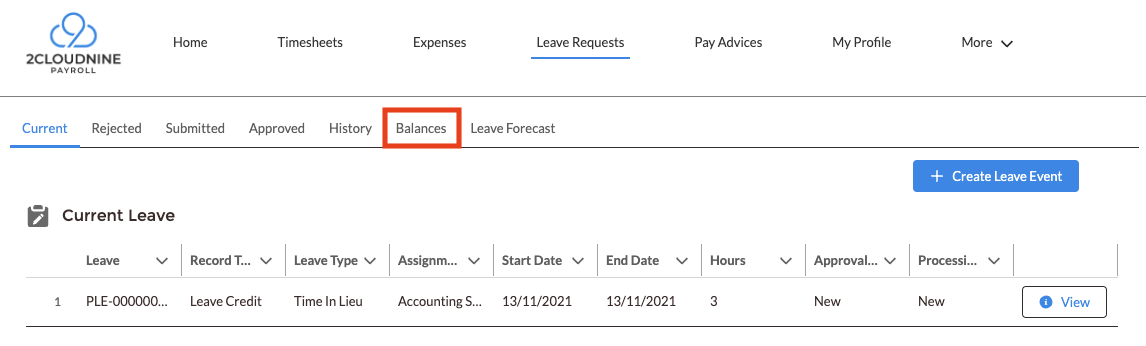
2. Click the **Balances** menu option from the Leave navigation banner (see Figure 2).
Figure 2
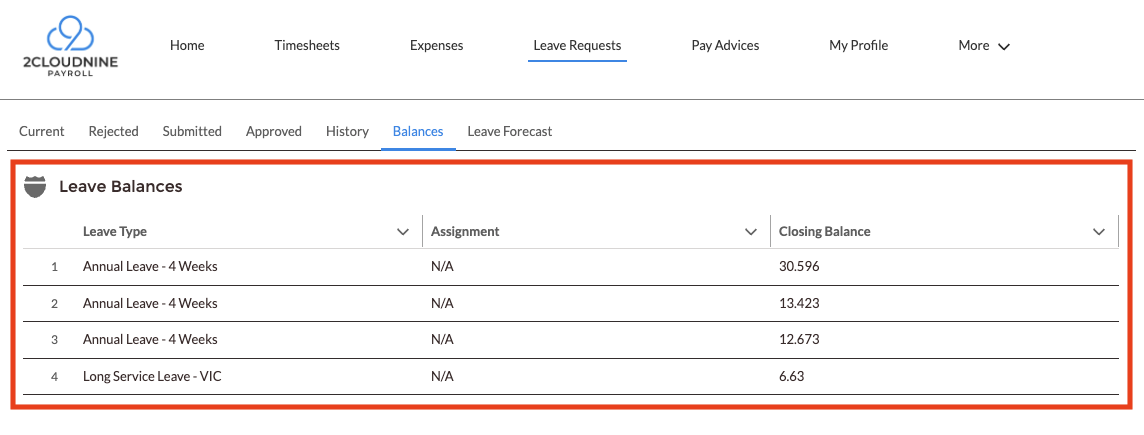
3. **Leave Balances** will be displayed for each Leave Type where the Payee has accrued Leave hours (see Figure 3).
Figure 3
**Important Notes**
*(Leave Balance Values)*
*Payment Entities may choose not to display certain Leave Types in the Community Portal. These are either not applicable to the Payee or managed directly by Payroll — contact Payroll for assistance accessing any Leave Balances not shown.*
*The Balances displayed on this page are accurate as of the Payee’s most recently created Pay Advice. To view Payee Leave Balances as at an exact or future date, navigate to the Leave Forecast tab, or refer to the QRG Forecast Leave Balance as a Payee for more information.*
To change the Order for displayed Leave Balance amounts, click the **Leave Type**, **Assignment** or **Closing Balance** Column Heading to toggle between ascending or descending sort order for the displayed data (see Figure 4).
Figure 4
## Field Descriptions
| Field Name | Description |
| - | - |
| Leave Type | The category of leave (e.g. Annual, Personal/Carer's, Unpaid). |
| Assignment | The assignment the balance specifically relates to, not available to be used on any other Assignments. |
| Closing Balance | Current available balance for that Leave Type . |
## Further Information
| Document | Document Type | Description |
| - | - | - |
| QRG Employee Portal - Update Profile Information as a Payee | Task Instructions | How to update personal data using the Employee Community Experience as a Payee. |
| QRG Employee Portal - Forecast Leave Balance as a Payee | Task Instructions | How to access Leave Forecasting information using the Employee Community Experience as a Payee. |
| QRG Employee Portal - Create Payee Leave Events as a Payee | Task Instructions | How to update personal Employee data using the Employee Community Experience as a Payee. |
| QRG Employee Portal - Enter Payee Timesheets | Task Instructions | How to complete and submit Timesheets using the Employee Community Experience as a Payee |
| QRG Employee Portal - Enter an Expense Claim as a Payee | Task Instructions | How to submit an Expense using the Employee Community Experience as a Payee. |
* First Published: 05 October, 2026
* Last Published: 05 October, 2026
 or descending
  sort order for the displayed data (see Figure 4).