> ## Documentation Index
> Fetch the complete documentation index at: https://documentation.2cloudnine.com/llms.txt
> Use this file to discover all available pages before exploring further.
# QRG Payee Exit
export const InlineImage = ({src, alt = "", height = "1.6em"}) => {
return  ;
};
## Purpose
The purpose of this quick reference guide is to step through the process of creating a Payee Exit. The
intended audience for this document is Standard Payroll Users.
The Payee Exit process is used to expire records and create any required Pay Transactions in preparation
for the Employee’s final payroll, along with documenting their Cessation Date and Cessation Reason.
## Steps
### **Navigate to the Payee Record and Payee Exit User Interface**
To get started and create a Payee Exit, follow these steps:
1. Go to the **Payee** record.
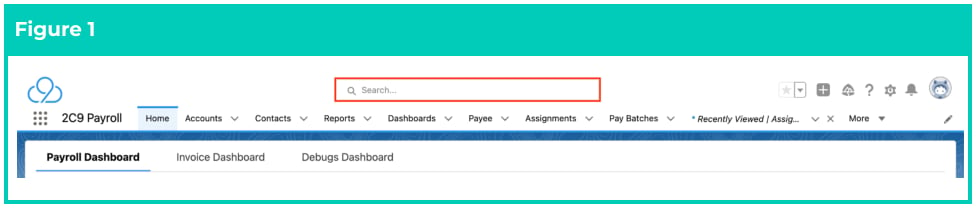
1. To identify a Payee record from an Employee record, enter the Employee name into the **Global Search** (see Figure 1).
2. Select the **Employee** record from the suggestions provided.
;
};
## Purpose
The purpose of this quick reference guide is to step through the process of creating a Payee Exit. The
intended audience for this document is Standard Payroll Users.
The Payee Exit process is used to expire records and create any required Pay Transactions in preparation
for the Employee’s final payroll, along with documenting their Cessation Date and Cessation Reason.
## Steps
### **Navigate to the Payee Record and Payee Exit User Interface**
To get started and create a Payee Exit, follow these steps:
1. Go to the **Payee** record.
1. To identify a Payee record from an Employee record, enter the Employee name into the **Global Search** (see Figure 1).
2. Select the **Employee** record from the suggestions provided.
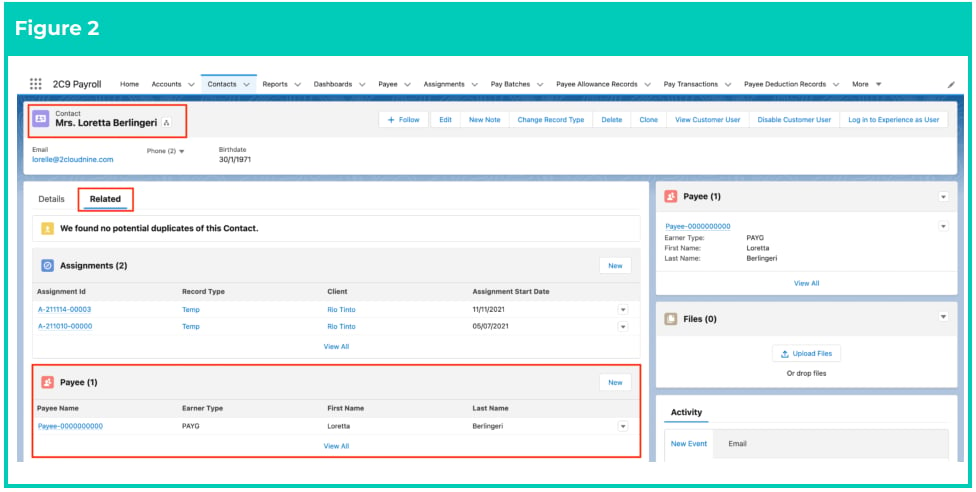
 3. Open the **Related** tab (see Figure 2).
4. Identify the **Payee** related list.
5. Select the **Payee** record.
3. Open the **Related** tab (see Figure 2).
4. Identify the **Payee** related list.
5. Select the **Payee** record.
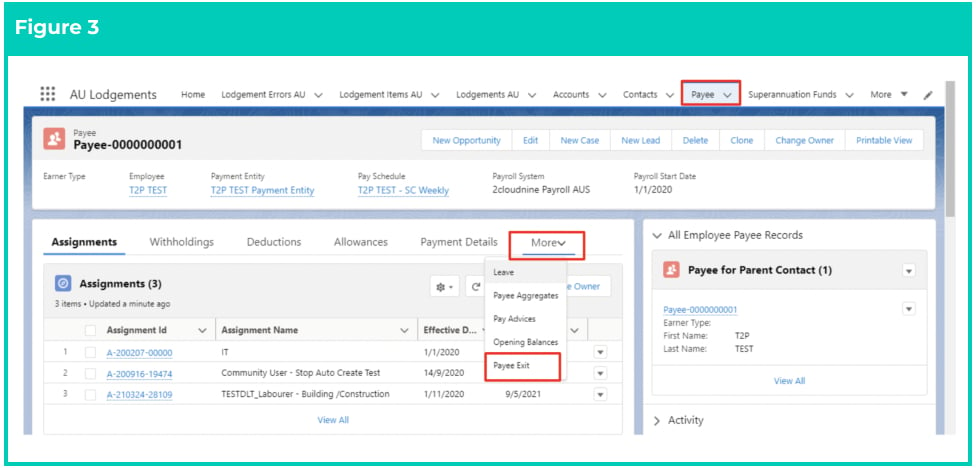
 2. In the related records section at the top of the page, click on the **More** option to the right of the tabs and select **Payee Exit** (see Figure 3).
The Payee Exit tool, set to the Basic tab by default, will be displayed (the Payee Exit tab can be edited by any System Administrator user and they can remove components, reorder them etc.)
2. In the related records section at the top of the page, click on the **More** option to the right of the tabs and select **Payee Exit** (see Figure 3).
The Payee Exit tool, set to the Basic tab by default, will be displayed (the Payee Exit tab can be edited by any System Administrator user and they can remove components, reorder them etc.)
 ### **Selecting the Required Payee Exit Method**
There are 2 methods available for completing the Payee Exit:
1. **Basic**
### **Selecting the Required Payee Exit Method**
There are 2 methods available for completing the Payee Exit:
1. **Basic**
The Basic method is used to record the last day of employment and their Exit Reason while
expiring any Payee-related records such as Assignments, Assignment Rates, Payee Leave Rules,
Payee Deduction Records, and Payee Allowances Records.
2. **Advanced**
In addition to completing the same functions of the Basic method, the Advanced method is used
to collect additional information in relation to the Payee Exit while also calculating and preparing
records ready for the Payee’s final payroll. This includes the calculation of any Leave entitlements
to be paid. The Advanced tab can also be used to build a library of various exit scenarios for the
Payee and to model their final payment.
Basic Payee Exit is preferably used for employees with Leave that is NOT payable upon
termination. Advanced Payee Exit is mainly used for employees with Leave
entitlements payable on termination.
If you need to process a Payee Exit using the Basic Payee Exit, please refer to page 3. Otherwise, for
Advanced Payee Exit, please refer to page 7.
### **Basic Payee Exit**
If using the Basic Payee Exit method, the following steps should be completed:
1. Under the Basic tab, populate the following fields (see Figure 4):
1. **Last Date of Employment**
2. **ATO Cessation Type**
3. **Exit Reason**
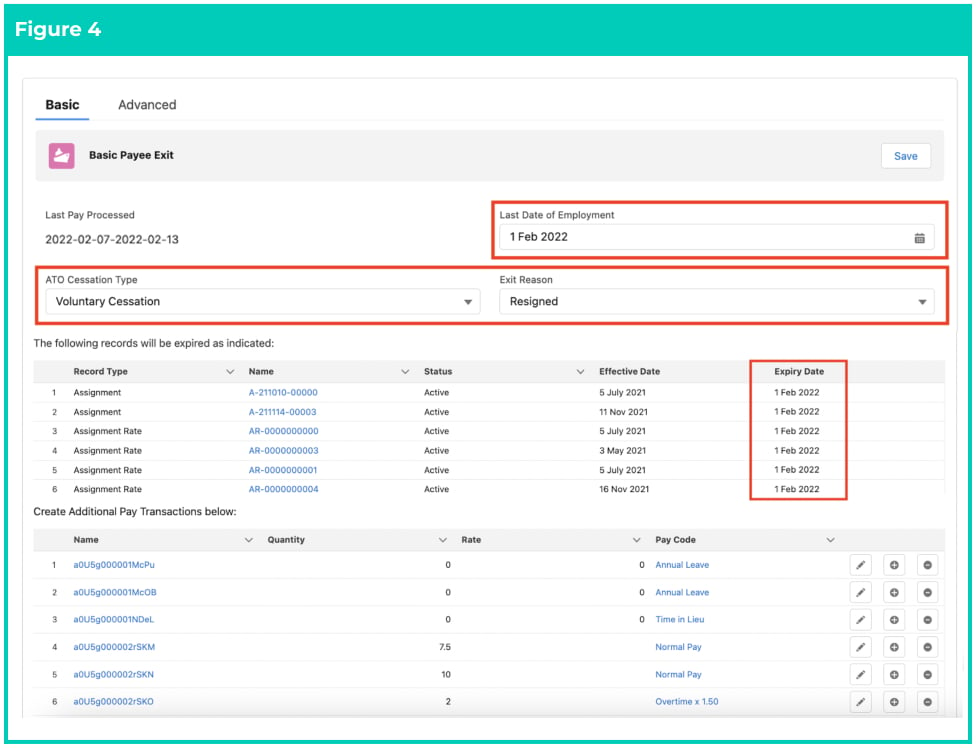 Once the Last Date of Employment field is populated, the same date automatically
populates under the Expiry Date field column within each row.
2. To add, edit or delete Pay Transactions, proceed to the next step, or else skip to step 4.
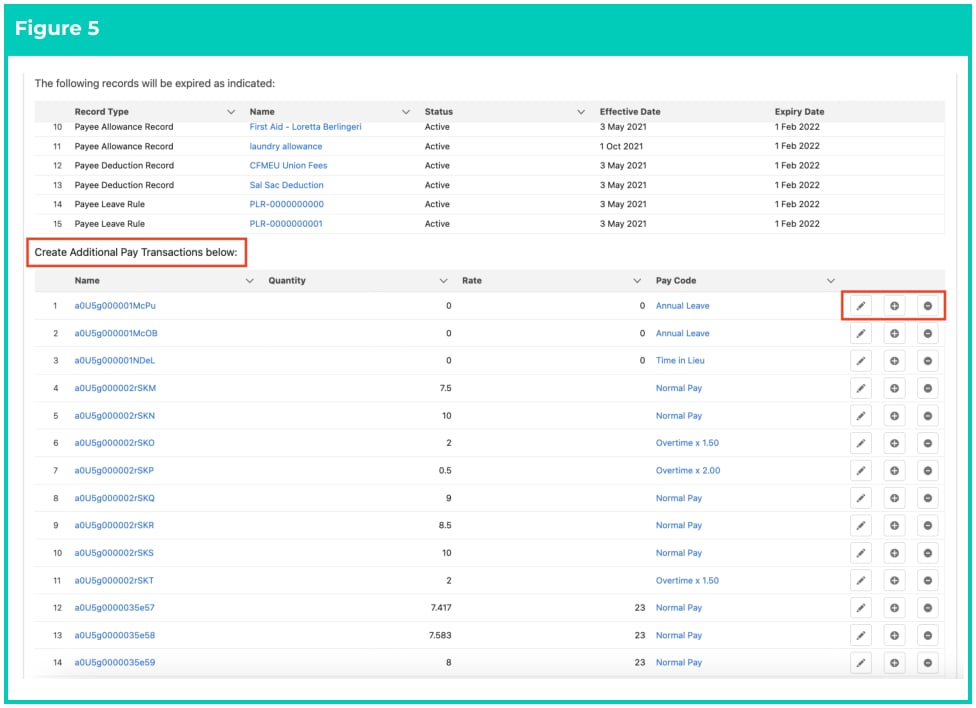
3. Scroll to the ‘Create Additional Pay Transactions below:’ section and click on the Add, Edit, or Delete buttons as required (see Figure 5).
Once the Last Date of Employment field is populated, the same date automatically
populates under the Expiry Date field column within each row.
2. To add, edit or delete Pay Transactions, proceed to the next step, or else skip to step 4.
3. Scroll to the ‘Create Additional Pay Transactions below:’ section and click on the Add, Edit, or Delete buttons as required (see Figure 5).
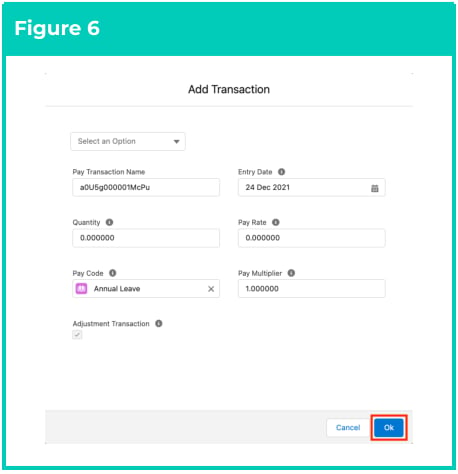
 1. If you clicked on the Add
button above, modify the
defaulted details of the Pay
Transaction in the pop up and
click **Ok** to add it as a new Pay
Transaction (see Figure 6).
1. If you clicked on the Add
button above, modify the
defaulted details of the Pay
Transaction in the pop up and
click **Ok** to add it as a new Pay
Transaction (see Figure 6).
 OR
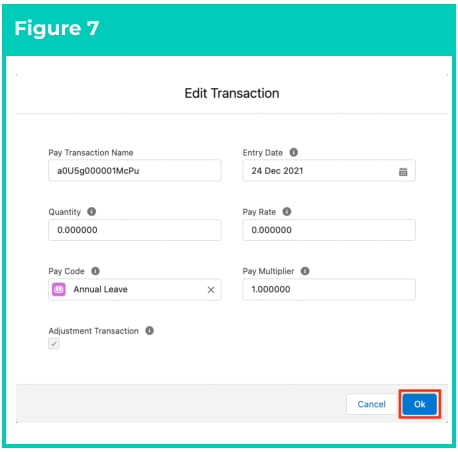
2. If you clicked on the Edit button above, modify the details of the Pay Transaction in the pop up and click **Ok** to save the changes to this Pay Transaction (see Figure 7).
OR
2. If you clicked on the Edit button above, modify the details of the Pay Transaction in the pop up and click **Ok** to save the changes to this Pay Transaction (see Figure 7).
 OR
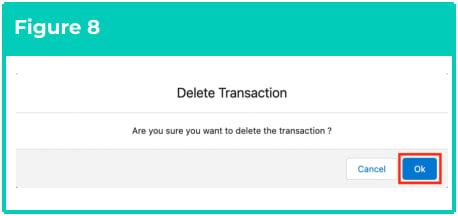
3. If you clicked on the Delete button above, click **Ok** to confirm (see Figure 8).
OR
3. If you clicked on the Delete button above, click **Ok** to confirm (see Figure 8).
 Leave Rules that are to be paid out within the Payee Exit function must have the fields
‘Can be Paid Out After Period’ and ‘Can be Paid Out After Units’ populated.
For the Pay Rate to be populated in Payee Exit Results, the applicable Assignment
Rate Record must have Default Pay Rate = Yes.
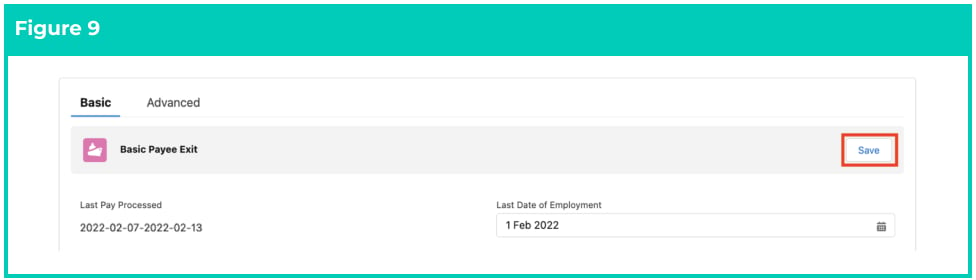
4. Click on the **Save** button (see Figure 9).
Leave Rules that are to be paid out within the Payee Exit function must have the fields
‘Can be Paid Out After Period’ and ‘Can be Paid Out After Units’ populated.
For the Pay Rate to be populated in Payee Exit Results, the applicable Assignment
Rate Record must have Default Pay Rate = Yes.
4. Click on the **Save** button (see Figure 9).
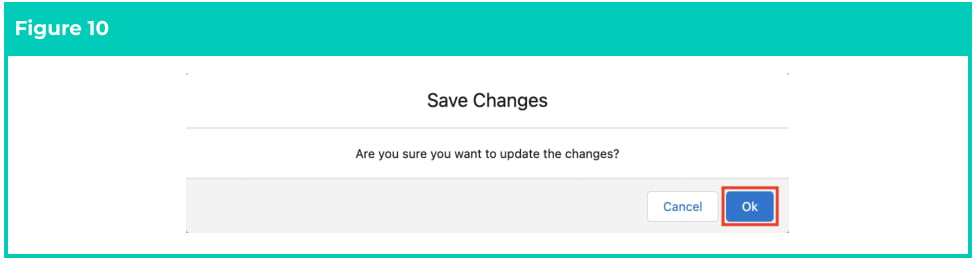
 5. Click on the **Ok** button to confirm (see Figure 10).
 6. You will get a confirmation message (see Figure 11).
 7. The Last Date of Employment and ATO Cessation Type will be saved against the Payee record.
The listed Payee-related records will expire (see Figure 12).
7. The Last Date of Employment and ATO Cessation Type will be saved against the Payee record.
The listed Payee-related records will expire (see Figure 12).
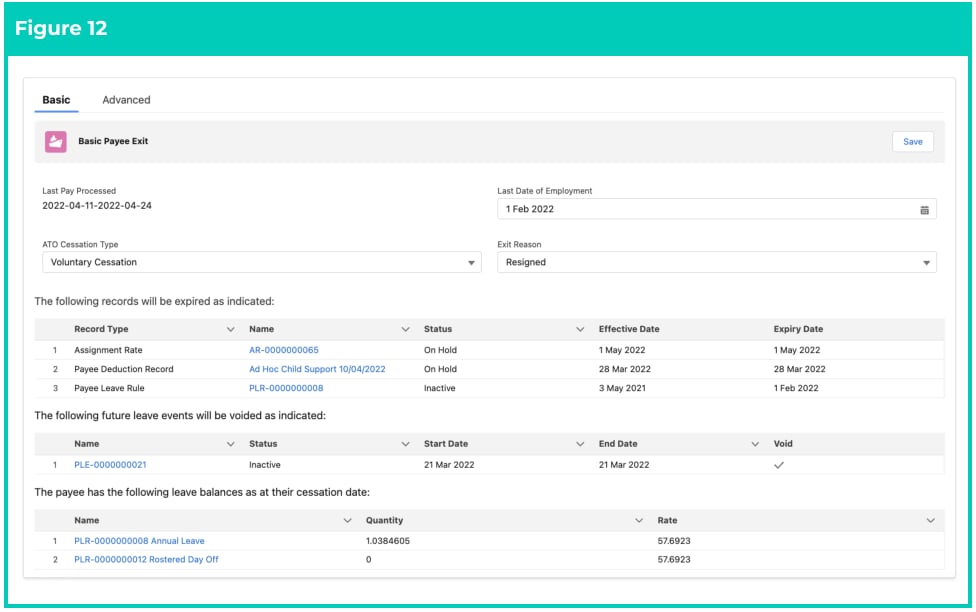 The details of the records that will expire automatically when the record is saved are
listed for reference only. No further action is required in relation to expiring the
records. Their Expiry Date will be set as the Last Date of Employment (see Figure 7).
The only record types that are automatically selected to be paid out on termination
(based on the 'Can be Paid Out' fields) are Annual Leave and LSL. Any other types of
Leave can be picked up via the Payee Exit UI and will be considered as an ETP.
### **Advanced Payee Exit**
If using the Advanced Payee Exit method, the following steps should be completed:
1. Click on the **Advanced** tab (see Figure 13).
2. To create a new record, click on the **New** button.
The details of the records that will expire automatically when the record is saved are
listed for reference only. No further action is required in relation to expiring the
records. Their Expiry Date will be set as the Last Date of Employment (see Figure 7).
The only record types that are automatically selected to be paid out on termination
(based on the 'Can be Paid Out' fields) are Annual Leave and LSL. Any other types of
Leave can be picked up via the Payee Exit UI and will be considered as an ETP.
### **Advanced Payee Exit**
If using the Advanced Payee Exit method, the following steps should be completed:
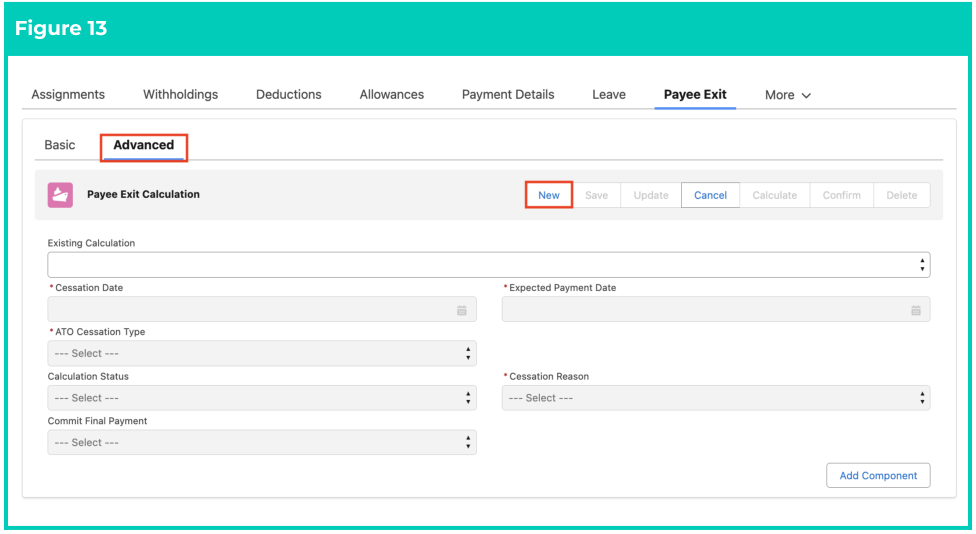
1. Click on the **Advanced** tab (see Figure 13).
2. To create a new record, click on the **New** button.
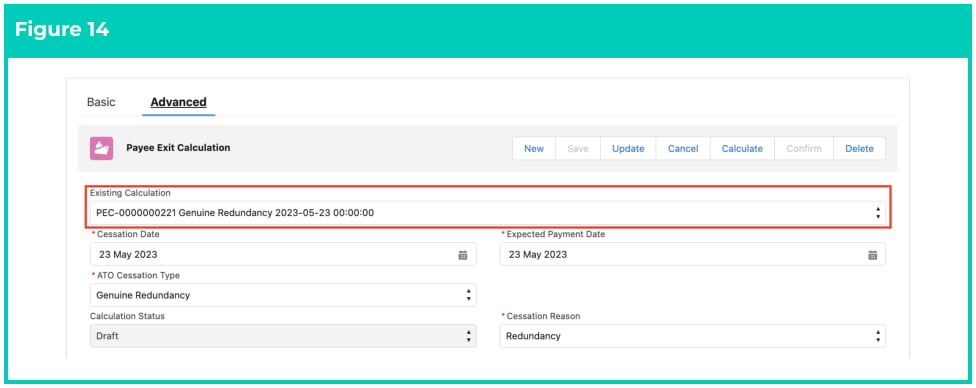
 3. To view/update an existing Advanced Payee Exit calculation, select the relevant record in the
Existing Calculation field instead of clicking the New button (see Figure 14).
3. To view/update an existing Advanced Payee Exit calculation, select the relevant record in the
Existing Calculation field instead of clicking the New button (see Figure 14).
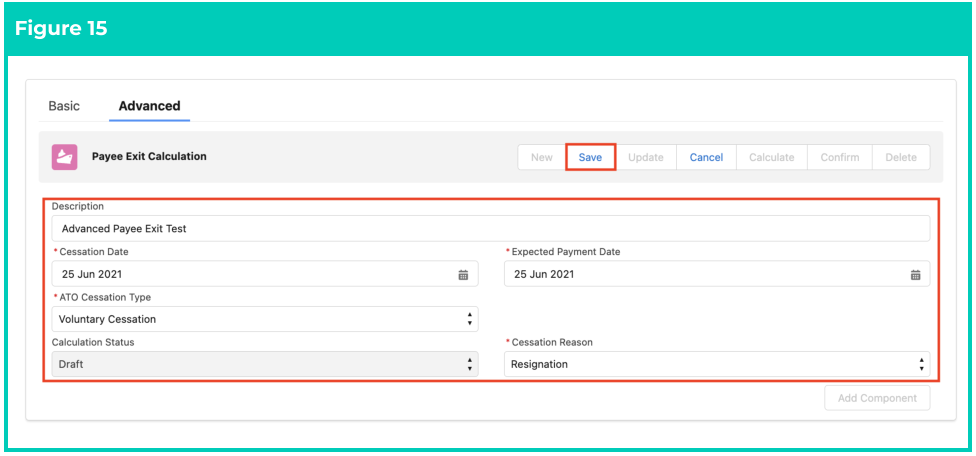
 4. Populate the following fields: (see Figure 15)
1. **Description**
2. **Cessation Date**
3. **Expected Payment Date**
4. **ATO Cessation Type**
5. **Cessation Reason**
5. Click on the **Save** button. The system will save the record and populate the Calculation Id, Calculation Status and Summary of Exit Items records (see Figure 15).
4. Populate the following fields: (see Figure 15)
1. **Description**
2. **Cessation Date**
3. **Expected Payment Date**
4. **ATO Cessation Type**
5. **Cessation Reason**
5. Click on the **Save** button. The system will save the record and populate the Calculation Id, Calculation Status and Summary of Exit Items records (see Figure 15).
 6. You will get a confirmation message (see Figure 16).
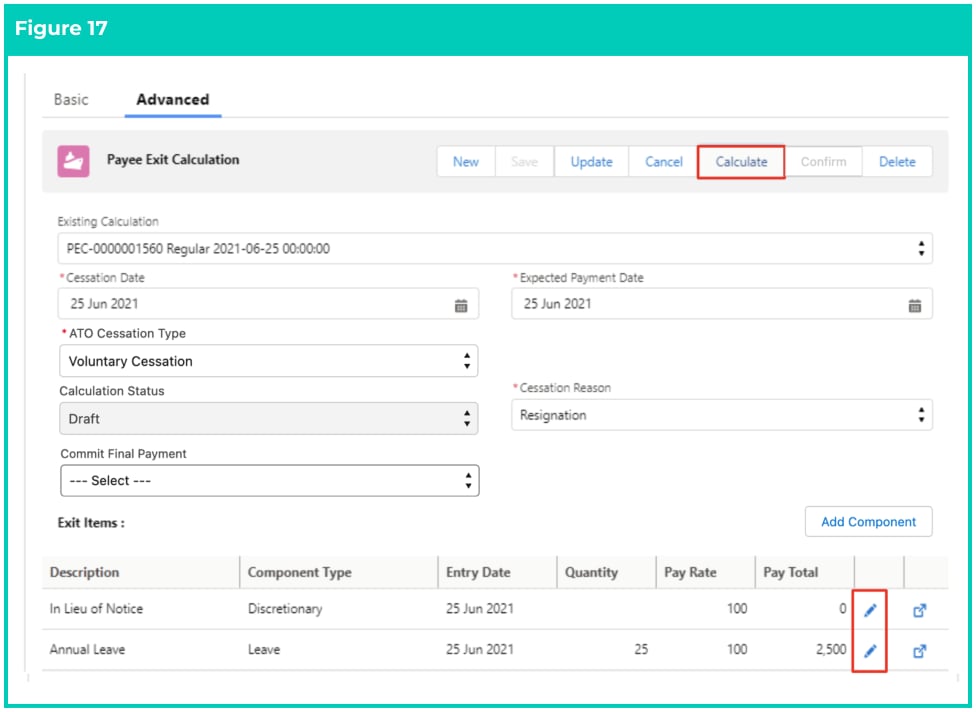
 7. If you need to adjust the quantity of the exit items, click on the edit icon next to each record (see Figure 17).
8. Once done, click on the **Calculate** button (see Figure 17).
7. If you need to adjust the quantity of the exit items, click on the edit icon next to each record (see Figure 17).
8. Once done, click on the **Calculate** button (see Figure 17).
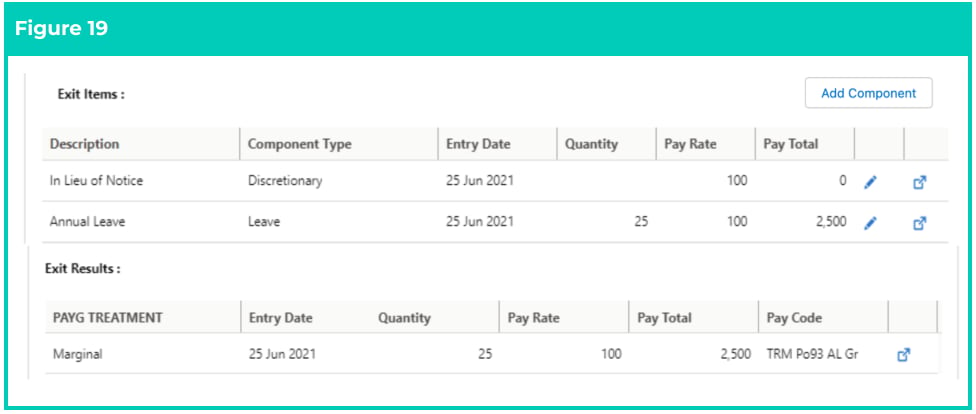
 9. You will get a confirmation message (see Figure 18).
 10. Now you will see a summary of the Exit Results (see Figure 19).
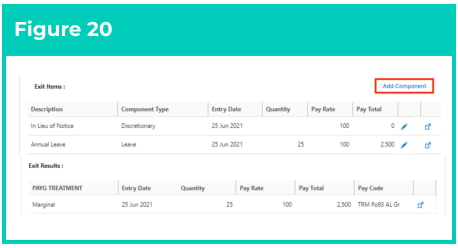
 11. To add additional components, click the **Add Component** button on the right hand side (see Figure 20).
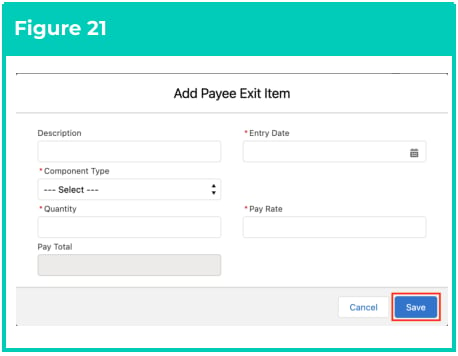
 12. Populate the fields **Description, Entry Date, Component Type, Quantity,** and **Pay Rate** as required and click **Save** (see Figure 21).
 13. If you added new components following steps 11 and 12 above, please remember to click the **Calculate** button again.
To make further adjustments, click on the edit icon again next to each record and
remember to calculate again. After calculating again, click Update to save the
changes.
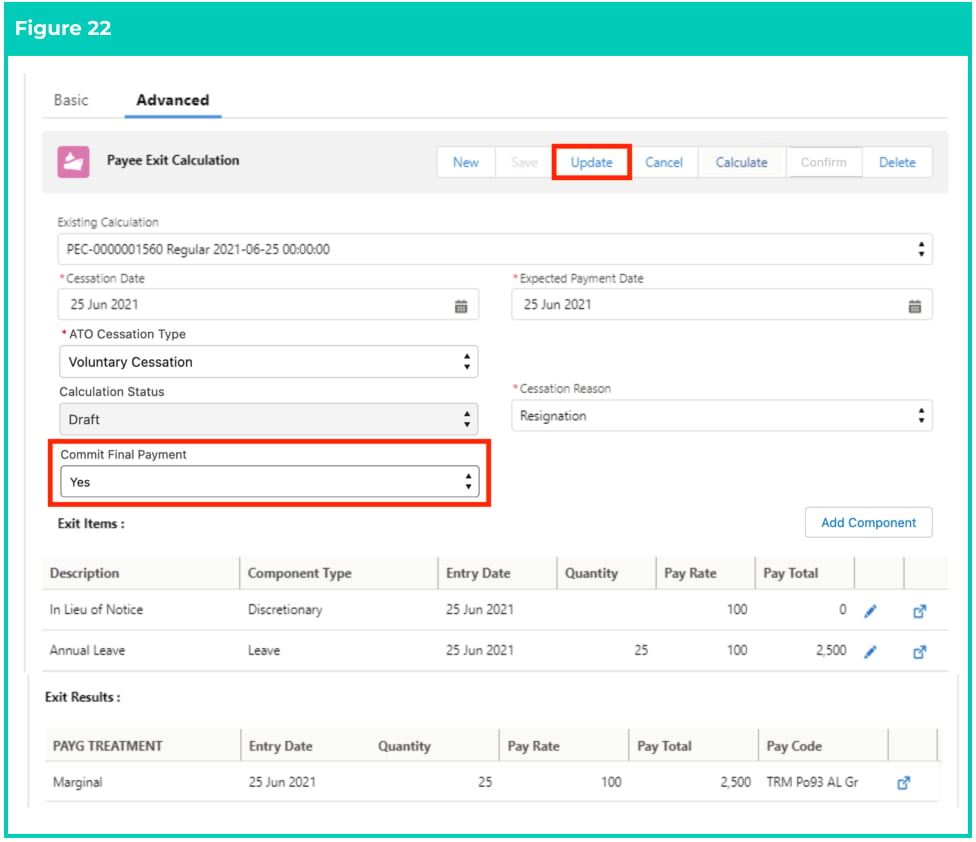
14. Once all the calculations are complete, and you are satisfied for these amounts to be used within
the Payees Final Termination Payment, populate the **Commit Final Payment** field as Yes and
click the **Update** button (see Figure 22).
13. If you added new components following steps 11 and 12 above, please remember to click the **Calculate** button again.
To make further adjustments, click on the edit icon again next to each record and
remember to calculate again. After calculating again, click Update to save the
changes.
14. Once all the calculations are complete, and you are satisfied for these amounts to be used within
the Payees Final Termination Payment, populate the **Commit Final Payment** field as Yes and
click the **Update** button (see Figure 22).
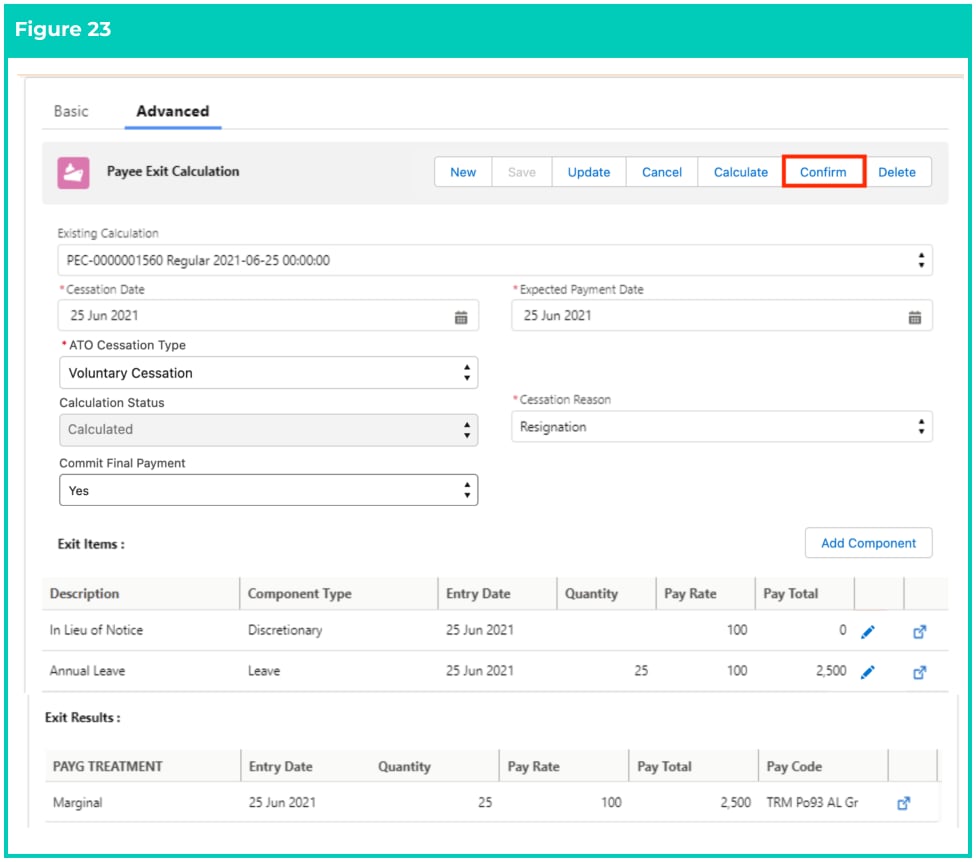
 15. You will notice that the Confirm button is now enabled. To confirm the Payee Exit, click on **Confirm** (see Figure 23).
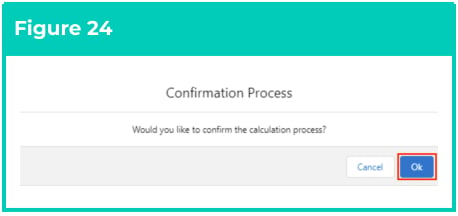
 16. To complete the Advanced Payee Exit process, click **Ok** to confirm the Calculations. NOTE: THIS ACTION CANNOT BE REVERSED. (See Figure 24)
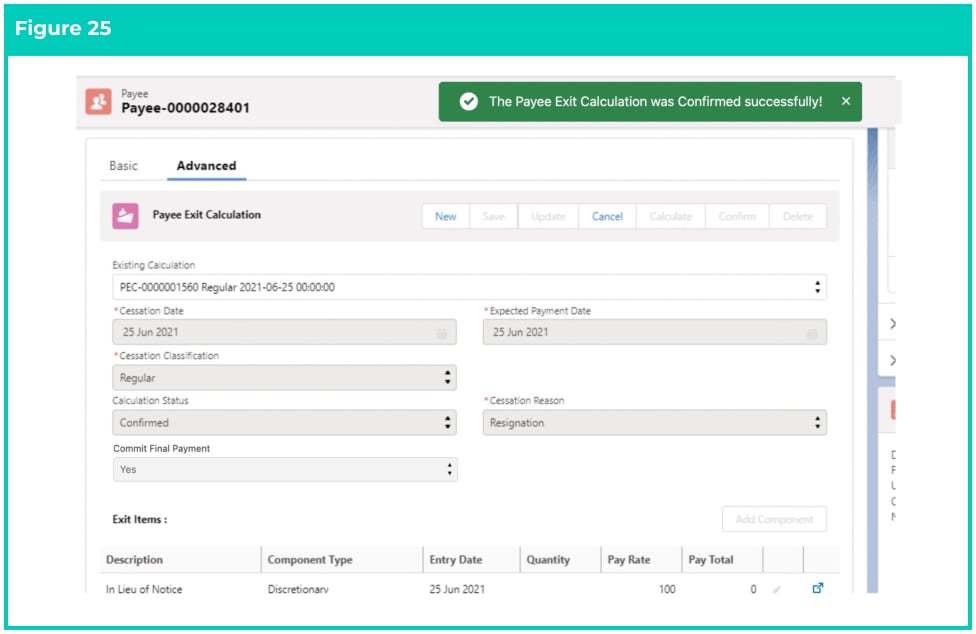
 17. The end-user receives a notification confirming the successful creation of Pay Batch Event and Pay Transactions. (See Figure 25)
18. Once a Payee Exit is Confirmed, the Payee Exit calculation will be locked, and no changes can be made.
19. To view details of the individual Exit Items, click on the View Record button next to each row within the Exit Items section.
17. The end-user receives a notification confirming the successful creation of Pay Batch Event and Pay Transactions. (See Figure 25)
18. Once a Payee Exit is Confirmed, the Payee Exit calculation will be locked, and no changes can be made.
19. To view details of the individual Exit Items, click on the View Record button next to each row within the Exit Items section.
 Upon clicking the Confirm button, any Payee-related records (Assignments,
Assignment Rates, Payee Leave Rules, Deductions, Allowances, etc.) will now have the
Expiry Date applied. The Expiry Date will not be applied to the Payee Withholdings and
Payment Details records. The Cessation Date, ATO Cessation Type, and Payee
Cessation Reason will be populated on the Payee record.
The only leave types that are automatically selected for pay out on termination (based
on the 'Can be Paid Out' fields) are Annual Leave and LSL. Any other types of Leave can
be picked up via the Payee Exit UI and will be considered as an ETP.
20. To complete the payment of the Payee Exit components, Users will need to create and calculate a
Pay Batch that relates to this Payee using the applicable date. Any final payments that are peding will appear once the pay batch is calculated.
For more details, refer to the Pay Batch QRGs.
Updates have now been made to Pay Batch calculations containing Payee Exits who
have updated the field Commit Final Payment to Yes. The Calculation process will now
review the existing Leave entitlements and consider any new Leave Accruals against
new hours worked, as well as new Leave Takes, Leave Credits, etc. This automation
ensures the final balance is accurate and resolves all of these to zero during the Pay
Batch Finalise process.
## Field Descriptions
| Field Name | Description |
| ----------------------- | ---------------------------------------------------------------------------------------------------------------------------------------------------------------------------------------------------------------------------------------------------------------------------------------------------------------------------------------------------------------------------------------------------------------------------------------------------------------------------------------------------------------------------------------------------------------------------------------------------------------------------------------------------------------------------------------------------------------------------------------------------------------------------------------------------------------------------------------------------------------------------------------------------------------------------------------------------------------------------------------------------------------------------------------------------------------------------------------------------------------------------------------------------------------------------------------------------------------------------------------------------------------------------------------------------------------------- |
| **Basic Payee Exit** | |
| ATO Cessation Type | The ATO-approved list of Cessation Types for STP Reporting. Picklist values are: Voluntary Cessation, Ill Health, Deceased, Genuine Redundancy, Dismissal, Contract Cessation, Transfer, Early Retirement, Non-Genuine Redundancy. |
| Exit Reason | is the reason for ceasing employment. Picklist values are explained below:
Upon clicking the Confirm button, any Payee-related records (Assignments,
Assignment Rates, Payee Leave Rules, Deductions, Allowances, etc.) will now have the
Expiry Date applied. The Expiry Date will not be applied to the Payee Withholdings and
Payment Details records. The Cessation Date, ATO Cessation Type, and Payee
Cessation Reason will be populated on the Payee record.
The only leave types that are automatically selected for pay out on termination (based
on the 'Can be Paid Out' fields) are Annual Leave and LSL. Any other types of Leave can
be picked up via the Payee Exit UI and will be considered as an ETP.
20. To complete the payment of the Payee Exit components, Users will need to create and calculate a
Pay Batch that relates to this Payee using the applicable date. Any final payments that are peding will appear once the pay batch is calculated.
For more details, refer to the Pay Batch QRGs.
Updates have now been made to Pay Batch calculations containing Payee Exits who
have updated the field Commit Final Payment to Yes. The Calculation process will now
review the existing Leave entitlements and consider any new Leave Accruals against
new hours worked, as well as new Leave Takes, Leave Credits, etc. This automation
ensures the final balance is accurate and resolves all of these to zero during the Pay
Batch Finalise process.
## Field Descriptions
| Field Name | Description |
| ----------------------- | ---------------------------------------------------------------------------------------------------------------------------------------------------------------------------------------------------------------------------------------------------------------------------------------------------------------------------------------------------------------------------------------------------------------------------------------------------------------------------------------------------------------------------------------------------------------------------------------------------------------------------------------------------------------------------------------------------------------------------------------------------------------------------------------------------------------------------------------------------------------------------------------------------------------------------------------------------------------------------------------------------------------------------------------------------------------------------------------------------------------------------------------------------------------------------------------------------------------------------------------------------------------------------------------------------------------------- |
| **Basic Payee Exit** | |
| ATO Cessation Type | The ATO-approved list of Cessation Types for STP Reporting. Picklist values are: Voluntary Cessation, Ill Health, Deceased, Genuine Redundancy, Dismissal, Contract Cessation, Transfer, Early Retirement, Non-Genuine Redundancy. |
| Exit Reason | is the reason for ceasing employment. Picklist values are explained below:
- Approved Early Retirement
Indicates the Employee has applied for an early retirement, which has been approved. - Casual Termination
Indicates the Employee’s casual contract has been terminated. - Death
Indicates the Employee has passed away. - Dismissal
Indicates the Employee’s employment has been dismissed due to disciplinary reasons. - End of Contract
Indicates the Employee’s contract has reached an end and that the contract will no longer be extended at this stage. - Invalidity
Indicates the termination reason is due to ill health. - Non-Genuine Redundancy
Indicates the Employee has been provided a non-genuine redundancy. - Redundancy
Indicates the Employee has been made redundant by the company. - Resignation
Indicates the Employee has chosen to resign and has confirmed the resignation in writing. - Retirement
Indicates the employment has ceased due to an approved retirement.
|
| Last Date of Employment | is the final date of employment. |
| **Advanced Payee Exit** | |
| ATO Cessation Type | is the list of classifications to which the Classification Reasons belong. The picklist values are: Voluntary Cessation, Ill Health, Deceased, Genuine Redundancy, Dismissal, Contract Cessation, Transfer, Early Retirement, Non-Genuine Redundancy. |
| Calculation Status | is the processing status of this Payee Exit record. Only Payee Exits which are Confirmed can be processed in the Pay Batch Calculation. |
| Cessation Date | is the final date of employment. |
| Commit Final Payment | this locks the Payee Exit from any adjustments, and enables the Payee Exit Calculation to be included in a Pay Batch Calculation. |
| Expected Payment Date | is the expected date of payment. |
## Further Information
| Document | Document Type | Description |
| ---------------------- | -------------------- | ------------------------------------------------------------------------------------------------------------------------ |
| Create a new Pay Batch | Process Instructions | Step-by-step instructions on how to create a new Pay Batch. This includes creating new and editing existing Pay Batches. |