> ## Documentation Index
> Fetch the complete documentation index at: https://documentation.2cloudnine.com/llms.txt
> Use this file to discover all available pages before exploring further.
# QRG Create Rate Calculators - Employee Specific
## Purpose
The purpose of this quick reference guide is to step through the process of creating Employee Specific
Rate Calculators. The intended audience for this document is System Administrators / Standard Users.
There are two methods available to create Employee Specific Rate Calculators:
1. Create Employee Specific Rate Calculators via Rate Calculator Manager
2. Create Employee Specific Rate Calculators via an Assignment
## Steps
**Create Employee Specific Rate Calculators via Rate Calculator Manager**
To create an Employee Specific Rate Calculator from the Manager page, follow the steps below:
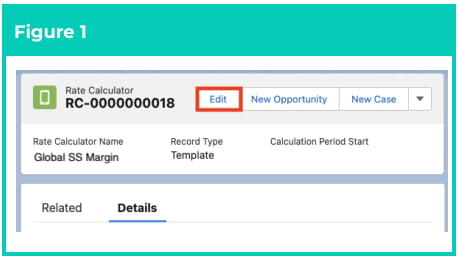
1. Open the Rate Calculator Template and
click on the **Edit** button to launch the
Rate Calculator Manager (see Figure 1).
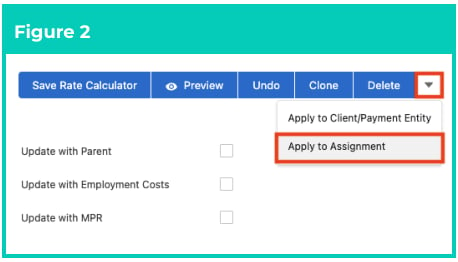
2. Click on the drop-down arrow and select
**Apply to Assignment** (see Figure 2).
3. To filter the records available through
the Assignment lookup field by related
Client and/or Employee record, follow
this step in the sequence provided:
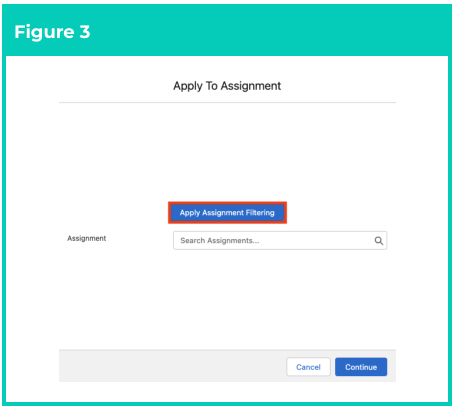
1. Click on the **Apply Assignment Filtering** button (see Figure 3).
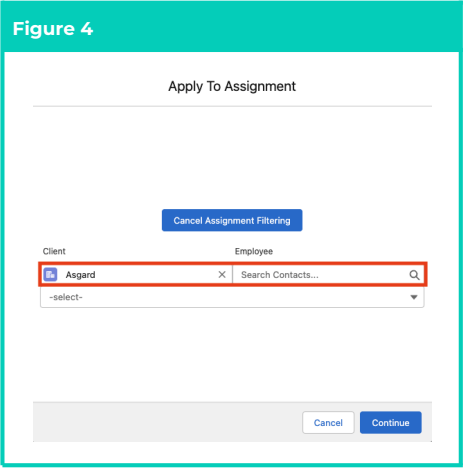
2. Populate the **Client** and/or
**Employee** fields using the
lookup options available to
provide matching Assignments
(see Figure 4).
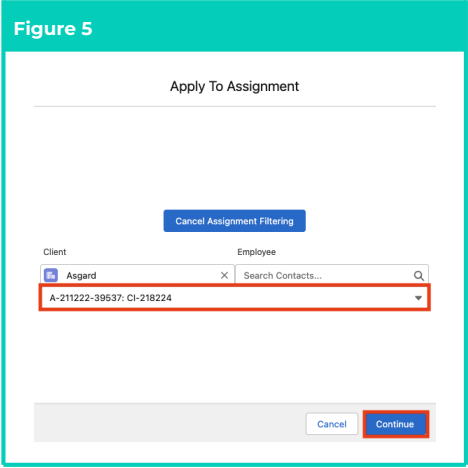
4. Select the suitable **Assignment** from the
list provided and click on the **Continue**
button (see Figure 5).
 **Important Notes**\
*(Figures 1 to 5)*
*If the Assignment and Rate Calculator Template contains different Interpretation Rules, the new Rate*
*Calculator will inherit both Interpretation Rules. HOWEVER* ***,*** *Pay Codes inherited from the*
*Assignment’s Interpretation Rule will be blank on the Rate Calculator, and must be manually*
*populated following creation.*
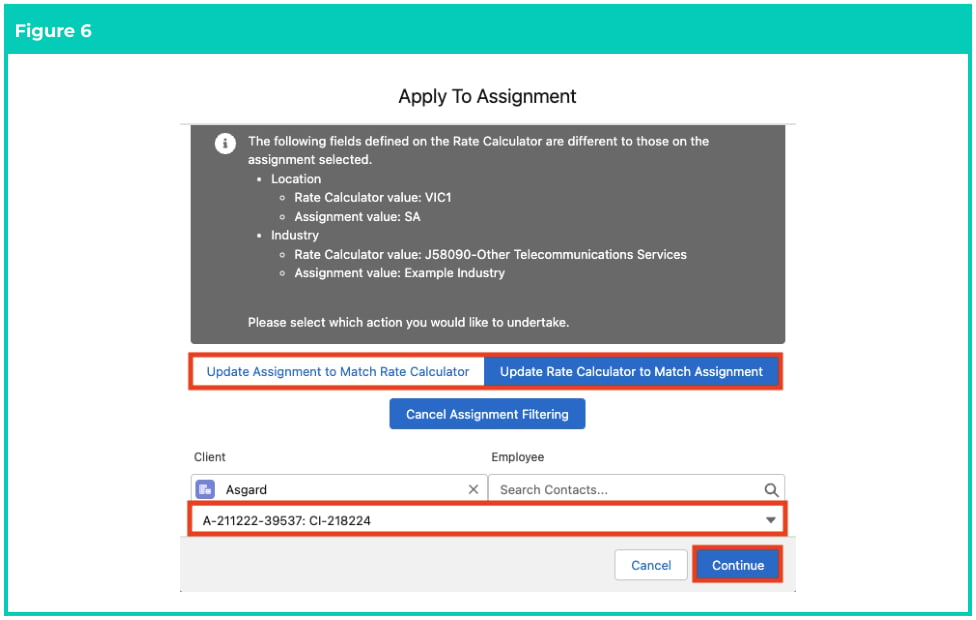
5. If prompted, select from the following options to resolve any conflicting Risk Classification,
Location, Industry, Award Classification, and Award Level between the Rate Calculator Template
and the Assignment (see Figure 6):
1. **Update Assignment to Match Rate Calculator**\
**OR**
2. **Update Rate Calculator to Match Assignment**\
**OR**
3. Select another **Assignment** using the lookup options available, and click on the
**Continue** button to re-validate the Risk Classification, Location, Industry, Award
Classification and Award Level fields between the two records.
**Important Notes**\
*(Figures 1 to 5)*
*If the Assignment and Rate Calculator Template contains different Interpretation Rules, the new Rate*
*Calculator will inherit both Interpretation Rules. HOWEVER* ***,*** *Pay Codes inherited from the*
*Assignment’s Interpretation Rule will be blank on the Rate Calculator, and must be manually*
*populated following creation.*
5. If prompted, select from the following options to resolve any conflicting Risk Classification,
Location, Industry, Award Classification, and Award Level between the Rate Calculator Template
and the Assignment (see Figure 6):
1. **Update Assignment to Match Rate Calculator**\
**OR**
2. **Update Rate Calculator to Match Assignment**\
**OR**
3. Select another **Assignment** using the lookup options available, and click on the
**Continue** button to re-validate the Risk Classification, Location, Industry, Award
Classification and Award Level fields between the two records.
 The Rate Calculator Template is now related to the Assignment record, and automatically creates an
**Employee Specific Rate Calculator** related to the Assignment.
**Important Notes**\
*(Figures 1 to 6)*
The Pay Rates, Mark Up / Margin Rates, Location, Industry, and Risk Classification fields are required
to apply Employment Cost Items and generate Rate Calculator Lines.
*No new Rate Calculator Rate records will be created if the new Minimum Pay Rate amount is lower*
*than the current Rate Calculator Pay Rate.*
### Create Employee Specific Rate Calculators via the Assignment
To create an Employee Specific Rate Calculator from the Assignment, follow the steps below:
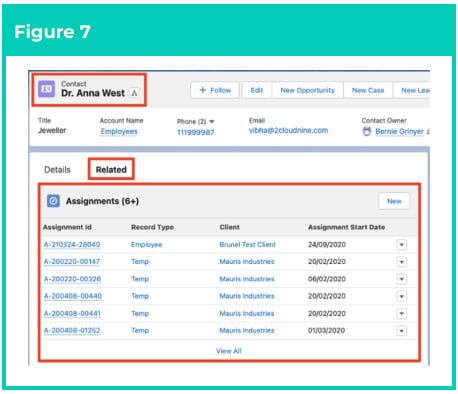
1. Navigate to the **Temp Assignment**
record that you want to create the
Employee Specific Rate Calculator for
(see Figure 7):
1. Open the **Related** tab.
2. Select the **Temp Assignment** to
associate the Rate Calculator
with it.
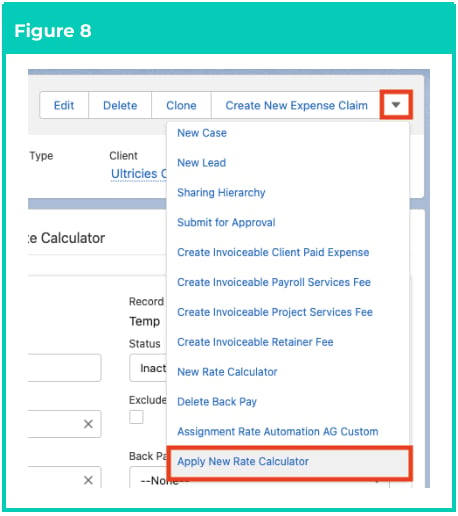
2. Click on the drop-down menu from the
Assignment record and select **Apply**
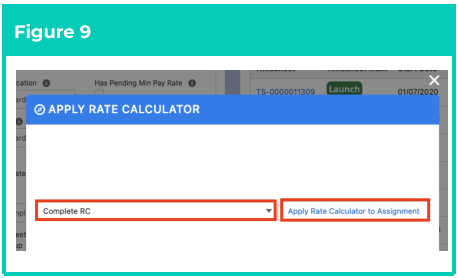
3. Select a Template from the picklist
options and click on the **Apply Rate Calculator to Assignment** button (see
Figure 9). The lookup will only display
Globally Enabled Rate Calculator
Templates.
The Rate Calculator Template is now related to the Assignment record, and automatically creates an
**Employee Specific Rate Calculator** related to the Assignment.
**Important Notes**\
*(Figures 1 to 6)*
The Pay Rates, Mark Up / Margin Rates, Location, Industry, and Risk Classification fields are required
to apply Employment Cost Items and generate Rate Calculator Lines.
*No new Rate Calculator Rate records will be created if the new Minimum Pay Rate amount is lower*
*than the current Rate Calculator Pay Rate.*
### Create Employee Specific Rate Calculators via the Assignment
To create an Employee Specific Rate Calculator from the Assignment, follow the steps below:
1. Navigate to the **Temp Assignment**
record that you want to create the
Employee Specific Rate Calculator for
(see Figure 7):
1. Open the **Related** tab.
2. Select the **Temp Assignment** to
associate the Rate Calculator
with it.
2. Click on the drop-down menu from the
Assignment record and select **Apply**
3. Select a Template from the picklist
options and click on the **Apply Rate Calculator to Assignment** button (see
Figure 9). The lookup will only display
Globally Enabled Rate Calculator
Templates.
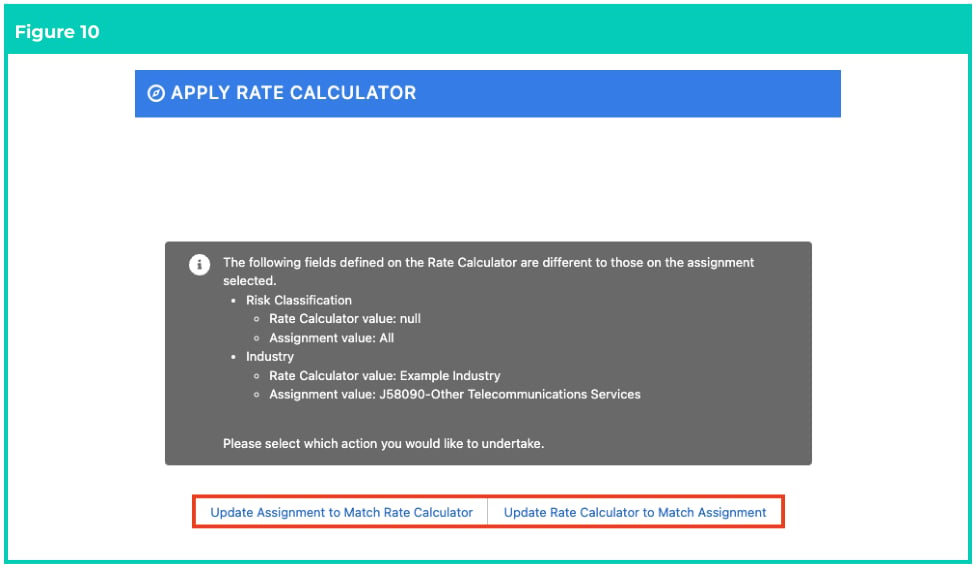
 4. A validation will occur to determine whether there are any conflicts between the Assignment and
Rate Calculator Template records for the following fields:
* Location
* Industry
* Risk Classification
* Award Classification
* Award Level
5. If conflicts are identified, the User will be provided an overview of the discrepancies so corrective
action can be taken. Please select one of the following:
1. **Update Assignment to Match Rate Calculator**\
**OR**
2. **Update Rate Calculator to Match Assignment**
4. A validation will occur to determine whether there are any conflicts between the Assignment and
Rate Calculator Template records for the following fields:
* Location
* Industry
* Risk Classification
* Award Classification
* Award Level
5. If conflicts are identified, the User will be provided an overview of the discrepancies so corrective
action can be taken. Please select one of the following:
1. **Update Assignment to Match Rate Calculator**\
**OR**
2. **Update Rate Calculator to Match Assignment**
 **Important Notes**\
*(Figures 7 to 10)*
*If Pay Rates, Mark Up / Margin Rates, Industry and Risk Classification were not previously defined for*
*the Rate Calculator Template, they must be defined in the Employee Specific Rate Calculator, or*
*inherited from related Assignment records where applicable.*
*Changing values on the Award Classification and Award Level fields will affect MPR automation,*
*which may impact Assignment Rates.*
### Update Employee Specific Rate Calculator
Once a Rate Calculator Template has been applied to an Assignment and the new Employee Specific
Rate Calculator has been created, the Rate Calculator field on the Assignment will be automatically
populated with the new Employee Specific Rate Calculator.
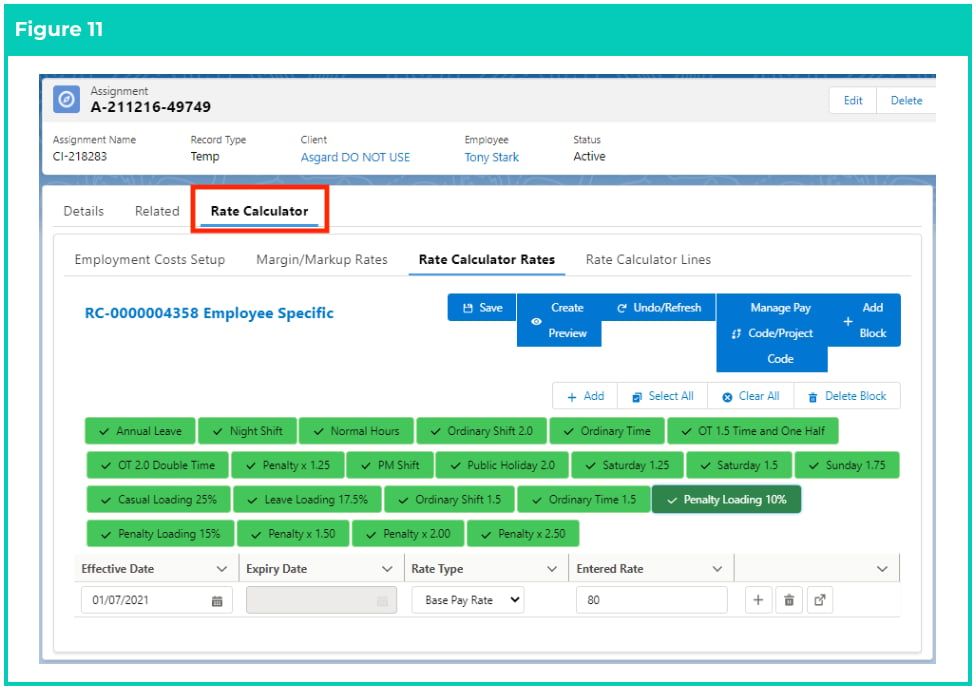
To provide a direct method to update an Employee Specific Rate Calculator, the Assignment includes a
Rate Calculator tab. This tab provides Users access to all components needed to update the Employee
Specific Rate Calculator (see Figure 11):
* Employment Costs Setup
* Margin/Markup Rates
* Rate Calculator Rates
* Rate Calculator Lines
**Important Notes**\
*(Figure 11)*
*As of the current Rate Calculator release, it is strongly recommended the Employee Specific Rate*
*Calculator be accessed from the Rate Calculator record by selecting the record on the Assignment*
*and clicking Edit.*
*Whilst most functionality is supported from the Assignment, Pay Rate Loadings, and some record*
*update features have been disabled.*
**Important Notes**\
*(Figures 7 to 10)*
*If Pay Rates, Mark Up / Margin Rates, Industry and Risk Classification were not previously defined for*
*the Rate Calculator Template, they must be defined in the Employee Specific Rate Calculator, or*
*inherited from related Assignment records where applicable.*
*Changing values on the Award Classification and Award Level fields will affect MPR automation,*
*which may impact Assignment Rates.*
### Update Employee Specific Rate Calculator
Once a Rate Calculator Template has been applied to an Assignment and the new Employee Specific
Rate Calculator has been created, the Rate Calculator field on the Assignment will be automatically
populated with the new Employee Specific Rate Calculator.
To provide a direct method to update an Employee Specific Rate Calculator, the Assignment includes a
Rate Calculator tab. This tab provides Users access to all components needed to update the Employee
Specific Rate Calculator (see Figure 11):
* Employment Costs Setup
* Margin/Markup Rates
* Rate Calculator Rates
* Rate Calculator Lines
**Important Notes**\
*(Figure 11)*
*As of the current Rate Calculator release, it is strongly recommended the Employee Specific Rate*
*Calculator be accessed from the Rate Calculator record by selecting the record on the Assignment*
*and clicking Edit.*
*Whilst most functionality is supported from the Assignment, Pay Rate Loadings, and some record*
*update features have been disabled.*
 ### Employment Costs Setup
Whilst all Employee Specific Rate Calculators are created from a Template, the Employment Costs can
still be modified to add or remove Employment Costs at the Employee Specific Rate Calculator level.
As an example, a Template may contain a Superannuation Oncost, but the Employee Specific Rate
Calculator is applied to an Assignment with a Contractor that does not attract Superannuation.
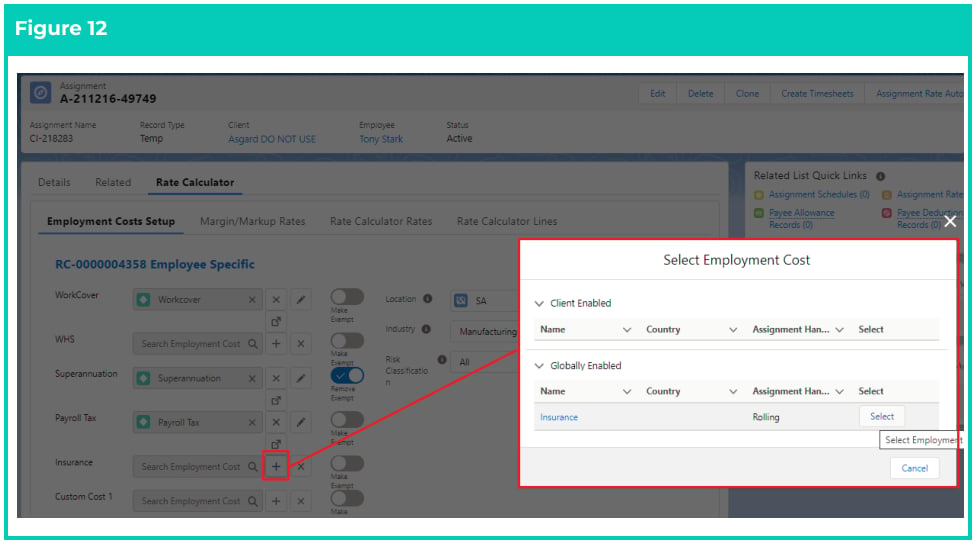
To add an Employment Cost from an Employee Specific Rate Calculator:
1. Select the **Rate Calculato** r tab on the Assignment and then **Employment Costs Setup** .
2. Locate the Employment Cost lookup and select the **+ button** .
3. In the pop-up window, click **Select** on the Employment Cost to be added (See Figure 12.)
4. Select the **Save** button.
5. Wait for the Scheduled Jo, or click the **Rate Calculator Lines** tab and select the **Calculate Lines**
button to generate the Rate Calculator Lines with the new oncost.
### Employment Costs Setup
Whilst all Employee Specific Rate Calculators are created from a Template, the Employment Costs can
still be modified to add or remove Employment Costs at the Employee Specific Rate Calculator level.
As an example, a Template may contain a Superannuation Oncost, but the Employee Specific Rate
Calculator is applied to an Assignment with a Contractor that does not attract Superannuation.
To add an Employment Cost from an Employee Specific Rate Calculator:
1. Select the **Rate Calculato** r tab on the Assignment and then **Employment Costs Setup** .
2. Locate the Employment Cost lookup and select the **+ button** .
3. In the pop-up window, click **Select** on the Employment Cost to be added (See Figure 12.)
4. Select the **Save** button.
5. Wait for the Scheduled Jo, or click the **Rate Calculator Lines** tab and select the **Calculate Lines**
button to generate the Rate Calculator Lines with the new oncost.
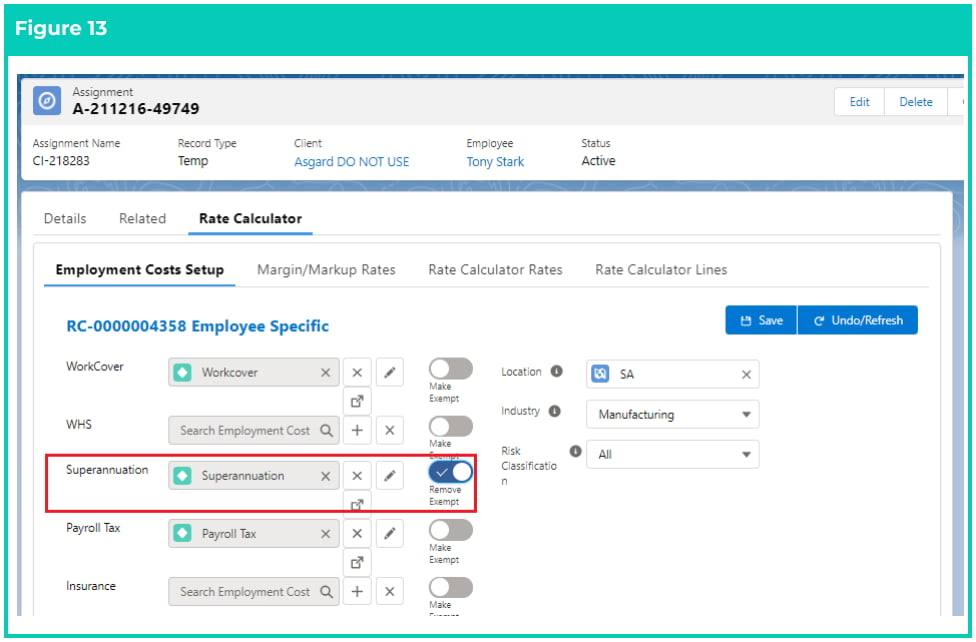
 To exempt an Employment Cost from an Employee Specific Rate Calculator:
1. Select the **Rate Calculator** tab on the Assignment and then **Employment Costs** Setup.
2. Locate the Employment Cost to Exempt and click the **Make Exempt** toggle (See Figure 13).
3. Click **Save** .
4. Wait for the Scheduled Job, or click the **Rate Calculator Lines** tab and select the **Calculate Lines**
button, to generate the new Rate Calculator Lines exempt of the oncost.
To exempt an Employment Cost from an Employee Specific Rate Calculator:
1. Select the **Rate Calculator** tab on the Assignment and then **Employment Costs** Setup.
2. Locate the Employment Cost to Exempt and click the **Make Exempt** toggle (See Figure 13).
3. Click **Save** .
4. Wait for the Scheduled Job, or click the **Rate Calculator Lines** tab and select the **Calculate Lines**
button, to generate the new Rate Calculator Lines exempt of the oncost.
 **Important Notes**\
*(Figure 13)*
*Any changes to Employment Costs will apply to all Rate Calculator Lines. If you require a change to*
*an Employment Cost to only be effective from a specific date, please ensure your Employment Costs*
*and Employment Cost Items are set up to cater for this scenario.*
**Margin/Markup Rates**
Employee Specific Rate Calculators are always created with a relationship to the Template Rate Calculator
as its parent, along with the same value defined on the **Update with Parent** checkbox (see Figure 14).
When created, the Employee Specific Rate Calculator will inherit the same Employment Costs,
Margin/Markup records, Pay Rate Records, and Pay Rate Loading records defined on the Parent Rate
Calculator, regardless of whether the Update with Parent is checked or not.
**Important Notes**\
*(Figure 13)*
*Any changes to Employment Costs will apply to all Rate Calculator Lines. If you require a change to*
*an Employment Cost to only be effective from a specific date, please ensure your Employment Costs*
*and Employment Cost Items are set up to cater for this scenario.*
**Margin/Markup Rates**
Employee Specific Rate Calculators are always created with a relationship to the Template Rate Calculator
as its parent, along with the same value defined on the **Update with Parent** checkbox (see Figure 14).
When created, the Employee Specific Rate Calculator will inherit the same Employment Costs,
Margin/Markup records, Pay Rate Records, and Pay Rate Loading records defined on the Parent Rate
Calculator, regardless of whether the Update with Parent is checked or not.
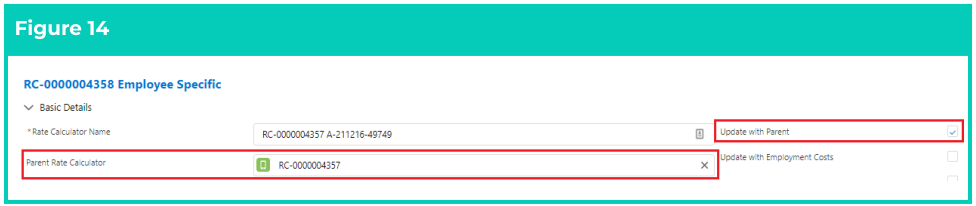 When **Update with Parent** is checked on an Employee Specific Rate Calculator, any new or updated
Margin/Markup or Pay Rate records on the Parent Rate Calculator will automatically apply to the
Employee Specific Rate Calculator.
**Rate Calculator Rates**
Employee Specific Rate Calculators will always inherit the Interpretation Rule defined on the Assignment.
This means if a Template has no Interpretation Rule or a different Interpretation Rule, the Pay Codes on
the Pay Rate and Margin/Markup (if Define Markup Margin Per Pay Code is enabled on the Template)
may not yet be included.
It is important that all Pay Codes are assigned a Pay Rate and, optionally Margin/Markup record so that
each has Rate Calculator Lines created, preventing issues during Timesheet Interpretation.
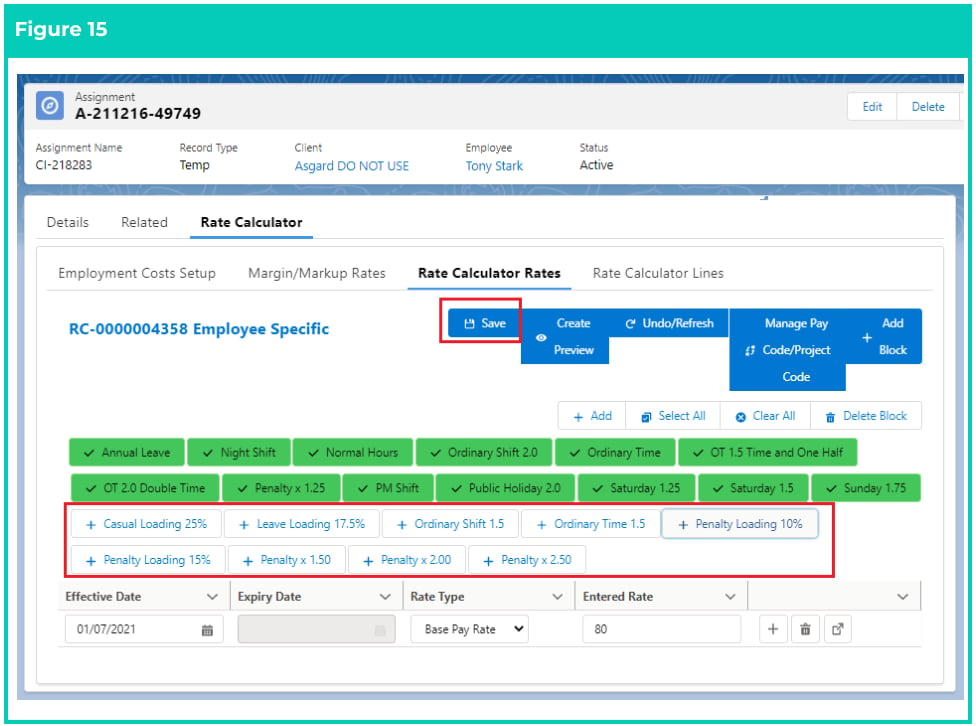
To include any missing Pay codes:
1. Select the **Rate Calculator** tab on the Assignment and then **Rate Calculator Rates** .
2. Select the missing Pay Codes, or create a new block if required (See Figure 15).
3. Select the **Save** button.
4. Wait for the Scheduled Job, or click the **Rate Calculator Lines** tab and select the **Calculate Lines**
button to generate the new Rate Calculator Lines with the missing Pay Codes.
When **Update with Parent** is checked on an Employee Specific Rate Calculator, any new or updated
Margin/Markup or Pay Rate records on the Parent Rate Calculator will automatically apply to the
Employee Specific Rate Calculator.
**Rate Calculator Rates**
Employee Specific Rate Calculators will always inherit the Interpretation Rule defined on the Assignment.
This means if a Template has no Interpretation Rule or a different Interpretation Rule, the Pay Codes on
the Pay Rate and Margin/Markup (if Define Markup Margin Per Pay Code is enabled on the Template)
may not yet be included.
It is important that all Pay Codes are assigned a Pay Rate and, optionally Margin/Markup record so that
each has Rate Calculator Lines created, preventing issues during Timesheet Interpretation.
To include any missing Pay codes:
1. Select the **Rate Calculator** tab on the Assignment and then **Rate Calculator Rates** .
2. Select the missing Pay Codes, or create a new block if required (See Figure 15).
3. Select the **Save** button.
4. Wait for the Scheduled Job, or click the **Rate Calculator Lines** tab and select the **Calculate Lines**
button to generate the new Rate Calculator Lines with the missing Pay Codes.
 Repeat this for Margin/Markup if the “Define Markup Margin Per Pay Code is enabled” is checked.
**Rate Calculator Lines**
Assignment Rates are only created when Rate Calculator Lines are created from Employee Specific Rate
Calculators. After the Rate Calculator Lines are created or updated, the product automatically creates the
required Assignment Rates, resulting in a 1-1 relationship between the Rate Calculator Line and the
[Assignment Rate. For more information, please refer to the QRG Rate Calculator Functionality - Key](https://drive.google.com/file/d/1NDQT8AeGDpeZ9Za0AQ84UZZDGaF-tJm0/view?usp=sharing)
[Information.](https://drive.google.com/file/d/1NDQT8AeGDpeZ9Za0AQ84UZZDGaF-tJm0/view?usp=sharing)
**Delete an Employee Specific Rate Calculator**
If an Employee Specific Rate Calculator is not required, the Delete button enables the removal of the
Employee Specific Rate Calculator and all related records from the Assignment, and can reinstate the
Assignment with all its original values.
To delete an Employee Specific Rate Calculator:
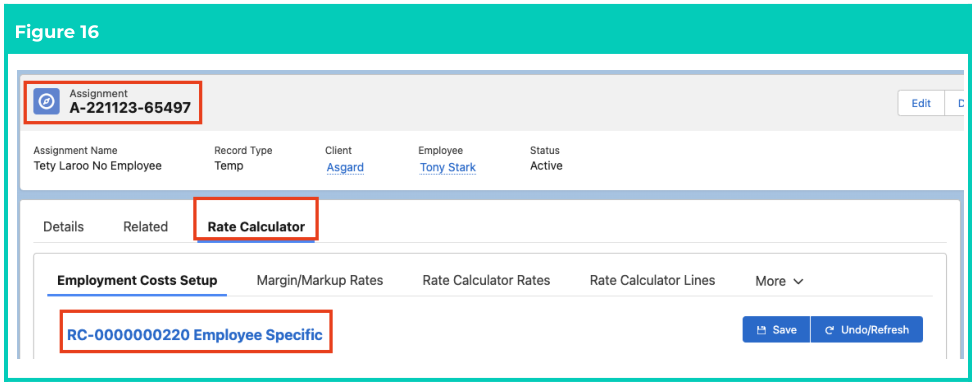
1. From the Assignment record, select the **Rate Calculator** tab and click on the Employee Specific
Rate Calculator’s name (see Figure 16).
Repeat this for Margin/Markup if the “Define Markup Margin Per Pay Code is enabled” is checked.
**Rate Calculator Lines**
Assignment Rates are only created when Rate Calculator Lines are created from Employee Specific Rate
Calculators. After the Rate Calculator Lines are created or updated, the product automatically creates the
required Assignment Rates, resulting in a 1-1 relationship between the Rate Calculator Line and the
[Assignment Rate. For more information, please refer to the QRG Rate Calculator Functionality - Key](https://drive.google.com/file/d/1NDQT8AeGDpeZ9Za0AQ84UZZDGaF-tJm0/view?usp=sharing)
[Information.](https://drive.google.com/file/d/1NDQT8AeGDpeZ9Za0AQ84UZZDGaF-tJm0/view?usp=sharing)
**Delete an Employee Specific Rate Calculator**
If an Employee Specific Rate Calculator is not required, the Delete button enables the removal of the
Employee Specific Rate Calculator and all related records from the Assignment, and can reinstate the
Assignment with all its original values.
To delete an Employee Specific Rate Calculator:
1. From the Assignment record, select the **Rate Calculator** tab and click on the Employee Specific
Rate Calculator’s name (see Figure 16).
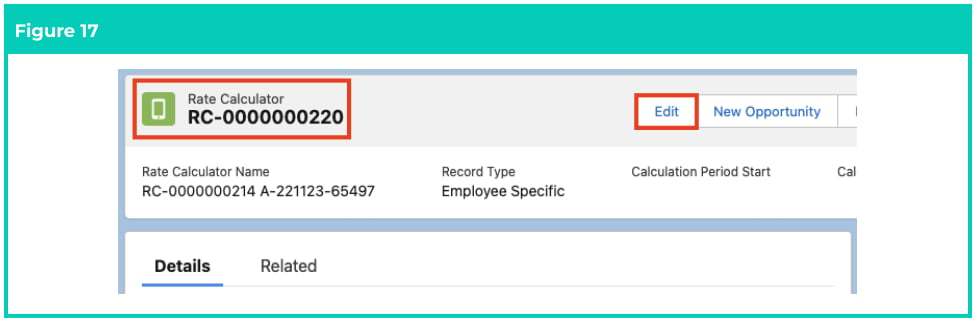
 2. Click on the **Edit** button to open the Rate Calculator Manager (see Figure 17).
 3. Click on the **Delete** button (see Figure 18).
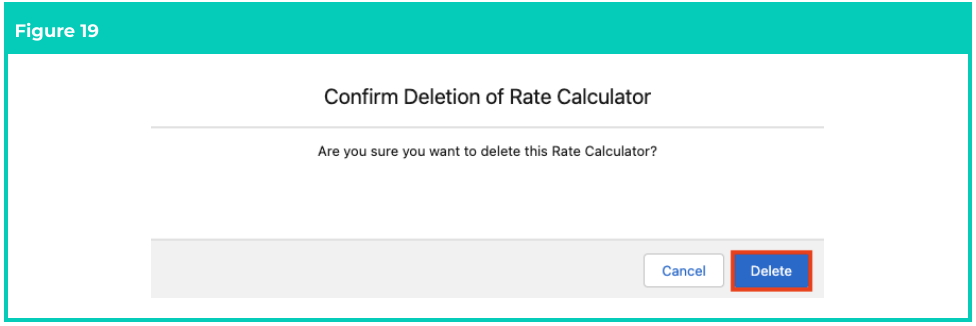
 4. Click on the **Delete** button in the pop-up window to confirm the deletion of the Rate Calculator
(see Figure 19).
4. Click on the **Delete** button in the pop-up window to confirm the deletion of the Rate Calculator
(see Figure 19).
 **Important Notes**\
*(Figures 16 to 19)*
*Any Assignment values inherited from the Rate Calculator Template in the following fields will revert*
*to their original values if the Employee Specific Rate Calculator is deleted: Location, Industry, Risk*
*Classification, Award Classification, and Award Level.*
Employee Specific Rate Calculator records CANNOT be deleted if they have been
related to Pay Transactions. Deleting records is not recommended unless absolutely
essential.
## Field descriptions
| Field Name | Description |
| -------------- | ------------------------------------------------------------------------------------------------------------------------------------------------------------------------------------------------------------------------------------------------------------------------------------------------------------------------------------------------------ |
| **Assignment** | This is the Assignment record to be related to the Rate Calculator Template. This is the Client record to be used to flter Assignment records to select an Assignment to relate to the Rate Calculator Template. This is the Employee record to be used to flter Assignment records to select an Assignment to relate to the Rate Calculator Template. |
| **Client** | This is the Client record to be used to filter Assignment records to select an Assignment to relate to the Rate Calculator Template. |
| **Employee** | This is the Employee record to be used to filter Assignment records to select an Assignment to relate to the Rate Calculator Template. |
## Further information
| Document | Document Type | Description |
| --------------------------------------------------------------- | --------------------------- | --------------------------------------------------------------------------------------------------------------------------------------------------------------------- |
| QRG Rate Calculator Key Information | Information Quick Reference | Outlines useful information relevant to the Rate Calculator functionality. The document includes definitions, prerequisites, and other non-instructional information. |
| QRG Create a Location record | Task Instructions | How to create a Location record used for Rate Calculators. |
| QRG Create a Calculation Method | Task Instructions | How to create Calculation Methods to define the calculation type and unit of calculation for Rate Calculator records. |
| QRG Create an Employment Cost Record | Task Instructions | How to create Employment Cost records used for applying costs to the Rate Calculator. |
| QRG Manage Employment Cost Items using ECM | Task Instructions | How to manage Employment Cost Items using the Employment Cost Manager. |
| QRG Create an Employment Cost Exception | Task Instructions | How to apply Employment Cost Exceptions to Clients, Payees & Pay Codes. |
| QRG Create Pay Rate Loadings | Task Instructions | How to create Pay Rate Loadings used for Casual Loading or Shift Loading. |
| QRG Create Rate Calculators - Templates - Initial Setup | Task Instructions | How to create Rate Calculator Templates - Initial Setup. |
| QRG Create Rate Calculator Templates - Final Setup | Task Instructions | How to create Rate Calculator Templates - Final Setup. |
| QRG Create Rate Calculators - Preview, Clone & Save as Template | Task Instructions | How to create Rate Calculator Previews, Save existing Rate Calculators as Templates, and use the Clone functionality. |
**Important Notes**\
*(Figures 16 to 19)*
*Any Assignment values inherited from the Rate Calculator Template in the following fields will revert*
*to their original values if the Employee Specific Rate Calculator is deleted: Location, Industry, Risk*
*Classification, Award Classification, and Award Level.*
Employee Specific Rate Calculator records CANNOT be deleted if they have been
related to Pay Transactions. Deleting records is not recommended unless absolutely
essential.
## Field descriptions
| Field Name | Description |
| -------------- | ------------------------------------------------------------------------------------------------------------------------------------------------------------------------------------------------------------------------------------------------------------------------------------------------------------------------------------------------------ |
| **Assignment** | This is the Assignment record to be related to the Rate Calculator Template. This is the Client record to be used to flter Assignment records to select an Assignment to relate to the Rate Calculator Template. This is the Employee record to be used to flter Assignment records to select an Assignment to relate to the Rate Calculator Template. |
| **Client** | This is the Client record to be used to filter Assignment records to select an Assignment to relate to the Rate Calculator Template. |
| **Employee** | This is the Employee record to be used to filter Assignment records to select an Assignment to relate to the Rate Calculator Template. |
## Further information
| Document | Document Type | Description |
| --------------------------------------------------------------- | --------------------------- | --------------------------------------------------------------------------------------------------------------------------------------------------------------------- |
| QRG Rate Calculator Key Information | Information Quick Reference | Outlines useful information relevant to the Rate Calculator functionality. The document includes definitions, prerequisites, and other non-instructional information. |
| QRG Create a Location record | Task Instructions | How to create a Location record used for Rate Calculators. |
| QRG Create a Calculation Method | Task Instructions | How to create Calculation Methods to define the calculation type and unit of calculation for Rate Calculator records. |
| QRG Create an Employment Cost Record | Task Instructions | How to create Employment Cost records used for applying costs to the Rate Calculator. |
| QRG Manage Employment Cost Items using ECM | Task Instructions | How to manage Employment Cost Items using the Employment Cost Manager. |
| QRG Create an Employment Cost Exception | Task Instructions | How to apply Employment Cost Exceptions to Clients, Payees & Pay Codes. |
| QRG Create Pay Rate Loadings | Task Instructions | How to create Pay Rate Loadings used for Casual Loading or Shift Loading. |
| QRG Create Rate Calculators - Templates - Initial Setup | Task Instructions | How to create Rate Calculator Templates - Initial Setup. |
| QRG Create Rate Calculator Templates - Final Setup | Task Instructions | How to create Rate Calculator Templates - Final Setup. |
| QRG Create Rate Calculators - Preview, Clone & Save as Template | Task Instructions | How to create Rate Calculator Previews, Save existing Rate Calculators as Templates, and use the Clone functionality. |