> ## Documentation Index
> Fetch the complete documentation index at: https://documentation.2cloudnine.com/llms.txt
> Use this file to discover all available pages before exploring further.
# QRG Rate Calculator Template - Initial Setup
## Purpose
The purpose of this quick reference guide is to step through the process of creating a Rate Calculator
Template. The intended audience for this document is System Administrators / Standard Users.
Rate Calculator Templates are the parent records that can be applied to Assignments to make
Employee-specific Rate Calculators. They contain details, such as Employment Costs, Pay Codes, Pay Rate
Loadings, and Margin/Markup records. Rate Calculator Templates have been designed with flexibility in
mind. This means they can contain either minimal information or detailed information to meet your
business requirements.
## Steps
**Create a Rate Calculator Template**
To create a Rate Calculator Template, follow the steps below:
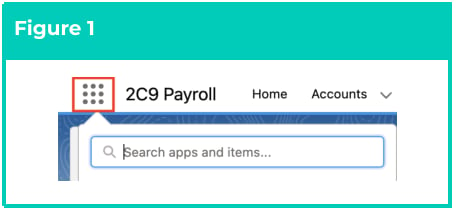
1. Click on the **App Launcher** icon (see Figure 1).
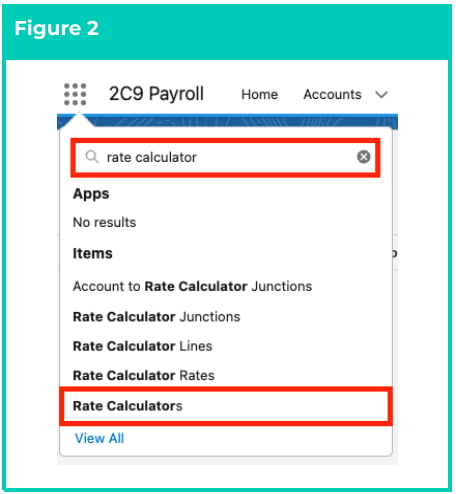
 2. Go to the **Rate Calculators** object by using the Search function (see Figure 2).
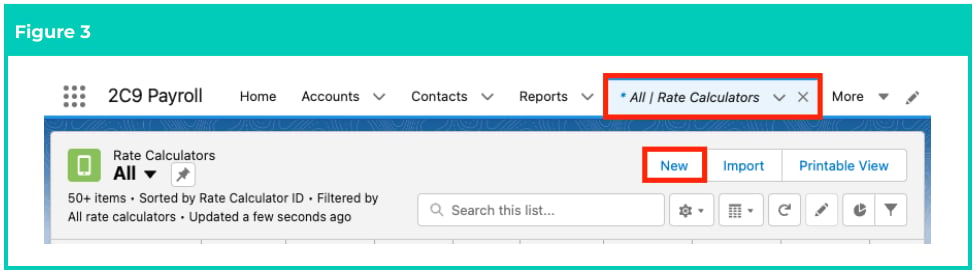
 3. Click on the **New** button (see Figure 3).
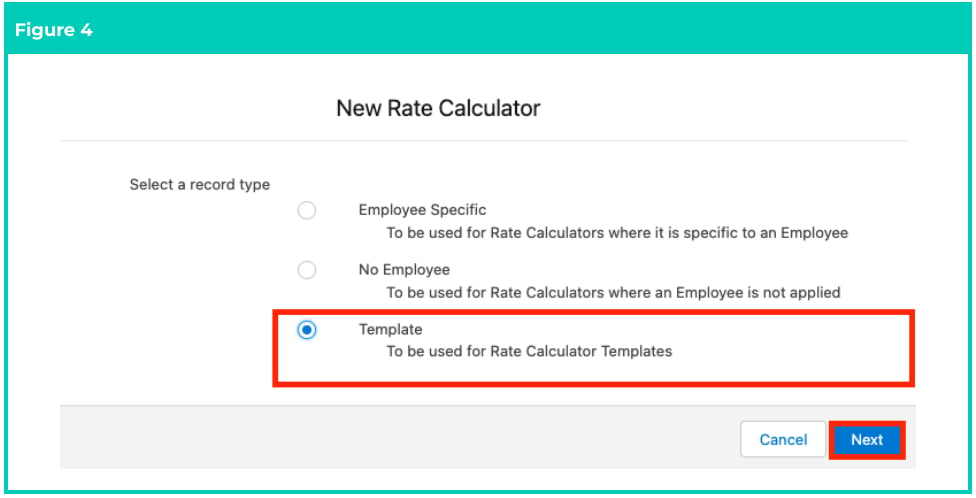
 4. Select **Template** from the available record types and click on the **Next** button (see Figure 4).
 **Initial Details**
This section provides basic information and optional configuration options related to the setup of the
Rate Calculator Template.
5. Populate the following required fields to provide the base details of the Rate Calculator Template
(see Figure 5):
1. **Rate Calculator Name**
2. **Effective Date**
3. **Status**
6. Populate the following optional fields as required (see Figure 5):
1. To define an Expiry Date for the Template record, populate the **Expiry Date** field. The
expiry of a Rate Calculator Template won't affect any child records created via Template
automation, unless they have inherited the same Expiry Date.
2. To allow changes made to the Mark Up / Margin and Pay Rates associated with this No
Employee Rate Calculator to automatically update related Rate Calculator records created
via system automation, select the **Update with Parent** checkbox.
3. To automatically create new Rate Calculator Lines when changes are made to a related
Employment Cost, or a new Employment Cost is activated, select the **Update with Employment
Costs** checkbox. This will also trigger automatic Assignment Rate updates for all related items.
4. To allow related Minimum Pay Rate records to automatically create and update the Rate
Calculator Rate records associated with this No Employee Rate Calculator, select the
**Update with MPR** checkbox.
5. To allow the No Employee Rate Calculator to be related to any Assignment regardless of whether
the same related Client or Payment Entity records are present, check the **Global Template**
checkbox.
**Initial Details**
This section provides basic information and optional configuration options related to the setup of the
Rate Calculator Template.
5. Populate the following required fields to provide the base details of the Rate Calculator Template
(see Figure 5):
1. **Rate Calculator Name**
2. **Effective Date**
3. **Status**
6. Populate the following optional fields as required (see Figure 5):
1. To define an Expiry Date for the Template record, populate the **Expiry Date** field. The
expiry of a Rate Calculator Template won't affect any child records created via Template
automation, unless they have inherited the same Expiry Date.
2. To allow changes made to the Mark Up / Margin and Pay Rates associated with this No
Employee Rate Calculator to automatically update related Rate Calculator records created
via system automation, select the **Update with Parent** checkbox.
3. To automatically create new Rate Calculator Lines when changes are made to a related
Employment Cost, or a new Employment Cost is activated, select the **Update with Employment
Costs** checkbox. This will also trigger automatic Assignment Rate updates for all related items.
4. To allow related Minimum Pay Rate records to automatically create and update the Rate
Calculator Rate records associated with this No Employee Rate Calculator, select the
**Update with MPR** checkbox.
5. To allow the No Employee Rate Calculator to be related to any Assignment regardless of whether
the same related Client or Payment Entity records are present, check the **Global Template**
checkbox.
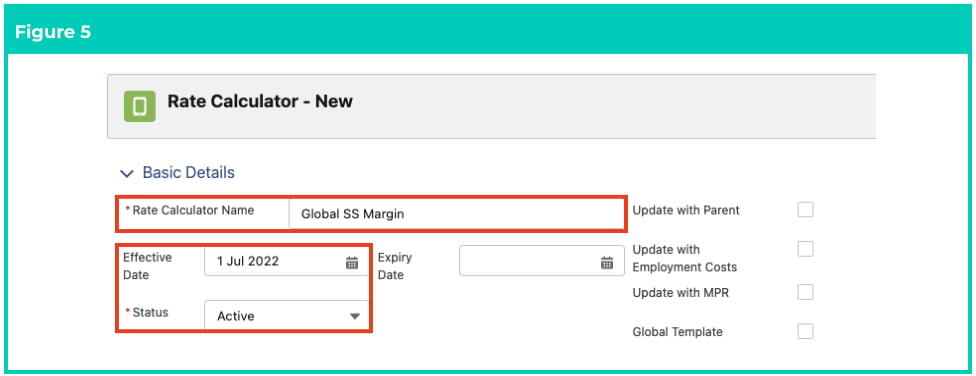 **Important Notes**\
*(Figure 5)*
*When the Update with Employment Costs field is enabled, changes made to an Employment Cost*
*Item will automatically generate updated Rate Calculator Lines and trigger automatic Assignment*
*Rate updates for all related items.*
7. Populate the following optional fields as required (see Figure 6):
1. To allow automatic creation of additional Rate Calculator lines when Project Codes are
applied to the No Employee Rate Calculator, select the **Enable Project Codes** checkbox.
2. To enable an individual Mark Up / Margin to be defined against each Pay Code related to
the No Employee Rate Calculator, select the **Define Markup Margin Per Pay Code**
checkbox. If unchecked, a single Mark Up / Margin will be applied for all Pay Codes related
to a Rate Calculator, regardless of their record type.
3. To apply an Award Classification for use with Minimum Pay Rates, populate the
**Award Classification** field using the lookup options available.
4. To apply an Award Level for use with Minimum Pay Rates, populate the **Award Level** field
using the lookup options available.
5. To apply a Minimum Pay Rate Template to this record, populate the **Minimum Pay Rate
Template** field.
**Important Notes**\
*(Figure 5)*
*When the Update with Employment Costs field is enabled, changes made to an Employment Cost*
*Item will automatically generate updated Rate Calculator Lines and trigger automatic Assignment*
*Rate updates for all related items.*
7. Populate the following optional fields as required (see Figure 6):
1. To allow automatic creation of additional Rate Calculator lines when Project Codes are
applied to the No Employee Rate Calculator, select the **Enable Project Codes** checkbox.
2. To enable an individual Mark Up / Margin to be defined against each Pay Code related to
the No Employee Rate Calculator, select the **Define Markup Margin Per Pay Code**
checkbox. If unchecked, a single Mark Up / Margin will be applied for all Pay Codes related
to a Rate Calculator, regardless of their record type.
3. To apply an Award Classification for use with Minimum Pay Rates, populate the
**Award Classification** field using the lookup options available.
4. To apply an Award Level for use with Minimum Pay Rates, populate the **Award Level** field
using the lookup options available.
5. To apply a Minimum Pay Rate Template to this record, populate the **Minimum Pay Rate
Template** field.
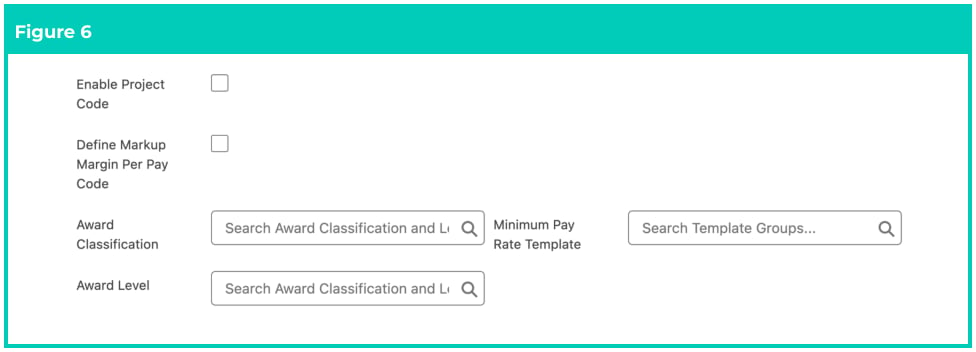 **Important Notes**\
*(Figure 6)*
*The Define Markup Margin Per Pay Code field is only available during record creation, and will not be*
*available for selection once the record is initially saved.*
**Adding Employment Costs to the Template**
This section of the Rate Calculator is used to determine Employment Costs that will apply to the Rate
Calculator Template. When calculating lines, Rate Calculator will use these fields to look up the applicable
Employment Cost Items to determine the payable and invoiceable calculation types and amounts.
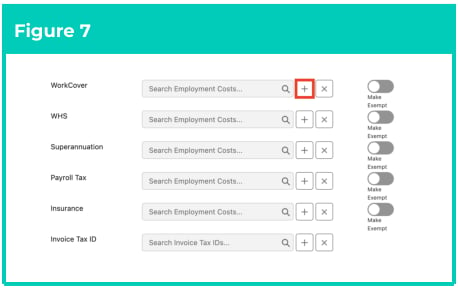
8. To apply Employment Costs to the Rate Calculator Template, populate the following optional fields as
required:
1. Click on the **+** button next to the Employment Cost option (see Figure 7).
**Important Notes**\
*(Figure 6)*
*The Define Markup Margin Per Pay Code field is only available during record creation, and will not be*
*available for selection once the record is initially saved.*
**Adding Employment Costs to the Template**
This section of the Rate Calculator is used to determine Employment Costs that will apply to the Rate
Calculator Template. When calculating lines, Rate Calculator will use these fields to look up the applicable
Employment Cost Items to determine the payable and invoiceable calculation types and amounts.
8. To apply Employment Costs to the Rate Calculator Template, populate the following optional fields as
required:
1. Click on the **+** button next to the Employment Cost option (see Figure 7).
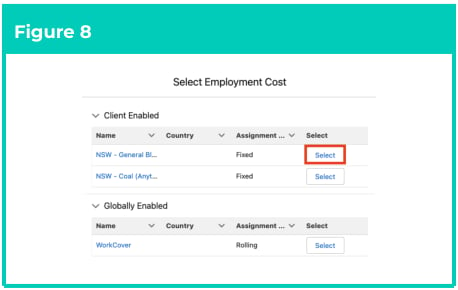
 2. Click on the **Select** button of the suitable Employment Cost from either Client Enabled or
Globally Enabled sections (see Figure 8).
2. Click on the **Select** button of the suitable Employment Cost from either Client Enabled or
Globally Enabled sections (see Figure 8).
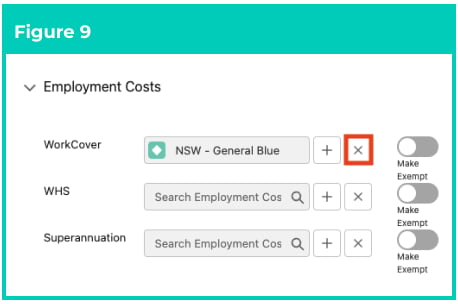
 3. To remove an Employment Cost from the Rate Calculator Template:
1. Click on the **x** button next to the populated Employment Cost to remove the selection from
the Rate Calculator Template (see Figure 9).
2. If required, click on the **Make Exempt** toggle bar to indicate this Record Type of
Employment Cost is not required (see Figure 9).
3. To remove an Employment Cost from the Rate Calculator Template:
1. Click on the **x** button next to the populated Employment Cost to remove the selection from
the Rate Calculator Template (see Figure 9).
2. If required, click on the **Make Exempt** toggle bar to indicate this Record Type of
Employment Cost is not required (see Figure 9).
 **Adding Location, Industry, and Risk Classification to the Template**
Templates provide Users with a level of flexibility with regard to defining a Location, Industry, and Risk
Classification. As Templates are designed to be truly global, these fields can be left blank on the Template
and instead have the values default from the Assignment when applying the Template.
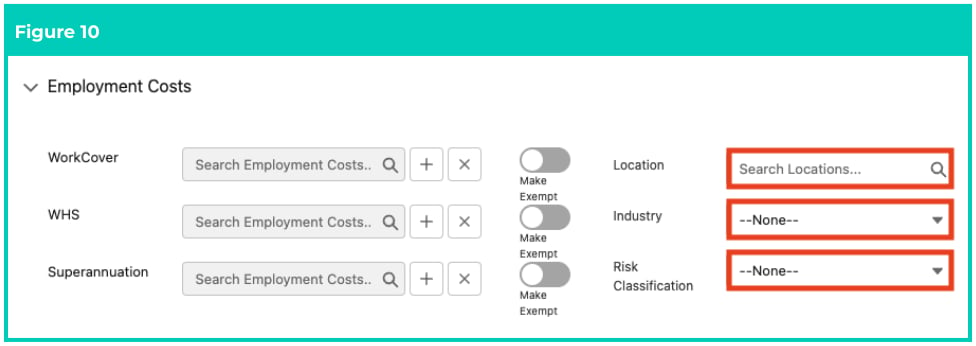
9. To select the Employment Costs applied to this Rate Calculator Template, populate the following
optional fields as required (see Figure 10):
1. To define a Location for the Employment Costs detailed on this Rate Calculator Template,
populate the **Location** lookup field.
2. To define an Industry for the Employment Costs detailed on this Rate Calculator Template,
populate the **Industry** field using the picklist options available.
3. To define a Risk Classification for the Employment Costs detailed on this Rate Calculator Template,
populate the **Risk Classification** field using the picklist options available.
**Adding Location, Industry, and Risk Classification to the Template**
Templates provide Users with a level of flexibility with regard to defining a Location, Industry, and Risk
Classification. As Templates are designed to be truly global, these fields can be left blank on the Template
and instead have the values default from the Assignment when applying the Template.
9. To select the Employment Costs applied to this Rate Calculator Template, populate the following
optional fields as required (see Figure 10):
1. To define a Location for the Employment Costs detailed on this Rate Calculator Template,
populate the **Location** lookup field.
2. To define an Industry for the Employment Costs detailed on this Rate Calculator Template,
populate the **Industry** field using the picklist options available.
3. To define a Risk Classification for the Employment Costs detailed on this Rate Calculator Template,
populate the **Risk Classification** field using the picklist options available.
 **Important Notes**\
*(Figure 10)*
*If the Location, Industry, Risk Classification, Expiry Date, or Pay Code fields are not populated within*
*the Rate Calculator Template, they will need to be manually entered in the Rate Calculators created*
*from this Rate Calculator Template, or will need to be inherited from the related Assignment record.*
*Rate Calculator Lines will not be generated unless each of these fields has been defined.*
**Adding Interpretation Rules and Pay Codes**
The following section allows adding Interpretation Rules and Pay Codes to the Rate Calculator Template
for the creation of Rate Calculator Lines.
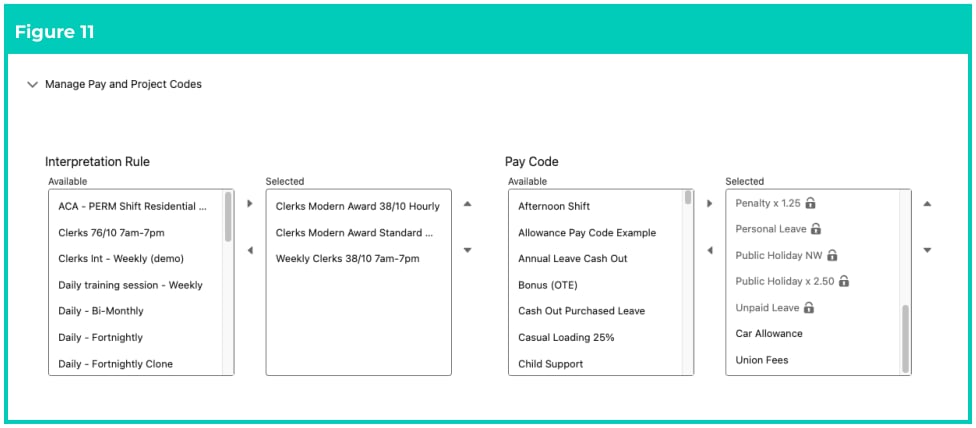
10. To define the Interpretation Rules, so the Rate Calculator Lines will be created for the related Pay
Codes, select the **Interpretation Rule(s)** from the **Available** picklist and click the **>** button to move them to the **Selected** column (see Figure 11).
11. To define Pay Codes in addition to those in the defined Interpretation Rules, select the
**Pay Code(s)** from the **Available** picklist, and click the **>** button to move them to the **Selected** column (see Figure 11).
**Important Notes**\
*(Figure 10)*
*If the Location, Industry, Risk Classification, Expiry Date, or Pay Code fields are not populated within*
*the Rate Calculator Template, they will need to be manually entered in the Rate Calculators created*
*from this Rate Calculator Template, or will need to be inherited from the related Assignment record.*
*Rate Calculator Lines will not be generated unless each of these fields has been defined.*
**Adding Interpretation Rules and Pay Codes**
The following section allows adding Interpretation Rules and Pay Codes to the Rate Calculator Template
for the creation of Rate Calculator Lines.
10. To define the Interpretation Rules, so the Rate Calculator Lines will be created for the related Pay
Codes, select the **Interpretation Rule(s)** from the **Available** picklist and click the **>** button to move them to the **Selected** column (see Figure 11).
11. To define Pay Codes in addition to those in the defined Interpretation Rules, select the
**Pay Code(s)** from the **Available** picklist, and click the **>** button to move them to the **Selected** column (see Figure 11).
 **Important Notes**\
*(Figure 11)*
*After Interpretation Rules are selected and the Rate Calculator Template is saved, all Pay Codes*
*related to the Interpretation Rule will be added. If any of these Pay Codes need to be removed, this*
*can only be done by removing the Interpretation Rule. This ensures Assignment Rates are created for*
*each required Pay Code.*
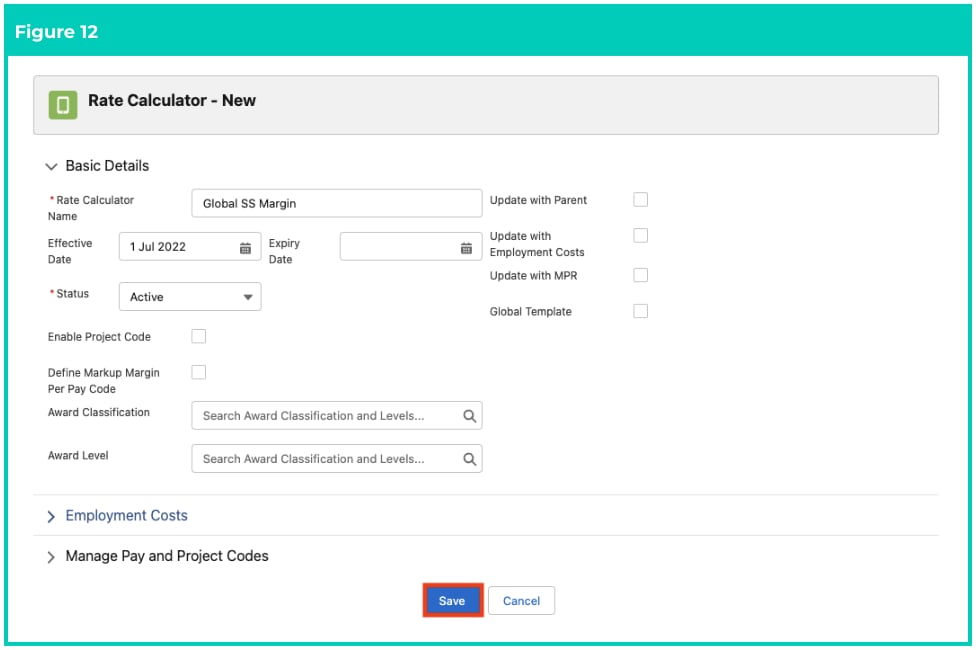
12. Click on the **Save** button (see Figure 12).
**Important Notes**\
*(Figure 11)*
*After Interpretation Rules are selected and the Rate Calculator Template is saved, all Pay Codes*
*related to the Interpretation Rule will be added. If any of these Pay Codes need to be removed, this*
*can only be done by removing the Interpretation Rule. This ensures Assignment Rates are created for*
*each required Pay Code.*
12. Click on the **Save** button (see Figure 12).
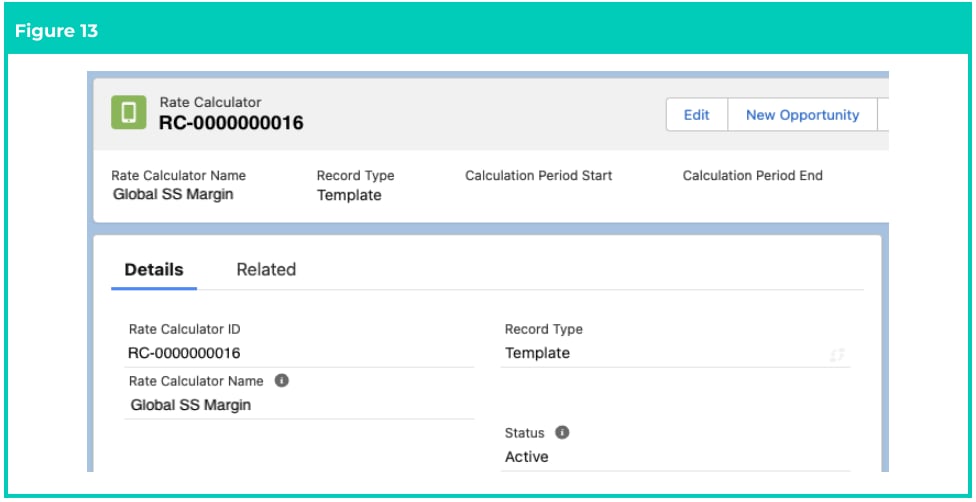
 13. The Initial Setup has been completed. A draft **Rate Calculator Template** has been created (see
Figure 13).
13. The Initial Setup has been completed. A draft **Rate Calculator Template** has been created (see
Figure 13).
 14. Once completed, you will still need to complete the Final Setup of the Rate Calculator Template
by adding or excluding Project Codes, Mark Up / Margin record, Pay Rates, Pay Rate Loadings,
and Calculating and Updating Rate Calculator Lines. To learn more about these, please refer to
the QRG Create Rate Calculators - Final Setup.
**Important Notes**\
*(Figure 13)*
*If Mark Up / Margin Rates are not added to the Rate Calculator Template, they must be manually*
*added to each Rate Calculator record created using Template automation. Rate Calculator Lines*
*cannot be generated unless a Mark Up / Margin Rate has been defined.*
**No Employee Record Type**
The ‘No Employee’ record type has the same functionality as a Template, with the two record types able
to be used interchangeably. They are typically used in front office systems where Rate Calculators are
assigned to objects such as a ‘Job’. Using the ‘No Employee’ Record Type provides a clear distinction
between Templates that are not assigned to a specific Job or Assignment and those that are.
Please note that the No Employee Record Type is no longer supported by the Product Team and is in the
process of being archived.
**Rate Calc Template Parent**
Where an Org utilises multiple Account records for the same Client, such as a different Client record per
state, it can become difficult to manage the assigning of Templates. To help solve this problem, a field
‘Rate Calc Template Parent’ is available on the Account object.
When applying a Rate Calculator Template to an Assignment, any Rate Calculator Templates assigned to
the Assignment > Client > Rate Calc Template Parent will also be available.
**Exclude Global Templates for Clients**
Certain Clients can be excluded from having access to Global Rate Calculator Templates when applying a
Template to the Assignment. This can ensure Users only have access to those specific to the Client or
Payment Entity.
To exclude a Client from accessing Global Templates.
1. Go to the Client record you wish to exclude.
2. Check the option **Exclude Global Rate Calc Templates?** .
## Field descriptions
| Field Name | Description |
| ----------------------------------------- | -------------------------------------------------------------------------------------------------------------------------------------------------------------------------------------------------------- |
| **Award Classification** | Defines the Award Classification of the Rate Calculator Template. |
| **Award Level** | Defines the Award Level of the Rate Calculator Template. |
| **Define Markup Margin** **Per Pay Code** | Enables the selection of different Mark Up / Margins for each Pay Code. |
| **Effective Date** | Defines the Effective Date of the Rate Calculator Template. |
| **Enable Project Code** | Indicates whether Project Codes may be applied to the Rate Calculator Template. |
| **Expiry Date** | Defines the Expiry Date of the Rate Calculator Template. If blank, no Expiry Date applies. |
| **Global Template** | Indicates whether a Rate Calculator Template may be related to Assignments at a Global Level. If unchecked, the Rate Calculator Template will only be available to the related Client or Payment Entity. |
| **Industry** | Indicates the Industry that the Rate Calculator Template applies to. |
| **Insurance** | Defines the Insurance Employment Cost that applies to the Rate Calculator Template. |
| **Interpretation Rule** | Defines the Interpretation Rule that applies to the Rate Calculator Template. |
| **Invoice Tax ID** | Defines the Invoice Tax ID that applies to the Rate Calculator Template. |
| **Location** | Indicates the Location associated with the Rate Calculator Template. |
| **Pay Code** | Defines the Pay Code that will be used in the Assignment Rate to be created. |
| **Payroll Tax** | Defines the Payroll Tax Employment Cost that applies to the Rate Calculator Template. |
| **Rate Calculator Name** | Indicates the short name given to the Rate Calculator Template for identification. |
| **Risk Classification** | Indicates the Risk Classification associated with the Rate Calculator Template. |
| **Status** | Defines the Status of the Rate Calculator Template. |
| **Superannuation** | Defines the Superannuation Employment Cost that applies to the Rate Calculator Template. |
| **Update with Employment** **Costs** | Defines whether related Rate Calculator Lines will automatically calculate new lines when changes are made to a related Employment Costs. |
| **Update with MPR** | Identifies whether the Rate Calculator will automatically create and update associated Rates according to changes made within the related Minimum Pay Rate records. |
| **Update with Parent** | Identifies whether child Rate Calculator records will be automatically updated if the Parent Rate Calculator is updated. |
| **WHS** | Defines the WHS Employment Cost that applies to the Rate Calculator Template. |
| **WorkCover** | Defines the WorkCover Employment Cost that applies to the Rate Calculator Template. |
## Further information
| Document | Document Type | Description |
| --------------------------------------------------------------- | --------------------------- | --------------------------------------------------------------------------------------------------------------------------------------------------------------------- |
| QRG Rate Calculator Key Information | Information Quick Reference | Outlines useful information relevant to the Rate Calculator functionality. The document includes definitions, prerequisites, and other non-instructional information. |
| QRG Create a Location record | Task Instructions | How to create a Location record used for Rate Calculators. |
| QRG Create a Calculation Method | Task Instructions | How to create Calculation Methods to define the calculation type and unit of calculation for Rate Calculator records. |
| QRG Create an Employment Cost Record | Task Instructions | How to create Employment Cost records used for applying costs to the Rate Calculator. |
| QRG Manage Employment Cost Items using ECM | Task Instructions | How to manage Employment Cost Items using the Employment Cost Manager. |
| QRG Create an Employment Cost Exception | Task Instructions | How to apply Employment Cost Exceptions to Clients, Payees & Pay Codes. |
| QRG Create Pay Rate Loadings | Task Instructions | How to create Pay Rate Loadings used for Casual Loading or Shift Loading. |
| QRG Create Rate Calculator Templates - Final Setup | Task Instructions | How to create Rate Calculator Templates - Final Setup. |
| QRG Create Rate Calculators - Employee Specific | Task Instructions | How to create an Employee Specific Rate calculator using Template automation. |
| QRG Create Rate Calculators - Preview, Clone & Save as Template | Task Instructions | How to create Rate Calculator Previews, Save existing Rate Calculators as Templates, and use the Clone functionality. |
14. Once completed, you will still need to complete the Final Setup of the Rate Calculator Template
by adding or excluding Project Codes, Mark Up / Margin record, Pay Rates, Pay Rate Loadings,
and Calculating and Updating Rate Calculator Lines. To learn more about these, please refer to
the QRG Create Rate Calculators - Final Setup.
**Important Notes**\
*(Figure 13)*
*If Mark Up / Margin Rates are not added to the Rate Calculator Template, they must be manually*
*added to each Rate Calculator record created using Template automation. Rate Calculator Lines*
*cannot be generated unless a Mark Up / Margin Rate has been defined.*
**No Employee Record Type**
The ‘No Employee’ record type has the same functionality as a Template, with the two record types able
to be used interchangeably. They are typically used in front office systems where Rate Calculators are
assigned to objects such as a ‘Job’. Using the ‘No Employee’ Record Type provides a clear distinction
between Templates that are not assigned to a specific Job or Assignment and those that are.
Please note that the No Employee Record Type is no longer supported by the Product Team and is in the
process of being archived.
**Rate Calc Template Parent**
Where an Org utilises multiple Account records for the same Client, such as a different Client record per
state, it can become difficult to manage the assigning of Templates. To help solve this problem, a field
‘Rate Calc Template Parent’ is available on the Account object.
When applying a Rate Calculator Template to an Assignment, any Rate Calculator Templates assigned to
the Assignment > Client > Rate Calc Template Parent will also be available.
**Exclude Global Templates for Clients**
Certain Clients can be excluded from having access to Global Rate Calculator Templates when applying a
Template to the Assignment. This can ensure Users only have access to those specific to the Client or
Payment Entity.
To exclude a Client from accessing Global Templates.
1. Go to the Client record you wish to exclude.
2. Check the option **Exclude Global Rate Calc Templates?** .
## Field descriptions
| Field Name | Description |
| ----------------------------------------- | -------------------------------------------------------------------------------------------------------------------------------------------------------------------------------------------------------- |
| **Award Classification** | Defines the Award Classification of the Rate Calculator Template. |
| **Award Level** | Defines the Award Level of the Rate Calculator Template. |
| **Define Markup Margin** **Per Pay Code** | Enables the selection of different Mark Up / Margins for each Pay Code. |
| **Effective Date** | Defines the Effective Date of the Rate Calculator Template. |
| **Enable Project Code** | Indicates whether Project Codes may be applied to the Rate Calculator Template. |
| **Expiry Date** | Defines the Expiry Date of the Rate Calculator Template. If blank, no Expiry Date applies. |
| **Global Template** | Indicates whether a Rate Calculator Template may be related to Assignments at a Global Level. If unchecked, the Rate Calculator Template will only be available to the related Client or Payment Entity. |
| **Industry** | Indicates the Industry that the Rate Calculator Template applies to. |
| **Insurance** | Defines the Insurance Employment Cost that applies to the Rate Calculator Template. |
| **Interpretation Rule** | Defines the Interpretation Rule that applies to the Rate Calculator Template. |
| **Invoice Tax ID** | Defines the Invoice Tax ID that applies to the Rate Calculator Template. |
| **Location** | Indicates the Location associated with the Rate Calculator Template. |
| **Pay Code** | Defines the Pay Code that will be used in the Assignment Rate to be created. |
| **Payroll Tax** | Defines the Payroll Tax Employment Cost that applies to the Rate Calculator Template. |
| **Rate Calculator Name** | Indicates the short name given to the Rate Calculator Template for identification. |
| **Risk Classification** | Indicates the Risk Classification associated with the Rate Calculator Template. |
| **Status** | Defines the Status of the Rate Calculator Template. |
| **Superannuation** | Defines the Superannuation Employment Cost that applies to the Rate Calculator Template. |
| **Update with Employment** **Costs** | Defines whether related Rate Calculator Lines will automatically calculate new lines when changes are made to a related Employment Costs. |
| **Update with MPR** | Identifies whether the Rate Calculator will automatically create and update associated Rates according to changes made within the related Minimum Pay Rate records. |
| **Update with Parent** | Identifies whether child Rate Calculator records will be automatically updated if the Parent Rate Calculator is updated. |
| **WHS** | Defines the WHS Employment Cost that applies to the Rate Calculator Template. |
| **WorkCover** | Defines the WorkCover Employment Cost that applies to the Rate Calculator Template. |
## Further information
| Document | Document Type | Description |
| --------------------------------------------------------------- | --------------------------- | --------------------------------------------------------------------------------------------------------------------------------------------------------------------- |
| QRG Rate Calculator Key Information | Information Quick Reference | Outlines useful information relevant to the Rate Calculator functionality. The document includes definitions, prerequisites, and other non-instructional information. |
| QRG Create a Location record | Task Instructions | How to create a Location record used for Rate Calculators. |
| QRG Create a Calculation Method | Task Instructions | How to create Calculation Methods to define the calculation type and unit of calculation for Rate Calculator records. |
| QRG Create an Employment Cost Record | Task Instructions | How to create Employment Cost records used for applying costs to the Rate Calculator. |
| QRG Manage Employment Cost Items using ECM | Task Instructions | How to manage Employment Cost Items using the Employment Cost Manager. |
| QRG Create an Employment Cost Exception | Task Instructions | How to apply Employment Cost Exceptions to Clients, Payees & Pay Codes. |
| QRG Create Pay Rate Loadings | Task Instructions | How to create Pay Rate Loadings used for Casual Loading or Shift Loading. |
| QRG Create Rate Calculator Templates - Final Setup | Task Instructions | How to create Rate Calculator Templates - Final Setup. |
| QRG Create Rate Calculators - Employee Specific | Task Instructions | How to create an Employee Specific Rate calculator using Template automation. |
| QRG Create Rate Calculators - Preview, Clone & Save as Template | Task Instructions | How to create Rate Calculator Previews, Save existing Rate Calculators as Templates, and use the Clone functionality. |