> ## Documentation Index
> Fetch the complete documentation index at: https://documentation.2cloudnine.com/llms.txt
> Use this file to discover all available pages before exploring further.
# QRG Create an Assignment Rate Template Group
export const InlineImage = ({src, alt = "", height = "1.6em"}) => {
return  ;
};
## Purpose
The purpose of this quick reference guide is to step through the process of creating Assignment Rate
Template Groups. The intended audience for this document is Standard Users / System Administrators.
The Assignment Rate Template Group is used to define a related group of Assignment Rates. When an
Assignment Rate Template Group is added to an Assignment record, the related Template Group
Assignment Rates will be used to automate the creation of Assignment Rate records related to an
Assignment.
Assignment Rate Template Groups may be used as a stand-alone method to automate the creation of
Assignment Rates.
Each Assignment Rate Template Group must contain at least one Assignment Rate for each required Pay
Code, as well as for any Project Codes combinations, to ensure all necessary Pay Rates have been defined.
## Steps
**Create an Assignment Rate Template Group**
Create an Assignment Rate Template Group by following the below steps:
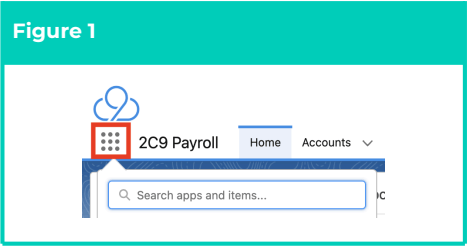
1. Click on the **App Launcher** icon (see
Figure 1).
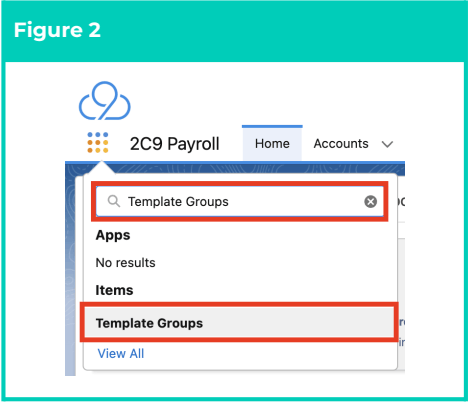
2. Go to the **Template Groups** object by
using the Search function (see Figure 2).
;
};
## Purpose
The purpose of this quick reference guide is to step through the process of creating Assignment Rate
Template Groups. The intended audience for this document is Standard Users / System Administrators.
The Assignment Rate Template Group is used to define a related group of Assignment Rates. When an
Assignment Rate Template Group is added to an Assignment record, the related Template Group
Assignment Rates will be used to automate the creation of Assignment Rate records related to an
Assignment.
Assignment Rate Template Groups may be used as a stand-alone method to automate the creation of
Assignment Rates.
Each Assignment Rate Template Group must contain at least one Assignment Rate for each required Pay
Code, as well as for any Project Codes combinations, to ensure all necessary Pay Rates have been defined.
## Steps
**Create an Assignment Rate Template Group**
Create an Assignment Rate Template Group by following the below steps:
1. Click on the **App Launcher** icon (see
Figure 1).
2. Go to the **Template Groups** object by
using the Search function (see Figure 2).
 3. Click the **New** button (see Figure 3).
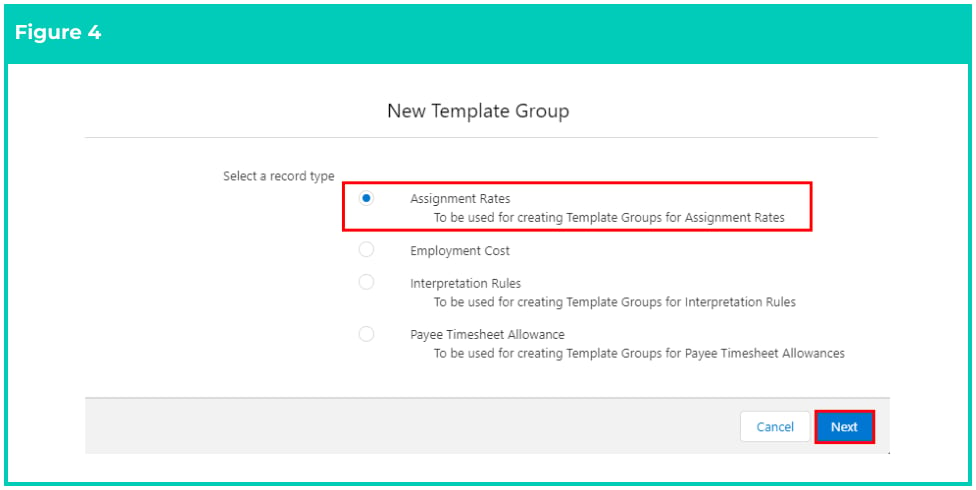
 4. Select **Assignment Rates** from the available record types and click the **Next** button (see Figure 4)
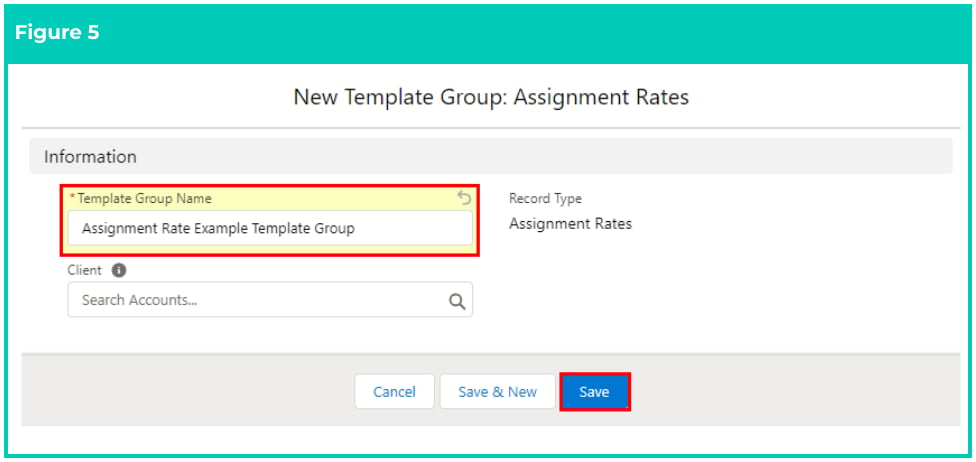
 5. Populate the following required fields to provide the base details of the Assignment Rate
Template Group (see Figure 5):
1. **Template Group Name**
6. Populate the following optional field as required:
1. To configure the Template Group so it is only available for a specific Client, populate the
**Client** field.
7. Click the **Save** button.
5. Populate the following required fields to provide the base details of the Assignment Rate
Template Group (see Figure 5):
1. **Template Group Name**
6. Populate the following optional field as required:
1. To configure the Template Group so it is only available for a specific Client, populate the
**Client** field.
7. Click the **Save** button.
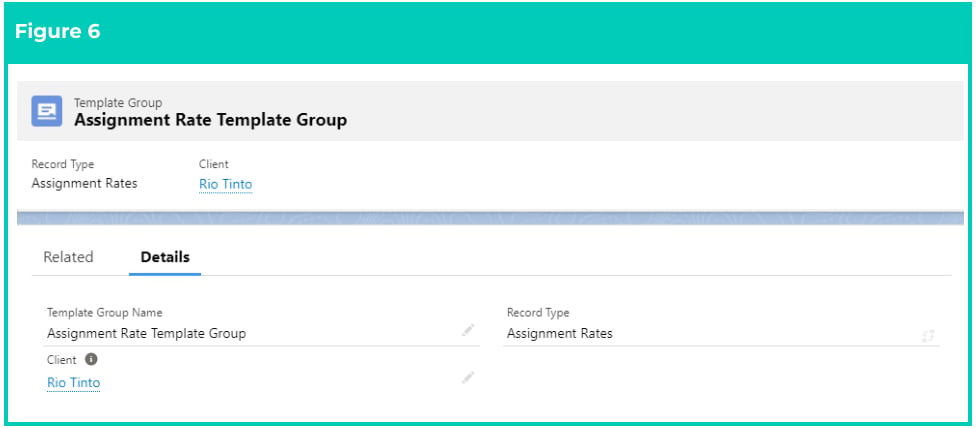
 8. A new Assignment Rate Template Group is now created (see Figure 6).
 **Create Timesheet Template Assignment Rate records**
Timesheet Template Assignment Rate Records are required to be created and related to the Assignment
Rate Template Group.
To create the Timesheet Template Assignment Rate records for the Assignment Rate Template Group,
follow the steps below:
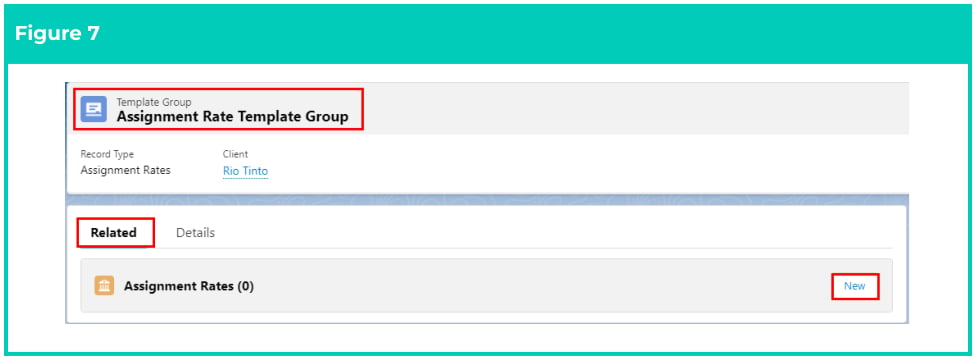
1. Go to the **Related** tab of the Assignment Rate Template Group and click on the **New** button next
to Assignment Rates (see Figure 7).
**Create Timesheet Template Assignment Rate records**
Timesheet Template Assignment Rate Records are required to be created and related to the Assignment
Rate Template Group.
To create the Timesheet Template Assignment Rate records for the Assignment Rate Template Group,
follow the steps below:
1. Go to the **Related** tab of the Assignment Rate Template Group and click on the **New** button next
to Assignment Rates (see Figure 7).
 2. Select **Timesheet Template** from the available record types and click on the **Next** button (see
Figure 8).
2. Select **Timesheet Template** from the available record types and click on the **Next** button (see
Figure 8).
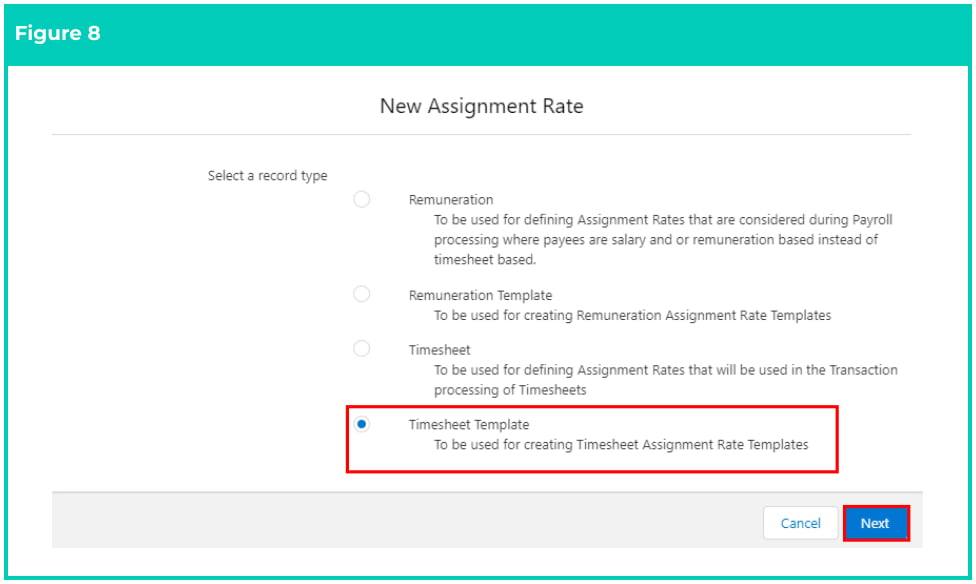 Selecting Remuneration or Timesheet from the available record types will result in the
creation of a new Assignment Rate record, which cannot be related to Template
Groups, even when created from the ‘Related’ tab of the Template Group.
3. Follow this step in the sequence given below (see Figure 9):
1. Populate the following required fields to provide the base details of the Assignment Rate
Timesheet Template Group:
1. **Template Group** (this is auto-populated)
2. **Pay Code**
3. **Sort Order** (pre-populated)
4. **Effective Date**
2. Populate the following optional fields as needed:
1. To associate a Project Code with the Assignment Rate, populate the **Project Code**
field using the lookup options provided.
2. To set a fixed term for the Assignment Rate record, populate the **Expiry Date**
field. If left blank, no Expiry Date will apply.
3. To relate the Assignment Rate to a specific Timesheet Activity, populate the
**Timesheet Activity** field.
Selecting Remuneration or Timesheet from the available record types will result in the
creation of a new Assignment Rate record, which cannot be related to Template
Groups, even when created from the ‘Related’ tab of the Template Group.
3. Follow this step in the sequence given below (see Figure 9):
1. Populate the following required fields to provide the base details of the Assignment Rate
Timesheet Template Group:
1. **Template Group** (this is auto-populated)
2. **Pay Code**
3. **Sort Order** (pre-populated)
4. **Effective Date**
2. Populate the following optional fields as needed:
1. To associate a Project Code with the Assignment Rate, populate the **Project Code**
field using the lookup options provided.
2. To set a fixed term for the Assignment Rate record, populate the **Expiry Date**
field. If left blank, no Expiry Date will apply.
3. To relate the Assignment Rate to a specific Timesheet Activity, populate the
**Timesheet Activity** field.
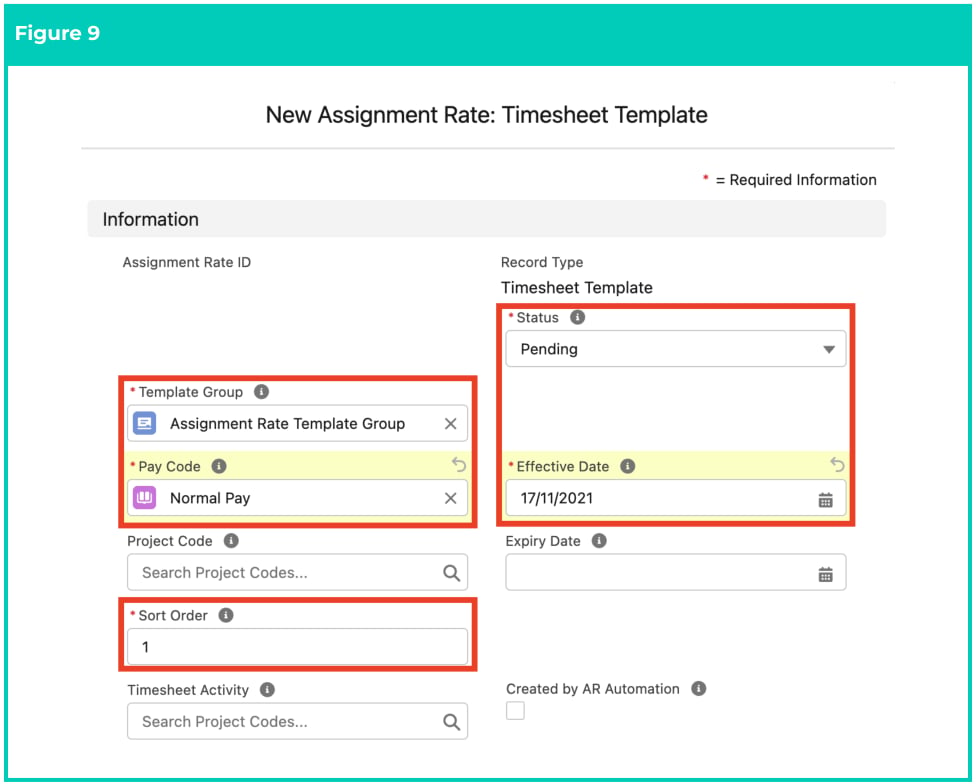 The **Created by AR Automation** field will be automatically populated if the record has been created
by the Update Rates automation, and should not be manually checked.
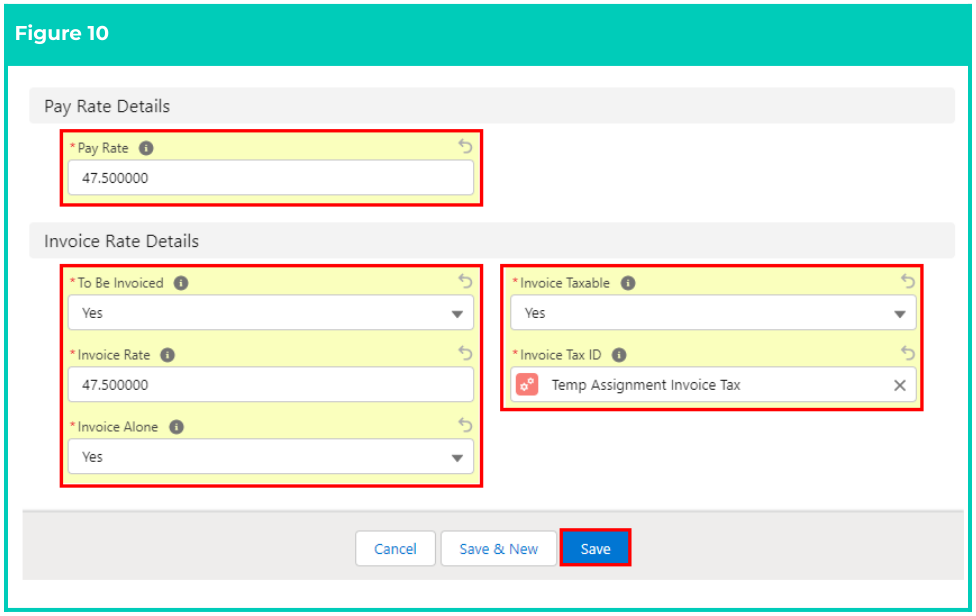
3. Populate the following required fields to provide the base details of the Assignment Rate
Timesheet Template Group (see Figure 10):
1. **Pay Rate**
2. **To Be Invoiced**
3. **Invoice Rate**
4. **Invoice Alone**
5. **Invoice Taxable**
6. **Invoice Tax ID**
4. Click the **Save** button.
The **Created by AR Automation** field will be automatically populated if the record has been created
by the Update Rates automation, and should not be manually checked.
3. Populate the following required fields to provide the base details of the Assignment Rate
Timesheet Template Group (see Figure 10):
1. **Pay Rate**
2. **To Be Invoiced**
3. **Invoice Rate**
4. **Invoice Alone**
5. **Invoice Taxable**
6. **Invoice Tax ID**
4. Click the **Save** button.
 5. A new Timesheet Template Assignment Rate record is now created (see Figure 11).
 Repeat this process to create all required Assignment Rate records for the Assignment Rate Template
Group.
Assignment Rate records CAN NOT be deleted if they have related records or are used
in other records. Deleting records is not recommended unless absolutely essential.
6. To modify an existing Assignment Rate record, open the required record and select the Edit
button available on the top right side of the page. You can also double-click within fields that
need editing or just click on the pencil icon that appears within fields when hovering with
your cursor.
7. When complete, click on the **Save** button.
Any changes made to the Assignment Rate Template Group or its related records will
not update Assignments already referencing the Assignment Rate Template Group.
## Field descriptions
| Field | Description |
| ----------------------- | ------------------------------------------------------------------------------------------------------------------------------------------------------------------------ |
| **Client** | Defines the Client to whom the Template Group applies. |
| **Effective Date** | The effective date of the Assignment Rate. |
| **Expiry Date** | The expiry date of the Assignment Rate. |
| **Invoice Rate** | The Invoice Rate (exclusive of tax) that will be used in invoicing Pay Transactions created using this Assignment Rate. |
| **Invoice Alone** | Defines if Pay Transactions resulting from the Assignment Rate should be included on their own Invoice regardless of the Invoice Group By used. |
| **Invoice Taxable** | Indicates the Pay Transaction created using this Assignment Rate should have tax applied to the invoice. |
| **Invoice Tax ID** | Defines the Invoice Tax ID that applies to the Assignment Rate. |
| **Pay Code** | The Pay Code to be linked to this Pay Rate on Pay Transactions. |
| **Pay Rate** | The amount to be paid per period based on the frequency. |
| **Project Code** | Associated with the Assignment Rate to create additional Pay Rates if required. |
| **Sort Order** | The order in which Assignment Rate records with the same effective date should be assessed during the interpretation of Timesheets for the creation of Pay Transactions. |
| **Template Group** | Defines the Template Group that the Assignment Rate will apply. |
| **Template Group Name** | Mandatory to determine the group these records belong to. |
| **Timesheet Activity** | Indicates whether the Assignment Rate is also considered a specific Timesheet Activity used during interpretation, based on the Interpretation Rule. |
| **To Be Invoiced** | Indicates if Pay Transactions created using this Assignment Rate should be invoiced. |
## Further information
| Document | Document Type | Description |
| ------------------------------------------------------------- | --------------------------- | ---------------------------------------------------------------------------------------------------------------------------------------------------------------------- |
| QRG Rates Automation Key Information | Information Quick Reference | Outlines useful information relevant to the Rates Automation functionality. The document includes definitions, prerequisites, and other non-instructional information. |
| QRG Create an Assignment (Temp) | Task Instructions | How to create an Employee Assignment |
| QRG Create a Payee Allowance Template Group | Task Instructions | How to create a Payee Allowance Template group |
| QRG Create an Assignment Rate record (Timesheet) | Task Instructions | How to create an Assignment Rate record for Timesheet Assignment Rates |
| Relate an Assignment Rate record | Task Instructions | How to create an Assignment Rate record for Remuneration Assignment Rates |
| QRG Update Rates Automation - Assignment Rate Template Groups | Task Instructions | How to update Assignment Rate Template Groups via the Update Rates Automation. |
Repeat this process to create all required Assignment Rate records for the Assignment Rate Template
Group.
Assignment Rate records CAN NOT be deleted if they have related records or are used
in other records. Deleting records is not recommended unless absolutely essential.
6. To modify an existing Assignment Rate record, open the required record and select the Edit
button available on the top right side of the page. You can also double-click within fields that
need editing or just click on the pencil icon that appears within fields when hovering with
your cursor.
7. When complete, click on the **Save** button.
Any changes made to the Assignment Rate Template Group or its related records will
not update Assignments already referencing the Assignment Rate Template Group.
## Field descriptions
| Field | Description |
| ----------------------- | ------------------------------------------------------------------------------------------------------------------------------------------------------------------------ |
| **Client** | Defines the Client to whom the Template Group applies. |
| **Effective Date** | The effective date of the Assignment Rate. |
| **Expiry Date** | The expiry date of the Assignment Rate. |
| **Invoice Rate** | The Invoice Rate (exclusive of tax) that will be used in invoicing Pay Transactions created using this Assignment Rate. |
| **Invoice Alone** | Defines if Pay Transactions resulting from the Assignment Rate should be included on their own Invoice regardless of the Invoice Group By used. |
| **Invoice Taxable** | Indicates the Pay Transaction created using this Assignment Rate should have tax applied to the invoice. |
| **Invoice Tax ID** | Defines the Invoice Tax ID that applies to the Assignment Rate. |
| **Pay Code** | The Pay Code to be linked to this Pay Rate on Pay Transactions. |
| **Pay Rate** | The amount to be paid per period based on the frequency. |
| **Project Code** | Associated with the Assignment Rate to create additional Pay Rates if required. |
| **Sort Order** | The order in which Assignment Rate records with the same effective date should be assessed during the interpretation of Timesheets for the creation of Pay Transactions. |
| **Template Group** | Defines the Template Group that the Assignment Rate will apply. |
| **Template Group Name** | Mandatory to determine the group these records belong to. |
| **Timesheet Activity** | Indicates whether the Assignment Rate is also considered a specific Timesheet Activity used during interpretation, based on the Interpretation Rule. |
| **To Be Invoiced** | Indicates if Pay Transactions created using this Assignment Rate should be invoiced. |
## Further information
| Document | Document Type | Description |
| ------------------------------------------------------------- | --------------------------- | ---------------------------------------------------------------------------------------------------------------------------------------------------------------------- |
| QRG Rates Automation Key Information | Information Quick Reference | Outlines useful information relevant to the Rates Automation functionality. The document includes definitions, prerequisites, and other non-instructional information. |
| QRG Create an Assignment (Temp) | Task Instructions | How to create an Employee Assignment |
| QRG Create a Payee Allowance Template Group | Task Instructions | How to create a Payee Allowance Template group |
| QRG Create an Assignment Rate record (Timesheet) | Task Instructions | How to create an Assignment Rate record for Timesheet Assignment Rates |
| Relate an Assignment Rate record | Task Instructions | How to create an Assignment Rate record for Remuneration Assignment Rates |
| QRG Update Rates Automation - Assignment Rate Template Groups | Task Instructions | How to update Assignment Rate Template Groups via the Update Rates Automation. |