> ## Documentation Index
> Fetch the complete documentation index at: https://documentation.2cloudnine.com/llms.txt
> Use this file to discover all available pages before exploring further.
# QRG Update Rates Automation - Assignment Rate Template Groups
export const InlineImage = ({src, alt = "", height = "1.6em"}) => {
return  ;
};
## Purpose
The purpose of this quick reference guide is to step through the process of updating Assignment Rate Template Groups and the related Assignment Rates as required using the Update Rates Automation. The intended audience for this document is System Administrators / Standard Users.
The Assignment Rate Template Group defines a group of Assignment Rates detailing both Pay Rate and Invoice Rate, to automate the creation of Assignment Rate records.
The Update Rates functionality allows users to update the Assignment Rate records within an Assignment Rate Template Group in bulk, creating new records with newly entered Rates and expiring the existing Assignment Rate records. The Effective Date of the new record starts from the day after the previous Expiry Date.
The functionality allows users to enter an increase in percentage, dollar figure, or individual revised rates for each record selected when the UI is launched. The entered rates can then be calculated, reviewed, and confirmed as required. Once confirmed, automation will create new Assignment Rate records and expire the old records.
## Steps
### Update Assignment Rate Template Groups
Update Assignment Rate Template Groups by following the below steps:
1.
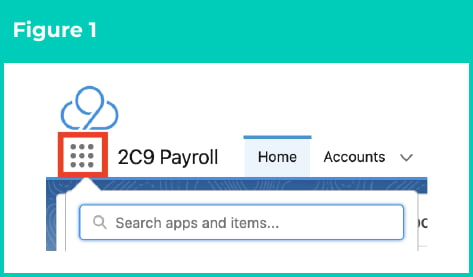
Click on the **App Launcher** icon (see Figure 1).
;
};
## Purpose
The purpose of this quick reference guide is to step through the process of updating Assignment Rate Template Groups and the related Assignment Rates as required using the Update Rates Automation. The intended audience for this document is System Administrators / Standard Users.
The Assignment Rate Template Group defines a group of Assignment Rates detailing both Pay Rate and Invoice Rate, to automate the creation of Assignment Rate records.
The Update Rates functionality allows users to update the Assignment Rate records within an Assignment Rate Template Group in bulk, creating new records with newly entered Rates and expiring the existing Assignment Rate records. The Effective Date of the new record starts from the day after the previous Expiry Date.
The functionality allows users to enter an increase in percentage, dollar figure, or individual revised rates for each record selected when the UI is launched. The entered rates can then be calculated, reviewed, and confirmed as required. Once confirmed, automation will create new Assignment Rate records and expire the old records.
## Steps
### Update Assignment Rate Template Groups
Update Assignment Rate Template Groups by following the below steps:
1.
Click on the **App Launcher** icon (see Figure 1).
 2.
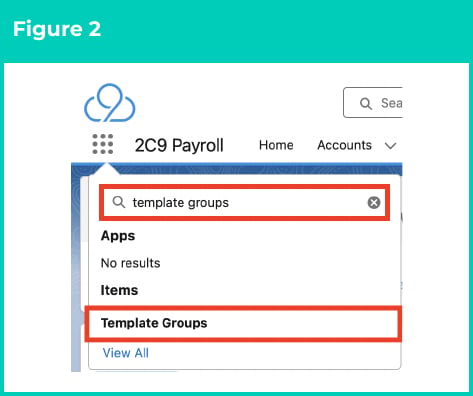
Go to the **Template Groups** object by using the Search function (see Figure 2).
2.
Go to the **Template Groups** object by using the Search function (see Figure 2).
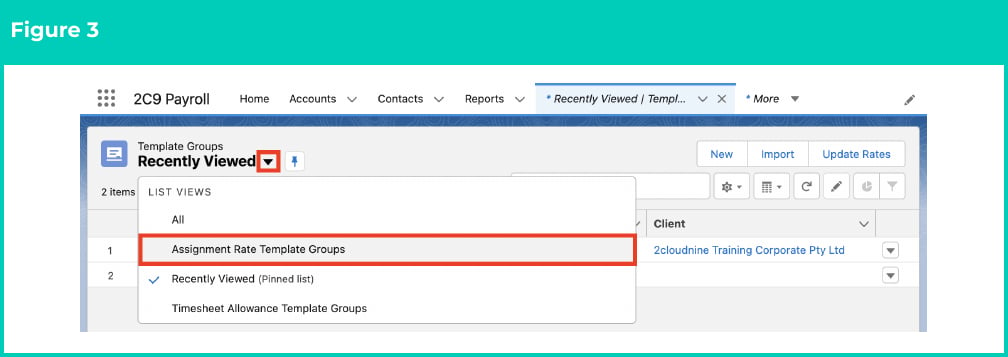
 3. From List View, click the arrow beside the current List View presented, and select **Assignment Rate Template Groups** (see Figure 3).
 Update Rates Automation is not available for Payee Allowance Template Groups. If selected, Users will be presented with an error message detailing ‘At least one valid Template Group record has to be selected for rates update!’
4. Select the Assignment Rate Template Groups to update:
1.
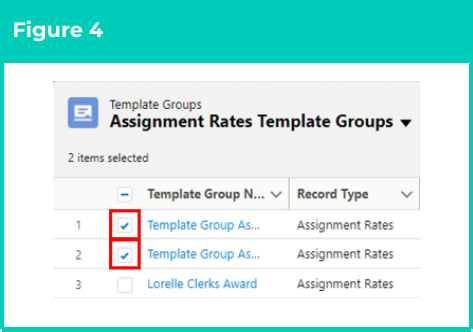
Select the checkbox next to the name of each Template Group record that you would like to update (see Figure 4).
Update Rates Automation is not available for Payee Allowance Template Groups. If selected, Users will be presented with an error message detailing ‘At least one valid Template Group record has to be selected for rates update!’
4. Select the Assignment Rate Template Groups to update:
1.
Select the checkbox next to the name of each Template Group record that you would like to update (see Figure 4).
 **OR**
2.
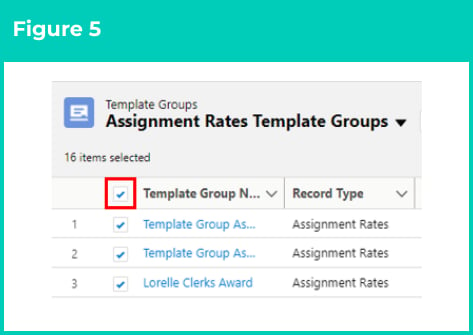
Select the checkbox next to the Template Group Name heading to select all Template Group records displayed in the current List View (see Figure 5).
**OR**
2.
Select the checkbox next to the Template Group Name heading to select all Template Group records displayed in the current List View (see Figure 5).
 You can select a maximum of 200 records in a single batch. If you need to update more than 200 records, you are recommended to split the process into smaller batches as suitable.
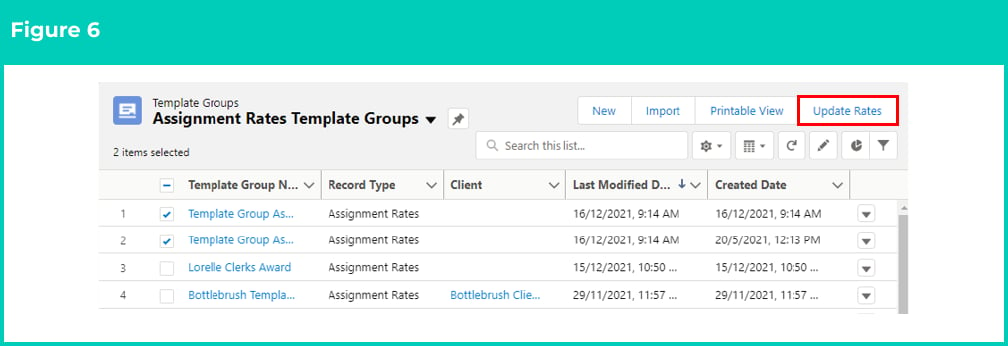
5. Once your selection is made, click on the **Update Rates** button in the top right corner to open the Updates Rates Automation (see Figure 6).
You can select a maximum of 200 records in a single batch. If you need to update more than 200 records, you are recommended to split the process into smaller batches as suitable.
5. Once your selection is made, click on the **Update Rates** button in the top right corner to open the Updates Rates Automation (see Figure 6).
 6.
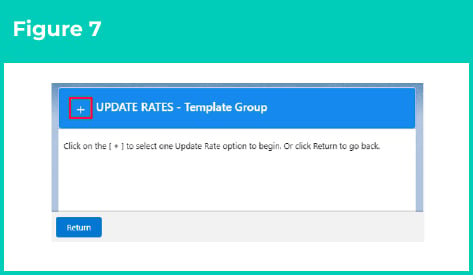
From the Update Rate Automation screen, click **+** (see Figure 7).
6.
From the Update Rate Automation screen, click **+** (see Figure 7).
 7.
Populate the **Effective Date** for the Rate changes (see Figure 8).
7.
Populate the **Effective Date** for the Rate changes (see Figure 8).
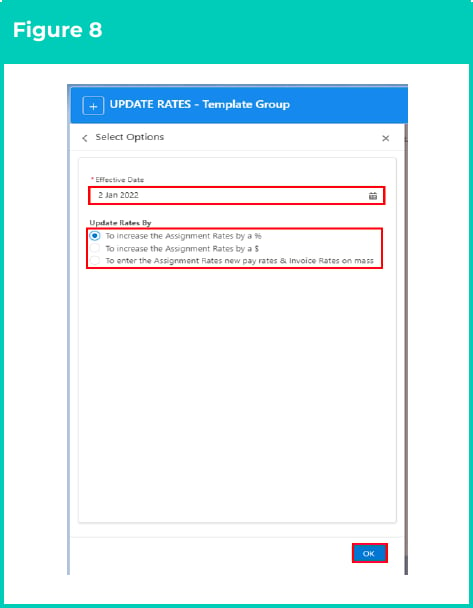 8. In **Update Rates By**, choose one of the options shown to define how the rates will be updated:
1. **To increase the Assignment Rates by a %**
2. **To increase the Assignment Rates by a \$**
3. **To enter the Assignment Rates, new pay rates & Invoice Rate Changes on mass**
9. Scroll to the bottom of the panel and click **OK**.
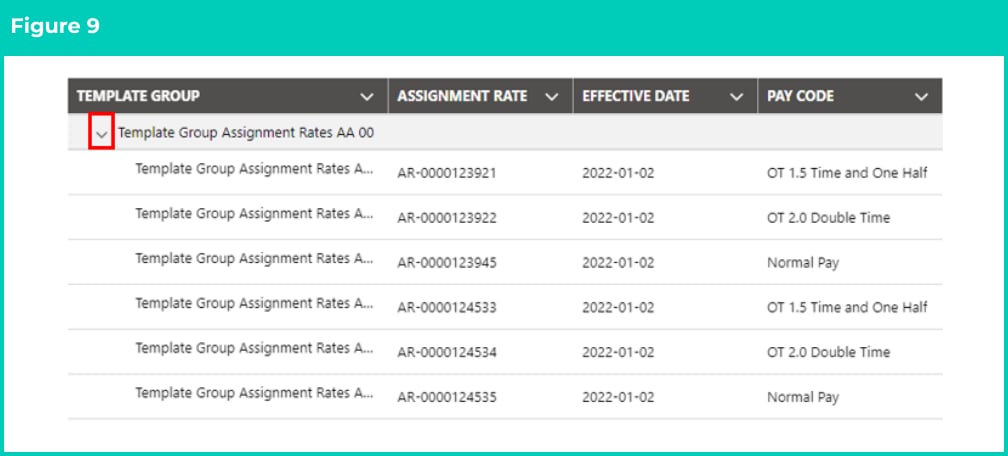
10. Click the arrow next to the Template Group name to reveal all Timesheet Template Assignment Rate records associated with each Template Group (see Figure 9).
8. In **Update Rates By**, choose one of the options shown to define how the rates will be updated:
1. **To increase the Assignment Rates by a %**
2. **To increase the Assignment Rates by a \$**
3. **To enter the Assignment Rates, new pay rates & Invoice Rate Changes on mass**
9. Scroll to the bottom of the panel and click **OK**.
10. Click the arrow next to the Template Group name to reveal all Timesheet Template Assignment Rate records associated with each Template Group (see Figure 9).
 11. If you selected To increase the Assignment Rates by %, follow the sub-steps below, otherwise skip to step 12:
1. Populate the **Increase %** field with the value of the percentage increase to be calculated for all Assignment Rate records listed (see Figure 10).
11. If you selected To increase the Assignment Rates by %, follow the sub-steps below, otherwise skip to step 12:
1. Populate the **Increase %** field with the value of the percentage increase to be calculated for all Assignment Rate records listed (see Figure 10).
 2. Click **Calculate** to calculate the New Pay Rates and New Invoice Rates for each listed Timesheet Template Assignment Rate record (see Figure 11).
 12. If you selected To increase the Assignment Rates by a \$, follow the sub-steps below, otherwise skip to Step 13:
1. Populate the **Increase %** field with the value of the percentage increase to be calculated for all Assignment Rate records listed (see Figure 12).
12. If you selected To increase the Assignment Rates by a \$, follow the sub-steps below, otherwise skip to Step 13:
1. Populate the **Increase %** field with the value of the percentage increase to be calculated for all Assignment Rate records listed (see Figure 12).
 2. Click **Calculate** to calculate the New Pay Rates and New Invoice Rates for each listed Timesheet Template Assignment Rate record (see Figure 13).
 13. If you selected **To enter the Assignment Rates, new pay rates & Invoice Rate Changes on mass**, follow the steps below:
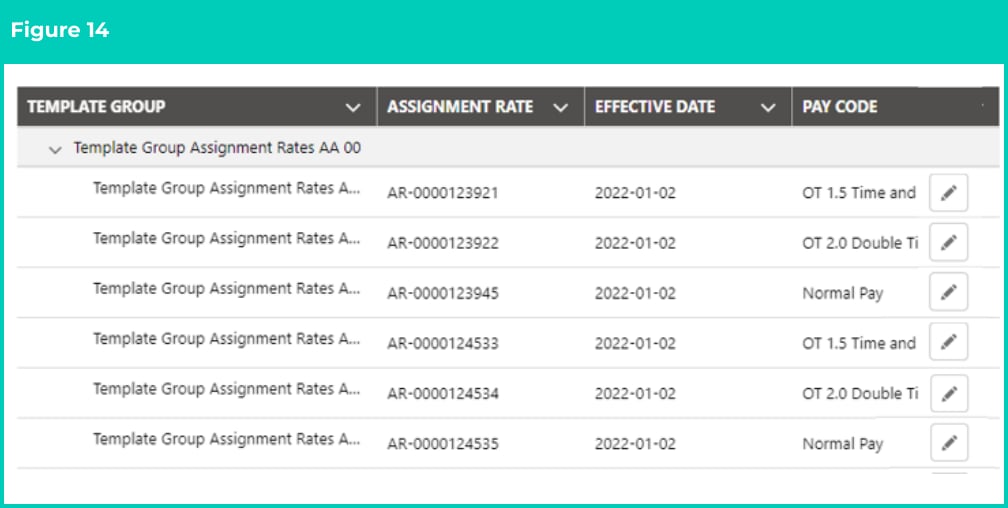
1. Click on the pencil icon on the right hand side to update a record (see Figure 14).
13. If you selected **To enter the Assignment Rates, new pay rates & Invoice Rate Changes on mass**, follow the steps below:
1. Click on the pencil icon on the right hand side to update a record (see Figure 14).
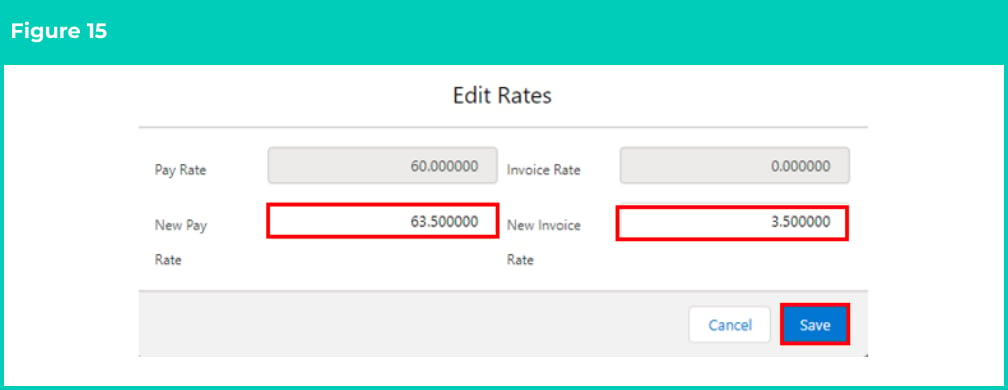
 2. In the new window that appears, populate the **New Pay Rate** and **New Invoice Rate** fields and click on the **Save** button (see Figure 15).
3. Repeat for each Assignment Rate record that requires Pay Rate and/or Invoice Rate updates.
2. In the new window that appears, populate the **New Pay Rate** and **New Invoice Rate** fields and click on the **Save** button (see Figure 15).
3. Repeat for each Assignment Rate record that requires Pay Rate and/or Invoice Rate updates.
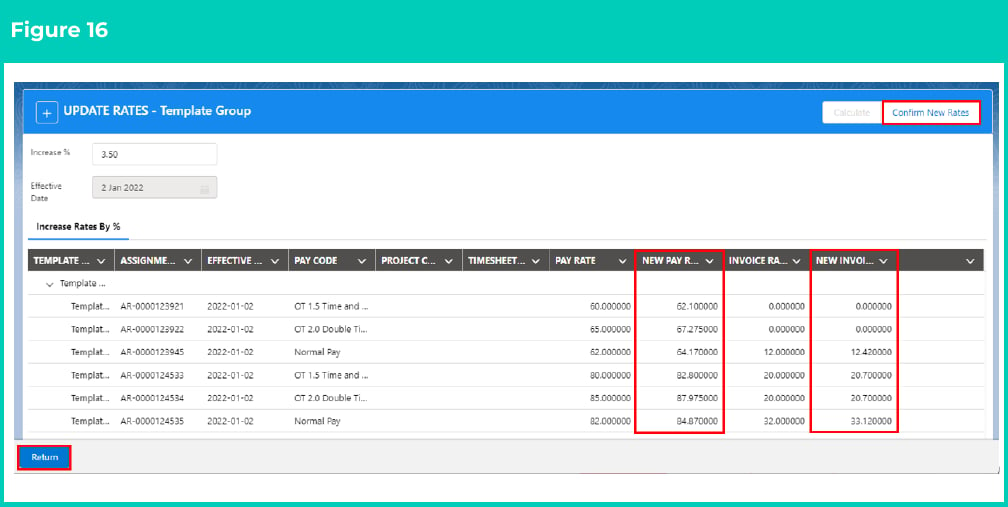
 14. Review the updated Rates under the **New Pay Rates** and **New Invoice Rates** columns (see Figure 16).
15. If you agree with the values shown, and to create new Assignment Rates using the Effective Date defined and expire the existing ones (with date as a day prior to the Effective Date), click the **Confirm New Rates** button to update the records. Please note that these changes cannot be reversed once made. If you do not wish to proceed, please select the **Return** button.
14. Review the updated Rates under the **New Pay Rates** and **New Invoice Rates** columns (see Figure 16).
15. If you agree with the values shown, and to create new Assignment Rates using the Effective Date defined and expire the existing ones (with date as a day prior to the Effective Date), click the **Confirm New Rates** button to update the records. Please note that these changes cannot be reversed once made. If you do not wish to proceed, please select the **Return** button.
 Assignment Rate records that have expired but not Archived will still be included in the Updates Rates Automation process. If you have a very high volume of Assignment Rates, it is recommended that expired Assignment Rates have their Archiving Status field updated to Archived, so the Update Rates Automation process ignores them.
## Field descriptions
**Increase %** will apply a percentage increase to all the selected Assignment Rate records.\
**Increase \$** will apply a fixed \$ increase to all the selected Assignment Rate records.\
**To enter the Assignment Rates, new pay rates & Invoice Rate Changes en masse** will allow individual rates to be entered which aren't a global increase across all records.\
**New Pay Rate** is the Pay Rate that will be applied to the new Timesheet Template Assignment Rates and
any associated Assignment Rates when the automation is completed.\
**New Invoice Rate** is the Invoice Rate that will be applied to the new Timesheet Template Assignment
Rates and any associated Assignment Rates when the automation is completed.
## Further information
| Document | Document Type | Description |
| ----------------------------------------------- | --------------------------- | ---------------------------------------------------------------------------------------------------------------------------------------------------------------------- |
| QRG Rates Automation Key Information | Information Quick Reference | Outlines useful information relevant to the Rates Automation functionality. The document includes definitions, prerequisites, and other non-instructional information. |
| Assignment Rate Template Groups | Task Instructions | How to create an Assignment Rate Template Group and related Assignment Rates. |
| Payee Allowance Template Groups | Task Instructions | How to create a Payee Allowance Template Group and related Payee Allowances. |
| QRG Update Rates Automation - Minimum Pay Rates | Task Instructions | How to update the Pay Rates via the Minimum Pay Rates list view. |
Assignment Rate records that have expired but not Archived will still be included in the Updates Rates Automation process. If you have a very high volume of Assignment Rates, it is recommended that expired Assignment Rates have their Archiving Status field updated to Archived, so the Update Rates Automation process ignores them.
## Field descriptions
**Increase %** will apply a percentage increase to all the selected Assignment Rate records.\
**Increase \$** will apply a fixed \$ increase to all the selected Assignment Rate records.\
**To enter the Assignment Rates, new pay rates & Invoice Rate Changes en masse** will allow individual rates to be entered which aren't a global increase across all records.\
**New Pay Rate** is the Pay Rate that will be applied to the new Timesheet Template Assignment Rates and
any associated Assignment Rates when the automation is completed.\
**New Invoice Rate** is the Invoice Rate that will be applied to the new Timesheet Template Assignment
Rates and any associated Assignment Rates when the automation is completed.
## Further information
| Document | Document Type | Description |
| ----------------------------------------------- | --------------------------- | ---------------------------------------------------------------------------------------------------------------------------------------------------------------------- |
| QRG Rates Automation Key Information | Information Quick Reference | Outlines useful information relevant to the Rates Automation functionality. The document includes definitions, prerequisites, and other non-instructional information. |
| Assignment Rate Template Groups | Task Instructions | How to create an Assignment Rate Template Group and related Assignment Rates. |
| Payee Allowance Template Groups | Task Instructions | How to create a Payee Allowance Template Group and related Payee Allowances. |
| QRG Update Rates Automation - Minimum Pay Rates | Task Instructions | How to update the Pay Rates via the Minimum Pay Rates list view. |