> ## Documentation Index
> Fetch the complete documentation index at: https://documentation.2cloudnine.com/llms.txt
> Use this file to discover all available pages before exploring further.
# QRG Update Rates Automation - Minimum Pay Rates
export const InlineImage = ({src, alt = "", height = "1.6em"}) => {
return  ;
};
## Purpose
The purpose of this quick reference guide is to step through the process of updating Minimum Pay Rates (MPRs) using the Update Rates User Interface (UI). The intended audience for this document is System Administrators / Standard Users.
## Steps
### Update Minimum Pay Rates
The Update Rates UI enables the automatic update of Minimum Pay Rates and related Assignment Rate records to be completed in bulk.
Pay Rates may be updated using percentages, dollar figures, or as individual values for each record selected when the UI is launched. Once rates have been calculated, reviewed and confirmed, automation will expire the existing records and create new MPRs, enabling new Assignment Rates to be generated. Existing MPRs and related Assignment Rates will be set to expire one day before the Effective Date entered for the new rates.
* For Parent MPR records, Rate updates will also trigger record expiry/recreation for Child MPRs using inherited Rate values. Child records with defined Rates will however require manual update to enable Rates Automation. This may be completed either by selecting both Parent and Child MPR records when launching the UI, or by creating separate batches to update Rates defined in Child MPRs, following the completion of all Parent MPRs updates.
Use the Update Rates UI to modify MPR records by following the steps below:
1.
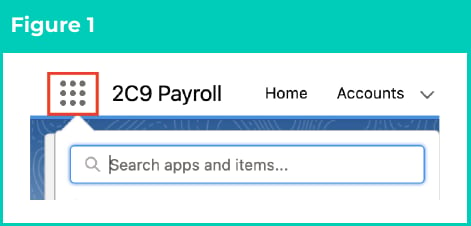
Click on the **App Launcher** icon (see Figure 1).
;
};
## Purpose
The purpose of this quick reference guide is to step through the process of updating Minimum Pay Rates (MPRs) using the Update Rates User Interface (UI). The intended audience for this document is System Administrators / Standard Users.
## Steps
### Update Minimum Pay Rates
The Update Rates UI enables the automatic update of Minimum Pay Rates and related Assignment Rate records to be completed in bulk.
Pay Rates may be updated using percentages, dollar figures, or as individual values for each record selected when the UI is launched. Once rates have been calculated, reviewed and confirmed, automation will expire the existing records and create new MPRs, enabling new Assignment Rates to be generated. Existing MPRs and related Assignment Rates will be set to expire one day before the Effective Date entered for the new rates.
* For Parent MPR records, Rate updates will also trigger record expiry/recreation for Child MPRs using inherited Rate values. Child records with defined Rates will however require manual update to enable Rates Automation. This may be completed either by selecting both Parent and Child MPR records when launching the UI, or by creating separate batches to update Rates defined in Child MPRs, following the completion of all Parent MPRs updates.
Use the Update Rates UI to modify MPR records by following the steps below:
1.
Click on the **App Launcher** icon (see Figure 1).
 2.
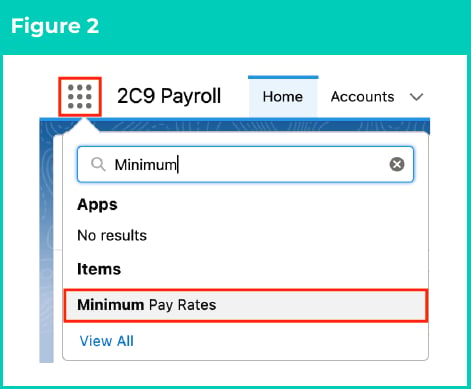
Go to the **Minimum Pay Rate** object by using the Search function (see Figure 2).
2.
Go to the **Minimum Pay Rate** object by using the Search function (see Figure 2).
 3. Select the MPR records to be updated:
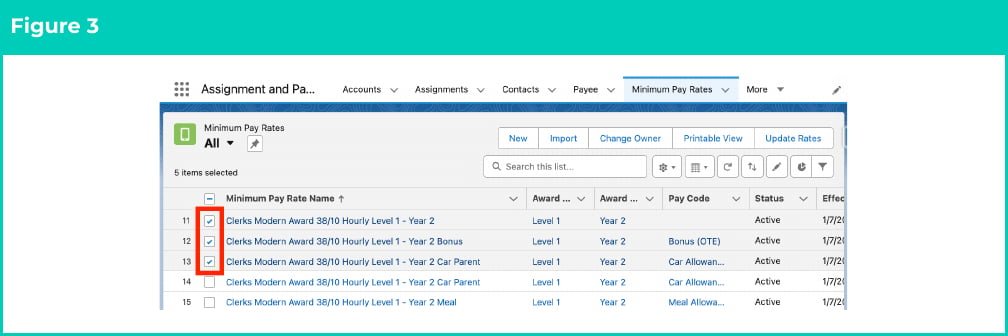
1. Click the checkbox next to each Minimum Pay Rate record that you would like to update (see Figure 3).
3. Select the MPR records to be updated:
1. Click the checkbox next to each Minimum Pay Rate record that you would like to update (see Figure 3).
 **OR**
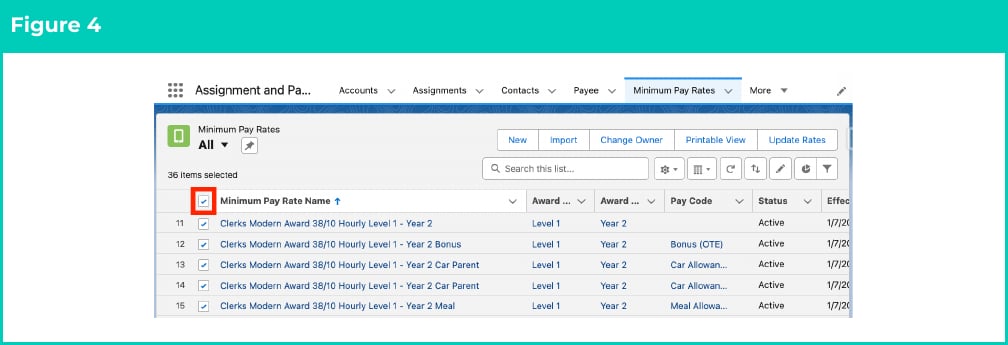
2. Select the checkbox in the heading row to select all the Minimum Pay Rate records displayed in the current List View (see Figure 4).
**OR**
2. Select the checkbox in the heading row to select all the Minimum Pay Rate records displayed in the current List View (see Figure 4).
 **Important Notes**\
(Review records before processing)
All Users are required to optimise processing by updating the Archiving Status = Archived for all Expired Assignment Rates before initiating any rate updates. This will remove outdated records from being reviewed for possible updates to be applied. Before initiating updates to Rate records, please be mindful of any existing MPR Parent/Child relationships, along with the downstream effects for associated data. Parent MPRs cannot be updated with an Expiry Date exceeding that of related Child records.
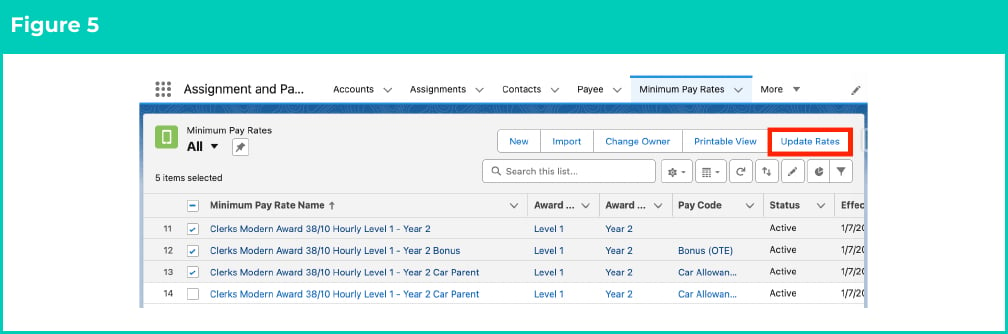
4. Once your selection is made, click the **Update Rates** button in the top right corner to launch the Updates Rates UI (see Figure 5).
**Important Notes**\
(Review records before processing)
All Users are required to optimise processing by updating the Archiving Status = Archived for all Expired Assignment Rates before initiating any rate updates. This will remove outdated records from being reviewed for possible updates to be applied. Before initiating updates to Rate records, please be mindful of any existing MPR Parent/Child relationships, along with the downstream effects for associated data. Parent MPRs cannot be updated with an Expiry Date exceeding that of related Child records.
4. Once your selection is made, click the **Update Rates** button in the top right corner to launch the Updates Rates UI (see Figure 5).
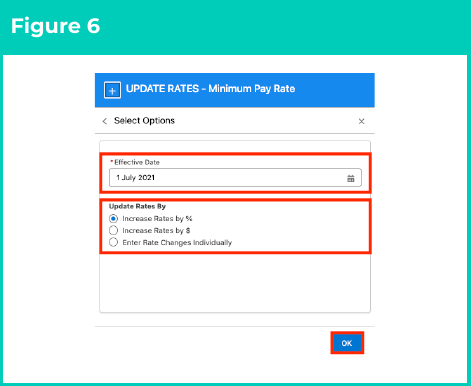
 5) Populate the **Effective Date** for the Rate changes (see Figure 6).
6) In **Update Rates By** , choose one of the options shown to define how the rates will be updated:
1. **Increase Rates by %**
2. **Increase Rates by \$**
3. **Enter Rate Changes Individually**
7) Click the **OK** button.
5) Populate the **Effective Date** for the Rate changes (see Figure 6).
6) In **Update Rates By** , choose one of the options shown to define how the rates will be updated:
1. **Increase Rates by %**
2. **Increase Rates by \$**
3. **Enter Rate Changes Individually**
7) Click the **OK** button.
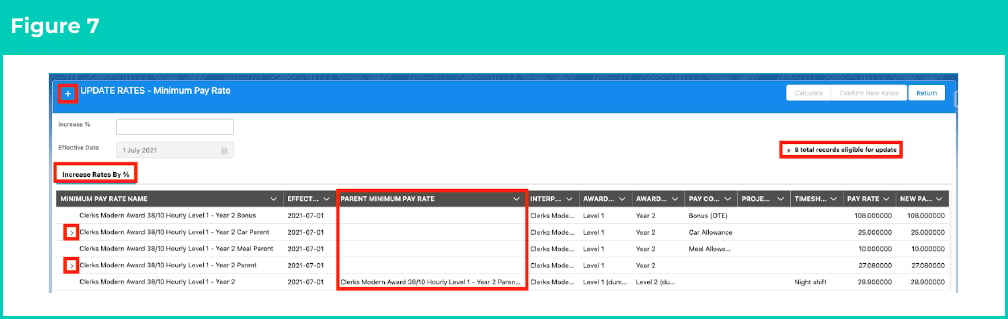
 8. The Update Rates UI will now display the details for each selected MPR in the **Increase Rates By** tab, along with a count of the total records that may be updated (see Figure 7).
1. To change the rate update method selected, or update the Effective Date populated, simply click the **+** icon in the top right corner of the window.
2. Modify the sort order by clicking the desired column heading (i.e. Interpretation Rule, Pay Code, etc.) to re-order listed records.
3. If Parent MPRs have been selected for update, click the icon to review the related Child records.
4. If Child MPRs have been selected for update, the related Parent will be displayed in the **Parent Minimum Pay Rate** column.
8. The Update Rates UI will now display the details for each selected MPR in the **Increase Rates By** tab, along with a count of the total records that may be updated (see Figure 7).
1. To change the rate update method selected, or update the Effective Date populated, simply click the **+** icon in the top right corner of the window.
2. Modify the sort order by clicking the desired column heading (i.e. Interpretation Rule, Pay Code, etc.) to re-order listed records.
3. If Parent MPRs have been selected for update, click the icon to review the related Child records.
4. If Child MPRs have been selected for update, the related Parent will be displayed in the **Parent Minimum Pay Rate** column.
 **Important Notes**\
(Child MPRs)
Child MPRs without defined Pay Rates (i.e where Rates are inherited from the Parent) will not be displayed in the UI, however they will still be expired/re-created alongside any Rate changes made to the related Parent record.
9. If you selected Increase Rates by %, follow the sub-steps below, otherwise skip to step 10:
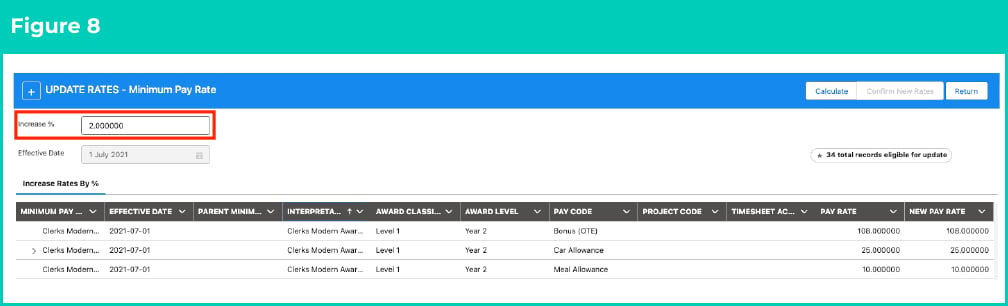
1. Populate the **Increase %** field with the value of the percentage increase to be calculated for all Minimum Pay Rates records listed (see Figure 8).
**Important Notes**\
(Child MPRs)
Child MPRs without defined Pay Rates (i.e where Rates are inherited from the Parent) will not be displayed in the UI, however they will still be expired/re-created alongside any Rate changes made to the related Parent record.
9. If you selected Increase Rates by %, follow the sub-steps below, otherwise skip to step 10:
1. Populate the **Increase %** field with the value of the percentage increase to be calculated for all Minimum Pay Rates records listed (see Figure 8).
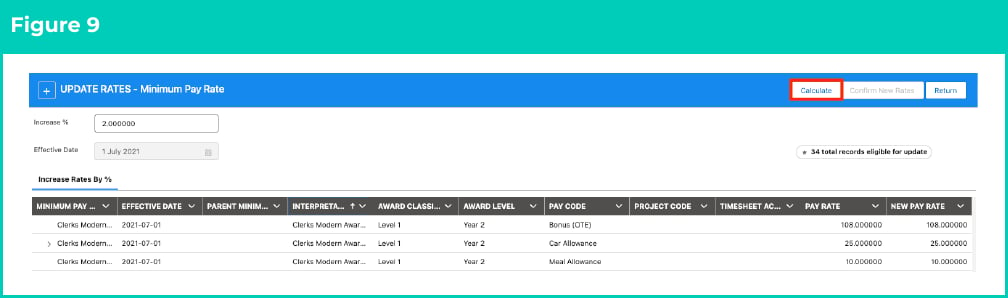
 2. Click **Calculate** to update **New Pay Rate** values for all MPR records displayed (see Figure 9).
 10. If you selected Increase Rates by \$, follow the sub-steps below, otherwise skip to step 12:
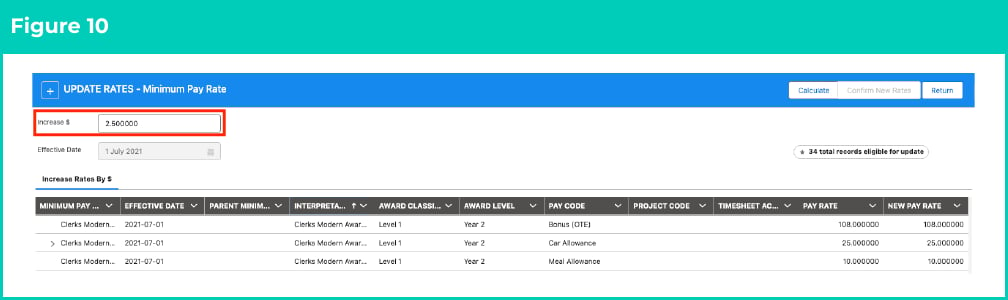
1. Populate the **Increase \$** field with the value of the amount increase to be added to all Minimum Pay Rates records listed (see Figure 10).
10. If you selected Increase Rates by \$, follow the sub-steps below, otherwise skip to step 12:
1. Populate the **Increase \$** field with the value of the amount increase to be added to all Minimum Pay Rates records listed (see Figure 10).
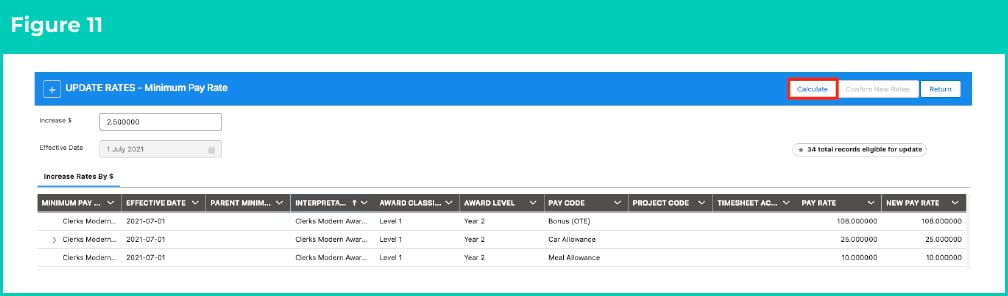
 11. Click **Calculate** to calculate new Pay Rates for all MPR records displayed (see Figure 11).
 12. If you selected Enter Rate Changes Individually, follow the sub-steps below:
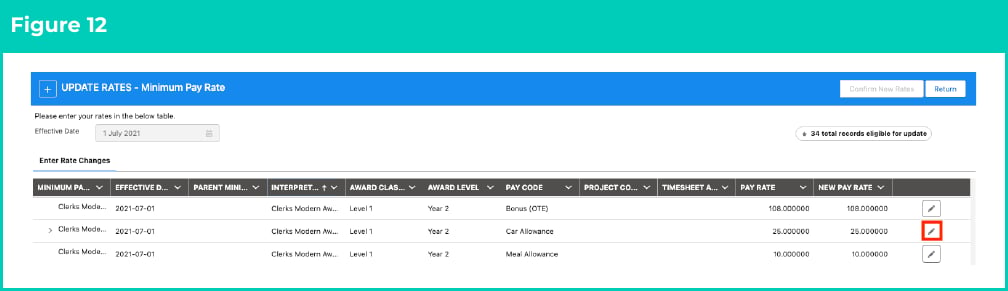
1. Click the pencil icon that appears next to the **New Pay Rate** value (see Figure 12).
12. If you selected Enter Rate Changes Individually, follow the sub-steps below:
1. Click the pencil icon that appears next to the **New Pay Rate** value (see Figure 12).
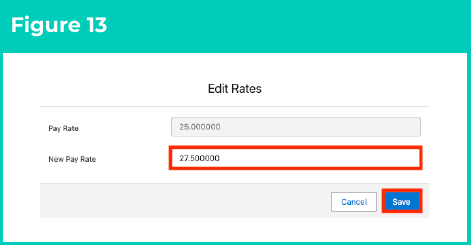
 2) From the Edit Rates window, enter the new amount in the **New Pay Rate** field and click **Save** (see Figure 13).
3) Repeat the above steps for each row that requires updates.
2) From the Edit Rates window, enter the new amount in the **New Pay Rate** field and click **Save** (see Figure 13).
3) Repeat the above steps for each row that requires updates.
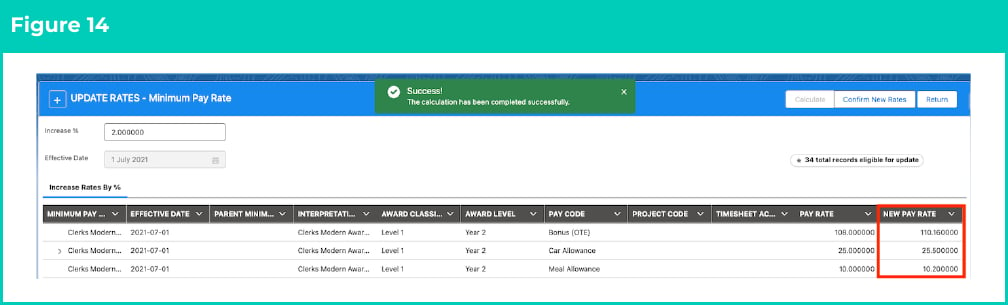
 13. Once changes have been successfully Calculated, review the updated values displayed in the **New Pay Rate** column (see Figure 14).
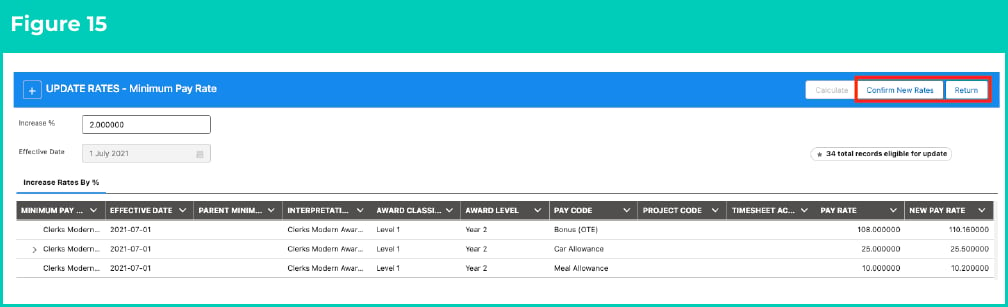
 14. To create new records for the Effective Date entered with the new rate detailed, and update existing records to expire one day prior, click the **Confirm New Rates** button, or select **Return** to cancel updates (see Figure 15).
 **Important Notes**\
(Confirm New Rates)
Please note, any changes made to Minimum Pay Rates cannot be reversed after this point. If the error ‘The Effective Date cannot be greater than the Expiry Date’ is encountered, please ensure the new effective period defined for selected Child MPRs align with the related Parent MPR. Update Rates UI will not allow updates causing new Child MPRs to be orphaned from the related Parent MPR.
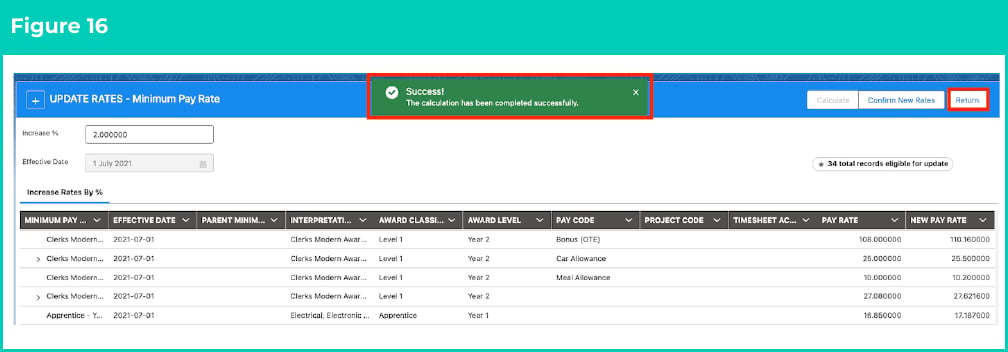
15. If Update Rate automation is successful, the following message will be displayed once processing is completed (see Figure 16).
1. To go back to the Minimum Pay Rate Object and review the changes made, click the **Return** button.
**Important Notes**\
(Confirm New Rates)
Please note, any changes made to Minimum Pay Rates cannot be reversed after this point. If the error ‘The Effective Date cannot be greater than the Expiry Date’ is encountered, please ensure the new effective period defined for selected Child MPRs align with the related Parent MPR. Update Rates UI will not allow updates causing new Child MPRs to be orphaned from the related Parent MPR.
15. If Update Rate automation is successful, the following message will be displayed once processing is completed (see Figure 16).
1. To go back to the Minimum Pay Rate Object and review the changes made, click the **Return** button.
 ### Disable Assignment Rate Creation
Once updates for the selected MPR records have been created, the existing MPRs and related Assignment Rates will be set to expire, to be replaced by new Assignment Rates containing the updated MPR rates.
If active Assignments are related to the new MPRs, the creation of new Assignment Rates will be updated by the scheduled automation.
If new Assignment Rates should not be created, this feature must be manually overridden promptly, as the resulting automation is extremely difficult to reverse once processed.
To pause or prevent the creation of new Assignment Rates, follow the steps below.
16. Identify the new MPR record created via Update Rates automation.
17.
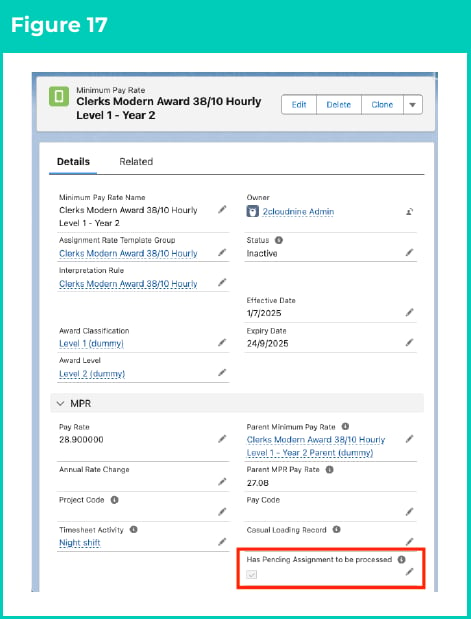
Click the **pencil icon** that appears within the **Has Pending Assignment to be processed** field (see Figure 17).
### Disable Assignment Rate Creation
Once updates for the selected MPR records have been created, the existing MPRs and related Assignment Rates will be set to expire, to be replaced by new Assignment Rates containing the updated MPR rates.
If active Assignments are related to the new MPRs, the creation of new Assignment Rates will be updated by the scheduled automation.
If new Assignment Rates should not be created, this feature must be manually overridden promptly, as the resulting automation is extremely difficult to reverse once processed.
To pause or prevent the creation of new Assignment Rates, follow the steps below.
16. Identify the new MPR record created via Update Rates automation.
17.
Click the **pencil icon** that appears within the **Has Pending Assignment to be processed** field (see Figure 17).
 18.
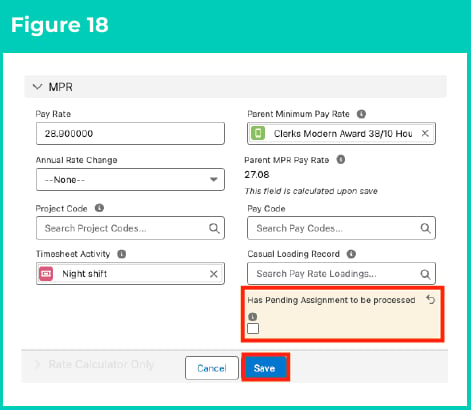
Unselect the checkbox field and click **Save** to update the record (see Figure 18).
18.
Unselect the checkbox field and click **Save** to update the record (see Figure 18).
 ## Field descriptions
| Field Name | Description |
| --------------------------- | ------------------------------------------------------------------------------------------------------------------------------------------------------------------------------------------------------------------------------------------------------------------------------------------------------------------------------------------------------------------------------------------------------------------------------------------ |
| **Award Classification** | The Award Classification defined for the Minimum Pay Rate record. |
| **Award Level** | The Award Level defined for the Minimum Pay Rate record. |
| **Effective Date** | The date from which this Minimum Pay Rate record is effective. |
| **New Pay Rate** | The Pay Rate that will be applied to the new Minimum Pay Rate records and the associated Assignment Rates when the automation is completed. |
| **Parent Minimum Pay Rate** | The Parent Minimum Pay Rate for a Child record. |
| **Pay Code** | The Pay Code defined for the Minimum Pay Rate record. |
| **Pay Rate** | The hourly pay rate applicable for the Minimum Pay Rate record. |
| **Project Code** | The Project Code defined for the Minimum Pay Rate record. |
| **Timesheet Activity** | The Timesheet Activity defined for the Minimum Pay Rate record. |
| **Update Rates by** | Allows users to choose how the calculations of updates are to be made from the following three options:
## Field descriptions
| Field Name | Description |
| --------------------------- | ------------------------------------------------------------------------------------------------------------------------------------------------------------------------------------------------------------------------------------------------------------------------------------------------------------------------------------------------------------------------------------------------------------------------------------------ |
| **Award Classification** | The Award Classification defined for the Minimum Pay Rate record. |
| **Award Level** | The Award Level defined for the Minimum Pay Rate record. |
| **Effective Date** | The date from which this Minimum Pay Rate record is effective. |
| **New Pay Rate** | The Pay Rate that will be applied to the new Minimum Pay Rate records and the associated Assignment Rates when the automation is completed. |
| **Parent Minimum Pay Rate** | The Parent Minimum Pay Rate for a Child record. |
| **Pay Code** | The Pay Code defined for the Minimum Pay Rate record. |
| **Pay Rate** | The hourly pay rate applicable for the Minimum Pay Rate record. |
| **Project Code** | The Project Code defined for the Minimum Pay Rate record. |
| **Timesheet Activity** | The Timesheet Activity defined for the Minimum Pay Rate record. |
| **Update Rates by** | Allows users to choose how the calculations of updates are to be made from the following three options: - Increase % applies a percentage increase to all the selected Minimum Pay Rate records.
- Increase $applies a fxed$ increase to all the selected Minimum Pay Rate records.
- Enter Rate Changes Individually allows individual rates to be entered which aren't a global increase across all records.
|
## Further information
| Document | Document Type | Description |
| ---------------------------------------------------- | --------------------------- | ---------------------------------------------------------------------------------------------------------------------------------------------------------------------- |
| QRG Rates Automation Key Information | Information Quick Reference | Outlines useful information relevant to the Rates Automation functionality. The document includes definitions, prerequisites, and other non-instructional information. |
| QRG Create a Pay Rate Loading Record | Task Instructions | How to create a Pay Rate Loading record |
| QRG Create an Award Classification and Levels Record | Task Instructions | How to create an Award Classification and an Award Level record |
| QRG Create an Assignment (Temp) | Task Instructions | How to create an Employee Assignment for Timesheets |
| QRG Create an Assignment Rate record (Timesheet) | Task Instructions | How to create an Assignment Rate record for Timesheet Assignment Rates |