> ## Documentation Index
> Fetch the complete documentation index at: https://documentation.2cloudnine.com/llms.txt
> Use this file to discover all available pages before exploring further.
# QRG Resolving Failed Reconciliation Results
export const InlineImage = ({src, alt = "", height = "1.6em"}) => {
return  ;
};
## Purpose
The purpose of this quick reference guide is to step through the process of resolving the Reconciliation results, which is the last step of the Reconciliation process and required only when there are failed results. The intended audience for this document are System Administrators and Payroll Users. The Resolve function is an automated function performed after the manual review to ensure Payee Aggregates balance the Pay Transactions paid throughout the year to Payees.
## Steps
### Resolving Failed Reconciliation Results
To resolve failed reconciliation results, the following steps should be completed:
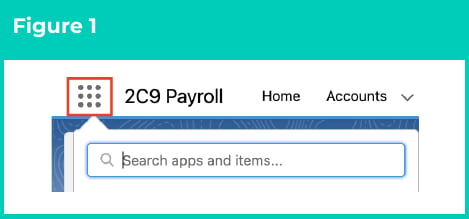
1. Click on the **App Launcher** icon. (See Figure 1)
;
};
## Purpose
The purpose of this quick reference guide is to step through the process of resolving the Reconciliation results, which is the last step of the Reconciliation process and required only when there are failed results. The intended audience for this document are System Administrators and Payroll Users. The Resolve function is an automated function performed after the manual review to ensure Payee Aggregates balance the Pay Transactions paid throughout the year to Payees.
## Steps
### Resolving Failed Reconciliation Results
To resolve failed reconciliation results, the following steps should be completed:
1. Click on the **App Launcher** icon. (See Figure 1)
 2.
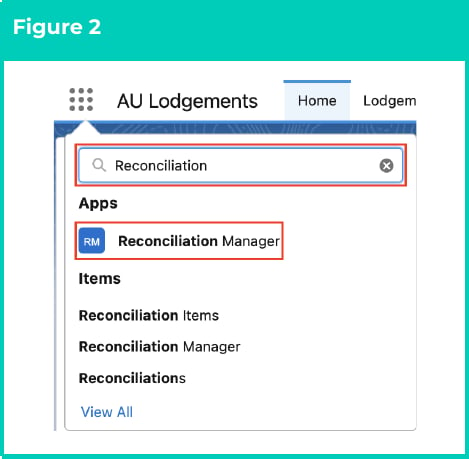
Go to the **Reconciliation Manager** App by using the Search function. (See Figure 2)
2.
Go to the **Reconciliation Manager** App by using the Search function. (See Figure 2)
 3. In the Reconciliation Manager App, ensure the **Manage Variances** sub-tab is selected to search and resolve the Variances. (See Figure 3)
 4. Populate the following required fields to filter the records: (See Figure 4)
1. **Reconciliation Record**
5. To further filter the variances that will display, populate from the available fields of **Record Type**, **Pay Code**, **Employee** and **Payee** as required, or skip these fields to display all variances within the Reconciliation Record selected in step 4.
6. Click on the **Search** button.
All of the filters above allow only one value in each field. Therefore, you can either search one item at a time or you can search all (if you skip the field). If you need to review multiple values (two, three or more), they must be reviewed separately.
4. Populate the following required fields to filter the records: (See Figure 4)
1. **Reconciliation Record**
5. To further filter the variances that will display, populate from the available fields of **Record Type**, **Pay Code**, **Employee** and **Payee** as required, or skip these fields to display all variances within the Reconciliation Record selected in step 4.
6. Click on the **Search** button.
All of the filters above allow only one value in each field. Therefore, you can either search one item at a time or you can search all (if you skip the field). If you need to review multiple values (two, three or more), they must be reviewed separately.
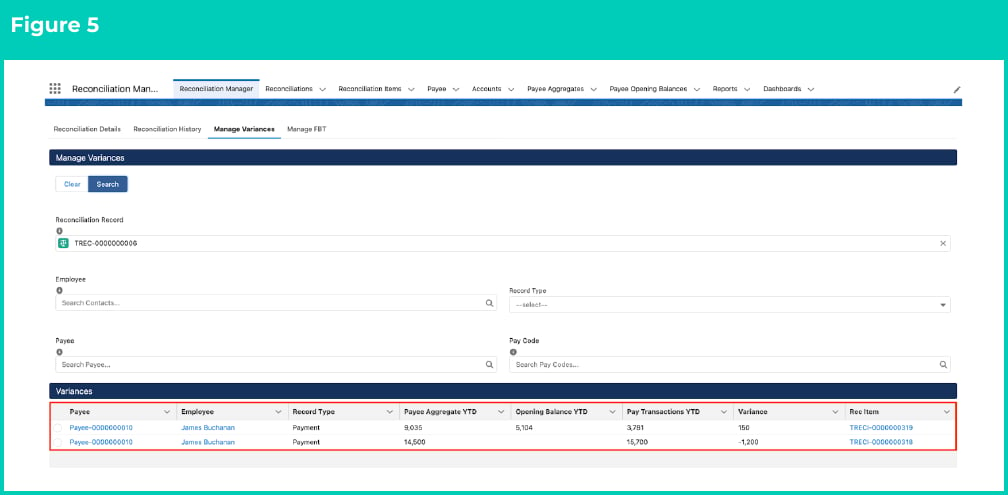
 7. A list of Failed Reconciliation Items matching any filters selected will appear in the Variances section. (See Figure 5)
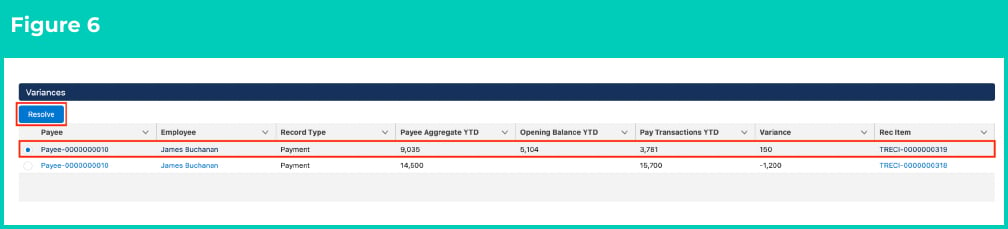
 8. Select the radio button next to a Reconciliation Item to be resolved.
9. The Resolve button will appear within the Variances section.
10. Click the **Resolve** button. (See Figure 6)
8. Select the radio button next to a Reconciliation Item to be resolved.
9. The Resolve button will appear within the Variances section.
10. Click the **Resolve** button. (See Figure 6)
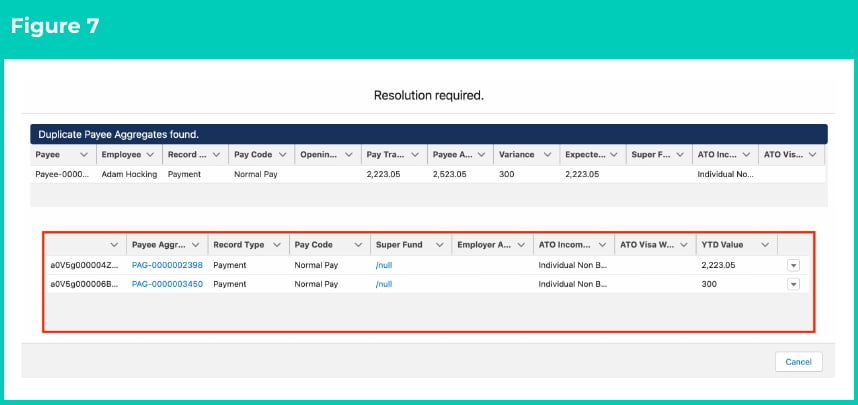
 11. A popup window titled Resolution Required will open. This popup displays the Opening Balance YTD, Pay Transactions YTD, Payee Aggregate YTD, Variance and Expected Value YTD.
12. Please choose one of the following:
1. If the popup displays multiple Payee Aggregates, proceed to the next step 13. (See Figure 7)
11. A popup window titled Resolution Required will open. This popup displays the Opening Balance YTD, Pay Transactions YTD, Payee Aggregate YTD, Variance and Expected Value YTD.
12. Please choose one of the following:
1. If the popup displays multiple Payee Aggregates, proceed to the next step 13. (See Figure 7)
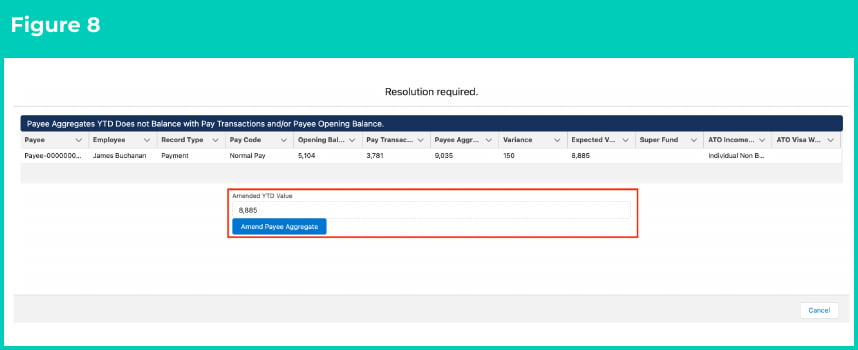
 2. If the popup displays only one Payee Aggregate, please skip to step 19. (See figure 8)
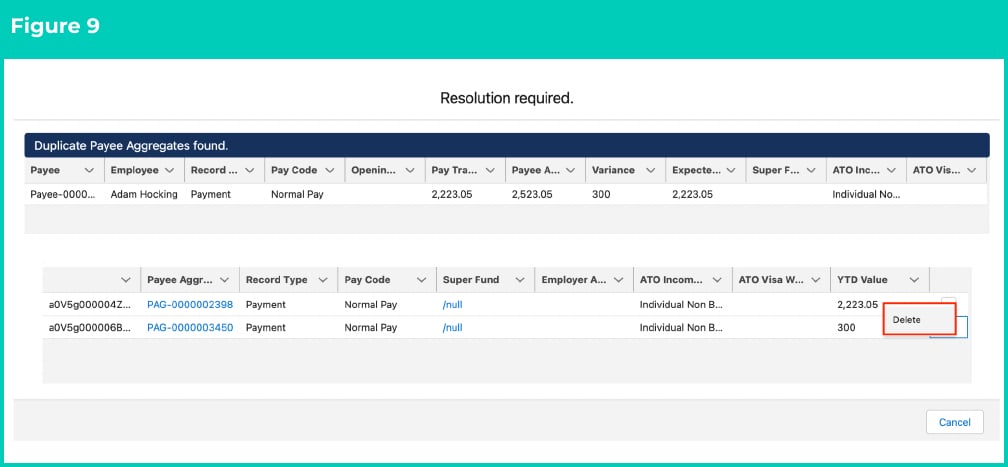
 13. You will need to delete one of the Payee Aggregates first. On the right hand side of the row, select the drop down arrow and then click **Delete**. (See Figure 9)
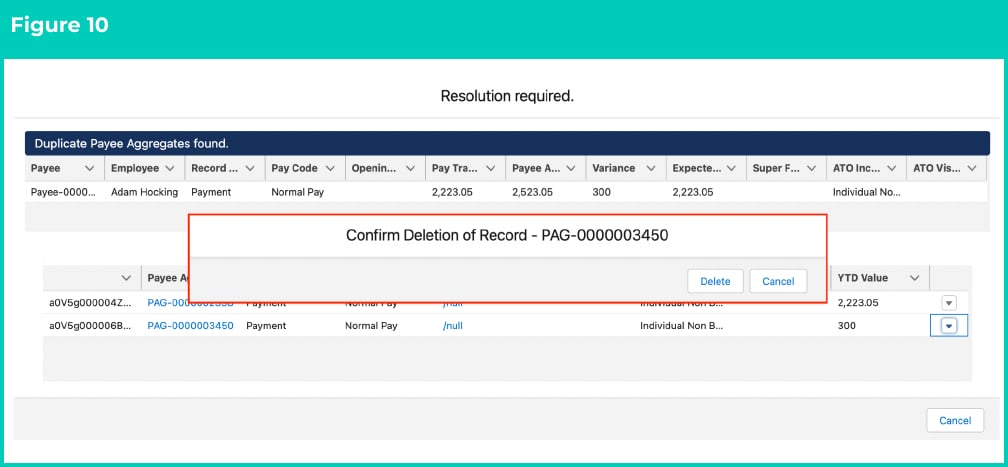
 14. When another popup called Confirm Deletion of Record appears, click the **Delete** button again. (See Figure 10)
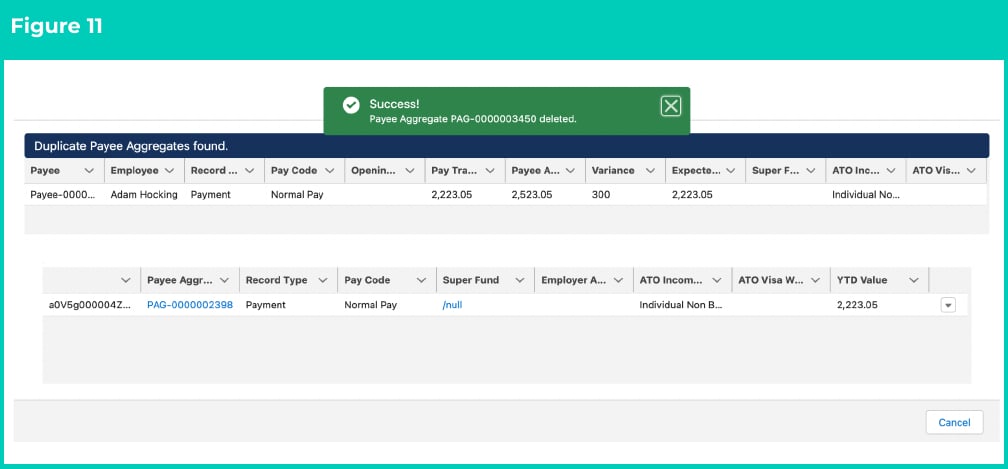
 15. A notification will appear indicating “Payee Aggregate PAG-xxxxxxxxxx deleted.” and the Payee Aggregate will be removed from the list of Duplicate Payee Aggregates. (See Figure 11)
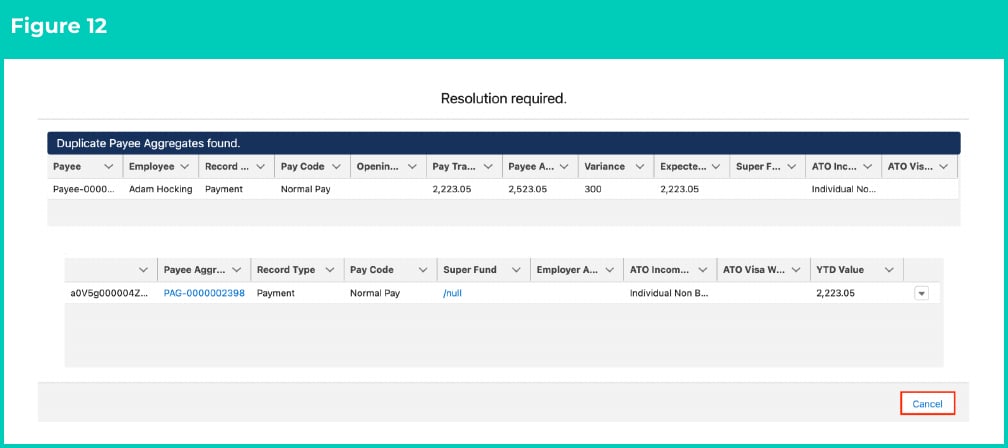
 16. Click the **Cancel** button to close the popup screen. (See Figure 12)
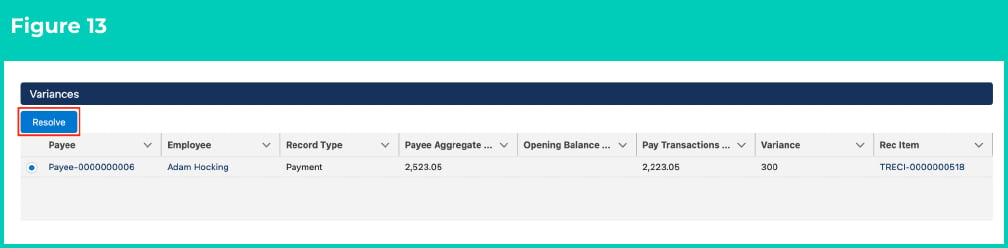
 17. Now click on the **Resolve** button again. (See Figure 13)
 18. The Resolution required popup will display.
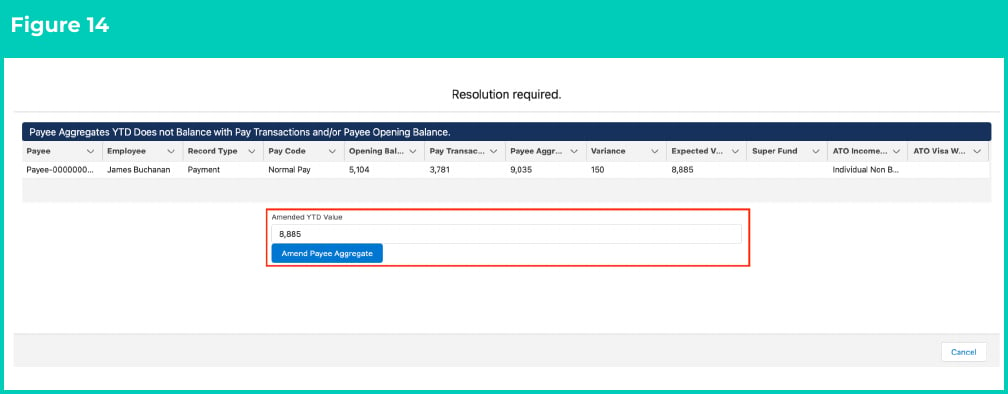
19. The Amended YTD Value displays with a predetermined suggestion of what the Payee Aggregate should be for the Failed Reconciliation Item to be corrected. This value can be edited manually if you do not agree with the suggested Amended YTD Value provided. To action the Amended YTD Value to the Payee Aggregate, click the **Amend Payee Aggregate** button. (See Figure 14)
18. The Resolution required popup will display.
19. The Amended YTD Value displays with a predetermined suggestion of what the Payee Aggregate should be for the Failed Reconciliation Item to be corrected. This value can be edited manually if you do not agree with the suggested Amended YTD Value provided. To action the Amended YTD Value to the Payee Aggregate, click the **Amend Payee Aggregate** button. (See Figure 14)
 If the user manually puts in an amount different than the suggested value, then it will NOT reconcile successfully in the future when the process is run again.
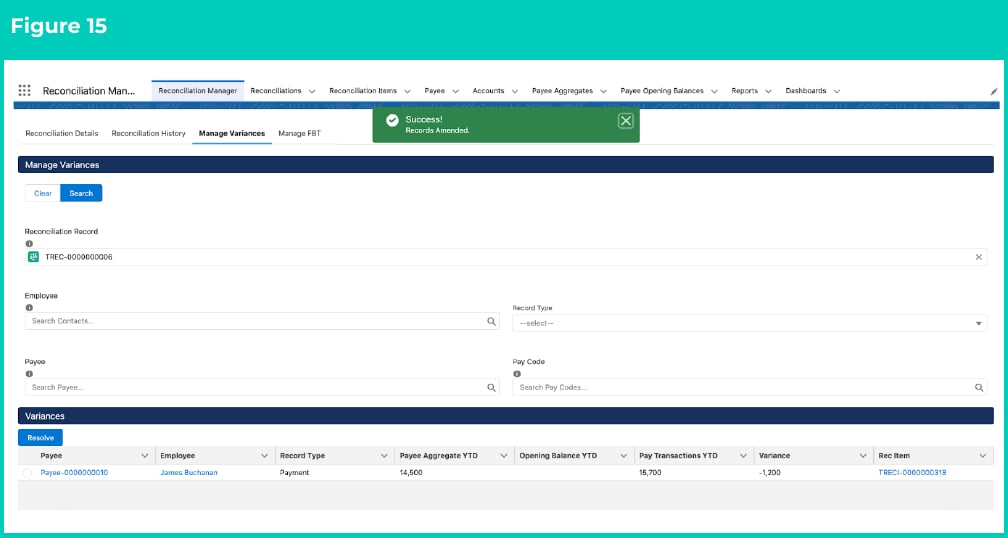
20. A Success notification will appear indicating “Records Amended”, and the resolved Reconciliation Item will be removed from the list of variances. (See Figure 15)
If the user manually puts in an amount different than the suggested value, then it will NOT reconcile successfully in the future when the process is run again.
20. A Success notification will appear indicating “Records Amended”, and the resolved Reconciliation Item will be removed from the list of variances. (See Figure 15)
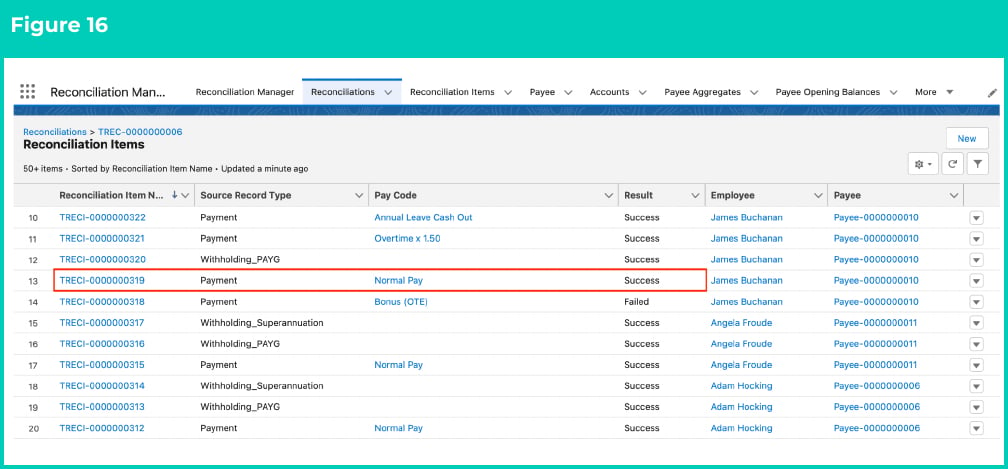
 21. To confirm the Failed Reconciliation Item is now resolved, open the Reconciliation Items Related List from the Reconciliation Record, and check the Reconciliation Item is now a Result of Success. (See Figure 16)
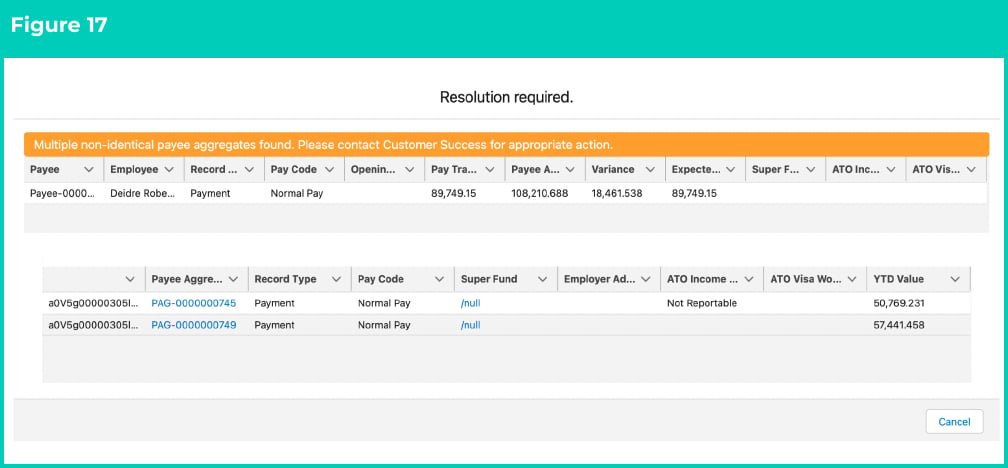
 22. Please note, if more than one non-identical Payee Aggregates appear in the popup due to different ATO Income Classifications, it is recommended to contact the Customer Success team to assist with resolving the issue. (See Figure 17)
 ## Field descriptions
No field descriptions are required for this QRG document.
## Further information
| Document | Document Type | Description |
| :-------------------------------------------------------------------------------------------------------------------------------------- | :-------------------------- | :------------------------------------------------------------------------------------------------------------------------------------------------------------------- |
| [Quick Reference Guide Index - Reconciliation Manager](/qrgs/reconciliation-manager/quick-reference-guide-index-reconciliation-manager) | Index | An index document that lists and provides links to all Quick Reference Guides relating to Reconciliations. |
| [QRG Process a new Reconciliation](/qrgs/reconciliation-manager/qrg-process-a-new-reconciliation) | Task Instructions | How to process a new Reconciliation. |
| [QRG Review Reconciliation History (Results)](/qrgs/reconciliation-manager/qrg-review-reconciliation-history-results) | Task Instructions | How to review the existing Reconciliation records. |
| [QRG Manage FBT](/qrgs/reconciliation-manager/qrg-manage-fbt) | Task Instructions | How to enter and search Reportable and Non-Reportable FBT amounts. |
| [QRG Reconciliation Manager - Key Information](/qrgs/reconciliation-manager/qrg-reconciliation-manager-key-information) | Information Quick Reference | Outlines useful information relevant to the Reconciliation functionality. The document includes definitions, prerequisites, and other non-instructional information. |
## Field descriptions
No field descriptions are required for this QRG document.
## Further information
| Document | Document Type | Description |
| :-------------------------------------------------------------------------------------------------------------------------------------- | :-------------------------- | :------------------------------------------------------------------------------------------------------------------------------------------------------------------- |
| [Quick Reference Guide Index - Reconciliation Manager](/qrgs/reconciliation-manager/quick-reference-guide-index-reconciliation-manager) | Index | An index document that lists and provides links to all Quick Reference Guides relating to Reconciliations. |
| [QRG Process a new Reconciliation](/qrgs/reconciliation-manager/qrg-process-a-new-reconciliation) | Task Instructions | How to process a new Reconciliation. |
| [QRG Review Reconciliation History (Results)](/qrgs/reconciliation-manager/qrg-review-reconciliation-history-results) | Task Instructions | How to review the existing Reconciliation records. |
| [QRG Manage FBT](/qrgs/reconciliation-manager/qrg-manage-fbt) | Task Instructions | How to enter and search Reportable and Non-Reportable FBT amounts. |
| [QRG Reconciliation Manager - Key Information](/qrgs/reconciliation-manager/qrg-reconciliation-manager-key-information) | Information Quick Reference | Outlines useful information relevant to the Reconciliation functionality. The document includes definitions, prerequisites, and other non-instructional information. |