> ## Documentation Index
> Fetch the complete documentation index at: https://documentation.2cloudnine.com/llms.txt
> Use this file to discover all available pages before exploring further.
# QRG STP2 Data Updates - Pay Codes
## Purpose
The purpose of this quick reference guide is to step through the process of updating data to be ready to commence reporting via Single Touch Payroll Phase 2. The intended audience for this document is System Administrators/Standard Users.
## Steps
### Review and Update Pay Codes
To review and update Pay Codes, follow the steps below:
1.
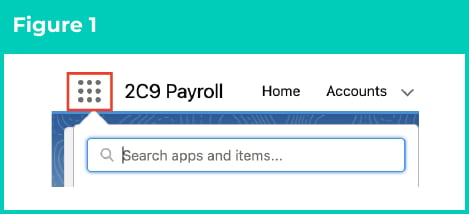
Click on the **App Launcher** icon. (See Figure 1)
 2.
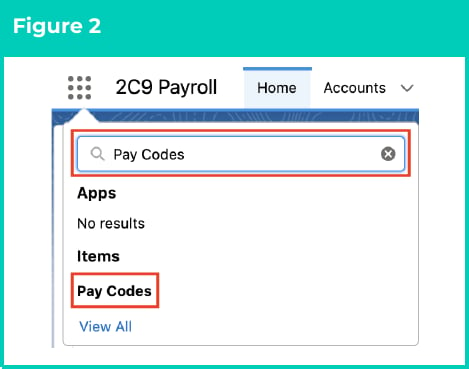
Go to the **Pay Codes** object by using the Search function. (See Figure 2)
2.
Go to the **Pay Codes** object by using the Search function. (See Figure 2)
 3.
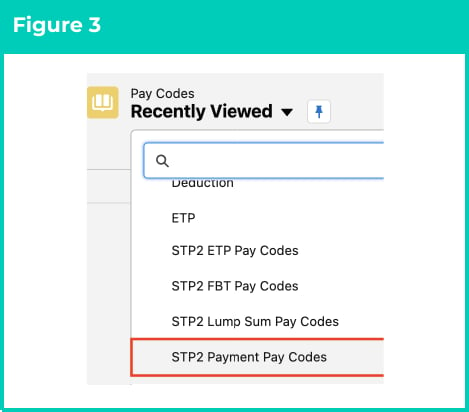
Select the List View **STP2 Payment Pay Codes**. (See Figure 3)
3.
Select the List View **STP2 Payment Pay Codes**. (See Figure 3)
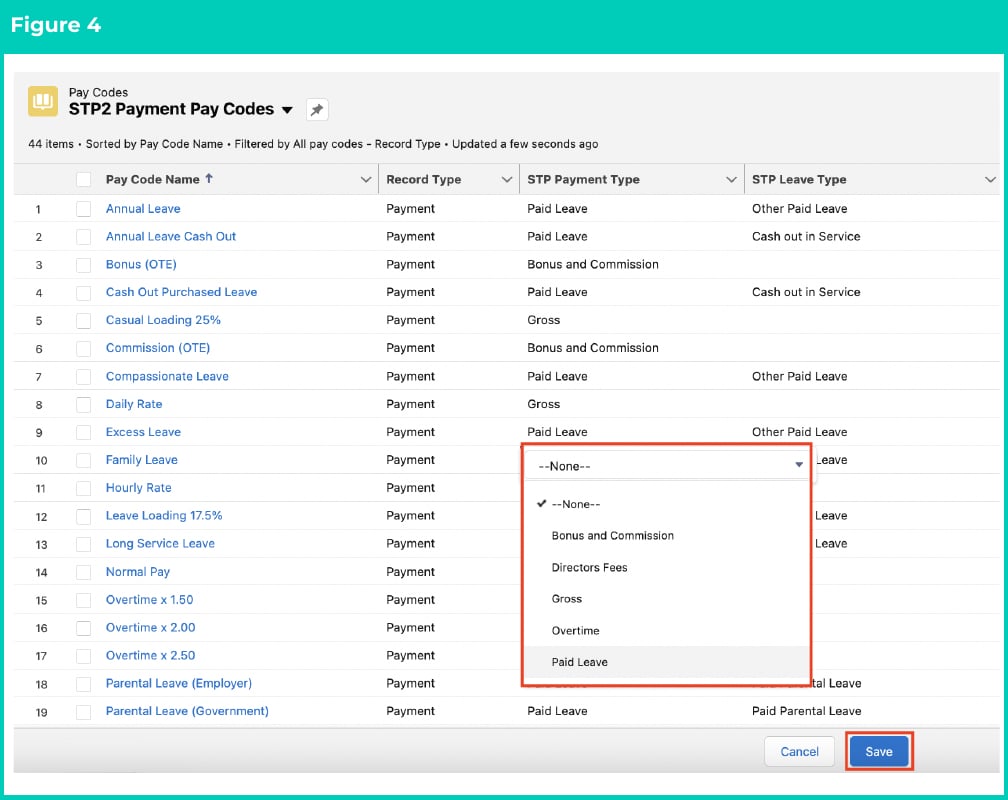
 4. Populate the required field **STP Payment Type** on the List View with one of the following values to provide the STP2 required information (See Figure 4):
* Bonus and Commission
* Directors Fees
* Gross
* Overtime
* Paid Leave
5. Populate the optional field **STP Leave Type** with one of the following values, if STP Payment Type is Paid Leave (See Figure 4):
* Ancillary or Defence Leave
* Cash out in Service
* Paid Parental Leave
* Other Paid Leave
* Workers Compensation
* Unused Leave on Termination
6. Select **Save** to ensure all updates are saved. (See Figure 4)
4. Populate the required field **STP Payment Type** on the List View with one of the following values to provide the STP2 required information (See Figure 4):
* Bonus and Commission
* Directors Fees
* Gross
* Overtime
* Paid Leave
5. Populate the optional field **STP Leave Type** with one of the following values, if STP Payment Type is Paid Leave (See Figure 4):
* Ancillary or Defence Leave
* Cash out in Service
* Paid Parental Leave
* Other Paid Leave
* Workers Compensation
* Unused Leave on Termination
6. Select **Save** to ensure all updates are saved. (See Figure 4)
 7.
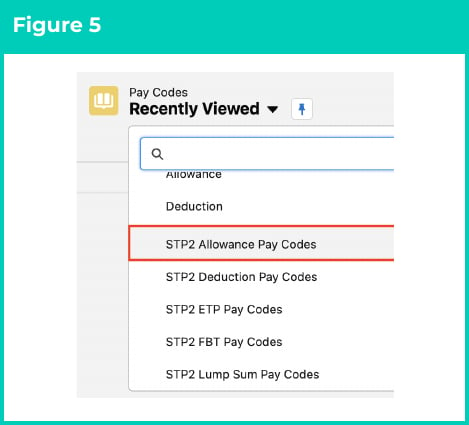
Select the List View **STP2 Allowance Pay Codes**. (See Figure 5)
7.
Select the List View **STP2 Allowance Pay Codes**. (See Figure 5)
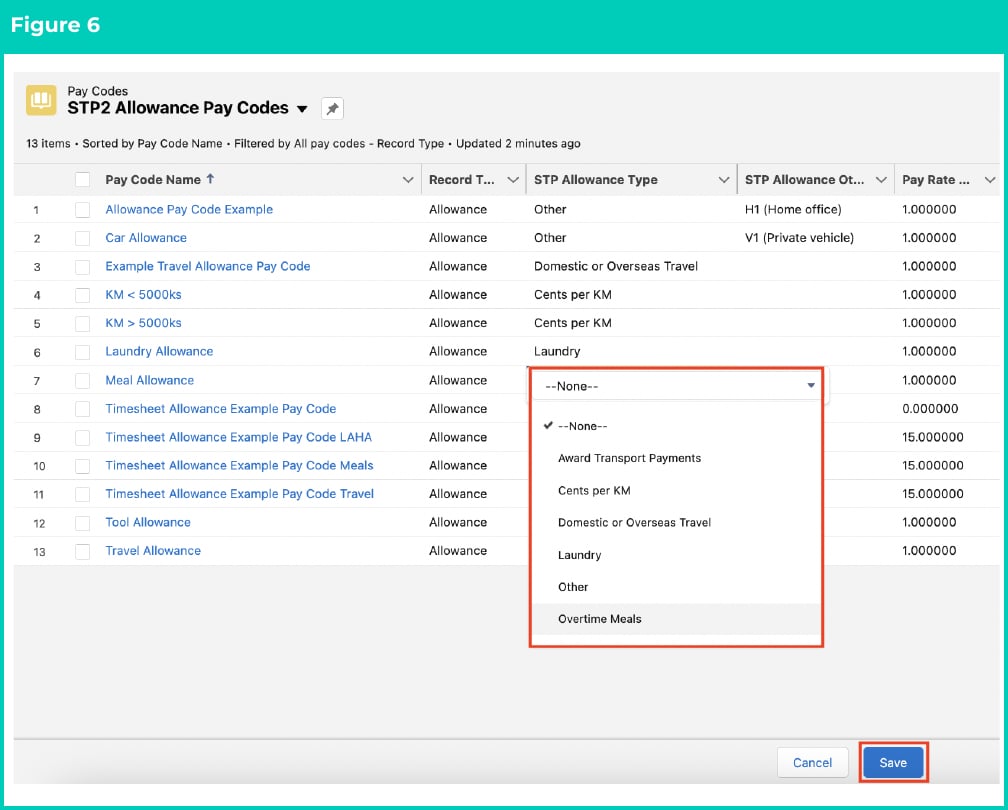
 8. Populate the required field **STP Allowance Type** on the List View with one of the following values to provide the STP2 required information (See Figure 6):
* Award Transport Payments
* Cents per KM
* Domestic or Overseas Travel
* Laundry
* Overtime Meals
* Qualifications/Certificates
* Tasks
* Tools
* Other
* Gross
* Not Applicable
* Overtime
9. Populate the optional field **STP Allowance Other Description** if STP Allowance Type was Other (See Figure 6). The values to use here must adhere to the codes as specified by the ATO, and can be located by going to either of these 2 links to the ATO website:
* [STP Phase 2 reporting – Quick reference guide](https://www.ato.gov.au/Business/Single-Touch-Payroll/In-detail/Single-Touch-Payroll-Phase-2-employer-reporting-guidelines/?page=12)
* [Reporting the amounts you have paid](https://www.ato.gov.au/Business/Single-Touch-Payroll/In-detail/Single-Touch-Payroll-Phase-2-employer-reporting-guidelines/?anchor=Reportingtheamountsyouhavepaid#Gross)
10. Select **Save** to ensure all updates are saved. (See Figure 6)
Users are encouraged to select the save button regularly when performing In Line Editing via List Views to ensure all updates are saved correctly.
8. Populate the required field **STP Allowance Type** on the List View with one of the following values to provide the STP2 required information (See Figure 6):
* Award Transport Payments
* Cents per KM
* Domestic or Overseas Travel
* Laundry
* Overtime Meals
* Qualifications/Certificates
* Tasks
* Tools
* Other
* Gross
* Not Applicable
* Overtime
9. Populate the optional field **STP Allowance Other Description** if STP Allowance Type was Other (See Figure 6). The values to use here must adhere to the codes as specified by the ATO, and can be located by going to either of these 2 links to the ATO website:
* [STP Phase 2 reporting – Quick reference guide](https://www.ato.gov.au/Business/Single-Touch-Payroll/In-detail/Single-Touch-Payroll-Phase-2-employer-reporting-guidelines/?page=12)
* [Reporting the amounts you have paid](https://www.ato.gov.au/Business/Single-Touch-Payroll/In-detail/Single-Touch-Payroll-Phase-2-employer-reporting-guidelines/?anchor=Reportingtheamountsyouhavepaid#Gross)
10. Select **Save** to ensure all updates are saved. (See Figure 6)
Users are encouraged to select the save button regularly when performing In Line Editing via List Views to ensure all updates are saved correctly.
 All Allowance Pay Codes must have a value populated in STP Allowance Type, and if Other is selected, they must populate STP Allowance Other Description with a value as per the ATO guidelines.
11.
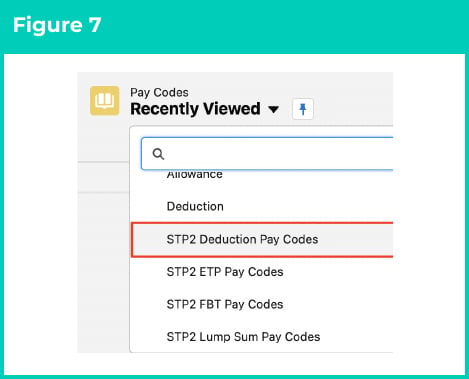
Select the List View **STP2 Deduction Pay Codes**. (See Figure 7)
All Allowance Pay Codes must have a value populated in STP Allowance Type, and if Other is selected, they must populate STP Allowance Other Description with a value as per the ATO guidelines.
11.
Select the List View **STP2 Deduction Pay Codes**. (See Figure 7)
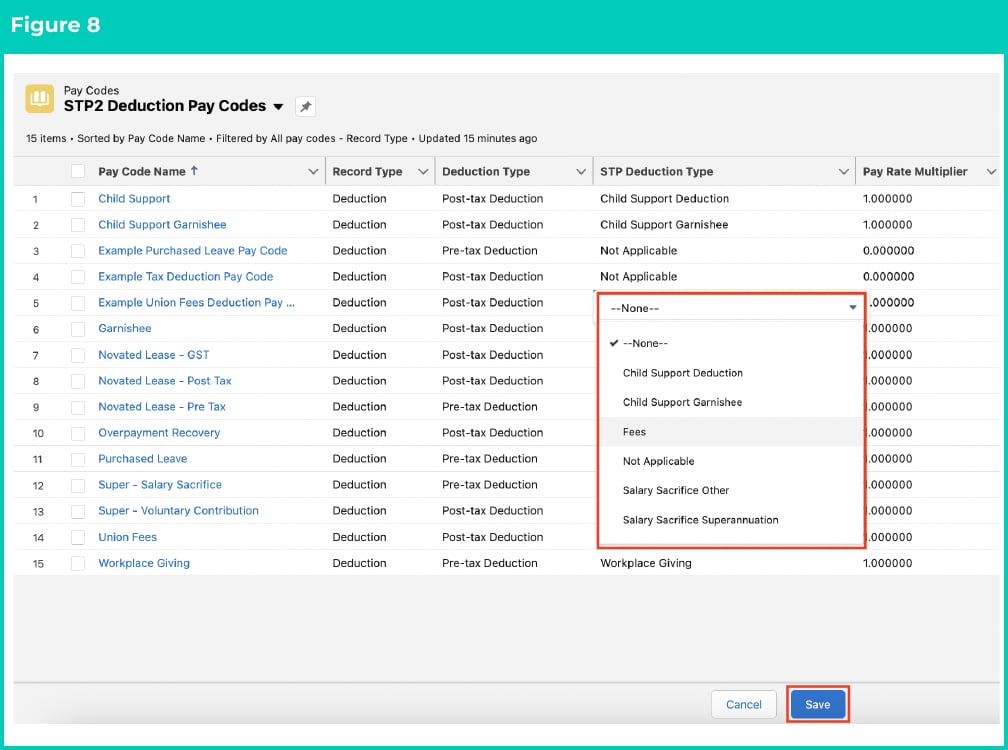
 12. Populate the required field **STP Deduction Type** on the List View with one of the following values to provide the STP Phase 2 required information (See Figure 8):
* Child Support Deduction
* Child Support Garnishee
* Fees
* Not Applicable
* Salary Sacrifice Other
* Salary Sacrifice Superannuation
* Workplace Giving
13. Select **Save** to ensure all updates are saved. (See Figure 8)
12. Populate the required field **STP Deduction Type** on the List View with one of the following values to provide the STP Phase 2 required information (See Figure 8):
* Child Support Deduction
* Child Support Garnishee
* Fees
* Not Applicable
* Salary Sacrifice Other
* Salary Sacrifice Superannuation
* Workplace Giving
13. Select **Save** to ensure all updates are saved. (See Figure 8)
 14.
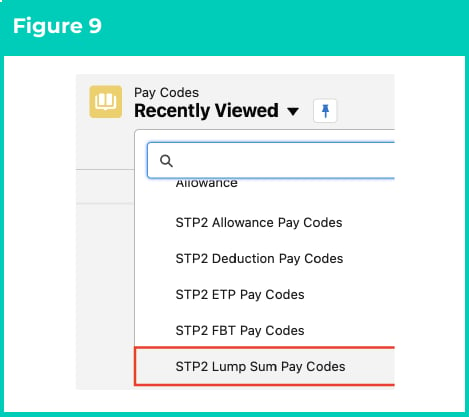
Select the List View **STP2 Lump Sum Pay Codes**. (See Figure 9)
14.
Select the List View **STP2 Lump Sum Pay Codes**. (See Figure 9)
 15. Review the List View to confirm all Pay Codes have the required information populated (See Figure 10):
16. Select **Save** to ensure all updates are saved (See Figure 10).
15. Review the List View to confirm all Pay Codes have the required information populated (See Figure 10):
16. Select **Save** to ensure all updates are saved (See Figure 10).
 17.
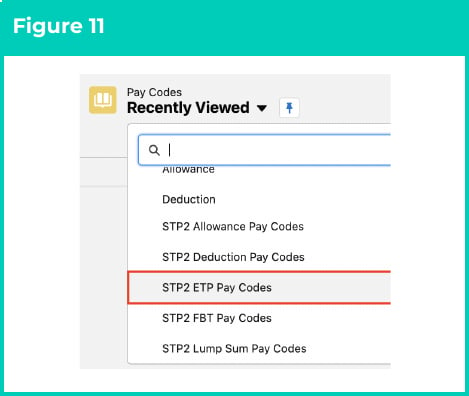
Select the List View **STP2 ETP Pay Codes**. (See Figure 11)
17.
Select the List View **STP2 ETP Pay Codes**. (See Figure 11)
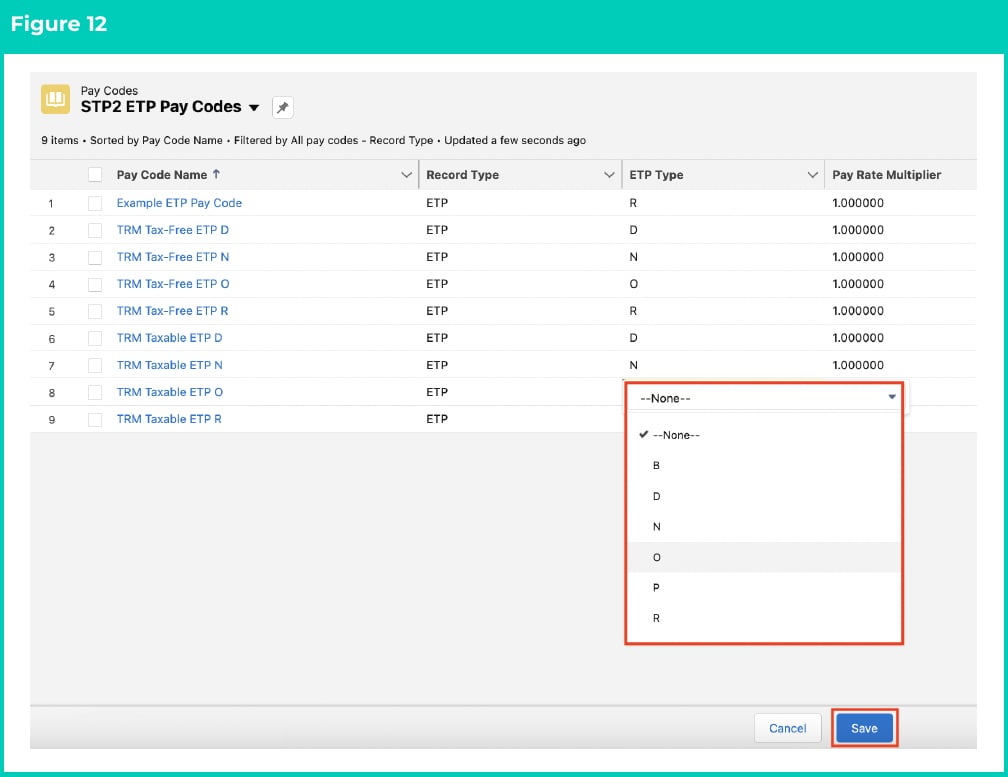
 18. Review the List View to confirm all Pay Codes have the correct ETP Type populated for that Pay Code, and if any are missing or are incorrect, please update them as required. (See Figure 12)
19. If any changes are made, select **Save** to ensure all updates are saved. (See Figure 12)
18. Review the List View to confirm all Pay Codes have the correct ETP Type populated for that Pay Code, and if any are missing or are incorrect, please update them as required. (See Figure 12)
19. If any changes are made, select **Save** to ensure all updates are saved. (See Figure 12)
 20.
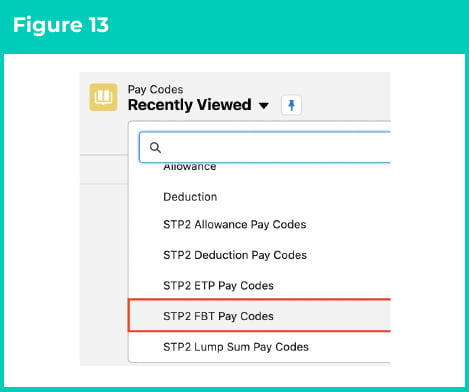
Select the List View **STP2 FBT Pay Codes**. (See Figure 13)
20.
Select the List View **STP2 FBT Pay Codes**. (See Figure 13)
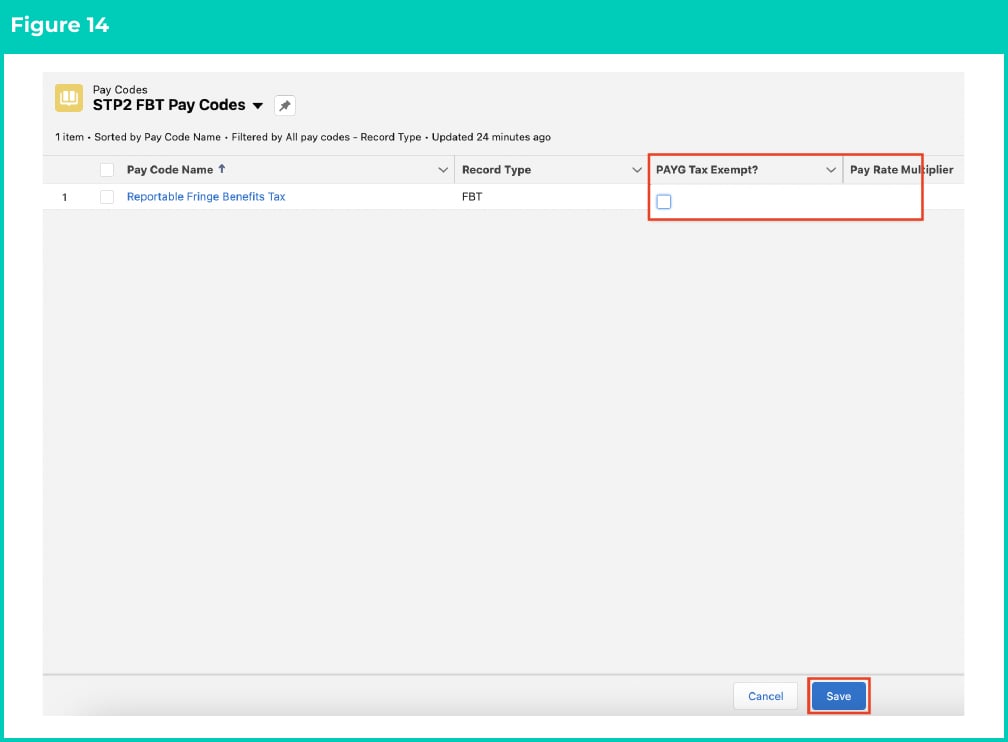
 21. Review the List View to confirm all Pay Codes have the correct **PAYG Tax Exempt?** Treatment. Any Pay Codes that have PAYG Tax Exempt? ticked will be reported to the ATO as Exempt from FBT. (See Figure 14)
22. If any changes are made, select **Save** to ensure all updates are saved. (See Figure 14)
21. Review the List View to confirm all Pay Codes have the correct **PAYG Tax Exempt?** Treatment. Any Pay Codes that have PAYG Tax Exempt? ticked will be reported to the ATO as Exempt from FBT. (See Figure 14)
22. If any changes are made, select **Save** to ensure all updates are saved. (See Figure 14)
 ## Field descriptions
**STP Allowance Other Description** defines what description will be reported in STP when the STP Allowance Type is Other.\
**STP Allowance Type** defines how this Allowance Pay Code will be reported in STP Phase 2.\
**STP Deduction Type** defines how this Deduction Pay Code will be reported in STP Phase 2.\
**STP Leave Type** defines how this Pay Code will be reported in STP Phase 2 when it is a Paid Leave Type.\
**STP Payment Type** defines how a Pay Code with record type = Payment will be disaggregated in STP Phase 2 reporting.
## Further information
| Document | Document Type | Description |
| :----------------------------------------------------------------------------------------------------------------------------- | :---------------- | :--------------------------------------------------------------------------- |
| [QRG STP Phase 2 Data Updates - Payee Data](/qrgs/stp2/qrg-stp2-data-updates-payee-data) | Task Information | How to update existing Pay Codes to be compliant to STP Phase 2 requirements |
| [Create Pay Codes - Allowance Pay Codes](/in-progress/qrg-create-pay-codes-allowance/qrg-create-pay-codes-allowance-pay-codes) | Task Instructions | How to create Allowance Pay Codes |
| [Create Pay Codes - Deduction Pay Codes](/in-progress/qrg-create-pay-codes-deduction/qrg-create-pay-codes-deduction-pay-codes) | Task Instructions | How to create Deduction Pay Codes |
| [Create Pay Codes - ETP Pay Codes](/qrgs/data-set-up-and-creation/qrg-create-pay-codes-etp-pay-codes) | Task Instructions | How to create ETP Pay Codes |
| [Create Pay Codes - Expense Pay Codes](/qrgs/data-set-up-and-creation/qrg-create-pay-codes-expense-pay-codes) | Task Instructions | How to create Expense Pay Codes |
| [Create Pay Codes - Payment Pay Codes](/in-progress/qrg-create-pay-codes-payment/qrg-create-pay-codes-payment-pay-codes) | Task Instructions | How to create Payment Pay Codes |
| [Create Pay Codes - Lump Sum Pay Codes](/qrgs/data-set-up-and-creation/qrg-create-pay-codes-lump-sum-pay-codes) | Task Instructions | How to create Lump Sum Pay Codes |
## Field descriptions
**STP Allowance Other Description** defines what description will be reported in STP when the STP Allowance Type is Other.\
**STP Allowance Type** defines how this Allowance Pay Code will be reported in STP Phase 2.\
**STP Deduction Type** defines how this Deduction Pay Code will be reported in STP Phase 2.\
**STP Leave Type** defines how this Pay Code will be reported in STP Phase 2 when it is a Paid Leave Type.\
**STP Payment Type** defines how a Pay Code with record type = Payment will be disaggregated in STP Phase 2 reporting.
## Further information
| Document | Document Type | Description |
| :----------------------------------------------------------------------------------------------------------------------------- | :---------------- | :--------------------------------------------------------------------------- |
| [QRG STP Phase 2 Data Updates - Payee Data](/qrgs/stp2/qrg-stp2-data-updates-payee-data) | Task Information | How to update existing Pay Codes to be compliant to STP Phase 2 requirements |
| [Create Pay Codes - Allowance Pay Codes](/in-progress/qrg-create-pay-codes-allowance/qrg-create-pay-codes-allowance-pay-codes) | Task Instructions | How to create Allowance Pay Codes |
| [Create Pay Codes - Deduction Pay Codes](/in-progress/qrg-create-pay-codes-deduction/qrg-create-pay-codes-deduction-pay-codes) | Task Instructions | How to create Deduction Pay Codes |
| [Create Pay Codes - ETP Pay Codes](/qrgs/data-set-up-and-creation/qrg-create-pay-codes-etp-pay-codes) | Task Instructions | How to create ETP Pay Codes |
| [Create Pay Codes - Expense Pay Codes](/qrgs/data-set-up-and-creation/qrg-create-pay-codes-expense-pay-codes) | Task Instructions | How to create Expense Pay Codes |
| [Create Pay Codes - Payment Pay Codes](/in-progress/qrg-create-pay-codes-payment/qrg-create-pay-codes-payment-pay-codes) | Task Instructions | How to create Payment Pay Codes |
| [Create Pay Codes - Lump Sum Pay Codes](/qrgs/data-set-up-and-creation/qrg-create-pay-codes-lump-sum-pay-codes) | Task Instructions | How to create Lump Sum Pay Codes |