> ## Documentation Index
> Fetch the complete documentation index at: https://documentation.2cloudnine.com/llms.txt
> Use this file to discover all available pages before exploring further.
# QRG Allocate Purchase Orders - Utilities
## Purpose
The purpose of this quick reference guide is to step through the process of manually allocating Purchase Orders as part of the Utilities Package. The intended audience for this document is System Administrators / Standard Users.
Now that the Purchase Order and Purchase Order Junction records have been created (as per the instructions given in the QRG Create Purchase Orders and QRG Create Purchase Order Junctions), they can be allocated to Pay Transactions.
The Purchase Order allocation can be done via a Scheduled Job, or alternatively, your Org might have the ability to run the process from the Utilities Bar as detailed here. This assists when you need to quickly allocate Purchase Orders to Pay Transactions and can’t wait for the next Scheduled job to complete. This process reviews each Pay Transaction where the ‘Process PO Allocation’ field is populated and attempts to find a suitable Purchase Order Junction based on the configuration of the Purchase Order Junction and related Purchase Order.
## Steps
### Process PO Allocation Manually
To allocate a Purchase Order manually, follow the steps below:
1.
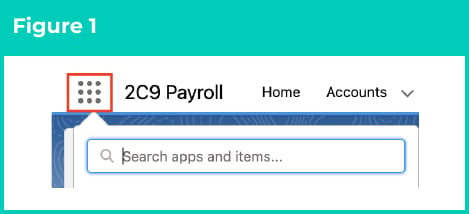
Click on the **App Launcher** icon (see Figure 1).
 2.
Select the **PO Management Process** App (see Figure 2).
2.
Select the **PO Management Process** App (see Figure 2).
 3. In the **Utilities Bar** at the bottom left of the screen, select **Flow** (see Figure 3).
 4.
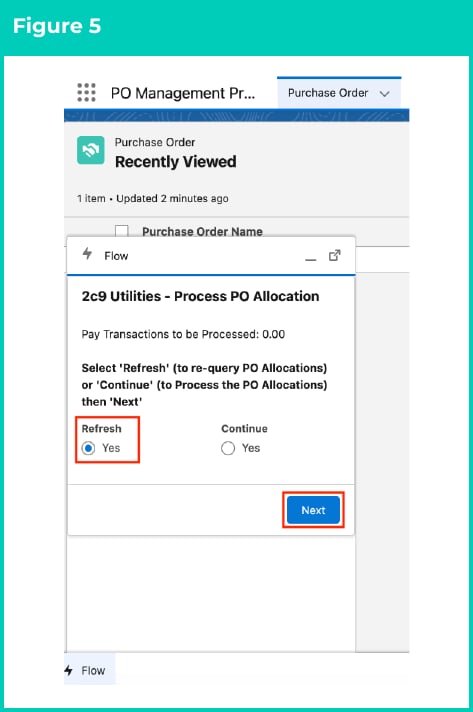
Select the **Yes** radio button for either **Refresh** (to re-query PO Allocations already applied but not Invoiced) or **Continue** (to Process PO Allocations to Pay Transactions not already allocated) and click **Next** (see Figure 5).
4.
Select the **Yes** radio button for either **Refresh** (to re-query PO Allocations already applied but not Invoiced) or **Continue** (to Process PO Allocations to Pay Transactions not already allocated) and click **Next** (see Figure 5).
 5.
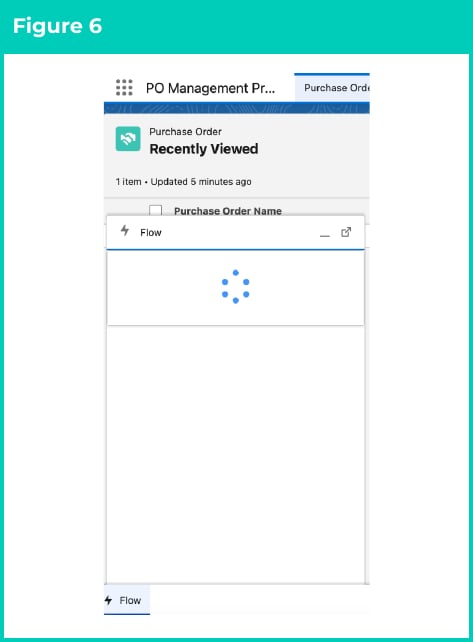
The process will run in the background to allocate Purchase Orders in line with the data created (see Figure 6).
5.
The process will run in the background to allocate Purchase Orders in line with the data created (see Figure 6).
 6.
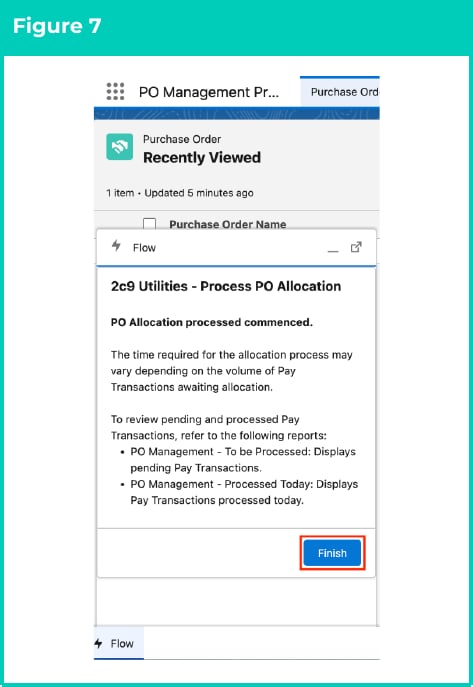
Users can select the **Finish** button to return the Flow to the initial screen, or select the minimise bar on the Flow to hide it from sitting across some of the screen (see Figure 7).
6.
Users can select the **Finish** button to return the Flow to the initial screen, or select the minimise bar on the Flow to hide it from sitting across some of the screen (see Figure 7).
 Once all Pay Transactions are processed in the PO Allocation Process, the following Pay Transaction fields will be populated:
* **Purchase Order**: Lookup to the Purchase Order found during the PO Allocation. If this value is NULL, no Purchase Order was found.
* **Purchase Order Number**: The ‘Purchase Order Number’ field from the related Purchase Order.
* **PO Allocation Notes**: This will display the results of the PO Allocation. This field will display success and error messages.
* **Process PO Allocation**\*: If a Purchase Order was found, this checkbox will be unchecked and the Pay Transaction will not be processed again. If no Purchase Order record was found, this field will remain checked and processed again the next time the PO Management process is run.
* **To be Invoiced?**: If a Purchase Order was successfully found, the ‘To be Invoiced?’ field will be set to checked and the Pay Transaction can now be invoiced.
## Field Descriptions
No field descriptions are required for this QRG document.
## Further Information
| Document | Document Type | Description |
| :--------------------------------------------------------------------------------------------------------- | :---------------- | :------------------------------------- |
| [QRG Create an Account - Invoice Entity](../data-set-up-and-creation/qrg-create-an-account-invoice-entity) | Task Instructions | How to create an Invoice Entity |
| [QRG Create Purchase Orders](/qrgs/utilities/qrg-create-purchase-orders-utilities) | Task Instructions | How to create Purchase Orders |
| [QRG Create Purchase Order Junctions](/qrgs/utilities/qrg-create-purchase-order-junctions-utilities) | Task Instructions | How to create Purchase Order Junctions |
Once all Pay Transactions are processed in the PO Allocation Process, the following Pay Transaction fields will be populated:
* **Purchase Order**: Lookup to the Purchase Order found during the PO Allocation. If this value is NULL, no Purchase Order was found.
* **Purchase Order Number**: The ‘Purchase Order Number’ field from the related Purchase Order.
* **PO Allocation Notes**: This will display the results of the PO Allocation. This field will display success and error messages.
* **Process PO Allocation**\*: If a Purchase Order was found, this checkbox will be unchecked and the Pay Transaction will not be processed again. If no Purchase Order record was found, this field will remain checked and processed again the next time the PO Management process is run.
* **To be Invoiced?**: If a Purchase Order was successfully found, the ‘To be Invoiced?’ field will be set to checked and the Pay Transaction can now be invoiced.
## Field Descriptions
No field descriptions are required for this QRG document.
## Further Information
| Document | Document Type | Description |
| :--------------------------------------------------------------------------------------------------------- | :---------------- | :------------------------------------- |
| [QRG Create an Account - Invoice Entity](../data-set-up-and-creation/qrg-create-an-account-invoice-entity) | Task Instructions | How to create an Invoice Entity |
| [QRG Create Purchase Orders](/qrgs/utilities/qrg-create-purchase-orders-utilities) | Task Instructions | How to create Purchase Orders |
| [QRG Create Purchase Order Junctions](/qrgs/utilities/qrg-create-purchase-order-junctions-utilities) | Task Instructions | How to create Purchase Order Junctions |